Remove an Announcement Card
Goal · Remove one announcement from a page and verify the result as a visitor.
Time · About 4 minutes.
You need · An editable draft or staged update and permission to remove blocks.
Watch the walkthrough
See how to match a card on the website to the expanded Blocks list, remove the card and its contents, and verify the result in Preview. The narration is in English. Turn on captions in the player controls.
Identify the announcement on the website
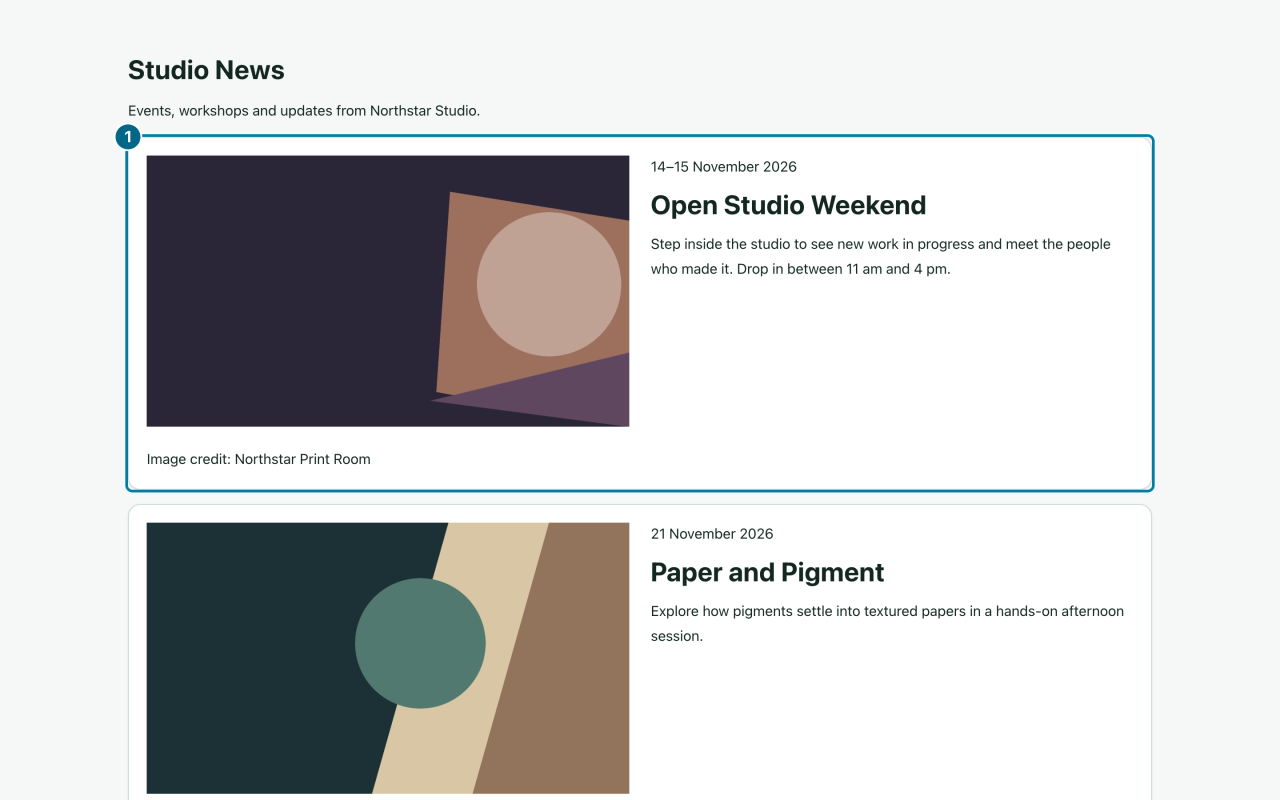
Open the page as a visitor. On Northstar Studio’s News page, the first announcement is Open Studio Weekend. Its picture, credit, date and description all belong to the same card. Note the exact title and the image caption. They help you tell the cards apart in the panel.
Find its Card in the block list
- In Pages, open News. If the page is already published, work in a staged update. Ask a site administrator to prepare one if you do not have access to that workflow. Open the page’s Main content area and select Edit blocks.
- In the Blocks heading, select Expand all. The rows open so you can see what each card contains. The same button becomes Collapse all, which folds the list back up. To inspect just one branch, use the arrow on its row.
- Find Open Studio Weekend in the Summary column on a Header row. Confirm that the same branch contains the Image with the matching caption. Follow the indentation and guide lines back to the Card that contains both. The other announcements have their own Card rows at the same level.
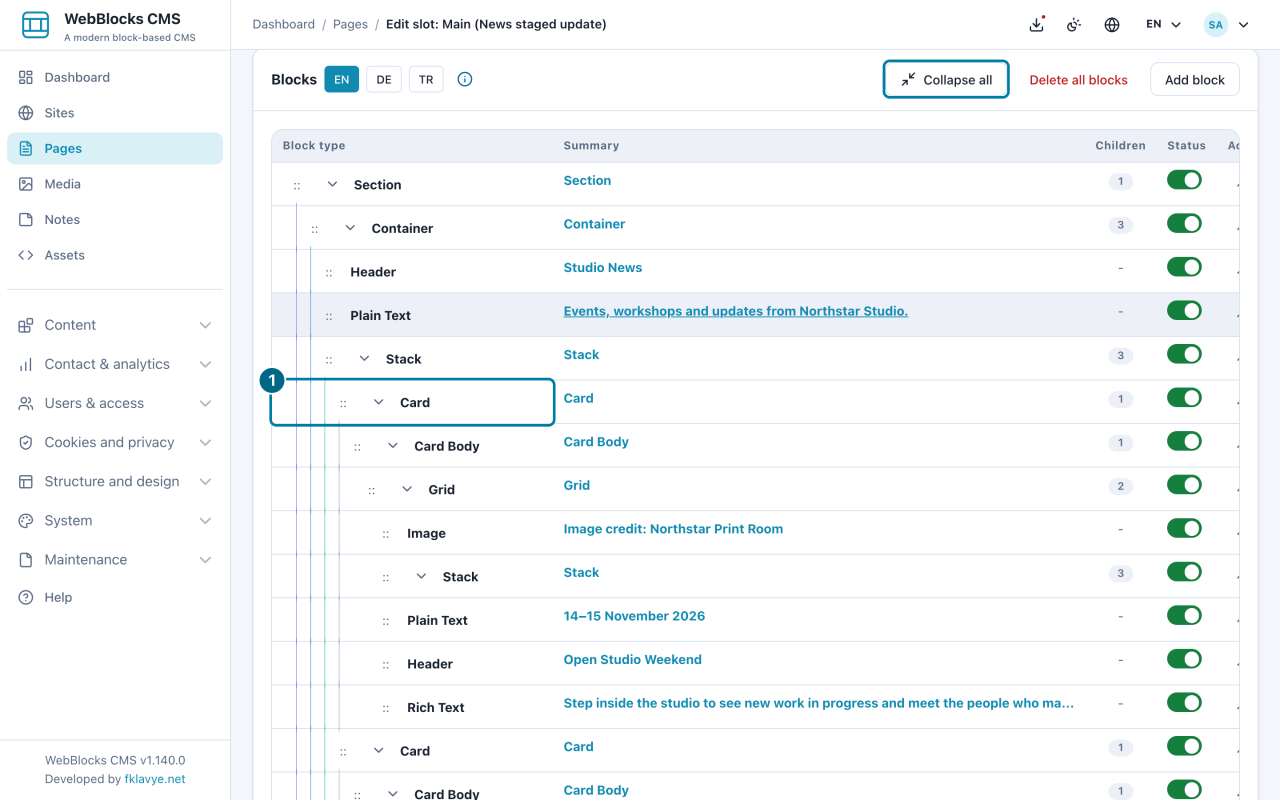
In this example, Section groups the news list and Container sets its width. The outer Stack places the cards one below another. Each Card represents one announcement, and its Card Body holds the main content. Inside the body, Grid positions the image next to an inner Stack that keeps the date, heading and description together.
Remove the card and check the page
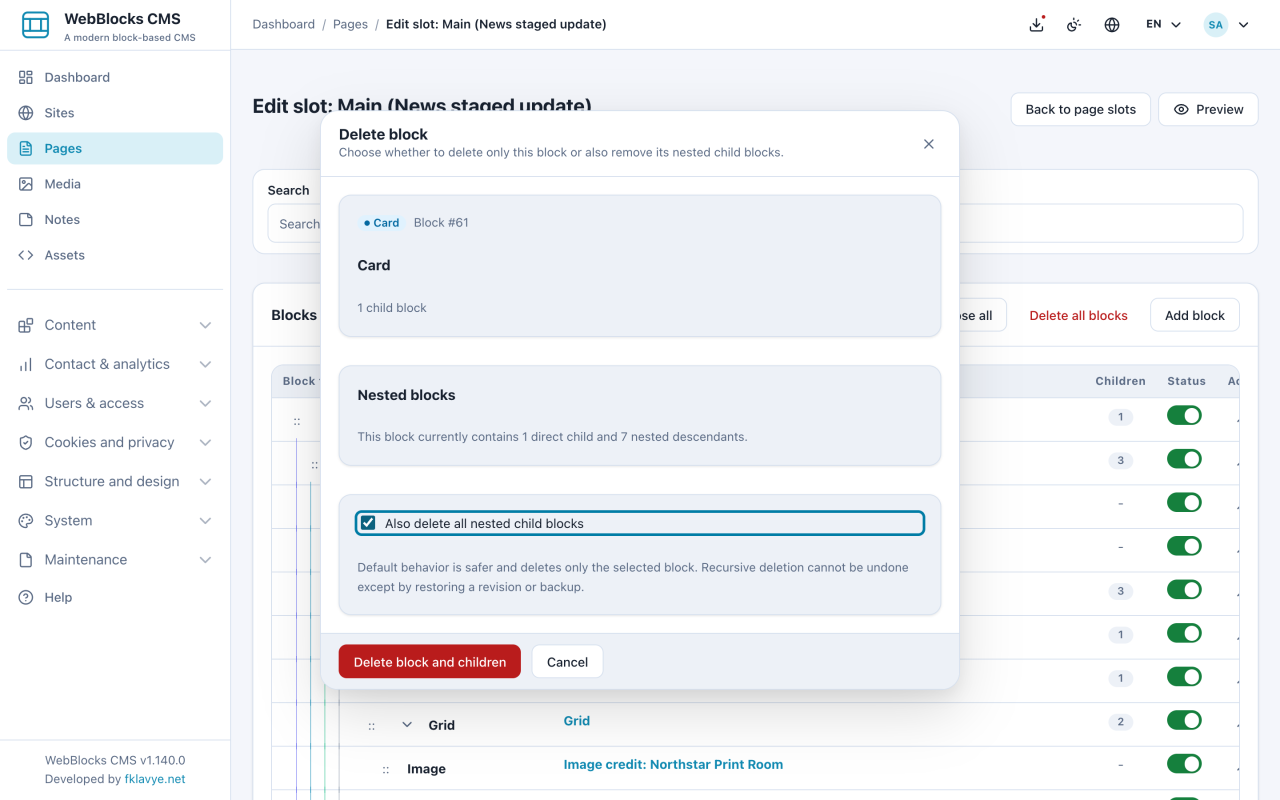
- Use the trash icon under Actions on the Card row you identified. Scroll the block table sideways if the Actions column is outside the visible area. In the confirmation dialog, check the block type and the count of nested blocks. Select Also delete all nested child blocks, then Delete block and children. This removes the whole announcement, including its picture, credit and text.
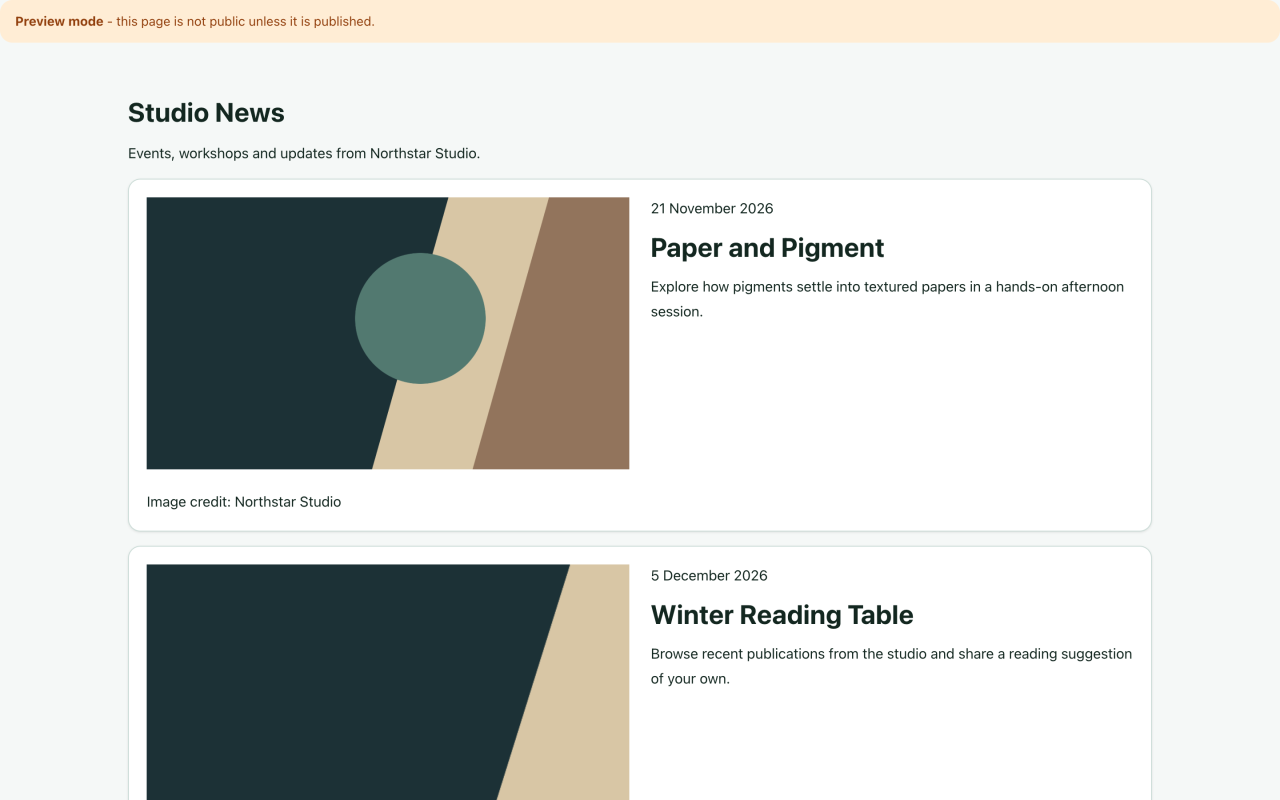
- Open Preview from the saved block list. Confirm that Open Studio Weekend is gone, Paper and Pigment is now first, and the other announcements are still in order. Check the preview at a narrow width as well.
If you only need to replace the picture, open its Image row, choose another image and review its alt text and caption. The Card keeps the date and announcement text.
Related · Add an image · Build a card · Review and restore a revision