Change A Page Address
Goal: Change where a page lives, and fill in what search engines and social networks show.
Time: 3 minutes
You need: A page you can edit
Steps
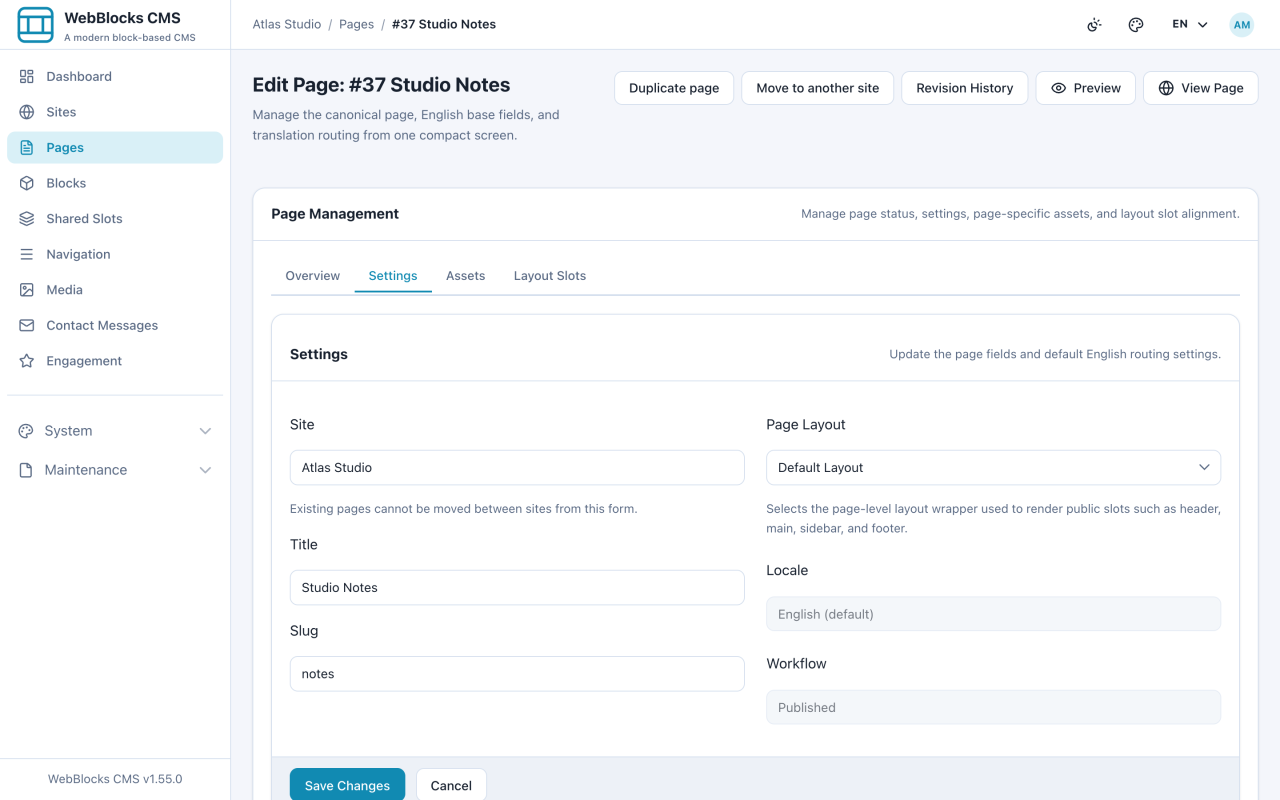
- Open the page from Pages and select Edit page.
- On the Settings tab, change the Slug and select Save Changes. This is the quick edit for the default language.
- For the full address, scroll to Translations and select Edit translation on the row you want.
- Under Routing, set the Slug and the Path. The path is the whole address, so a page can live under a section:
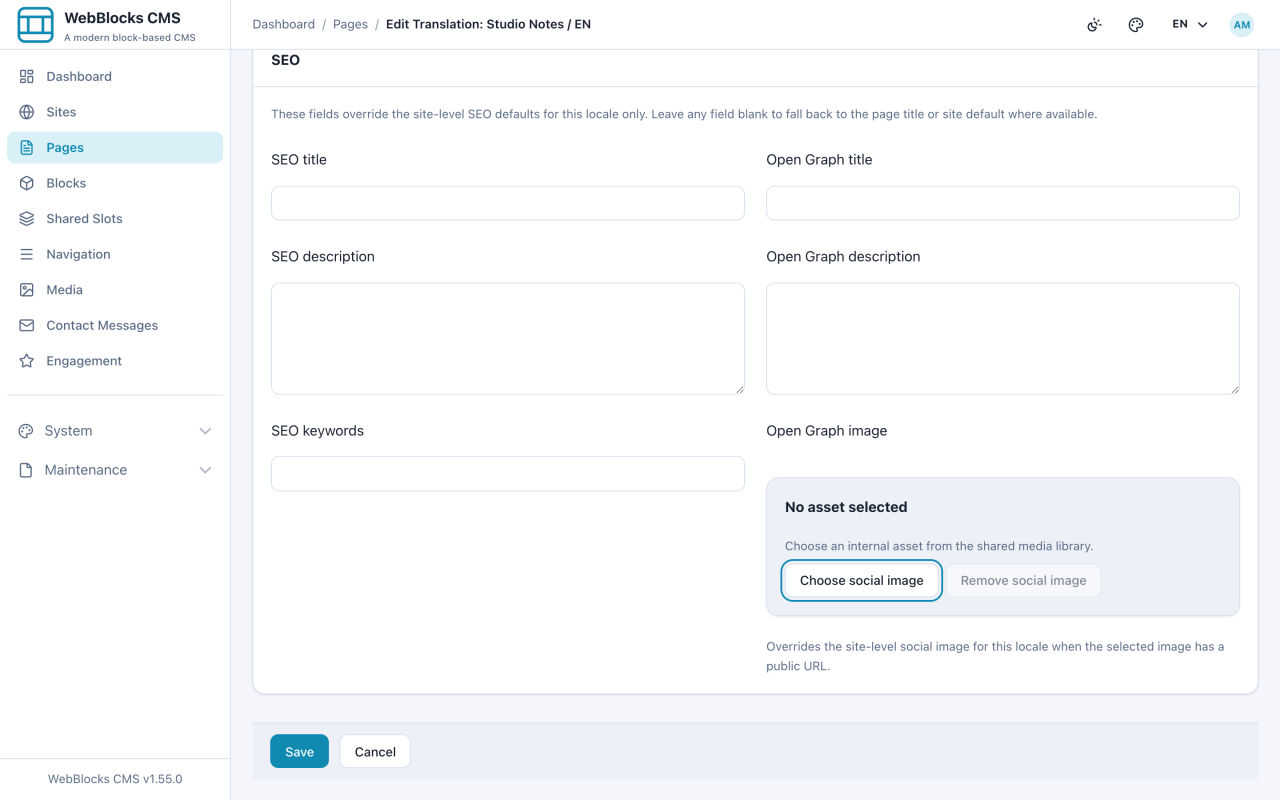
/guides/change-a-page-address. - While you are here, fill in SEO title and SEO description, and pick a social image if the page will be shared.
- Select Save Changes, then use Open to check the new address resolves.
Example
Routing
  Name: Change A Page Address
  Slug: change-a-page-address
  Path: /guides/change-a-page-address

SEO
  SEO title:       Change a page address — WebBlocks CMS Guides
  SEO description: Rename a page's slug and path, and set the SEO and
                   social fields that search engines show.
Notes
- Do this early. Once a page is published and linked to, changing its address breaks those links — the CMS does not leave a redirect behind for you.
- Slug and path are per language. Each translation has its own address, which is what lets
/aboutand/hakkimizdabe the same page. - The SEO description is what shows under the title in search results. Write it for a person deciding whether to click.
- Leaving SEO title empty is fine; the page title is used instead.