Buttons And CTA
Goal: Ask the reader to do something, with a button or a whole panel.
Time: 3 minutes
You need: A page and somewhere to send people
Steps
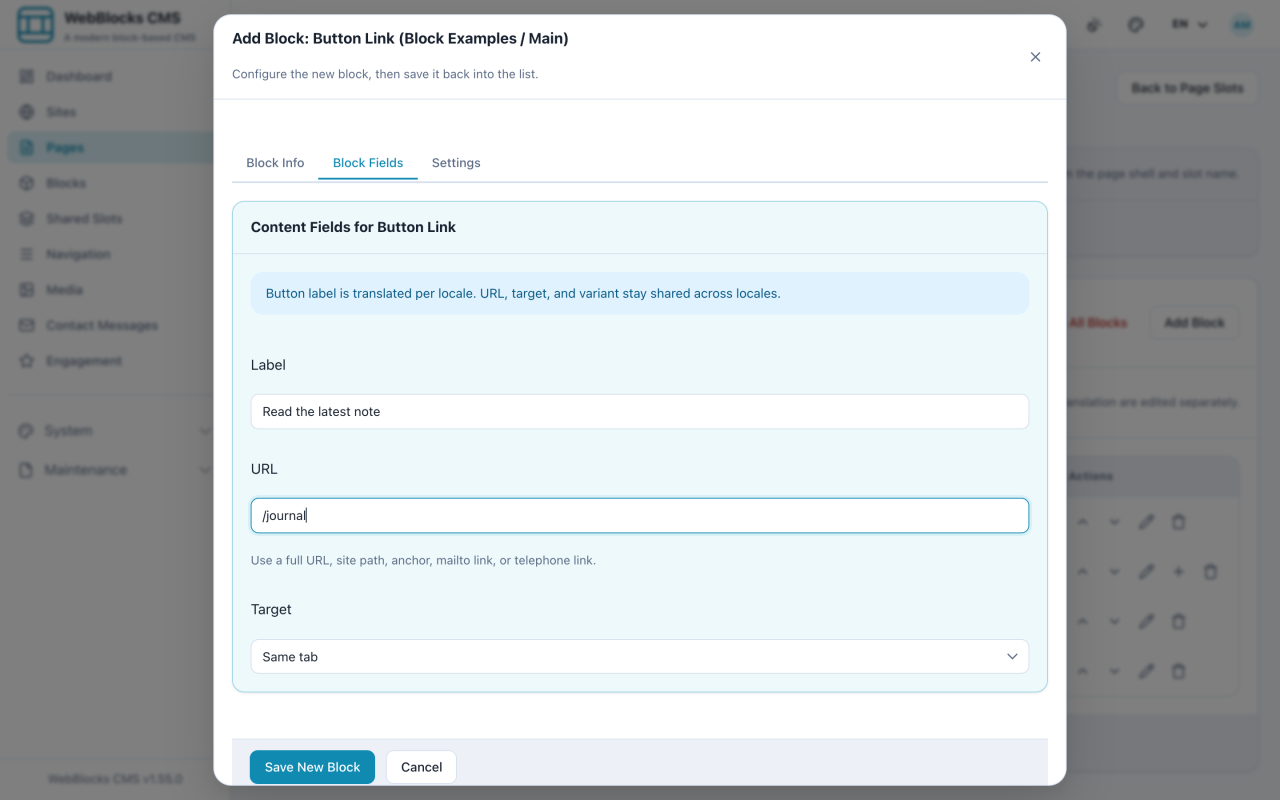
- For a single action, select Add Block and choose Button Link.
- Fill in Label and URL. Set Target to
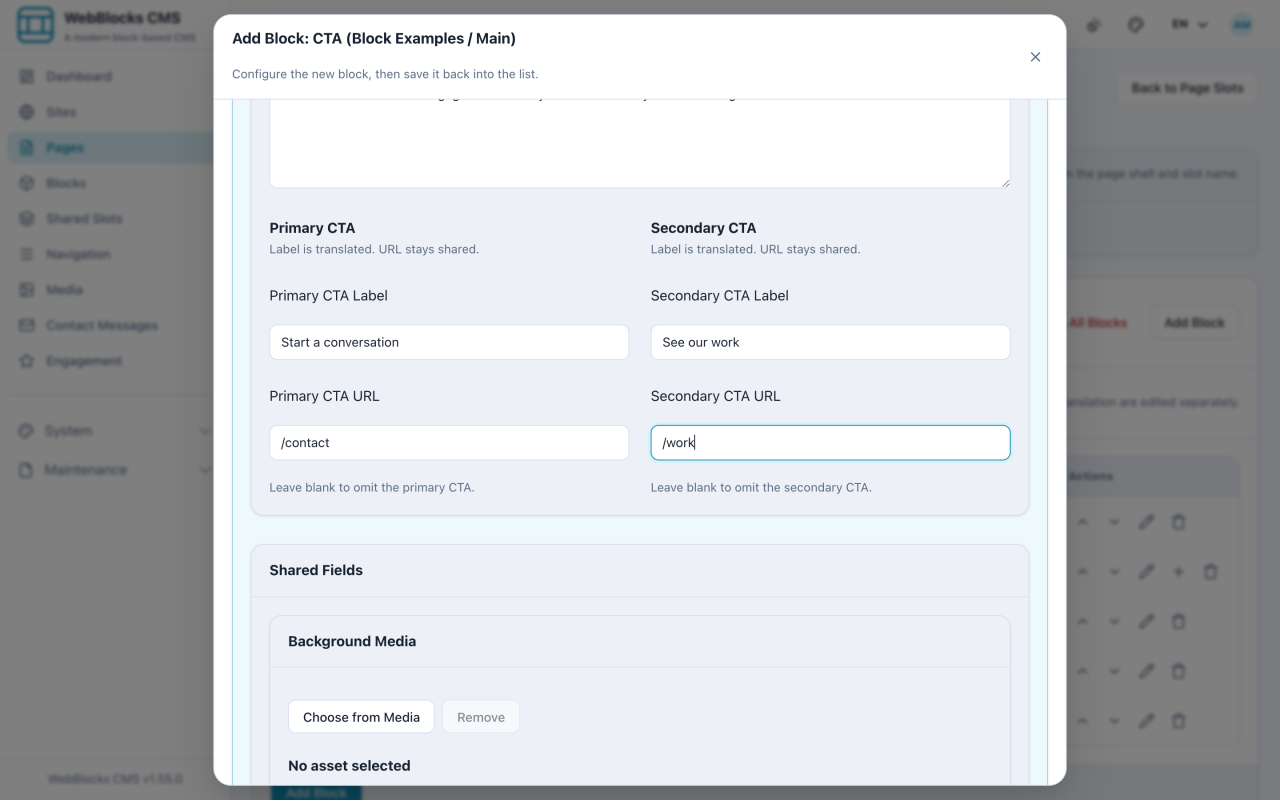
_blankonly when the link leaves your site, and pick Variant: primary for the main action, secondary for anything else. - For a full panel, select Add Block and choose CTA.
- Fill in Eyebrow / Label, Heading, and Body Copy, then the Primary and Secondary CTA label and URL pairs.
- Optionally add a background image with Background Position and Overlay, and pick a Variant.
- Select Save New Block.
Button Or CTA?
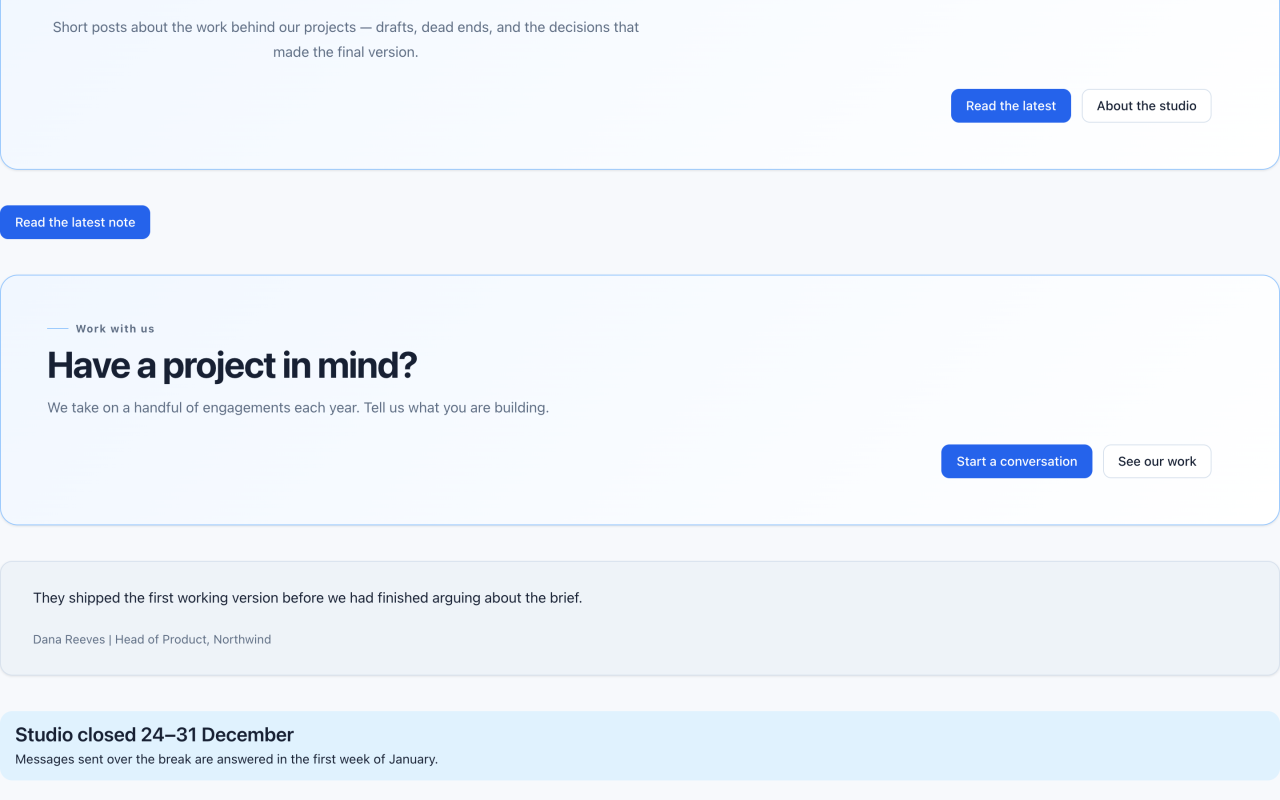
Button Link is one action inside your normal flow of content — after a paragraph, at the end of a section.
CTA is a panel that interrupts the page to make an offer. It brings its own heading, copy, background, and up to two actions.
If you find yourself adding a heading and a paragraph just to introduce a Button Link, you wanted a CTA.
Notes
- One primary button per view. If everything is primary, nothing is.
- Write the label as the action:
Start a conversationbeatsClick hereandSubmit. - A URL can be a site path, a full address, an anchor, or a
mailto:ortel:target. - CTA actions, like Hero actions, are part of the block. You do not add Button Link blocks inside a CTA.