Chat With Visitors Using WebBlocks Live Chat
Answer website visitors from the CMS where your team already works. WebBlocks Live Chat adds a public chat widget and a site-scoped operator inbox. Visitors start a conversation on your website; authorized CMS operators read and reply in the panel. The conversation is hosted by your installation, with no separate hosted chat account or WebSocket service required.
Our example is Northstar Studio. Ada asks about a workshop, an operator replies, and Ada adds more detail. You will distinguish unread messages from unanswered conversations, search message history, close and reopen a thread, then configure offline intake and confirm the operator notification for Robin's message.
This guide uses the published Live Chat 0.7.2 archive on WebBlocks CMS 1.106.2, with English interface text, light theme and fictional people, messages and addresses. Product screens come from a disposable showcase. Sidebar badges and offline operator emails were exercised through the normal installed-plugin workflow. The loopback SMTP receiver accepted the test emails without delivering them externally. Production scheduling and real mailbox delivery were not tested.
For the package and API contract, see the Live Chat reference. If you need installation help, begin with Plugin System. Live Chat handles conversations with website visitors; the separate Support walkthrough connects CMS users to an installation's support provider.
Before you start
Use a test site and a Super admin account for plugin installation. The published package requires PHP >=8.4 and CMS ^1.106.2; the catalogue lists Laravel ^13.0. That CMS minimum starts installed plugin notification channels and panel components during normal requests, including hosts with cached routes. Review compatibility for your actual host before downloading the package from the official plugin catalogue.
Have a page that visitors can open and an operator account with access to its site. Our fictional page is Talk to Northstar Studio, at /studio-help. Its headings and cards are ordinary CMS blocks; no Live Chat block is inserted into the page. The enabled plugin provides the launcher on the selected site's public pages.
Plan who will answer and what the online/offline wording should promise. Availability is a manual intake setting; it does not detect an operator's presence or guarantee an immediate answer. Normal chat replies appear in the widget. Visitor reply emails are disabled in this release, even if a visitor provides an address.
1. Install and enable Live Chat
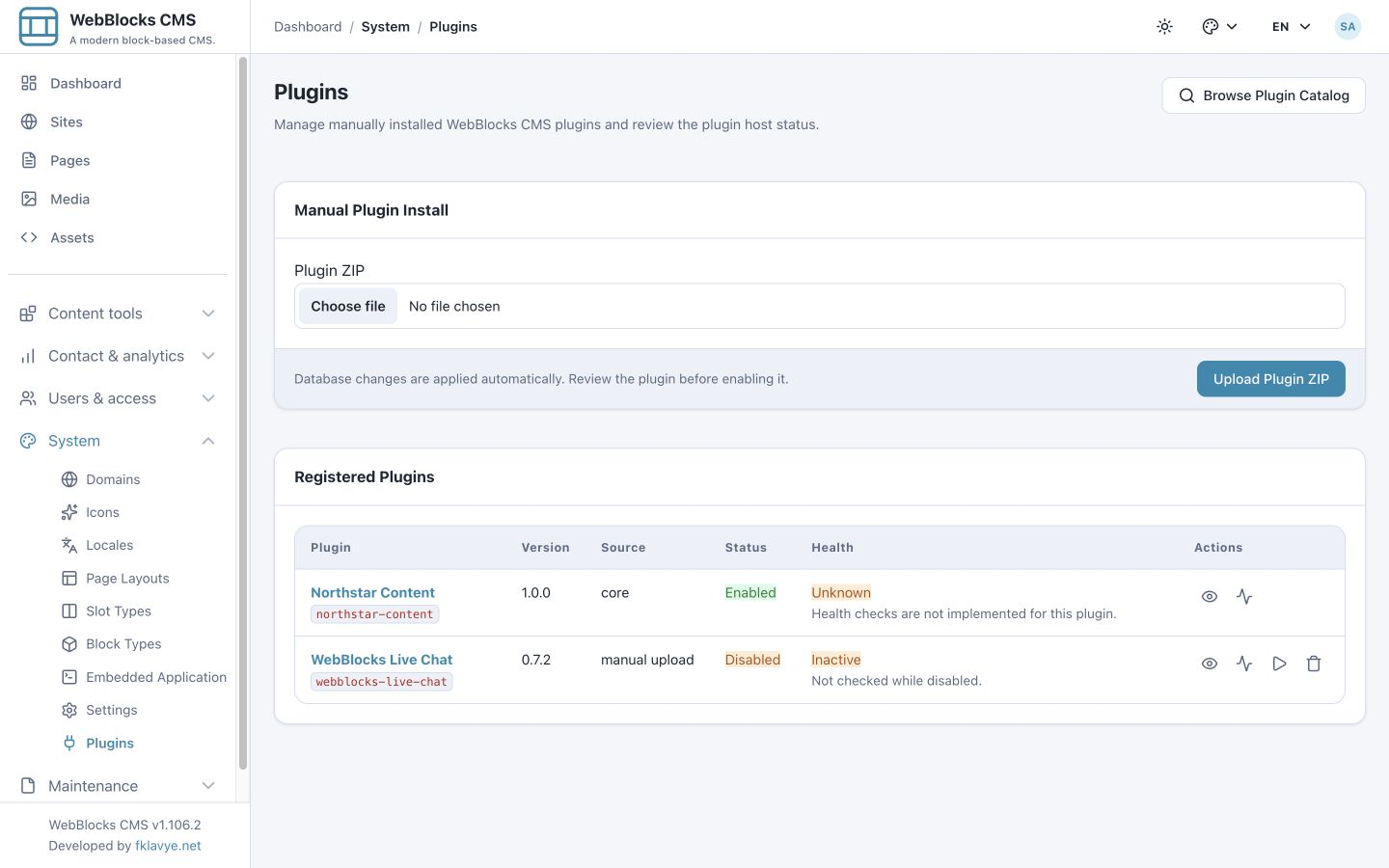
- Open System → Plugins as Super admin.
- Select Browse Plugin Catalog and find WebBlocks Live Chat.
- Review the version, compatibility result and release notes.
- Use Install from Catalog, open the installed details and select Enable Plugin.
- If your administrator supplies the trusted published archive, select it under Plugin ZIP, choose Upload Plugin ZIP, review the installed package and enable it.
Our example uses the official published ZIP. A newly installed plugin starts disabled.
Current CMS installation and activation apply plugin database changes. Check the details for the expected version, Enabled lifecycle and a ready storage result. Resolve migration or compatibility warnings before collecting visitor messages. Do not treat an older host's overlay warning as a cosmetic issue; update to a compatible host before deploying this release.
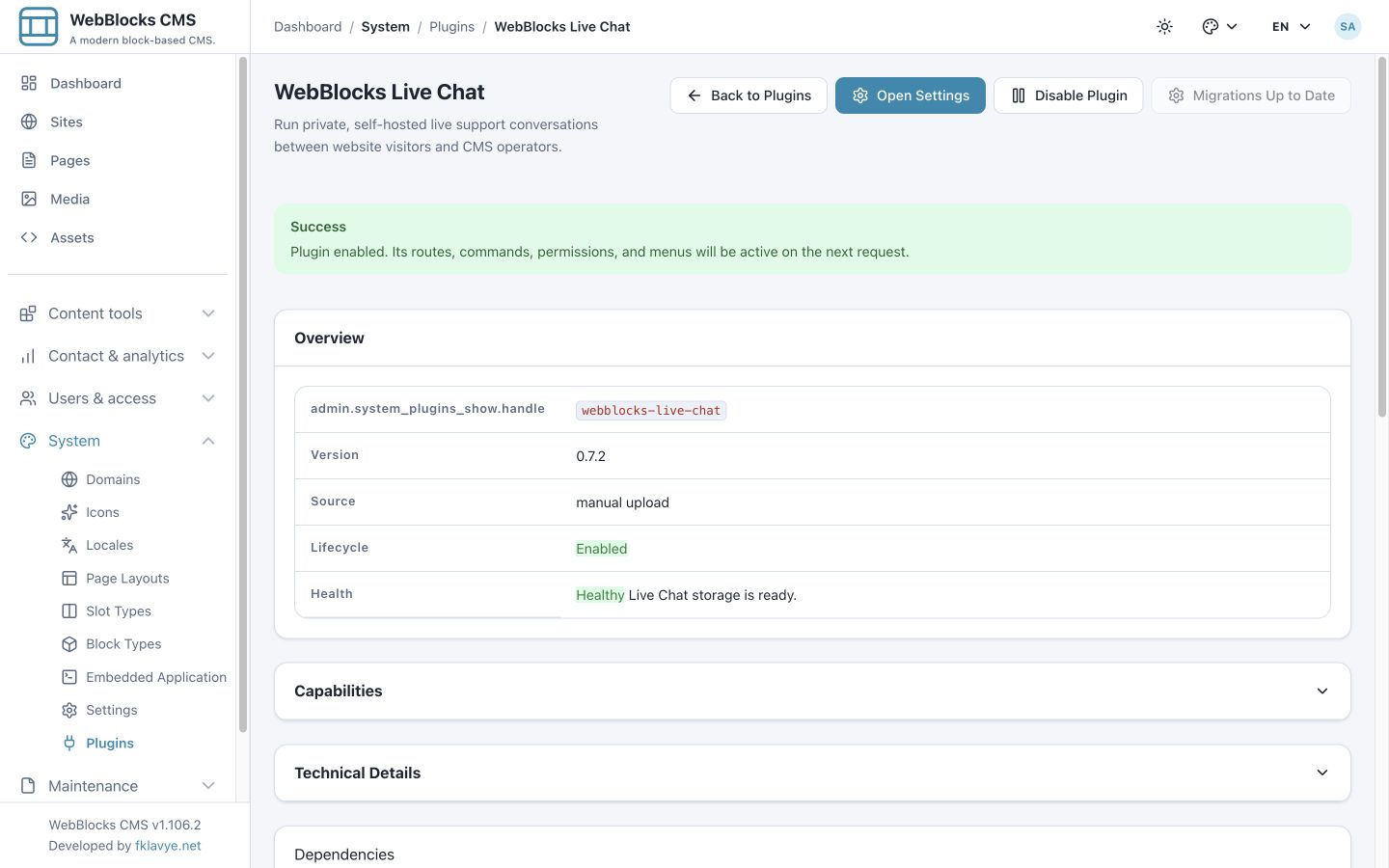
Open Open Settings, or use Live Chat → Live Chat Settings in the navigation. The settings heading names the selected site. On a multi-site installation, select the intended site before changing settings or opening its inbox.
2. Assign operator permissions
Live Chat separates reading, replying and configuration:
| Permission | What it permits | Typical user |
|---|---|---|
| webblocks-live-chat.view | Read the selected site's conversations and see permitted panel notices. | An operator who needs inbox visibility. |
| webblocks-live-chat.reply | Send operator replies, close conversations and reopen them. | An operator responsible for answering. |
| webblocks-live-chat.manage | Configure the widget and change availability for an accessible site. | The person managing chat setup. |
Give answering operators view and reply access. A settings manager should also have view access if they need to work in the inbox. Site access is an additional boundary: plugin permissions do not grant access to every site's conversations. See Roles And Permissions before changing a shared role.
Unlike the Support plugin's reporter-specific list, Live Chat is a site operator inbox. Authorized operators for the site can work with its visitor conversations. Keep that distinction in mind when granting access to conversations that may contain personal information.
3. Enable the public widget
In Live Chat Settings → General settings, set:
| Control | Northstar example | Meaning |
|---|---|---|
| Enable the public chat widget | On | Makes the public launcher available. |
| Availability | Online | Uses online intake copy; it does not measure staff presence. |
| Widget position | Right | Places the launcher on the right side of the viewport. Left is also available. |
| Require email when offline | On | Makes email mandatory for new conversations when availability is Offline. |
| Notify operators of offline messages | Off initially | Keep email separate while checking the chat itself. |
Select Save settings in the general card. Enabling the plugin and enabling a site's public widget are separate actions.
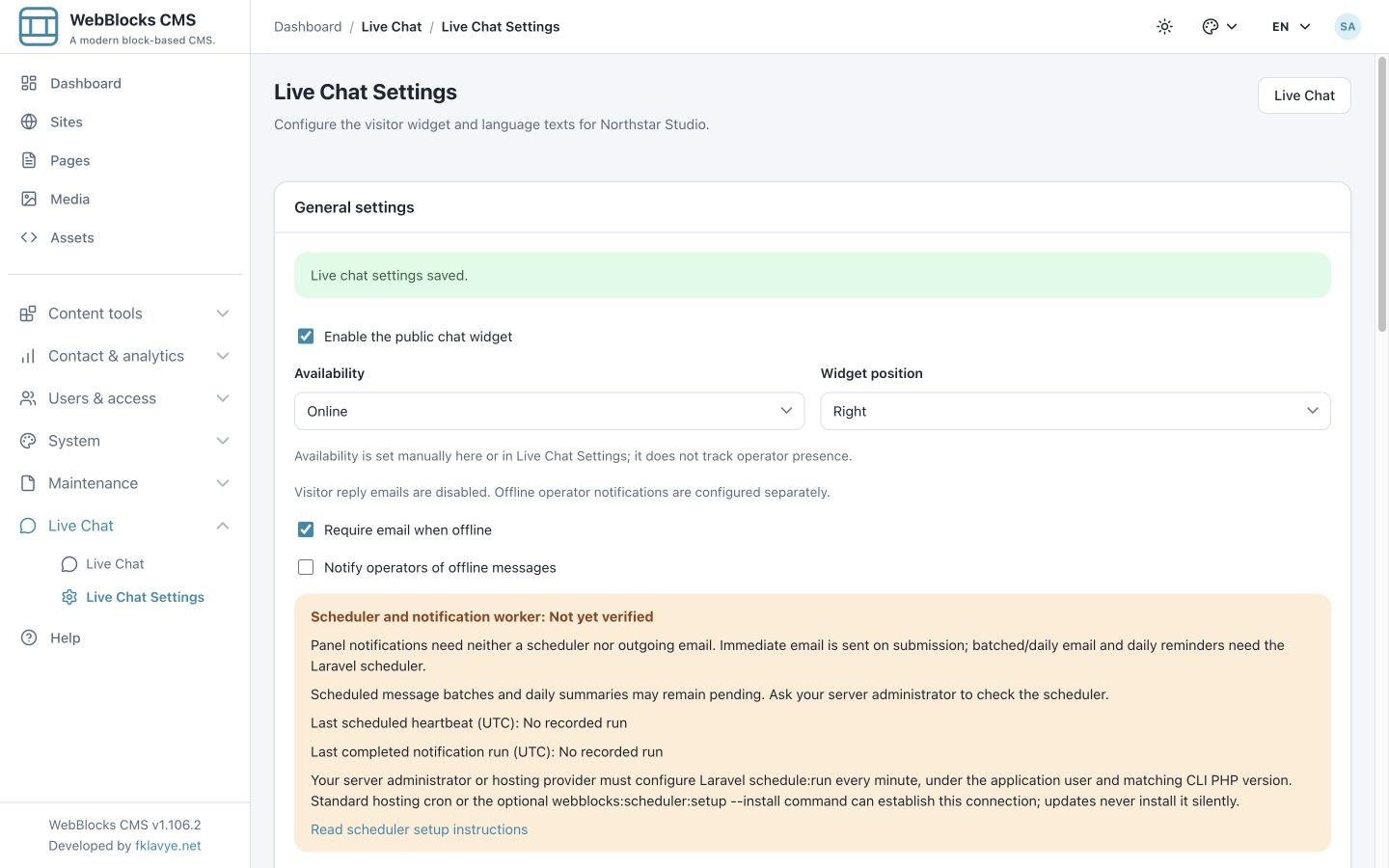
The page also shows the inherited site notification policy and recorded scheduler health. Those concern email delivery, not whether a visitor can start an online conversation. We configure email later, after confirming messages work in both directions.
4. Write the widget's language texts
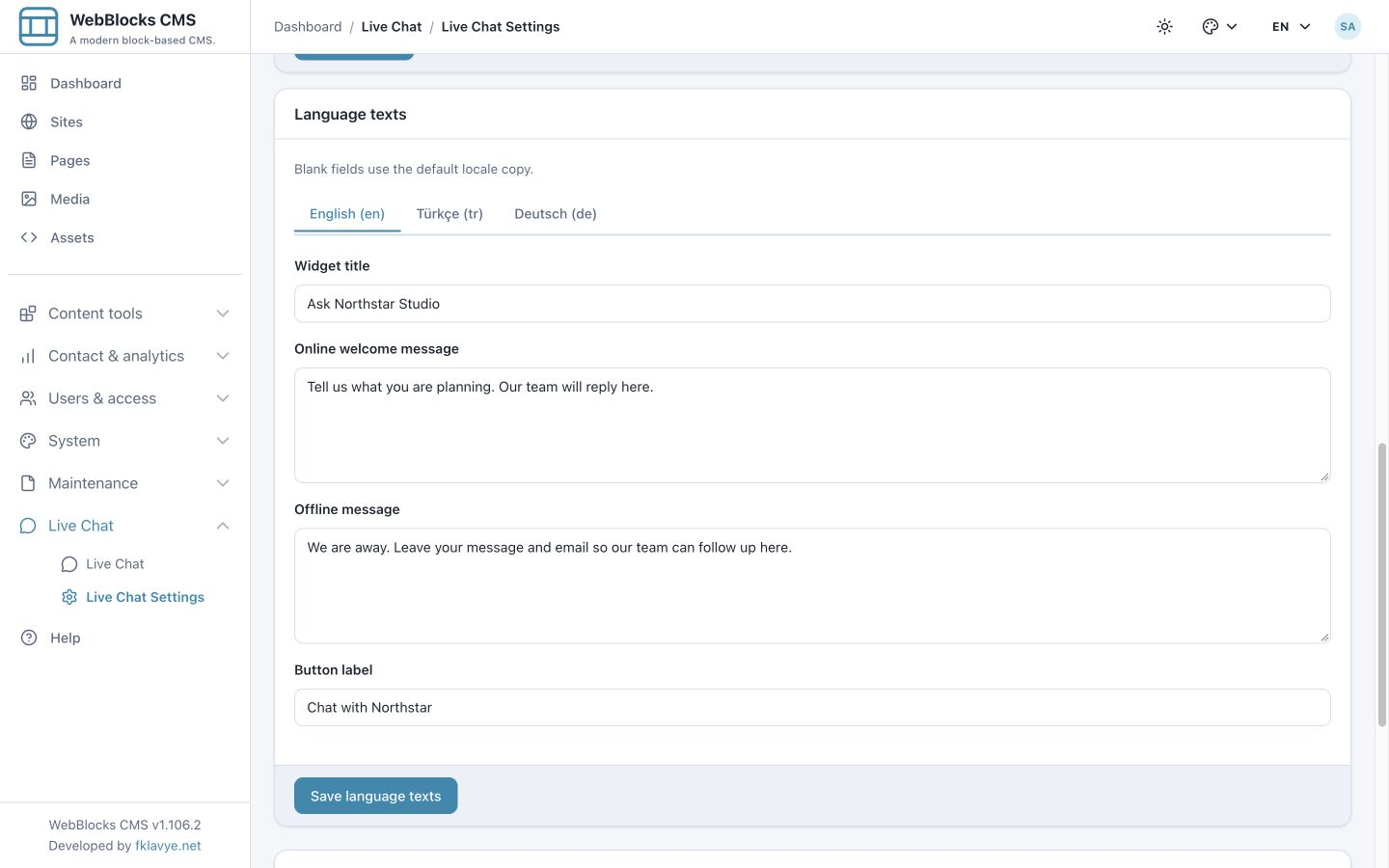
Scroll to Language texts. Each enabled site language has a tab. For English, enter:
| Field | Example |
|---|---|
| Widget title | Ask Northstar Studio |
| Online welcome message | Tell us what you are planning. Our team will reply here. |
| Offline message | We are away. Leave your message and email so our team can follow up here. |
| Button label | Chat with Northstar |
Choose Save language texts in this card. This is a separate form from General settings: saving language text preserves general options, while saving general options preserves language copy. Confirm the success message for the form you actually saved.
Repeat for other enabled site languages when needed. Missing copy falls back to the default language and then legacy copy. Titles and button labels allow up to 120 characters; localized welcome and offline messages allow 500 characters. If a language is missing, enable it for the site first using Add A Language To A Site.
Promise the channel you provide. Wording such as “We reply here” fits this release; “We will email your reply” would misrepresent its visitor delivery behavior.
5. Check the public launcher
Open a published page on the configured site. In our example, the Northstar page shows Chat with Northstar in the lower-right corner. The panel stays closed until the visitor chooses the launcher.
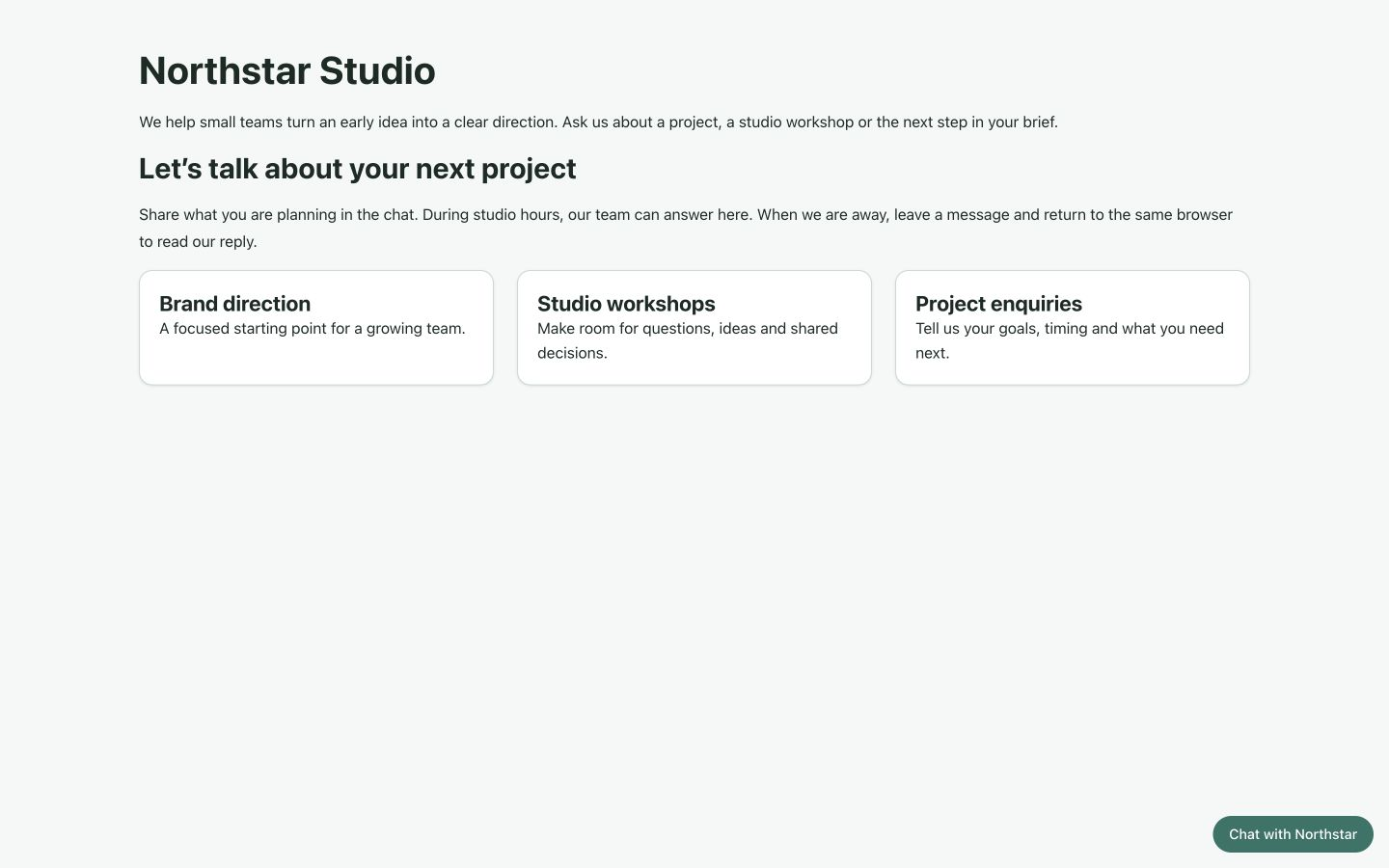
The widget is supplied by the plugin's public assets. You do not add an external embed script, configure a hosted chat account or insert a chat block into each page. If the launcher is absent, check plugin activation, selected site, widget enablement and whether the public layout loads the supported CMS assets.
Test in an appropriate visitor session. Live Chat applies separate limits to starting a conversation, sending a message and polling for updates. Normal notification polling does not consume the conversation-start allowance. If the interface reports Too Many Attempts, stop repeated submissions, let the normal rate-limit window expire and retry once.
6. Start a visitor conversation
Choose the launcher. The panel shows the title and welcome message you saved. For the online example, enter Ada under Your name, leave Email (optional) empty, and describe the enquiry under How can we help?
Hello! We are planning a small brand workshop.
Do you have space next month?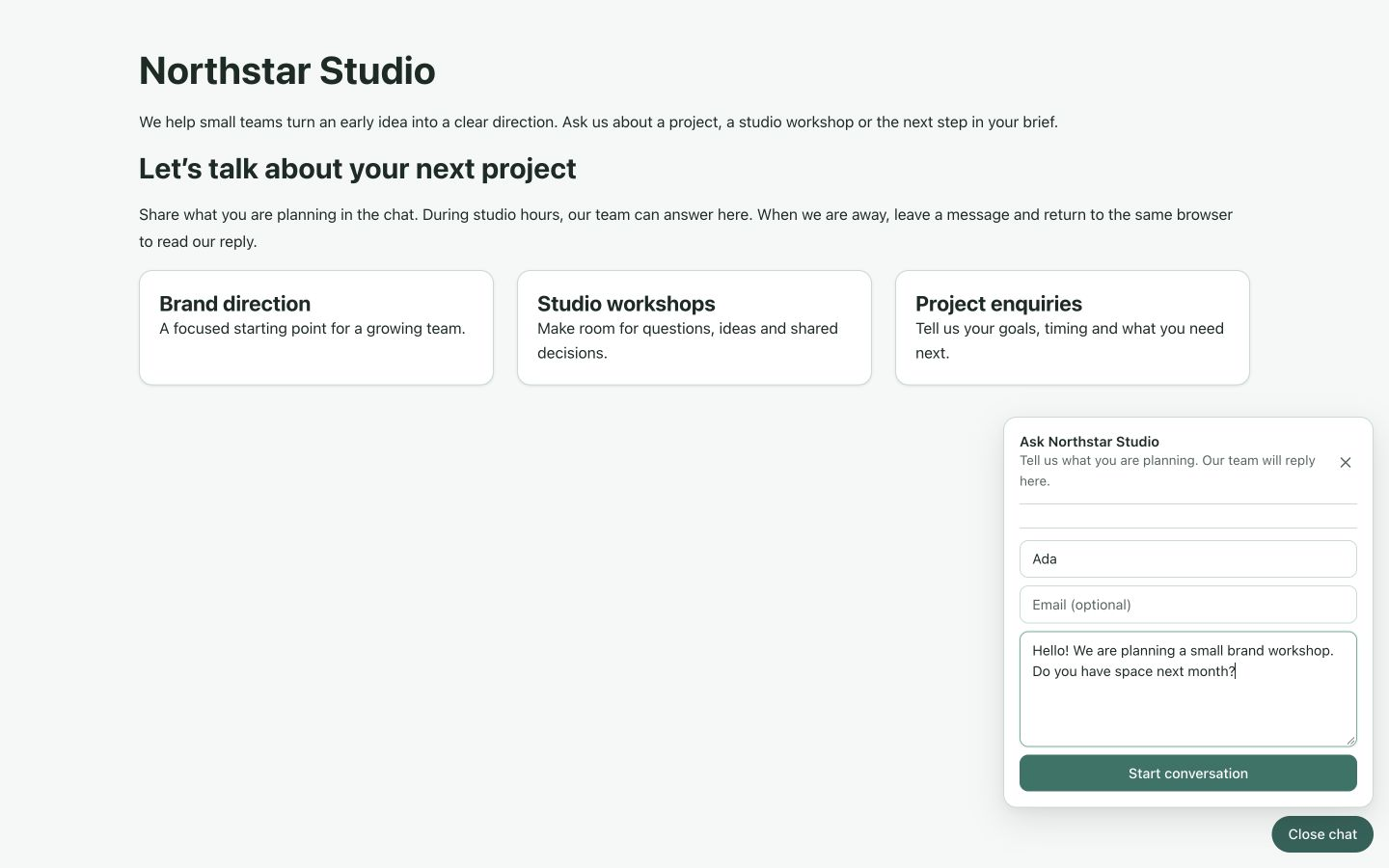
Choose Start conversation. The initial message appears in the transcript, and the intake form changes to a message field with Send.
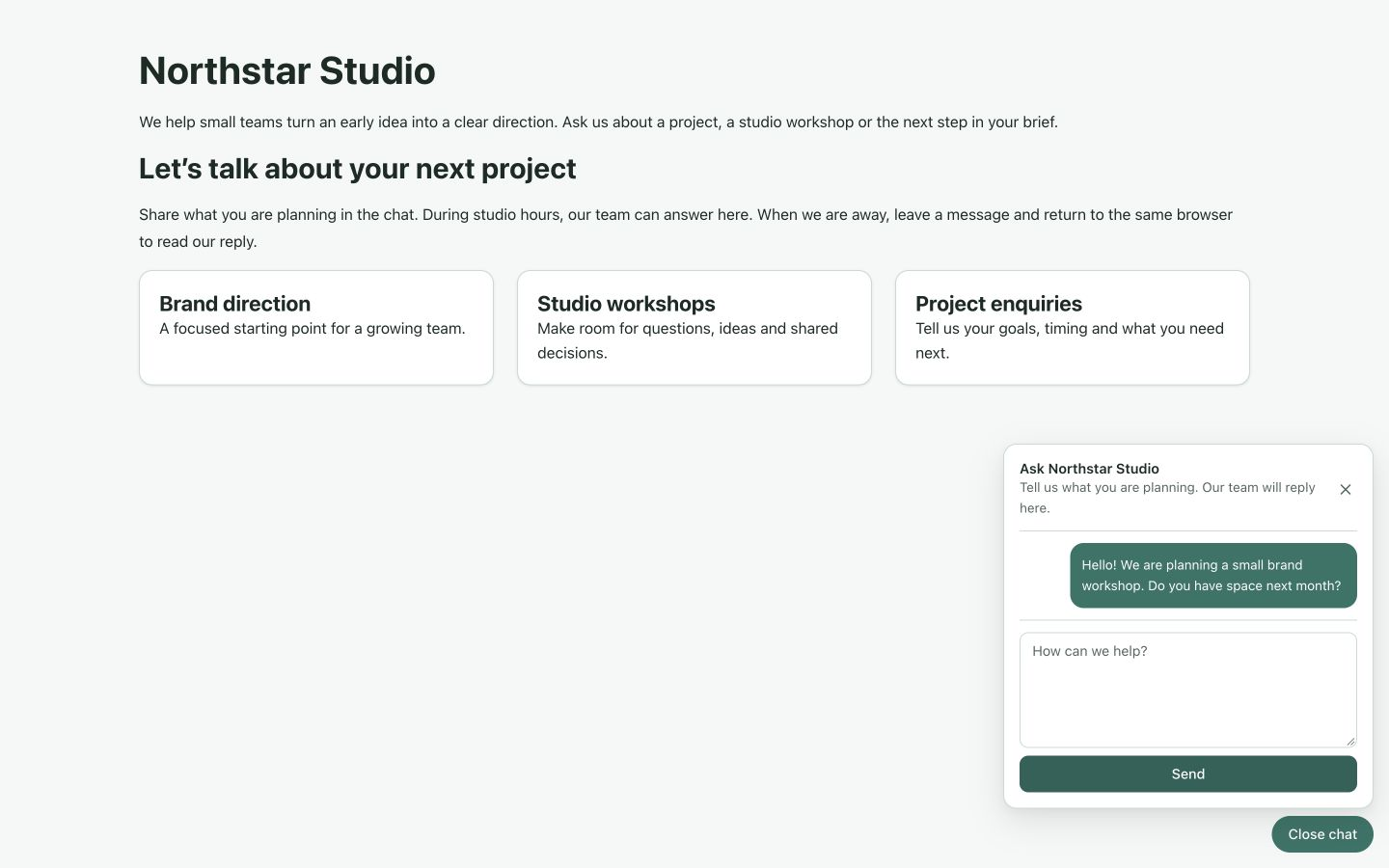
Names allow up to 100 characters, email addresses up to 255, and visitor messages up to 4,000. Use a short, useful first message and avoid confidential information that does not belong in a support conversation. Providing an email address does not enable visitor reply emails.
The visitor's browser retains a private conversation credential to continue the thread. It is not an operator login. Do not copy it into a screenshot, URL shared with a colleague or troubleshooting note. Clearing browser storage, changing browser profiles or moving to a different origin may lose the visitor's access to that thread; the plugin does not provide an email-based recovery screen here.
7. Find the conversation in the operator inbox
Open Live Chat in the CMS and confirm the site named below the heading. The inbox shows widget state, manual availability and counted views:
| View | What it contains |
|---|---|
| Open conversations | Active threads operators can answer. |
| Awaiting reply | Open threads whose latest message is from a visitor, even if already read. |
| Unread conversations | Open threads with unread visitor messages. |
| Closed conversations | Finished threads retained for reference. |
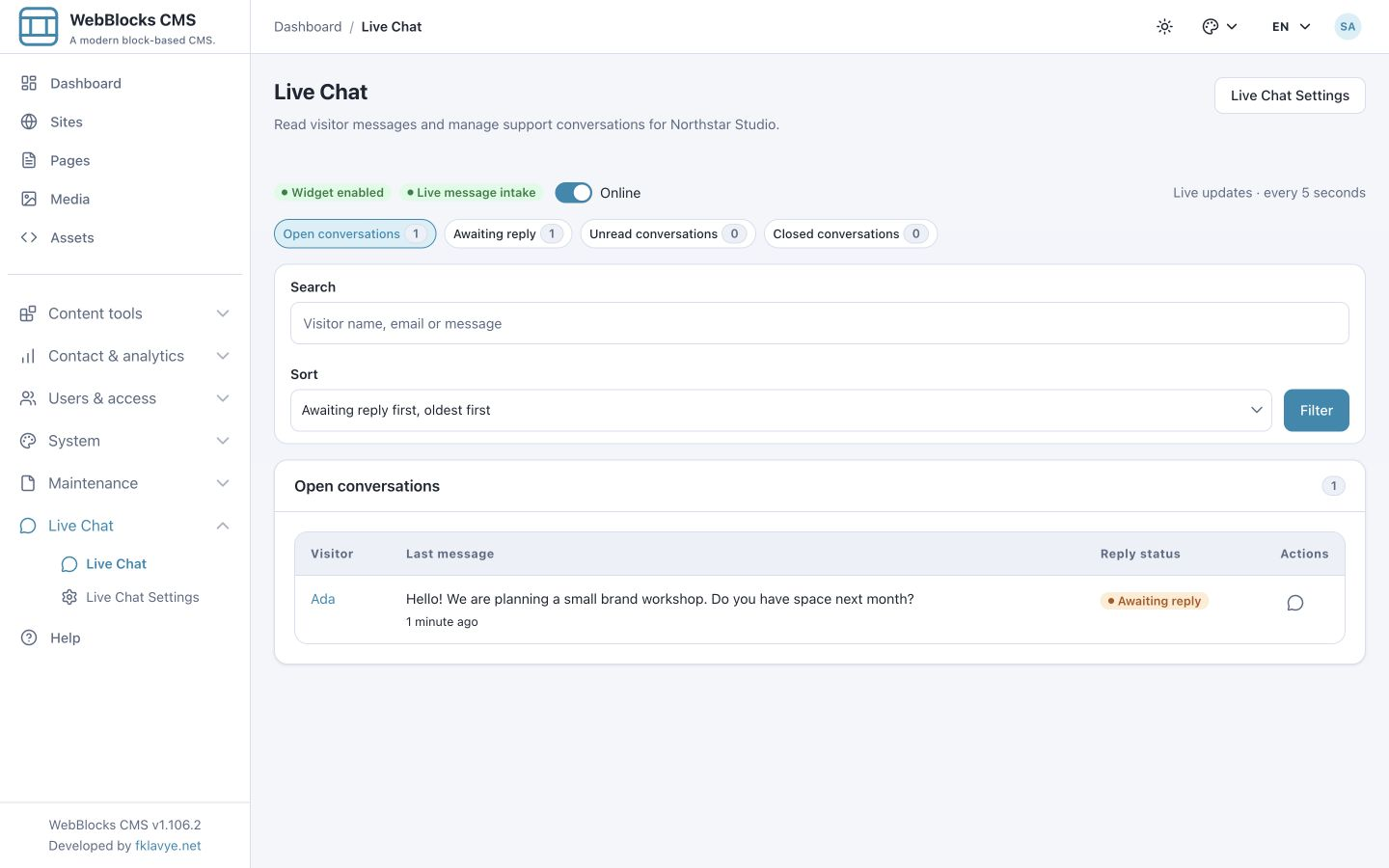
Ada initially appears with 1 unread and Awaiting reply. The list previews the latest message and provides a View conversation action.
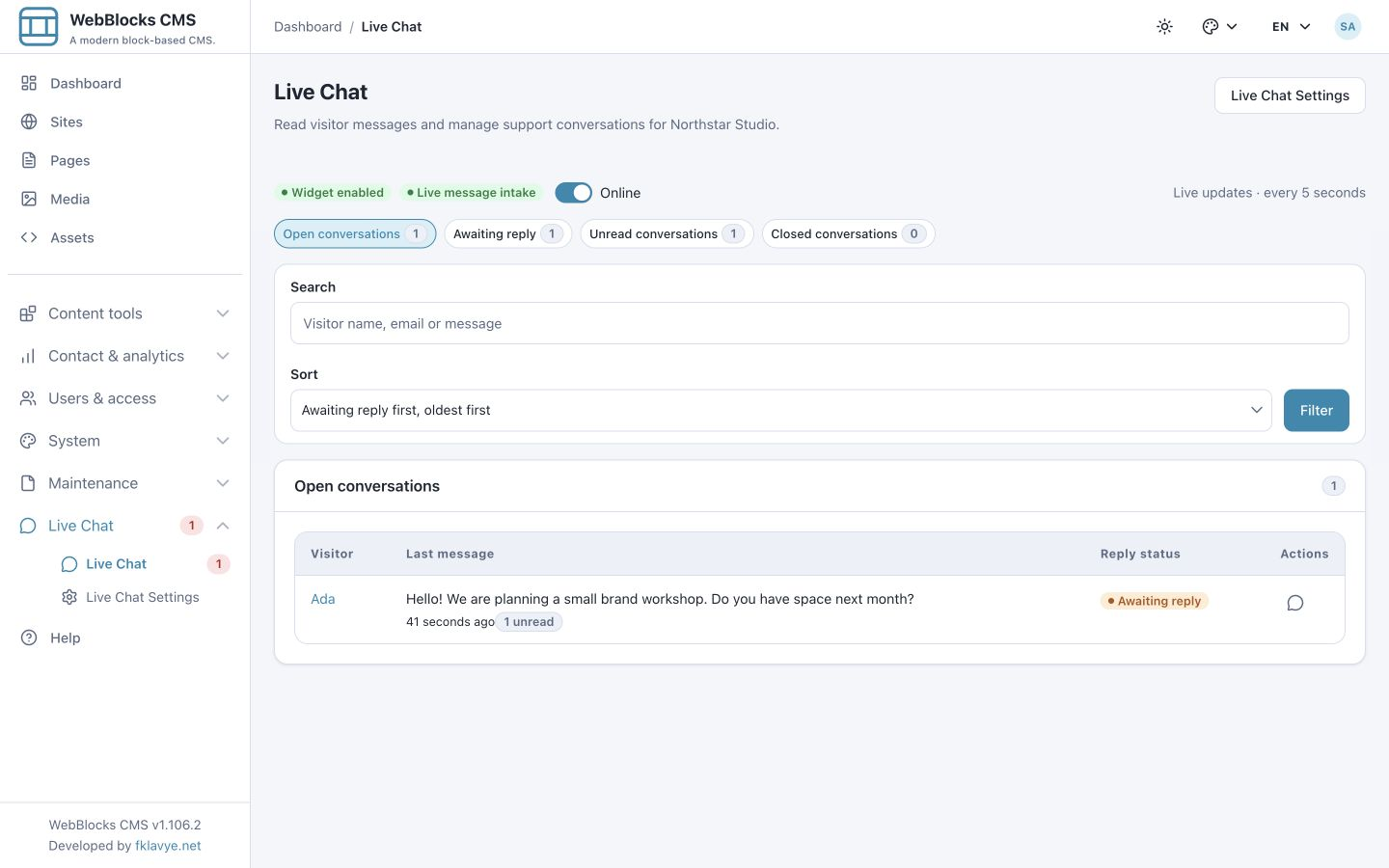
The default open order prioritizes conversations awaiting a reply, using the oldest last message first. You can also choose Latest message first or Oldest message first. The closed view defaults to latest first. Choose the order that fits your support process rather than treating the first row as an automatic priority decision.
8. Read the message without confusing it with a reply
Open Ada's name or View conversation. Visitor bubbles appear on the left and operator bubbles on the right, with day separators and times using the site's timezone.
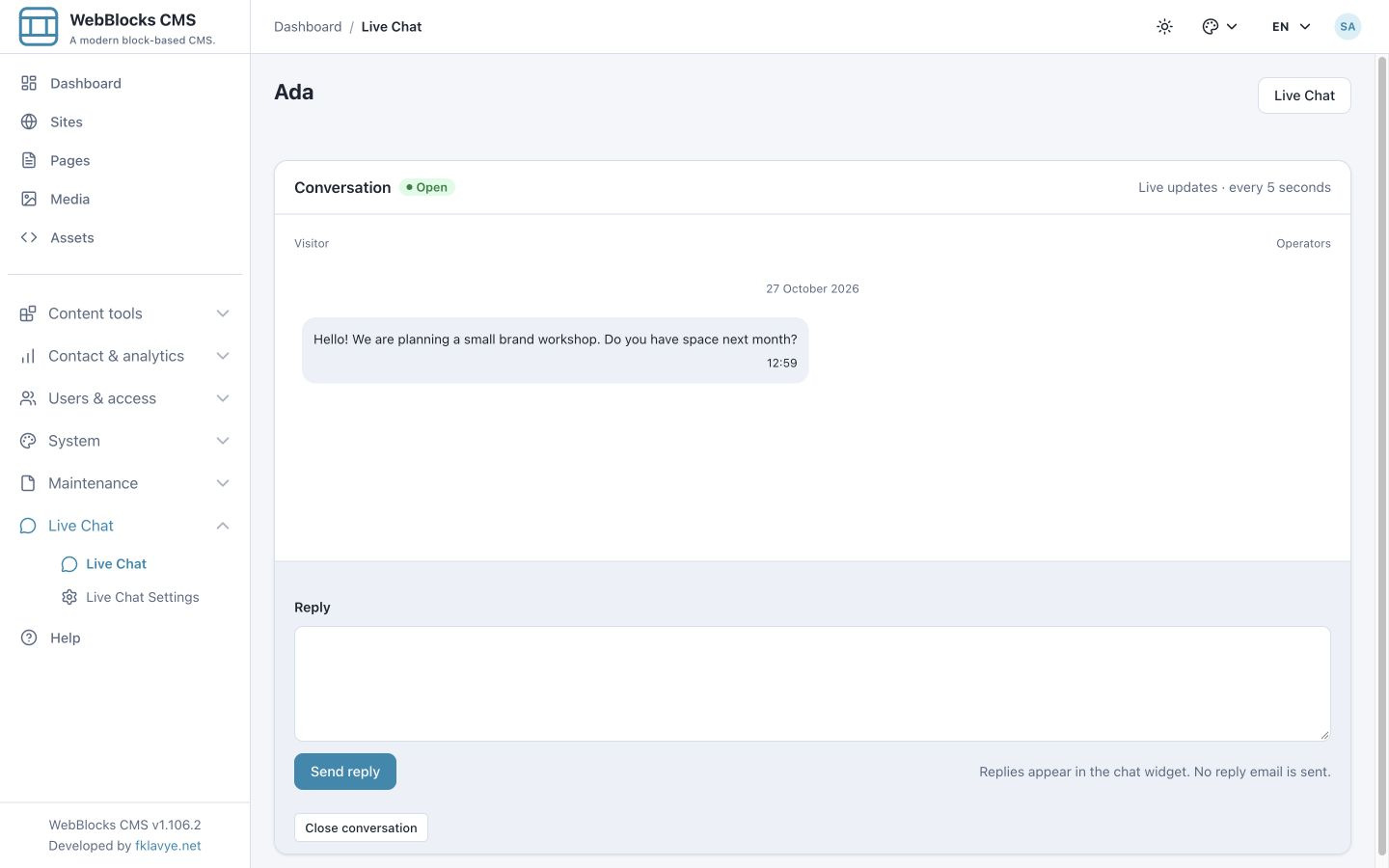
Reading at the bottom of a visible conversation marks visitor messages read. Return to the inbox before answering: Unread conversations is now zero, while Awaiting reply remains one. Opening the conversation did not answer Ada.
When reviewing older messages, a new arrival does not force your scroll position to the bottom. New messages returns you to the latest messages. Inbox and conversation views refresh every five seconds while visible; background tabs pause polling and check again when visible. These are polling updates, not a WebSocket connection or a guaranteed instant-delivery SLA.
9. Send an operator reply
Open Ada's thread, enter the response under Reply and select Send reply:
Hi Ada! We can discuss a workshop for next month.
How many people would join, and what would you like to work on?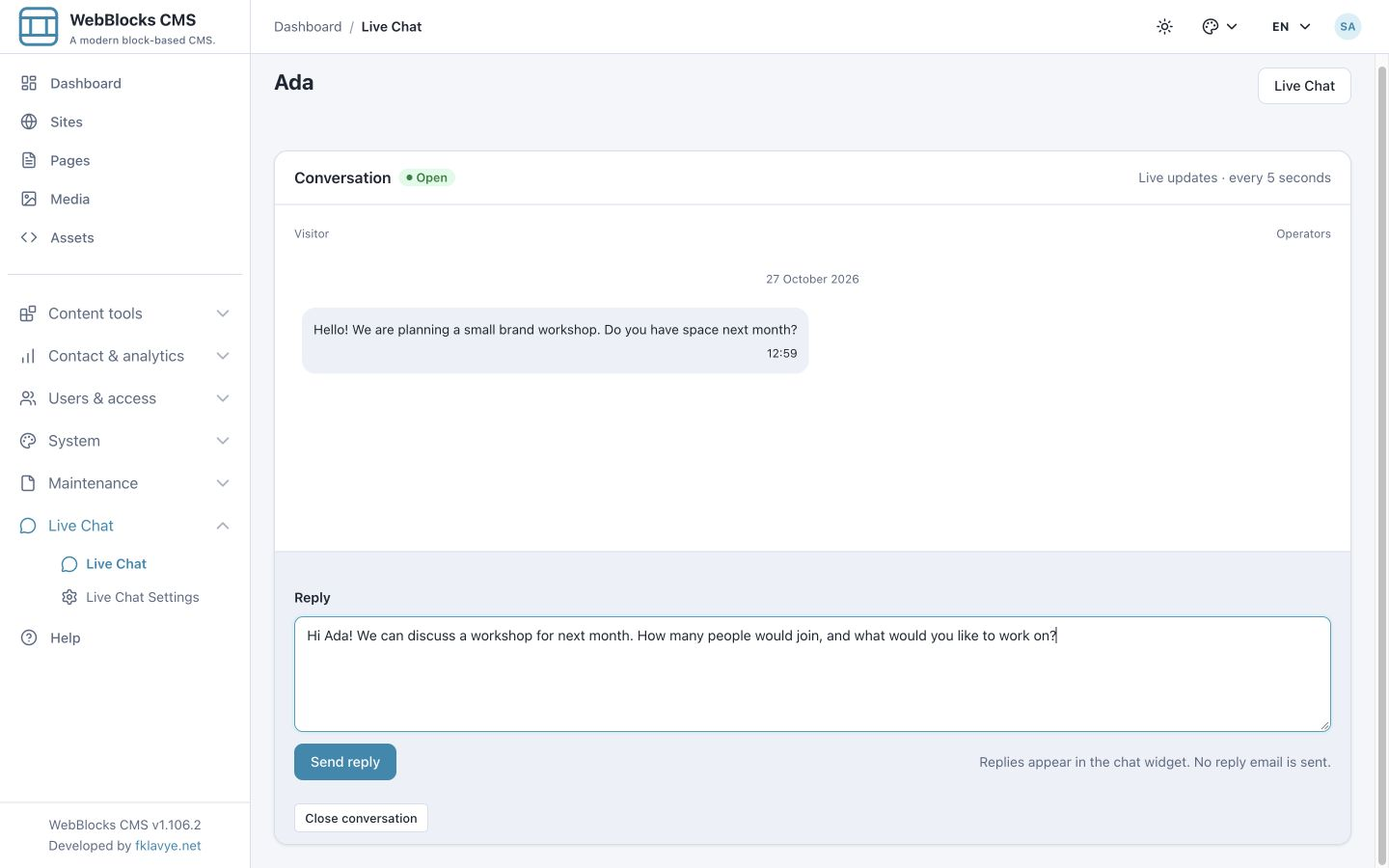
Check Reply sent. and the operator bubble. Return to the visitor widget and confirm the response appears there. Our real local exchange shows that message on both sides.
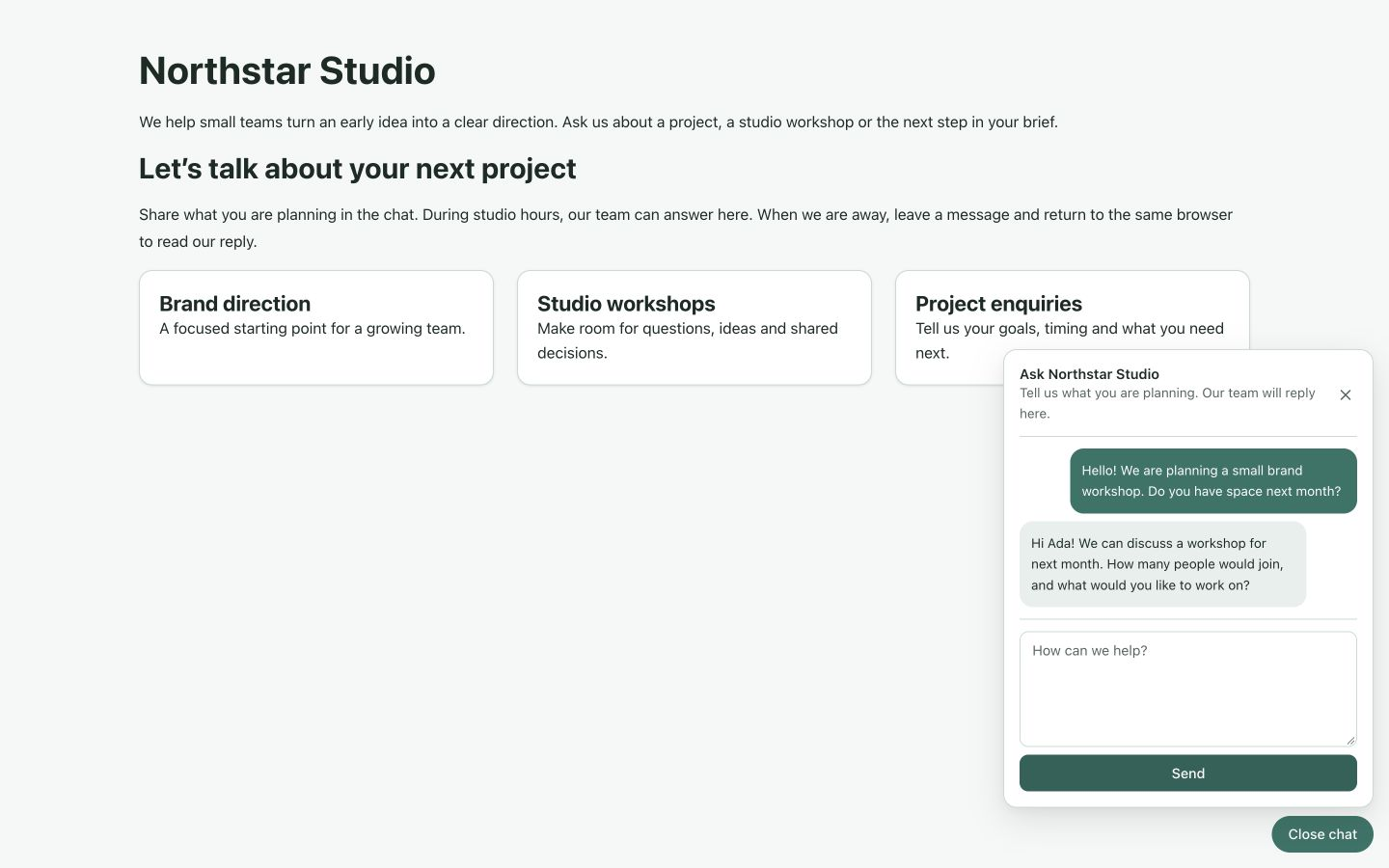
The note under the operator form is deliberate: Replies appear in the chat widget. No reply email is sent. Ask visitors to keep the same browser available or return to it. Do not infer email delivery from a saved operator reply.
10. Keep drafts and continue in the same thread
Ada prepares a follow-up:
There will be six of us.
We would like to clarify our brand direction.
Close the widget with Close chat, then open the launcher again. The unsent draft remains in the message field. Closing the panel is different from an operator closing the conversation.
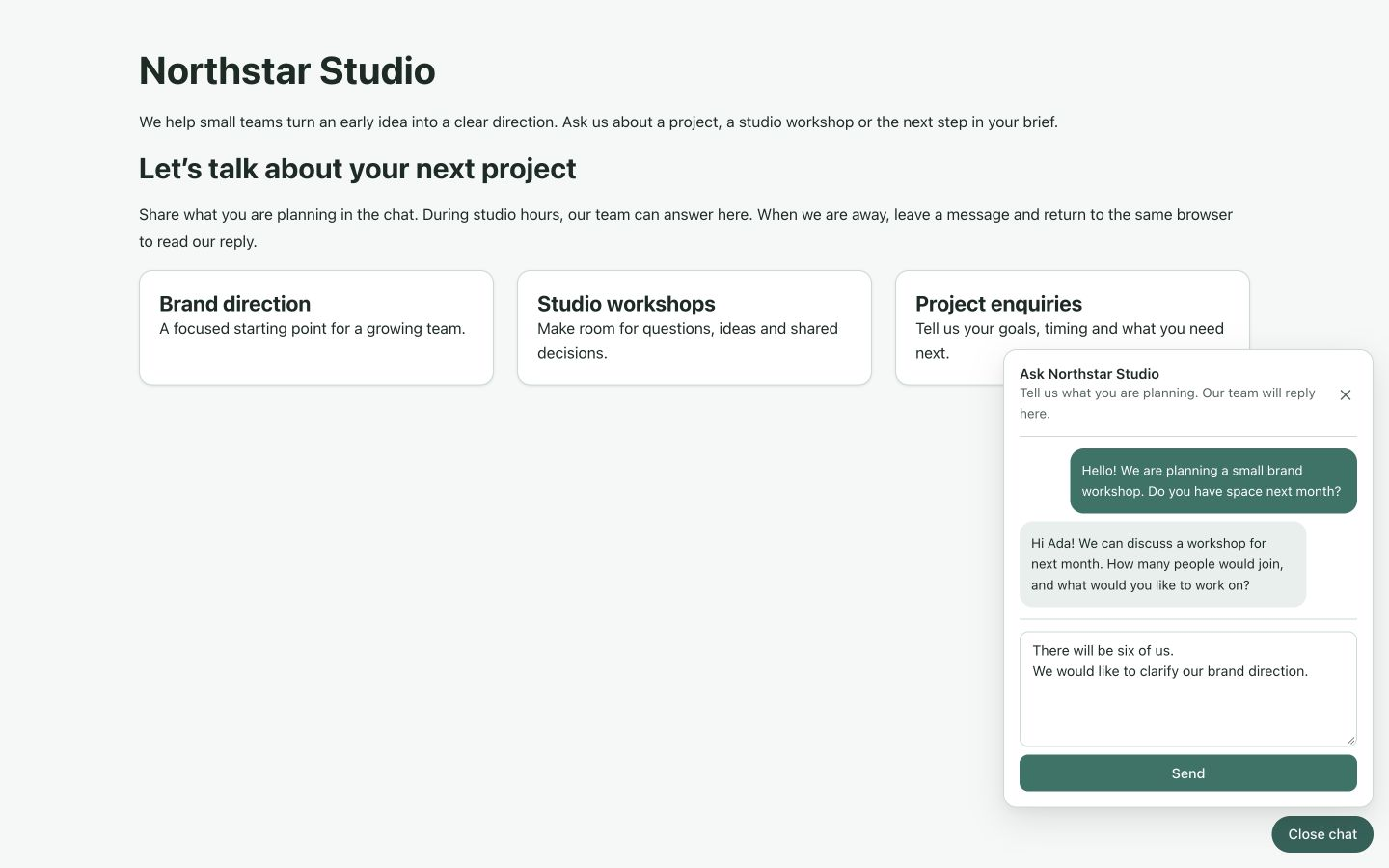
Choose Send when ready. The thread returns to awaiting a reply because its latest message is now from the visitor. Keep related messages together; a new enquiry does not require another conversation if the existing topic is still open.
Authorized operators receive an unread-conversation badge on the Live Chat sidebar link and its collapsed group. A new visitor message can also show a generic in-panel notice with View unread conversations, even while you are working elsewhere in the CMS. The notice contains no visitor name, email address or message text.
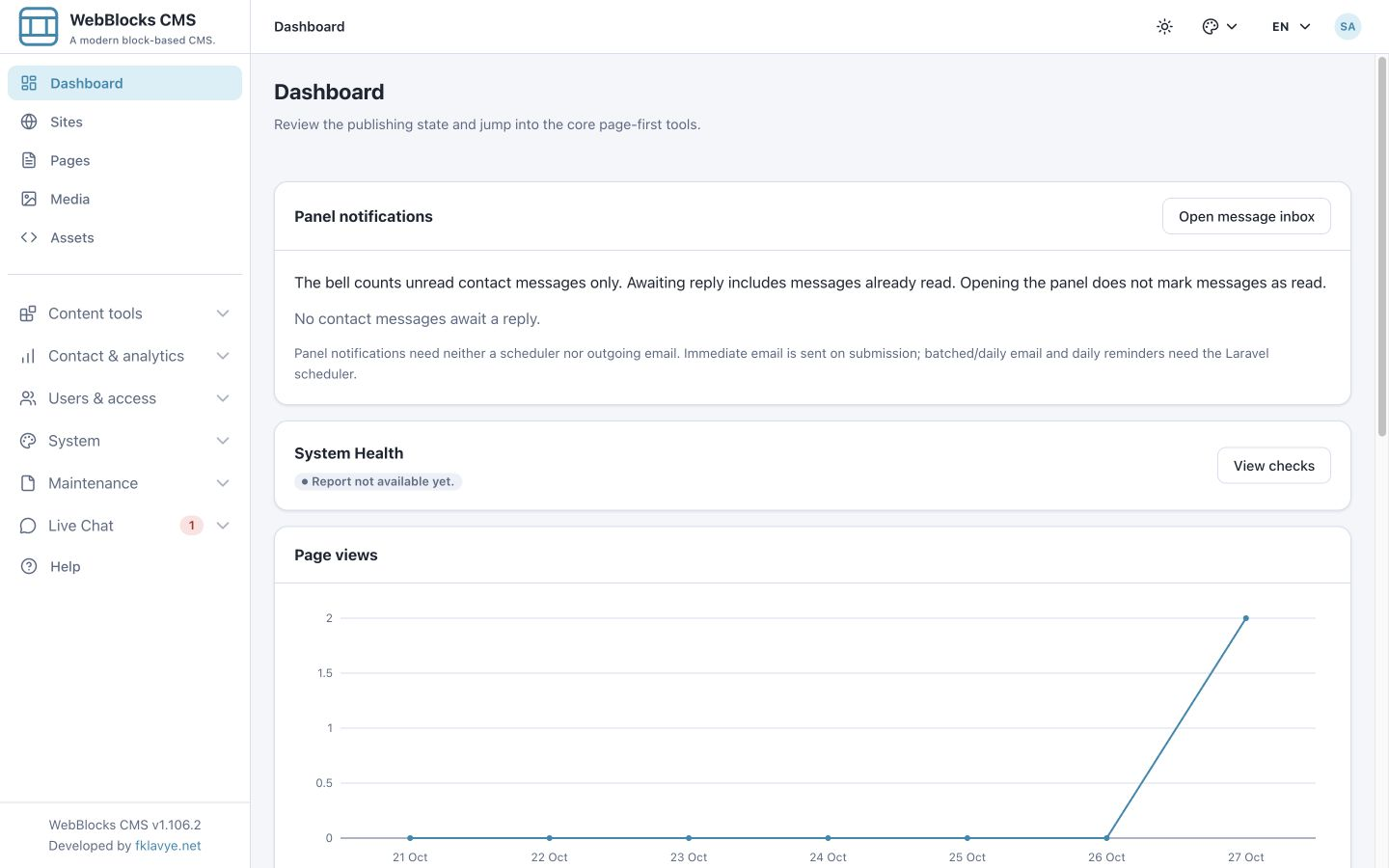
The first notification snapshot establishes the current state; it does not replay old arrivals as new toasts. Viewing the current conversation, hiding a browser tab or opening another panel tab also affects when a toast appears. A badge or notice does not mark a message read or answer it. These are in-panel notices, separate from operating-system permissions and email; use the inbox's unread and awaiting-reply views to manage the actual work.
11. Search message history and manage the queue
In the inbox, search workshop and choose Filter. Ada's conversation matches an earlier message even though its latest-message preview now describes six participants and brand direction.
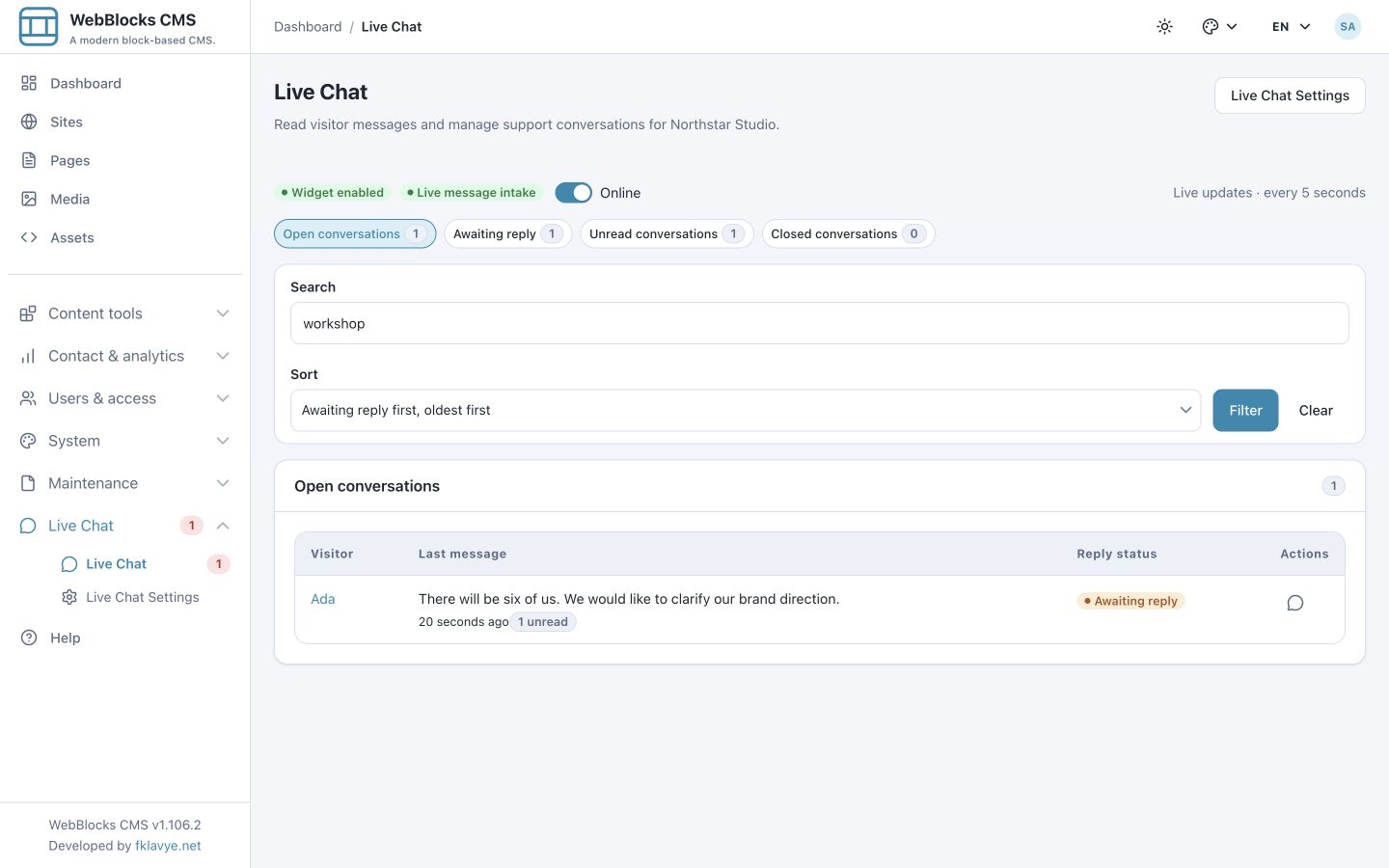
Search covers visitor names, email addresses and message history in the selected site and view. The row still previews the latest message rather than replacing it with the historical match. View counts cover the selected site, independent of the search text. Clear returns to the default open view and order for that site.
Use the Awaiting reply view for unanswered work and Unread for messages not yet read. Neither is a substitute for an agreed response-time process. A colleague opening a thread can change its read state without resolving the visitor's question.
12. Close a finished conversation
When the conversation is finished, open it and choose Close conversation. The operator sees Closed and a Reopen conversation action instead of the normal reply form.
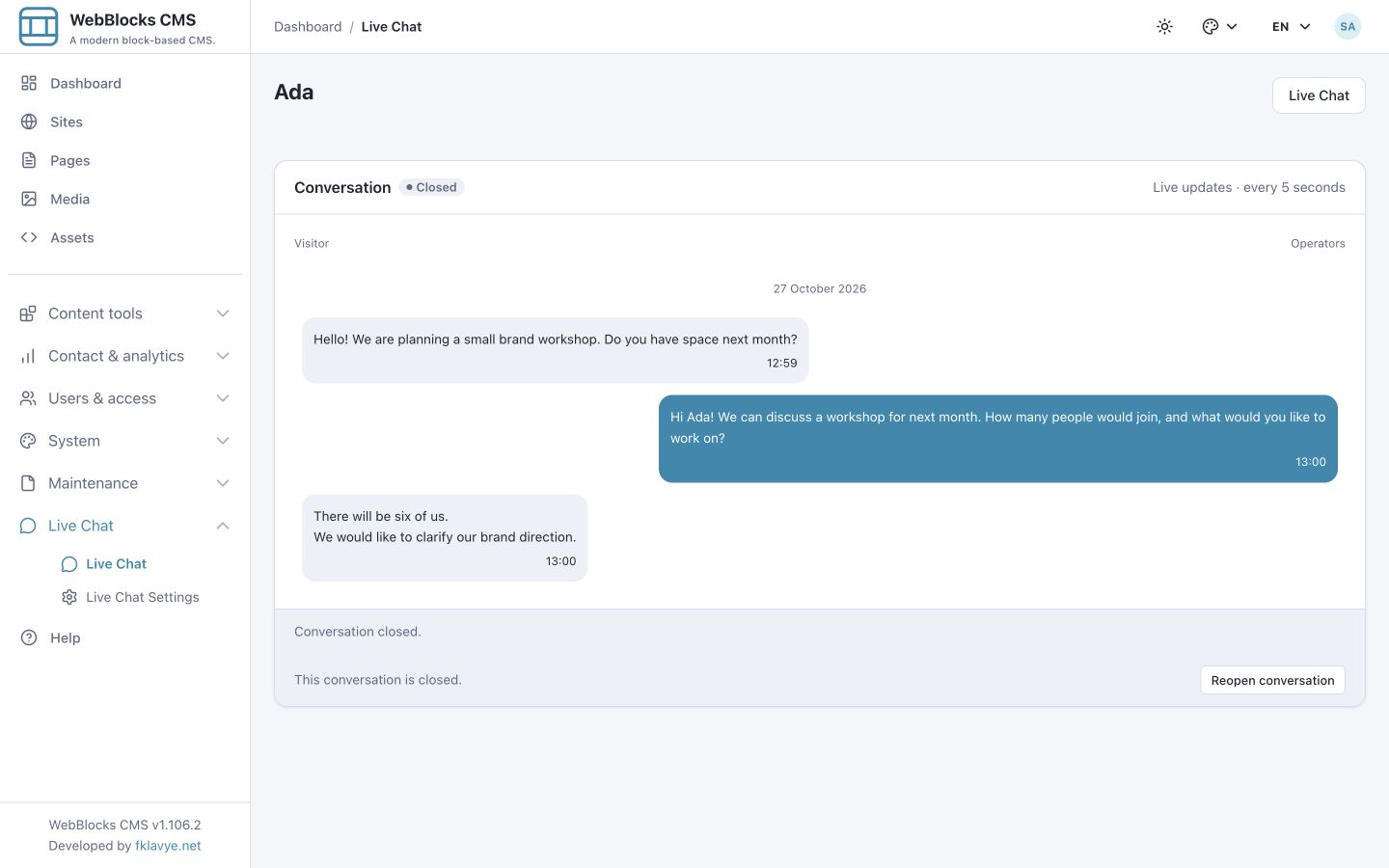
The visitor widget shows This conversation is closed., disables replies and offers Start a new conversation.
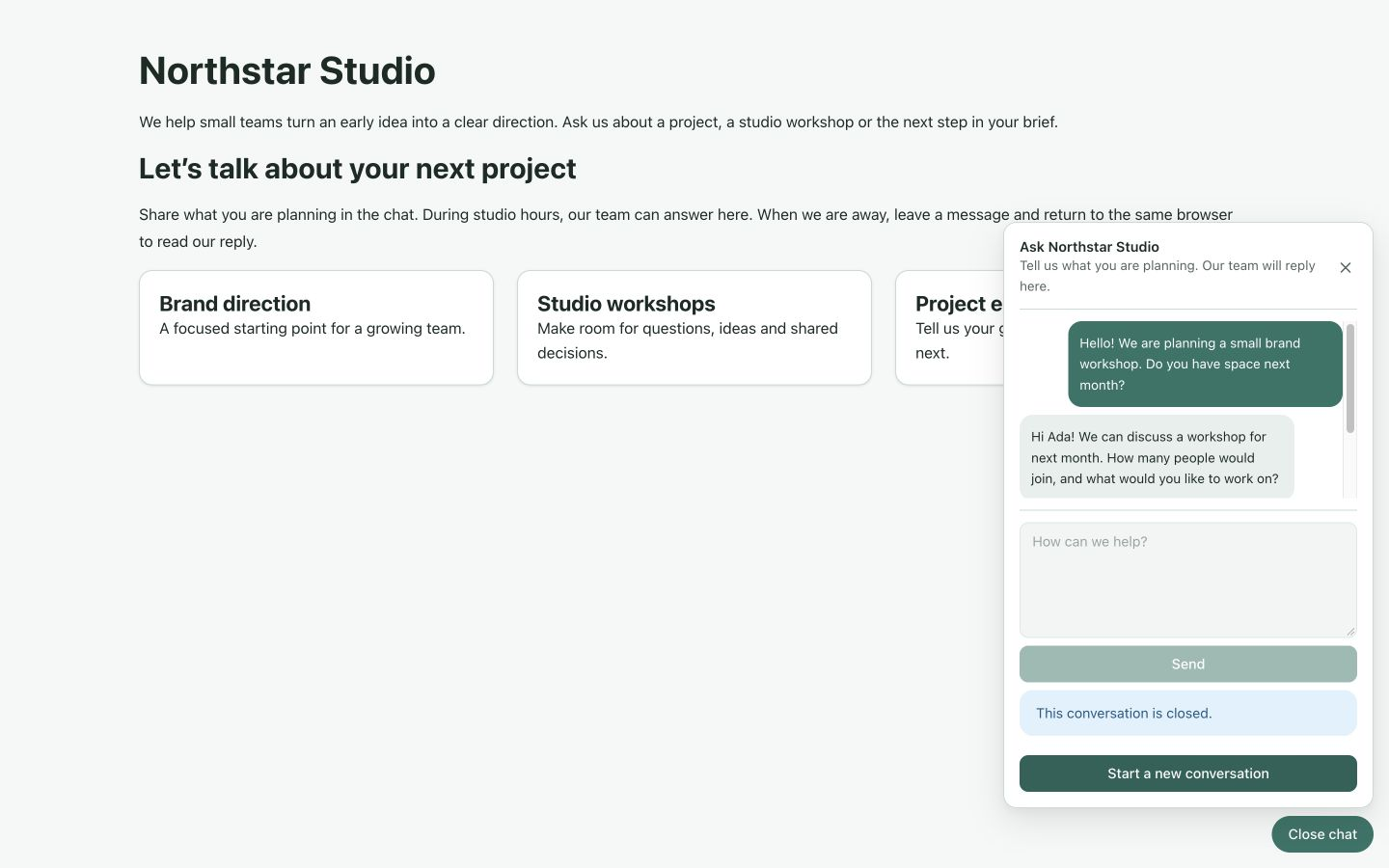
Starting a new conversation clears the saved thread credential and transcript in that browser and returns to intake. An unsent message can carry into the new intake. It is a new thread, not a way to reopen the original one. Closed history remains available to authorized site operators.
13. Reopen when the same conversation should continue
An operator can choose Reopen conversation. The thread becomes open again, and the existing visitor widget resumes accepting replies after its next update.
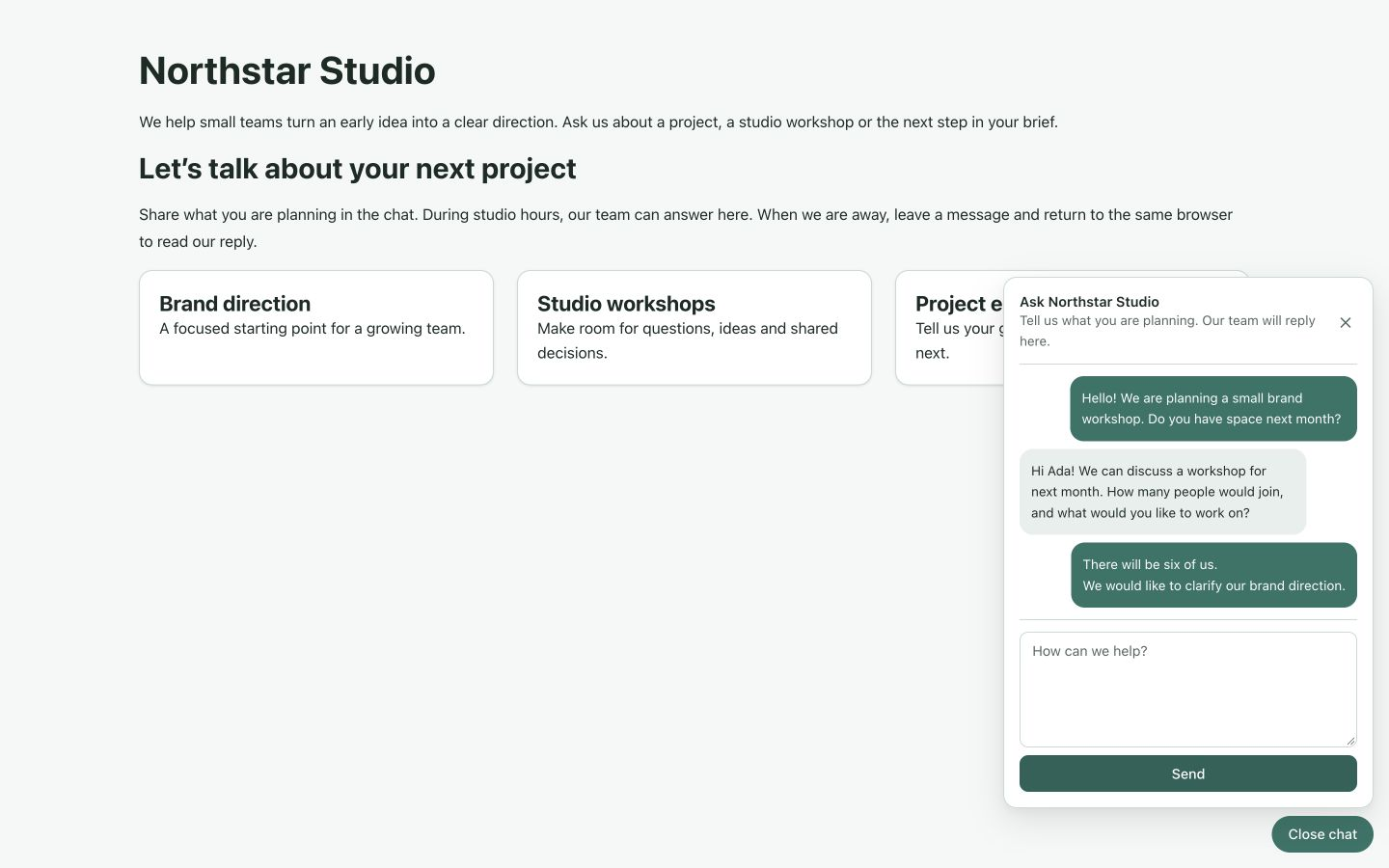
We tested closing and reopening the same thread. Reopening does not restore a visitor credential that was already cleared by starting a different conversation or deleting browser storage. Use it when continuing the original thread makes sense, and confirm the visitor can still access it.
14. Choose the site's email policy before enabling alerts
Email is optional and separate from the widget. Ask your hosting administrator to configure the outgoing mail transport and trusted application URL first. The plugin uses the CMS mail configuration; it does not store new SMTP credentials in its settings.
Open Sites → Edit site → Contact and inspect Site message notifications. This policy applies to participating channels, including Live Chat. In the local exercise, we keep Alert only, select Immediate and turn off Daily pending-message summary so the test does not require scheduled delivery.
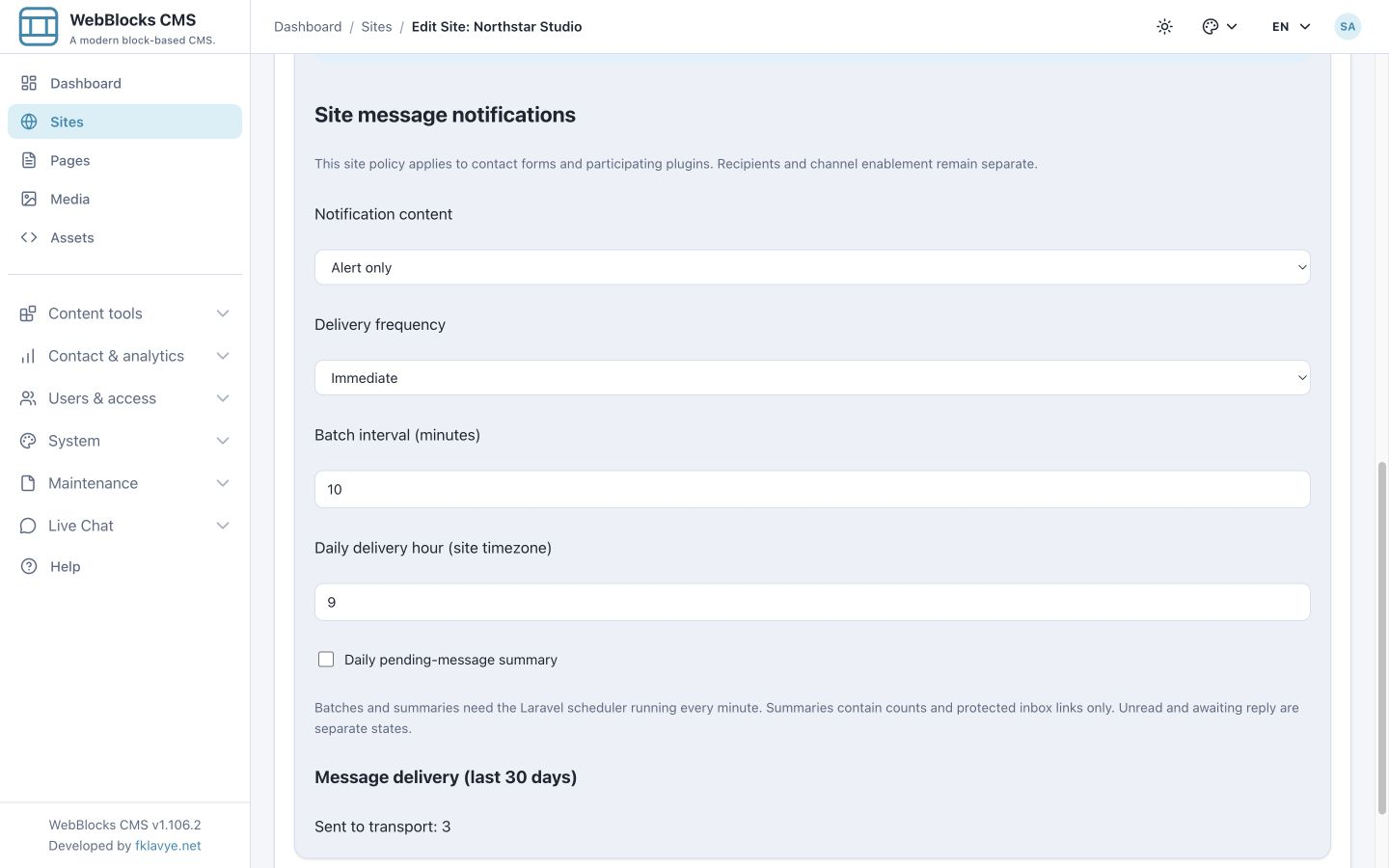
The content choices have different effects:
- Alert only: minimal counts and a normal protected inbox link; visitor names, addresses, message text, source URLs and private conversation credentials are excluded from the minimal notification.
- Full: includes more conversation information and message content. Choose it only when appropriate for your organization and mail destination.
Delivery frequency is also shared:
| Frequency | Behavior | Scheduler requirement |
|---|---|---|
| Immediate | Sends each eligible offline notification on submission. | Not required for immediate-only delivery with daily summaries disabled. |
| First alert immediately, then batches | Sends the first alert in a conversation immediately and combines later messages at the configured interval. | Required for later batches. |
| Daily | Combines eligible work into a daily count-only summary. | Required. |
Daily summaries stay minimal even when the content mode is Full. The separate daily pending-message summary can remind recipients about unread or awaiting-reply work; it also requires scheduling. Save the site policy deliberately because other participating channels inherit it too.
15. Configure offline intake and operator notifications
Return to Live Chat Settings. Set Availability to Offline, keep Require email when offline enabled and save. The widget remains enabled: Offline changes intake, while disabling the widget removes the public launcher.
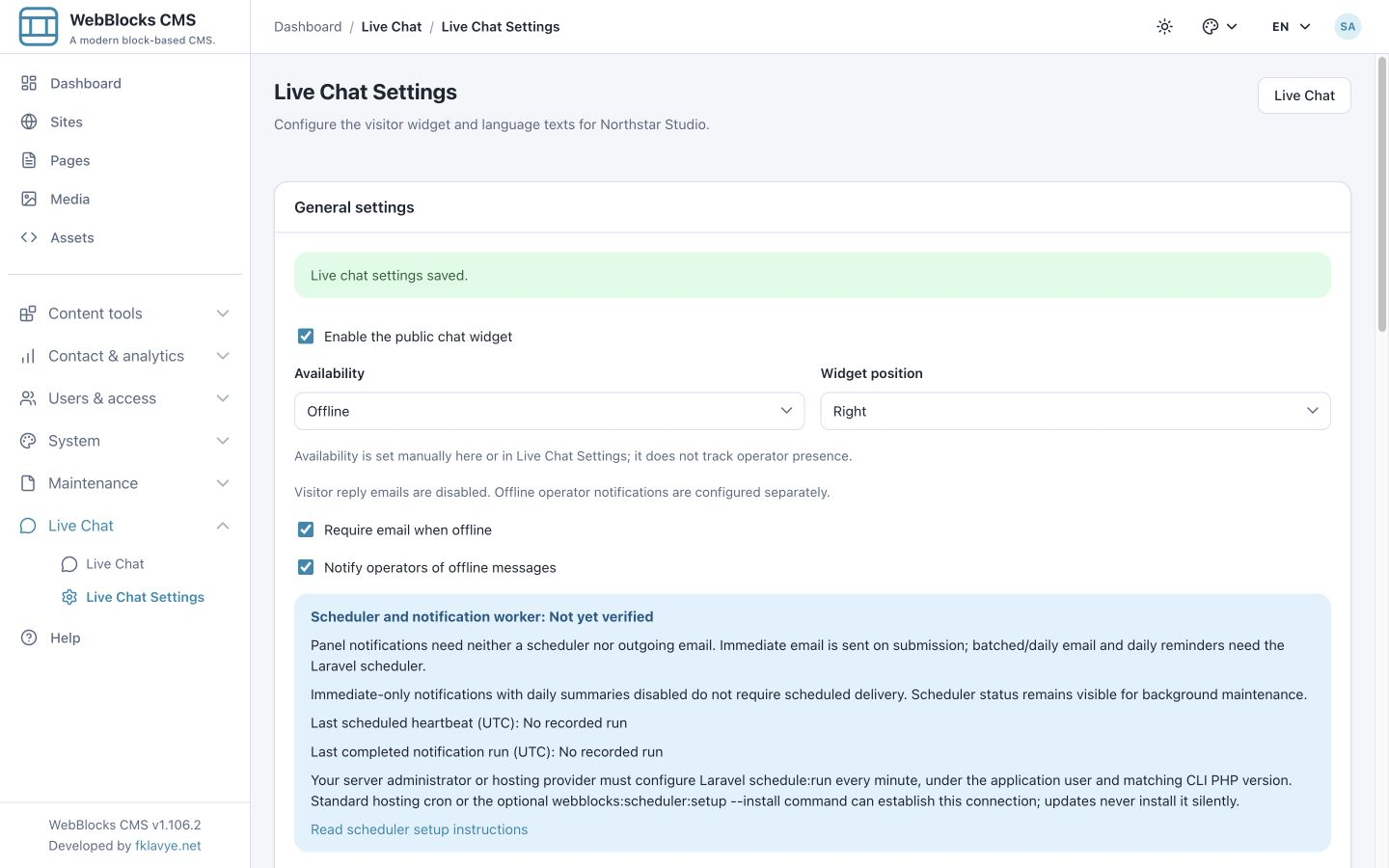
If your team wants email alerts, enable Notify operators of offline messages, enter the intended Offline notification recipient, and select Save settings. Our studio@example.test address is fictional and accepted only by the local test receiver. Use a controlled real test mailbox when validating your own delivery.
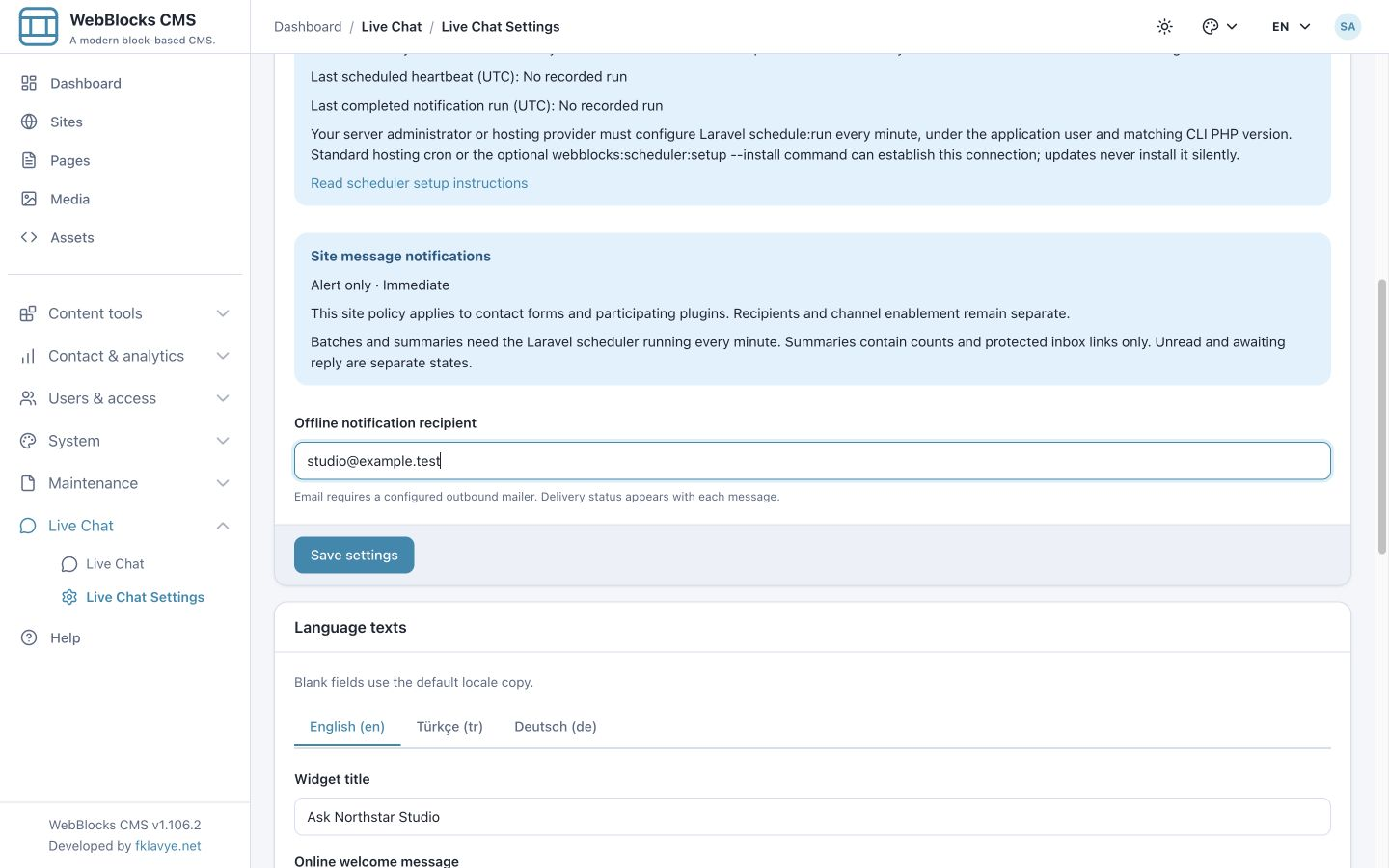
You can also change availability from the inbox's Availability switch when you have management permission. It saves immediately and preserves the other options. It does not log staff in or detect whether they are present. Without JavaScript, use the adjacent Save control or the settings form.
16. Leave and receive an offline message
Use a new conversation, rather than assuming a changed setting retroactively alters an existing thread's intake. In our exercise, the previous thread is closed and the visitor selects Start a new conversation. The refreshed widget shows the offline message and Email (required).
Enter Robin, robin@example.test and a short enquiry. Blank email is no longer acceptable for this new offline conversation; online intake still permits it to be omitted.
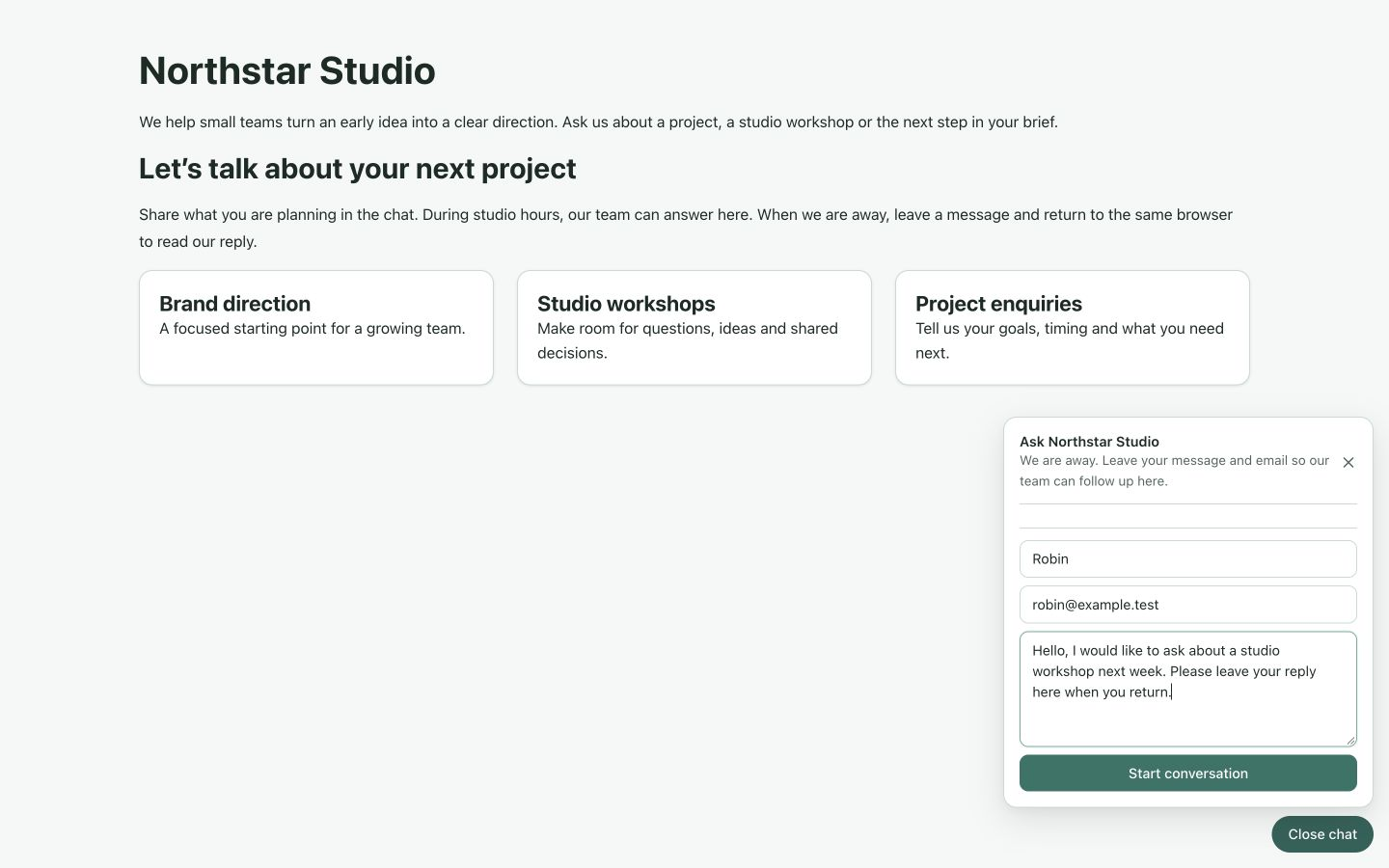
Submit once, then check the selected site's inbox as an operator. Open Robin's conversation to read the message and inspect Offline operator notification. Our test shows Sent to mail transport, and the local SMTP receiver accepted the notification under the saved Alert only / Immediate policy with daily summaries disabled. This confirms handoff to the configured mail transport; it does not prove delivery to a real mailbox. Replies to Robin still belong in the widget rather than being emailed.
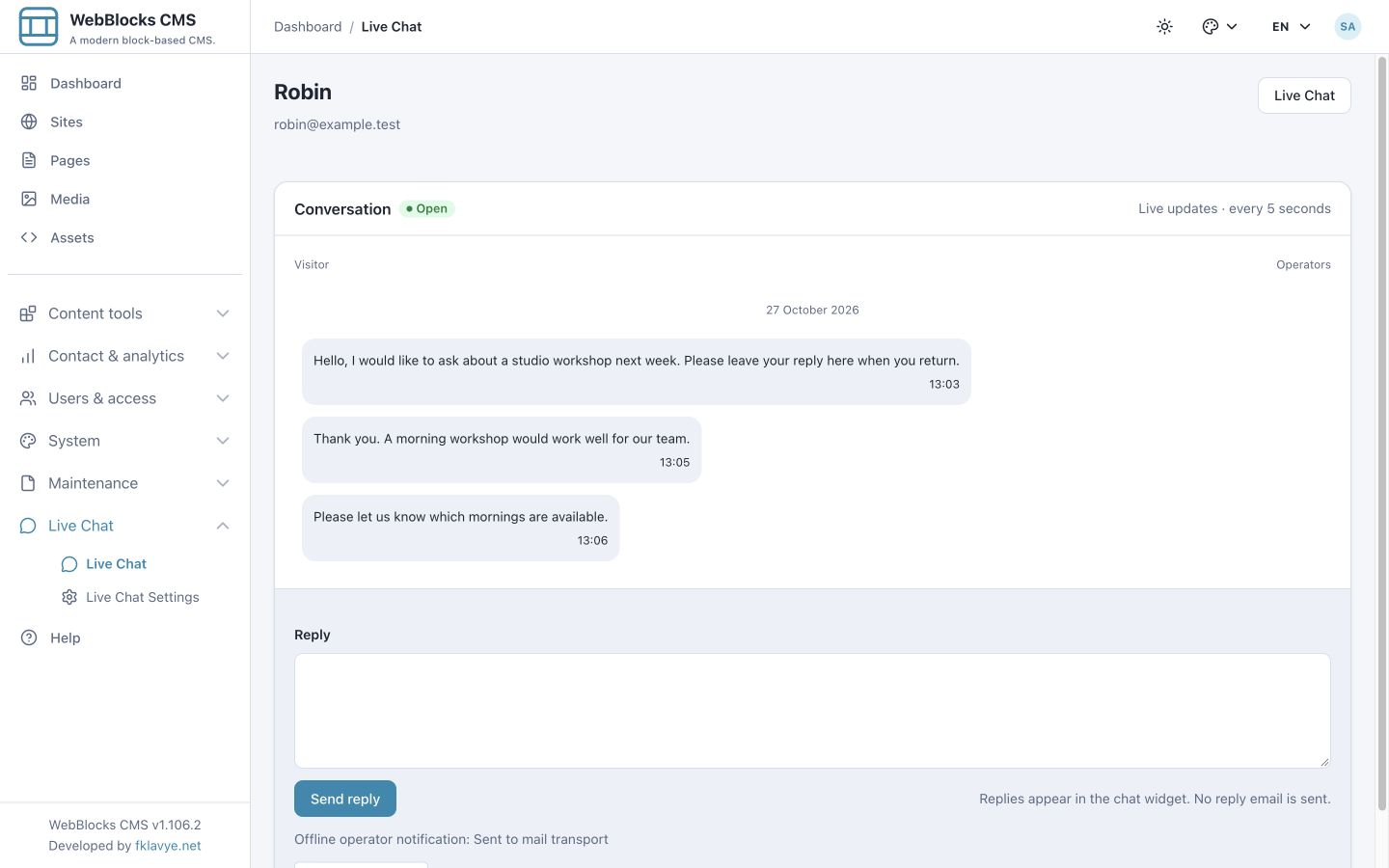
If delivery is queued, check the inherited policy first. Batched and daily work can legitimately wait. For an Immediate notification that remains queued, ask the administrator to verify the supported CMS/plugin versions, enabled notification channel, recipient and outgoing mail transport. A message already enrolled for an offline notification may still deliver after availability changes to Online. Turning the channel's notifications off or closing its conversation cancels queued work. Failed or ambiguous attempts are not automatically retried; do not promise that every saved chat message creates a delivered email.
17. Read scheduler health honestly
Live Chat Settings displays Scheduler and notification worker evidence. A registered task is not proof that the hosting scheduler runs. Your server administrator or hosting provider must arrange Laravel scheduling every minute under the application user, with the matching CLI PHP version. Follow Scheduled notifications and scheduler health.
Batched and daily notifications, and daily pending-work reminders, need that connection. Immediate-only notifications with daily summaries disabled do not acquire a scheduling requirement; panel badges, in-panel toasts and normal chat polling do not require a mail scheduler.
Our local example intentionally has no verified production schedule. We did not turn an unverified health label into a success claim or use manual dispatch as evidence of a working cron setup. Verify real mail delivery and scheduling with your own host before relying on them.
Troubleshooting
| Symptom | What to check |
|---|---|
| No launcher on the page | Plugin activation, host compatibility, correct site, public widget enablement and supported public assets. |
| Online appears while nobody is answering | Availability is manually selected. Agree on staffing and change the intake mode when needed. |
| No conversations are visible | Selected site, view, search, site access and View live chat permission. |
| Reading did not remove Awaiting reply | The latest message is still from the visitor. Read state and reply state are separate. |
| A visitor cannot send in a closed thread | Reopen the thread as an operator, or let the visitor start a new conversation. |
| A visitor cannot find the old thread | Check whether browser storage, profile or origin changed, or a new conversation cleared the saved credential. There is no visitor email-recovery workflow shown here. |
| Too Many Attempts | Stop repeated requests and wait for the normal limit window. Starting, sending and polling have separate limits; repeated submissions can still exhaust their own allowance. Do not disable throttling to bypass the message. |
| The visitor did not receive an email reply | Visitor reply emails are disabled; check the widget in the original browser. |
| Offline operator email is missing | Channel opt-in, recipient, outgoing mailer, shared site policy, recorded delivery state and any scheduler requirement. |
| Scheduler is not verified | Ask the host administrator to check real scheduled heartbeat and notification-worker evidence; manual dispatch alone does not prove scheduling. |
Finish with a controlled handover
Before inviting real visitors, verify the correct site, widget copy, permissions and availability. Test a visitor message, an operator reply, a follow-up, read-versus-awaiting behavior and closure. If you use offline intake, check the required-email setting with a new conversation and confirm the intended recipient receives a real test notification.
Keep availability wording accurate, give operators a queue-handling routine and tell visitors where their reply will appear. Start with the Live Chat reference for settings/API details, or Roles And Permissions to delegate access without giving every operator configuration rights.