Section And Container: Control Page Width
Goal: Stop text running the full width of a large screen, and give a band of content its own breathing room.
Time: 3 minutes
You need: A page with a Main slot
Steps
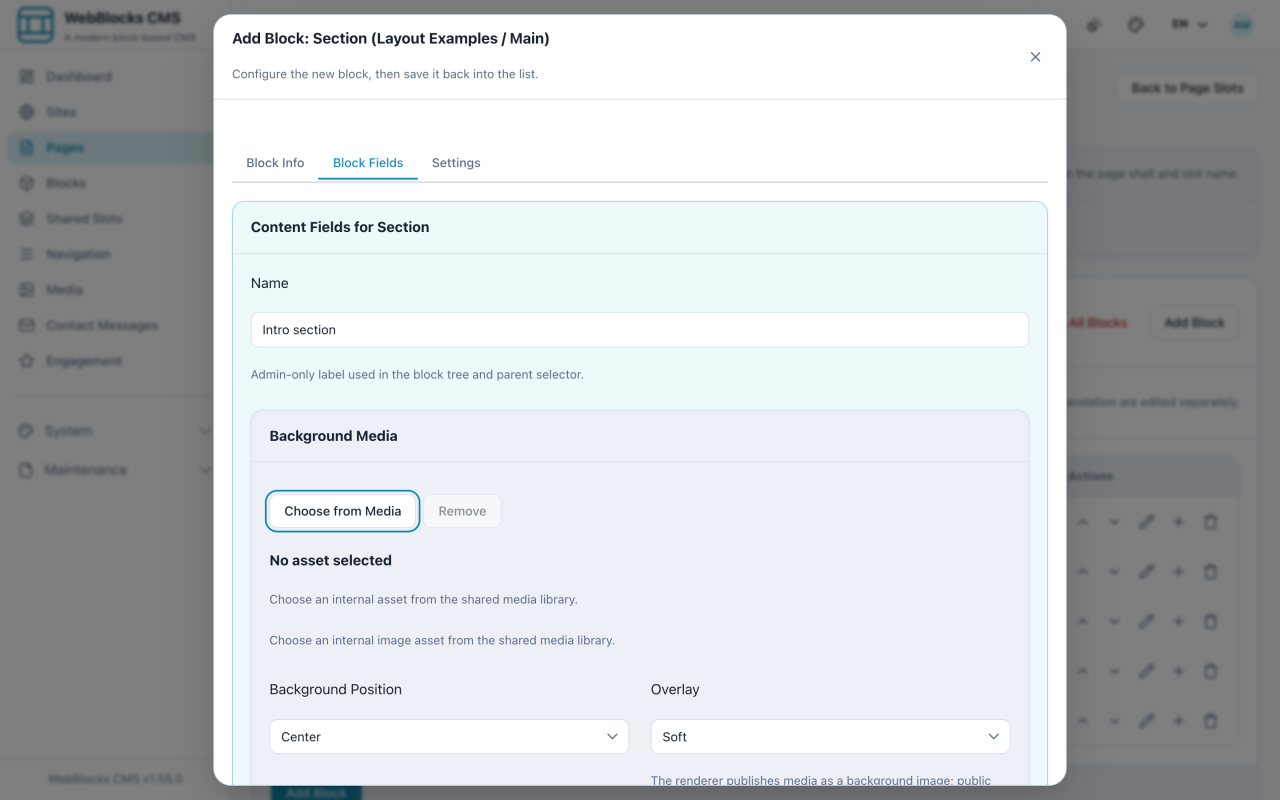
- In the Main slot, select Add Block, then choose Section.
- Give it a Name. This is an admin-only label so you can tell sections apart in the block list — visitors never see it.
- Set Spacing for the vertical air around the band, and add a background image with Background Position and Overlay if the section needs one.
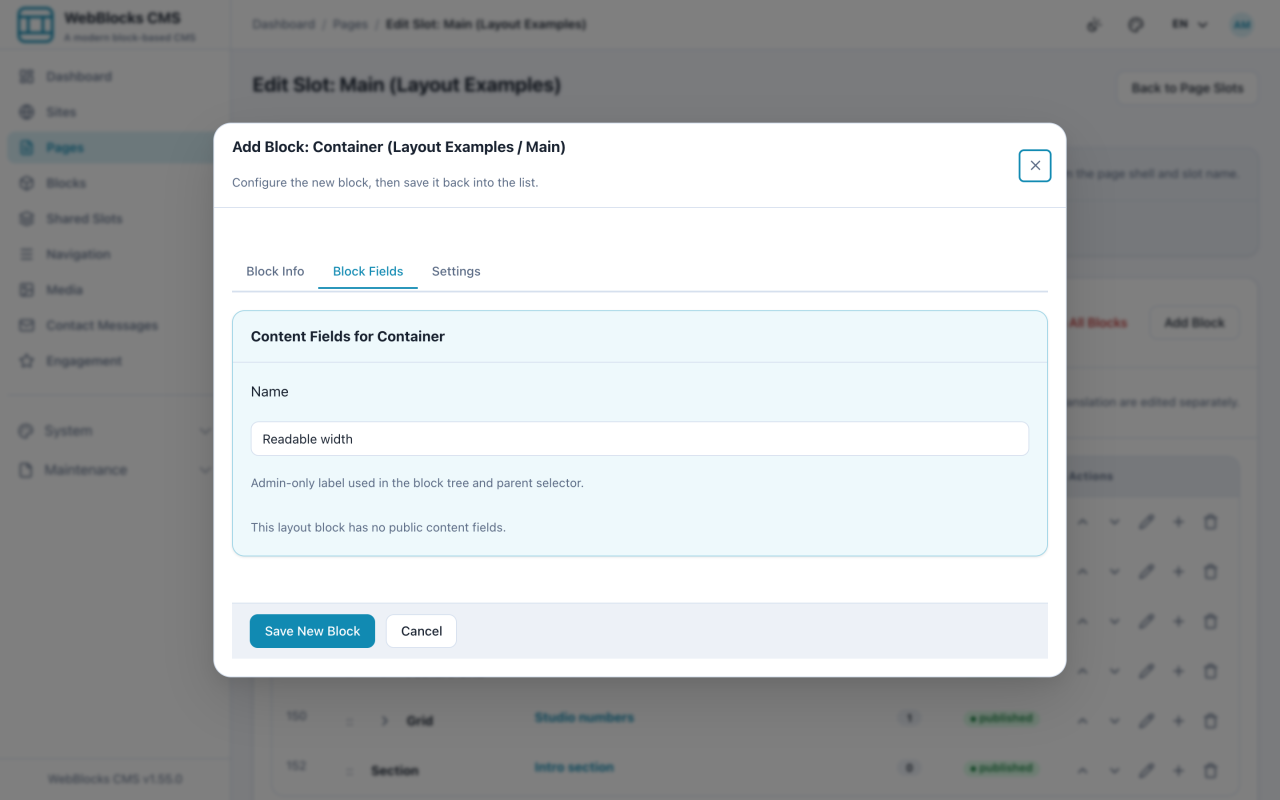
- On the Section's row in the block list, select Add child block and choose Container.
- Set Width — sm through xl, or full — and Flow.
stackspaces the children apart evenly;noneleaves them alone. - Add your content blocks as children of the Container.
Which Does What
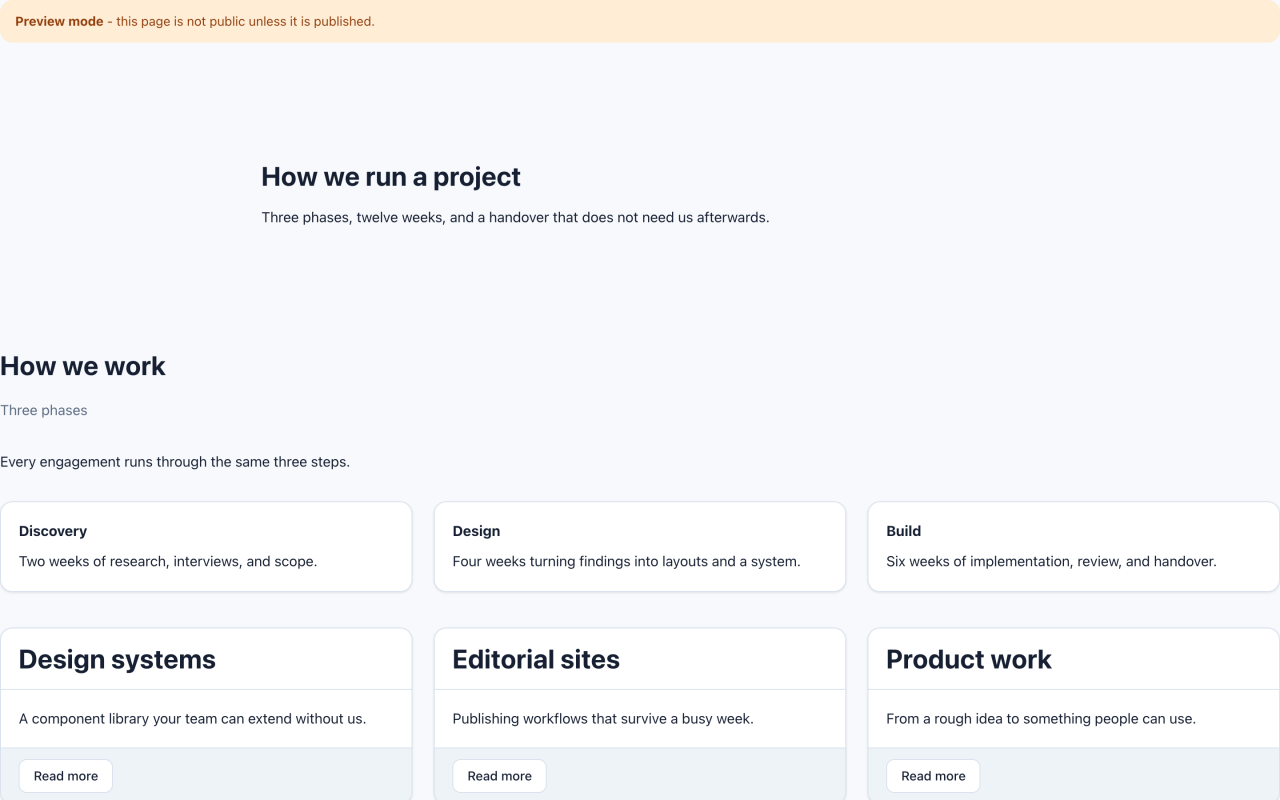
Section is the horizontal band. It runs edge to edge, carries the background, and owns the space above and below.
Container sits inside it and decides how wide the content is allowed to be.
That split is why a full-width photograph can sit behind a column of text that is still comfortable to read.
Notes
- Long lines are hard to read. Around 60-75 characters is the comfortable range, which is what the narrower widths are for.
fullis for imagery and layout, not paragraphs. - The Name field on layout blocks is admin-only. Use it — a block list of five Sections called "Section" helps nobody.
- A Section without a Container is legal and sometimes right, but then your text is as wide as the screen.
- Nesting is done with Add child block on the parent's row, not by adding a top-level block and hoping.