Add An Image
Goal: Place a picture on a page, with alt text that describes it.
Time: 3 minutes
You need: A draft page and an image in the Media Library
Steps
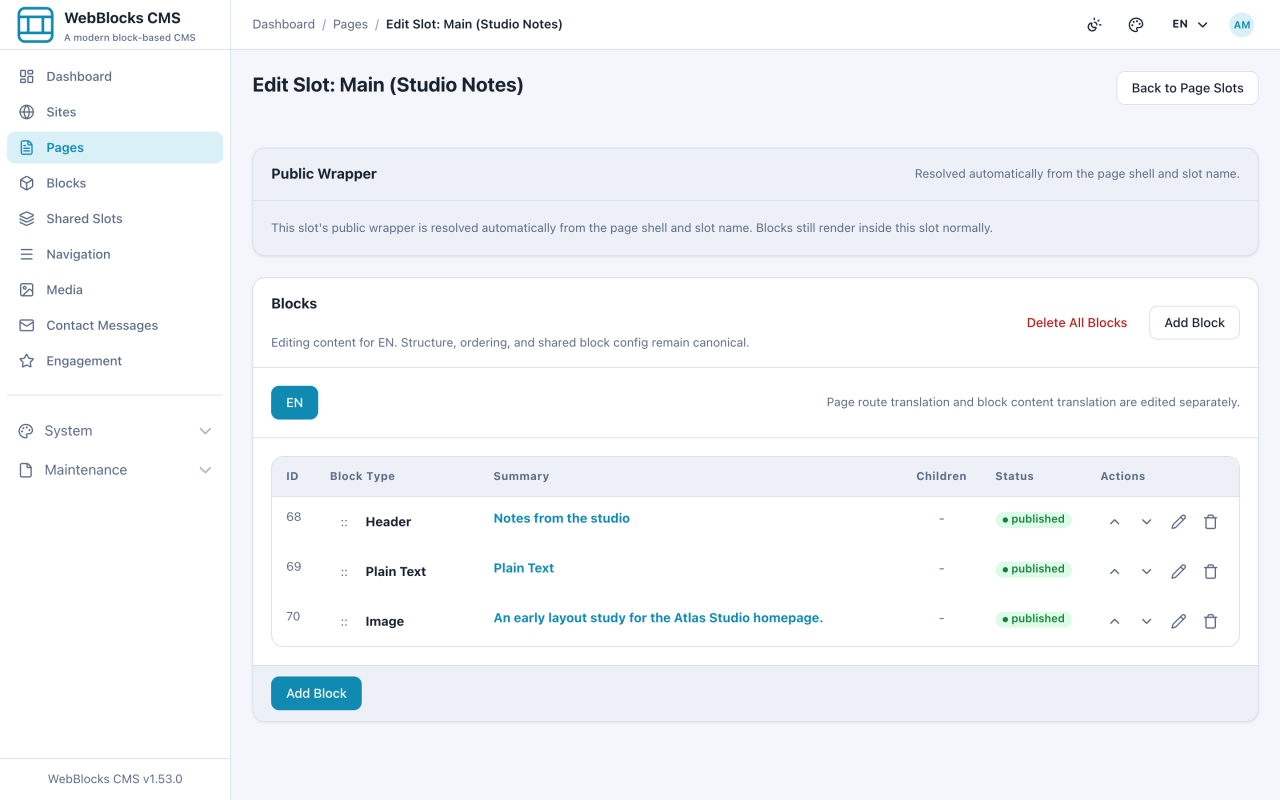
- Open the page's Main slot, the same way as in the previous guide.
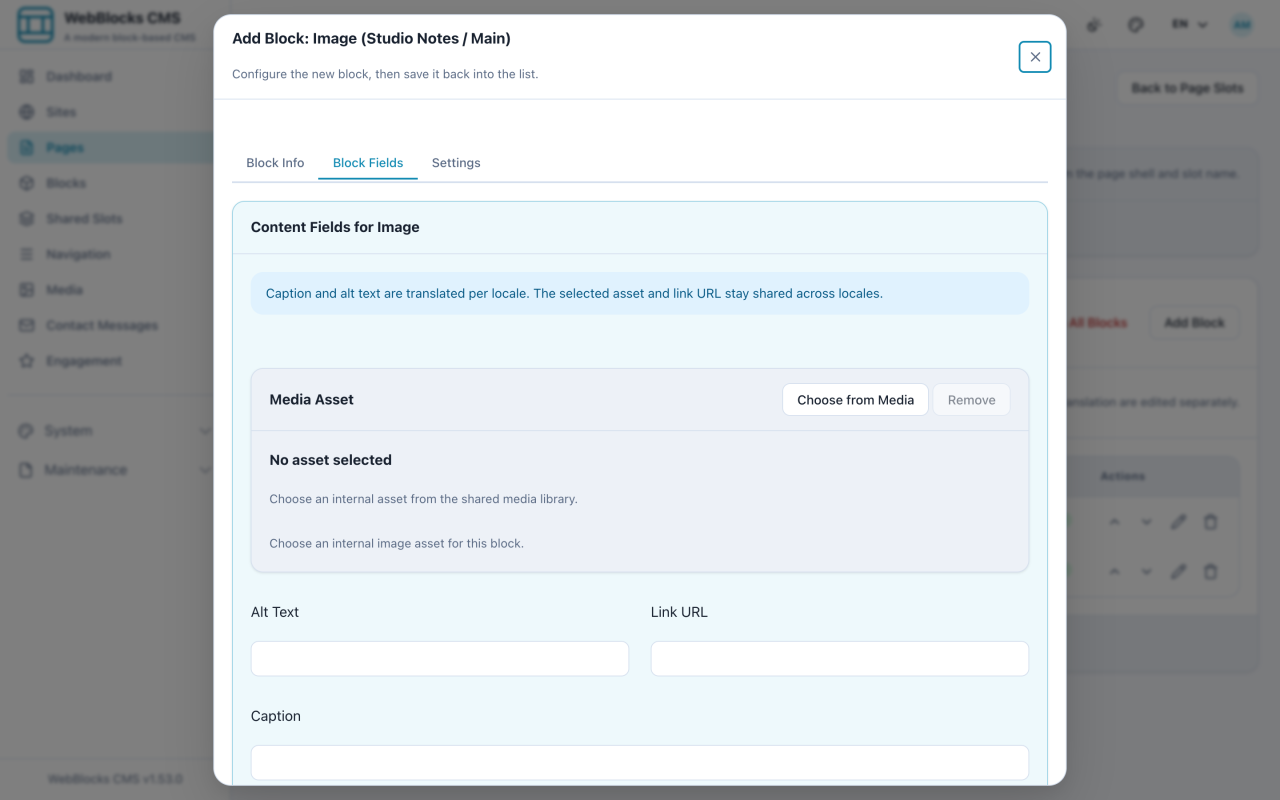
- Select Add Block, then choose Image.
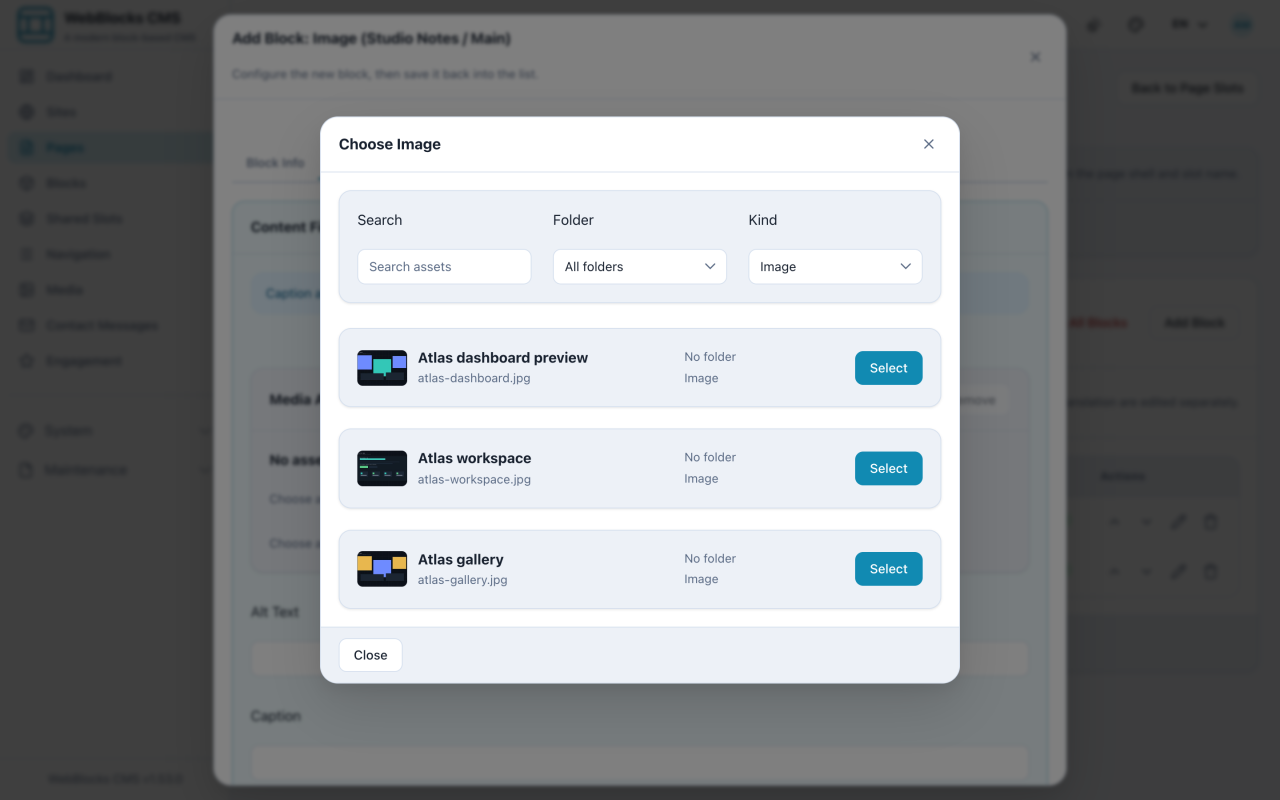
- Select Choose from Media. The Choose Image dialog opens, with a search box and Folder and Kind filters.
- Select Select on the image you want. To use a file that is not in the library yet, scroll to Upload to Library at the bottom of the dialog and upload it there.
- Fill in Alt Text. Describe what the picture shows, in one short sentence.
- Add a Caption if the image needs a visible line under it. Leave it empty otherwise.
- Optionally choose a Mobile Image from the Media Library. Use another crop of the same subject; screens up to 768 px use it, and other screens keep the default image.
- Select Save New Block.
Example
Image
  Alt Text: A preview of the Atlas Studio public page layout.
  Caption:  An early layout study for the Atlas Studio homepage.
Two Alt Texts That Do Not Work
image1.jpg— the file name, which describes nothing.A photo— true, and useless.
Notes
- Alt text is read aloud to visitors using a screen reader and is shown when the image fails to load. Write it for someone who cannot see the picture.
- If the image is purely decorative and adds no information, leave the alt text empty rather than inventing a description.
- Upload the largest good-quality version you have. The CMS produces the smaller sizes it needs; it cannot invent detail that was never there.
- Alt text and caption are stored per language. The default and mobile images are shared across every language of the page. Both images use the same alt text and caption.
- If the mobile selection is unavailable, the default image remains visible. The Gallery Viewer still opens the default full-resolution image.
- Media results load when you open the picker, and thumbnails load lazily. Opening the block form does not download every library thumbnail.