Get Help With WebBlocks Support
Keep a support conversation beside the CMS work it concerns. WebBlocks Support lets a signed-in CMS user report a problem, suggest an improvement or ask a question, then follow the provider's replies from the admin panel. An administrator connects the installation once; each authorized user sees their own requests.
Our example is Northstar Studio. You will install Support, connect a provider, report a draft-preview problem, answer a follow-up question and decide whether to share a limited diagnostic snapshot. You will also read request statuses, recognize a provider outage and review what disconnecting means.
This walkthrough uses the published Support 0.3.6 archive on WebBlocks CMS 1.105.37, in English and light theme, with fictional content. Northstar Demo Support is a simulated provider used for this walkthrough. The screens use the real plugin; provider approval, replies and status changes are supplied by a local test fixture. No real support organization received these requests or diagnostics. Real provider onboarding, response times and support-plan entitlement must be checked with your provider.
For the technical contract, see the Support reference and Support protocol. For the general installation workflow, see Plugin System.
Before you start
Use a test installation first. Installing and enabling plugins needs Super admin. Support 0.3.6 declares CMS ^1.92.1 and PHP >=8.4; the catalogue lists Laravel ^13.0. Check compatibility against your CMS and host requirements before installing the package from the WebBlocks plugin catalogue.
You also need a provider that implements WebBlocks Support Protocol 1.0, its HTTPS address and a single-use invitation code supplied by that provider. Installing the free plugin does not create a provider account, activate a support plan or guarantee that a provider will accept requests. The provider decides its service terms and available entitlement.
CMS users do not need a separate provider login for the workflow shown here. The installation connects to the provider, while the plugin identifies the signed-in reporter. A general helpdesk URL is not enough: the server must expose the compatible discovery, activation and ticket API.
Support is a CMS-user support client. It does not add a public customer-help widget, a visitor ticket form or a provider-side agent console. If you need to collect website visitor enquiries, use the separate Forms walkthrough or Contact Forms And Messages.
1. Install and enable Support
- Open System → Plugins as Super admin.
- Select Browse Plugin Catalog, find WebBlocks Support and review its version, compatibility and release notes.
- Use Install from Catalog, then open the installed plugin's details and choose Enable Plugin.
- If your administrator supplies the trusted published ZIP instead, choose it under Plugin ZIP, select Upload Plugin ZIP, review the installed details and enable the plugin.
Our example uses the published ZIP. The first screen shows Support installed but still disabled, alongside the manual installation form.
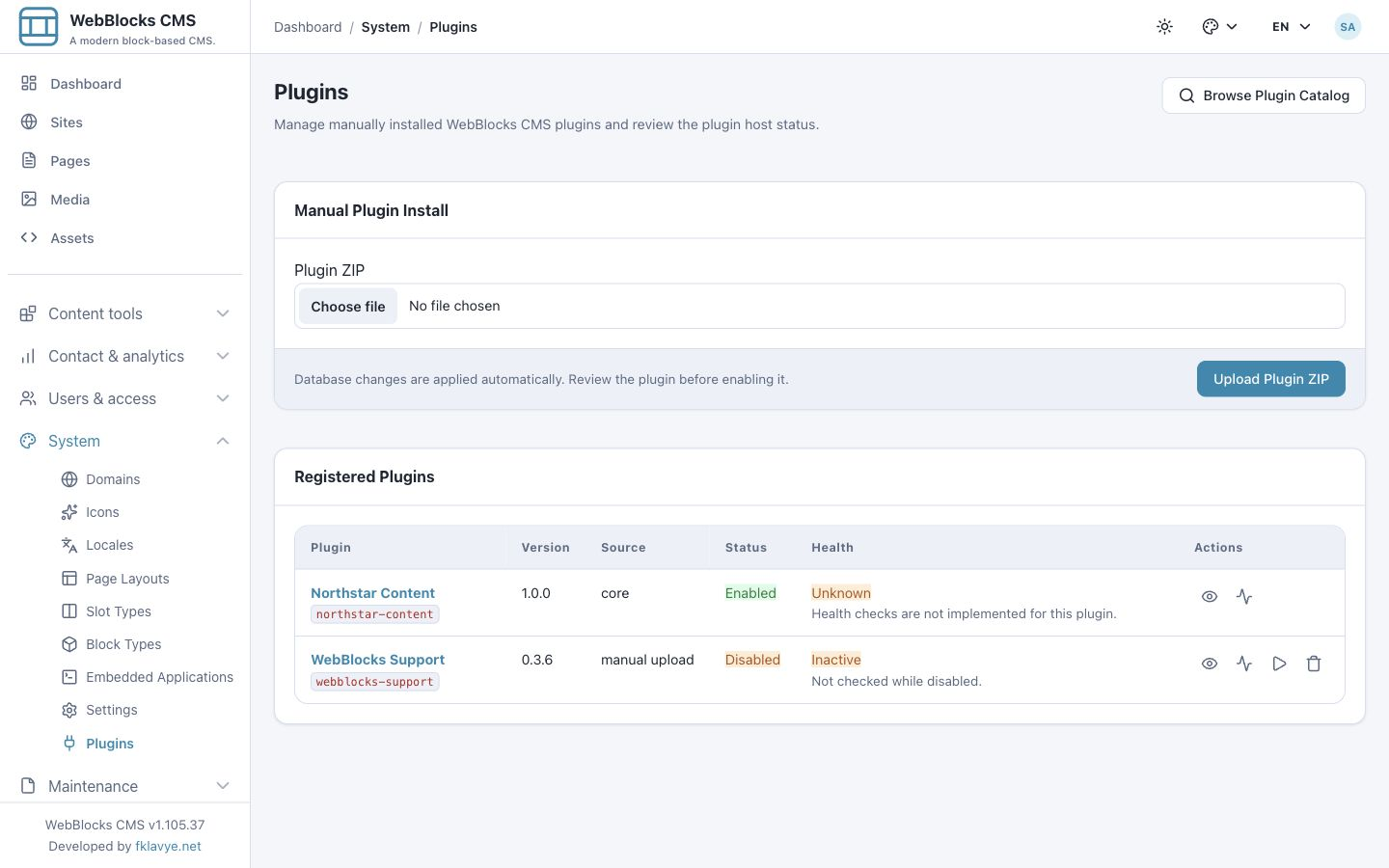
Current CMS installation and activation apply plugin database changes. Review any migration or setup warning before using Support. Do not edit database rows to bypass a failed installation. The plugin details should show the expected version, Enabled lifecycle and a ready storage/interface health result.
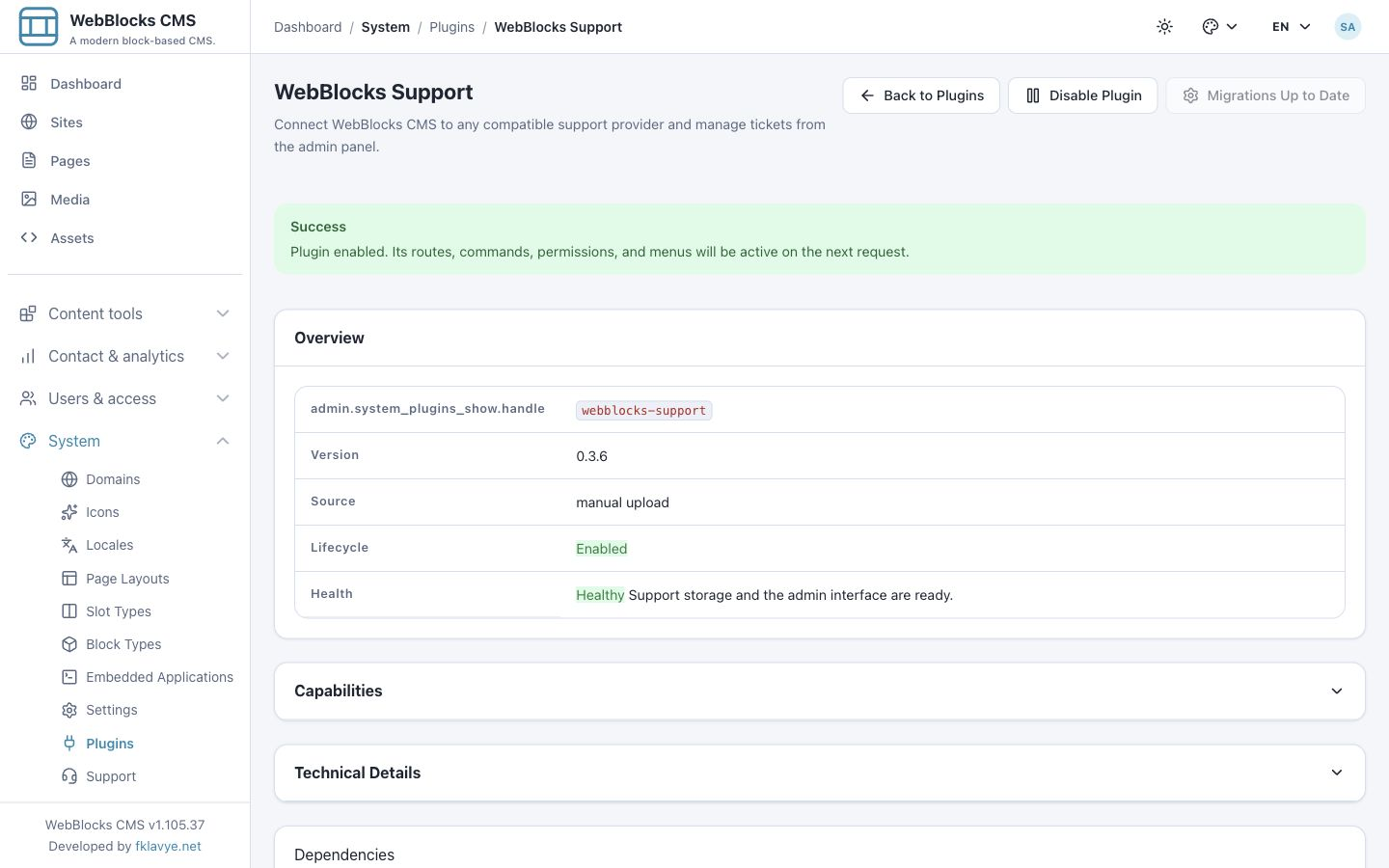
Plugin health checks the local plugin setup. It does not prove that the external support provider is reachable or that the provider has approved your installation. Open the new Support navigation item to continue.
2. Give users the right permissions
Support has two plugin permissions:
| Permission | What it allows | Typical assignment |
|---|---|---|
| webblocks-support.access | Open Support, create requests, read the user's own requests, reply and respond to diagnostic requests. | CMS users who should contact support. |
| webblocks-support.manage | Connect, check activation and disconnect the installation's provider. | The operator responsible for the connection. |
Give a connection manager access to Support as well as the connection-management permission. The Support screen itself requires the access permission. Review Roles And Permissions before changing an existing role.
A regular reporter does not need permission to change the provider. Without connection-management permission, the reporter does not see the connection controls. If the installation is not connected, that reporter sees that support requests are unavailable.
The ticket list is personal to the signed-in CMS user. Support scopes requests to an installation and reporter; it is not a shared queue of every user's requests. Super admin status does not turn the list into a provider agent inbox. A different CMS account cannot open another reporter's ticket through the plugin merely by knowing its address.
3. Enter the provider address and invitation
Open Support using an account with both permissions. Before activation, the Support connection card contains two inputs:
- Support provider address: the HTTPS address supplied by your compatible provider.
- Support invitation code: the single-use invitation supplied for this installation.
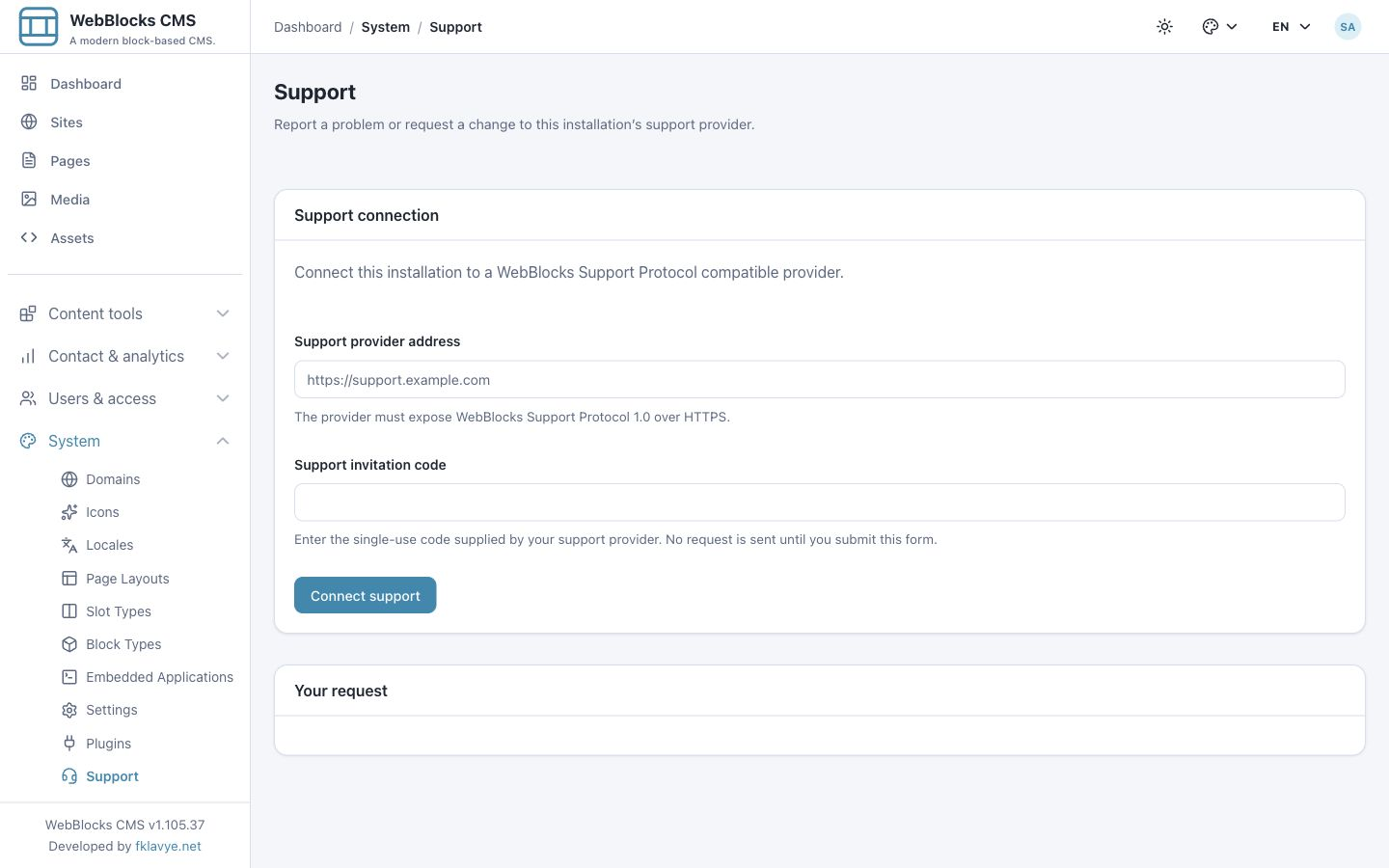
Enter the provider's actual address, then paste the invitation code and choose Connect support. The address must resolve to a public endpoint over HTTPS. Localhost, private or reserved network destinations, embedded login credentials and unsuitable URL components are rejected. Do not paste an administrator password or API token into the invitation field.
Submitting the form begins discovery and activation. The provider receives installation identification and context, including the CMS product version, site URL and environment. No activation request is sent merely by opening the form. Use only the provider you intend to connect to this installation.
The invitation code and any activation code are connection information. Keep them out of screenshots and shared troubleshooting notes. The connection image above deliberately leaves the inputs empty.
4. Complete provider approval
After a valid activation request, Support displays a pending connection and asks you to obtain approval from the provider. It also offers Check activation and Disconnect. The provider operator handles approval; clicking Check activation asks for the current result. A pending result is not a failed plugin installation.
- Contact the provider through its agreed onboarding process if approval is required.
- Return to the CMS Support screen.
- Select Check activation after the provider has approved the installation.
- Confirm the success message and the connection status active.
- Review the provider name and any support-plan name returned by the provider.
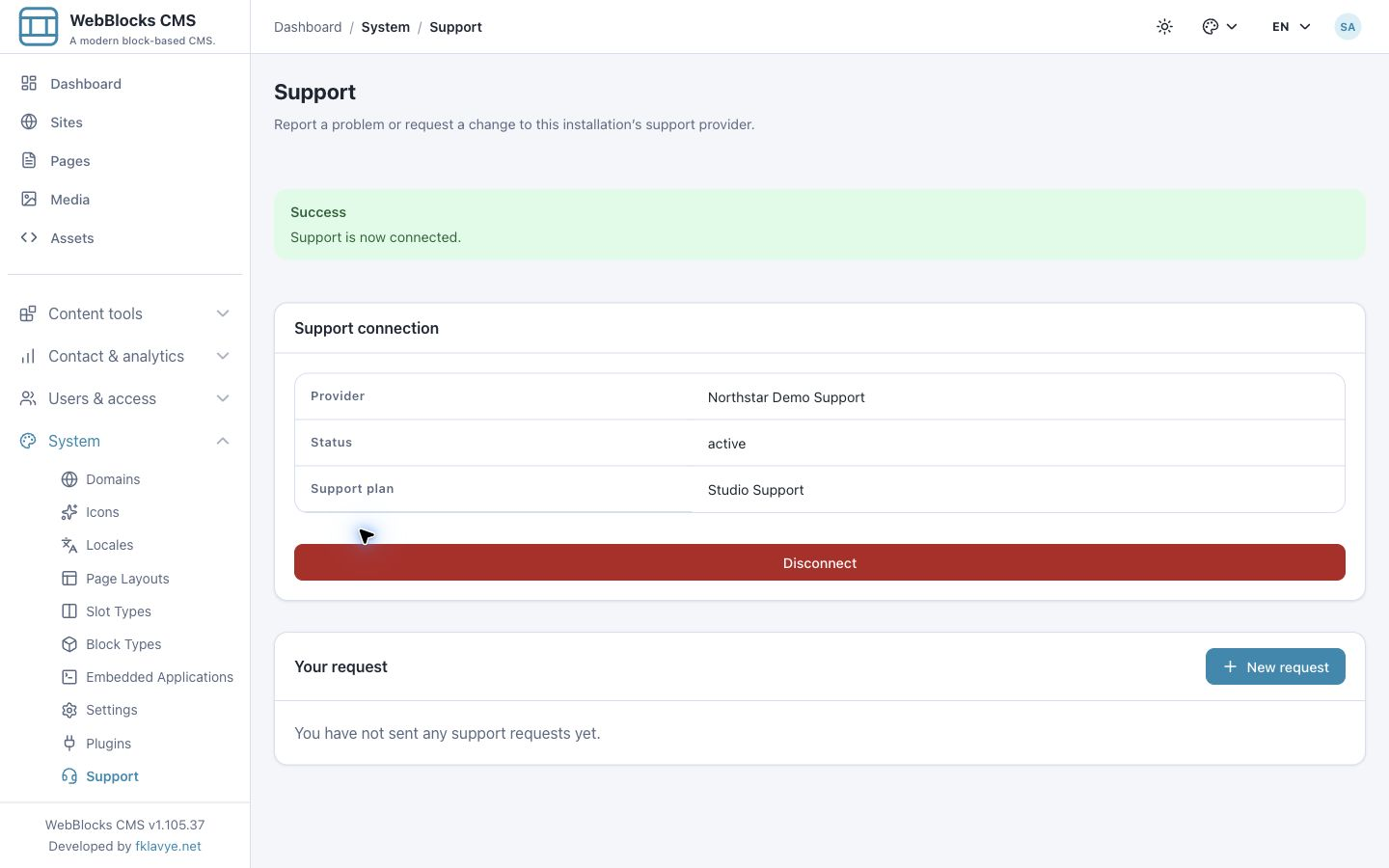
In our example the provider returns Northstar Demo Support and Studio Support. These are fictional labels, not a plan bundled with the plugin. An active connection makes New request available. An empty request list at this point is normal.
Activation can expire or be rejected. Ask the provider whether the invitation is still valid, whether approval is complete and whether you need a fresh invitation. The current screen may continue to offer a connection-removal action for an unusable connection. Resolve the provider state before disconnecting and starting again; repeatedly submitting an already-used invitation is not a recovery strategy.
5. Choose the request type
Select New request. The form has Type, Subject and Details.
| Type in the form | Use it for | Example |
|---|---|---|
| Problem | Something behaves differently from what you expected. | A saved draft title does not appear in Preview. |
| Suggestion | An improvement you would like the provider to consider. | A quicker route from editing to Preview. |
| Question | Guidance about expected behavior or configuration. | Whether editors can open their own support requests. |
Choose the type that describes the request. Type is not a priority selector, a response-time guarantee or an automatic approval of paid work. The provider determines how it processes requests.
Keep one clear subject per ticket. A useful subject describes the affected action and symptom, such as Draft preview shows the previous page title. A title such as “Help” makes later follow-up harder.
6. Write details that support can reproduce
Use Details to explain what you did, what you expected and what happened. For the fictional Northstar problem, we enter:
Page: Autumn field notes (draft)
Steps: Open the page, update its title to Autumn studio notes,
save, then open Preview.
Expected: The preview heading shows Autumn studio notes.
Actual: The preview still shows Autumn field notes after a refresh.
Scope: One draft page in Northstar Studio.
No published content is affected.
First noticed: 27 October, around 09:00.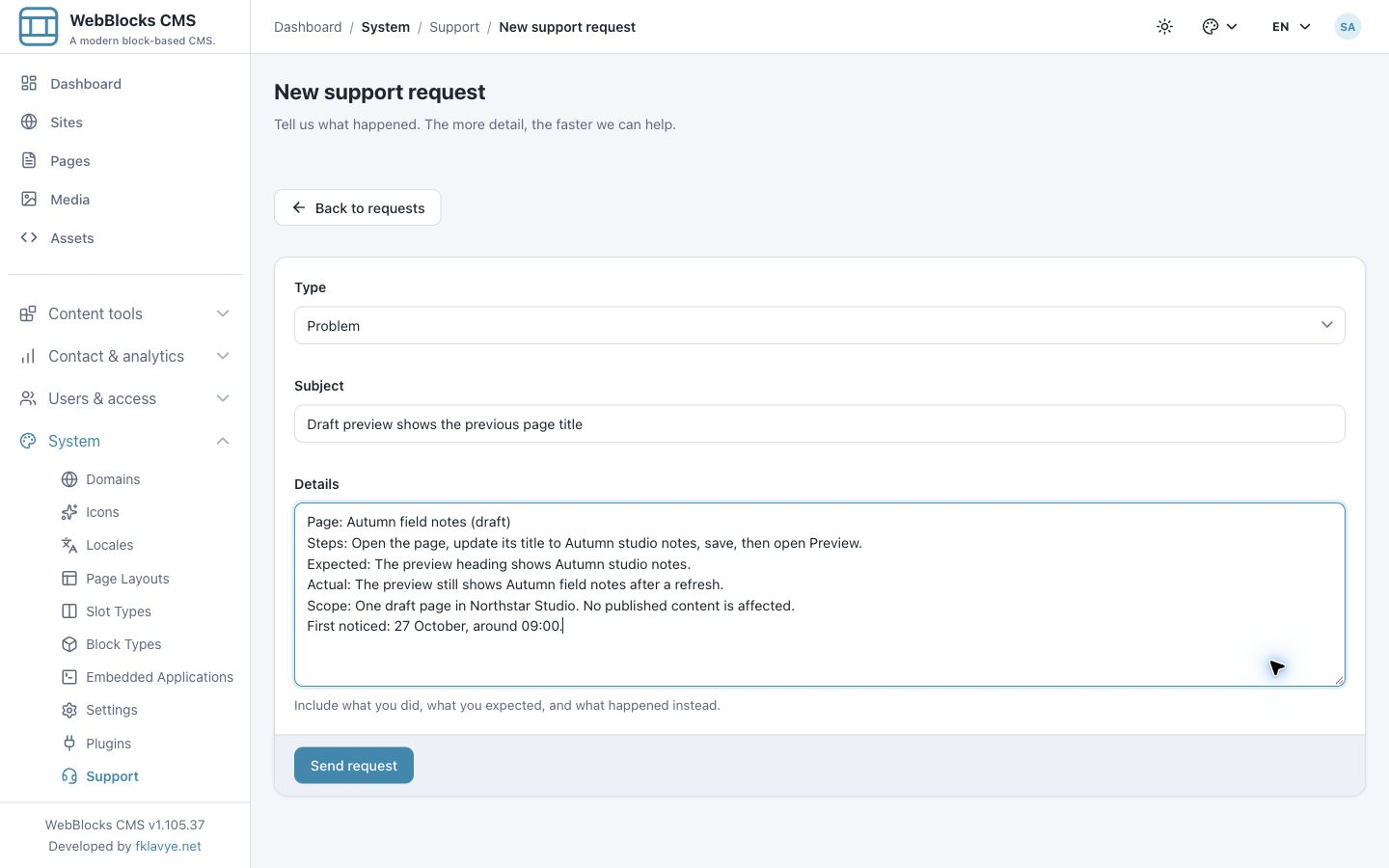
This is an example report, not a claim that the published CMS has that defect. Replace it with what you actually observed. Include the affected page or feature, approximate time, whether the problem repeats and whether published content is affected. When relevant, say which site and language you were working in; Support itself uses an installation connection rather than a site selector.
The subject accepts up to 255 characters. Initial details and each reply accept up to 20,000 characters. The form shown here has no attachment-upload field. Describe a relevant screenshot in text or use a separate transfer method explicitly agreed with your provider. Do not paste secrets, personal records, full application logs or raw configuration into the conversation.
Review your text, then choose Send request once. The request payload includes your CMS display name, an installation-scoped reporter reference and installation context. Support uses that reporter reference to keep your ticket list separate from other users and installations.
7. Confirm that the request was created
A successful submission opens the ticket and displays Your request has been sent. The heading includes a request number and your subject. The opening details appear in Conversation under You and Reporter.
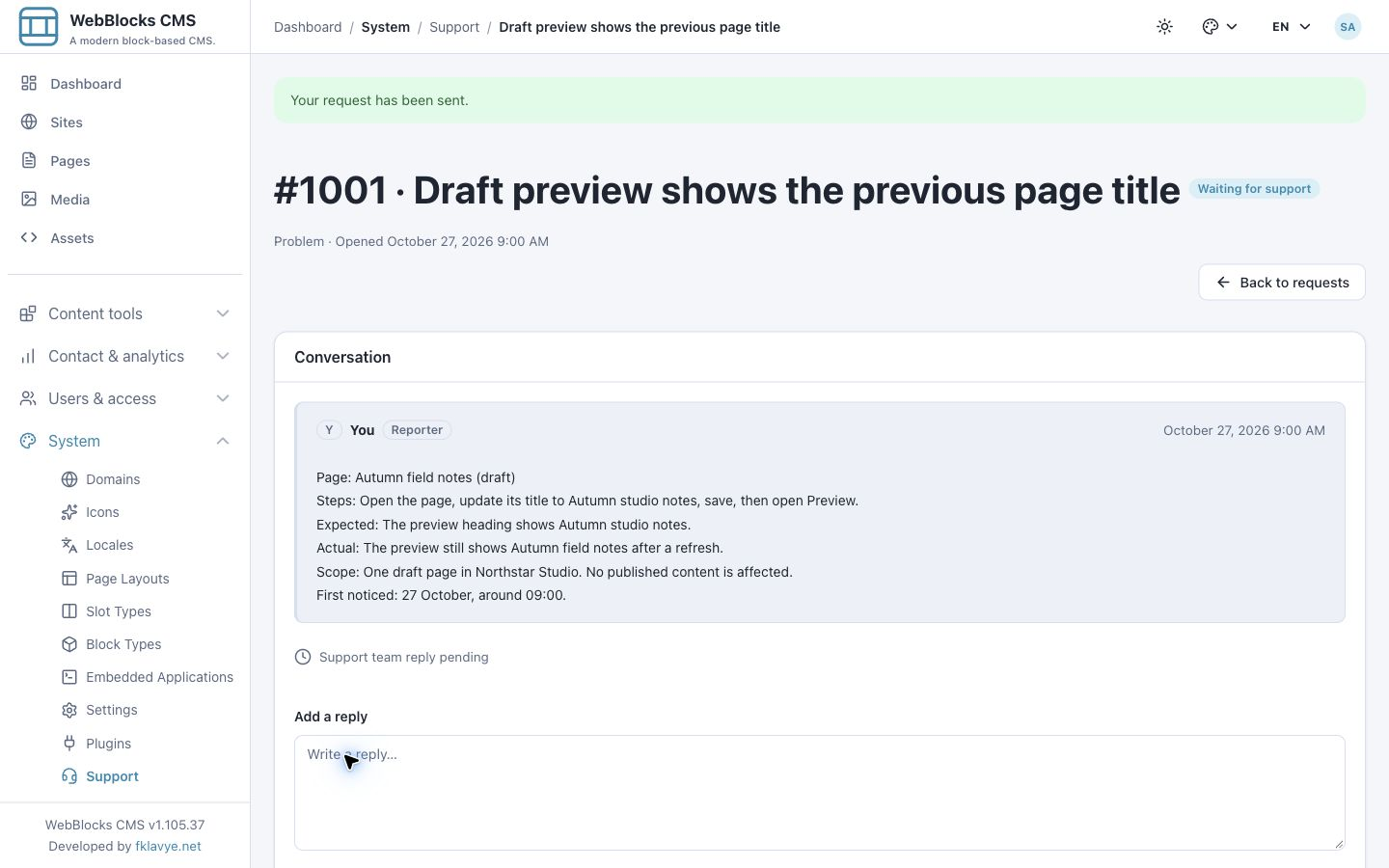
Our example is #1001 and initially shows Waiting for support. Keep the number when discussing the same problem with your provider. Use Back to requests to return to your list and the subject link to reopen the conversation.
If sending fails, the plugin returns to the form with the text retained and a service error. Before retrying after an uncertain connection failure, check your request list. A request could have reached the provider even if the final response did not reach your browser. Avoid creating several tickets for the same issue.
The screen confirms ticket creation at the provider. It does not confirm that an agent has read the request, that an email was delivered or that a response deadline has been agreed.
8. Read a team reply and respond
Return to the request to check for updates. In the example, the simulated provider adds a follow-up message and changes the ticket to Waiting for your reply. The conversation distinguishes the original reporter from a Support team message and shows message times.
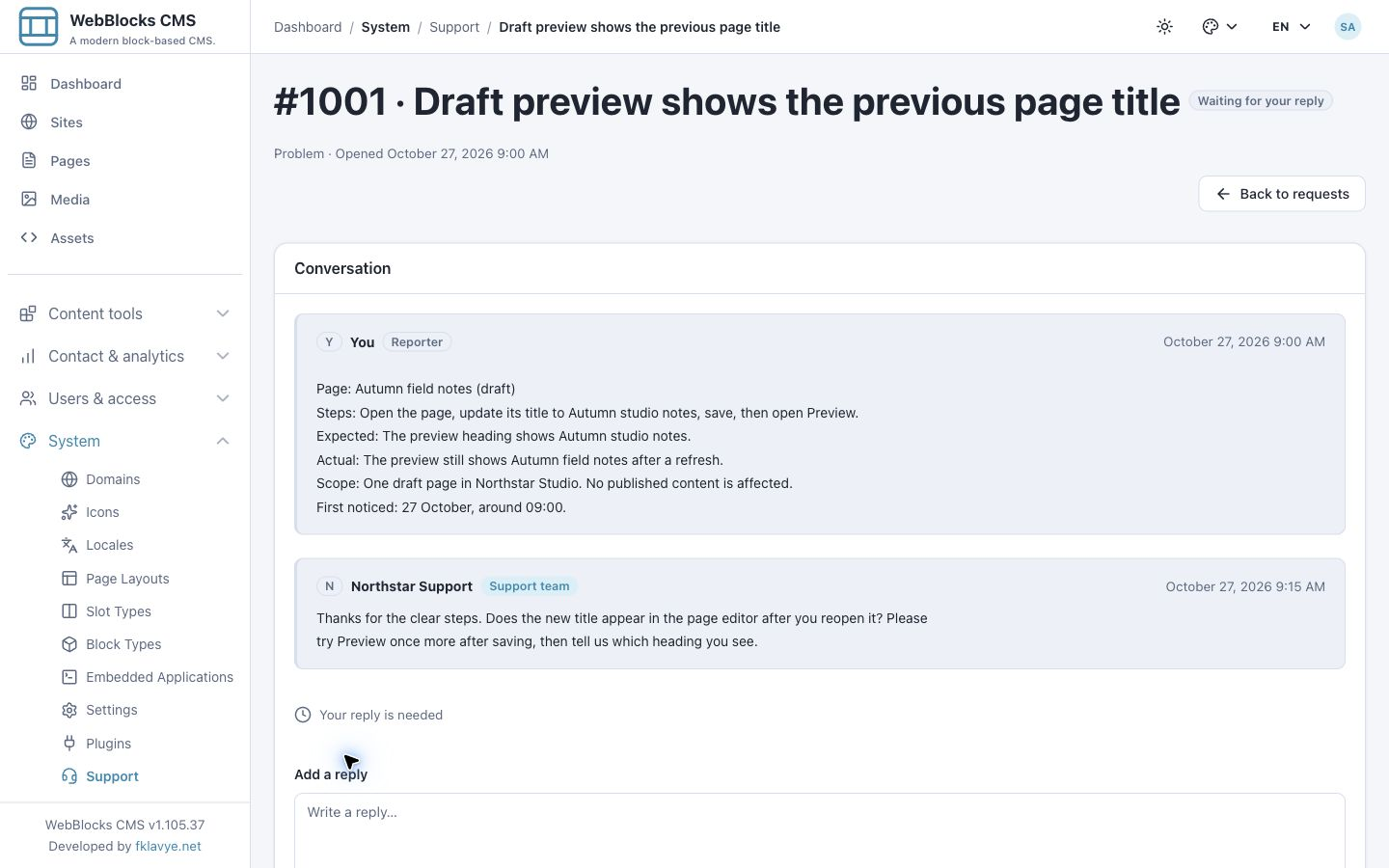
Read the question before replying. If support asks you to test a specific action, explain the result and any remaining difference. Continue in the same ticket so the provider retains the context.
- Find Add a reply below the conversation.
- Enter the result of the requested check.
- Review the text for confidential information.
- Choose Send reply.
- Confirm Your reply has been added. and check that your message appears in the conversation.
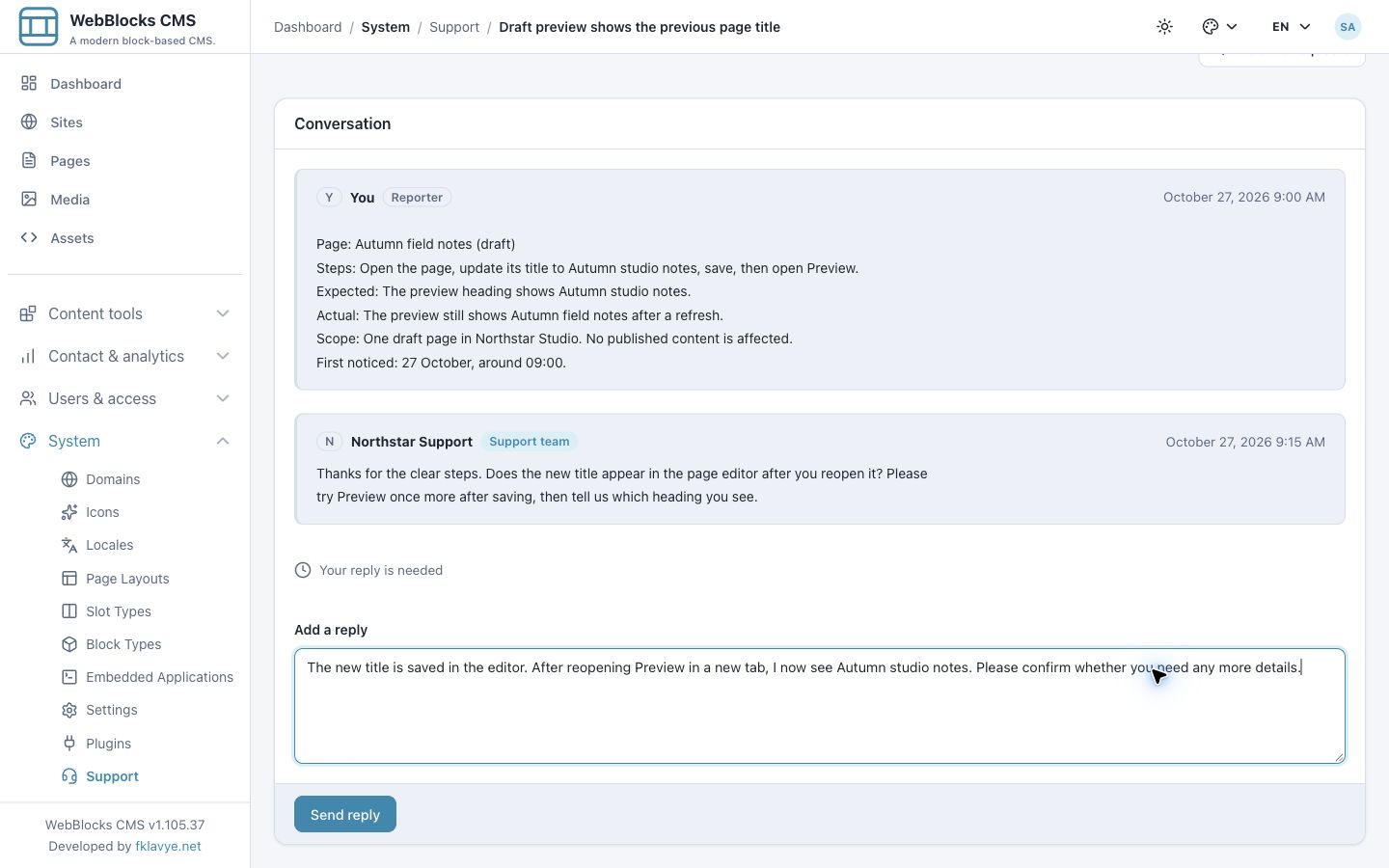
A message added to the conversation is different from changing the ticket status yourself. The provider controls its workflow. In this example, our reply returns the request to a waiting-for-support state; another compatible provider may handle that transition differently.
Do not rely on an email or browser notification to know that support replied. The illustrated plugin workflow is to revisit the list or ticket. Any additional notification service depends on the provider and its integration.
9. Review a diagnostic request before sharing
A provider can request a limited diagnostic snapshot for a ticket. The request appears above Conversation under Diagnostic access requested. Merely viewing this card does not collect or send the snapshot.
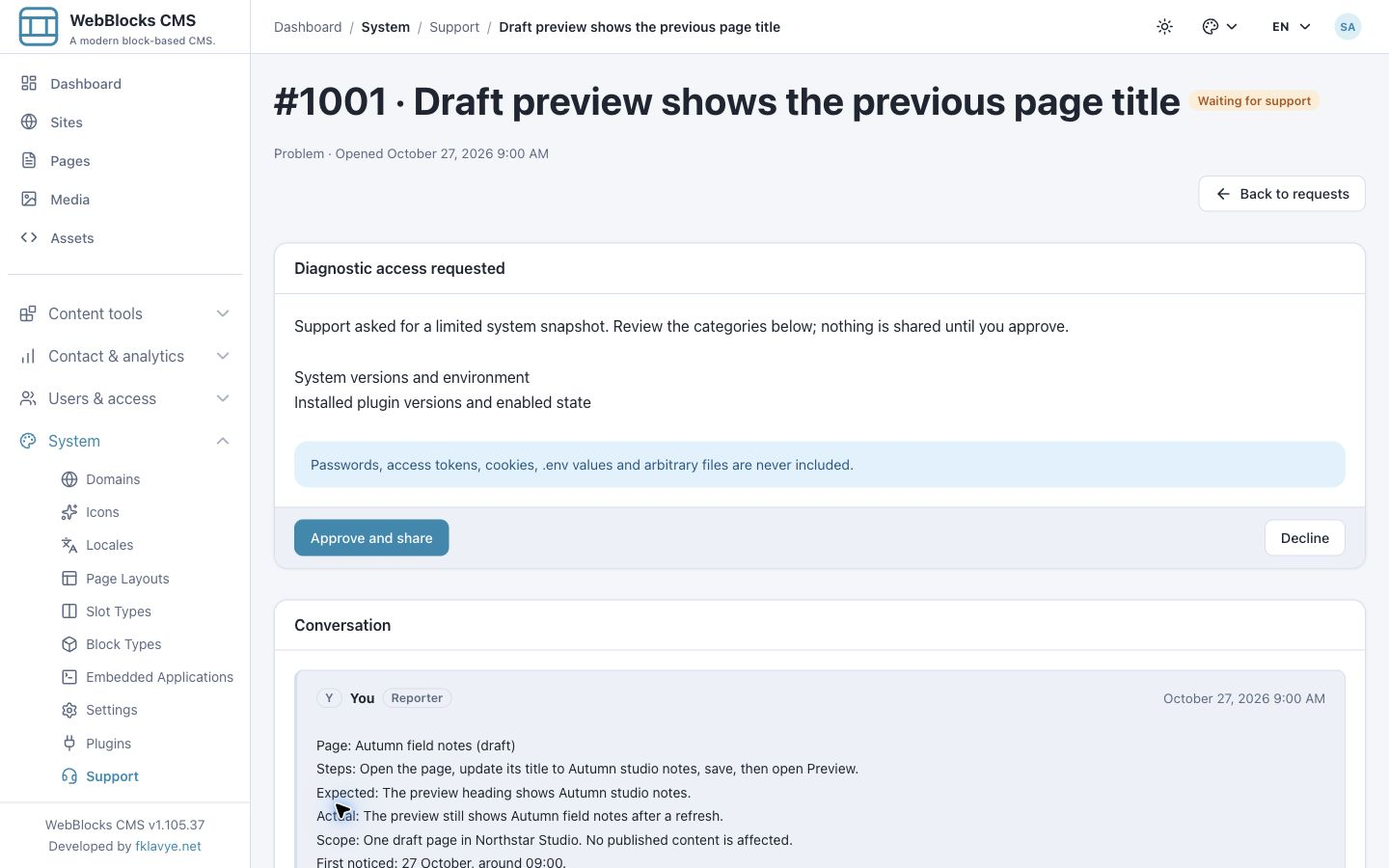
Read the exact categories listed on the card. The plugin recognizes three categories:
| Category shown in Support | What the collector prepares |
|---|---|
| System versions and environment | CMS and PHP versions, environment name, debug state and database driver. |
| Installed plugin versions and enabled state | Plugin handles, versions, enabled state and compatibility result. |
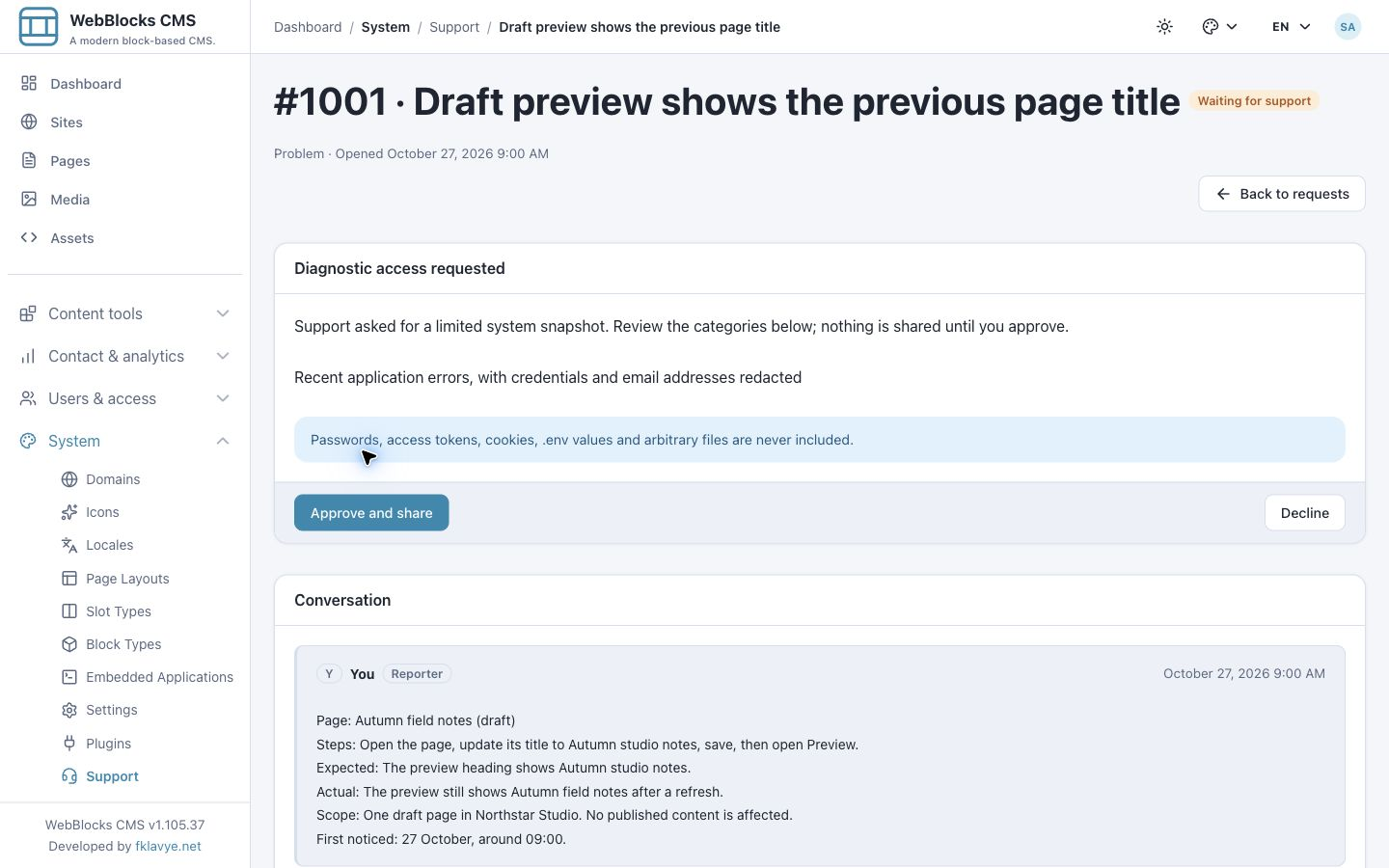
| Recent application errors, with credentials and email addresses redacted | A bounded selection of recent error lines, processed by the collector's redaction rules. |
The error collector reads a bounded tail of the application's standard log and selects matching error lines; it does not upload the full log. Its limits are a 64 KiB tail, up to 40 matching lines, and up to 2,000 characters per selected line. Redaction targets common credential markers, bearer values and email addresses. This filtering is not a reason to put arbitrary confidential material into logs or ticket text.
A diagnostic request is not remote access. The collector does not offer arbitrary file selection, an environment-file upload, a shell command or a provider-controlled code execution feature. The text and reply fields are separate from this collector: their contents are whatever you choose to send.
10. Approve only the requested snapshot you intend to share
If the listed categories are appropriate and your organization permits sharing them with this provider, select Approve and share. The plugin collects those recognized categories and submits the snapshot for this diagnostic request.
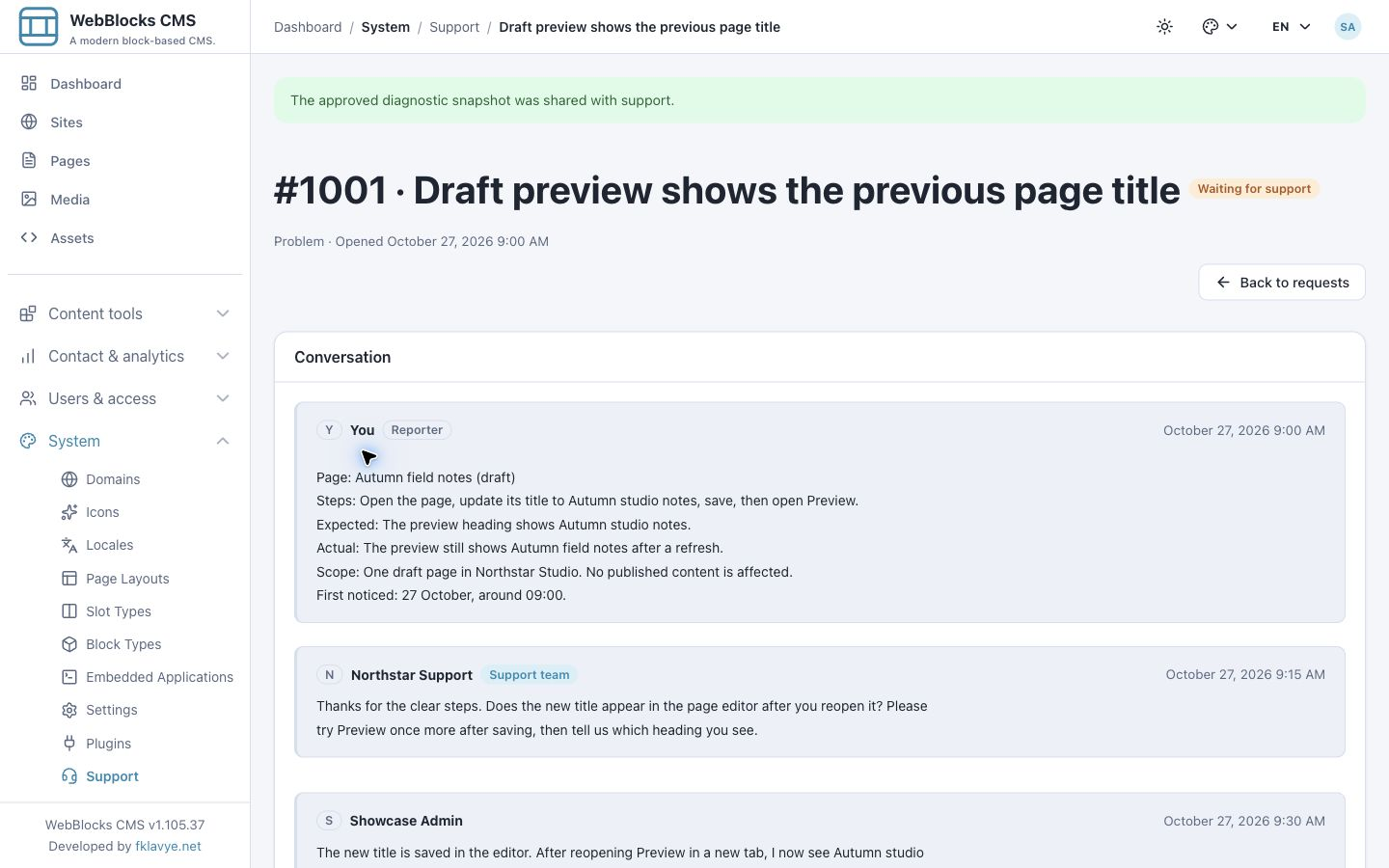
Confirm The approved diagnostic snapshot was shared with support. The provider must still review it. This success message does not mean the underlying problem is fixed.
Our example approves system versions and environment plus installed plugin versions and enabled state. It does not approve recent application errors in that action. Approval is tied to the displayed diagnostic request; it is not blanket permission for future requests or continuous monitoring. Read each new request separately.
The consent card lists categories rather than showing an editable, line-by-line snapshot preview. If you need a separate information review or approval process, complete it before choosing Approve and share.
11. Decline when sharing is inappropriate
You can choose Decline instead. In the second example, the provider requests recent application errors. We decline this request.
After the action, check the message The diagnostic request was declined. The decline response does not include a collected snapshot. Your existing ticket conversation remains available.
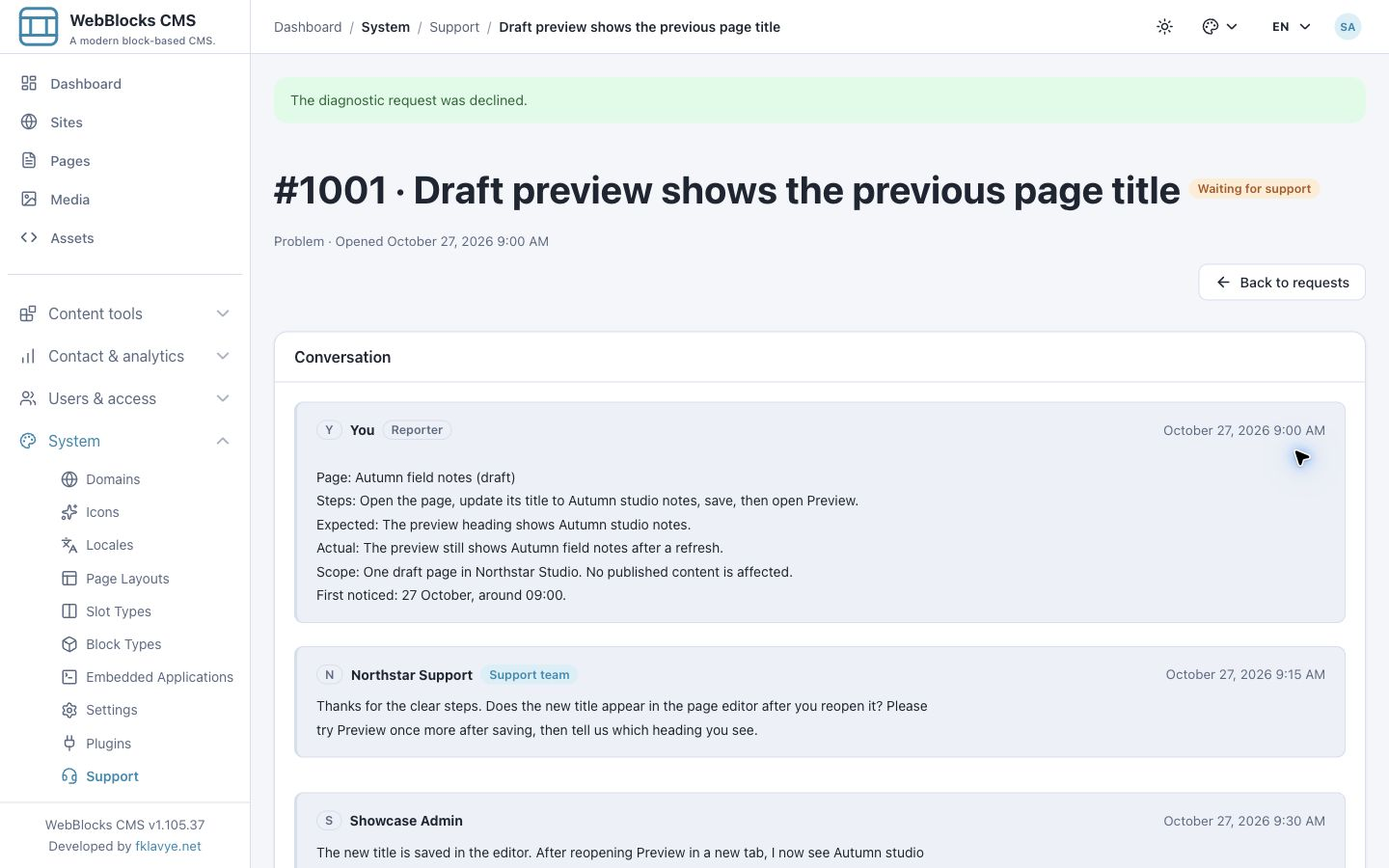
If useful, add a reply explaining that you can provide reproduction steps or another approved form of information instead. Declining diagnostics is different from declining or closing the support ticket. The provider decides how to proceed with the information available.
If approving or declining produces a service error, do not assume the provider received the decision. Reopen the ticket, inspect its current state and contact the provider if the result remains unclear.
12. Follow request statuses and confirm the outcome
Select Back to requests. The list shows the request number, subject, type, status and sent time. Our example includes a closed problem, a question under review, an accepted suggestion and a declined suggestion.
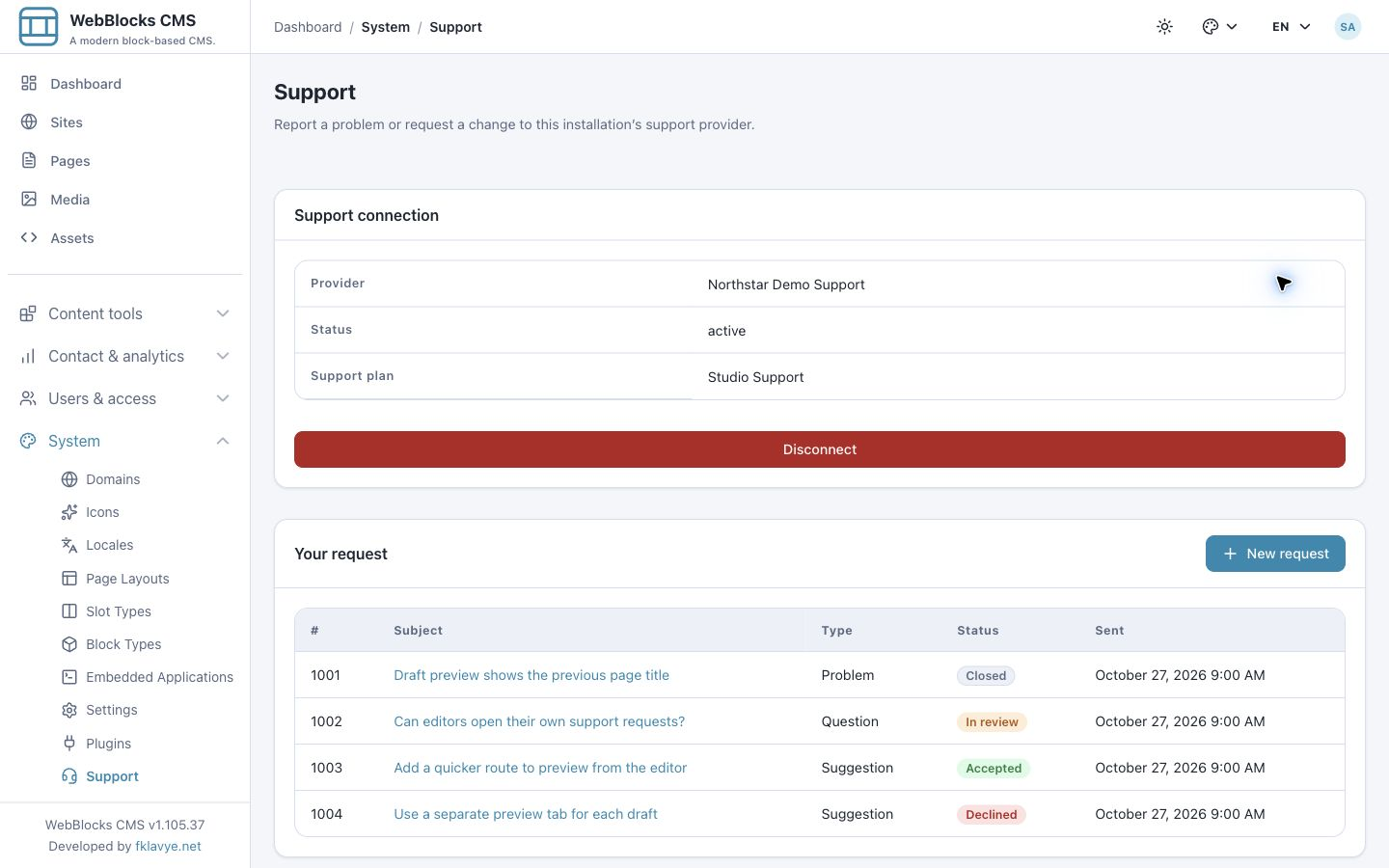
The standard list labels include:
| Label | How to read it |
|---|---|
| New | The provider has received a newly created request. |
| In review | The provider has moved the request into review. |
| Accepted | The provider has accepted the request in its workflow. Ask what that means for scope and delivery. |
| Declined | The provider has declined the request. Read any explanation in the conversation. |
| Closed | The provider has closed the request. Review the result before starting another request about the same issue. |
The detail page uses Waiting for support for new and in-review requests, and Waiting for your reply when the provider uses its waiting-on-reporter state. A provider can return additional status values; the plugin may show those values directly when no label is defined. Status wording is not an SLA or a delivery commitment.
In our fictional example, reopening Preview shows the saved title. We tell support the result; the simulated provider adds a closing message and marks the request Closed.
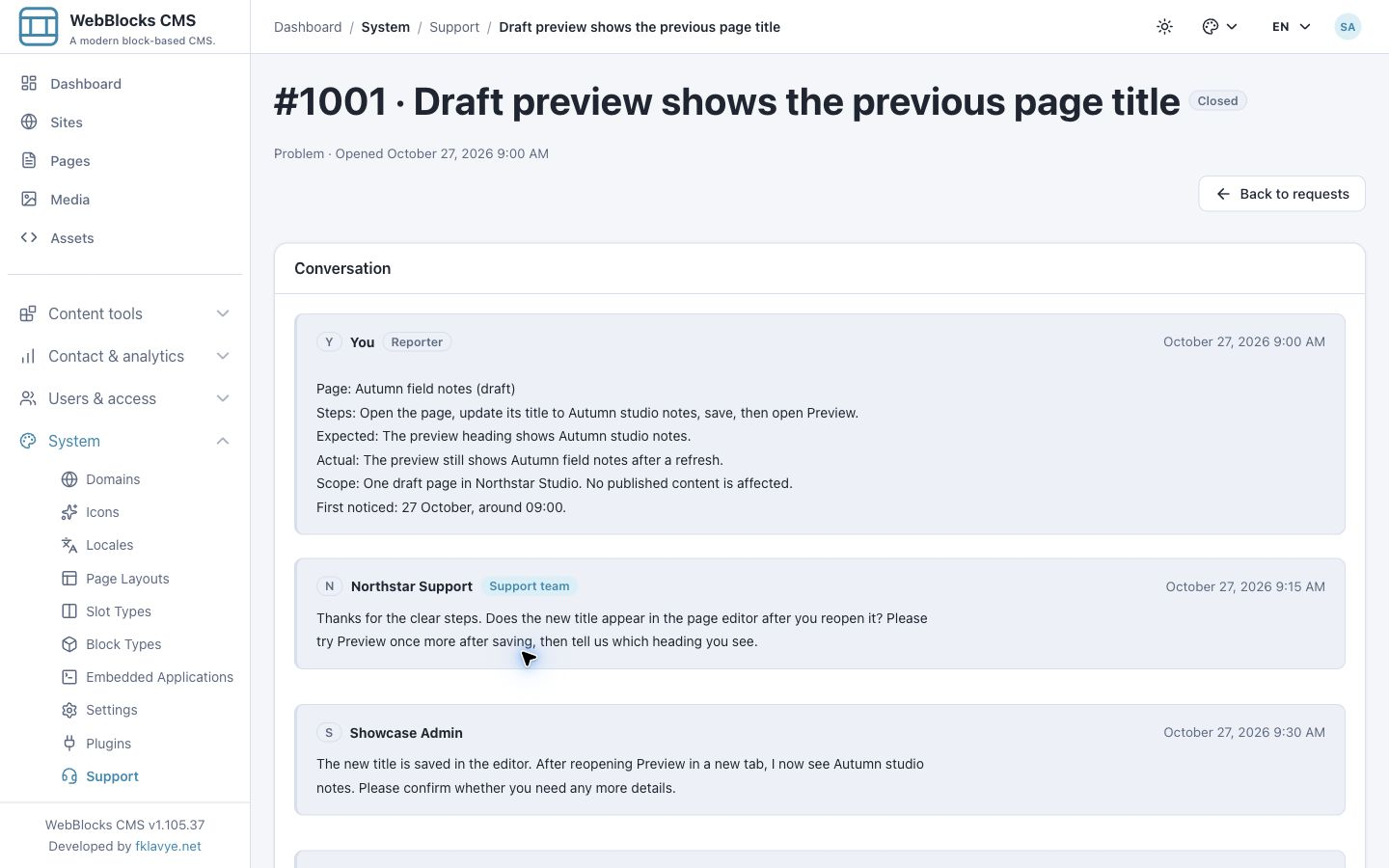
The client shown here does not provide a reporter-side status selector, close button or reopen button. A reply field can still be visible on a closed ticket, but whether another reply is accepted or reopens work depends on the provider. Follow its instructions instead of assuming that typing a reply changes the status.
13. Handle a provider outage without losing context
The Support connection can remain active while a network or provider failure prevents the ticket list from loading. In that case, the screen displays The support service could not be reached. Please try again in a moment.
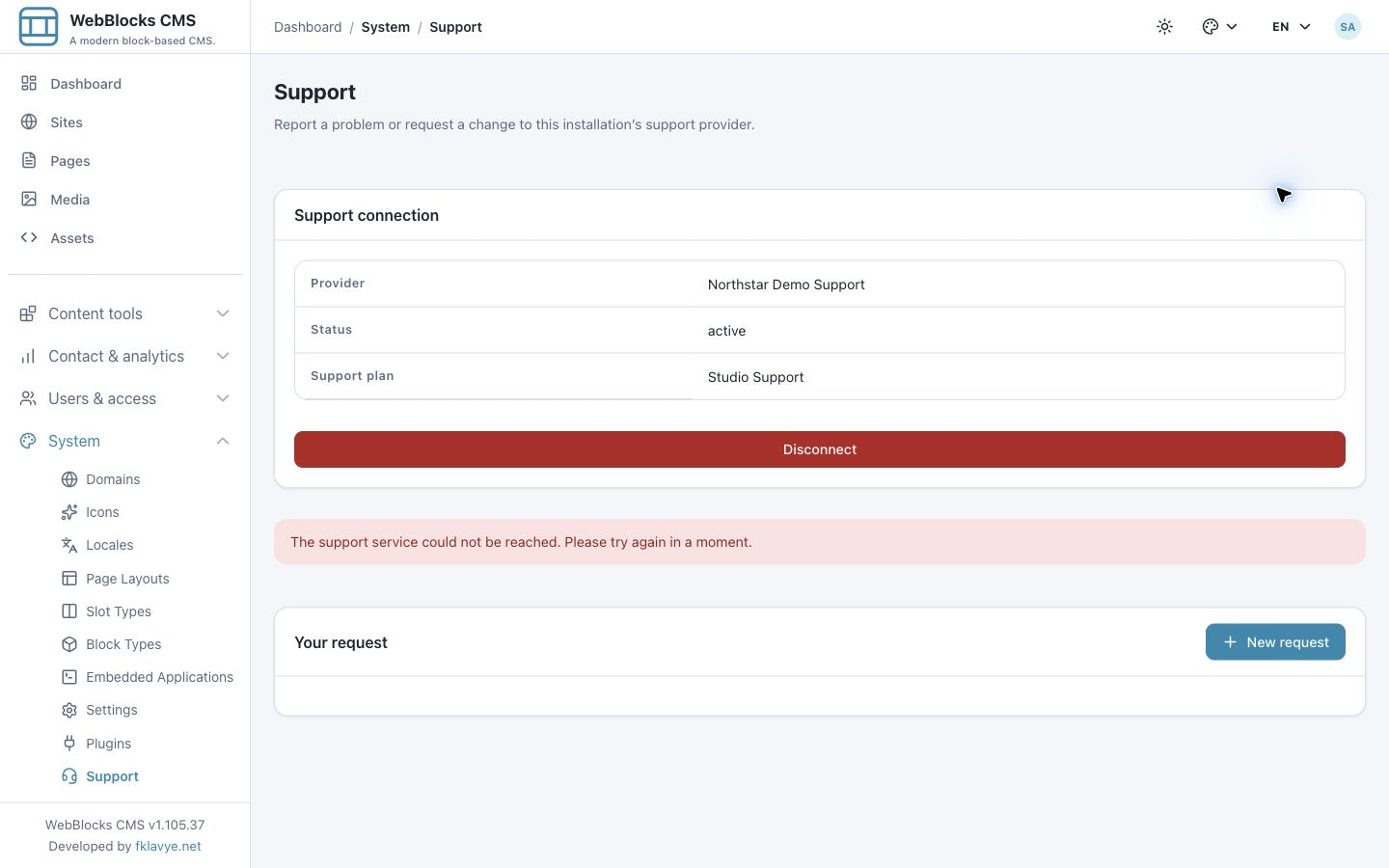
An unavailable list is not proof that tickets were deleted. Wait briefly, refresh and check again. Preserve any unsent reply outside the browser in a suitably private place before navigating away. Tell your operator which action failed and when, without sending credentials or a full log dump.
A direct ticket read can also fail when the provider is unreachable. Confirm whether the provider is available, the installation is still entitled to support and the configured origin is still correct. Disconnecting does not repair a temporary outage and can make recovery require another invitation and approval.
14. Disconnect or change the provider deliberately
Only the connection manager sees Disconnect. Selecting it opens a confirmation dialog explaining that the installation will lose access to requests until activated again.
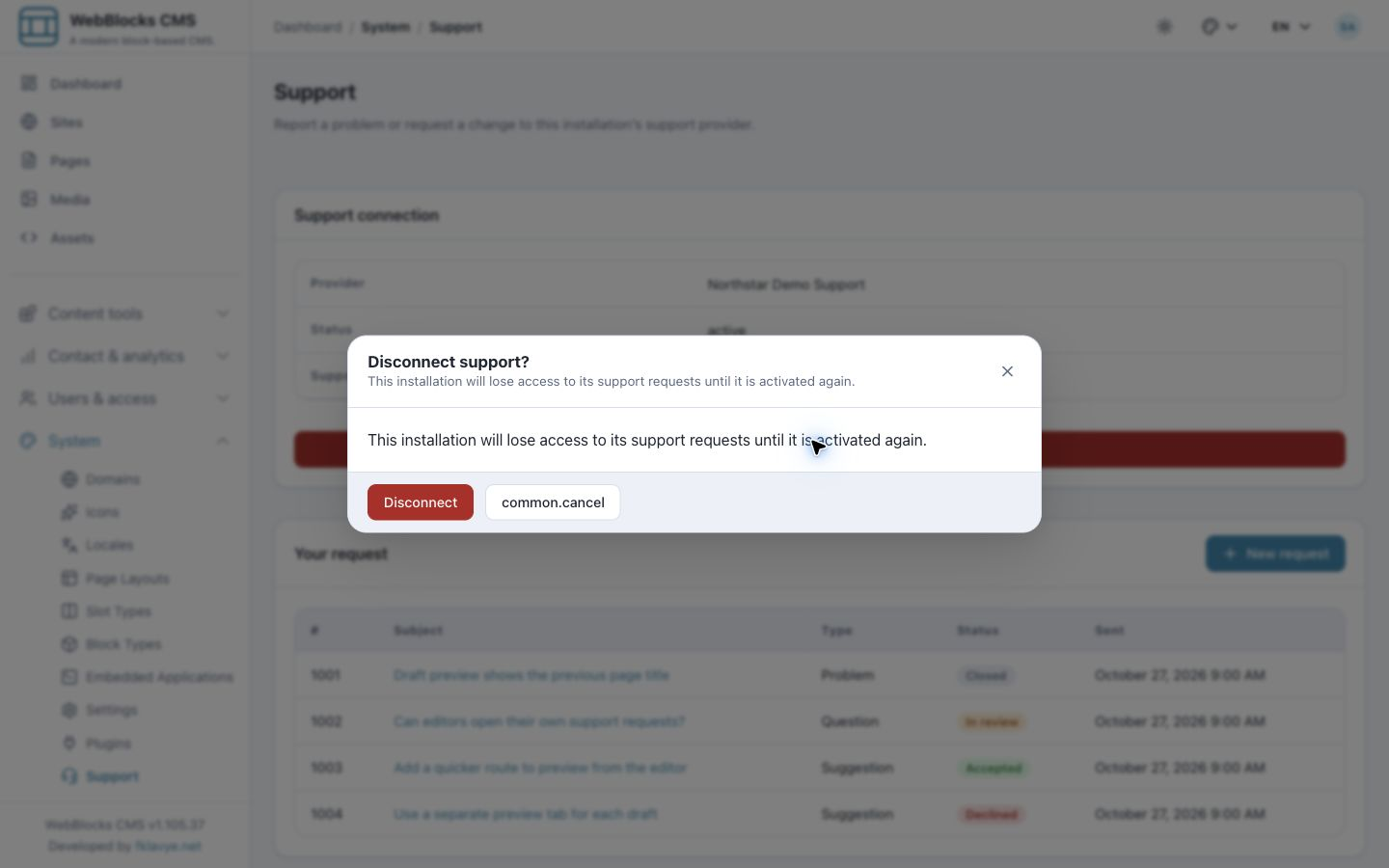
Close the dialog if you are only inspecting it. If you intend to remove the connection, confirm Disconnect inside the dialog. For an active connection, the plugin asks the provider to revoke the installation connection and then removes its local connection record. If revocation fails, resolve the provider error rather than assuming the disconnect completed.
Disconnecting is not a ticket-deletion or provider-data-erasure command. It removes this CMS connection; the provider controls its ticket retention and any later recovery process. Check access to ongoing work and ask how history will be handled before changing providers or moving an installation.
To connect a different provider, complete the old disconnection first, obtain the new provider's address and invitation, then repeat activation. Do not assume a new provider will inherit the previous provider's conversations.
Troubleshooting
| Symptom | What to check |
|---|---|
| Support is missing from navigation | Confirm the plugin is enabled, compatible and available on the next request; check the user's access permission. |
| Support opens but there are no connection controls | The account may have ticket access without connection-management permission. Ask the connection manager to activate the provider. |
| The address or invitation cannot be verified | Use the provider's exact public HTTPS address, a valid unused invitation and a Protocol 1.0-compatible service. Check discovery, outbound connectivity and provider approval requirements with your operator. |
| Activation stays pending | Ask the provider whether it has approved the installation, then use Check activation. Check whether a fresh invitation is needed after expiry. |
| The provider is active but New request is unavailable | Recheck connection state, expiry/entitlement and the signed-in account. An installed plugin alone is not an active support connection. |
| Your list is empty but a colleague has tickets | Requests are scoped to the reporter. Sign in with the account that opened the ticket. |
| A known ticket returns not found | Check the current account, installation and provider. Another reporter's ticket is intentionally not exposed. |
| Sending fails | Keep the request text, check the list for a possible successful submission and retry after the provider is reachable. |
| Diagnostic sharing fails | Reopen the same ticket, check whether the request is still present and verify provider availability. Do not paste raw logs as a workaround. |
| Storage or migration health reports a problem | Ask the administrator to resolve the supported plugin setup/migration workflow and storage access. Preserve the installation identity during a move or restore. |
A complete first-use check
Before handing Support to your CMS users, confirm that the published plugin is enabled, the provider is active and the intended role can open its own requests. Create one controlled test request, verify it appears in that reporter's list and have the provider reply. Send a follow-up from the CMS and confirm the provider receives it.
If the provider supports diagnostics, verify the consent process with approved test data and check both the share and decline outcomes. Agree separately on support availability, notification behavior, response times and what information may be shared. These arrangements belong to the provider relationship rather than being guaranteed by the plugin.
You now have a repeatable path from a CMS problem to a provider conversation: a clear report, a visible request number, a reply in context and a deliberate decision about diagnostics. Continue with Roles And Permissions to delegate ticket use, or the Support protocol if you are implementing a compatible provider.