Build A Navigation Menu
Goal: Put a page into a menu, and get the order right.
Time: 3 minutes
You need: Navigation access, and a page to link to
Steps
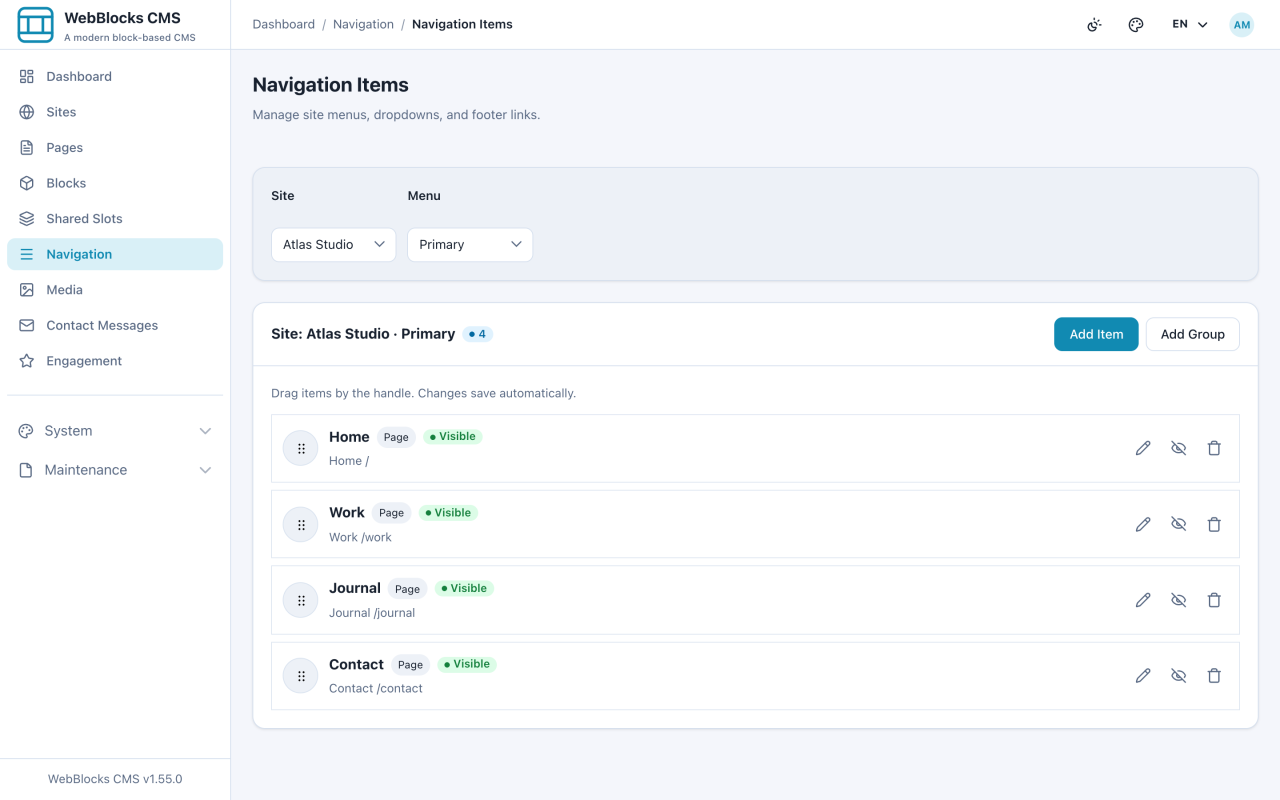
- Select Navigation in the sidebar. Pick the Site and the Menu you are editing — Primary, Footer, Mobile, Legal, or Docs.
- Select Add Item.
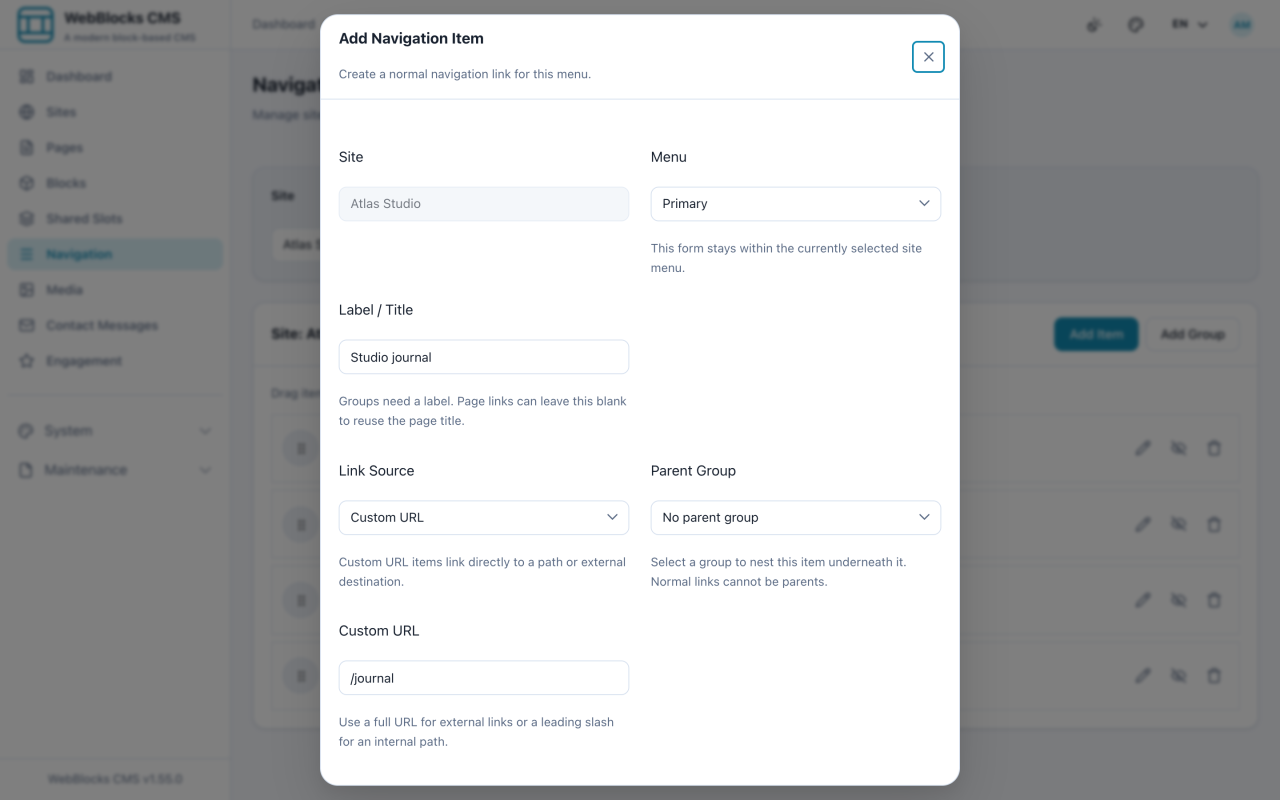
- Fill in Label / Title — this is the text visitors read, and it does not have to match the page title.
- Choose the Link Source: Page picks a page from this site and follows it if the address changes; Custom URL takes any address; Group makes a heading that holds other items.
- Set Parent Group to nest it, Target if the link should open in a new tab, Display to hide an item without deleting it, and an optional Icon.
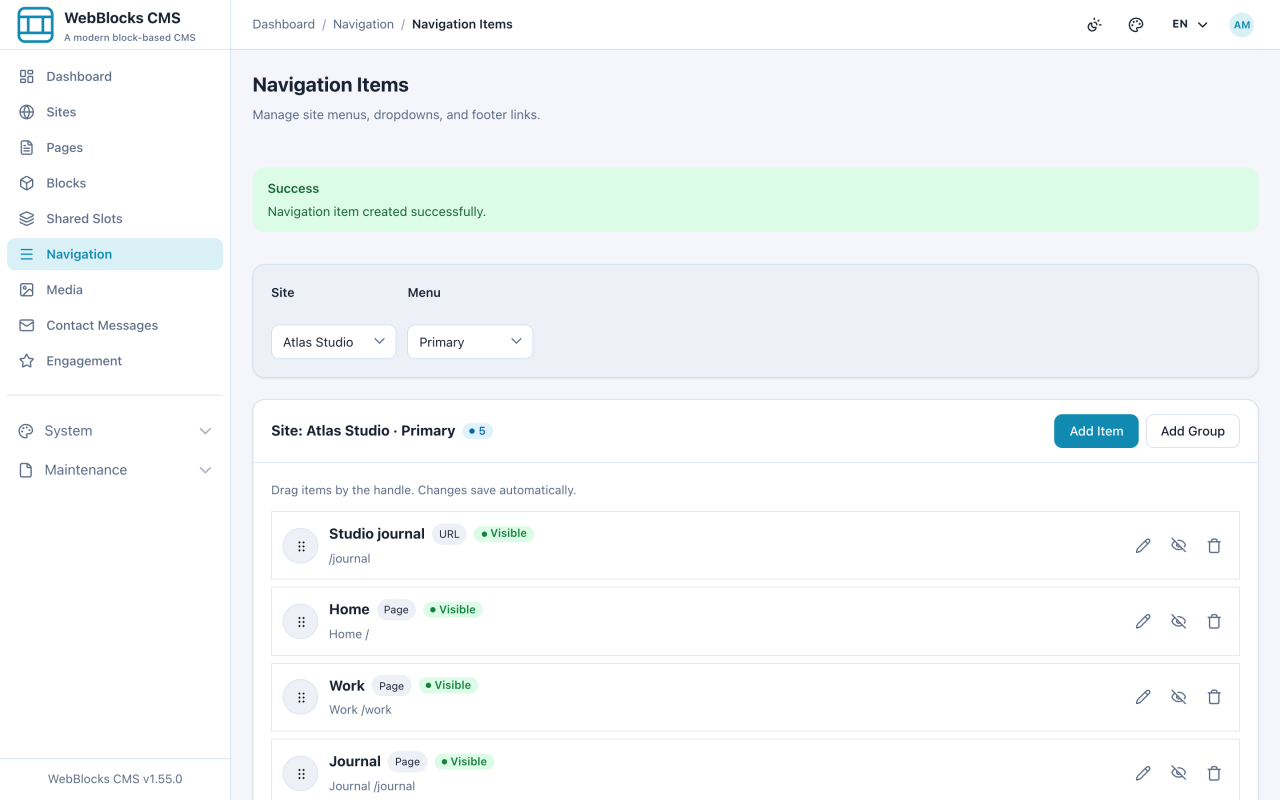
- Select Create, then drag the handle on the left of each row to set the order.
The Five Menus
The menu keys are fixed by the product: Primary, Footer, Mobile, Legal, Docs. You cannot add a sixth from the admin.
A menu is only a list of links. What renders it is a block — Navbar Navigation in a header, Sidebar Navigation in a sidebar — pointing at the menu key. Editing the menu changes every block bound to it.
Notes
- Prefer Page over Custom URL for internal links. A page link survives a slug change; a hand-typed
/aboutdoes not. - Display: hidden is how you take a link out of circulation without losing its position and settings. Use it instead of deleting during a rebuild.
- A Group with no children renders as a dead heading. Add the items first, or hide the group.
- Menu changes are live the moment you save. There is no draft state for navigation.