Rich Text: Formatting, Lists, And Links
Goal: Write a passage that needs more than plain sentences.
Time: 3 minutes
You need: A page with a Main slot you can edit
Steps
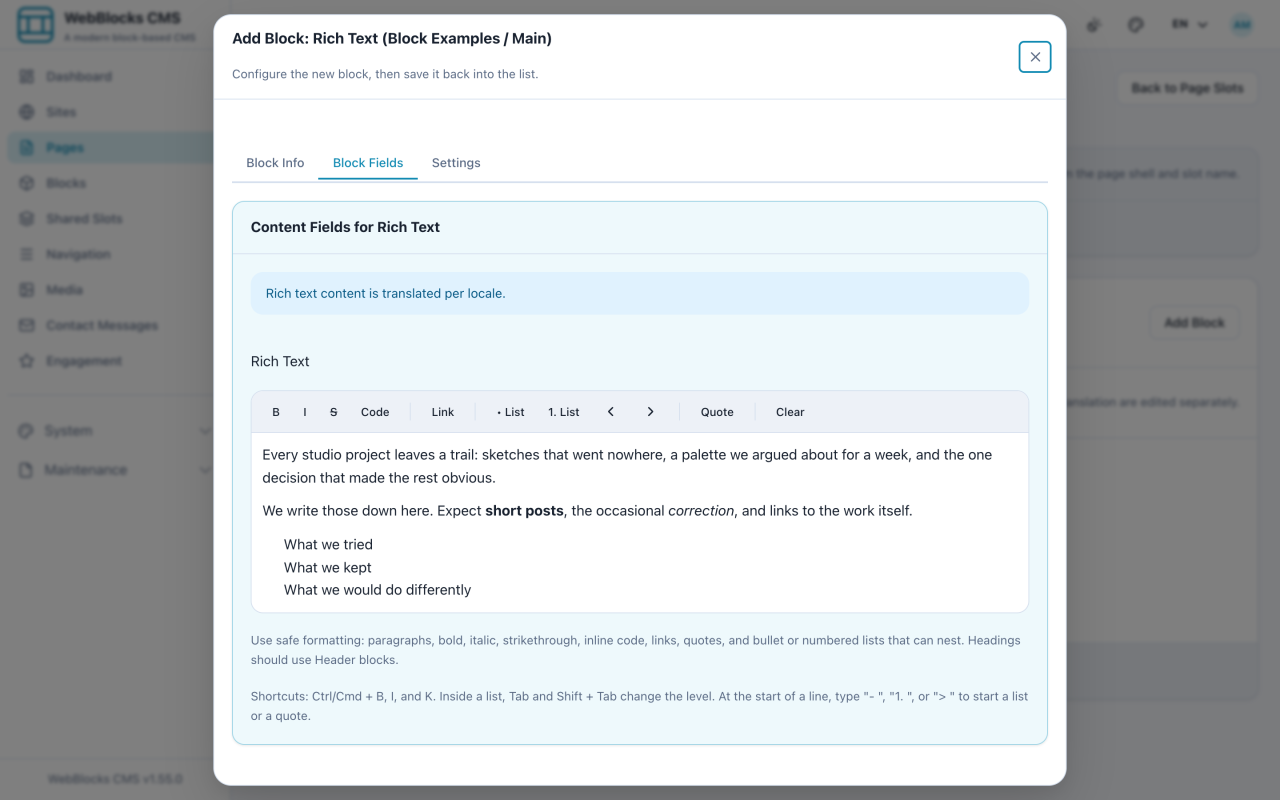
- In the Main slot, select Add Block, then choose Rich Text.
- Type your text in the editor. The toolbar gives you bold, italic, strikethrough, inline
Code, Link, bullet and numbered lists, indent and outdent, Quote, and Clear. - Select some text and use Link to turn it into a link.
- Start a list with the list button, or by typing
-or1.at the start of a line. Inside a list, Tab and Shift+Tab change the level. - Use Undo and Redo when you need to reverse or repeat an edit. For a longer passage, select Focus mode to write with a larger area, persistent toolbar, and word count. Select Return to block when finished.
- Select Save New Block. Focus mode keeps changes in the same form; returning does not save the block.
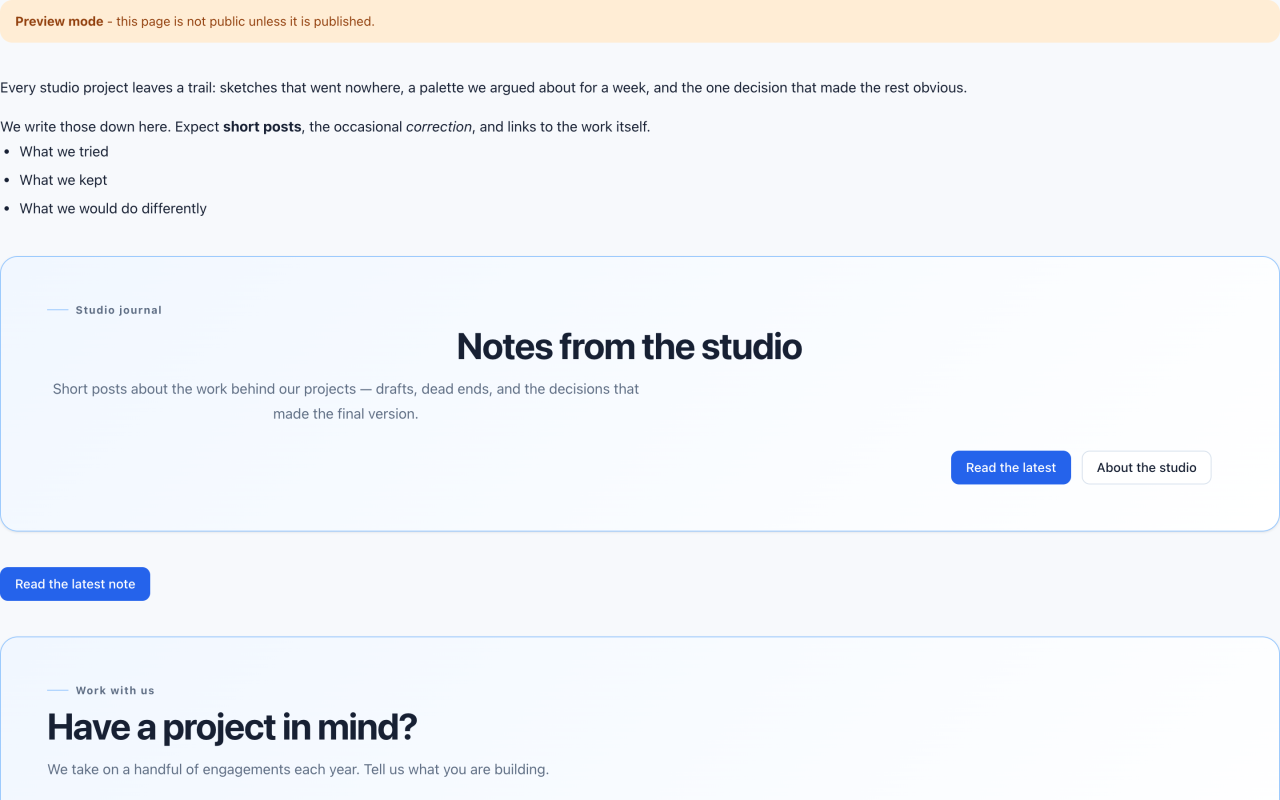
Shortcuts Worth Knowing
- Ctrl/Cmd + B bold, Ctrl/Cmd + I italic, Ctrl/Cmd + K link
- Ctrl/Cmd + Z undo; Ctrl/Cmd + Shift + Z redo, or Ctrl + Y on supported keyboards
- Type
>at the start of a line to begin a quote - Clear strips formatting from the selection — useful after pasting from a word processor
Notes
- Rich Text deliberately does not do headings. Use a Header block instead, so the page keeps a real heading structure that screen readers and search engines can follow.
- Formatting is limited on purpose: paragraphs, bold, italic, strikethrough, inline code, links, quotes, and nesting lists. Anything the editor refuses to keep was never going to render safely.
- Undo and redo keep a bounded history for each Rich Text field, including typing, paste, lists, quotes, and link changes. They restore the caret or selection and are not a substitute for page version history.
- Pasted headings and table cells keep their text as body paragraphs. Create a Header or Table block when you need their original structure.
- Pasted markup is cleaned up, not trusted. If you need raw markup, that is the HTML block — and it has its own warnings.
- For a plain paragraph with no formatting at all, Plain Text is lighter.