Send Email With WebBlocks Campaigns
Turn a visitor subscription into a deliberate, reviewable email workflow. WebBlocks Campaigns stores contacts, lists, consent records, reusable email templates and campaign recipients inside your CMS. A native Newsletter Sign-up block collects requests; confirmation adds the subscriber to your audience. The sending log explains which recipients were sent, failed or skipped.
Our example is Northstar Studio and its Studio notes newsletter. You will import Ada and Casey, add Robin through a public sign-up block, prepare a personalized message, select a list, queue a campaign and read its results. Casey will unsubscribe after queueing so you can see the send-time check prevent that message. A separate test audience demonstrates a temporary failure and retry.
This walkthrough uses the published Campaigns 0.7.4 archive on WebBlocks CMS 1.105.37, English, light theme and fictional data. All email tests use a disposable local SMTP receiver. It accepts or deliberately rejects test messages without delivering anything externally. Sent in these screenshots means accepted by that local receiver, not delivered to a real inbox. Production mail delivery and a production scheduler were not tested.
For package architecture and integration details, see the Campaigns reference. For installation basics, see Plugin System.
Before you start
Use a test site and an account with the right site access. Installation needs Super admin. Campaigns separates permissions for viewing, managing, sending and changing settings. An operator who can edit a campaign does not necessarily have permission to send it or send a template test. Review Roles And Permissions before delegating these actions.
The 0.7.4 manifest requires CMS ^1.92.0 and PHP >=8.3; its catalogue compatibility lists PHP ^8.3 and Laravel ^13.0. Check the compatibility result for your actual installation, including the CMS's own requirements. Use the published archive offered by the WebBlocks plugin catalogue.
Have your hosting administrator configure a working mail transport and arrange dispatch runs. Plugin sender settings do not configure SMTP. The fictional example.test addresses in this guide are demonstration data; substitute controlled test mailboxes for your real delivery checks. Keep your provider credentials in the host's private configuration.
Campaigns is for email campaigns. It does not add a visual email designer, an automatic campaign calendar or open/click analytics to the screens shown here. Native Contact Messages, Forms submissions and Campaigns contacts have different jobs. A form submission is not automatically permission to send a newsletter.
1. Install and enable Campaigns
- Open System → Plugins as Super admin.
- Select Browse Plugin Catalog and find WebBlocks Campaigns.
- Read the version, compatibility result and release notes.
- Choose Install from Catalog, then Enable Plugin in its details.
- If your administrator supplies the trusted published ZIP, use Plugin ZIP → Upload Plugin ZIP, review the package and enable it.
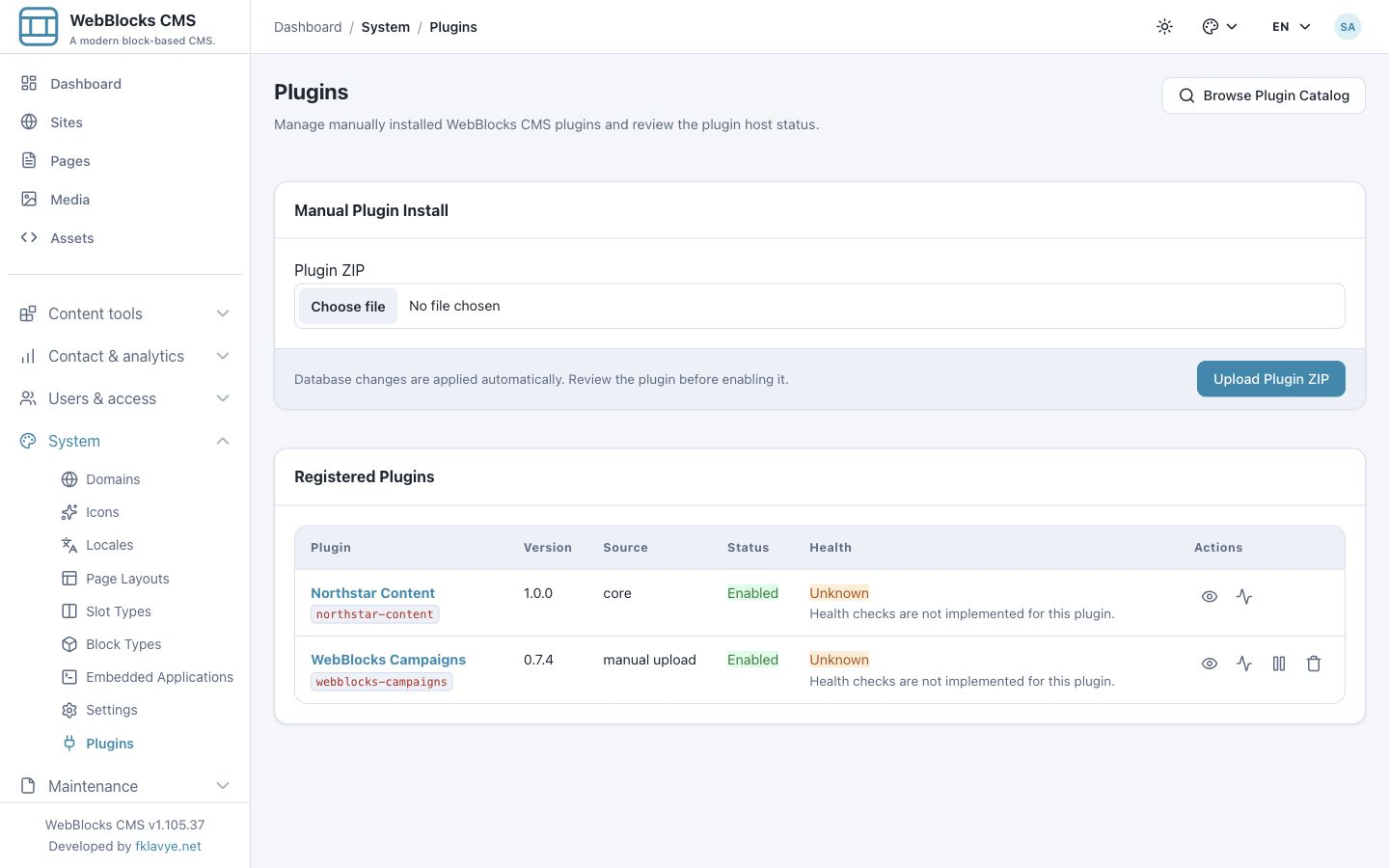
New installations begin disabled. Current CMS installation and activation prepare plugin database changes. If the plugin shows a setup or migrations warning, resolve it through the plugin details and the host's supported migration workflow before entering contacts. A successful installation does not prove that mail transport or dispatch scheduling works.
Once enabled, find Campaigns, Contacts, Templates, Lists, Suppressed, Delivery problems and Settings in the plugin navigation. Confirm the selected site on each screen. Contacts, settings and campaigns belong to a site; a list from another site is not your current audience.
Open Templates → Add template and check that the editor and available merge fields appear. Campaigns 0.7.4 fixes the template-screen compilation error present in 0.7.3. Test both creating and reopening a saved template after updating an older installation.
2. Set the sender and sending limits
Open Campaigns Settings for your site. Our local example uses:
| Setting | Example | Purpose |
|---|---|---|
| From name | Northstar Studio | Name shown to recipients. |
| From email | hello@example.test | Fictional sender for the local exercise. |
| Reply-to | studio@example.test | Fictional reply destination. |
| Batch size | 1 | Process one pending recipient per batch for easy inspection. |
| Most per hour | 5 | See the run-limit behavior below before relying on this label. |
| Soft-bounce threshold | 5 | Repeated temporary failures can suppress an address at the configured threshold. |
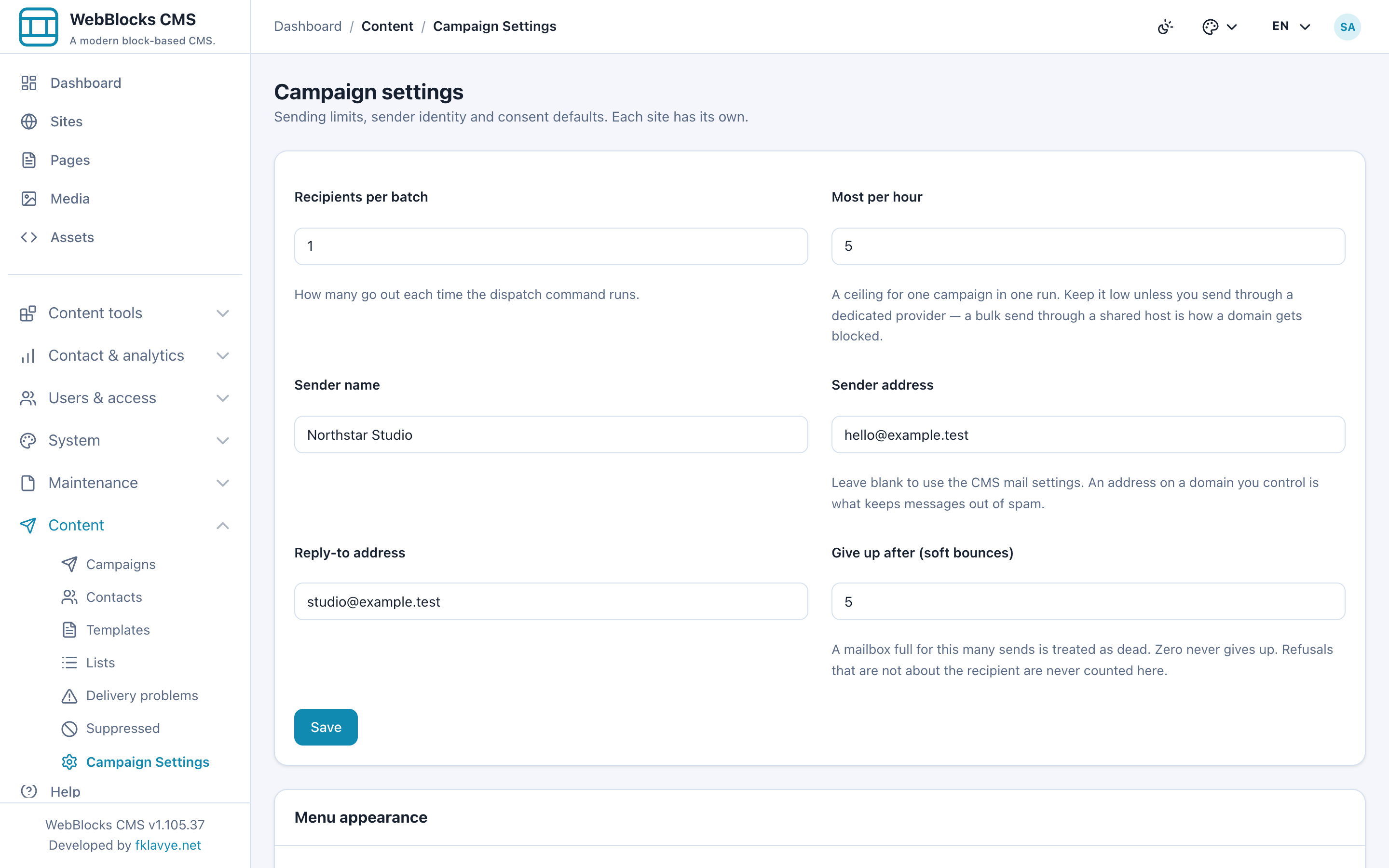
Select Save after reviewing the values. In this release, batch size accepts 1–500, the limit accepts 1–20,000 and the soft-bounce threshold accepts 0–50. A threshold of zero disables automatic suppression from repeated soft bounces; it does not make hard-bounce addresses deliverable.
The Most per hour help describes a ceiling for one campaign in one run. The command resets its run counter for each campaign and invocation. It is not a rolling hourly allowance across your site or mail provider. It also checks before processing a whole batch, so a batch larger than the remaining allowance can exceed that allowance. Keep batch size at or below the chosen limit, arrange dispatch frequency deliberately, and use provider/host throttling where you need a true delivery-rate guarantee.
Ask your administrator to verify your sender with the mail provider and test actual inbox delivery, including replies. A local receiver, a log mailer or a successful settings save cannot establish that your domain is authorized by an external provider.
3. Create a list for the newsletter
Open Lists, create Studio notes and add a useful description such as “Northstar Studio news and workshop updates.” This list keeps the example newsletter separate from other contacts. The screenshots also contain Delivery test only, a deliberately separate audience used for the retry exercise.
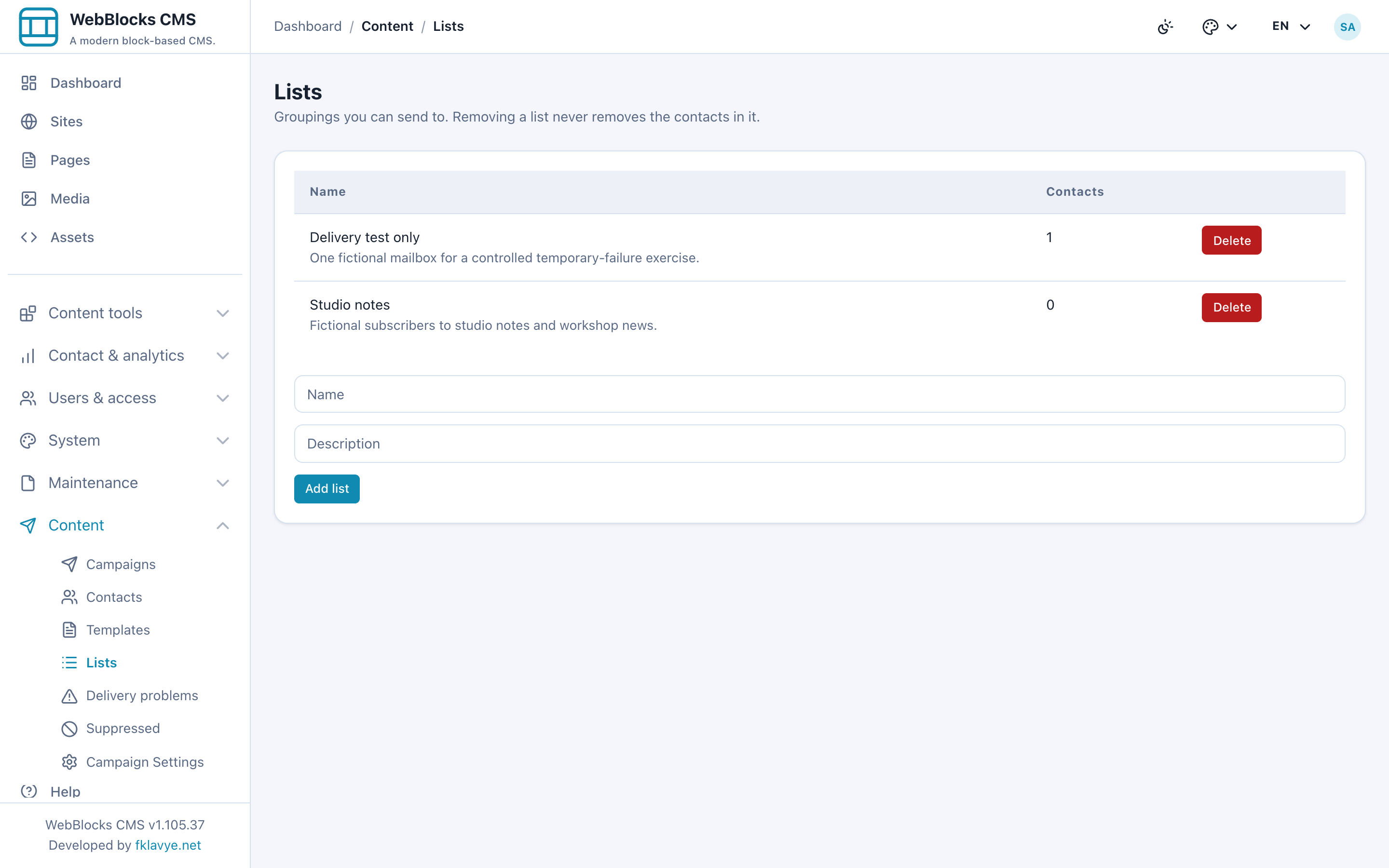
A list groups contacts; it does not grant permission to email them. A campaign still checks consent and suppression. Deleting a list removes its grouping relationship rather than deleting its contacts or recording their withdrawal. Use the consent and suppression controls for those decisions.
Choose a named list when the message has a specific audience. Everyone on this site is a broader audience selection and should be an intentional choice, not a default you overlook.
4. Prepare and upload a CSV
Open Contacts → Import. The importer accepts CSV files up to 20 MB, with comma or semicolon separators and an optional UTF-8 byte-order mark. Use a header row. For this exercise the file is:
email;first_name;last_name;interest
ada@example.test;Ada;North;Design
casey@example.test;;River;Writing
ada@example.test;Ada;North;Design
not-an-address;Taylor;Example;Workshops
The duplicate Ada row and invalid address are deliberate. Keep a clean original of your real source file so you can investigate rejected rows without repeatedly importing the same file.
Select the file, choose the appropriate consent basis, record the exact wording that applied when those contacts opted in, and choose Studio notes as the destination list. Our synthetic wording is: “Yes, email me Northstar Studio notes and workshop news. I can unsubscribe at any time.” Select Continue.
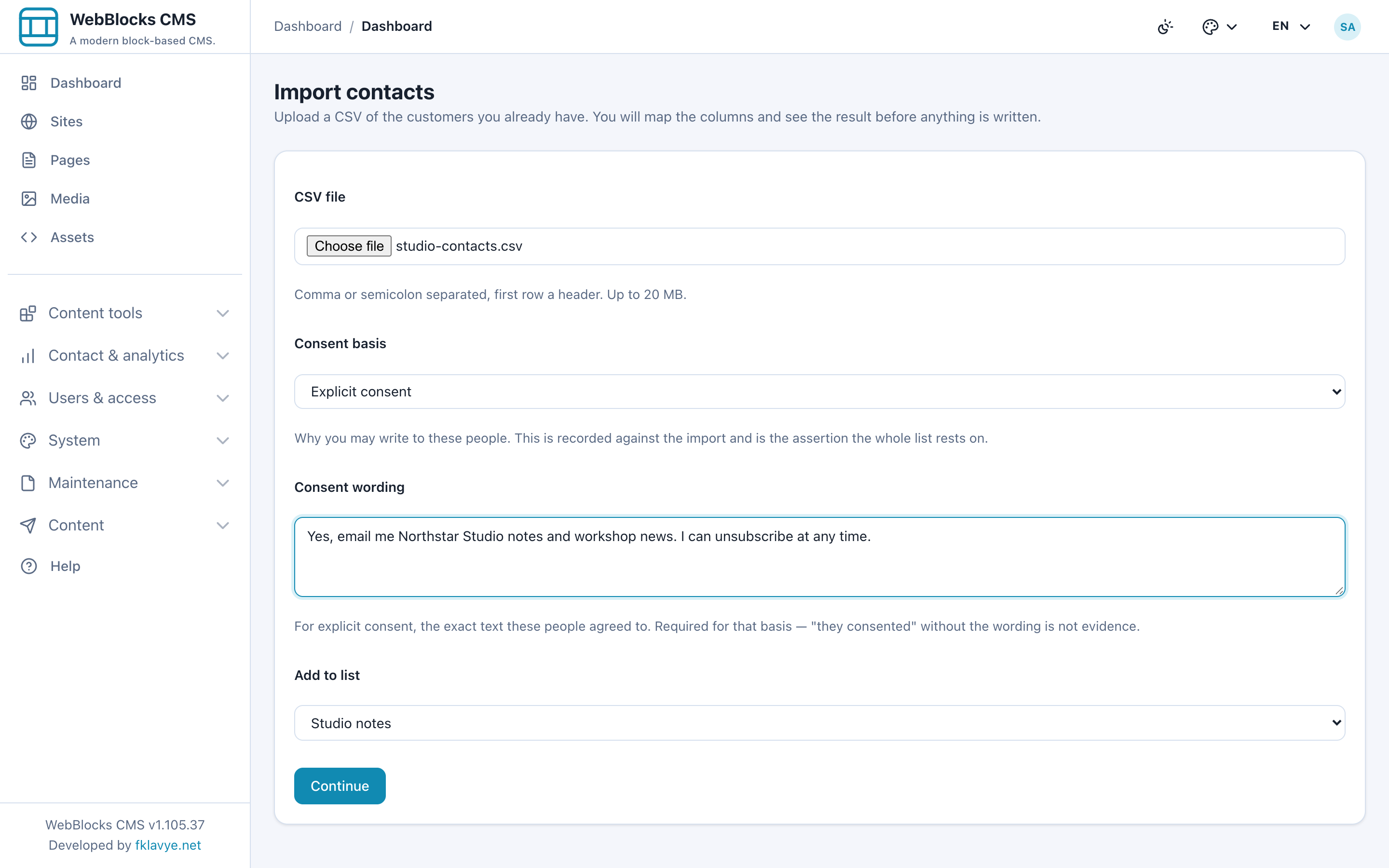
These fields record your assertion about the contact's permission; selecting a basis is not proof that permission exists. Use the basis and evidence that actually apply. Importing contacts with a contract basis alone does not set the separate operational-consent flag in this release.
5. Review column mapping before committing
On the mapping screen, explicitly check every column:
| CSV header | Mapping |
|---|---|
| Email address | |
| first_name | First name |
| last_name | Last name |
| interest | Custom field named interest |
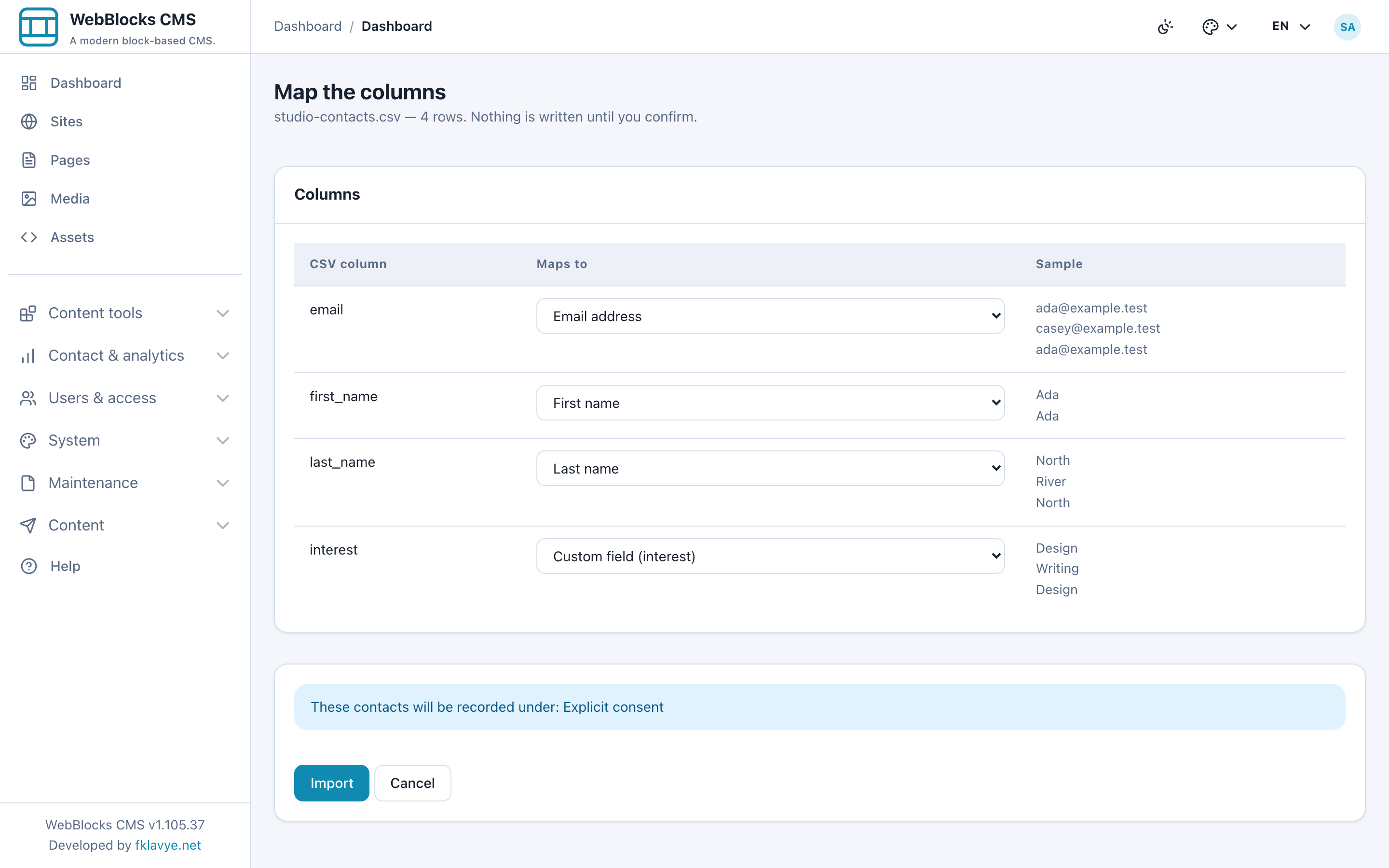
Automatic suggestions need review. In particular, verify the first-name column instead of assuming a header named first_name has been recognized correctly. Map one address column to Email and ignore columns you do not need. The preview shows example rows; reaching this screen has not yet created contacts.
Choose Import only after the mapping, basis, wording and list are right. The example creates two contacts and skips two rows. The existing retry-test contact also remains visible in our showcase, so its total contact count is not the number imported from this file.
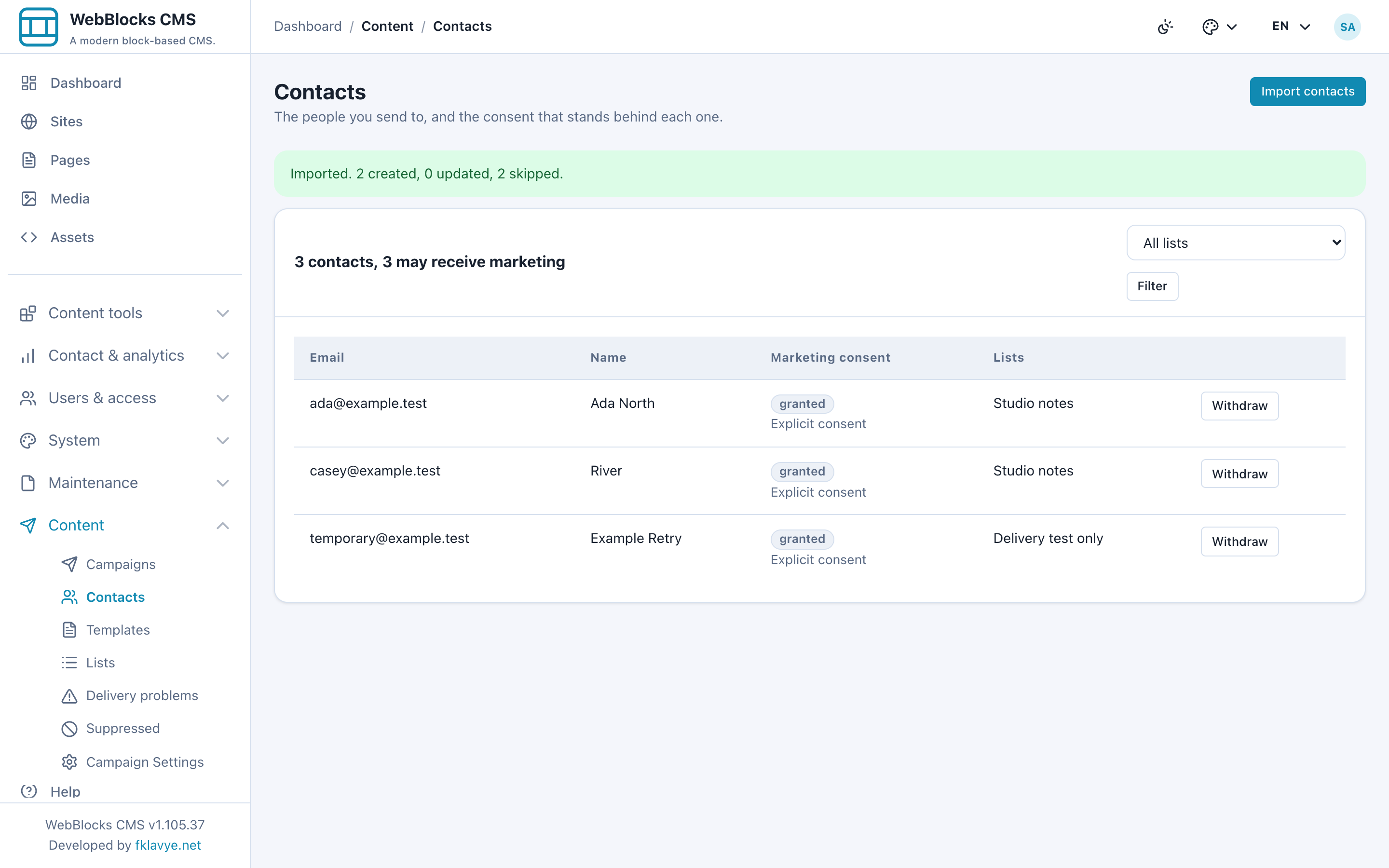
The current interface reports aggregate import results. It does not provide a per-row problem-history viewer on this screen. If totals are unexpected, check the original CSV for duplicates, invalid addresses and suppressed addresses before preparing a corrected file.
Re-importing is not a reset. Nonblank name values can update existing names, blank names do not erase stored names, and custom-field values merge into the contact. An import does not erase an existing granted or withdrawn consent state, and it does not remove a suppression entry. Avoid using repeated imports as a way to bypass a withdrawal.
6. Add a Newsletter Sign-up block
Create or edit a draft page and add the native Newsletter Sign-up block. For this example set:
| Block setting | Example |
|---|---|
| Heading | Join Studio notes |
| Intro text | Subscribe, then confirm through the email link. |
| What the visitor agrees to | The same explicit newsletter wording used above. |
| Add confirmed subscribers to | Studio notes |
| Button label | Subscribe |
| Also ask for a name | Enabled |
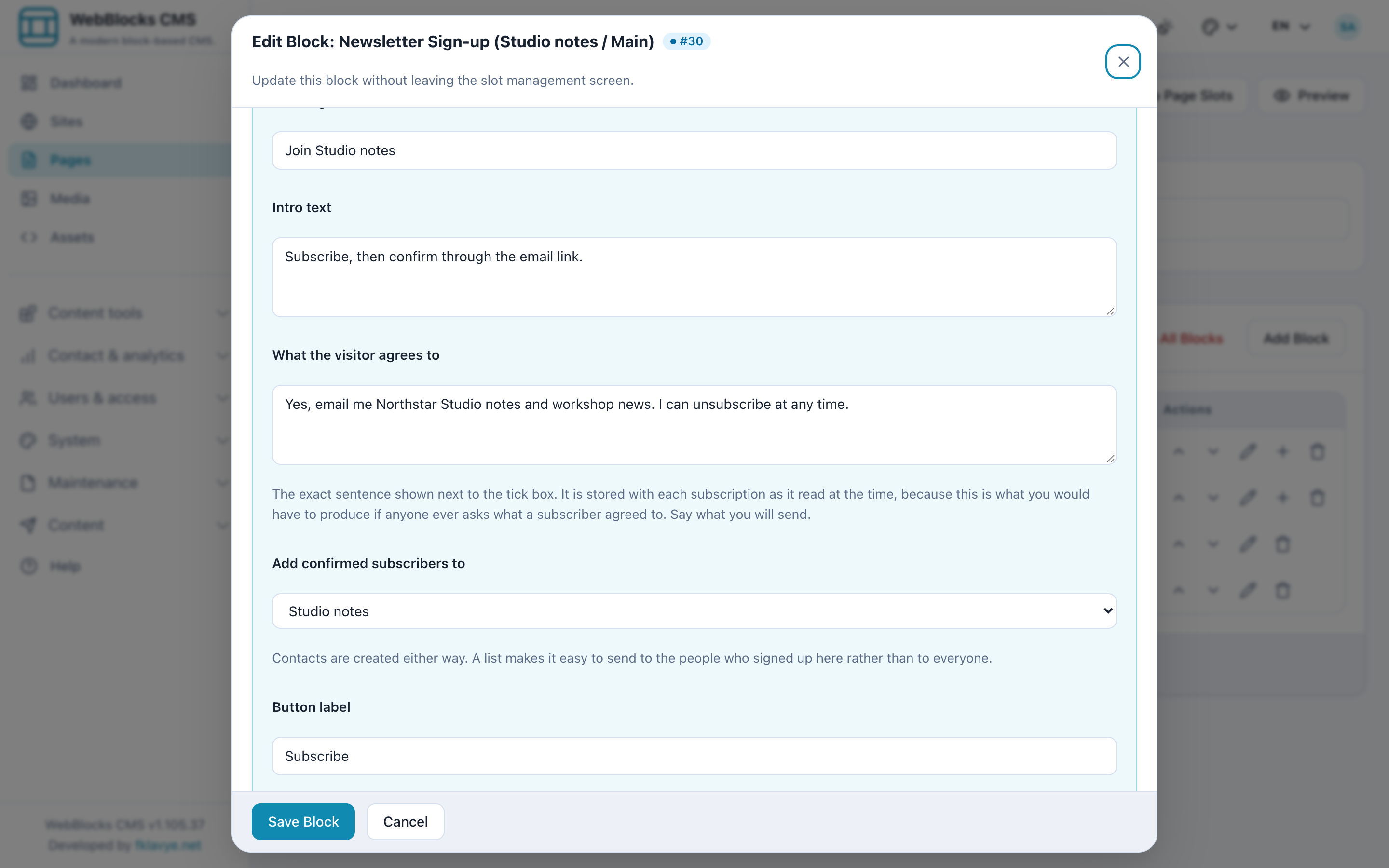
Save the block, then use your page review and publication workflow. A public sign-up page must be reachable by visitors before you can use it as a real acquisition channel. An empty list selection stores confirmed contacts without assigning that list; choose Studio notes deliberately.
The block's custom heading, introduction and consent wording are settings shared across page locales in this release. Translating the page title does not translate these settings automatically. Check the actual visitor language and wording for every placement before using the block on a multilingual site.
7. Test both steps as a visitor
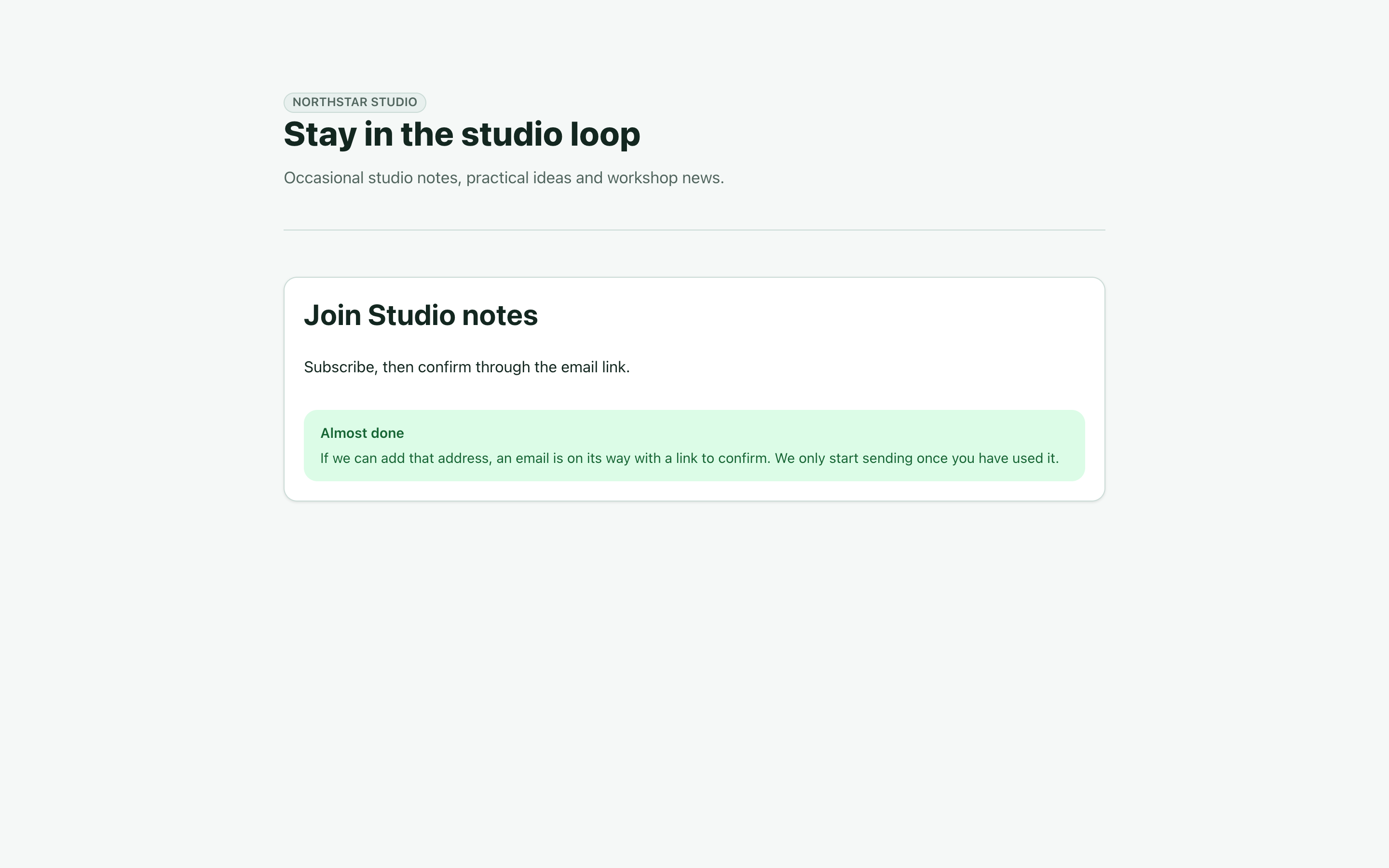
Open the public page with a controlled test address. Our fictional visitor is Robin Example, robin@example.test. Enter the name and email, read the consent wording and select its checkbox before choosing Subscribe.
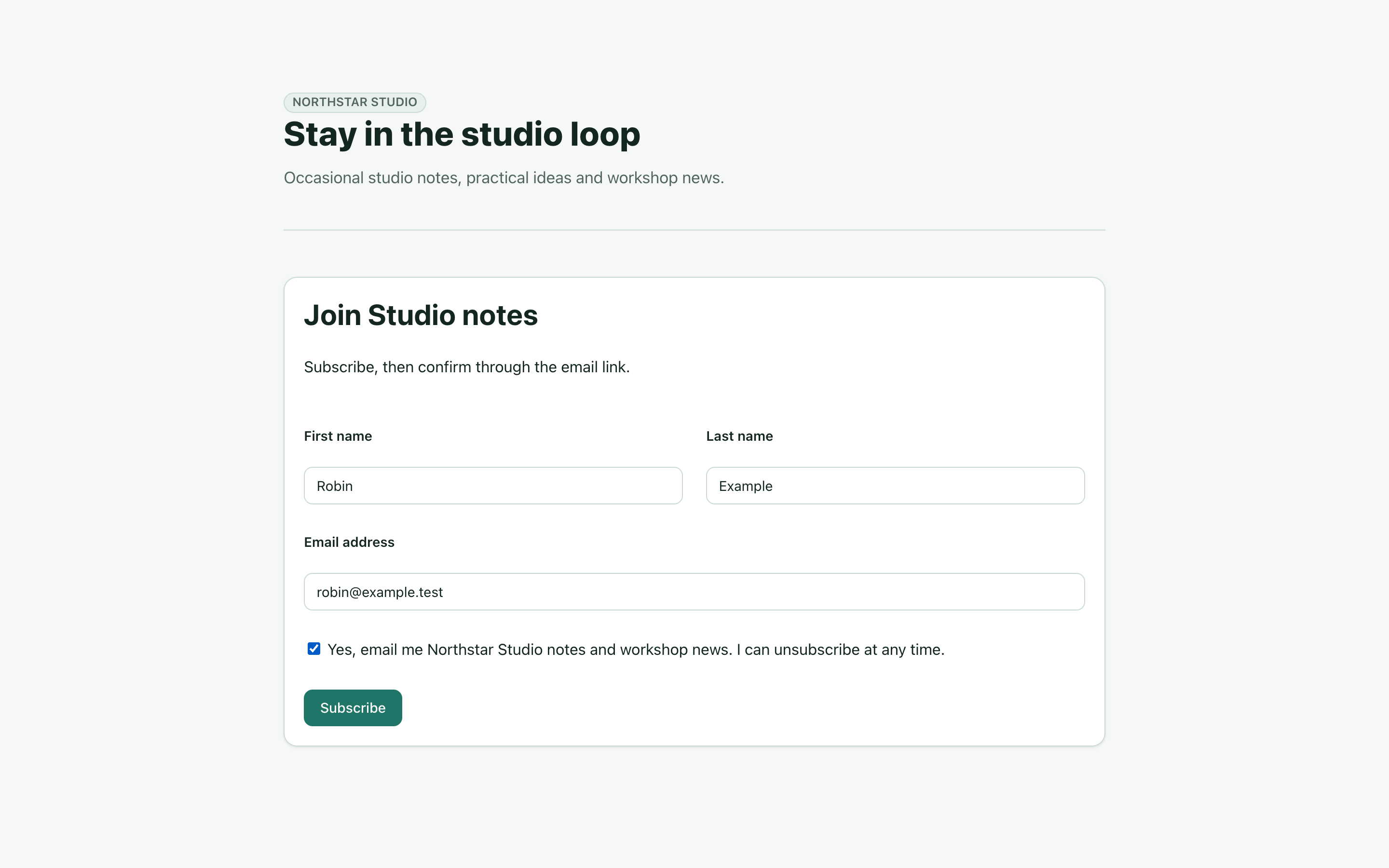
The page shows Almost done. At this point the request is pending and Robin has not yet been added as a confirmed contact. The generic response also avoids revealing whether an address is already subscribed or blocked. It is not proof that a confirmation email reached the inbox.
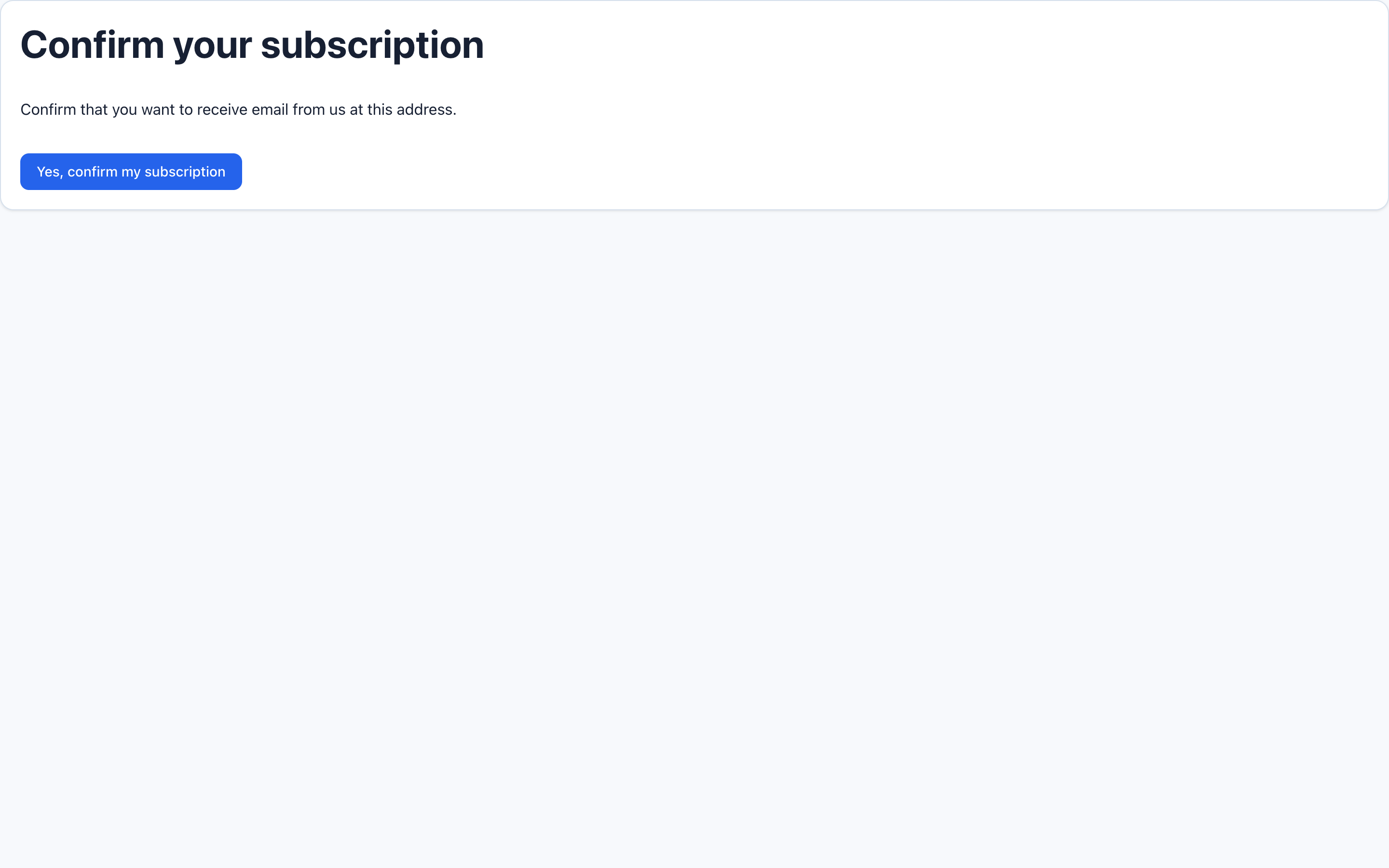
Open the confirmation link from your own test mailbox. Merely opening the link displays a confirmation page; the subscription is not confirmed until the visitor chooses Yes, confirm my subscription.
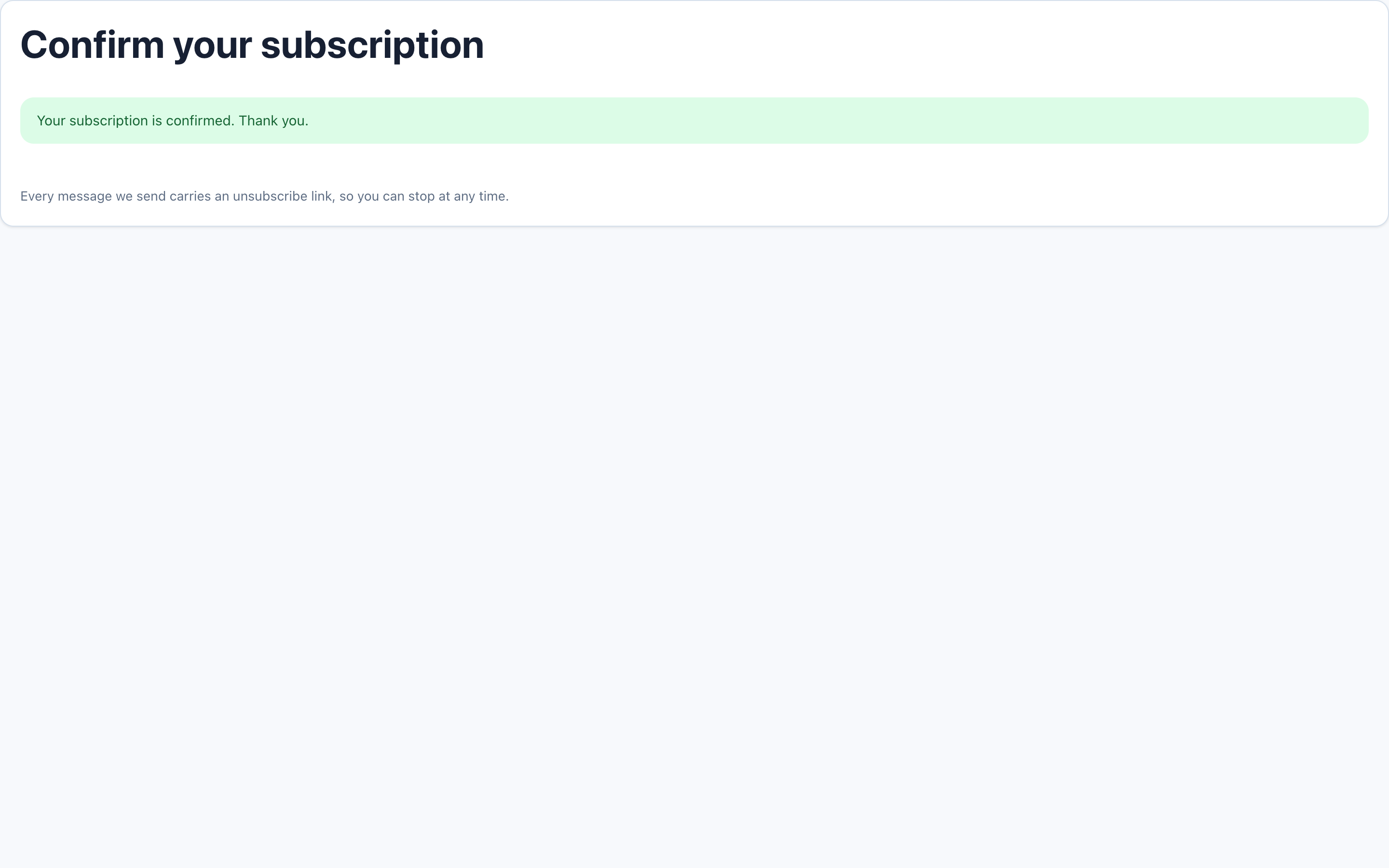
After that button action, the visitor sees success. Campaigns creates or updates the contact, records explicit consent and adds the confirmed subscriber to the selected list.
A fresh sign-up request generates a new confirmation token that expires after seven days; an older link no longer works after the token is replaced. Request a fresh message when appropriate rather than sharing a private confirmation URL. Existing manual or complaint suppressions are not overridden by an ordinary new request. Confirmation can lift permitted unsubscribe or hard-bounce suppressions; it is not a universal unblock action.
Our fixture followed the actual sign-up and confirmation endpoints using local mail. It discarded message bodies and private links after the exercise. Real inbox receipt remains a separate production check.
8. Write a reusable email template
Open Templates → Add template. Enter the fields below, then choose Save. The saved template opens in Edit template, where you can revise it and inspect a preview.
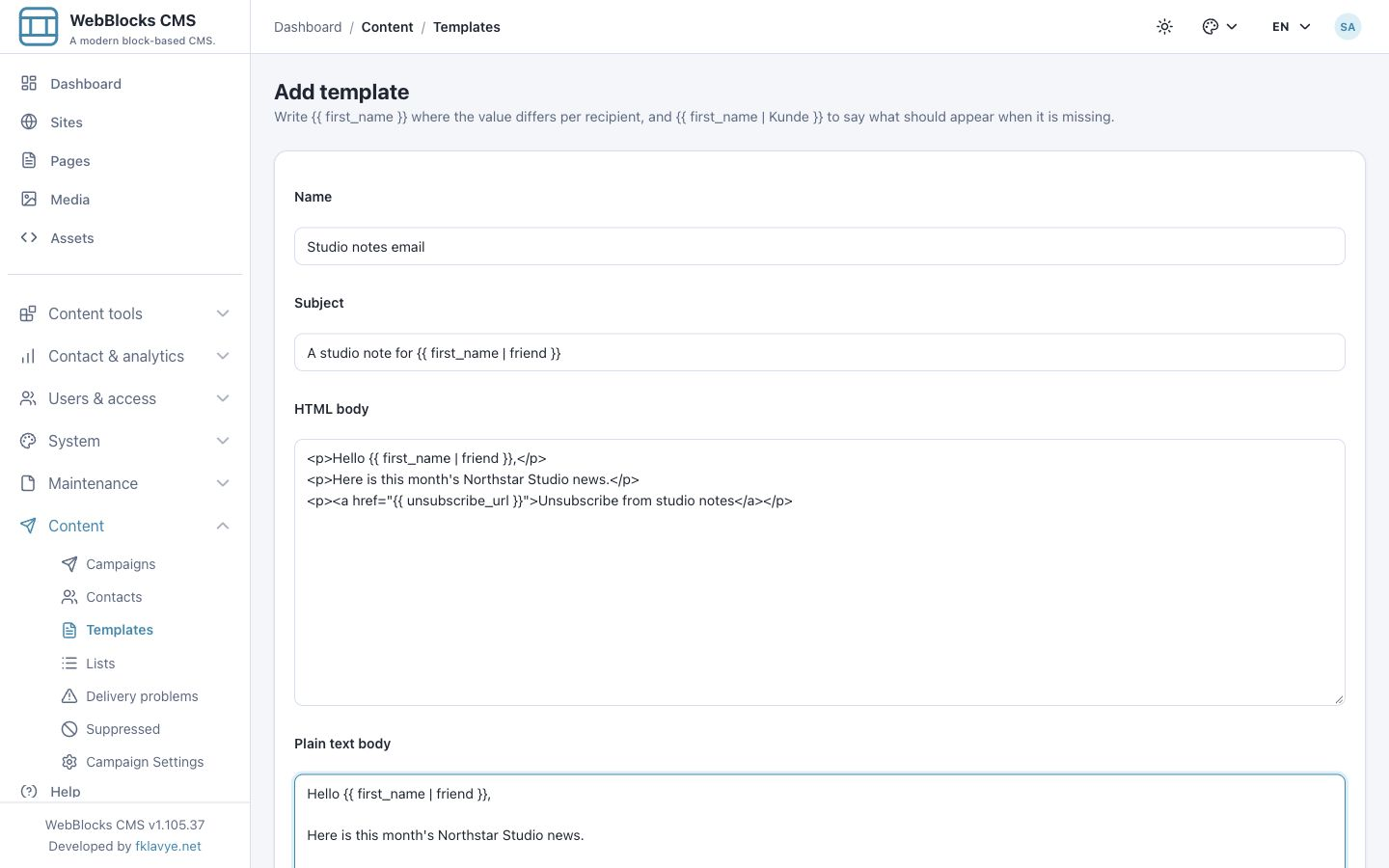
The shipped template form has Name, Subject, HTML body and Plain-text body. Use Studio notes email as its internal name. For Subject enter:
A studio note for {{ first_name | friend }}For HTML body use a small, readable starting point:
<p>Hello {{ first_name | friend }},</p>
<p>Here is this month's Northstar Studio news.</p>
<p><a href="{{ unsubscribe_url }}">Unsubscribe from studio notes</a></p>
Write the plain-text version separately:
Hello {{ first_name | friend }},

Here is this month's Northstar Studio news.

Unsubscribe: {{ unsubscribe_url }}
The plain-text body is not automatically converted from the HTML body. Check both. The template is operator-authored HTML, so use markup you trust and test its appearance in email clients.
Built-in merge fields include email, first_name, last_name and unsubscribe_url. Imported custom fields such as interest can also be available. The available custom-field list is sampled from recent contacts, so an unusual field on an older contact may not be recognized automatically. Check the actual available-fields display and validation before queueing.
The syntax {{ first_name | friend }} uses “friend” when the contact has no first name. Casey demonstrates why a fallback matters. Unknown fields block test sending and queueing; a missing fallback produces a warning rather than automatically preventing a send.
Keep a real unsubscribe link in the HTML body and its URL in the plain-text body for commercial mail. The queue validator checks for the reserved field across the template's subject and bodies together; it does not prove that every message format contains a usable link. Review both bodies yourself.
9. Preview and send a controlled test
After saving in a working editor, inspect Preview and choose a controlled test email destination, then Send test. These controls require sending permission. A test subject receives a [TEST] prefix.
The shipped Preview renders merged strings and displays the HTML as source text. It is not a visual email-client preview. It uses a sample contact, normally the oldest contact on the site. Do not assume the sample is Ada or that a visible contact picker exists. Check populated and missing values through controlled test data.
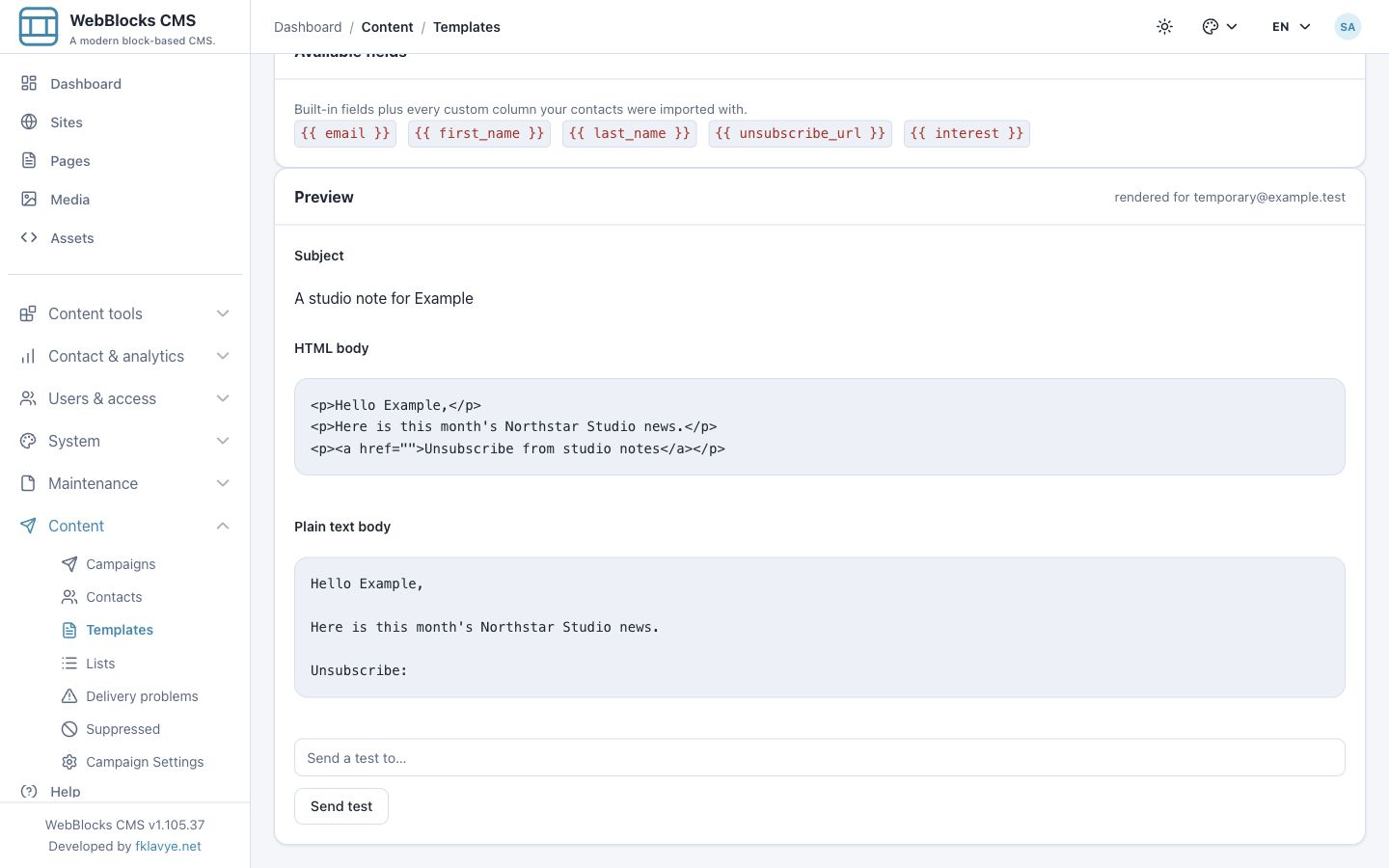
The unsubscribe_url value is empty in template previews and template test messages. A recipient-specific unsubscribe URL is injected during an actual campaign send. A successful template test therefore does not verify the campaign unsubscribe journey. Use a small approved test campaign for that check.
In this exercise we created the template through the editor, saved it, reopened it and saved a subject change. The missing-first-name preview rendered “friend” as expected. The editor test then reached the local SMTP receiver successfully. This verifies the application flow; it does not establish delivery to an external inbox. Before production use, check a real controlled inbox, both body formats, subject fallbacks, replies and the actual recipient unsubscribe link.
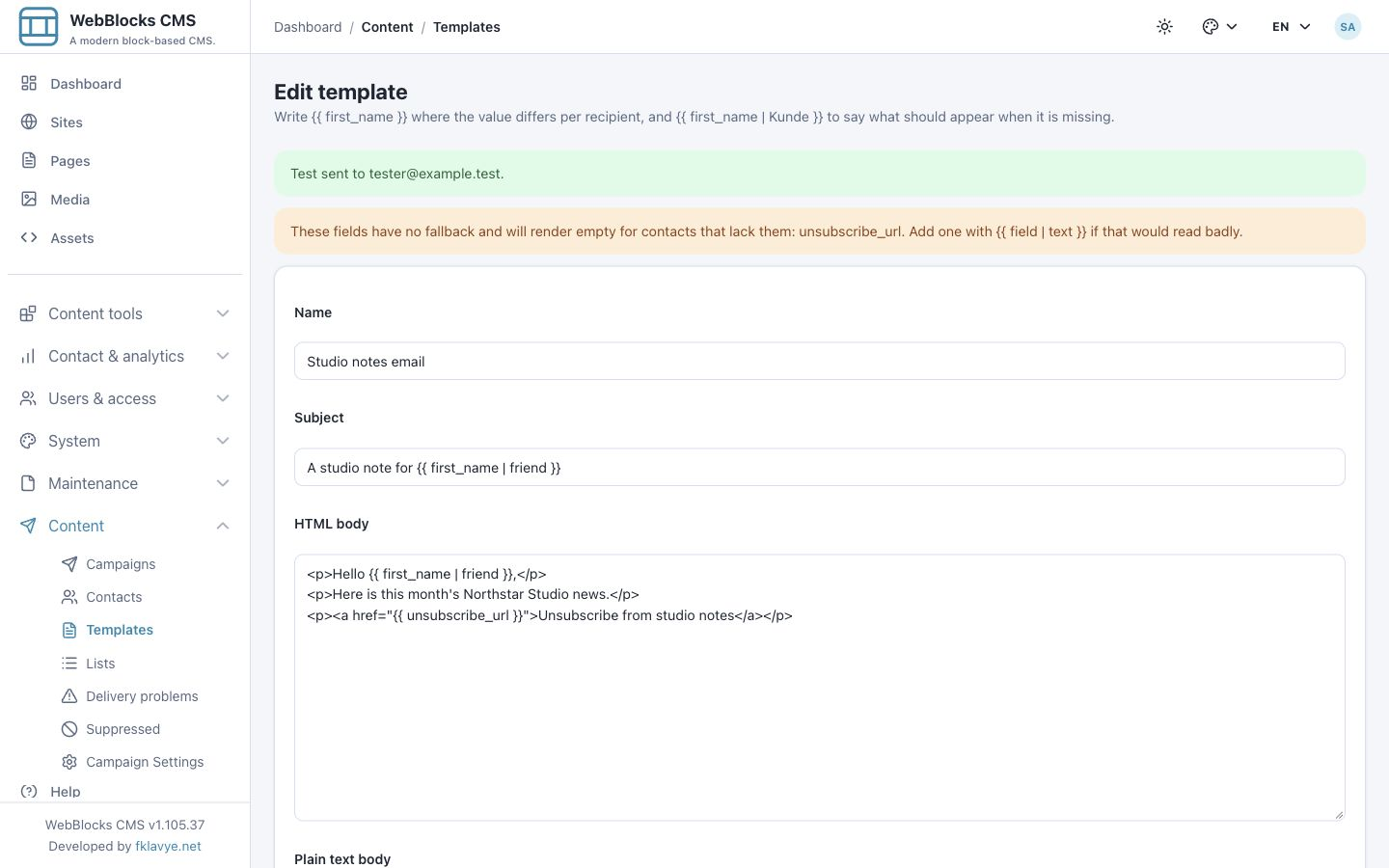
A no-fallback warning can mention unsubscribe_url in the editor. Keep the reserved field in the real link: the recipient-specific value is generated during campaign sending. Replacing it with generic text to silence a preview warning would remove the working unsubscribe destination.
A missing or unusable mail transport must be resolved first. Log, array and null mailers do not establish outbound delivery; the plugin refuses a template test with an unavailable mailer. Never use a real audience to diagnose basic SMTP configuration.
10. Create the campaign and select its audience
Open Campaigns → Add campaign. Enter November studio notes, choose Studio notes email, select Studio notes and choose the Commercial channel. Save the draft.
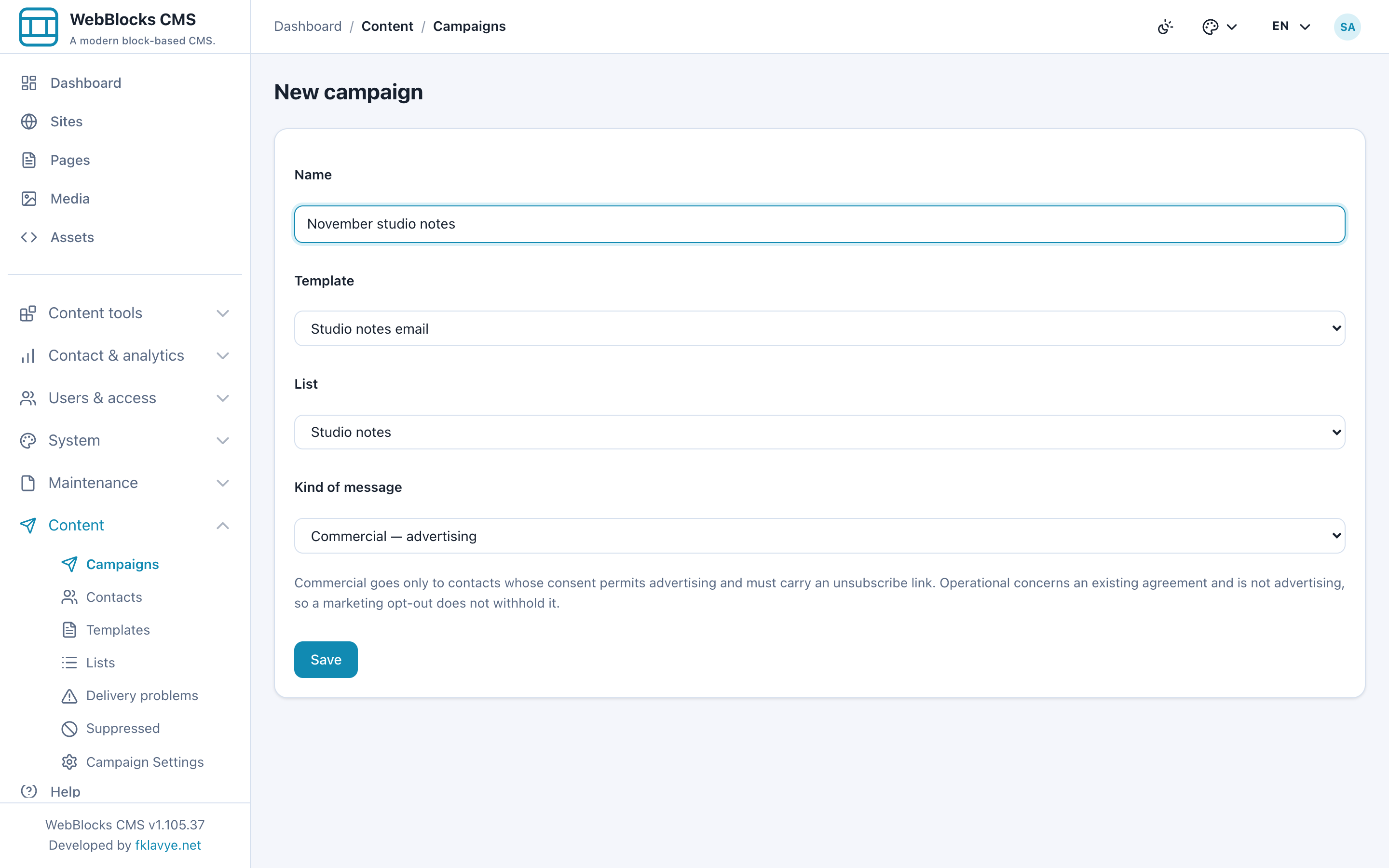
A commercial campaign requires marketing consent to be granted with an eligible basis, such as explicit consent or an existing-customer relationship. Suppressed addresses are excluded. The separate Operational channel requires operational consent; switching channels is not a way to bypass a blocked address. Address suppression applies to both Campaigns channels.
The Contacts screen's marketable count is not a promise that every counted contact can receive this campaign. List membership, eligible basis and suppression checks can change the actual audience. Review the campaign recipient total and log.
Draft and paused campaigns can be edited; queued or sending campaigns cannot be freely edited. The selected template and contact values are read during dispatch, rather than frozen copies of their full contents at queue time. Keep the template and audience stable while a campaign is running. Avoid deleting a template that a campaign still needs.
11. Queue, inspect and pause
When the draft is ready, select Queue for sending. This creates recipient rows for eligible addresses. Queueing does not itself deliver messages. Our example queues Ada, Casey and the now-confirmed Robin.
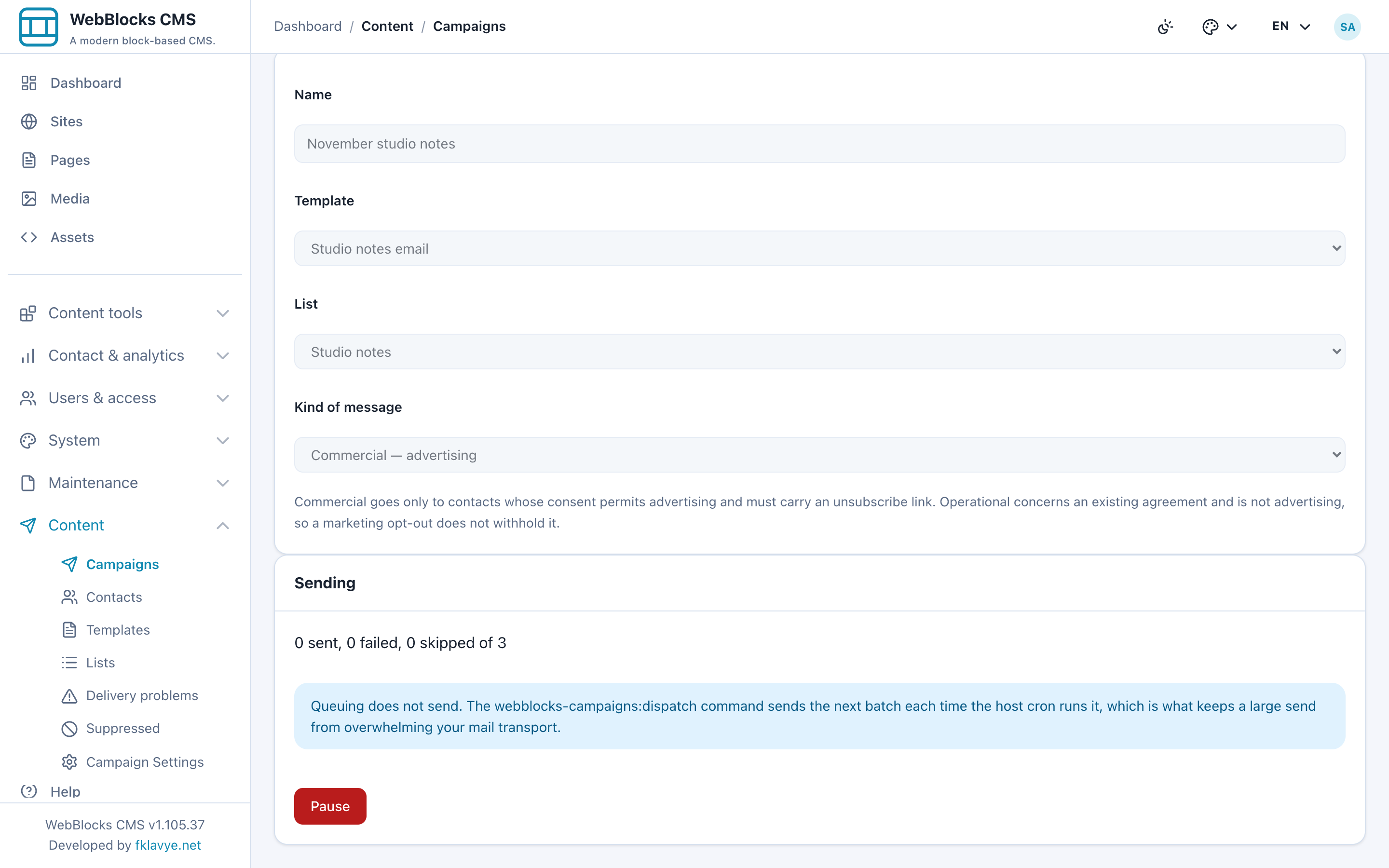
Use Pause to stop further dispatch work while reviewing. The local exercise ran the dispatcher while this campaign was paused and its recipients remained pending.
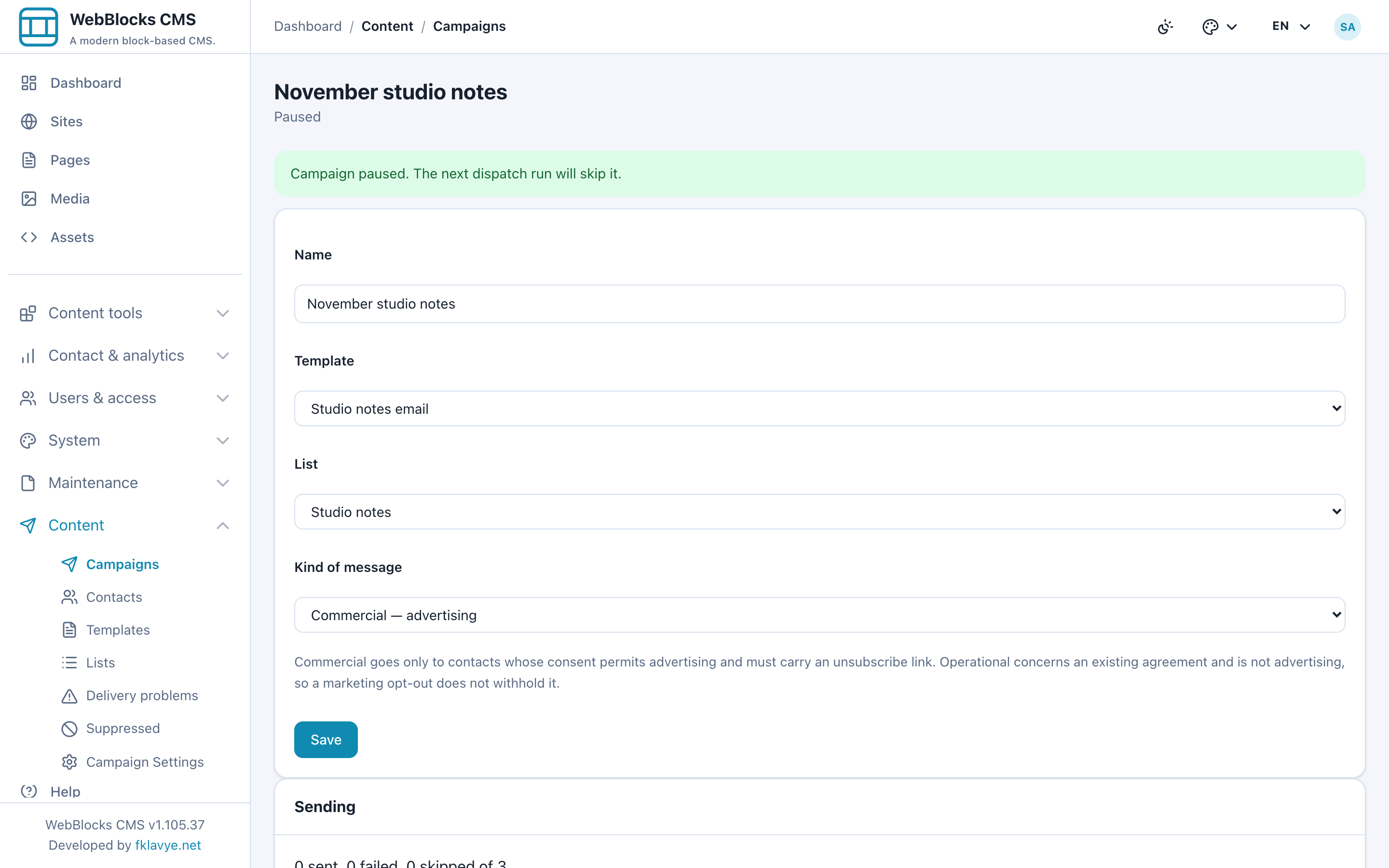
Choosing Queue for sending on a paused campaign resumes the workflow. With an unchanged audience it does not duplicate recipient rows. However, requeueing can add newly eligible contacts; it does not erase existing queued recipients or rebuild a clean audience from scratch. Changing the selected list after a pause should not be treated as removing already-queued addresses.
Review the pending recipients and any audience changes before resuming. If you need a materially different audience, prepare a separately reviewed campaign rather than assuming a pause-and-edit operation resets the old one.
12. Run the dispatcher on the host
A hosting administrator runs the command from the CMS host application:
php artisan webblocks-campaigns:dispatchFor a controlled single-campaign run, replace 123 with the actual campaign ID:
php artisan webblocks-campaigns:dispatch --campaign=123 --batches=1The default is one batch. There is no --dry-run option in this release. Dispatch can send mail, so use only the intended campaign and verified transport. With our batch size of one, multiple invocations are needed to handle the example audience.
Arrange repeated dispatch through your host's supported scheduler or cron workflow. Merely running Laravel's scheduler does not register the Campaigns command automatically; the host needs an explicit scheduled task. Campaign dispatch itself does not require a separate queue worker. Consider frequency, batch size and provider limits together, remembering the per-run behavior of Most per hour.
Our test invoked the command manually against the isolated local receiver. It did not exercise a production scheduler, a provider quota or external mail delivery.
13. Verify unsubscribe before the next send
A real commercial campaign supplies an individual unsubscribe link. The visitor opens it and sees a confirmation page. A GET request alone does not withdraw consent, which avoids an ordinary link inspection silently unsubscribing someone.
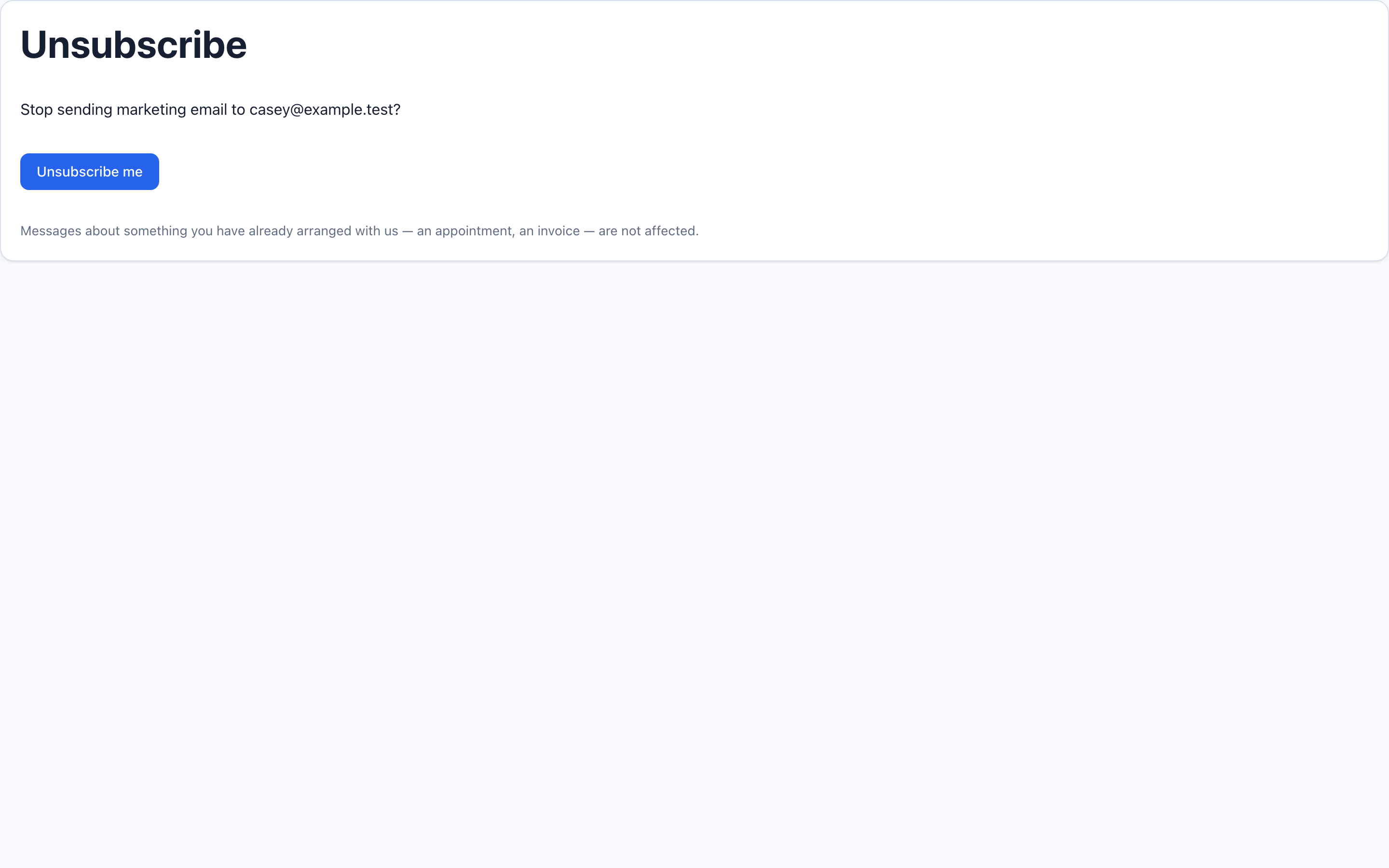
Selecting Unsubscribe me completes the action and shows success. In our exercise Casey did this after queueing but before dispatch.
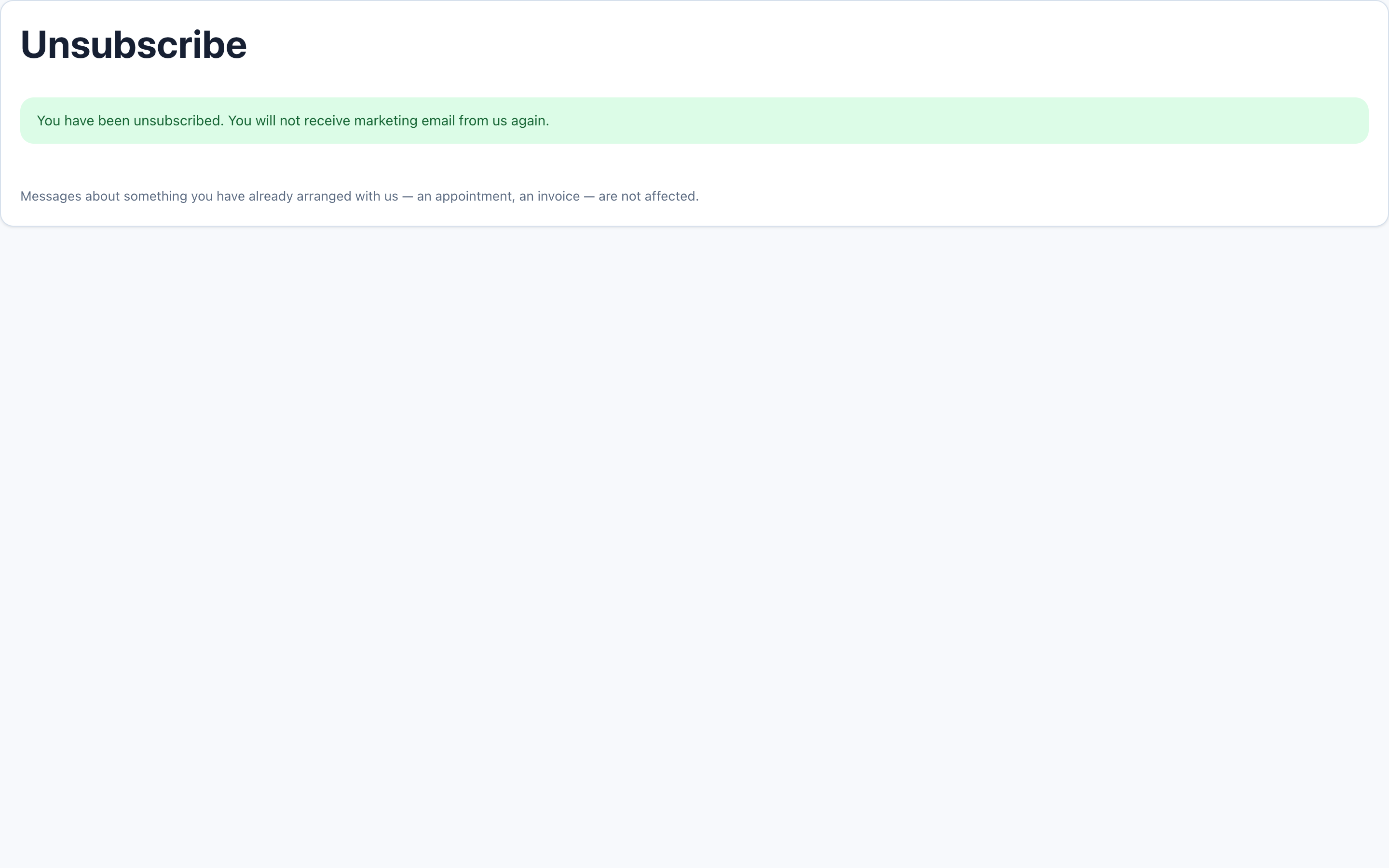
Campaigns records a site-specific suppression for the email address and withdraws its marketing consent. Dispatch checks these conditions again, so Casey's pending row becomes Skipped instead of being sent. This is why a queued audience is not a guarantee of delivery.
Public unsubscribe creates an address suppression that also blocks the Campaigns Operational channel. Other CMS messages are separate workflows; do not promise that one Campaigns action controls every email the host can send.
14. Read the sending log, not just the campaign status
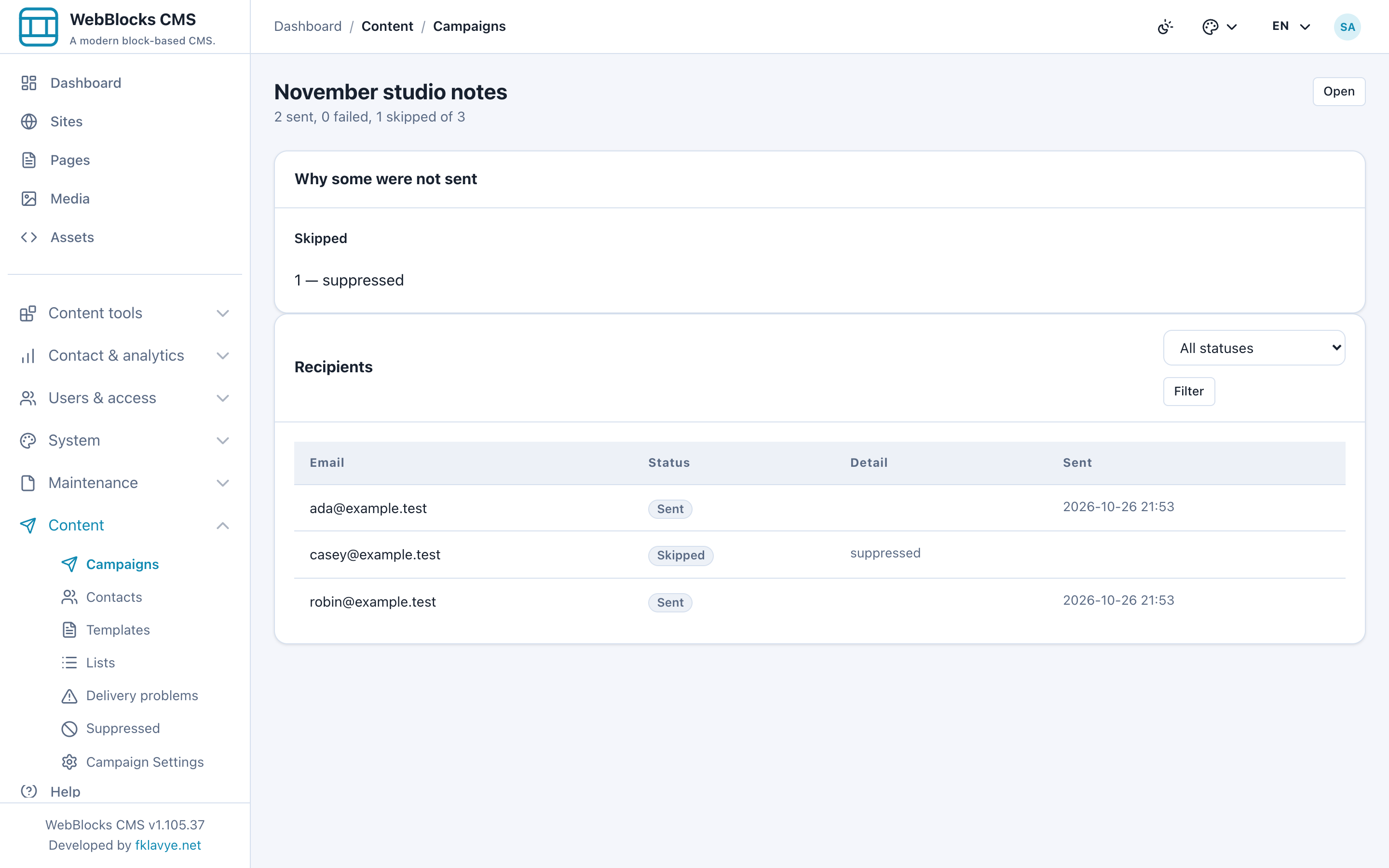
Open the campaign's log and inspect its totals, recipient rows and reasons. Our finished campaign shows 2 sent, 0 failed, 1 skipped: Ada and Robin were accepted by the local SMTP receiver, while Casey was skipped after unsubscribing.
| Recipient status | Meaning in the workflow |
|---|---|
| Pending | Waiting for dispatch processing. |
| Sent | The configured transport accepted the message; inbox delivery still needs its own evidence. |
| Failed | The send attempt failed; inspect the reason before retrying. |
| Skipped | The recipient was intentionally not sent, for example because of suppression or unavailable mail configuration. |
The campaign can reach Sent once all recipient rows are terminal, including Failed and Skipped rows. Its progress percentage counts handled recipients, not successful inbox deliveries. A finished campaign with skips is not an all-success result.
Use the recipient-status filter and the grouped Why not sent reasons to investigate. If the mailer is unavailable, recipients can be skipped and the campaign can still finish. Correcting the host configuration does not make the failed-only retry button resend skipped rows. Review a new campaign deliberately if those addresses should be considered again.
15. Manage suppression separately from contacts
Open Suppressed to inspect the address-level register. Casey remains listed with the Unsubscribed reason, independently of the contact record.
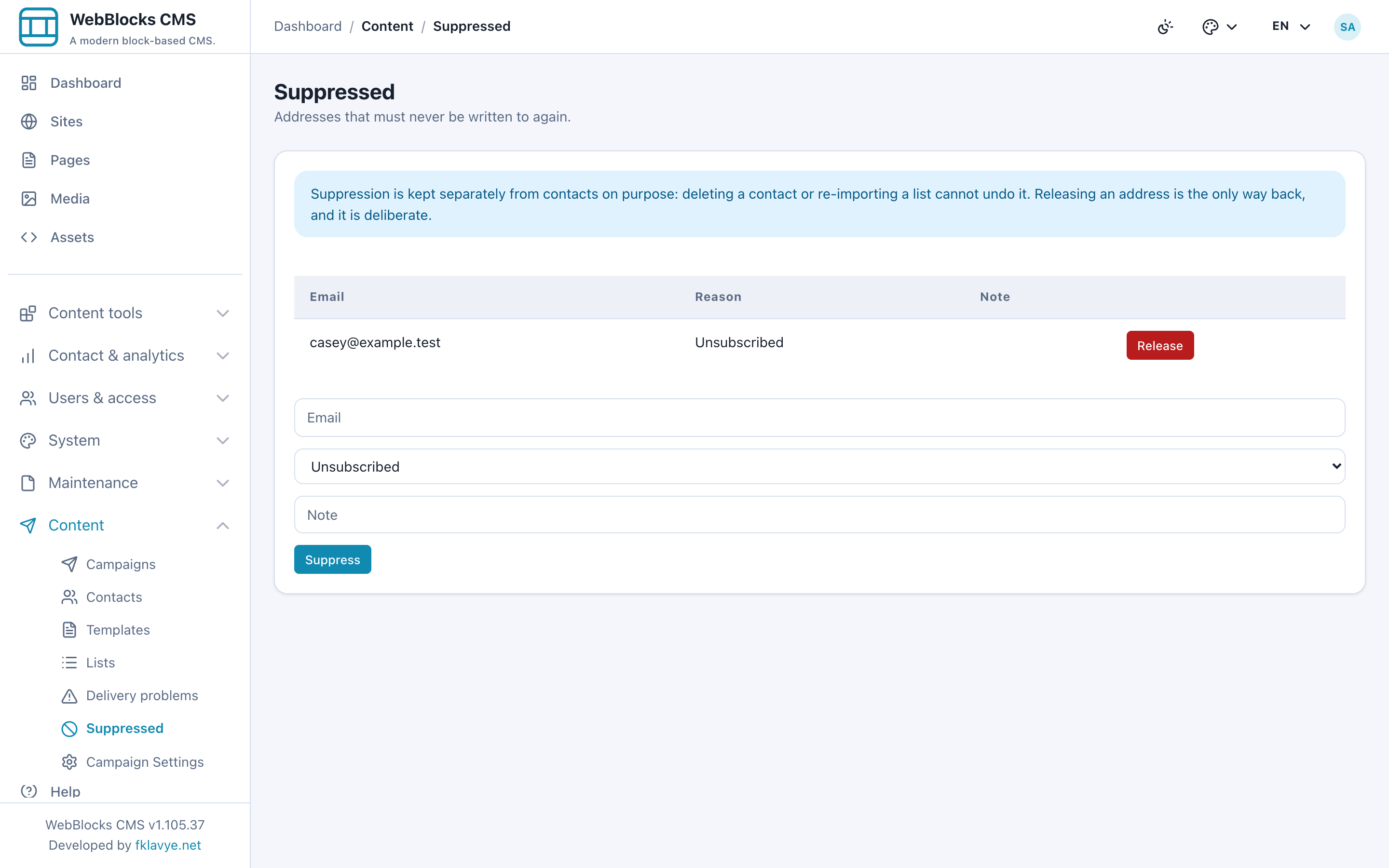
Use the manual suppression controls when you need to block an address, and record an appropriate reason. Releasing a suppression is not the same as restoring consent: a contact whose marketing consent is withdrawn remains withdrawn until a proper new grant occurs. Re-importing the address does not remove the suppression.
Withdrawing marketing consent from a contact is also different from creating an address suppression. The former changes marketing permission; the latter blocks both Campaigns channels. Keep the reason, consent record and intended channel in view when investigating an excluded recipient.
16. Investigate a temporary failure and retry once ready
The separate Delivery test only list contains one fictional address. Our local SMTP receiver deliberately rejected its first attempt with a temporary mailbox-full response. The log shows one Failed row and Try 1 failed again.
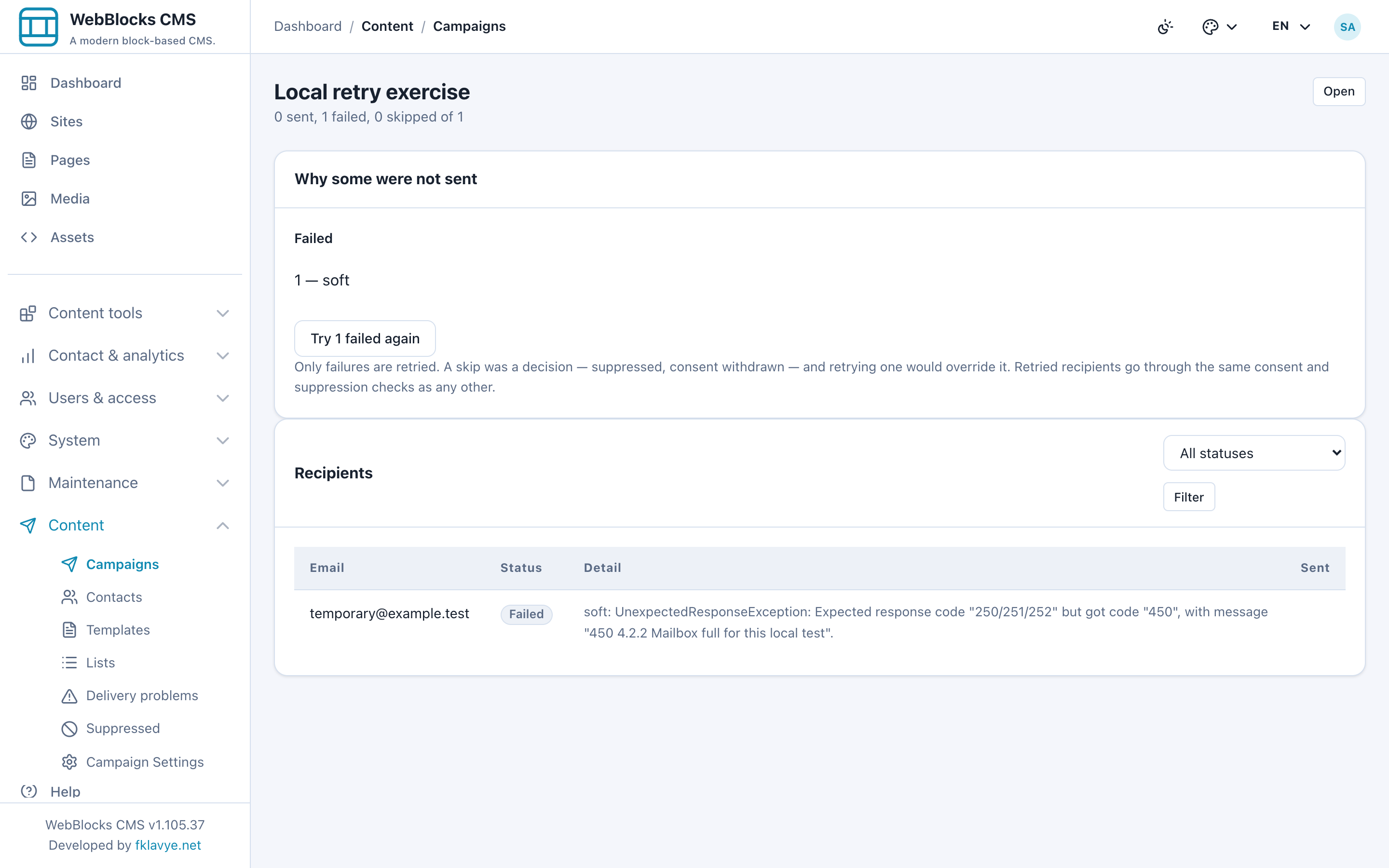
Read the reason and fix the cause before choosing that action. Retry returns failed rows to pending processing, reuses their recipient rows and rechecks consent and suppression at send time. It does not create a duplicate recipient for the same email. Run dispatch again after retrying.
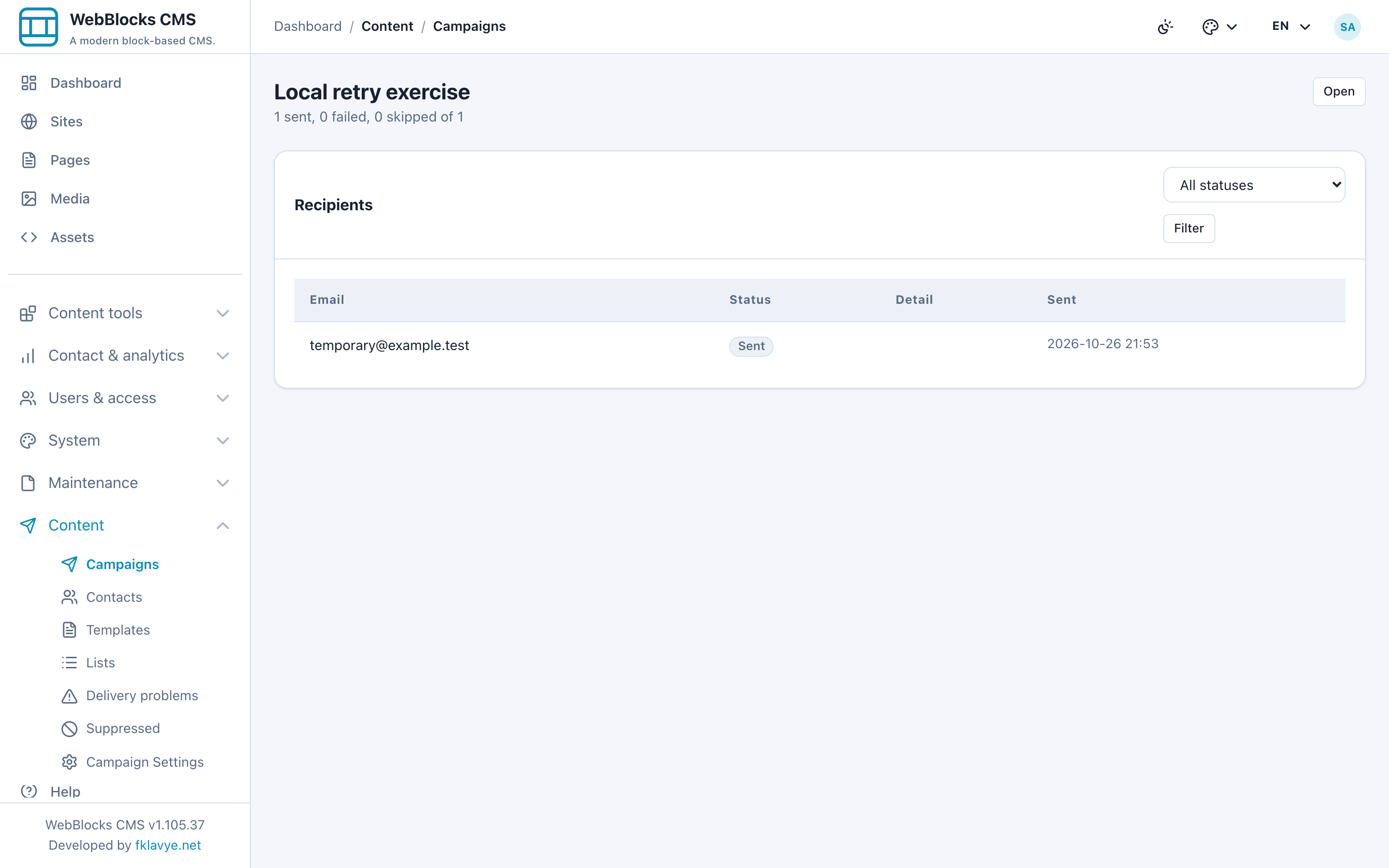
The second local attempt succeeded because the receiver was designed to accept it. This demonstrates retry mechanics, not recovery from a real provider outage. Retrying an authentication or sender-policy failure without changing anything is unlikely to help.
Open Delivery problems for recorded errors. The temporary event remains visible even after the recipient succeeds; an error record is history, not necessarily a current suppression.
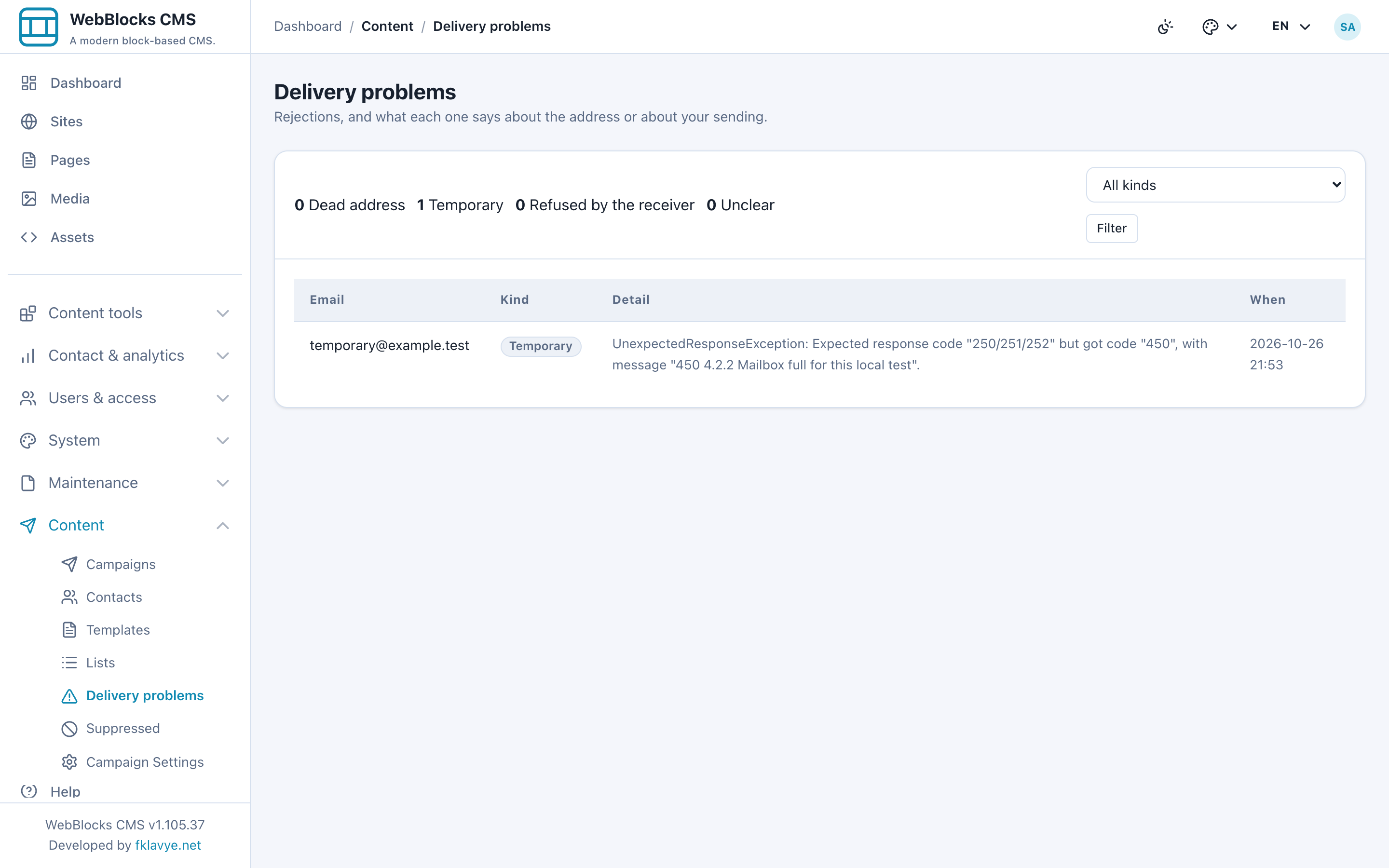
Hard address failures can cause immediate suppression. Repeated soft bounces can reach the site's configured threshold. Policy/sender blocks and unknown errors are not automatically treated as dead addresses. Inspect the classification and provider response rather than manually suppressing an entire audience after a host configuration error.
17. Complete a production readiness pass
Before using real contacts, repeat the complete workflow on your actual compatible versions. Confirm that the intended operators have access to the correct site and separate sending permission. Import a small controlled audience, verify consent records and list membership, then complete public confirmation with a real mailbox.
Create and save the template through the working UI. Test subject fallbacks, HTML and plain-text formatting, actual recipient links and replies. Verify your real mail provider, sender authorization and inbox results. Run an approved small campaign, inspect every recipient status, and test pause, unsubscribe and a carefully chosen retry. Finally verify the host's explicit dispatch schedule and its rate against provider requirements.
Keep consent wording meaningful when the newsletter changes. Review suppressed addresses without silently restoring permission. A list is an organizational tool, a campaign is a sending job, and the recipient log is your operational record of what that job did.
Troubleshooting
| Symptom | What to check |
|---|---|
| Template create/edit fails on Campaigns 0.7.3 | Update to 0.7.4 or a newer compatible release; ask the host administrator to clear stale compiled views if needed, then test a new and a saved template. |
| Plugin reports setup incomplete | Resolve migrations in plugin details and confirm the package is enabled. |
| Import creates fewer contacts than CSV rows | Check duplicate, invalid and suppressed addresses; review mapping and the aggregate result. |
| A first name is missing | Explicitly map the CSV first-name column and use a template fallback. |
| Almost done appears but there is no contact | Confirmation has not completed; inspect actual mail transport and use the latest unexpired link. |
| A contact is missing from the campaign | Check site, selected list, consent status and basis, operational flag where relevant, and suppression. |
| Campaign stays queued | Verify explicit dispatch scheduling, command execution and pause state. |
| Campaign says Sent but messages are missing | Read recipient statuses and reasons; then verify transport acceptance versus actual inbox delivery. |
| Unsubscribe link is empty in a template test | Preview/test rendering has no recipient-specific URL; verify it with a controlled campaign. |
| Releasing suppression does not make commercial mail eligible | Review the withdrawn marketing-consent record; release alone does not grant permission. |
| There is no retry button for a skipped row | The retry action applies to failed recipients; investigate the skip and review any new campaign separately. |
| Sending exceeds the apparent hourly value | The current setting is per campaign/run and checked by batch; review batch size, invocation frequency and provider throttling. |
For related workflows, see Build Custom Forms With WebBlocks Forms, Roles And Permissions and the Campaigns reference.