Translate A Page
Goal: Publish the same page in a second language.
Time: 5 minutes
You need: A page, and a second language enabled on the site
Steps
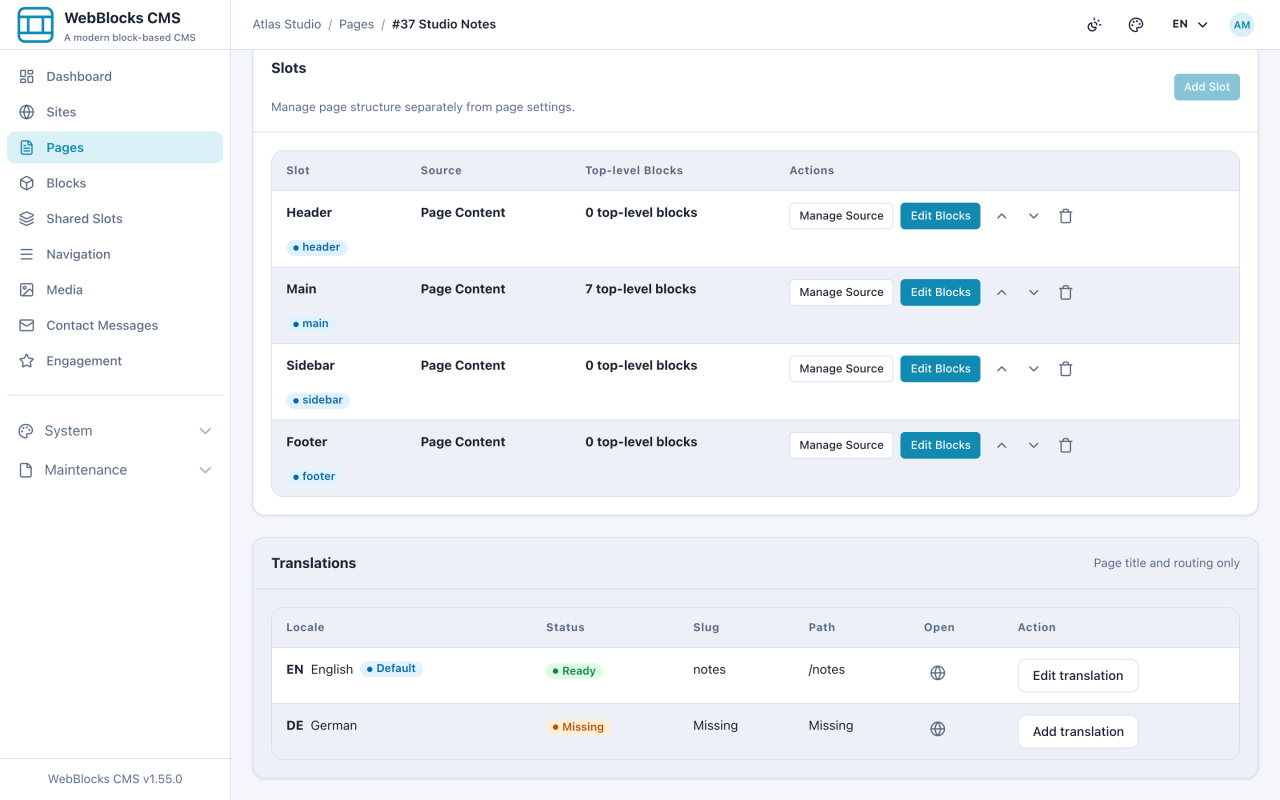
- Open the page and scroll to Translations. Every enabled language has a row, and the ones without content are marked Missing.
- Select Add translation on the language you want.
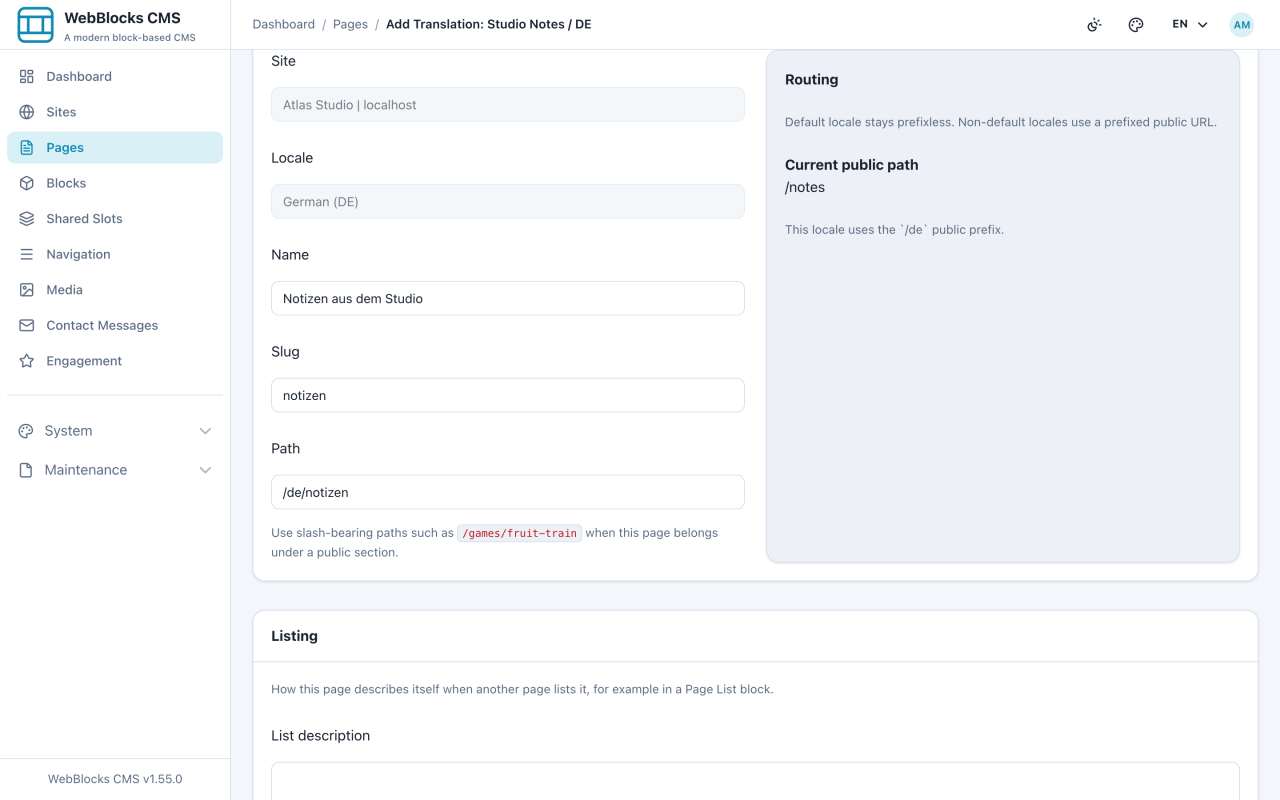
- Under Routing, set the Name, Slug, and Path for that language. This is a separate address, not a variant of the first one.
- Fill in the SEO fields for this language. They override the site defaults for this locale only.
- Select Save.
- Translate the block content separately: open the page's slot, switch the editing locale, and translate each block's text.
What Is Shared And What Is Not
Per language: the page name, slug, path, SEO and Open Graph fields, and the text inside blocks.
Shared across languages: the block structure and order, the layout, the settings on each block, and the selected media.
That split is the whole point. You translate words, not layouts — and when someone reorders the blocks, every language follows.
Notes
- Each language needs a unique path.
/notesand/de/notizenare two addresses for one page; two languages cannot share one. - A missing translation is not a broken page. Visitors get the language that exists; only the languages you fill in become reachable.
- Translate the SEO description too. A German page with an English description in search results is the most common half-done translation.
- Media is shared, but the alt text and caption are per language — so an image needs its description translated even though the file does not change.