Site Variables
Goal: Stop retyping the same email address, phone number, or address on every page.
Time: 3 minutes
You need: Site settings access
Steps
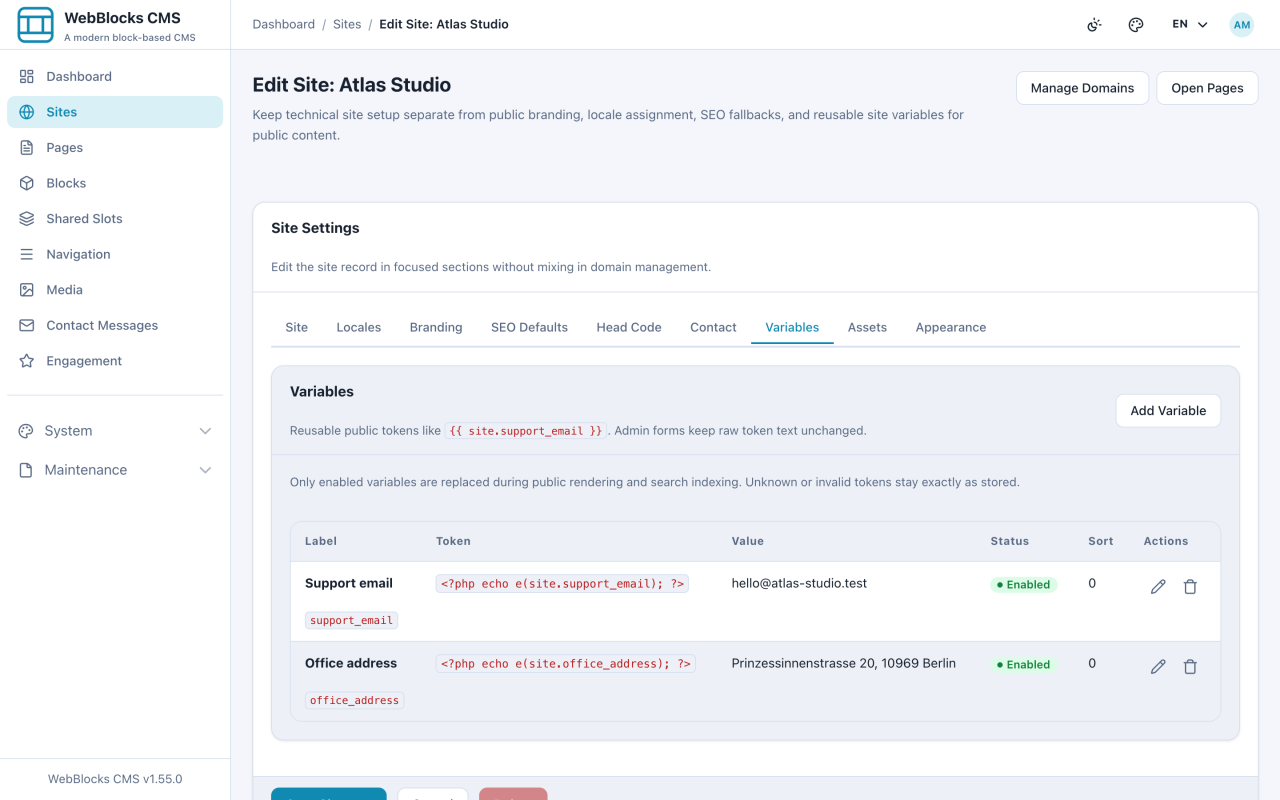
- Open Sites, edit the site, and go to the Variables tab.
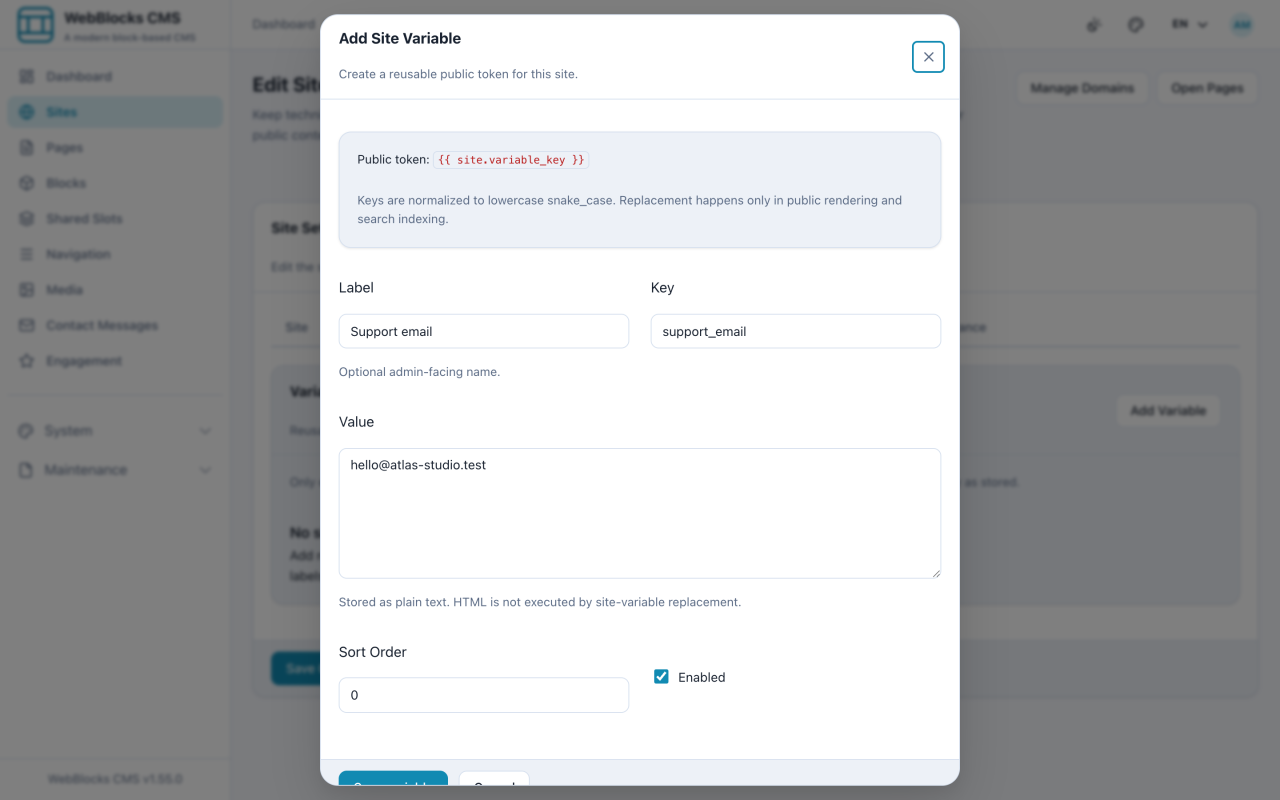
- Select Add Variable.
- Fill in the Key — normalised to lowercase
snake_case— and the Value. Label is an optional admin-facing name. - Leave Enabled ticked, set a Sort Order if you care about the list order, and select Save variable.
- Use it in content by writing the token:
{{ site.support_email }}.
How Replacement Works
Tokens are replaced only during public rendering and search indexing. In the admin the raw token text stays exactly as you typed it, so you always see what is stored rather than a value pretending to be content.
Only enabled variables are replaced. An unknown or misspelled token is left alone rather than blanked — so a typo shows up on the page instead of an empty space you never notice.
Notes
- The value is plain text. HTML in a variable is not executed, which is deliberate: a variable is a value, not a way to inject markup.
- Variables are per site. Two sites with the same support address need it defined twice.
- Good candidates: contact details, opening hours, a company registration number, a repeated brand phrase.
- Bad candidates: anything secret. These are public tokens rendered on public pages.
- Disabling a variable leaves the token visible in the output. If you want it gone, remove it from the content too.