Publish A Page
Goal: Make a draft page visible on the public site.
Time: 2 minutes
You need: A draft page with content on it, and permission to publish
Steps
- Open the page from Pages and select Edit page.
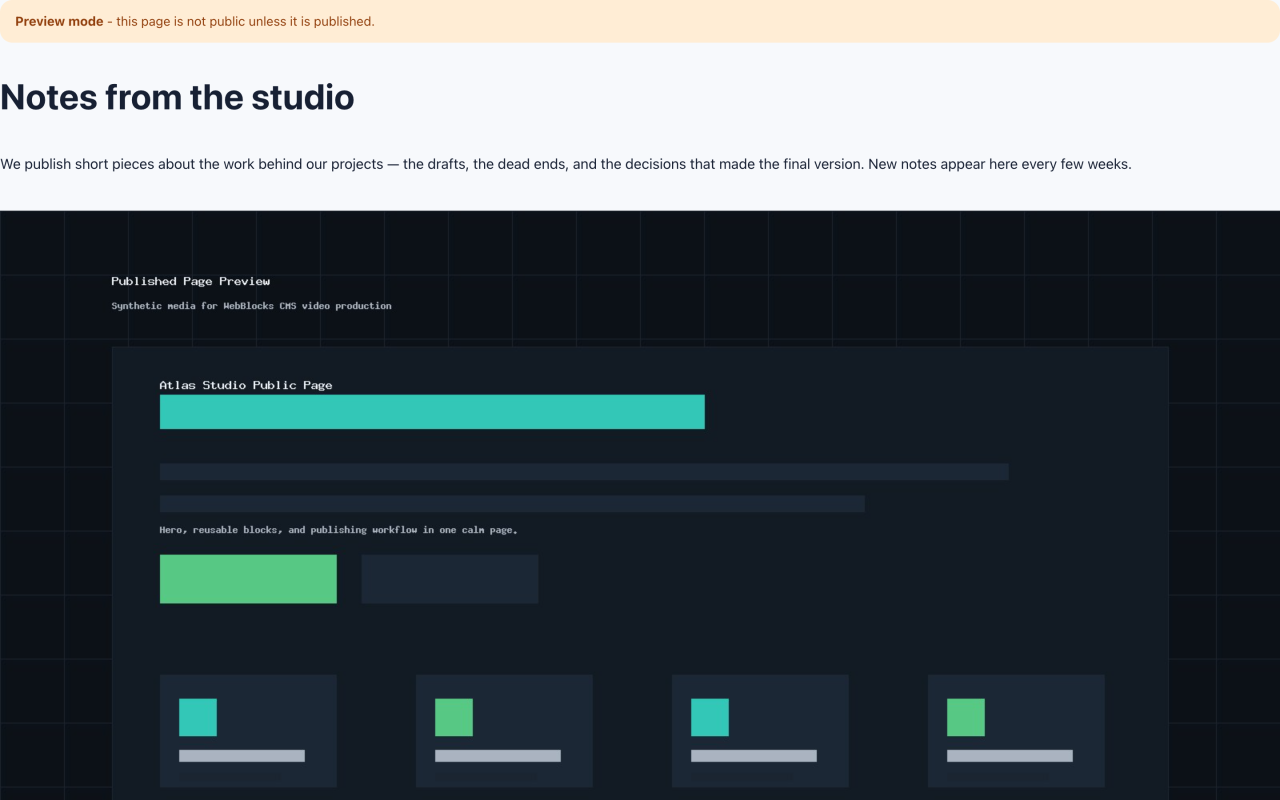
- Select Preview at the top right to see the page as a visitor would. Preview works while the page is still a draft, and a banner reminds you the page is not public yet.
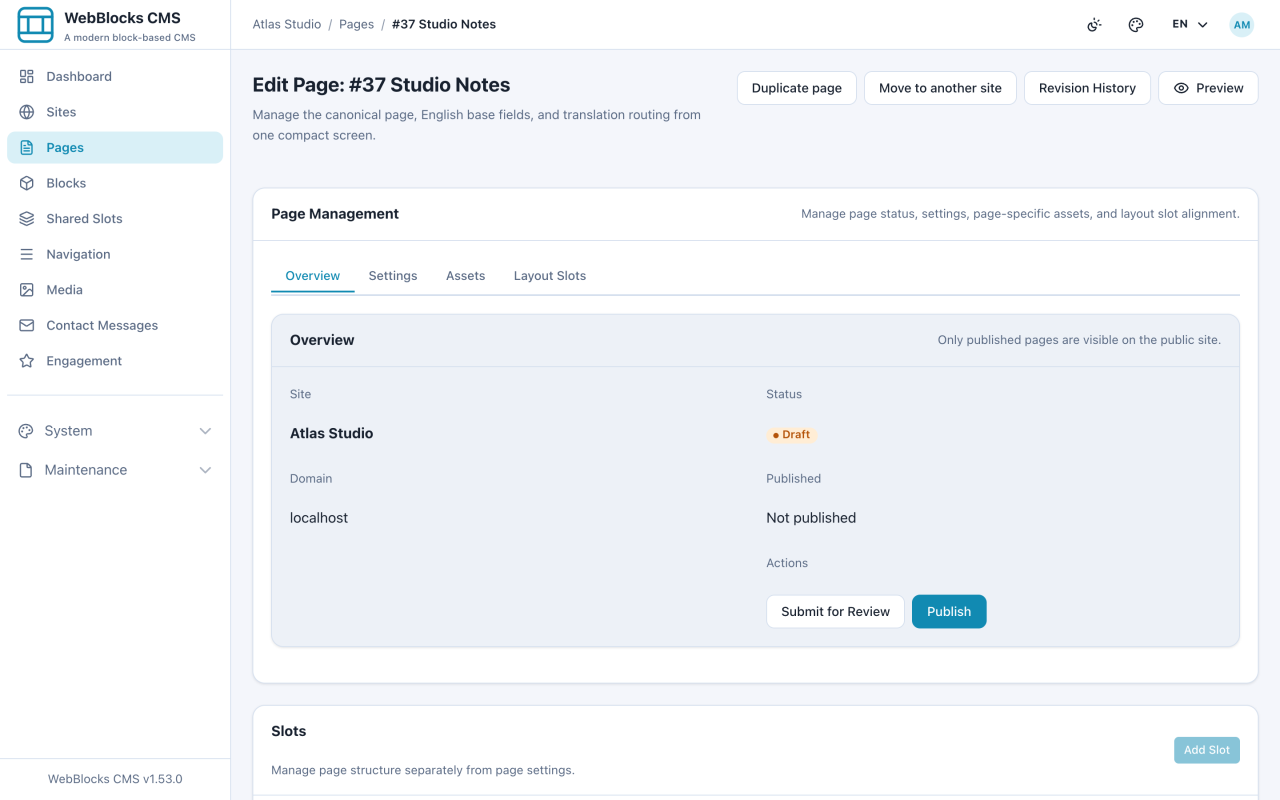
- Back on the edit screen, open the Overview tab. It shows the site, the domain, the current status, and the available actions.
- Select Publish.
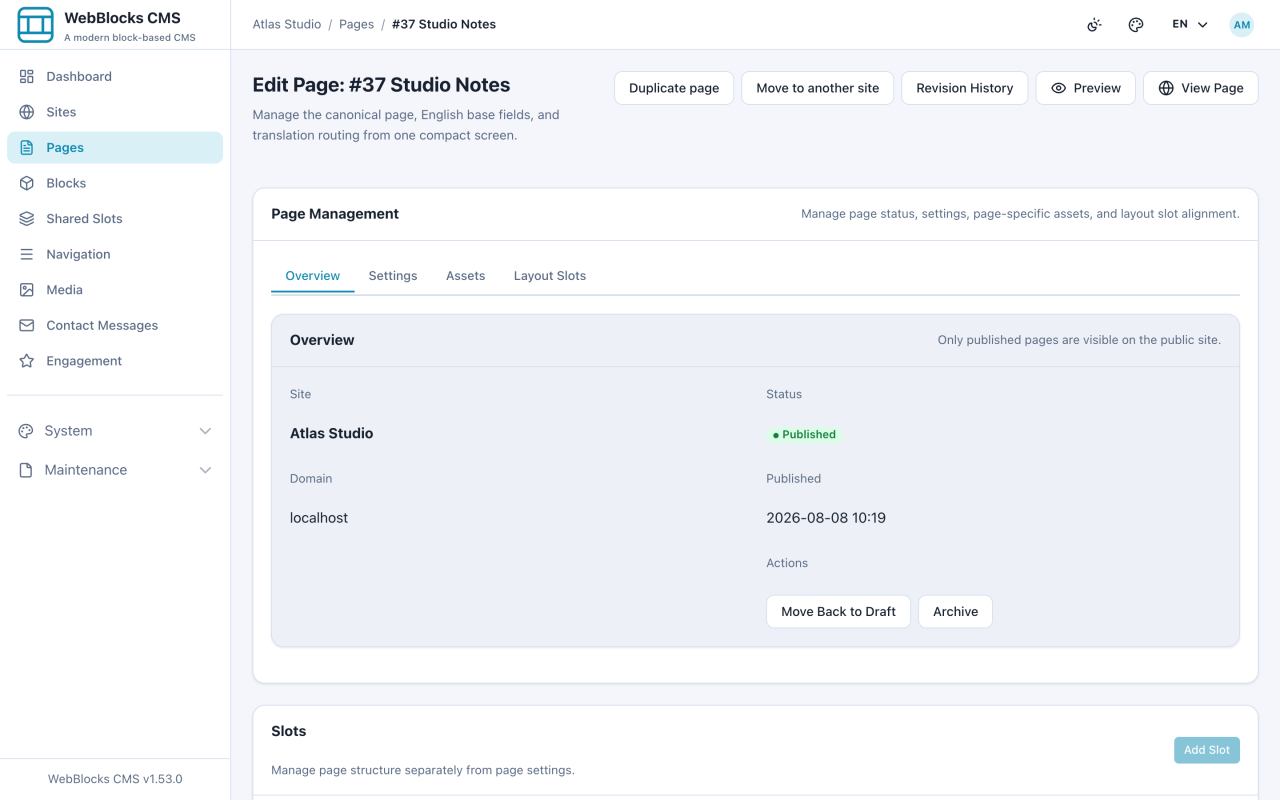
- The status changes to Published. Select View Page to confirm the page is live at its public address.
Draft Blocks Are The One Thing To Watch
Blocks you add are saved as published by default, so a normal page goes live complete. But a block can be set to Draft individually, in the block's Status field, and a draft block is left out of the public page even after the page is published.
When a page has blocks in that state, the Overview tab says so, and publishing opens a dialog with an extra option: Also publish all unpublished page-owned blocks. Tick it, or your page goes live missing exactly the parts you set aside.
Shared Slots are never included. The header and footer are shared across pages, so they are reviewed and published separately, on purpose.
Preview Before Saving
On an existing draft or staged page, open page settings or a supported page-owned block form and choose Open preview panel, then Refresh preview. It shows the active form's supported unsaved values with the saved draft. Choose an enabled content language and desktop or phone width. Refresh saves nothing and does not publish; use Save explicitly afterwards.
For a published page, prepare a staged update first. Unsupported forms and structural changes need Save and the saved preview in a new tab. Recovery checkpoints work separately: wait for Recovery checkpoint confirmed before relying on recovery after an interruption. See Editorial Workflow for limits and unfinished form recovery for restore and conflict review.
Notes
- Only published pages are visible to visitors. Draft and In Review pages are not reachable on the public site.
- If you do not see a Publish action, your role can prepare content but not publish it. Use Submit for Review and someone with publishing rights takes it from there.
- Made a mistake after publishing? Nothing is lost. Content changes are captured as revisions, and Revision History lets you look back and restore.