Site Search
Goal: Give visitors a way to find pages, and understand what search actually looks at.
Time: 3 minutes
You need: A site with a few published pages
Steps
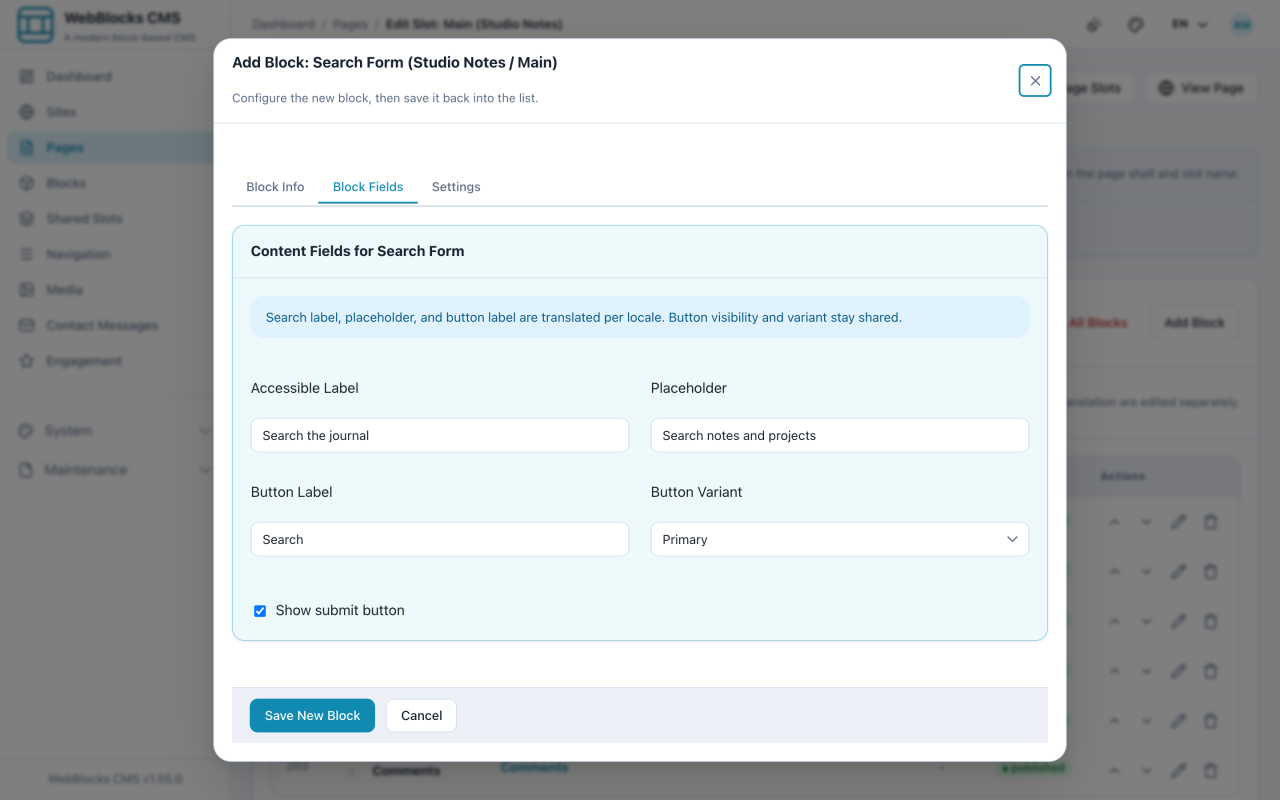
- In a slot — usually a header Shared Slot — select Add Block, then choose Search Form.
- Fill in the Accessible Label (read by screen readers), the Placeholder visitors see, and the Button Label.
- Choose a Button Variant, and turn Show submit button off if you want a bare field.
- Select Save New Block.
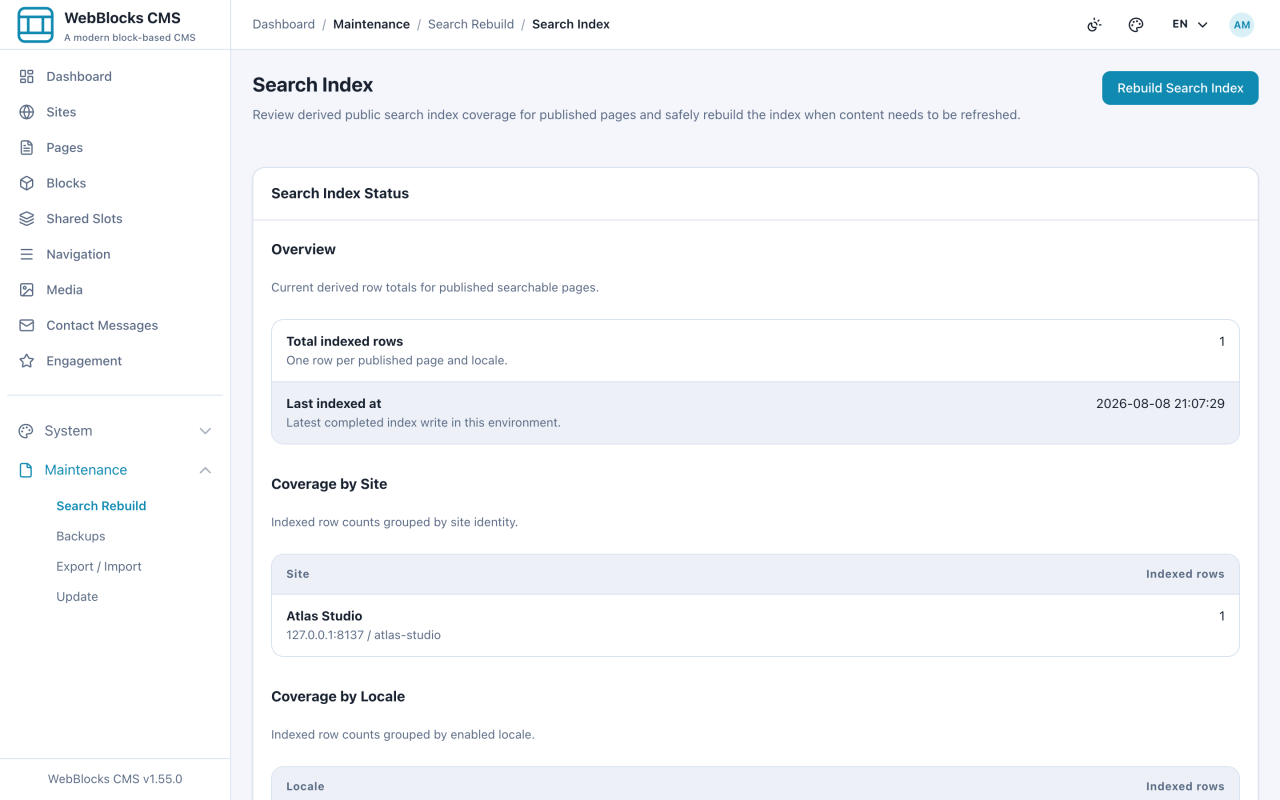
- Check the index under System → Search. It shows what is currently searchable.
What Search Can Find
Search runs against an index of published pages. Drafts, pages in review, and archived pages are not in it — which is correct, because a visitor cannot open them anyway.
The index updates as pages are published. If something published is missing, that is the moment to look at System → Search rather than at the search box.
Notes
- The header is the right home for search. Putting it in a Shared Slot means one search box on every page instead of one per page.
- The Header Actions block already carries a search trigger. If your header uses it, you do not need a separate Search Form block as well.
- The Accessible Label is not decoration. A search field with no label is a mystery box to anyone using a screen reader.
- Search covers page content, not media files or documents. A PDF's contents are not searchable; the page that offers it is.