Choose And Change A Page Layout
Goal: Give a page the right frame, and move it to another one safely.
Time: 3 minutes
You need: A page you can edit
Steps
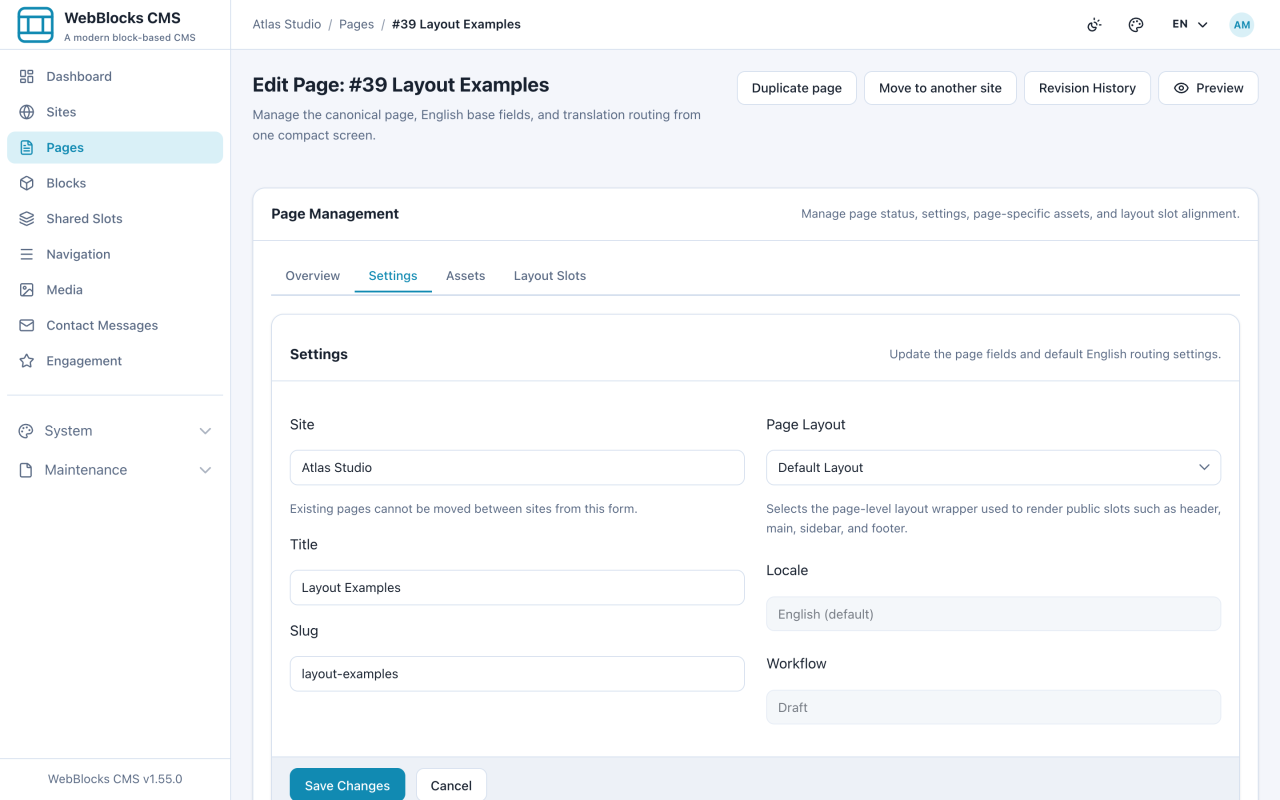
- Open the page and go to the Settings tab.
- Change Page Layout. The layout decides which slots the page renders — header, main, sidebar, footer — not what is in them.
- Select Save Changes.
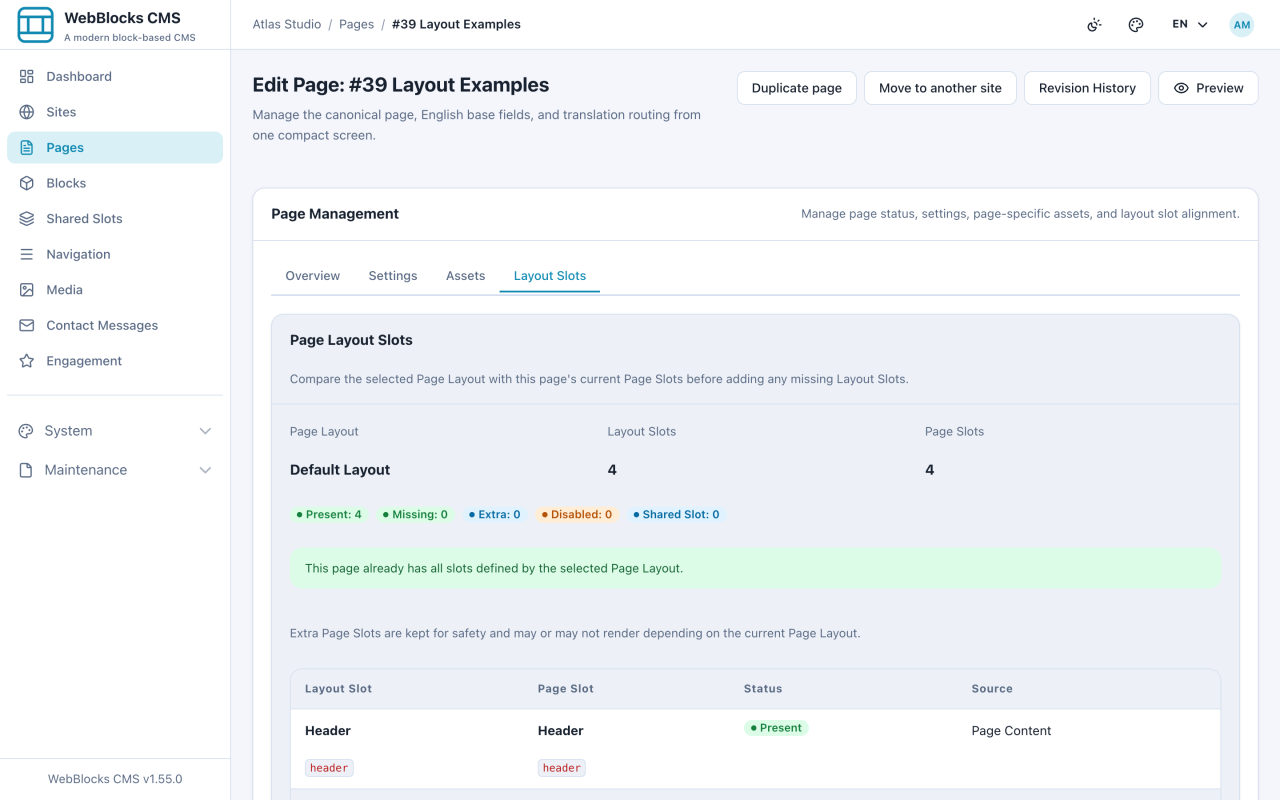
- Open the Layout Slots tab. It compares the slots the layout defines with the slots this page has, and flags anything Missing or Extra.
- If slots are missing, select Add Missing Layout Slots. Existing slots, blocks, and Shared Slot assignments are preserved.
What Changing A Layout Does And Does Not Do
It does not delete your blocks. Content lives in slots, and slots survive the switch.
It can hide them. If the new layout has no sidebar and your sidebar slot has content, that content stays in the database and stops rendering. Those show up as Extra slots — kept deliberately, so switching back restores them.
It does not fill anything in. A new header slot arrives empty. Assign a Shared Slot or add blocks yourself.
Notes
- Pick the layout when you create the page. Switching later is safe but always means a round of checking.
- Extra slots are not an error. They are the layout's way of saying "this page has more than I render".
- Layouts are install-level furniture, defined by whoever set up the site. If none of them fits, that is a conversation with a developer, not a content problem.
- Preview after switching. The Layout Slots tab tells you about slots, not about whether the page still looks right.