Start Selling With WebBlocks Commerce
Turn an existing CMS website into a small storefront: add a product, put an Add to Cart button on a page, and follow an order from the visitor's cart to the admin panel. You will first use Test order (no payment), then learn how to connect PayPal or SumUp when you are ready to take payments.
Our example is Northstar Studio, selling a Studio notebook for €18.00. By the end, you will have an active product, a draft sales page, and a test order for two notebooks. You do not need to write code for the main walkthrough. A hosting administrator handles the server configuration and scheduled maintenance described later.
This walkthrough was checked with Commerce 0.16.0 and WebBlocks CMS 1.105.26. The screenshots show fictional products and orders. They demonstrate the CMS screens; they do not show a live payment-provider account.
What Commerce adds to your website
Commerce adds three connected parts to your CMS:
- Products: titles, descriptions, prices, currencies, stock and a product tax class.
- A visitor shopping flow: a native Commerce Buy Button, a cart with quantity controls, and a separate checkout form for contact and delivery details.
- Orders and payments: saved order lines, customer and delivery information, tax totals and payment attempts. PayPal and SumUp collect payment on their own hosted pages; visitors do not type card details into a CMS content block.
You keep using ordinary CMS pages for your product story, photographs, FAQs and navigation. The Commerce block connects that editorial page to a real product. Editing a paragraph on the sales page does not change the product's price or stock; those belong in Commerce → Products.
This is a good starting point for a small catalogue or a few products sold from existing pages. It does not provide a shipping-rate engine, coupons, a warehouse fulfilment workflow or a refund button in the order screen. Collecting a delivery address does not automatically arrange shipping. Recurring memberships use the separate Memberships plugin and its own setup; you do not need it for the one-off orders in this guide.
For endpoint names, developer integration and the detailed payment contract, keep the Commerce technical reference nearby. This guide follows the work you do in the panel.
Before you start
Use a test installation or a store that is not yet open to customers. Changing the active gateway affects the installation's Commerce checkout, so do not switch an operating store to test mode while customers are shopping.
You will need:
- A working WebBlocks CMS installation and a Super admin account for installation and payment settings.
- A CMS version compatible with the selected catalogue release. Commerce 0.16.0 declares CMS ^1.100.0; its catalogue compatibility also lists Laravel 13. Check the catalogue against your actual installation before installing.
- PHP's intl extension on both the website and command-line runtimes. Ask your hosting administrator to enable it if Commerce reports a currency-formatting warning.
- A site in the CMS, and permission to edit and preview a page on that site.
- Later, a suitable PayPal or SumUp merchant account, matching test credentials, and a publicly reachable HTTPS website for provider callbacks.
A Site Admin can manage products and review orders within assigned sites. Plugin installation, Commerce settings and payment credentials remain Super admin work. If the relevant screen is missing, have the administrator check your role and site assignment; creating a second account is not part of the setup.
The plugin is listed as free in the WebBlocks plugin catalogue. A payment-provider account is a separate service; installing Commerce does not create or connect one for you.
1. Install and enable Commerce
- Sign in to your CMS and open System → Plugins.
- Select Browse Plugin Catalog and open WebBlocks Commerce.
- Read the compatibility result and release notes. Select Install from Catalog when a compatible release is offered.
- Return to the installed plugin's detail screen. A newly installed package starts disabled so that you can review it.
- Select Enable Plugin. Confirm that the plugin is enabled and review its health result.
On current CMS releases, plugin database changes are applied automatically during installation, updates and activation. Migrations Up to Date means no manual migration action is needed. If database preparation fails, resolve the reported setup problem before proceeding; repeatedly enabling the plugin will not fix a missing database permission.
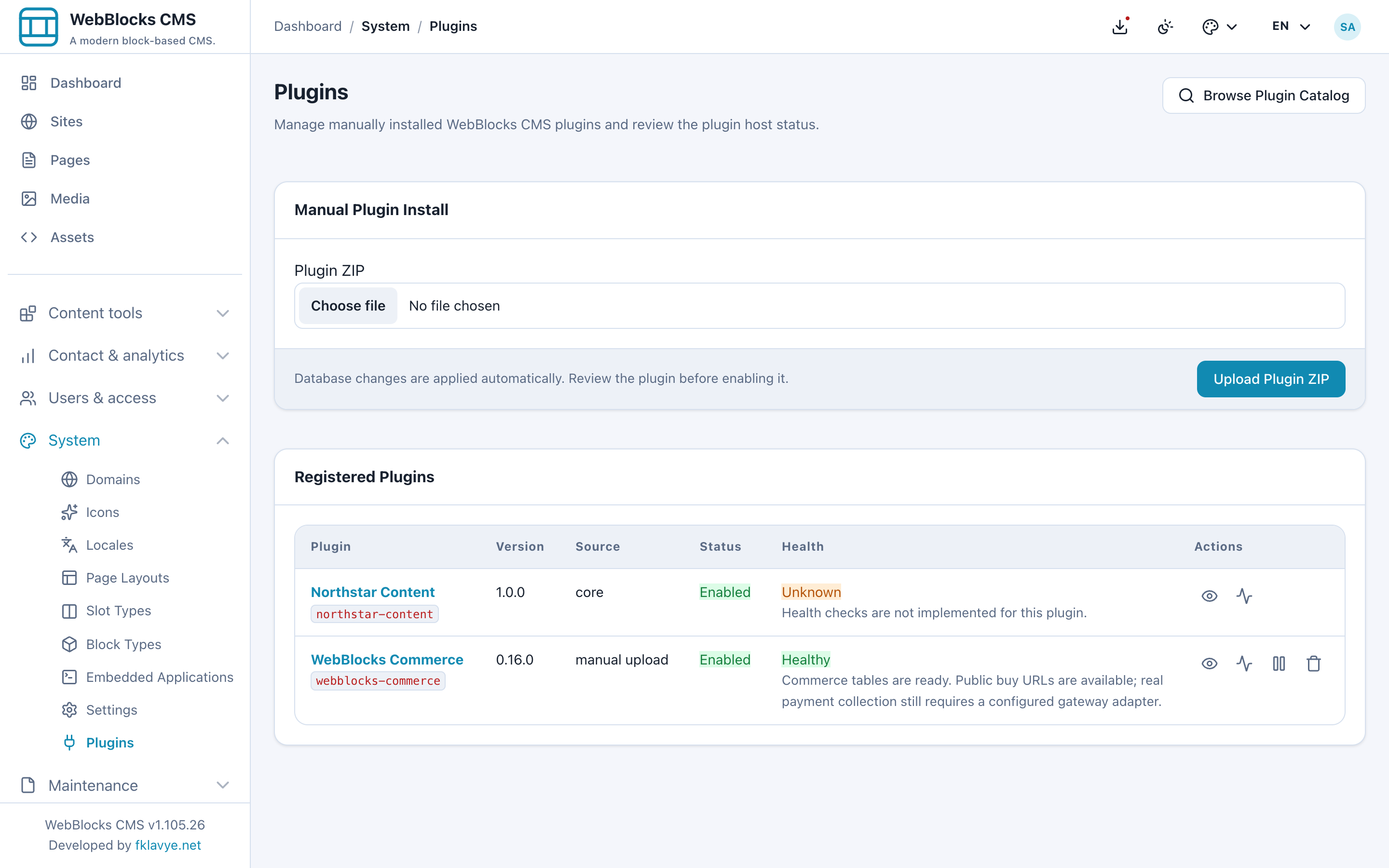
The screenshot shows the completed installation. If your administrator supplies a trusted release ZIP instead, use Plugin ZIP → Upload Plugin ZIP on the same screen, then review and enable it. A store owner does not need a plugin source repository or a Composer build command for either panel installation route.
After enabling, the sidebar gains Commerce → Products, Orders, Settings. Open Settings to continue. Plugin health confirms that the package can run; payment readiness is checked separately in Commerce Settings.
2. Start with no-payment test orders
- Open Commerce → Settings → General.
- Set Gateway to Test order (no payment).
- Set Default Currency to EUR for this example.
- Leave PayPal Mode and SumUp Mode set to Sandbox for later testing.
- Select Save Commerce Settings, then return to Overview.
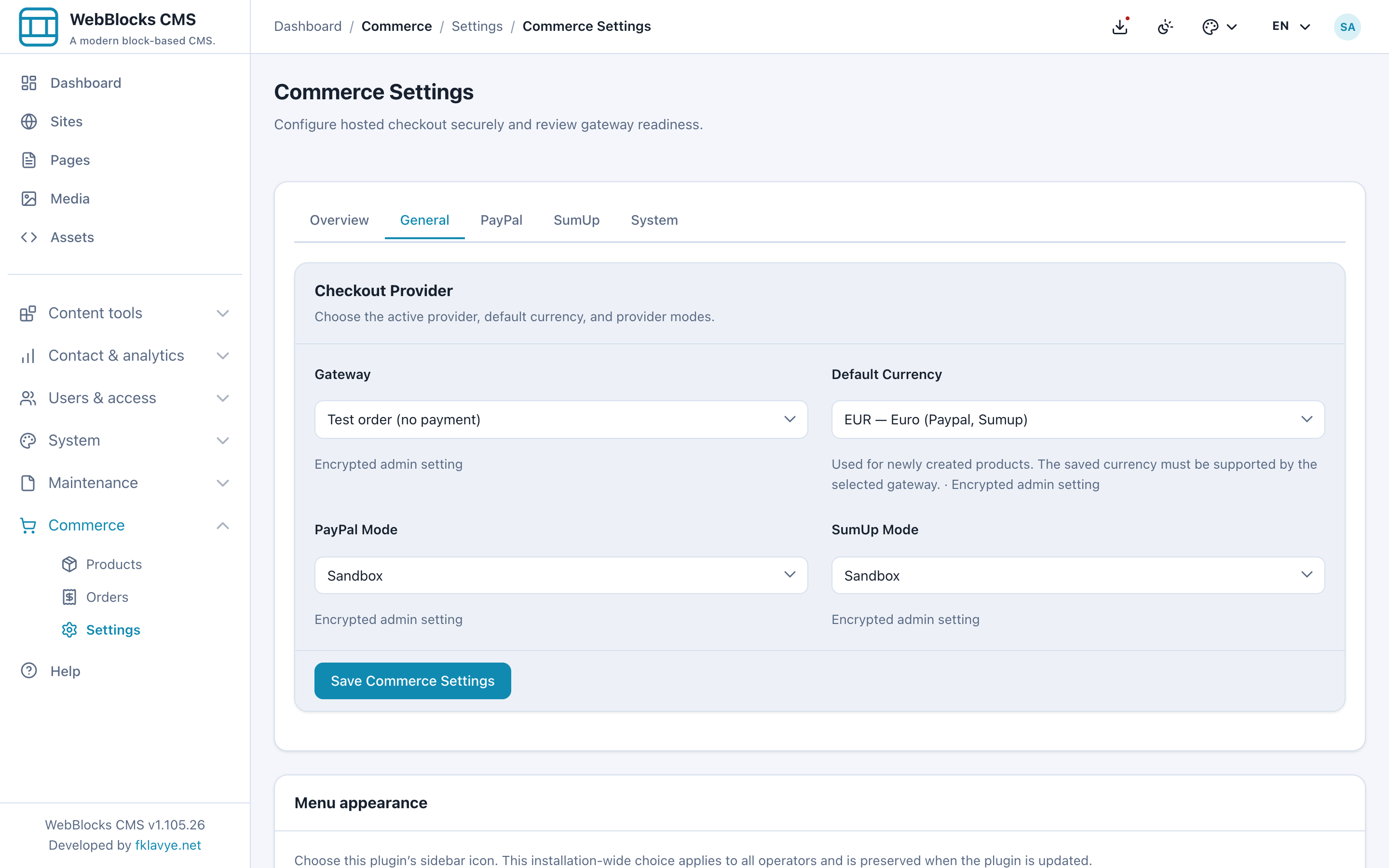
The default currency is the starting value for new products. It does not convert an existing product's price. Each product keeps its own currency, and all items in a cart must use the same currency.
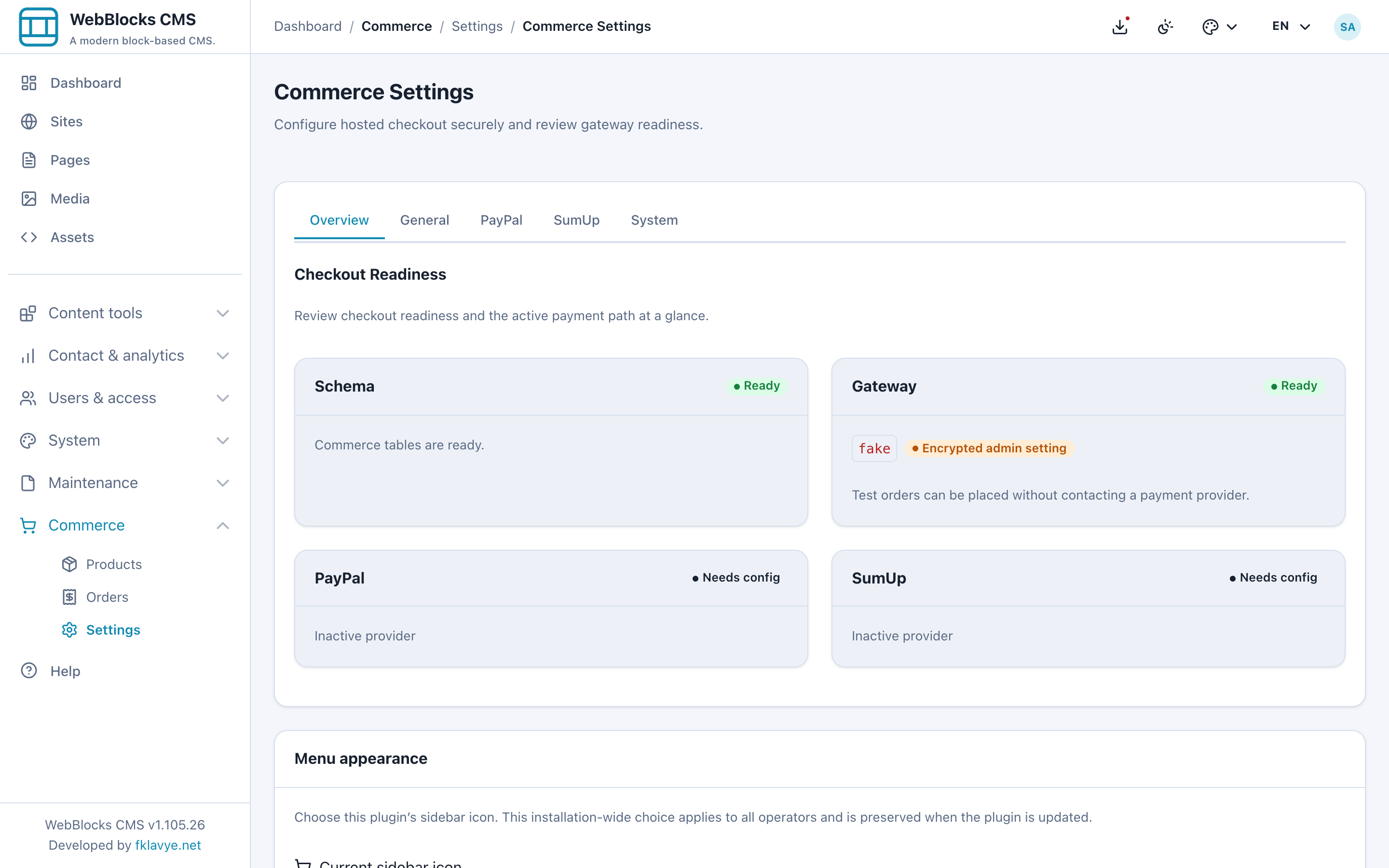
In this exercise, Schema: Ready and Gateway: Ready are the useful checks. PayPal and SumUp can show Needs config while they are inactive. You do not need to enter any provider credentials to place a no-payment test order.
The overview may identify the test gateway as fake; that is the internal name for Test order (no payment). It records an unpaid order, reserves stock, and never contacts a payment provider. It is not a simulated successful payment and will not mark the order Paid.
3. Create your first product
Open Commerce → Products → New Product. Enter the following values, substituting your own site for Northstar Studio:
| Field | Example | What to check |
|---|---|---|
| Title | Studio notebook | The product name visitors will see. |
| Slug | studio-notebook | The stable product identifier used in its public buy URL. |
| Status | Active | Draft and Archived products cannot be selected for a new purchase. |
| Site | Northstar Studio | Choose the site where you will sell it. |
| SKU | NS-NOTE-01 | An optional identifier for your own catalogue. |
| Price Amount | 1800 | EUR uses cents, so this means €18.00. |
| Currency | EUR | Must be supported by the active gateway. |
| Inventory | 24 | A tracked quantity; zero means unavailable. |
| Tax class | Standard rate | Used with the configured store tax country and rates. |
| Description | A stitched notebook for ideas, sketches and workshop notes. | The product's base-language description. |
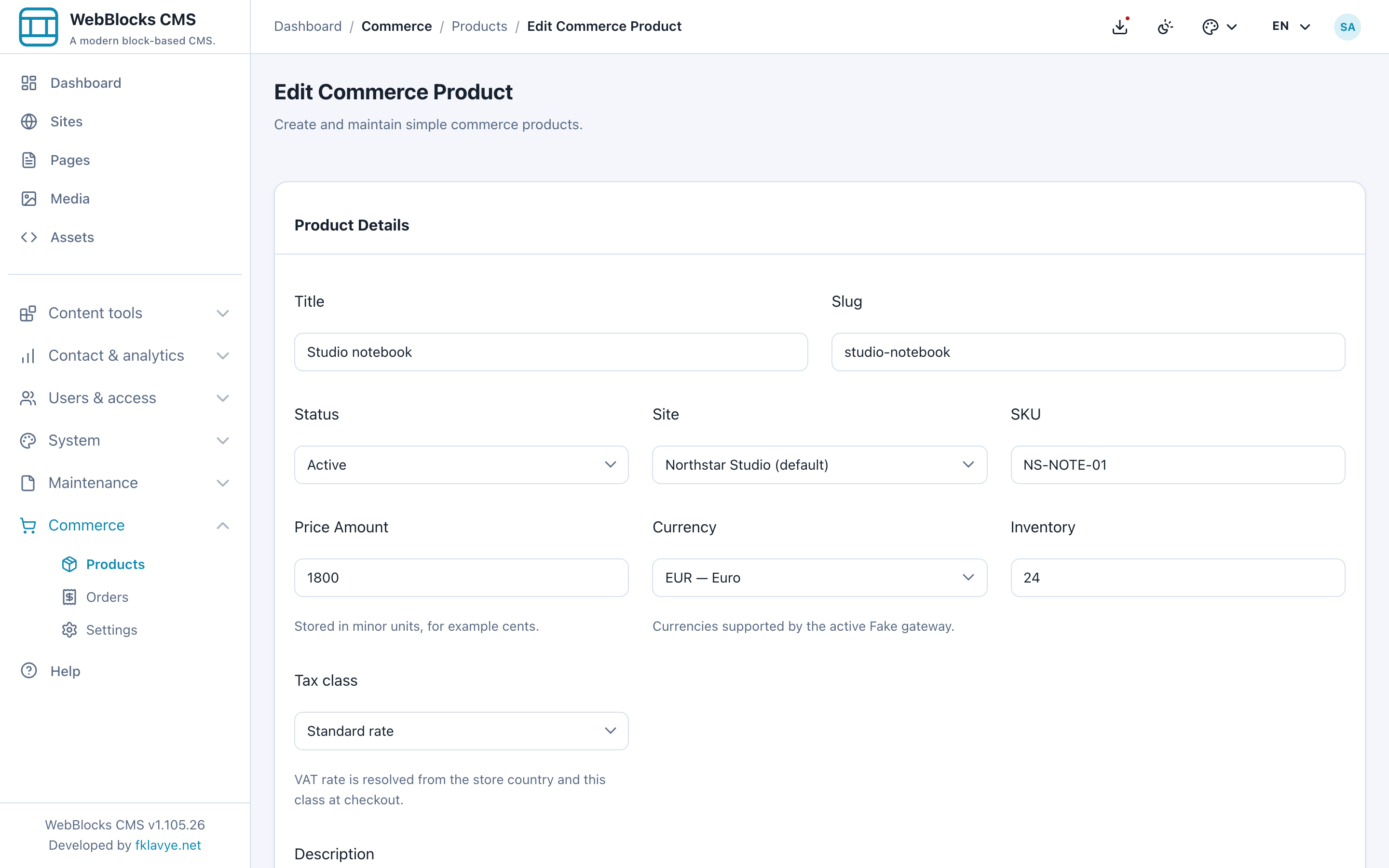
Price Amount uses whole minor units, not a decimal selling price. Enter 1800, not 18 or 18.00, for an €18.00 product. Some currencies use a different number of minor units; do not assume every currency has cents. Check the formatted price after saving.
Leave Inventory blank only when you intentionally want untracked stock. Blank means unlimited availability; it does not mean sold out. Choose a specific site for this walkthrough. Install-wide is a separate scope for Super admin use, not the equivalent of selecting your current site.
Select Save Product, then check its detail screen for Active, €18.00, Inventory 24 and Product Available. The detail screen also provides a Public Buy URL. Copy the URL shown by your installation if you need a direct product link; do not copy the localhost address from a screenshot.
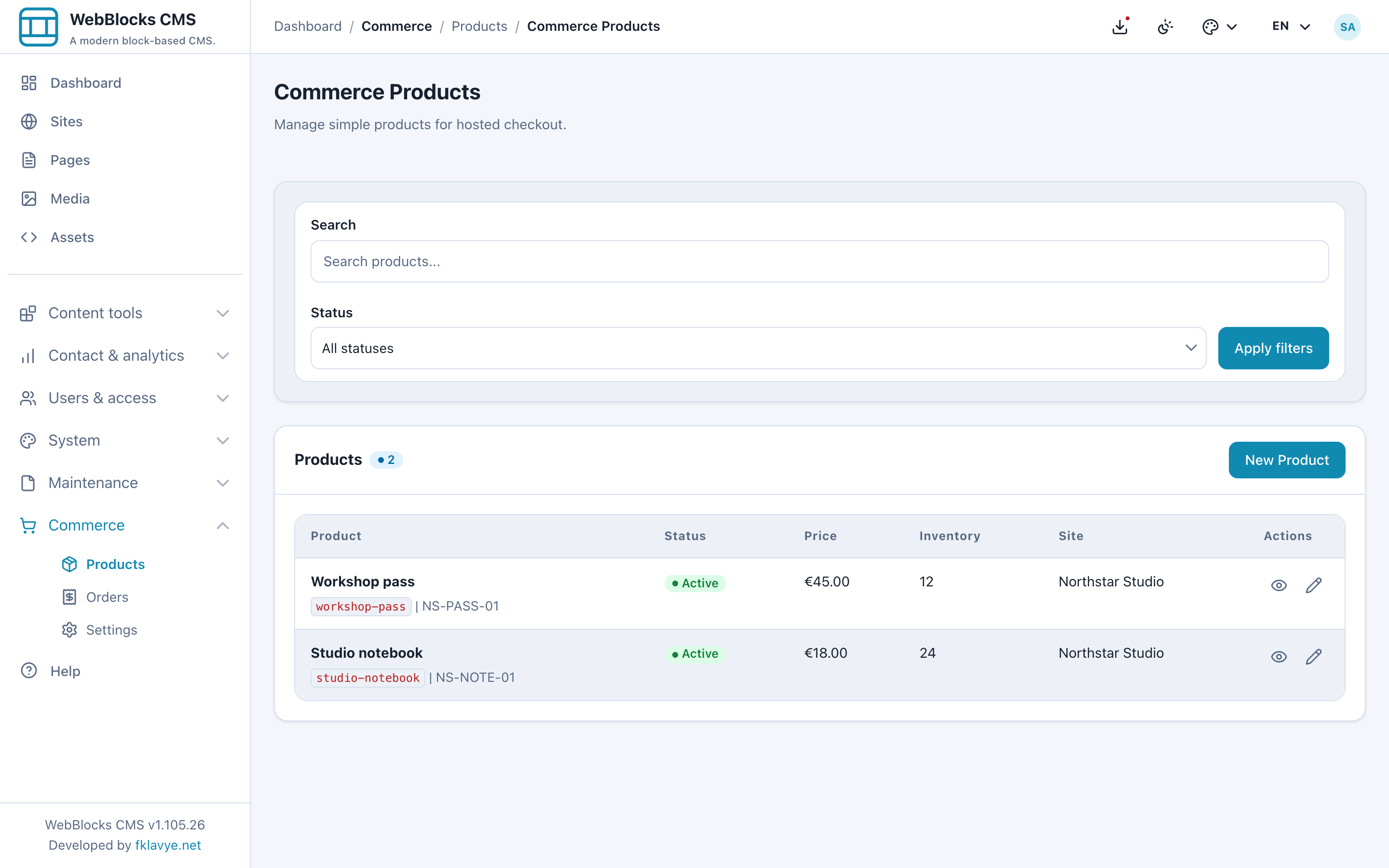
If the site has additional enabled languages, the product form offers translated titles and descriptions. An empty translation falls back to the base content. Translating the CMS sales page and translating the Commerce product are separate tasks: check both when you add another storefront language.
4. Add the product to a CMS page
Create a draft CMS page for the notebook, or prepare a staged update to an existing published sales page. Select the same site as the product. Add a heading, a useful description and, if you have one, a product photograph through the ordinary Media Library and Image block.
Then connect the page to Commerce:
- Open the page's Main slot and select Add Block in the desired position.
- Choose Commerce Buy Button.
- In Block Fields, select Studio notebook from Product.
- Set Button Label to Add to Cart.
- Choose Start alignment and enable Show price beside the button.
- Select Save Block and open the saved page Preview.
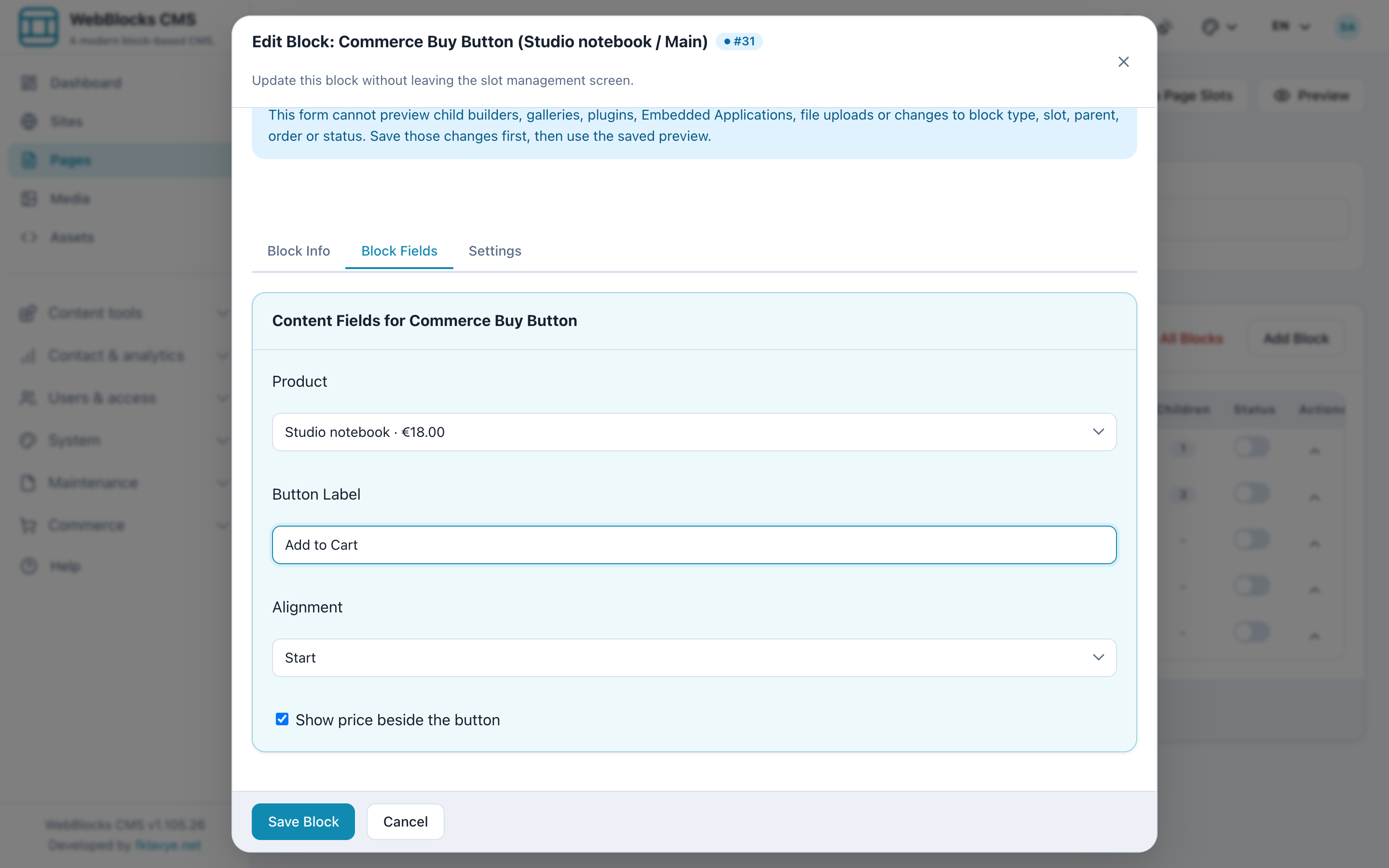
The native block adds the selected product to Commerce's cart. You do not need a Trusted HTML block, a pasted payment form or a provider script in your page content.
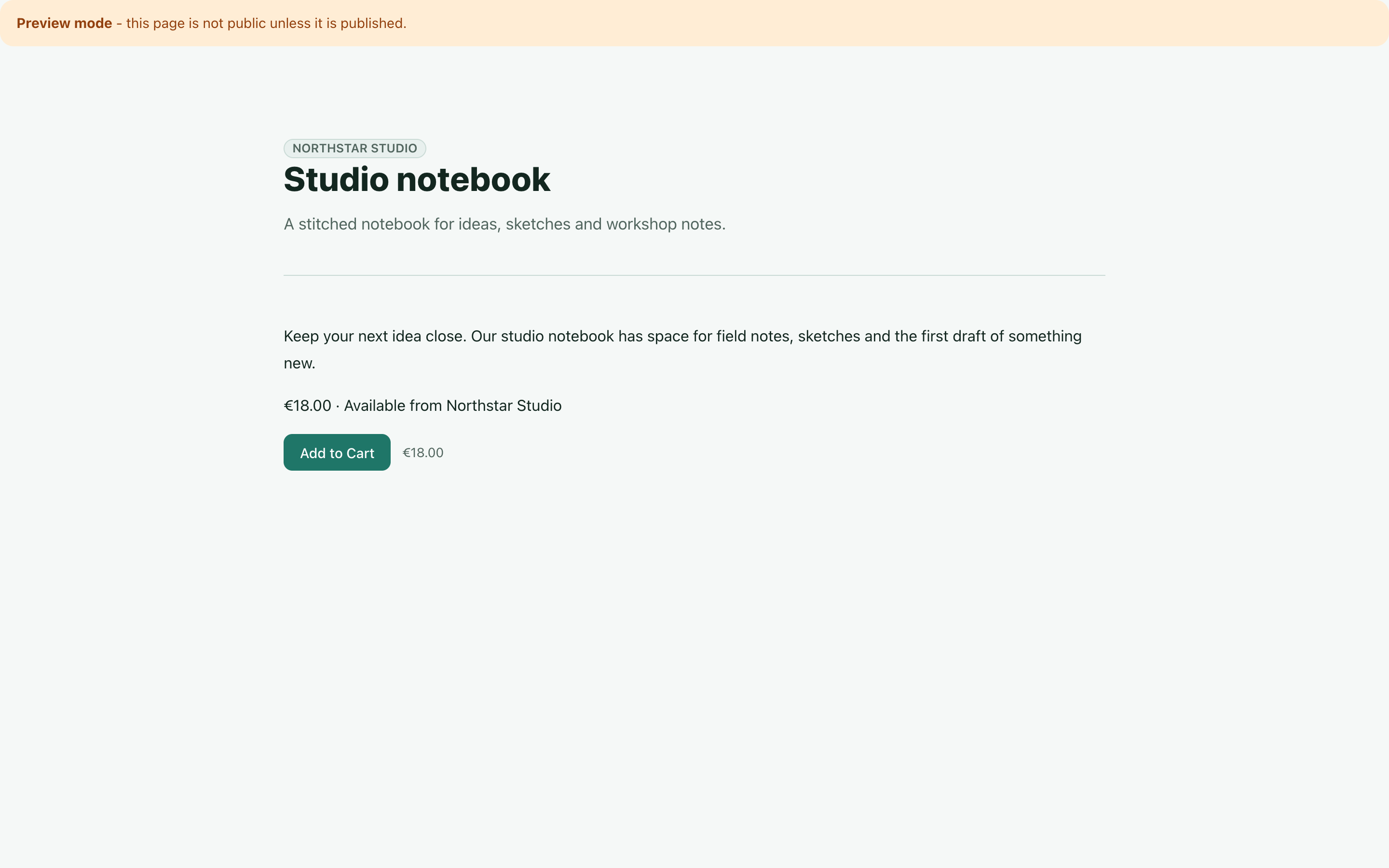
The draft preview lets you test the page before publishing it. The preview banner does not make cart actions a dry run. Pressing the button still changes your session's cart; completing checkout still creates an order. That is why this walkthrough selected the no-payment gateway first.
If you want a persistent cart link in your site header, add a navigation item pointing to /plugins/webblocks-commerce/cart, label it Cart, and choose the shopping-cart icon. Commerce can show the cart quantity on that icon action. The ordinary navigation menu guide covers adding and ordering the item.
5. Test the cart and checkout
In the page preview, select Add to Cart. Commerce opens the shopping cart with one notebook. Select the + quantity control once so that it contains two.
Confirm the product name, quantity and formatted price. With this guide's EUR prices and tax-inclusive fixture, two €18.00 notebooks total €36.00. You can also decrease the quantity or remove a line. Adding the same product again combines quantities; adding products with a different currency is rejected.
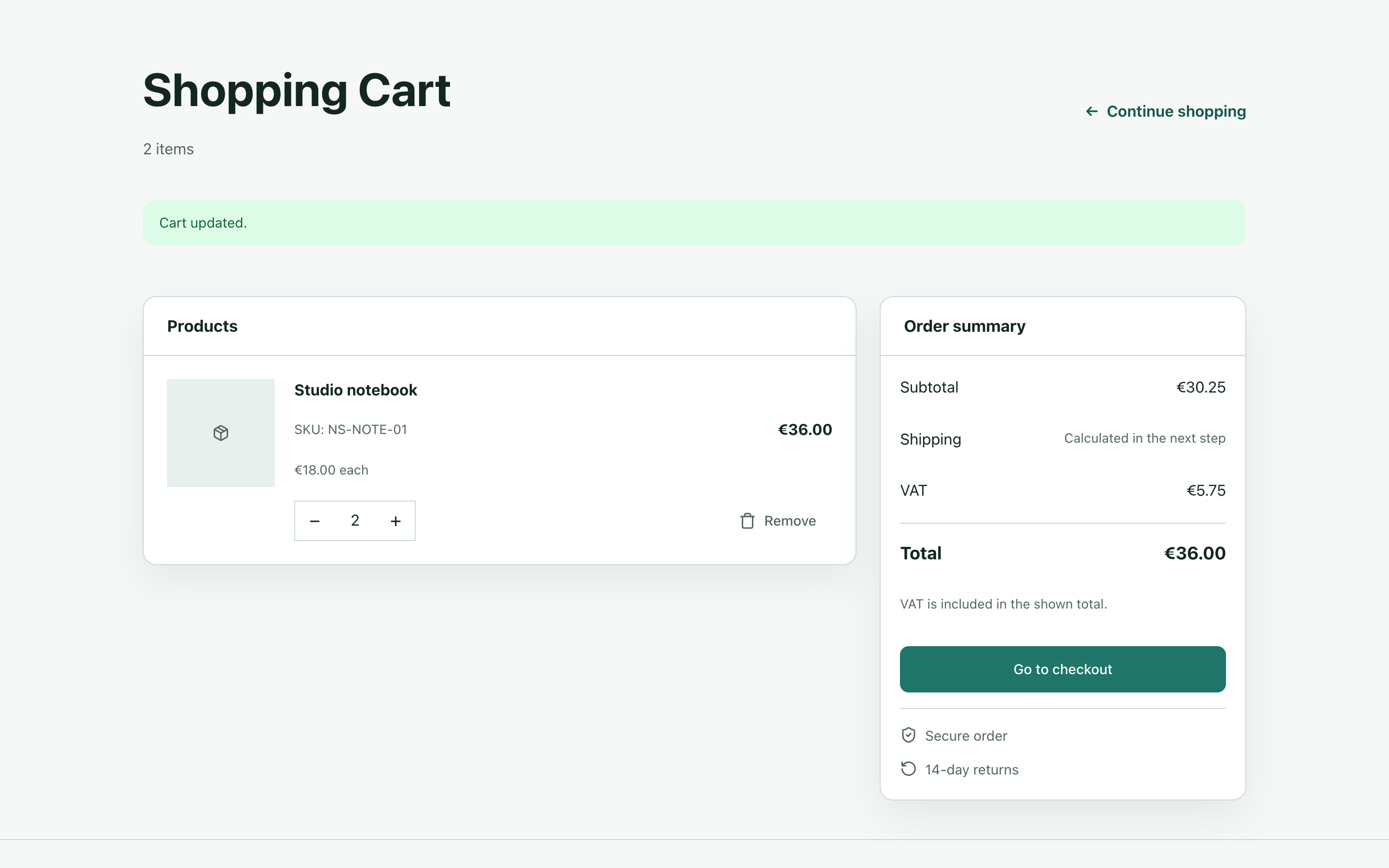
Select Go to checkout. Contact and delivery details are on this separate screen. Enter your own test data, for example Example customer and customer@example.test, rather than real customer information.
The form requires a full name, email, street and house number, postal code, city and a two-letter country code such as DE. Phone and the second address line are optional. Review the total, then select Place test order.
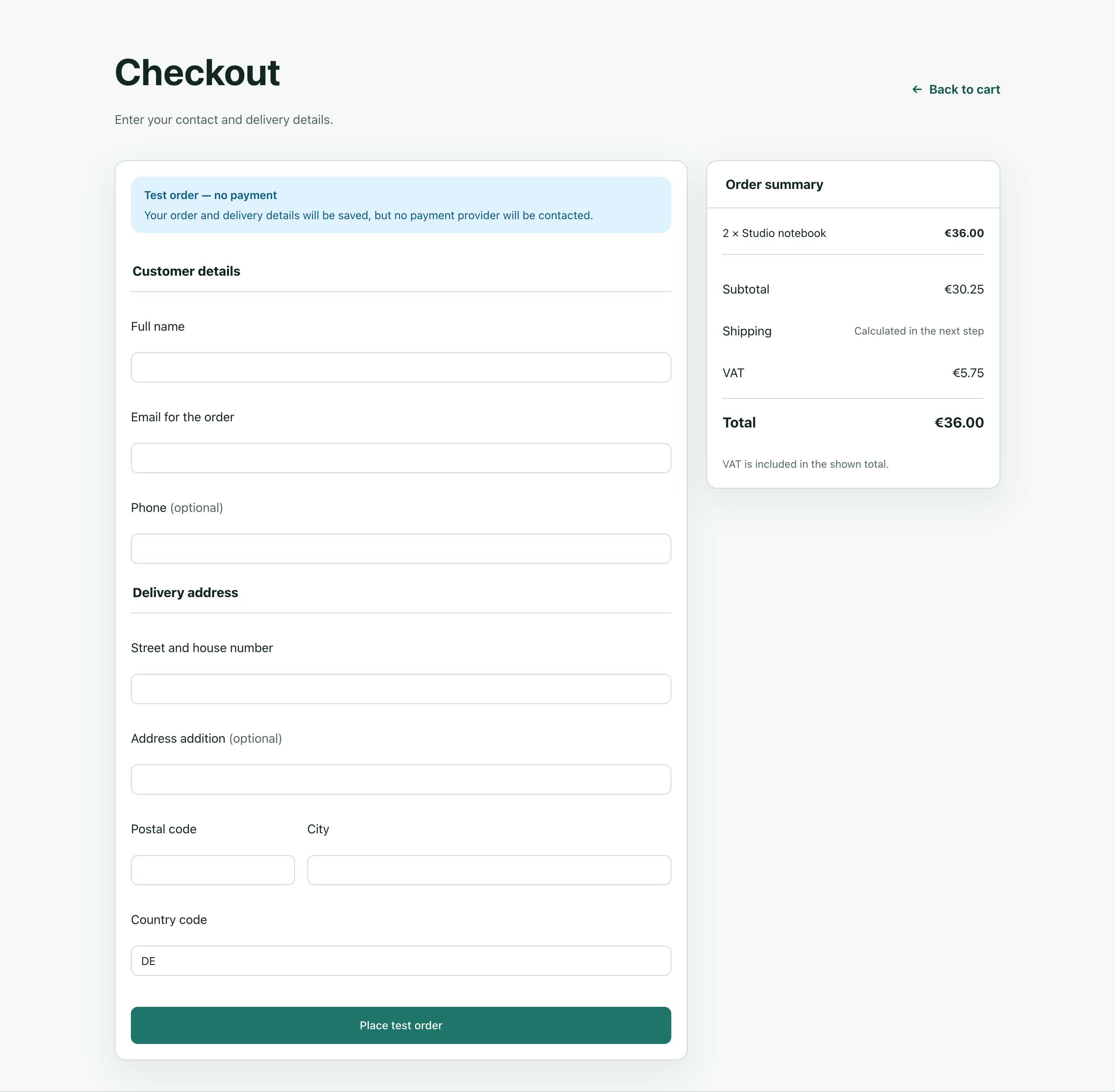
The form currently collects delivery details even if your product is a workshop pass or another item that will not be shipped. Do not treat that as a shipping service: Commerce does not calculate a delivery tariff or create a carrier booking in this release. The shipping text in the summary is not evidence that a charge or fulfilment workflow has been configured.
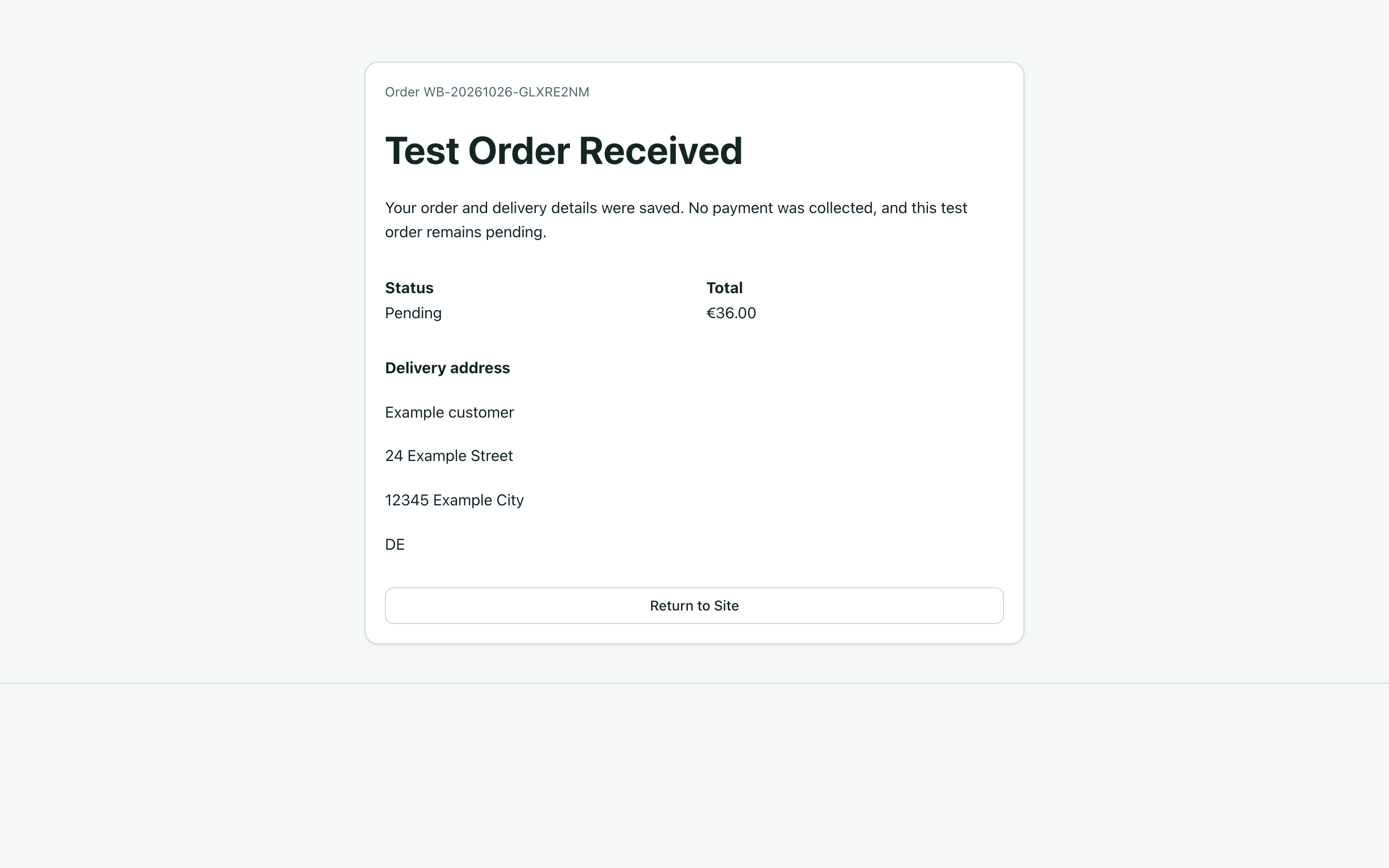
A successful result says Test Order Received and explains that no payment was collected. Pending is the expected status. Keep the order number for the next step; you do not need to share the private order-status link.
6. Find the order and check stock
Open Commerce → Orders, locate the order number from the result screen and open it. Check:
- Status: Pending, because this is an unpaid test order.
- Items: Studio notebook, quantity 2, €18.00 each, €36.00 total.
- Customer and Delivery: the fictional information you entered.
- Gateway:
fake, the no-payment mode. - Payment Attempts: the recorded attempt and its state.
- Tax breakdown: the net subtotal, VAT and gross total used at checkout.
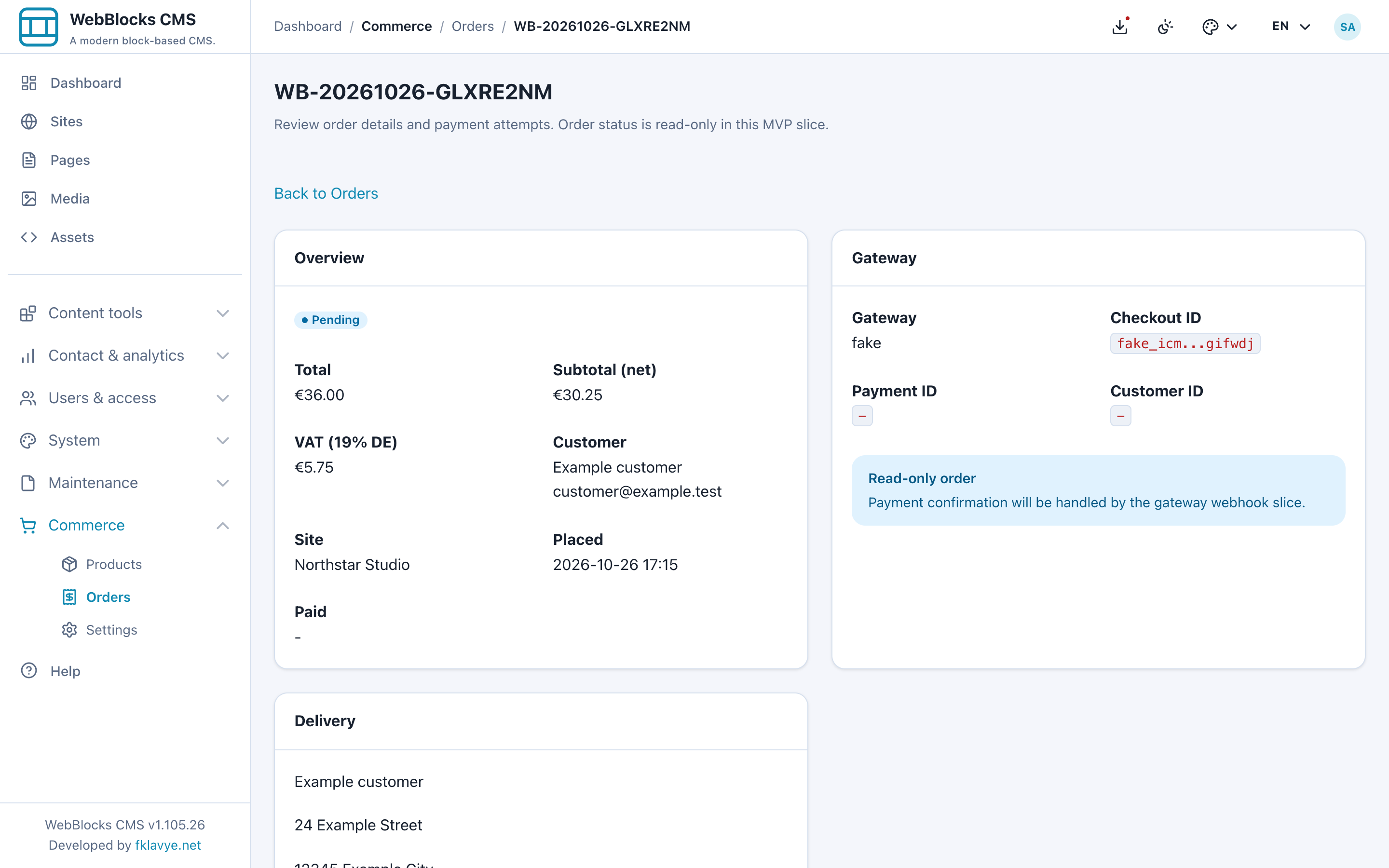
Open the notebook product again. Inventory should now be 22: two units were reserved when checkout began. Adding an item to the cart alone does not reserve it. Pending real-provider orders and no-payment test orders can both hold a reservation.
The order screen is read-only. You cannot turn a test order into a paid order by editing its status here, and a successful browser return from PayPal or SumUp is not payment proof. Real-provider payment status changes only after Commerce verifies the provider's callback and payment details.
Prices and tax totals are saved on the order at checkout. Changing a product's price later affects future checkouts; it does not rewrite the amounts on an existing order.
7. Understand currency, tax and stock before opening the store
Currency: the provider must support both the default currency and the currencies of your existing non-archived products. Changing gateways can be refused when a product uses an unsupported currency. Resolve the product's currency or archive the product deliberately; changing the default alone is not a currency conversion.
Tax: the product's tax class is combined with server-configured rates for the store tax country. The plugin does not automatically choose a new tax jurisdiction from each delivery address. Ask the hosting administrator to confirm the store's tax configuration before taking orders.
The relevant server settings are WEBBLOCKS_COMMERCE_TAX_ENABLED, WEBBLOCKS_COMMERCE_PRICES_INCLUDE_TAX and WEBBLOCKS_COMMERCE_TAX_COUNTRY. With tax-inclusive prices, VAT is broken out of the product price. With tax-exclusive prices, VAT is added to the price. This guide's test uses a configured standard rate of 19% and tax-inclusive EUR prices: €36.00 contains €5.75 VAT and €30.25 net. That is an illustration of this fixture's calculation, not a rate to apply to every store.
Stock: tracked units are reserved at checkout and released when an order fails, is cancelled, expires or is refunded through the supported order lifecycle. Untracked products are not decremented. A cart rechecks current price and availability before an order is created, so a saved cart is not a promise of a fixed price or reserved stock.
Ask the hosting administrator to schedule abandoned-order cleanup. The plugin provides:
php artisan webblocks-commerce:expire-stale-orders --minutes=30For example, they can run it every fifteen minutes through the host application's Laravel scheduler. Choose an expiry window that suits the store and its payment flow; the command expires all pending orders older than that threshold, not only test orders. This releases stock held by abandoned checkouts. Test orders will not become paid by waiting longer.
8. Connect PayPal when you are ready
Use a publicly reachable HTTPS test site for this part. A provider cannot send its server callback to the 127.0.0.1 address shown in the local screenshots.
- In the PayPal Developer Dashboard, open Apps & Credentials and obtain the sandbox client ID and client secret for your app. Use the app and merchant account intended for this store.
- In Commerce → Settings → General, select PayPal, select Sandbox for PayPal Mode, choose a supported default currency and save.
- Open the PayPal tab. Enter the Client ID and Client Secret.
- Copy the Webhook URL generated by your installation. In PayPal, register that HTTPS endpoint for the same app and mode, including the
CHECKOUT.ORDER.APPROVEDevent used by this integration. Copy the resulting Webhook ID back into Commerce. - Save, then check Overview and the PayPal tab for checkout and webhook readiness.
- Start a fresh order and complete approval using an appropriate sandbox buyer account. Verify the order becomes Paid after the verified callback, rather than relying only on the browser's return page.
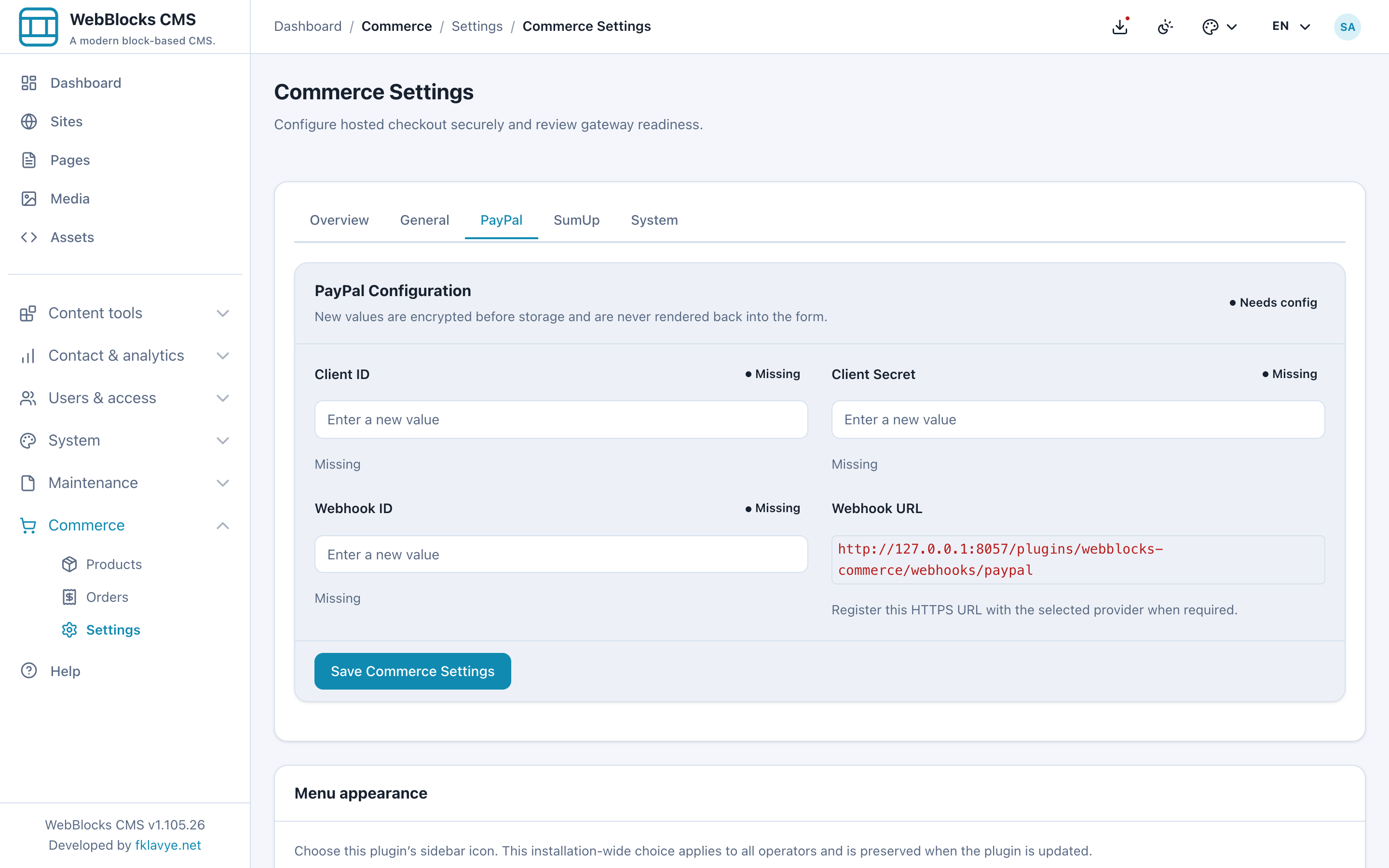
Your public endpoint has the path /plugins/webblocks-commerce/webhooks/paypal. Copy it from the panel so that the hostname and scheme match the actual installation. Keep the client ID, secret and webhook ID from the same PayPal app and environment.
PayPal's REST setup instructions explain app credentials and sandbox accounts; its Webhooks reference covers webhook subscriptions. You do not need to implement those APIs yourself for the panel workflow.
9. Or connect SumUp Hosted Checkout
You choose one active order gateway in General settings. Configuring credentials for both providers does not add a visitor gateway selector to checkout.
- Prepare a SumUp test merchant account and its matching API key and merchant code. If you are unsure where these values come from, follow the SumUp connection walkthrough.
- In Commerce → Settings → General, select SumUp, choose Sandbox for SumUp Mode, select a compatible default currency and save.
- Open the SumUp tab. Enter the API Key and Merchant Code, then save.
- Check readiness and the generated webhook URL. Ensure the public HTTPS path
/plugins/webblocks-commerce/webhooks/sumupis reachable. - Start a fresh cart checkout. Commerce creates the hosted checkout and sends the customer to SumUp's payment page. Complete the test there, return to the site, and inspect the saved order.
- Confirm the order becomes Paid only after Commerce retrieves and verifies the provider's payment result.
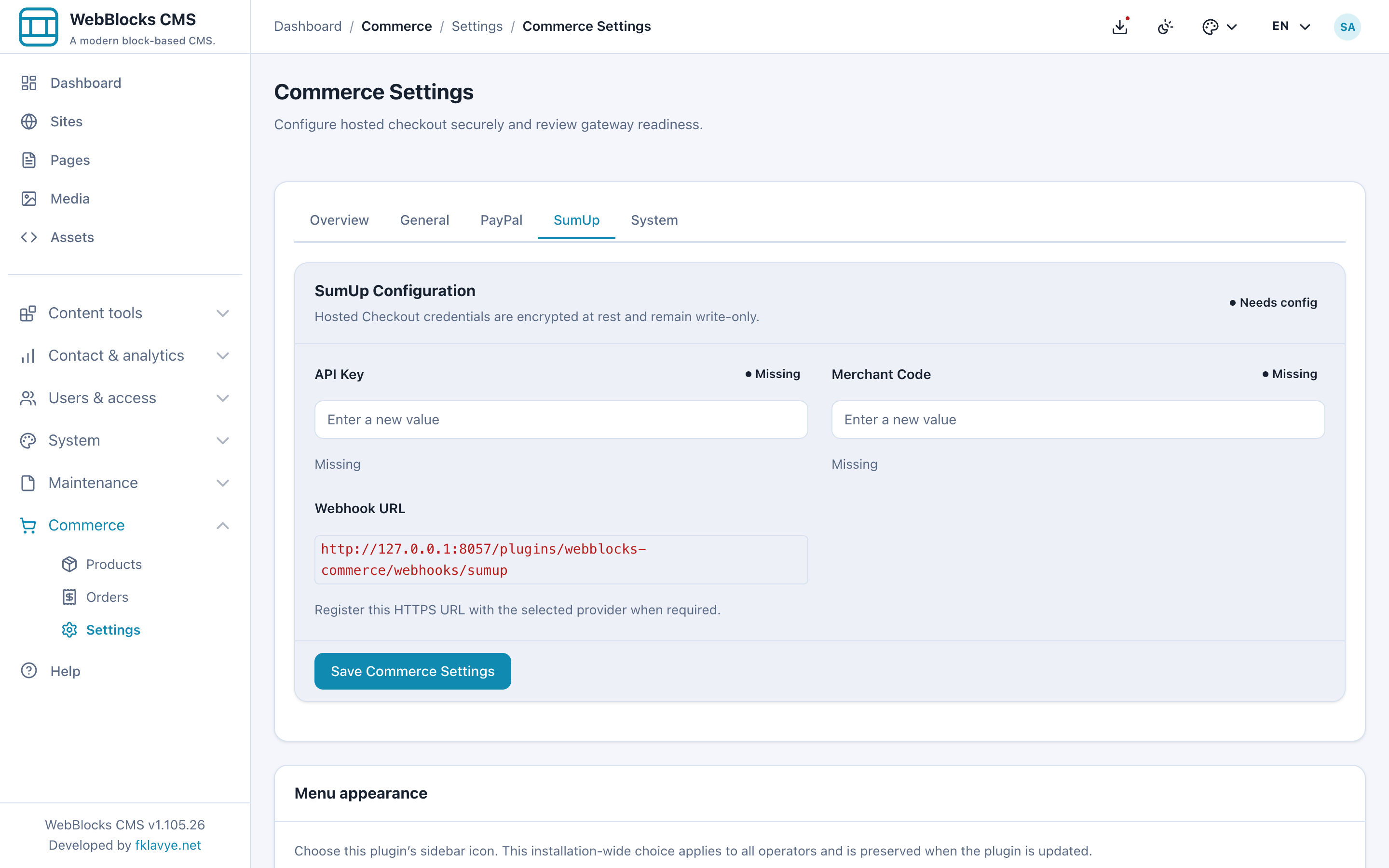
Commerce supplies the SumUp callback URL when it creates each checkout. It does not ask you for a separate SumUp Webhook ID. Setting the mode to Sandbox does not turn a live merchant key into a test key: the account, merchant code and key must all belong to the intended environment.
SumUp's online payment overview describes hosted payment collection, and its Checkouts API reference documents the checkout and backend callback. The CMS uses that flow for you; card details stay on SumUp's hosted surface.
10. Keep payment settings secure
Provider credential fields are write-only. After saving, the form is blank again and shows whether a value is configured. A blank field does not necessarily mean the saved credential was lost. Leaving a saved field blank keeps its value; use Clear saved value only when you intend to remove it.
Values saved in Commerce Settings are encrypted at rest. An administrator can instead manage the corresponding server environment values. These take precedence and appear as Managed by environment; an overridden field is read-only in the panel. The System tab lists the supported environment variable names without exposing their values.
If a stored replacement seems to have no effect, check the field's source label before entering it again. Coordinate environment changes with the hosting administrator. Never put a key or secret in a page, an HTML block, a screenshot or a support message.
Payment settings are shared at installation level. Site-scoped products and Site Admin permissions do not create a separate merchant configuration for every site.
11. Check the real payment flow before publishing
Complete the no-payment exercise first, then perform a separate end-to-end test with the selected provider's sandbox flow. The screenshots in this guide show only the no-payment exercise; they do not prove that your merchant account or public callbacks work.
Before opening the sales page to visitors, confirm:
- The selected provider, mode, merchant credentials and webhook setup belong together.
- The site and callback URLs use the correct public HTTPS hostname and remain reachable.
- Every product you intend to sell is Active, assigned to the intended site, correctly priced and in a supported currency.
- The tax configuration and the actual delivery/fulfilment process match what your page promises.
- A sandbox payment becomes Paid in Commerce → Orders after provider verification. Test cancellation and any relevant failure path as well.
- Pending-order cleanup is scheduled and its expiry window has been reviewed.
- Your page, navigation, contact details and any enabled language versions have been previewed.
When you deliberately move to live payments, use the real merchant's live credentials, the matching live mode and the correct live webhook setup. Sandbox and live credentials or webhook IDs are not interchangeable. Confirm the active gateway and readiness again, then follow your normal page review and publication workflow.
Publishing a page does not configure a merchant account. Changing the gateway is also separate from publishing, and affects checkout immediately.
Troubleshooting
| What you see | What to check next |
|---|---|
| Commerce is missing from the sidebar | Is the plugin enabled and compatible? Does your role allow the screen? Site Admins need the correct site assignment; settings require Super admin. |
| Health or Overview reports a schema problem | Resolve the reported database setup failure and check the plugin detail screen. Current releases apply migrations automatically; do not continue until the schema is ready. |
| No product appears in Commerce Buy Button | Save the product as Active, confirm the intended site, and reopen the block editor. Also confirm Commerce is enabled. |
| The displayed price is €0.18 rather than €18.00 | Check Price Amount. EUR prices are entered in cents: €18.00 is 1800. |
| Adding a product reports a currency mismatch | Remove the other-currency cart lines or use products in the cart's existing currency. One cart cannot mix currencies. |
| Checkout says the gateway is not ready | Open Overview, confirm the active gateway, check its credential source and configuration, currency support, product status and stock. |
| A saved credential field is blank | Check its Configured/Missing badge and source label. Saved secrets are never displayed again. |
| A field is read-only | It is managed by environment configuration; the hosting administrator must change that override. |
| A test order remains Pending | Expected: the no-payment gateway saves an unpaid order. It does not produce a Paid event. |
| A PayPal or SumUp order stays Pending after a browser return | Check the provider's transaction and callback delivery, the public HTTPS URL, and matching app/account/mode credentials. Commerce needs provider-verified payment confirmation. Do not dispatch solely because the browser returned successfully. |
| Stock is lower after testing or abandoned checkout | Pending orders reserve stock. Inspect the orders and have the administrator review stale-order cleanup; adding stock to hide an unexplained reservation is not a substitute. |
| An old SumUp checkout no longer opens | Start a fresh checkout from the cart rather than reusing an expired hosted URL. |
| An old /commerce/... link returns 404 | Current storefront paths begin /plugins/webblocks-commerce/. Copy the current buy URL from the product detail screen and update old links or provider registrations. |
Keep the store maintainable
Use Draft while preparing a product and Active when it is ready for purchase. Archive a product when you intend to stop new purchases, and review any sales pages or links that still feature it. Historical order lines retain their saved names and amounts.
Before updating the plugin, read the offered release notes and compatibility information, make a backup through your normal installation process, and repeat a cart/checkout test afterwards. Current CMS releases apply plugin database changes during updates and activation.
Disabling Commerce makes its routes, menus, settings and contributions inactive. Plan around visitors, placed Commerce blocks and provider callbacks before doing it on an operating store. Uninstalling a disabled uploaded package preserves the plugin's database tables; it is not an order-data cleanup operation.
You now have the main workflow in place: product → CMS page → cart → checkout → order review. Continue with Commerce reference documentation for automation and advanced diagnostics, or return to all guides for everyday page, media and team workflows.