Create A Page
Goal: Create a new page and have it ready for content.
Time: 2 minutes
You need: Editor access to a site
Steps
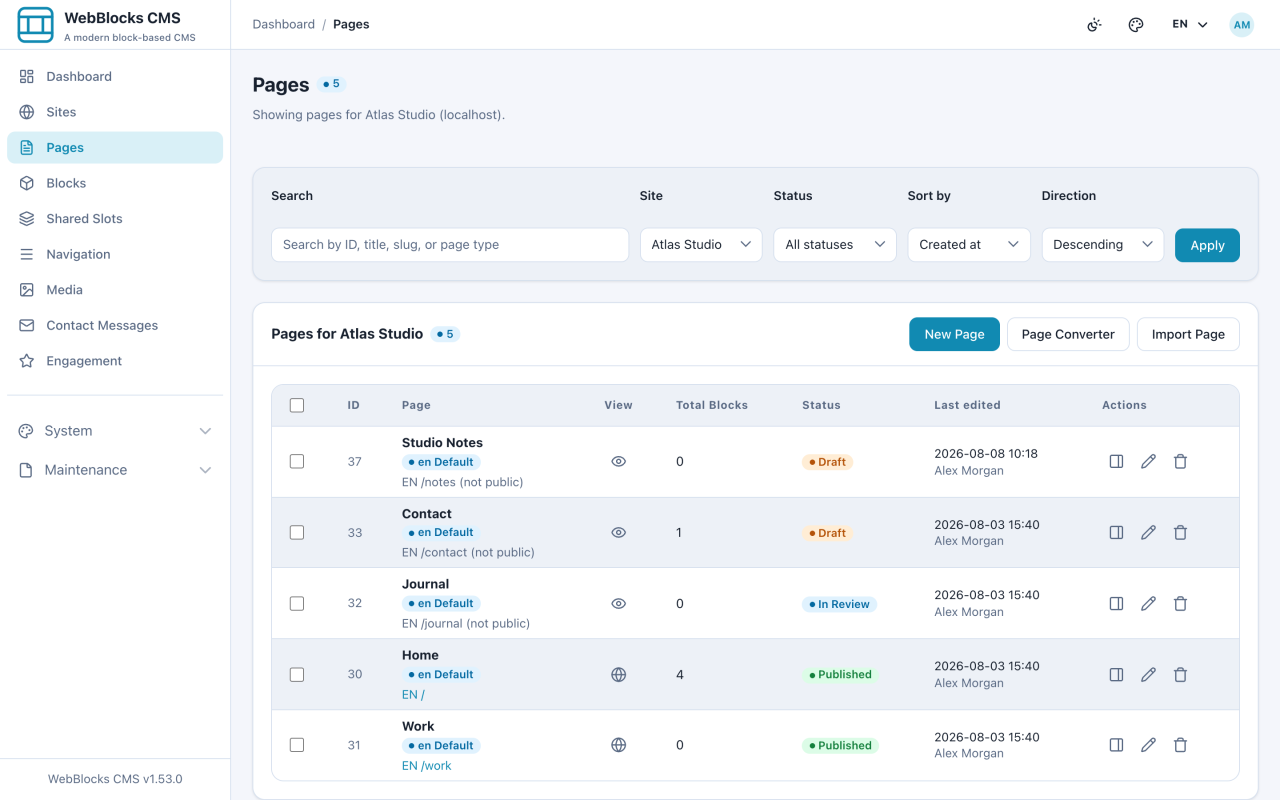
- Select Pages in the sidebar.
- Select New Page at the top right.
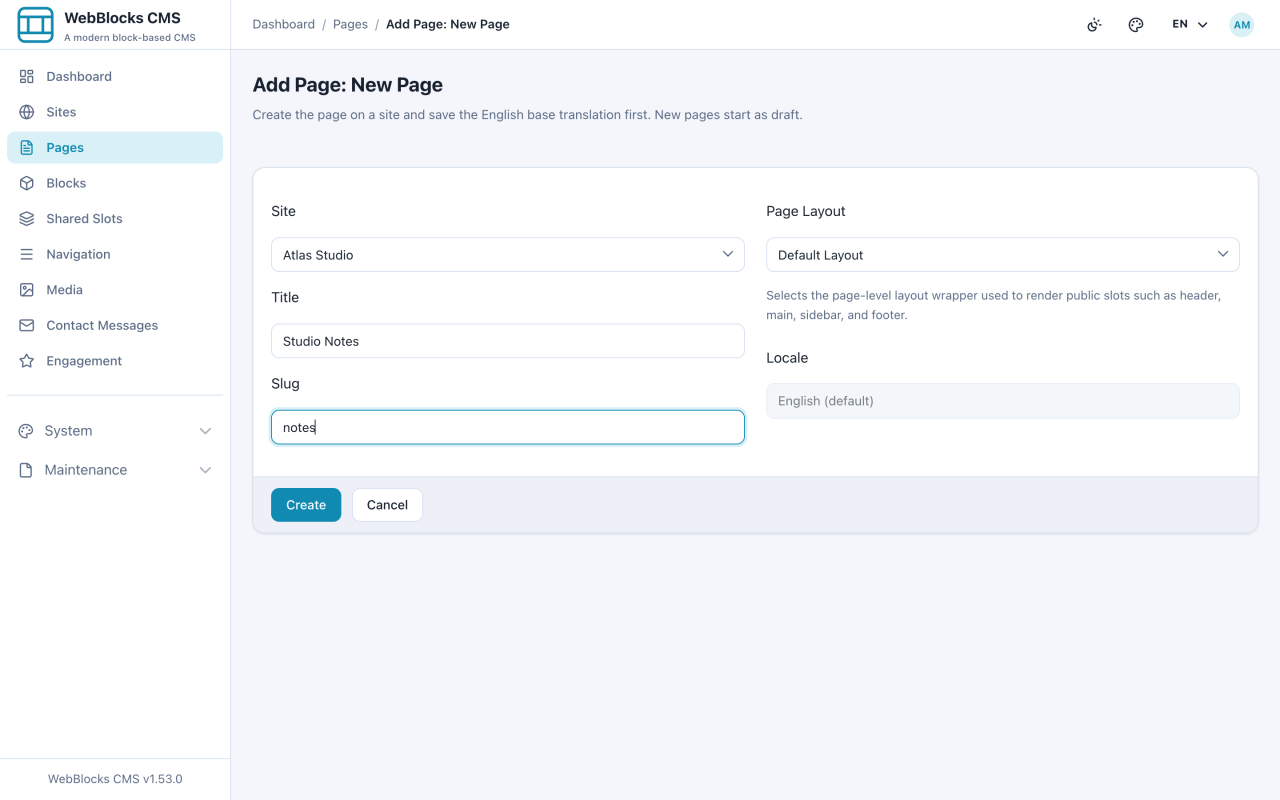
- Fill in the form: Site is where the page belongs and cannot be changed later from this form. Title is what the page is called — for this example,
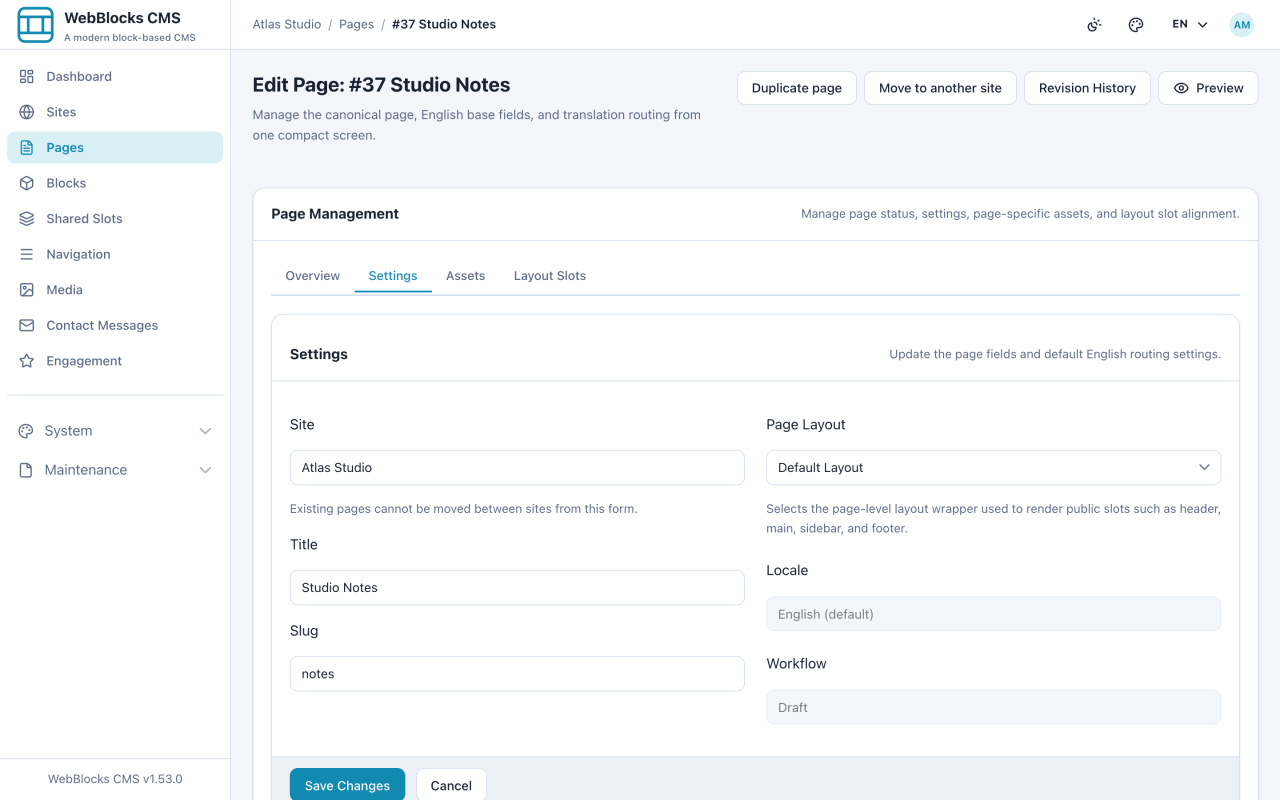
Studio Notes. Slug is the last part of the address; leave it empty to have it generated, or typenotes. Page Layout is the frame the page renders in — leave the default unless you were told otherwise. - Select Create. You land on the page's edit screen, and a message confirms the page was saved as a draft.
What You Just Got
The page is a draft, so it is not visible to visitors yet. The layout you chose already created the page's slots — the named areas the layout renders, such as the main content area. You do not have to set those up; you fill them.
The page is empty on purpose. Adding content is the next guide.
Notes
- The slug becomes part of the public address, so keep it short, lowercase, and without spaces.
notesreads better thanStudio Notes 2026. - The title is not the page's heading. It names the page in the admin panel and feeds the browser tab. You still add a visible heading to the page itself.
- Changing the slug later changes the public address. Do it early, before anyone links to the page.