Build A Gallery
Goal: Show a set of images together instead of stacking Image blocks.
Time: 3 minutes
You need: A page, and a few images already in the Media Library
Steps
- In the Main slot, select Add Block, then choose Gallery.
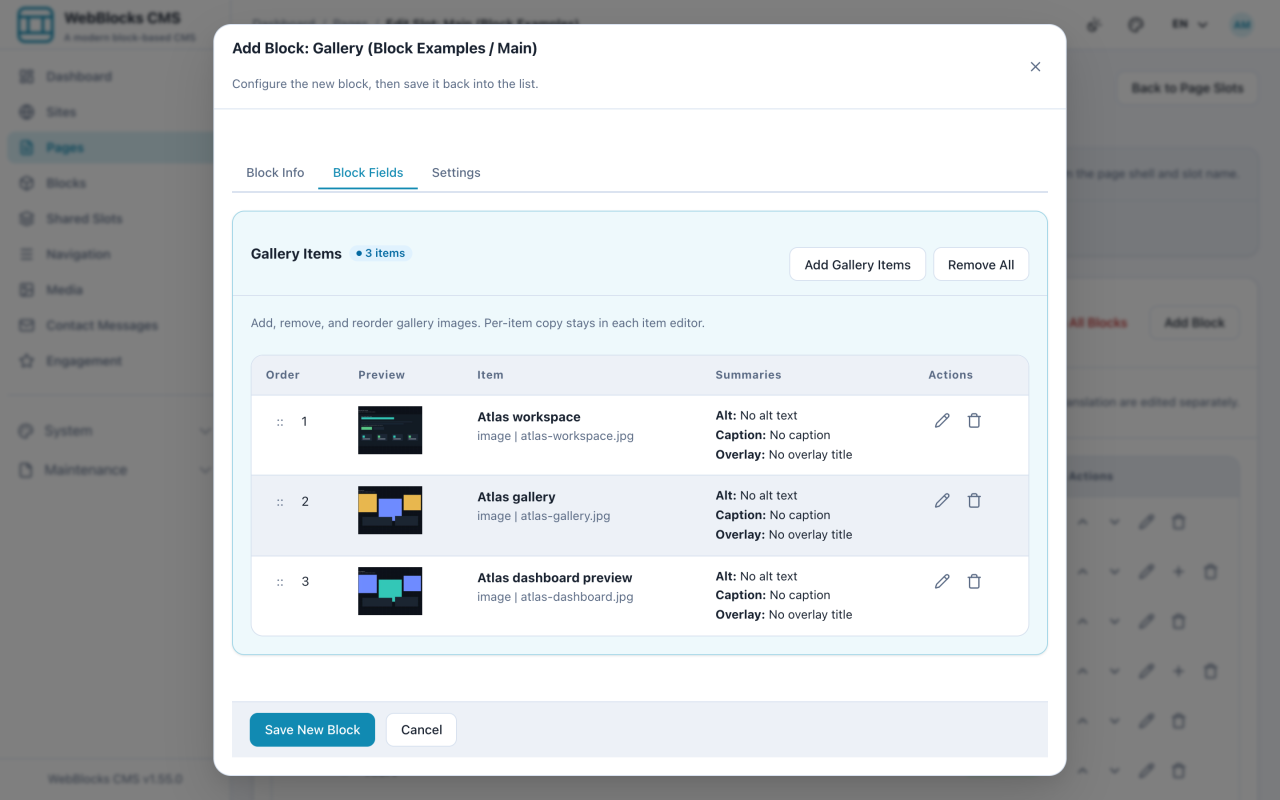
- Select Add Gallery Items and pick your images, in the order you want them shown.
- Set the presentation: Columns, Gap, Aspect Ratio, and Captions.
- Give the Viewer title a name if you turn the lightbox on — it labels the enlarged view.
- Leave Enable lightbox viewer on so visitors can open an image full size, and set Overlay Mode for how captions sit over the image.
- Select Save New Block.
Notes
- The Gallery block has no title or body copy. Put a Header block above it and a Plain Text block under that if the set needs an introduction. The Viewer title is for the lightbox, not the page.
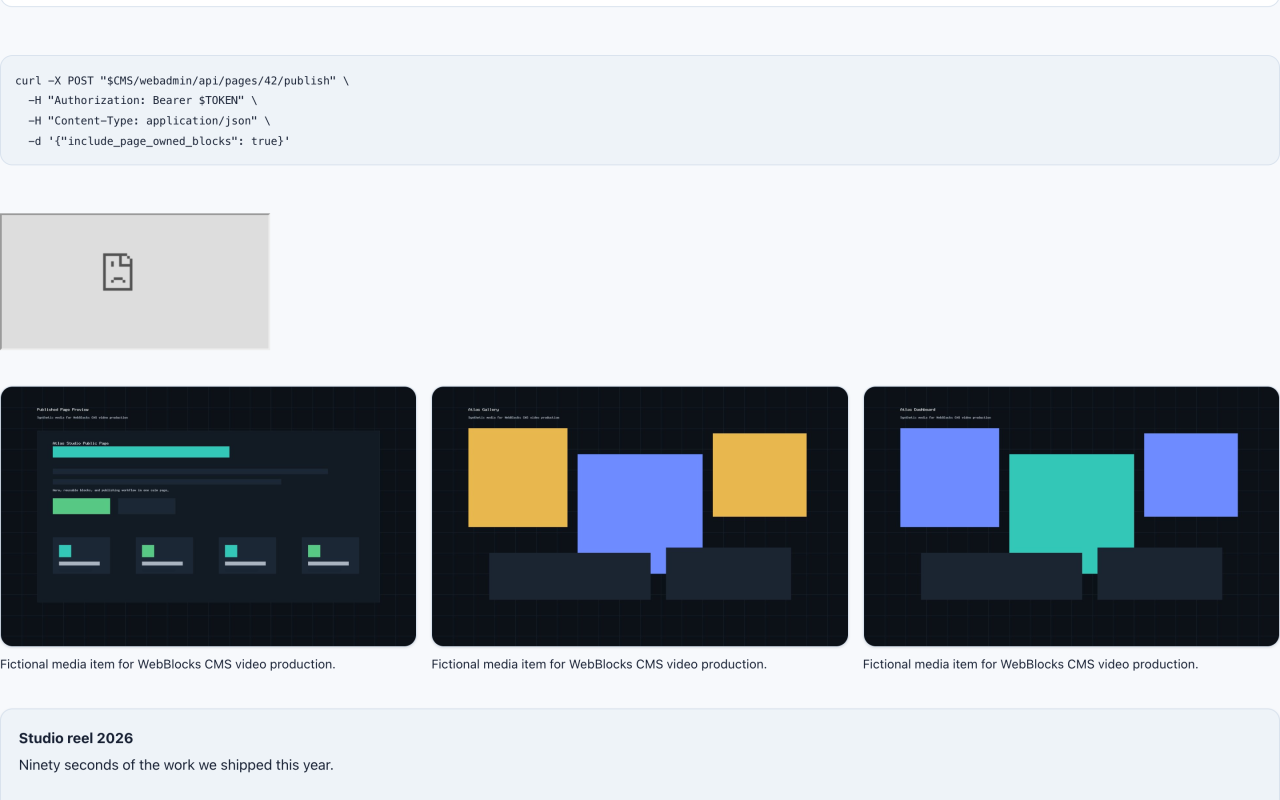
- Captions come from each image's caption in the Media Library, so fix them there and every gallery using that image improves.
- A fixed Aspect Ratio is what makes a grid look tidy when the source images have different shapes. Set the focal point on any image that gets cropped badly.
- Two images are not a gallery. Two Image blocks, or a Columns layout, will read better.
- Reordering happens in the item list, not by re-picking. Remove All clears the set without touching the files themselves.