Build A Members Area With WebBlocks Memberships
Give visitors their own accounts, let them join a free community, and open selected pages only to the right members. Then, if you need paid access, connect recurring plans through the payment providers configured in Commerce.
Our example is Northstar Studio. Its free Studio community package opens a reading room; its Workshop circle package is reserved for invited participants or paid subscribers. By the end of the main walkthrough, a verified visitor will be able to join the free package and read a protected page. You will also know how to assign a dated membership yourself and prepare a €10 monthly plan.
This guide was checked with Memberships 0.2.0, WebBlocks CMS 1.105.26 and Commerce 0.16.0. Screenshots use fictional Northstar Studio content and a synthetic verified visitor. The free enrollment and protected-page checks were exercised locally. The paid-plan image illustrates the form before saving; no real payment, merchant authorization or automatic renewal was performed for these screenshots.
What belongs where
Memberships connects four things that are easy to confuse:
| Item | Purpose | Example |
|---|---|---|
| Member account | Identifies a visitor and whether they control their email address. | Example member, member@example.test |
| Package | Defines a group of access rights. | Studio community or Workshop circle |
| Membership grant | Gives one member a package for a period, or without an end date. | Workshop circle from 26 October to 26 November |
| Paid plan and subscription | Defines a recurring price and records the member's authorization and payments. | €10 per month for Workshop circle |
A visitor account is separate from a CMS administrator account. Registering as a member does not allow someone into the admin panel. A package has no price of its own: a paid plan supplies the price, billing interval and payment-provider choice.
You can use accounts, free packages, manual grants and protected pages without Commerce. Paid recurring subscriptions require compatible Commerce payment providers. Adding a Commerce Buy Button sells a one-off product; it does not create a recurring Memberships subscription.
For developer endpoints and integration details, see the Memberships reference. This guide follows the work in the panel and the visitor account screen.
Before you start
Use a test installation while learning the workflow. You need:
- A working WebBlocks CMS site and a Super admin account for plugin installation.
- A compatible release: Memberships 0.2.0 requires CMS ^1.100.0; its catalogue compatibility lists PHP 8.4 and Laravel 13. Check the catalogue against the actual installation.
- Permission to manage Memberships and edit pages for the chosen site. The plugin supplies a Site Admin permission; the user's site assignment still applies.
- A correct canonical site domain and working CMS outbound mail for verification and password reset.
- For paid plans later: Commerce ^0.16, a configured PayPal or SumUp provider, a public HTTPS callback address and a working Laravel scheduler.
Ask the hosting administrator to verify mail delivery with a test mailbox before inviting members. The local screenshot environment uses synthetic accounts; it does not demonstrate delivery to a real inbox.
Memberships is listed as free in the plugin catalogue. Merchant accounts and payment processing are separate services.
1. Install and enable Memberships
- Sign in as Super admin and open System → Plugins.
- Select Browse Plugin Catalog and open Memberships.
- Review compatibility and the selected release, then choose Install from Catalog.
- Open the installed plugin's detail screen and choose Enable Plugin. Newly installed packages start disabled so that you can review them first.
- Check the plugin's health and database setup result before inviting visitors.
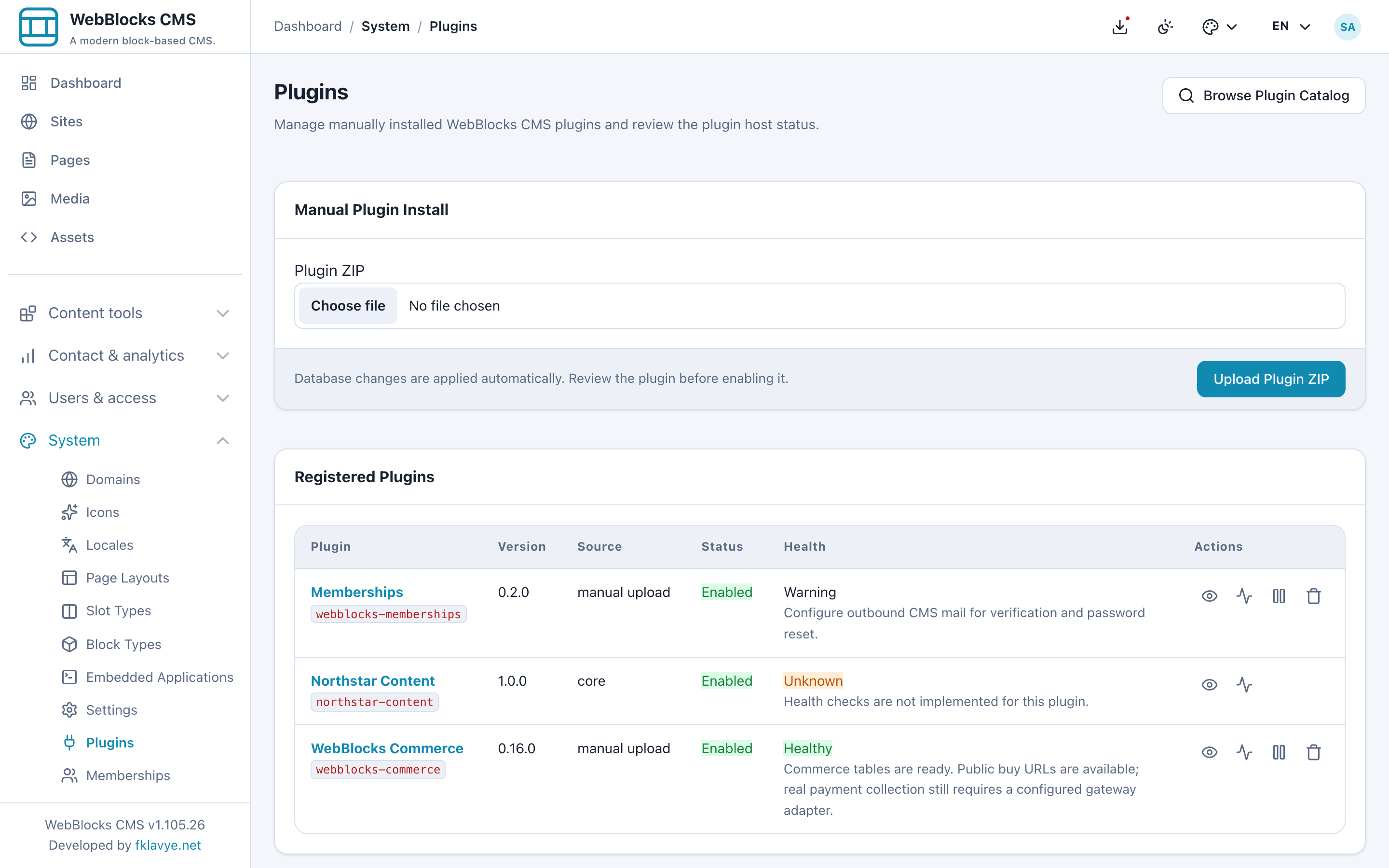
If your administrator supplies a trusted release ZIP, use Plugin ZIP → Upload Plugin ZIP, review it and enable it. The panel installation route does not require a store owner to build the plugin from source.
Current CMS releases apply plugin database changes during installation, update and activation. If setup fails, resolve the reported error before continuing. A mail or provider warning is a different readiness issue from missing database tables.
Open Memberships in the sidebar. Confirm the site name at the top is your intended site. In 0.2.0, the management URL accepts ?site_id=...; when no site is supplied, the panel chooses the first authorized site. On a multisite installation, have the administrator open the correct site-specific management URL and verify the heading before changing packages, accounts or page access. This version does not provide a separate site selector inside the Memberships form.
2. Create a free community package
A package groups access rights. Start with a free one so that you can test the complete account and page-access flow without a payment provider.
In the Memberships screen, scroll past existing packages to the empty Packages form:
- Enter Studio community in Name.
- Enter Free access to the Northstar Studio member reading room. in Description.
- Select Allow free self enrollment.
- Select that form's Save button.
The new package is active when created. Its saved form shows a Package ID, Active and Allow free self enrollment. Keep the ID for later steps.
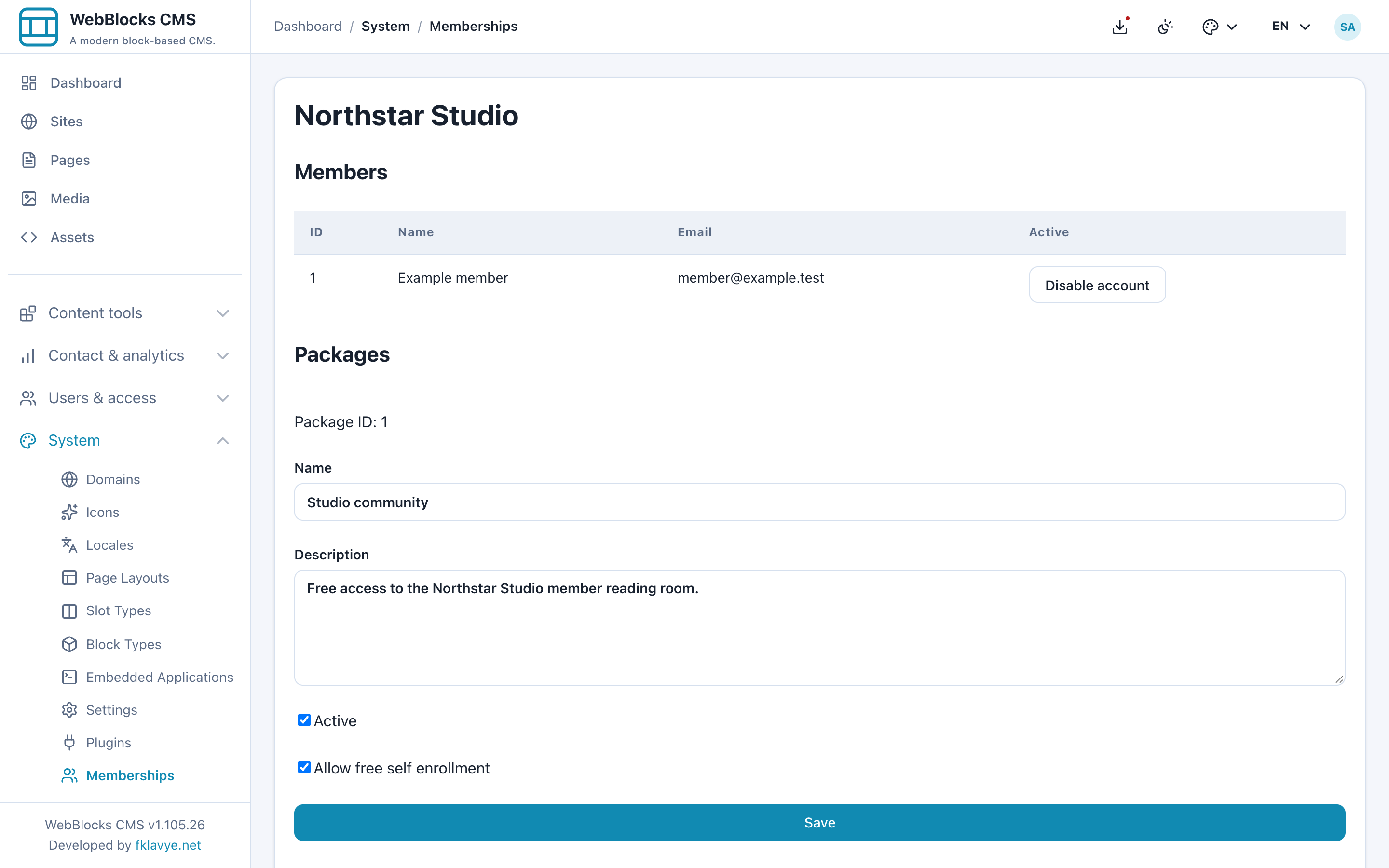
Only active packages that allow free self enrollment appear as free choices for visitors. A verified visitor can join them without an operator or payment approval. Free enrollment creates a membership without an end date.
Create a second package named Workshop circle, with description Workshop resources for invited participants. Leave Allow free self enrollment unchecked. You will grant this package manually in step 7, or attach it to a paid plan later.
Keep free self enrollment off for a package that should require payment or an invitation. Otherwise a verified visitor can obtain the same package through the free route. A separate paid plan does not override an available free grant.
3. Give visitors an account entry point
You can link directly to /plugins/webblocks-memberships/account, or use native blocks on an ordinary CMS page.
Create a draft page called Join Northstar Studio, or prepare a staged update to an existing join page. Use the same site as your packages. Add a heading and a short explanation of what membership includes, then:
- In the page's Main slot, select Add Block.
- Choose My membership account, the native Memberships account block.
- Save the block.
- Optionally add Available free packages, the native package-list block.
- Preview the page.
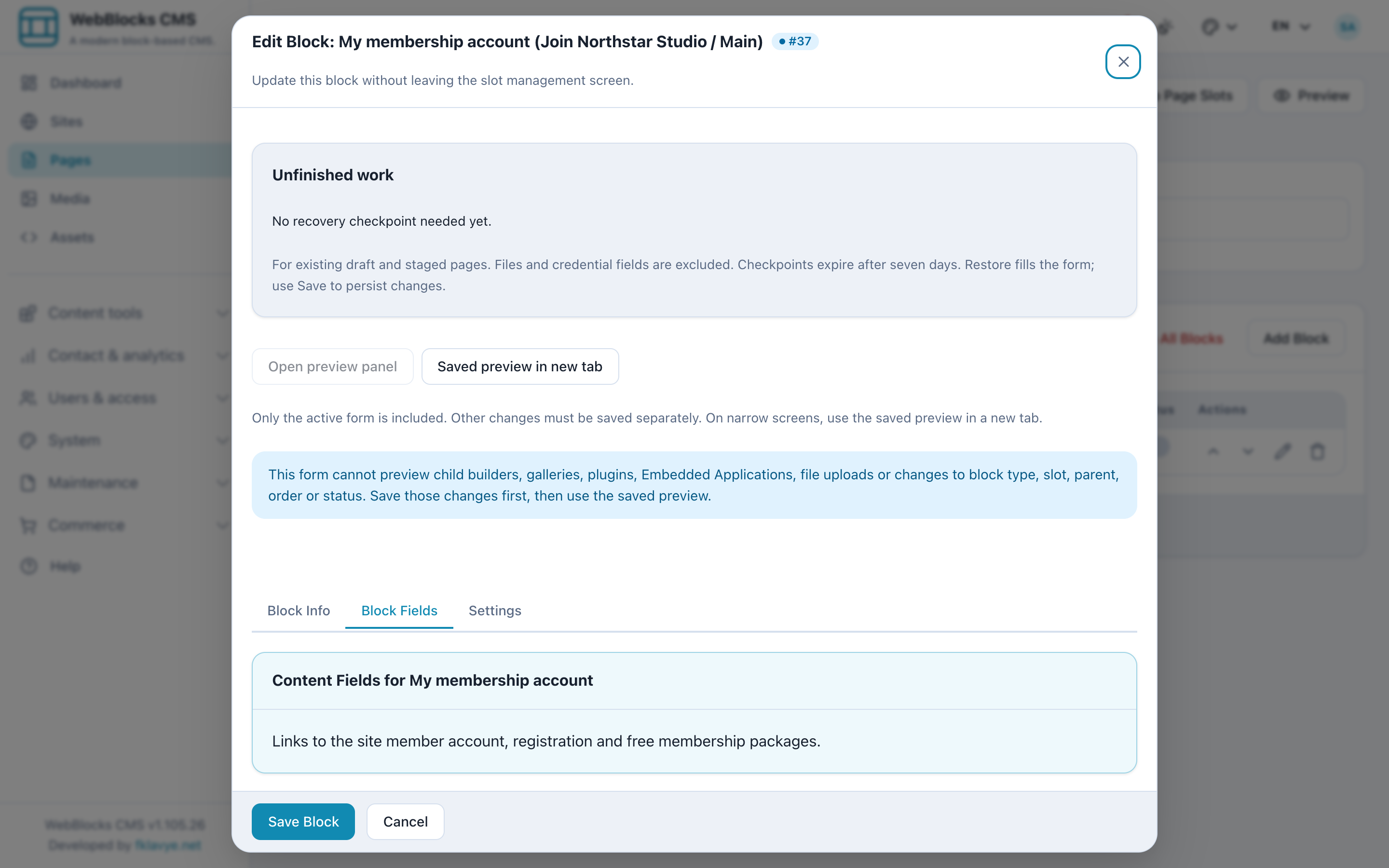
The account block renders a My membership account link. Registration, sign in, password reset and account management happen on the separate account page. The block does not embed a registration form in your editorial page.
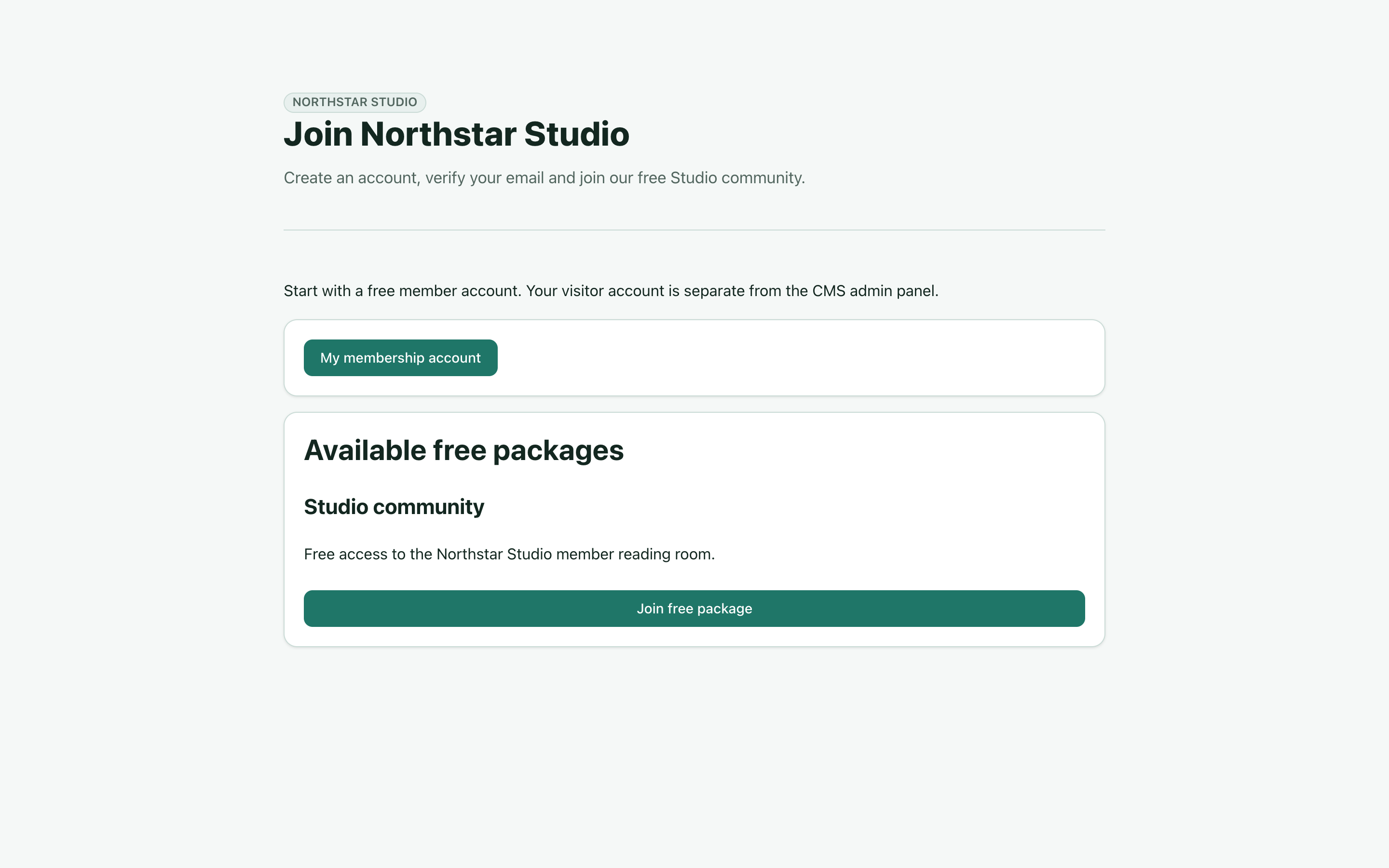
The package-list block shows active packages that permit free self enrollment, with Join free package links. Visitors still need to sign in and verify their email before enrollment succeeds. For a persistent header link, add a navigation item named Member account pointing to the account route; see Navigation Menus.
Preview first, then publish your join page only when its copy, links and registration mail are ready. An editorial draft preview is not a sandbox for account actions: registration, enrollment and billing requests still use the installation's actual member records.
4. Register and verify a visitor account
Open the account link in a separate browser profile or private window. This makes it easier to distinguish the visitor's session from your administrator session.
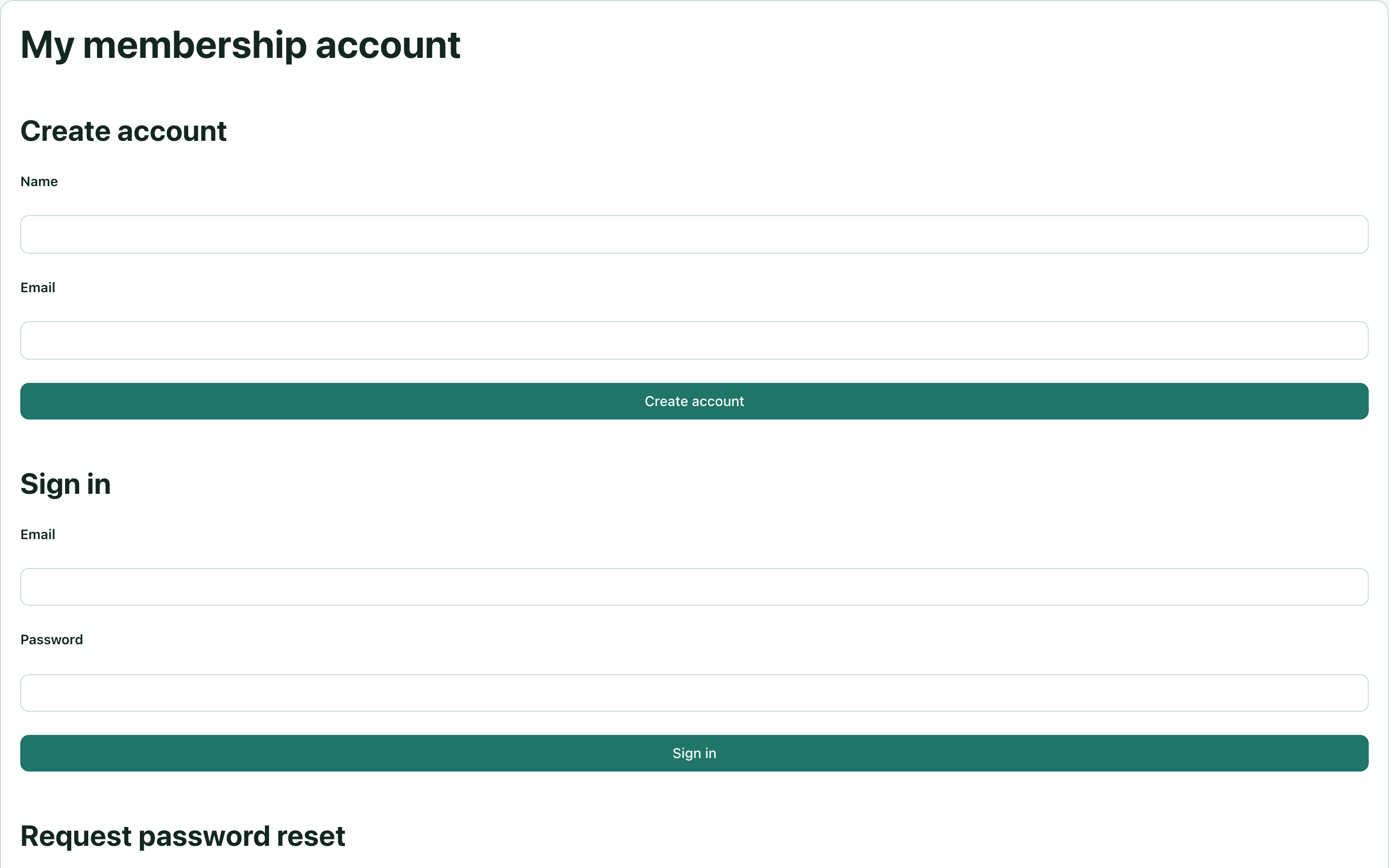
The first registration form asks for Name and Email. It deliberately does not ask a new visitor to set a password before proving ownership of the mailbox.
- Under Create account, enter a test name and an email address you control.
- Select Create account.
- Open the verification email on the same site's canonical domain.
- Follow the link, set Password and Confirm password, then select Continue.
- Return to Sign in, enter that email and password, and sign in.
Verification links expire after 24 hours. Opening the link displays a confirmation form; submitting that form completes verification and sets the password. Merely viewing the email link does not consume it.
If the email does not arrive, check the recipient's spam folder, CMS outbound mail and the canonical domain. Use the account flow's resend option when available. For a pending account, Request password reset issues a verification link rather than bypassing mailbox verification. Do not create a second account to work around a mail problem.
A signed-in unverified visitor cannot enroll in packages or open member-only content. Verification and the account's active state are both required. Resetting a password invalidates earlier member sessions.
5. Join the free package
After sign in, My membership account shows the visitor's name and email, a profile-name field, existing memberships, subscriptions and available packages.
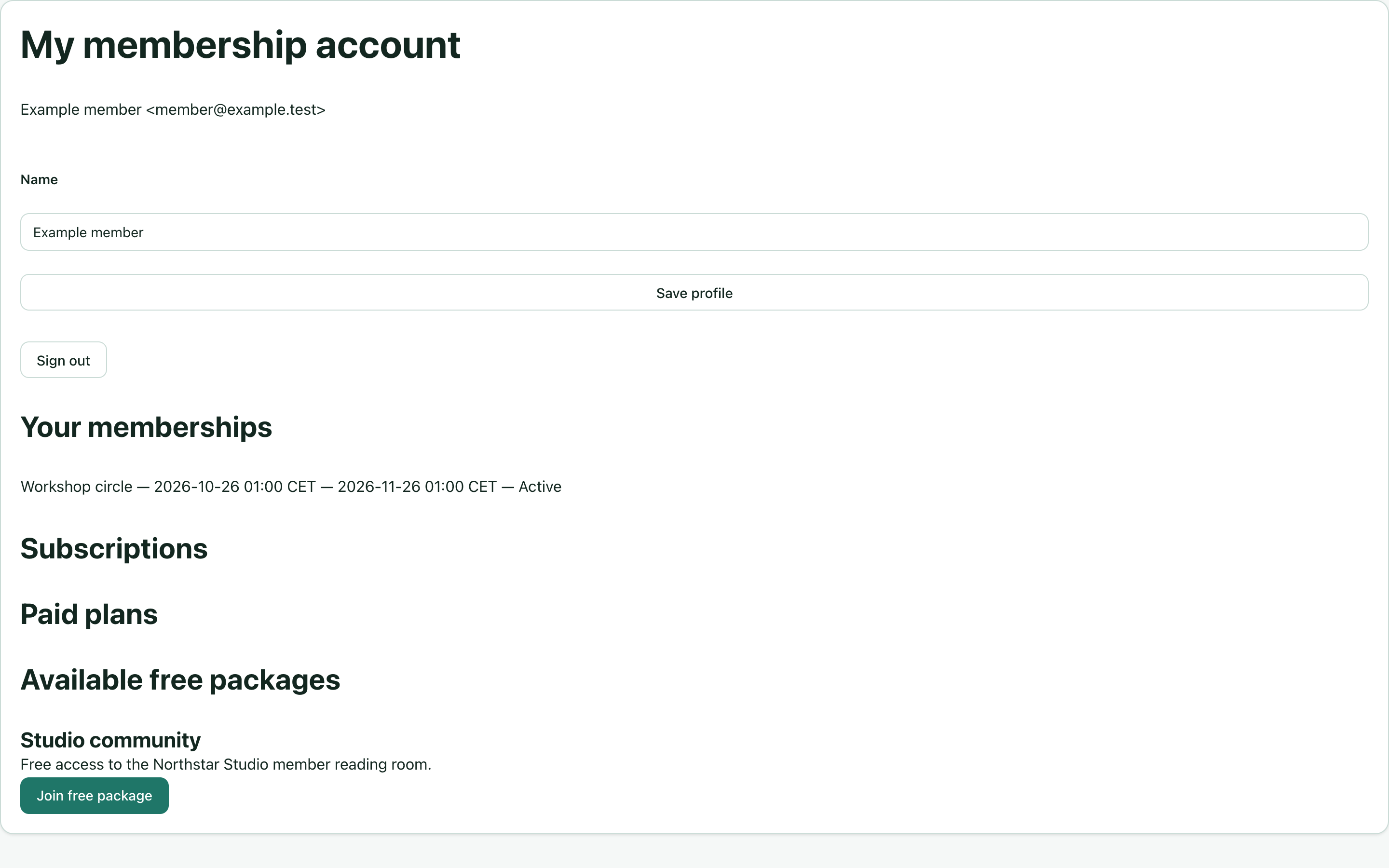
Our synthetic account already has a dated Workshop circle grant to illustrate the operator workflow in step 7. A newly registered visitor will initially have no memberships.
Under Available free packages, find Studio community and select Join free package. The account's membership list now includes Studio community, its start time, No expiry and Active.
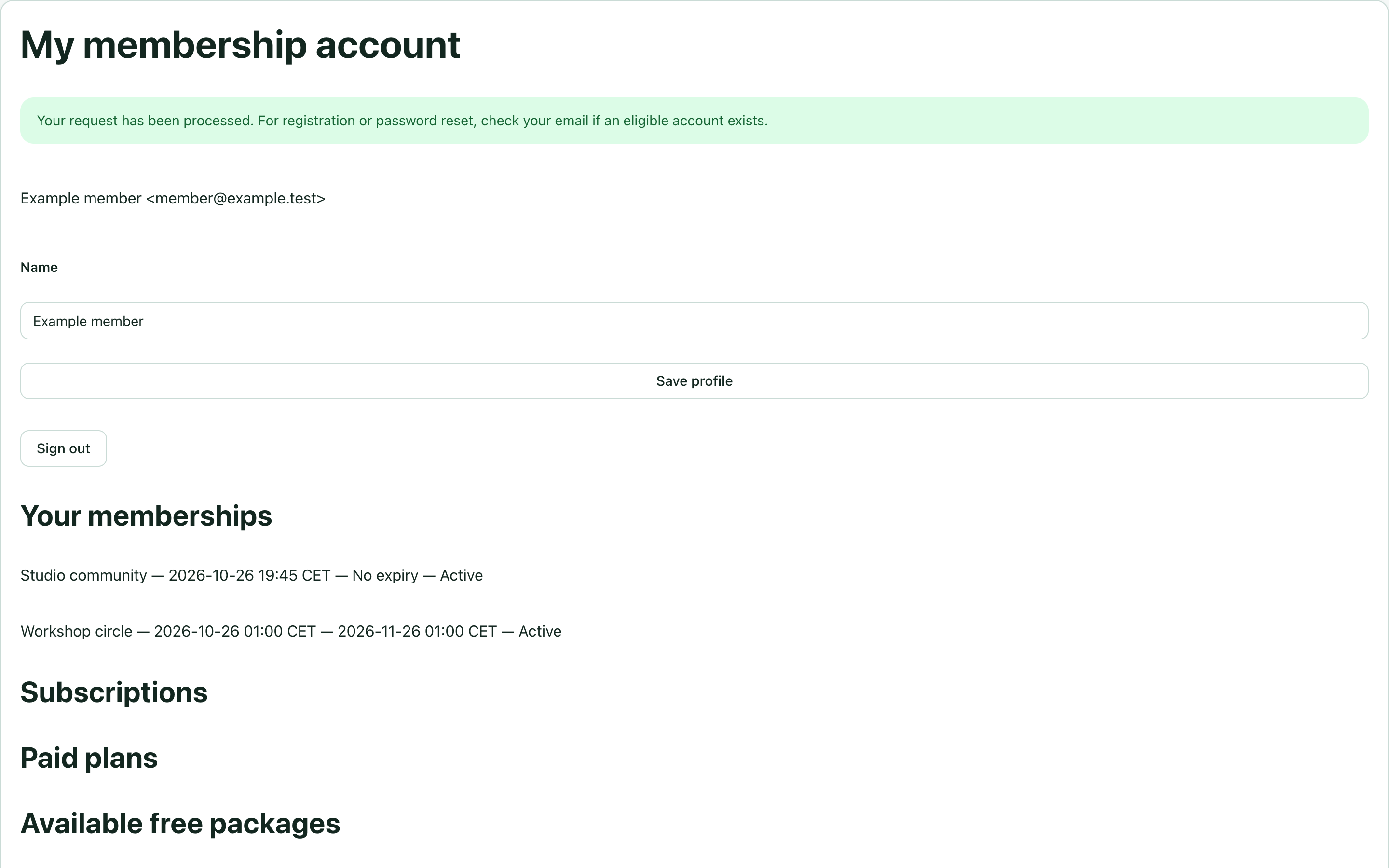
This enrolls the visitor in the free package; it does not create a payment authorization or a paid subscription. A visitor cannot use free enrollment to extend or overwrite an existing operator grant. If a previous grant has expired or been revoked, ask the operator to review and extend it rather than repeatedly pressing Join.
6. Protect a page and test the result
Create a page named Studio reading room on the same site. Add the member content and review it before changing access. Remember its page title so that you can find it in the Memberships form.
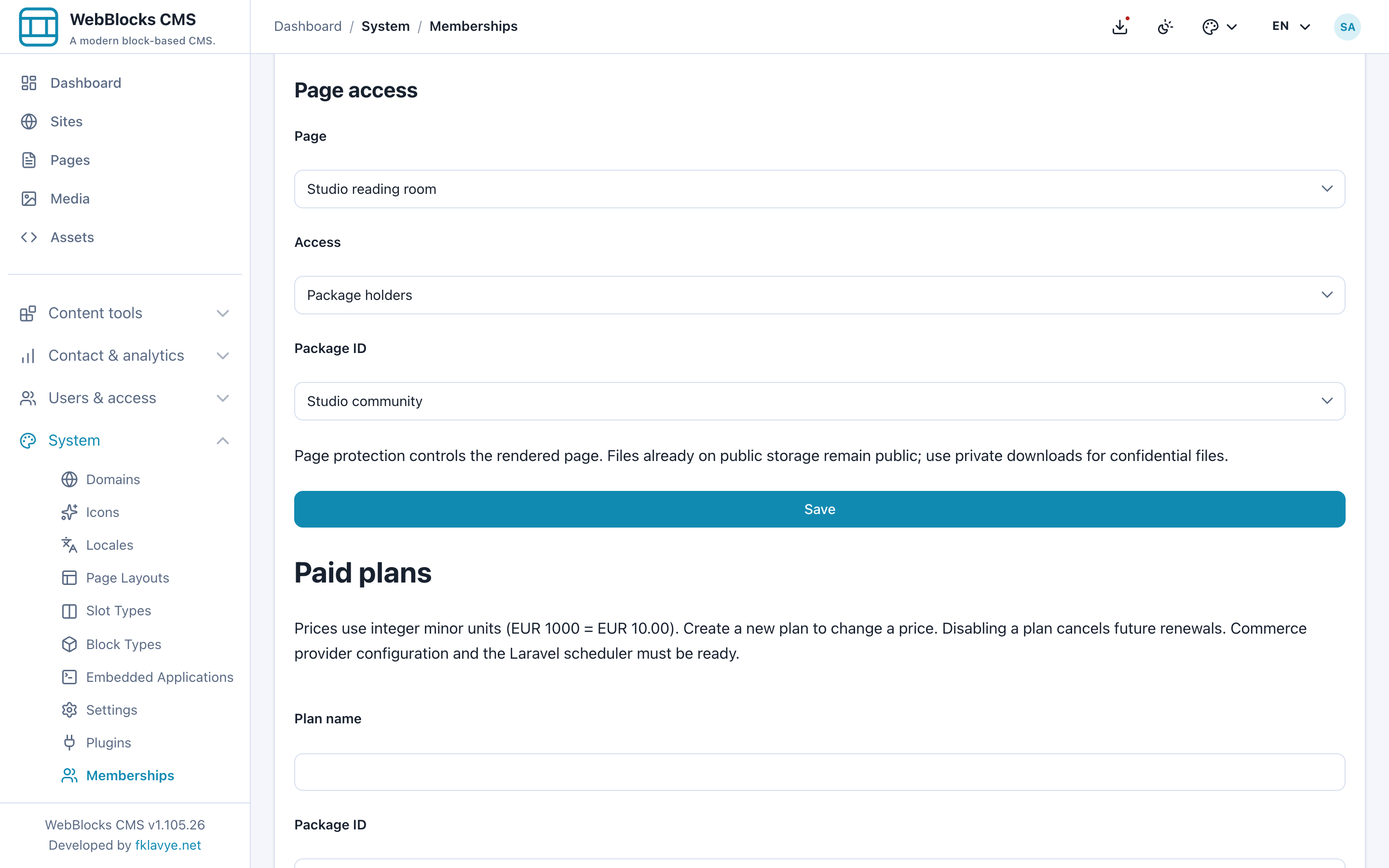
Open Memberships, scroll to Page access, then:
- Choose Studio reading room in Page.
- Choose Package holders in Access.
- Choose Studio community in Package ID.
- Select that form's Save button.
There are three access choices:
| Access choice | Who can read the rendered page |
|---|---|
| Public | Any visitor. |
| Verified members | An active, signed-in member with a verified email, without a particular package requirement. |
| Package holders | A verified, active member with current access to the selected active package. |
A page can require one selected package through this form. The same package can be obtained through a manual grant or a verified paid period; those are independent sources of access.
If the reading room is a draft, publish it only after checking the rule. The Page access form changes access policy immediately; it is separate from the page's content draft or staged update. Do not assume saving the rule is deferred until a later content promotion. Recheck the live page and use a test site while learning.
Test the direct page URL in two visitor sessions:
- Signed out: the reading-room content must remain inaccessible.
- Signed in as the verified Studio community member: the page must open.

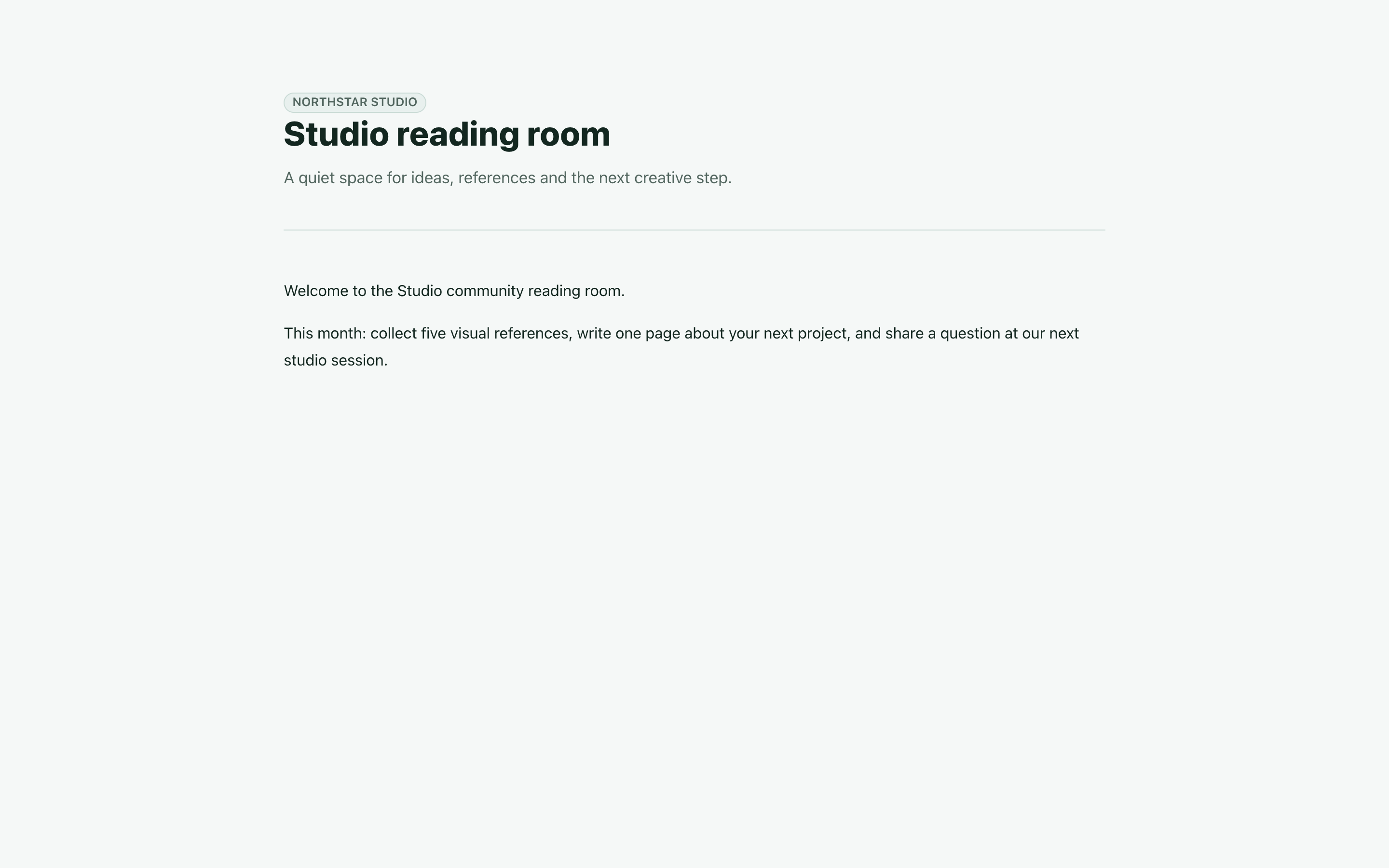
Use the visitor route for this test, not an administrator preview. Also test a verified account without the required package when you have one: verification alone must not open a package-protected page.
Protected pages are omitted from public search, the sitemap and automatic page navigation. Give members an intentional link, for example in your join-page instructions, rather than relying on an automatic page list to advertise the reading room.
Protection stays in place if Memberships becomes unavailable. Restoring an older content revision does not remove the current access rule. Copies inherit restrictions; cross-site package rights need explicit reassignment. Do not treat a content restore or plugin disable action as a way to make a page public. To reopen it deliberately, select Public in Page access and save.
7. Grant or extend an invited membership
Use a manual grant when someone has an invitation, an offline arrangement or a fixed workshop entitlement.
Find the visitor's Member ID in the Members table and the Package ID above the saved Workshop circle form. These IDs identify records in the selected site; they are not account passwords or an invitation code.
Scroll to Grant or extend membership and enter:
| Field | Example |
|---|---|
| Member ID | The ID of your verified test member; 1 in the screenshot. |
| Package ID | Workshop circle's ID; 2 in the screenshot. |
| Starts at UTC | 26 October 2026, 00:00 UTC. |
| Ends at UTC | 26 November 2026, 00:00 UTC. |
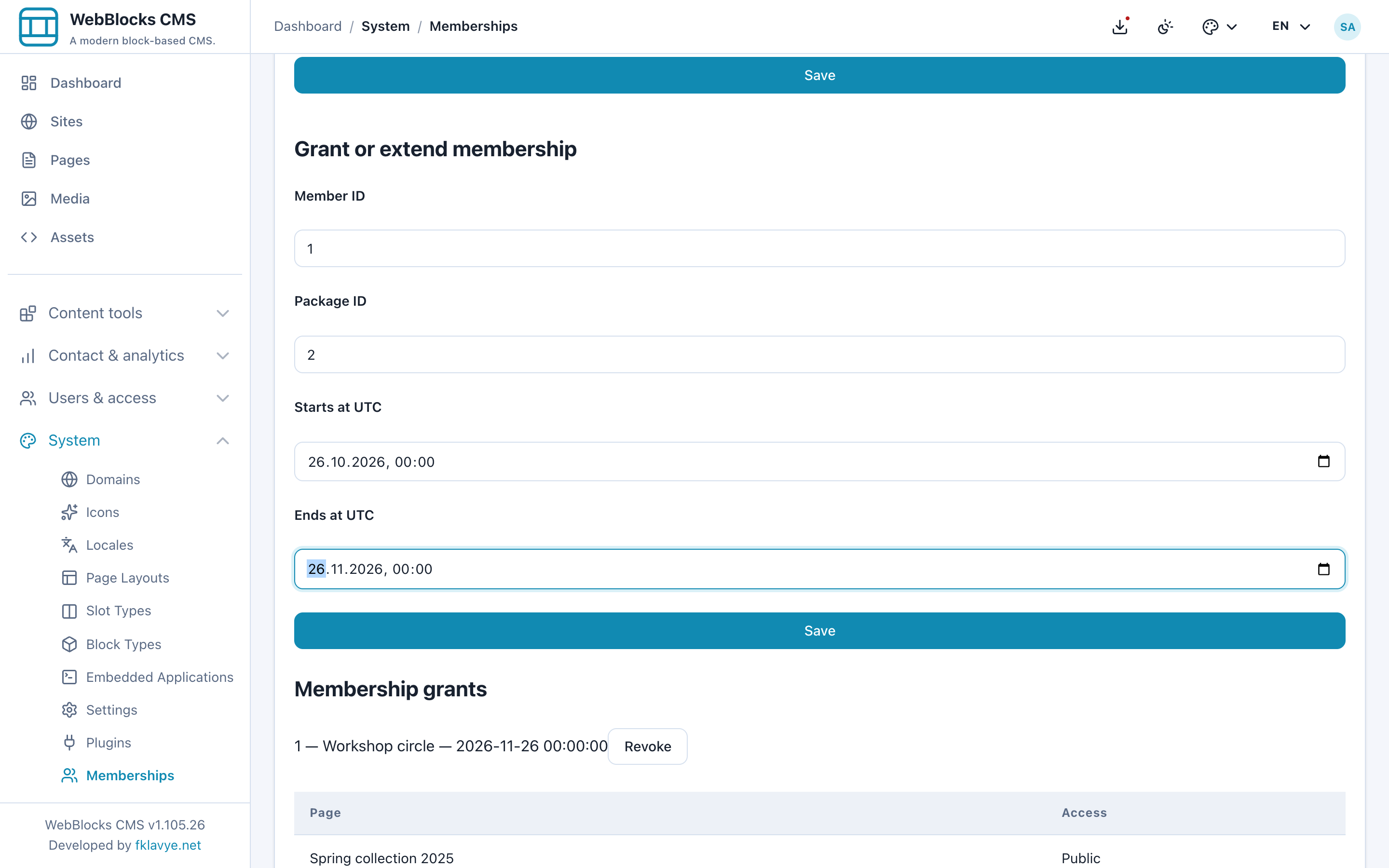
Select Save. The grant appears under Membership grants, and the member sees it on the account screen.
The panel labels these dates UTC. Convert the intended start and end from your site's local timezone before entering them. The visitor account displays dates in the site's configured timezone. A future start has not begun yet; an end at or before the current time has expired. Leave Ends at UTC blank only when you intend a membership without an end date.
To extend the same member/package grant, enter those same IDs again with the desired complete start and end dates and save. This updates that grant rather than creating a duplicate. It also clears a previous revocation, so review the full period before saving.
For a lasting test, choose dates that cover the day you are testing; the screenshot's fixed dates are an example, not values to reuse indefinitely.
8. Revoke a grant or disable an account
Revoke in Membership grants removes that manual grant's entitlement. It does not cancel a separate paid subscription, and a member may still have access through another current entitlement for the same package. Review both grants and paid payments when investigating access.
Disable account in the Members table prevents the account from signing in or using existing member sessions. It also requests cancellation of that member's renewals. Re-enabling the account requires a fresh sign in; it is not a new payment authorization.
Turning off Active on a package makes that package unavailable for access and requests renewal cancellation for its subscriptions. Treat package deactivation as an access and billing change, not merely hiding a card from a list.
For paid memberships, follow the cancellation checks in step 11 as well. A queued cancellation still needs provider confirmation; disabling local records is not evidence that an external agreement has ended.
9. Prepare paid subscriptions
Finish the free workflow first. For paid plans, configure Commerce 0.16.x and its PayPal or SumUp provider with the administrator. Memberships reuses that provider configuration; there is no second credentials form in Memberships.
The Commerce walkthrough explains installation and provider settings. Its Test order (no payment) option is for one-off Commerce orders. It cannot produce verified recurring Memberships payments or paid access.
Before offering a plan:
- Configure the intended provider in Commerce → Settings, starting with its sandbox environment and matching test merchant account.
- Check the provider's credentials, supported currency and readiness.
- Set a publicly reachable HTTPS canonical domain for the membership site.
- Verify callback delivery. PayPal uses the existing Commerce webhook with subscription and sale events; SumUp uses the Memberships billing callback.
- Have the hosting administrator run the host application's Laravel scheduler every minute and verify its heartbeat.
- Confirm the package is active and Allow free self enrollment is off if payment should be required.
Memberships registers webblocks-memberships:billing:sync every five minutes. PayPal carries out its native renewal charges; the local task reconciles provider evidence and access. For SumUp, the task also processes authorized due renewals. An administrator can run the command to investigate reconciliation, but should understand that it can process due authorized SumUp charges. It is not a preview-only diagnostic command.
The PayPal webhook is /plugins/webblocks-commerce/webhooks/paypal. Add the relevant BILLING.SUBSCRIPTION.* and PAYMENT.SALE.* event topics in the PayPal app's webhook subscription. The SumUp recurring callback is /plugins/webblocks-memberships/billing/webhooks/sumup, distinct from Commerce's one-off-order callback. Use the canonical HTTPS host, not a localhost address from a screenshot.
Follow the current PayPal Subscriptions documentation and SumUp saved-card guide for provider account requirements. A successful one-off checkout alone does not verify recurring billing support for that merchant.
10. Create a monthly or yearly paid plan
In Memberships → Paid plans, fill in the plan form:
| Field | Example | Meaning |
|---|---|---|
| Plan name | Studio circle monthly | The name members see. |
| Package ID | Workshop circle's ID | The package a verified paid period unlocks. |
| Amount in minor units | 1000 | EUR 10.00, not EUR 1000.00. |
| Currency code | EUR | Uppercase currency supported by each selected provider. |
| Interval count | 1 | One billing interval at a time. |
| Billing interval | month(s) | Monthly in this example. |
| PayPal / SumUp | Your configured provider | Enable only providers prepared for this plan. |
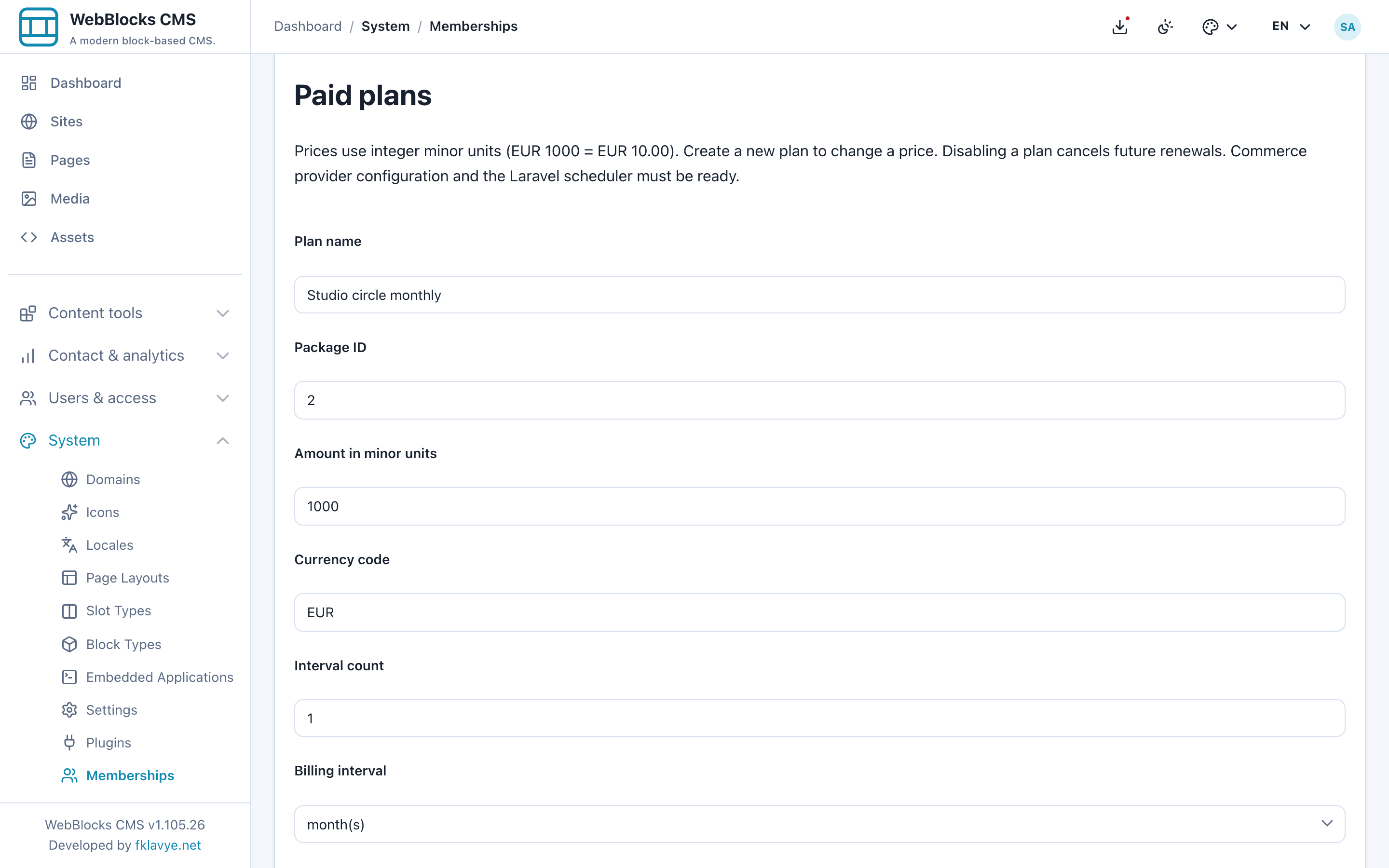
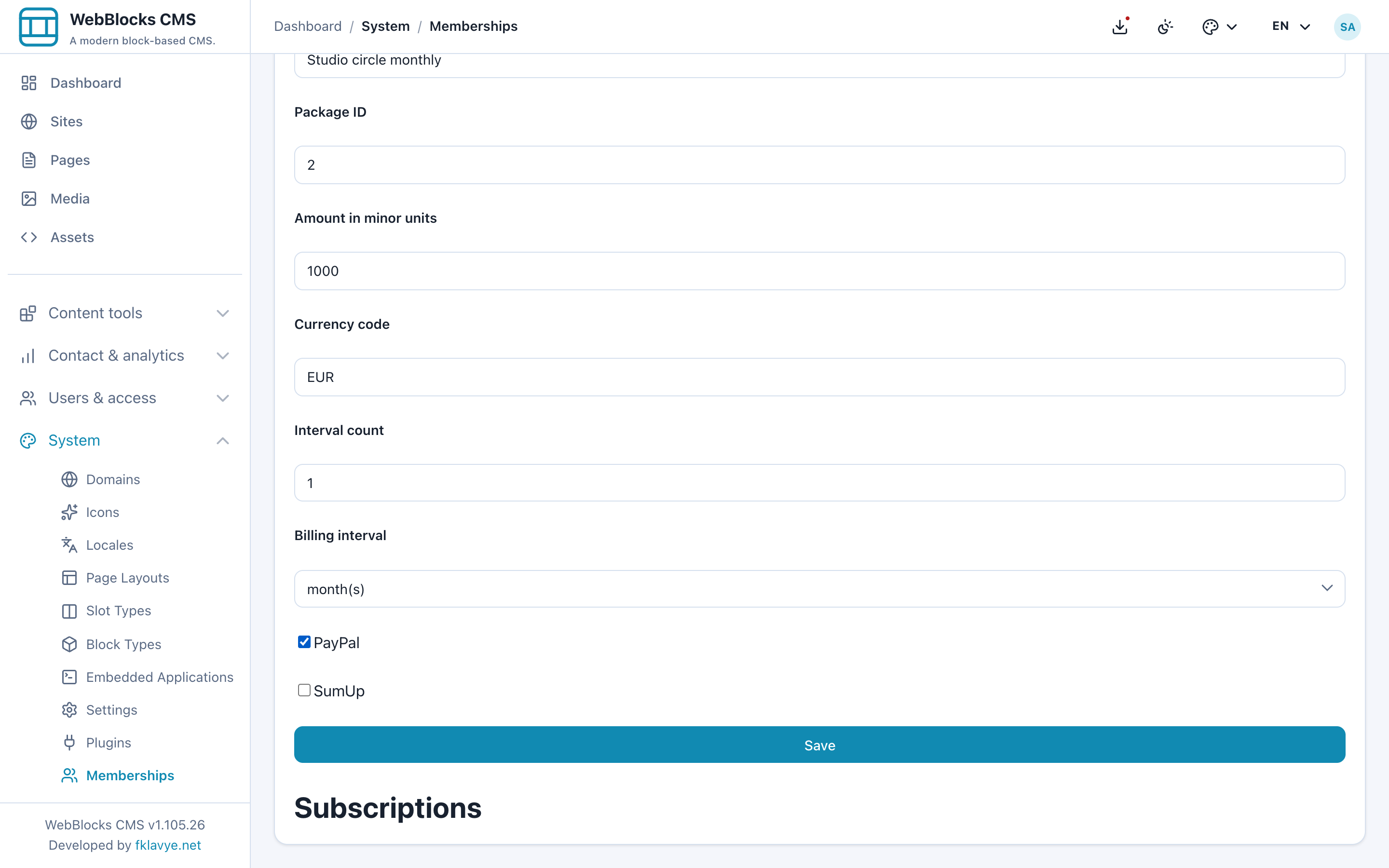
Amount in minor units is an integer. For a €10 plan enter 1000, not 10 or 10.00. Currency precision varies; do not assume every currency uses cents. Monthly interval counts are 1–12. A yearly plan uses year(s) with count 1.
Select Save only after provider configuration is ready. Check the saved plan's displayed amount and package association. The screenshot shows the form before submission, with no configured merchant credentials; it is not proof of a working provider connection.
Existing subscriptions retain their agreed price and billing cadence. Create a new plan when the price changes. Do not assume a replacement plan silently updates existing authorizations.
11. Test enrollment, payment and cancellation
On the account page, a verified member finds Paid plans, chooses an available Payment provider, and selects the explicit consent checkbox:
I authorize the stated recurring subscription charge until I cancel renewal.
Then they select Subscribe. A paid plan needs both its provider enabled and that provider available; an empty provider list or disabled Subscribe button is a readiness problem to resolve, not a reason to turn on free enrollment.
PayPal: the member follows Approve with PayPal and approves the recurring agreement at PayPal. Returning to the website is not payment proof. Use Check payment status and verify that the server confirms a paid subscription period before expecting package access.
SumUp: the member completes the provider's card widget and any authentication required for saved-card recurring payments. Its temporary 1-unit setup charge is reimbursed; for a EUR setup this means €1.00. That setup does not pay the €10 subscription or unlock the package. Access begins only after a verified subscription payment. Raw card details belong in the provider widget, never in an ordinary CMS block.
The member can open Manage subscription from the account screen. Operators see Subscriptions below Paid plans, with Check payment status, Cancel renewal and a payment history table.
| Visible state | What to do |
|---|---|
| Waiting for approval | Finish the provider approval flow or check why it was abandoned. |
| Card authorized; awaiting payment | A mandate exists, but authorization alone does not grant paid access. |
| Active subscription | Check the verified paid period and the protected page together. |
| Payment overdue | Investigate payment evidence; an expired period does not continue granting access. |
| Renewal cancelled | Check provider confirmation and the end of the last settled period. |
| Requires reconciliation | Recheck the existing payment reference before attempting another enrollment. |
Test cancellation in the provider's sandbox before offering live plans. Select Cancel renewal, then Check payment status until external cancellation is confirmed. A cancellation request stops future renewal requests, but a payment already requested may still complete. Access normally continues until the end of the settled period, except for refunded or reversed periods.
Stop offering this plan and cancel renewal affects the entire plan and requests cancellation for its subscriptions. It is not a price-edit button or a way to hide the offer while preserving all renewals.
A completely missed SumUp period requires fresh enrollment rather than automatically charging all expired periods. Do not keep submitting a new subscription when a payment result is unknown: reconcile the existing reference first. Manual grants remain independent; revoking one does not cancel billing, and cancelling billing does not erase a valid manual grant.
Cancel external agreements and confirm the result before permanently removing Memberships, Commerce or the provider configuration. Removing local plugin code does not itself cancel a native PayPal agreement.
Only move to live provider settings after the intended merchant's sandbox has passed approval, payment confirmation, renewal, cancellation and callback checks. These provider checks require your own test account; the guide's synthetic screenshots do not replace them.
12. Protect downloadable files separately
A protected page does not make an already public file URL private. Do not upload a confidential workbook to public storage and assume that hiding its page protects the file.
Have the hosting administrator prepare a private, non-public filesystem disk. A private Media Library record used by a published block on a protected page can be served through the Memberships private-download route with the same page/package access check.
The route has the form /plugins/webblocks-memberships/downloads/{page}/{media}. Use the actual page and media IDs from your installation and verify the relationship to the published block. Merely changing a media record's privacy flag cannot undo a public storage URL. Test the download while signed out and as the intended package holder.
For ordinary public downloads, see Offer A Downloadable File. Have the administrator review confidential file storage before reusing that workflow for member resources.
13. Use memberships with Appointments
Appointments can optionally use Memberships to recognize a signed-in visitor, prefill customer details and associate a booking with the verified member. A service can require a verified account or a chosen active package.
Select the same site and intended package when configuring a restricted service. A paid package entitlement uses the same verified access lookup as a manual grant. There is no need to sell another Commerce product to duplicate the membership.
Ordinary guest bookings can continue without Memberships. Restricted services remain unavailable when the required member service is unavailable. Changing a member's access does not rewrite the customer snapshots on past appointments. See the Appointments reference for its separate service setup.
Troubleshooting
| Symptom | Check first |
|---|---|
| Memberships is missing from the sidebar | Plugin enabled state, health, management permission and authorized site. |
| The wrong site's packages appear | The site heading and management URL's site_id. Accounts, packages and pages are site-scoped. |
| Verification email does not arrive | CMS mail configuration, canonical domain, recipient address and spam folder. |
| A verification or reset link is rejected | Correct site, expiry, whether it was already consumed, and the confirmation form. Reset links expire after one hour. |
| Join free package is unavailable | Signed-in verified account, active package and Allow free self enrollment. |
| Joining again does not restore access | An existing manual, expired or revoked grant needs operator review; free enrollment does not overwrite it. |
| A member cannot read a page | Account active and verified, correct site, page rule, selected package active, grant dates or a current verified paid period. |
| The page is hidden from automatic navigation | Expected for protected pages. Provide an intentional member link. |
| Paid Subscribe is disabled or has no provider | Commerce availability, credentials, provider readiness, currency and plan provider flags. |
| Card setup succeeds but access stays closed | Setup authorization is not a paid subscription period. Check payment status and reconciliation. |
| Renewal or cancellation is delayed | Scheduler heartbeat, callback delivery, provider evidence and pending cancellation state. |
| Revoke did not remove all access | A separate paid period or another valid grant may still provide that package. |
| A file remains reachable after page protection | It may still be on public storage; configure and test private downloads. |
Final check before inviting members
Confirm that the join page explains the offer, account links open the correct site, verification mail arrives, and a verified visitor can join the intended free package. Check the protected page while signed out, without the package and with current package access. Confirm UTC grant dates and verify that paid-only packages do not allow free enrollment.
If you offer recurring payments, additionally verify the provider's sandbox, callbacks, scheduler, current-period access and confirmed cancellation. Publish only the pages you have reviewed, then repeat the direct visitor and download checks on the public HTTPS site.
Continue with the Memberships reference, the Commerce walkthrough, Navigation Menus or Roles And Permissions.