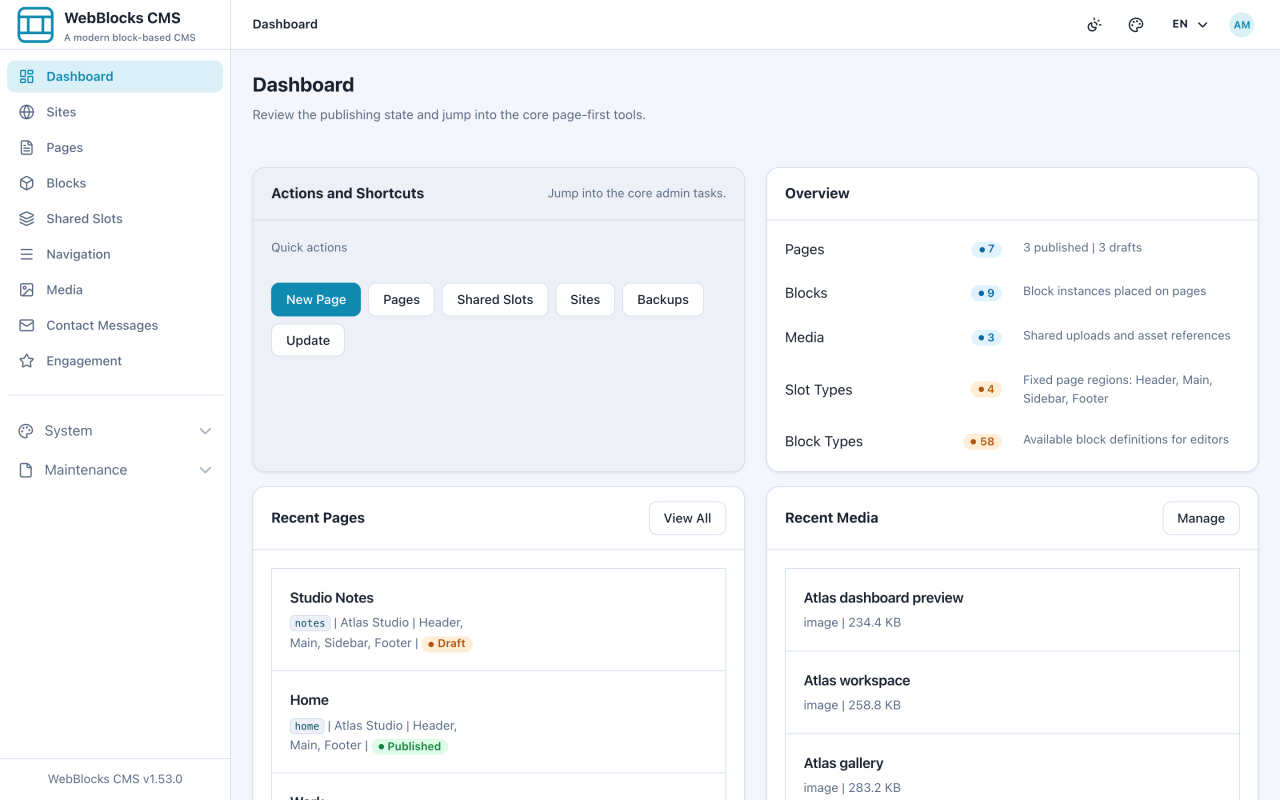
Sign In To The Admin Panel
Open the admin panel, sign in, and find your way around the dashboard.
Practical walkthroughs for everyday work and complete plugin setup in WebBlocks CMS. Follow a short guide for one task, or work through a plugin guide from installation to a tested result.
New here? Start with Sign In To The Admin Panel and follow the Next link at the bottom of each guide. Looking for how a feature behaves rather than how to use it? That lives in the reference documentation.
For source-backed authoring, see Dynamic Content and Automatic Pages in the reference documentation.
Open the admin panel, sign in, and find your way around the dashboard.
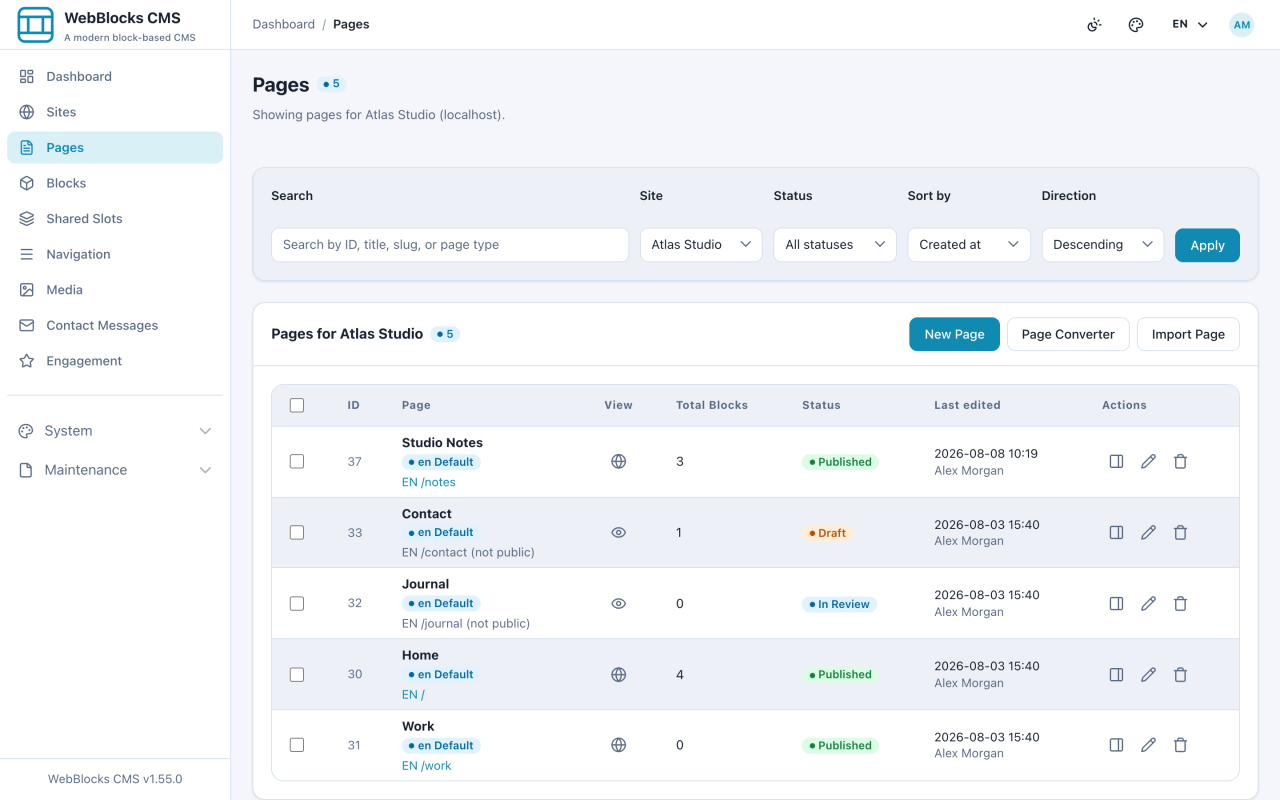
What lives where in the sidebar, and which screens you will actually use.
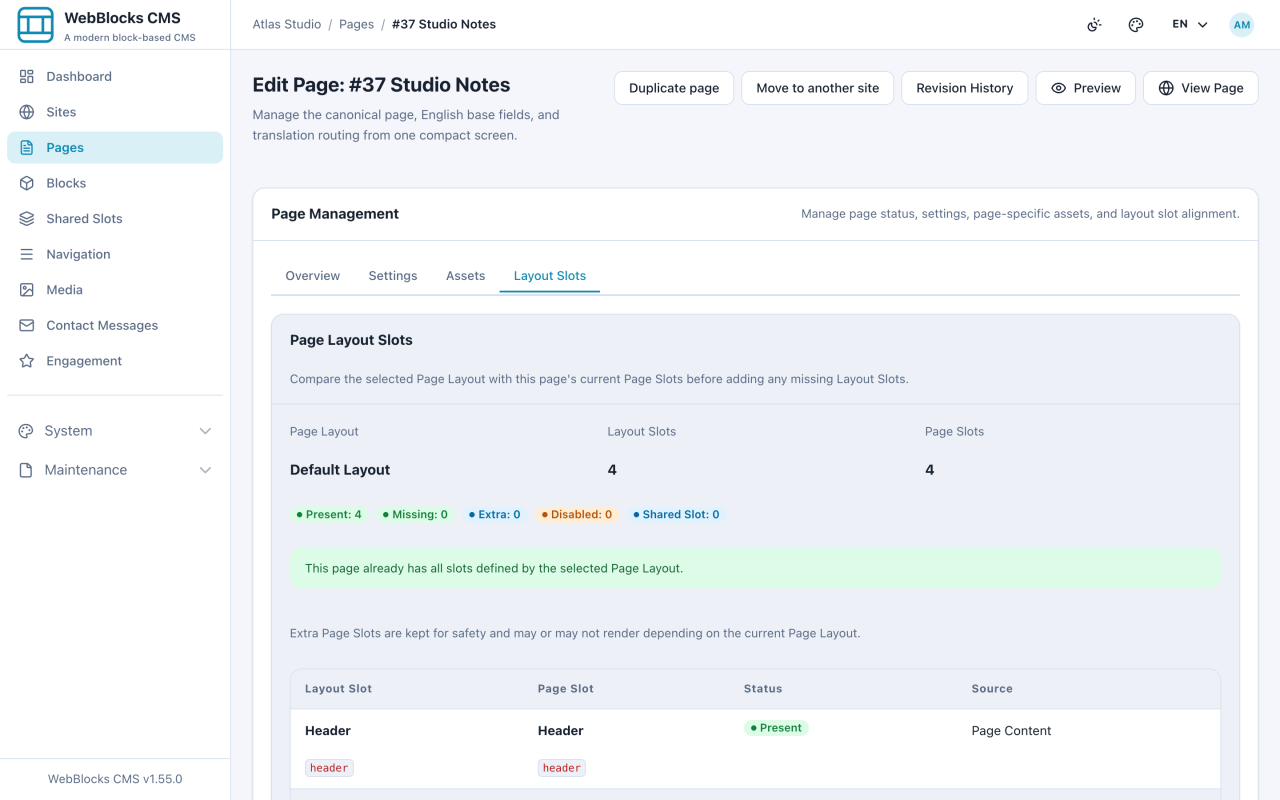
The four words the CMS uses for everything, in plain language.
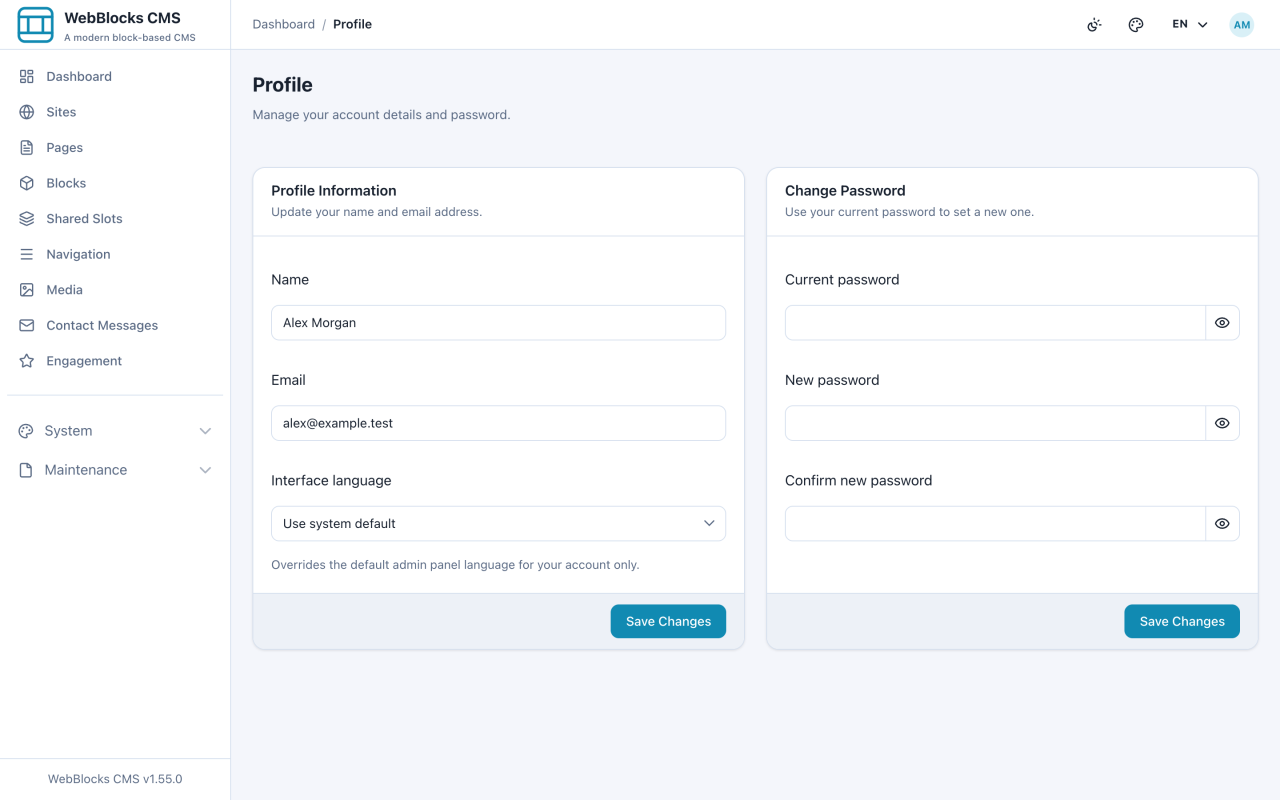
Change your name, email, password, and the language of the admin panel.
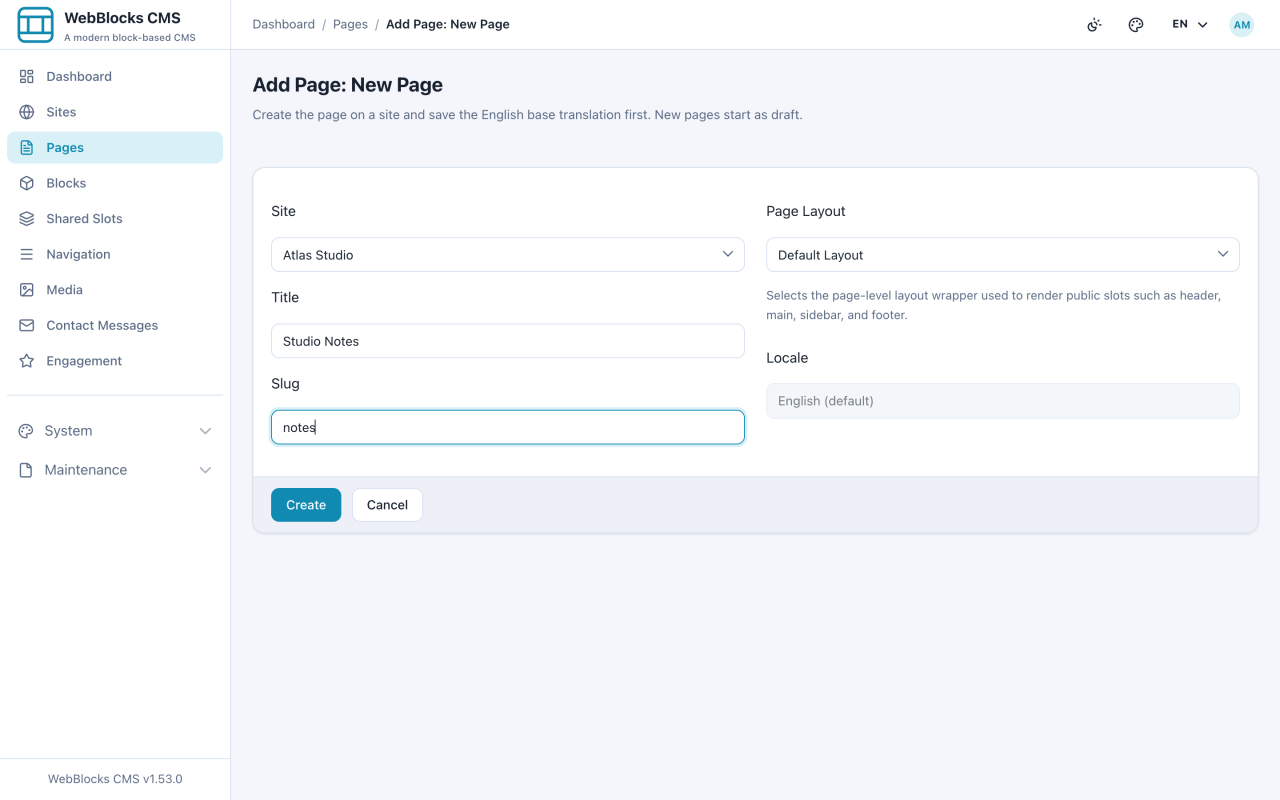
Add a new page to a site and save it as a draft.
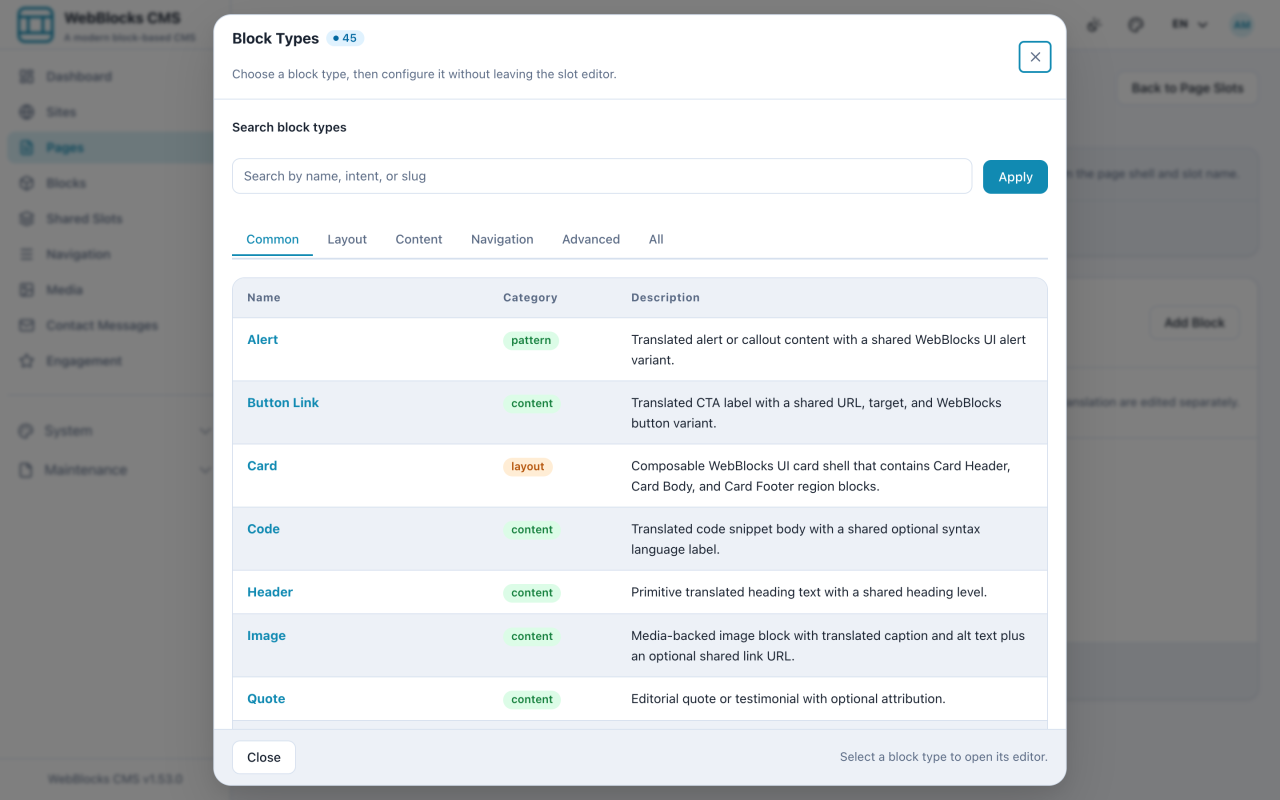
Put your first words on a page using the Header and Plain Text blocks.
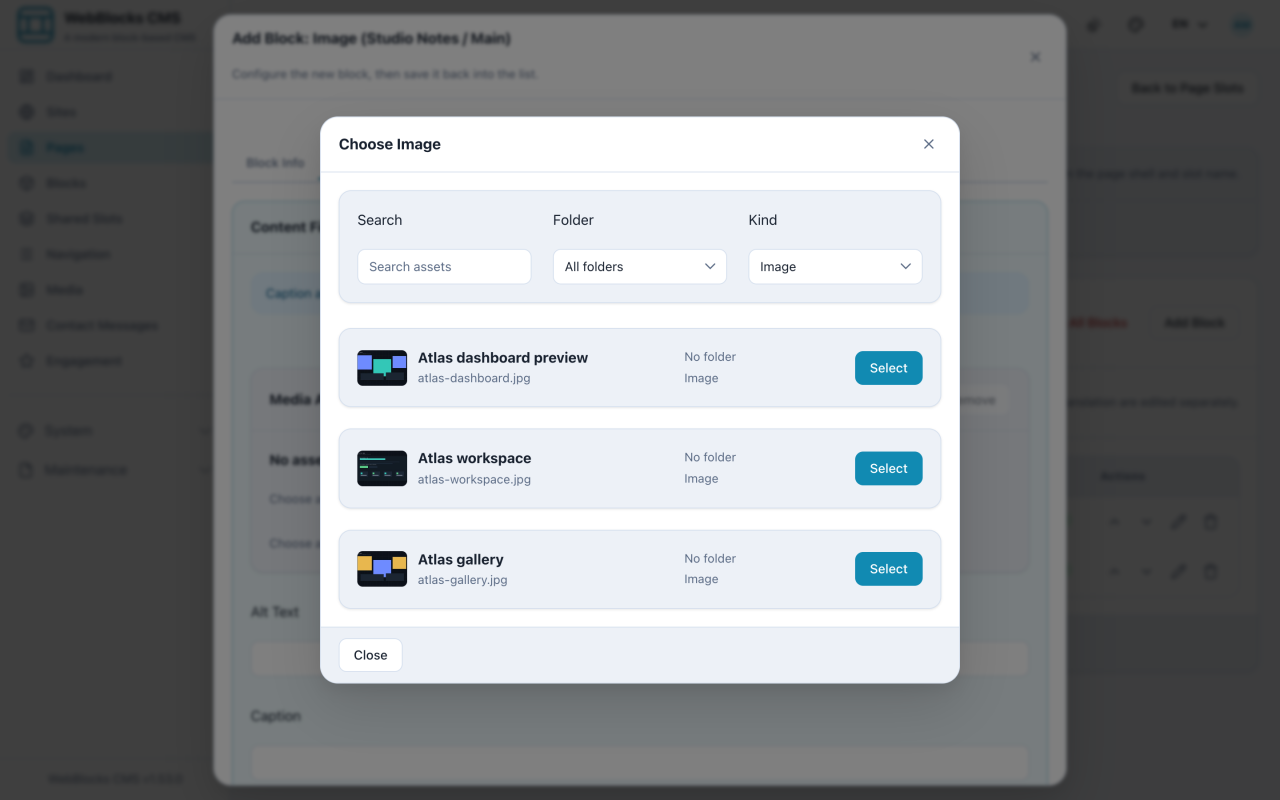
Place a picture on a page from the Media Library, with alt text that describes it.
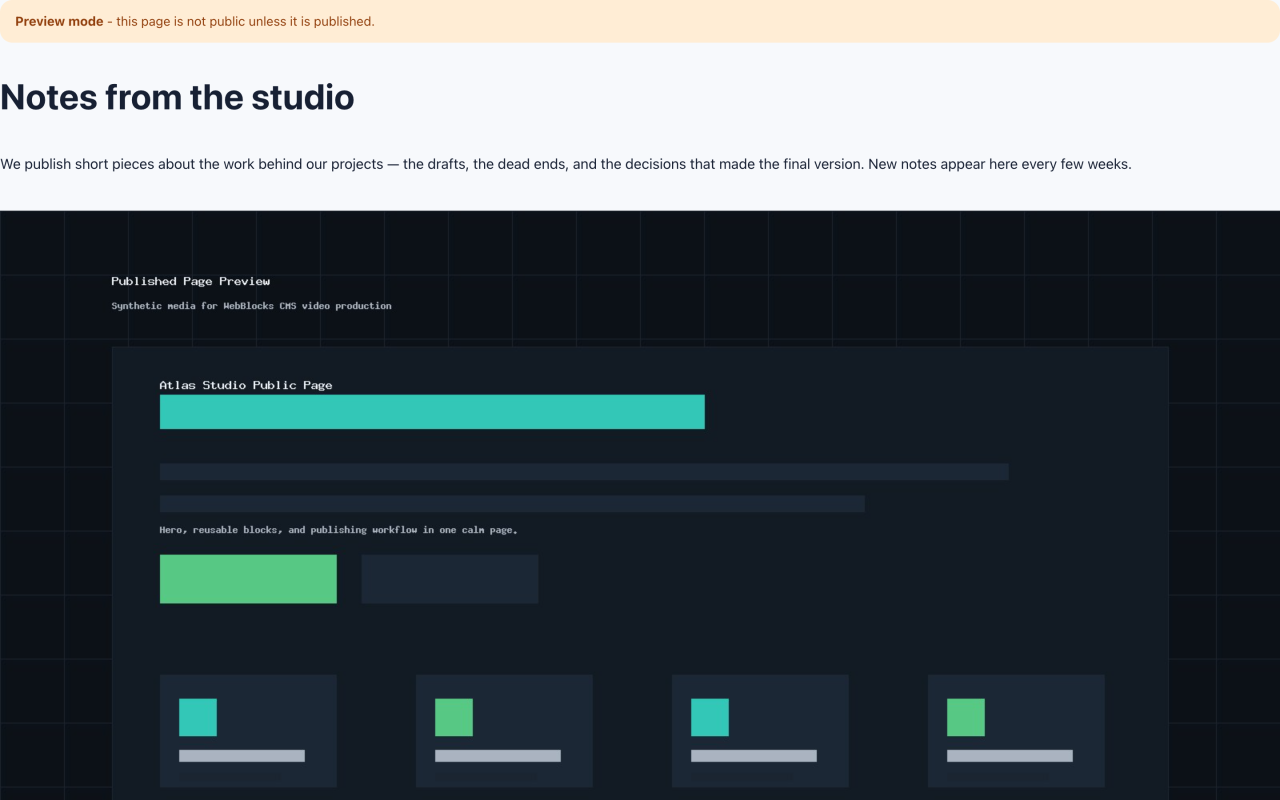
Preview your work, then make the page visible to visitors.
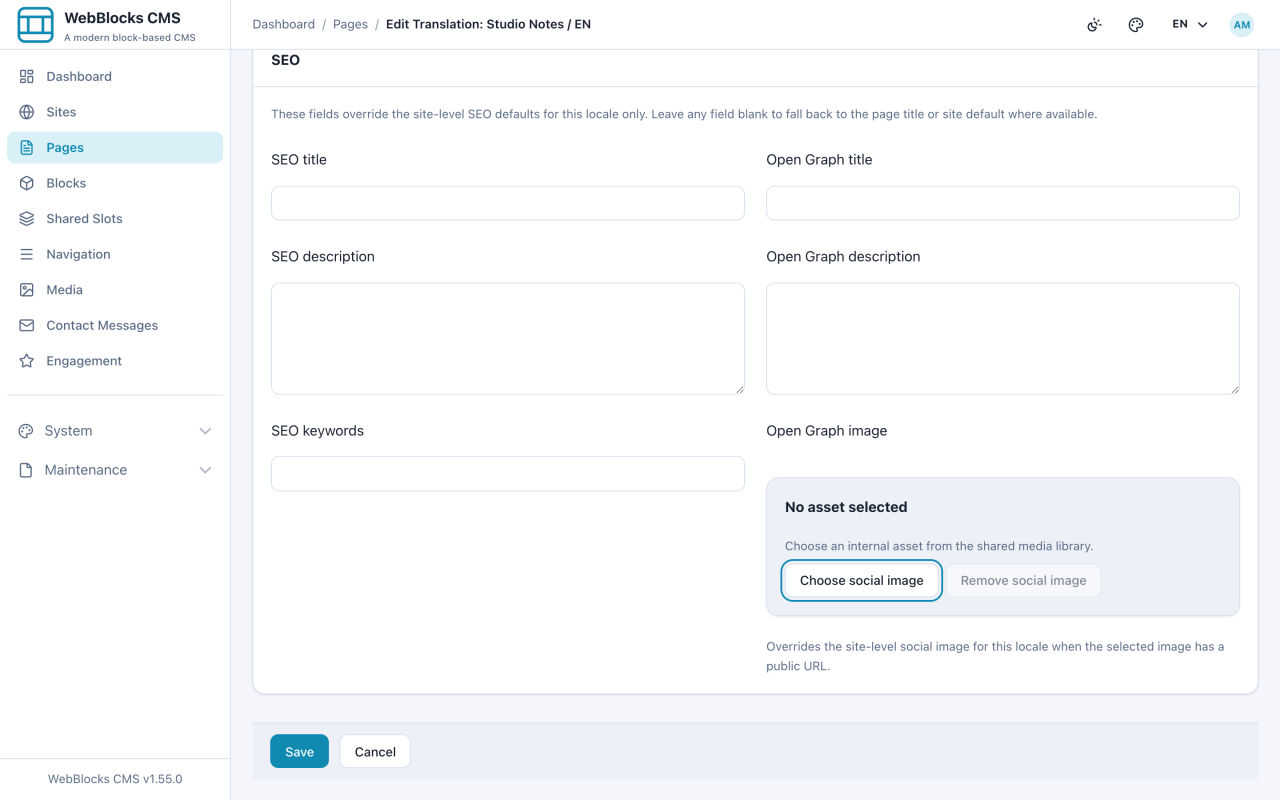
Rename the slug and path of a page, and set its SEO and social fields.
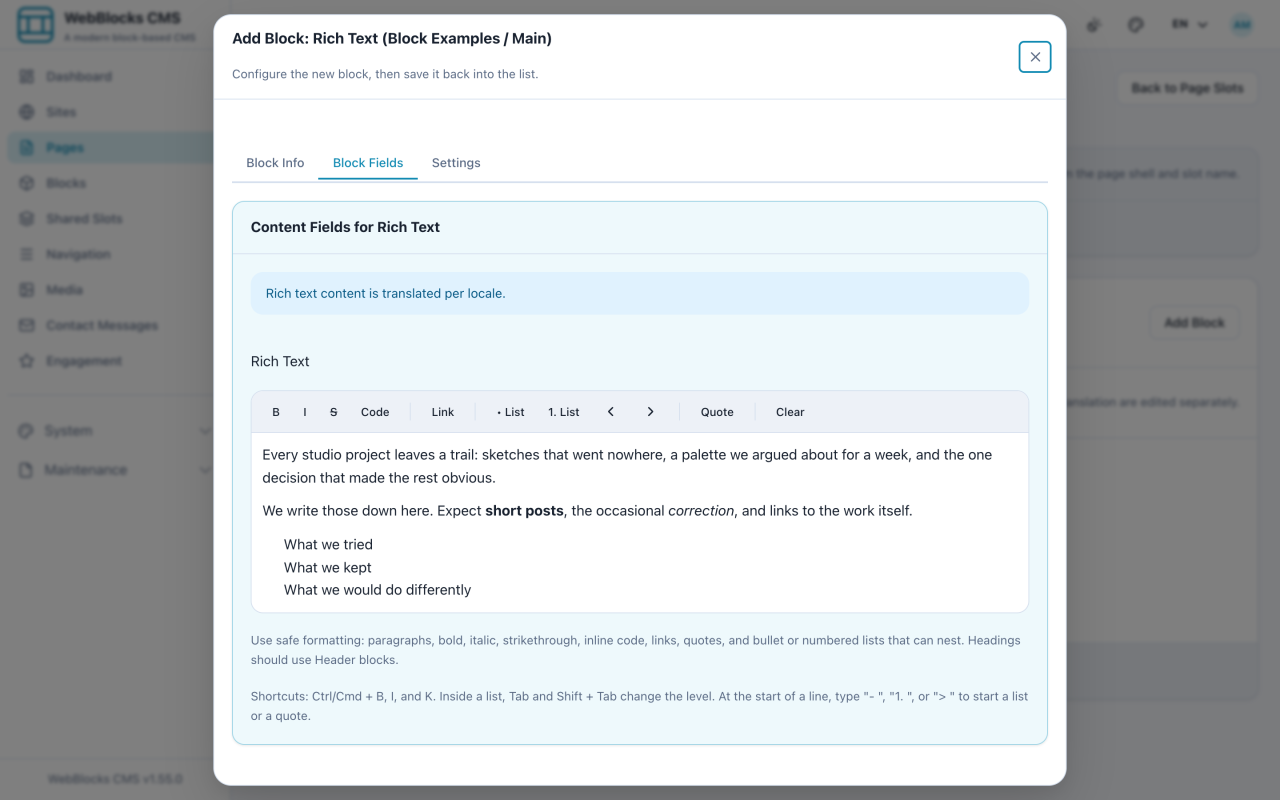
Bold, italic, links, and nested lists in one editable block.
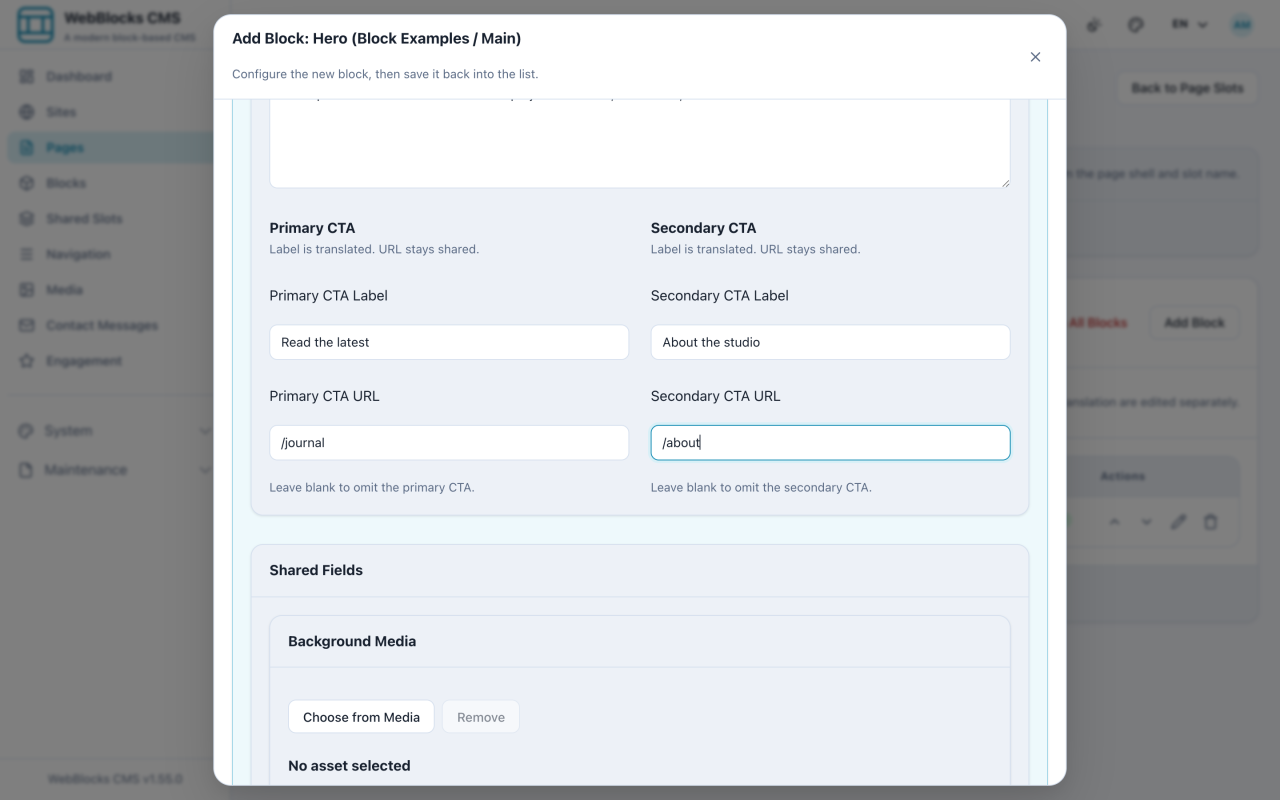
The banner at the top of a page — title, intro, buttons, and a background image.
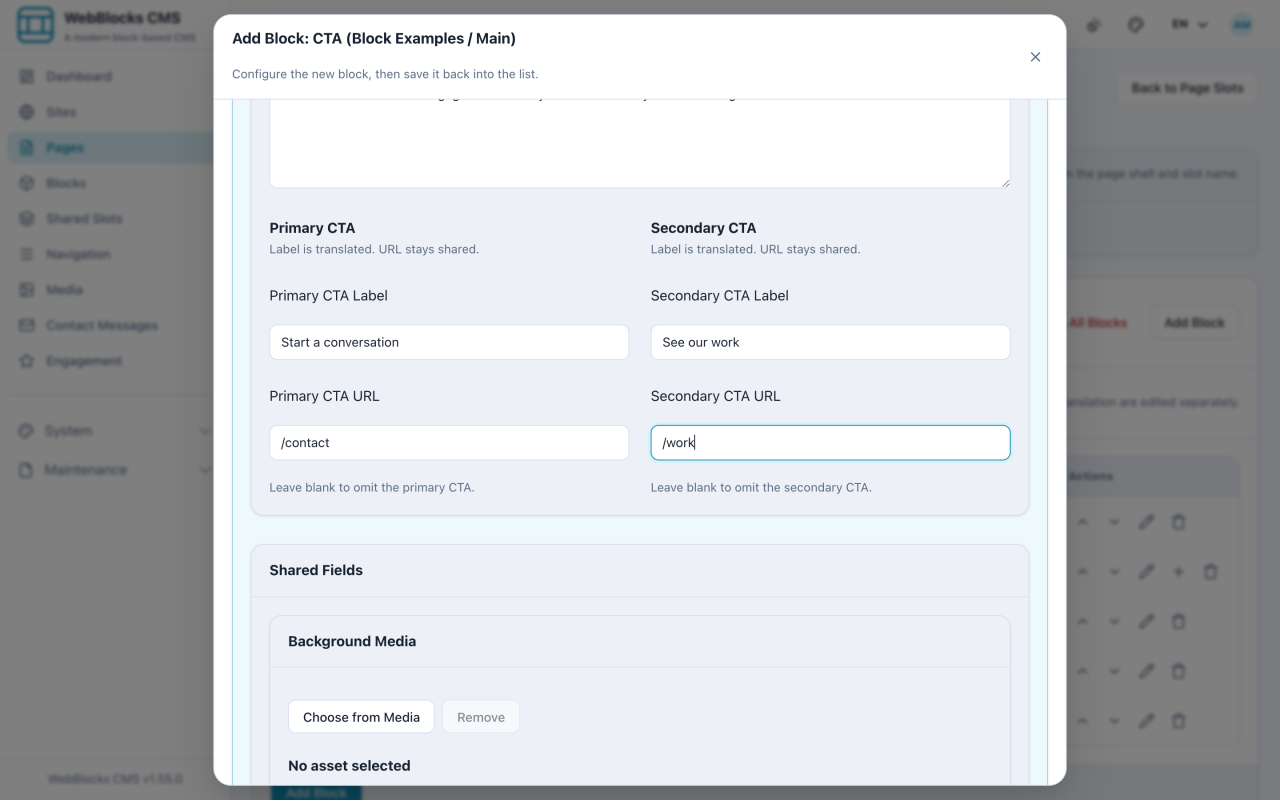
A single button, or a full call-to-action panel with heading and actions.
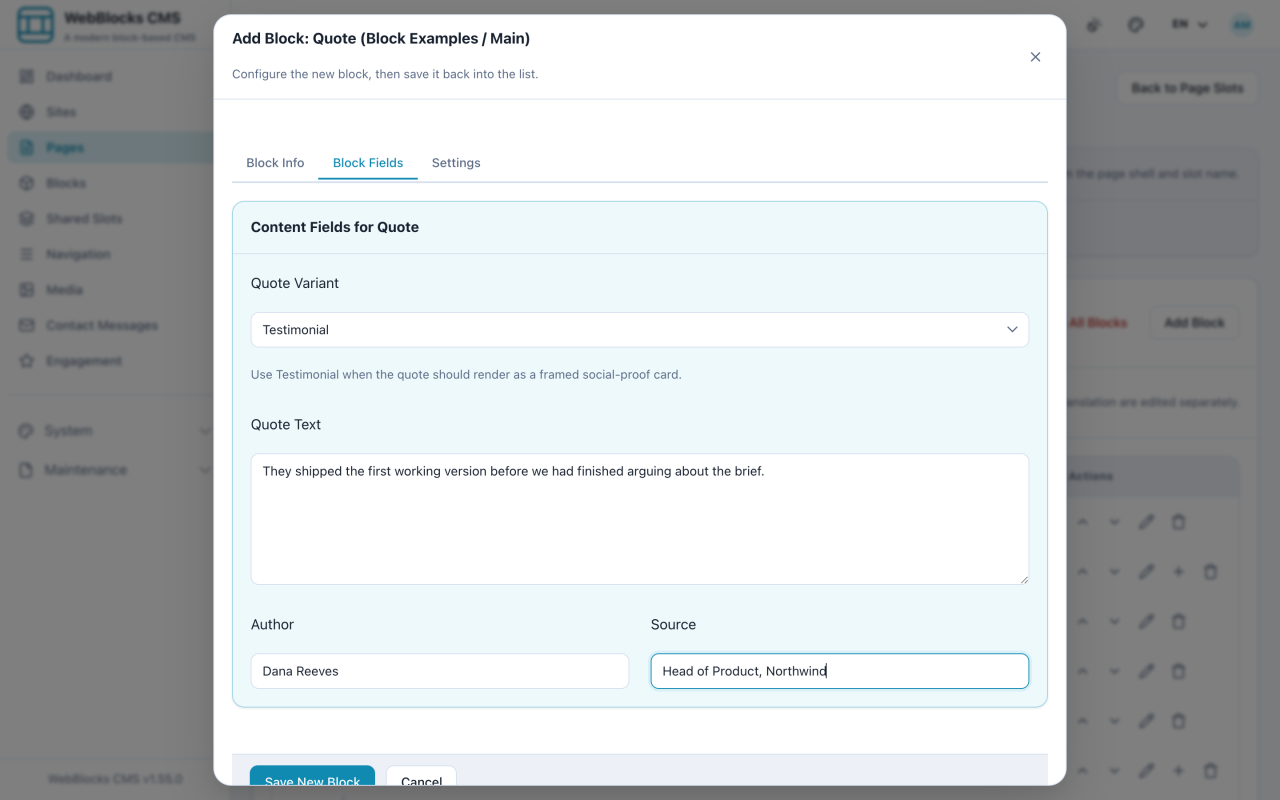
Pull out someone's words, or flag something the reader must not miss.
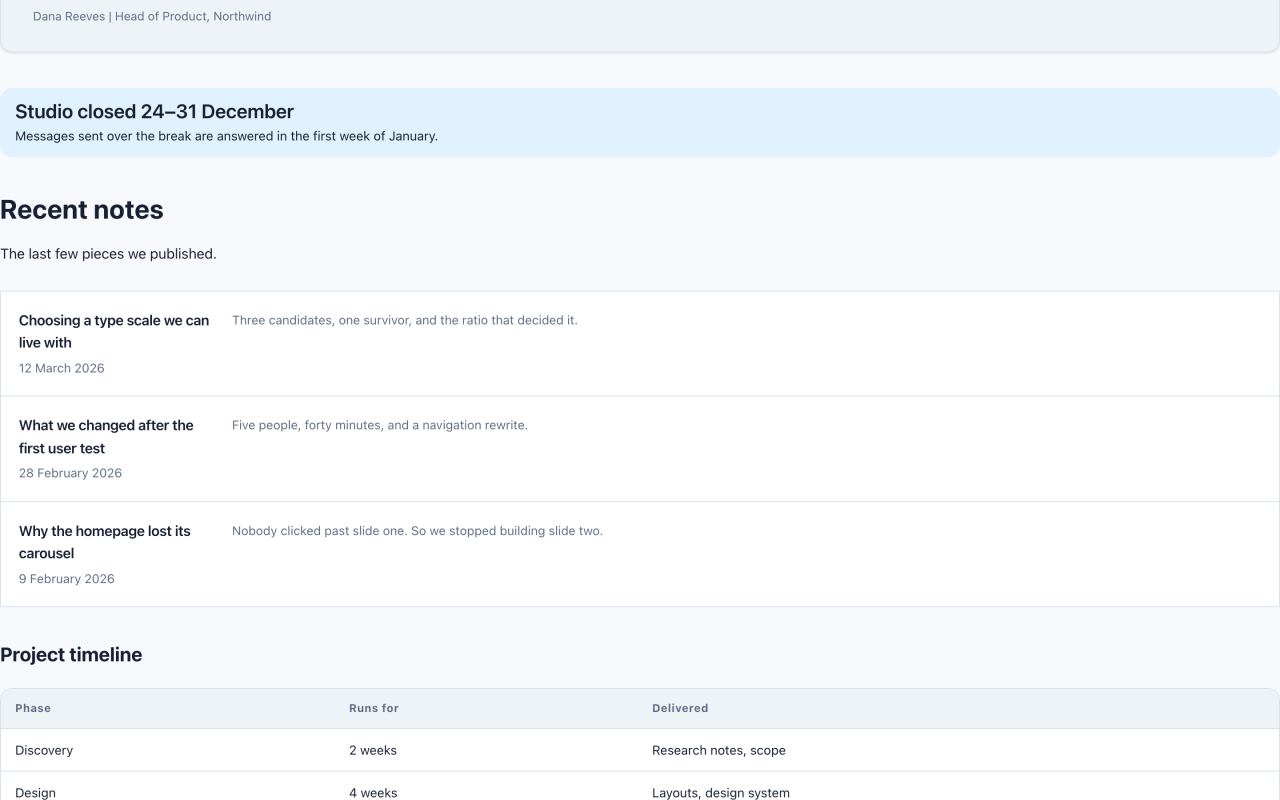
A tidy list of links with descriptions, and real tabular data.
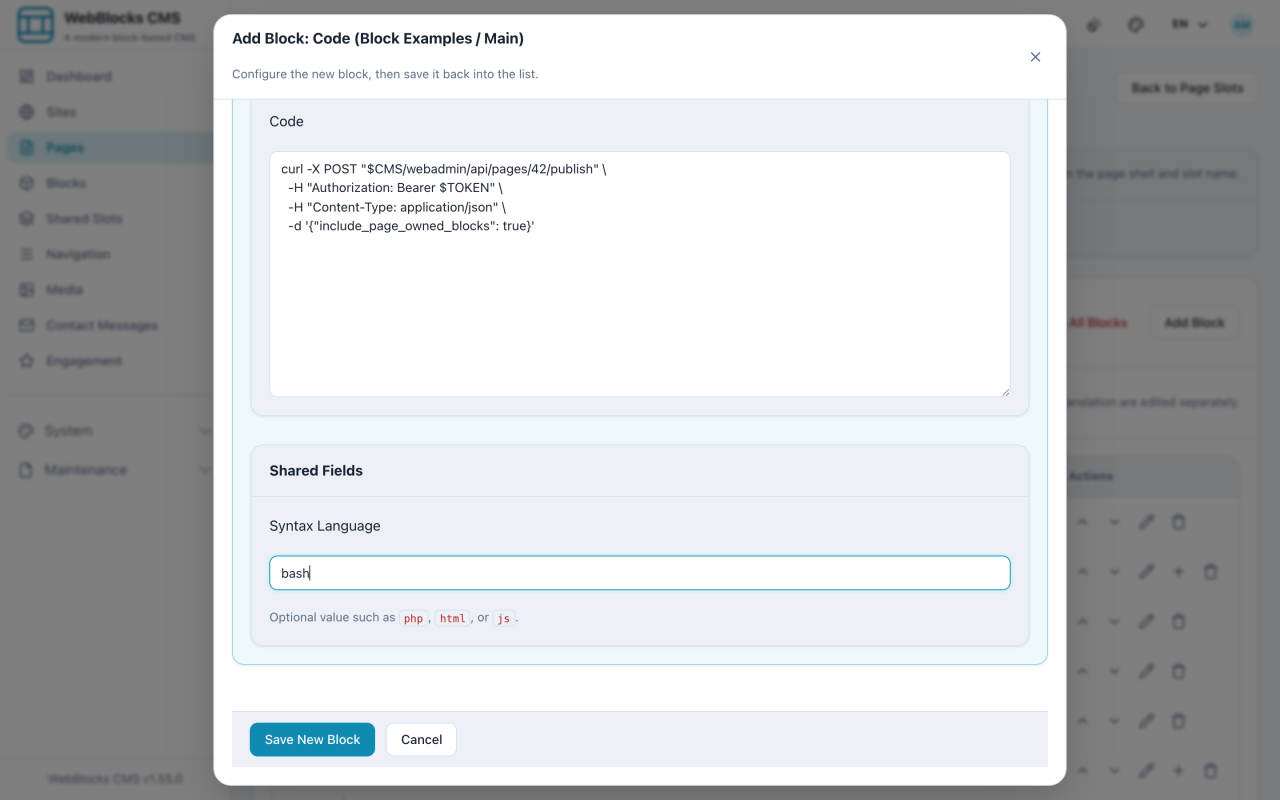
Show a code sample properly — and know when the HTML block is the wrong answer.
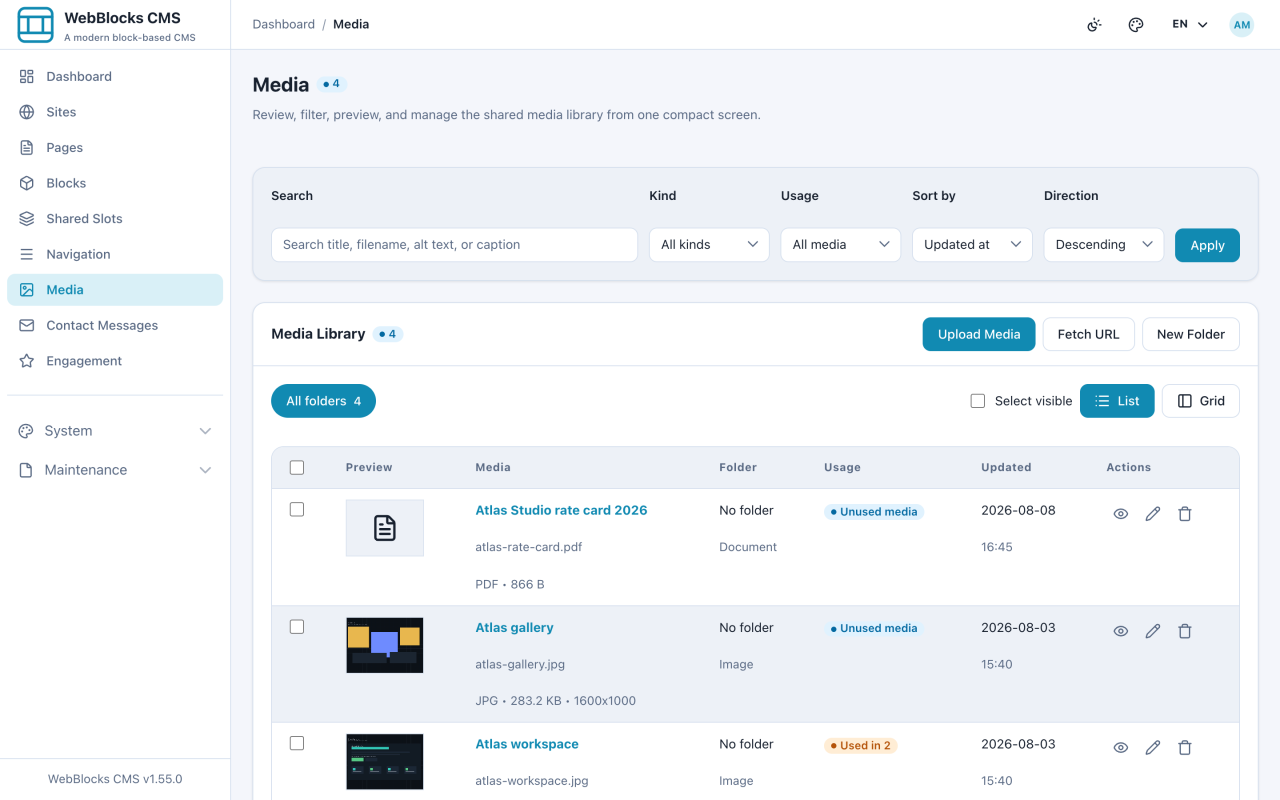
Get images and documents into the library once, then reuse them anywhere.
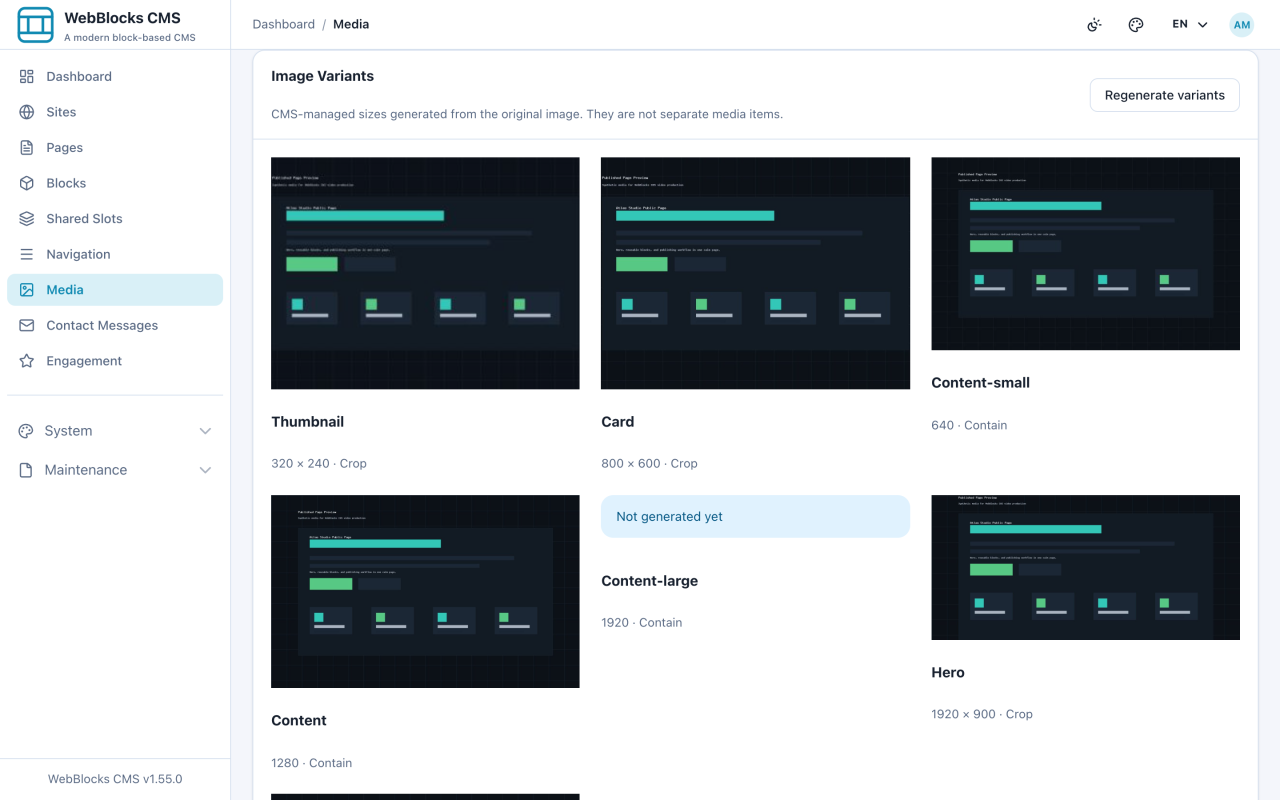
The details that make an image usable — and the sizes the CMS makes for you.
Several images as one grid, with captions and an optional lightbox.
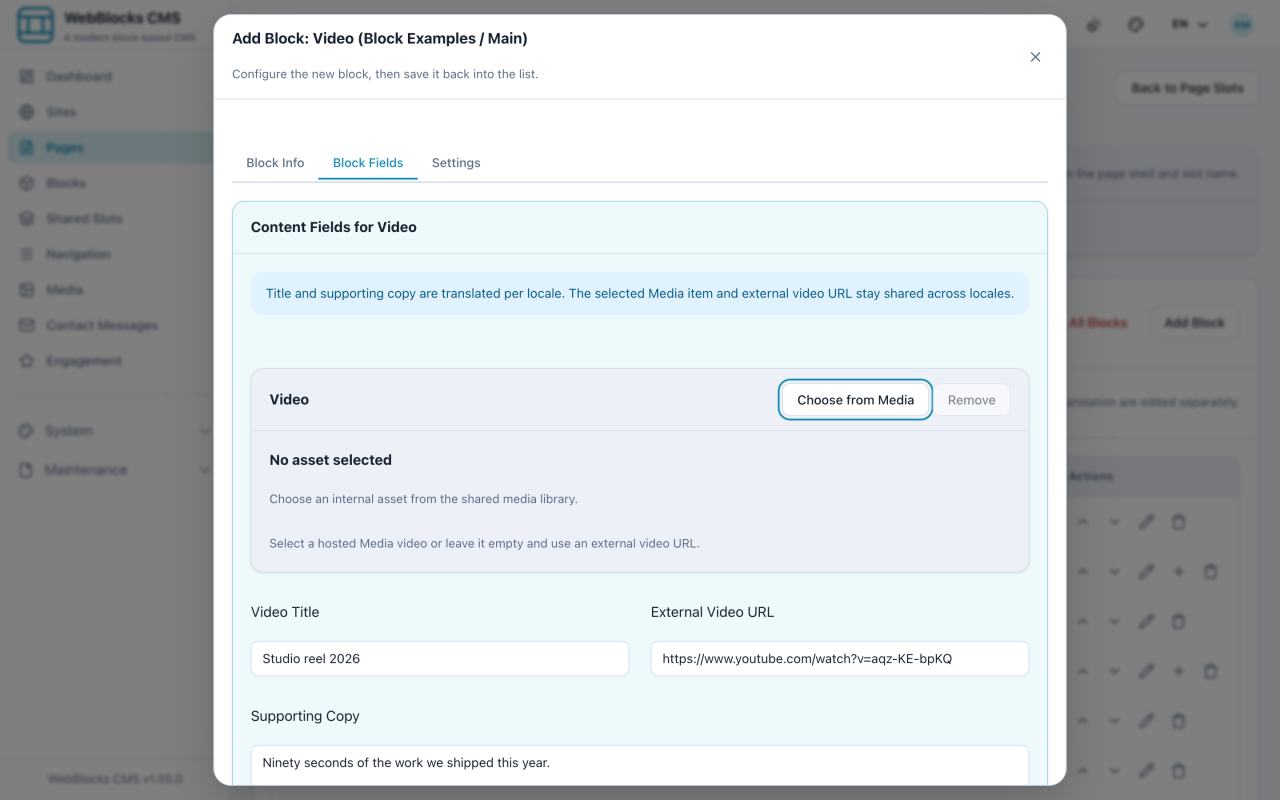
Embed a hosted clip or point at one that lives somewhere else.
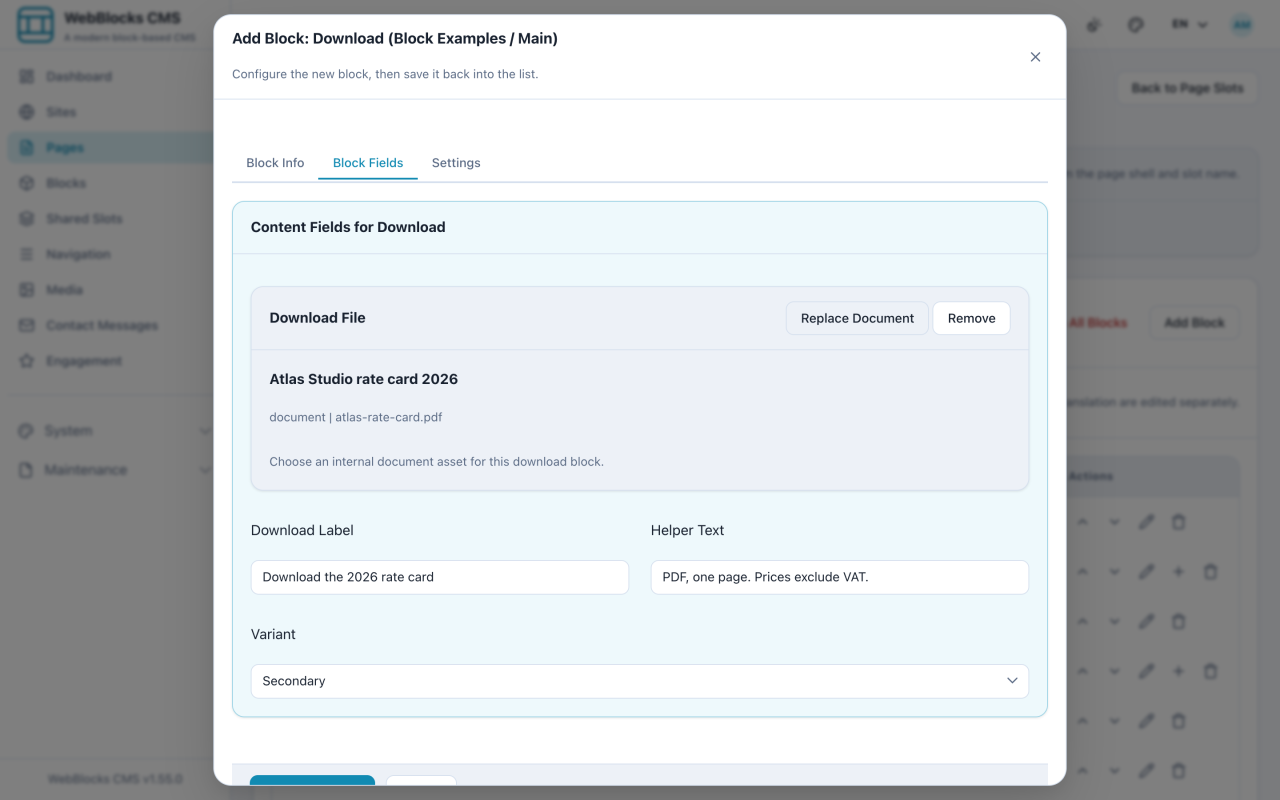
A clear download action for a PDF or document, instead of a bare link.
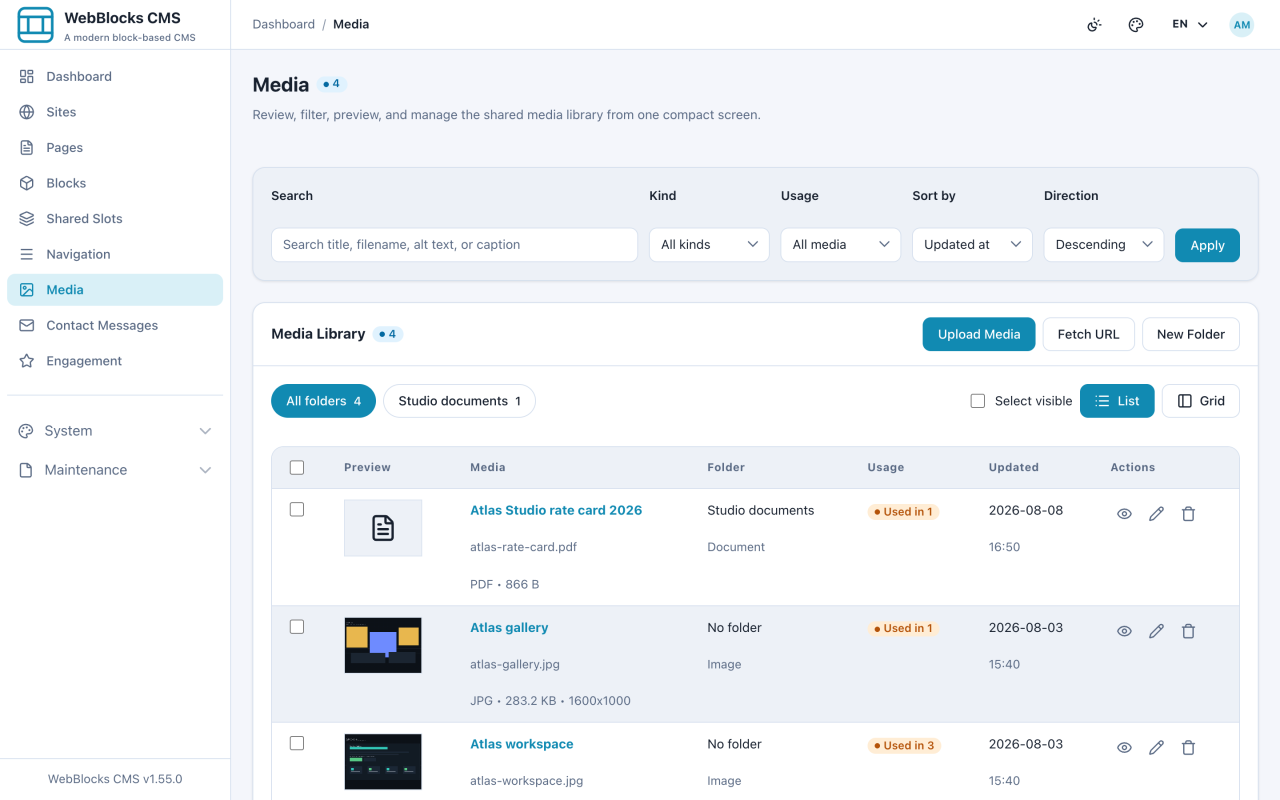
Keep the library findable once it holds more than a screenful.
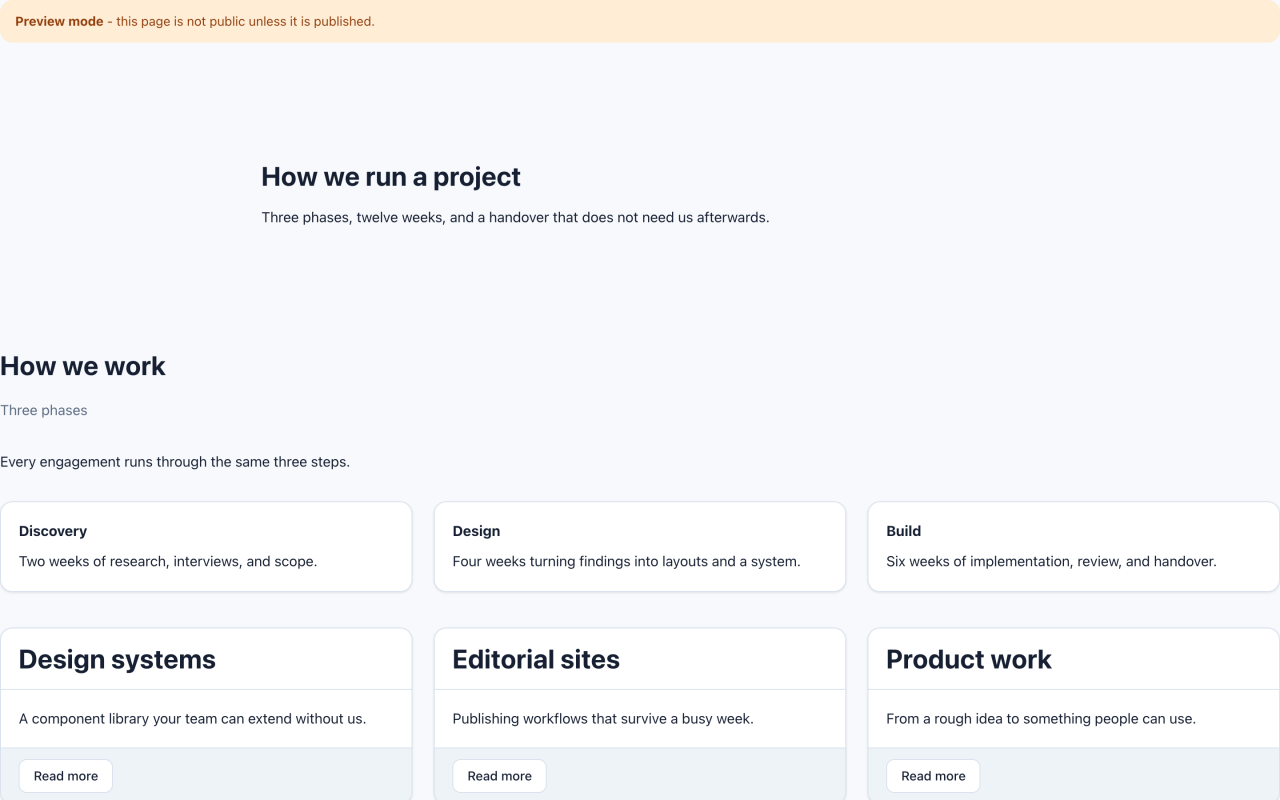
The two wrappers that decide how wide your content sits and how much air it gets.
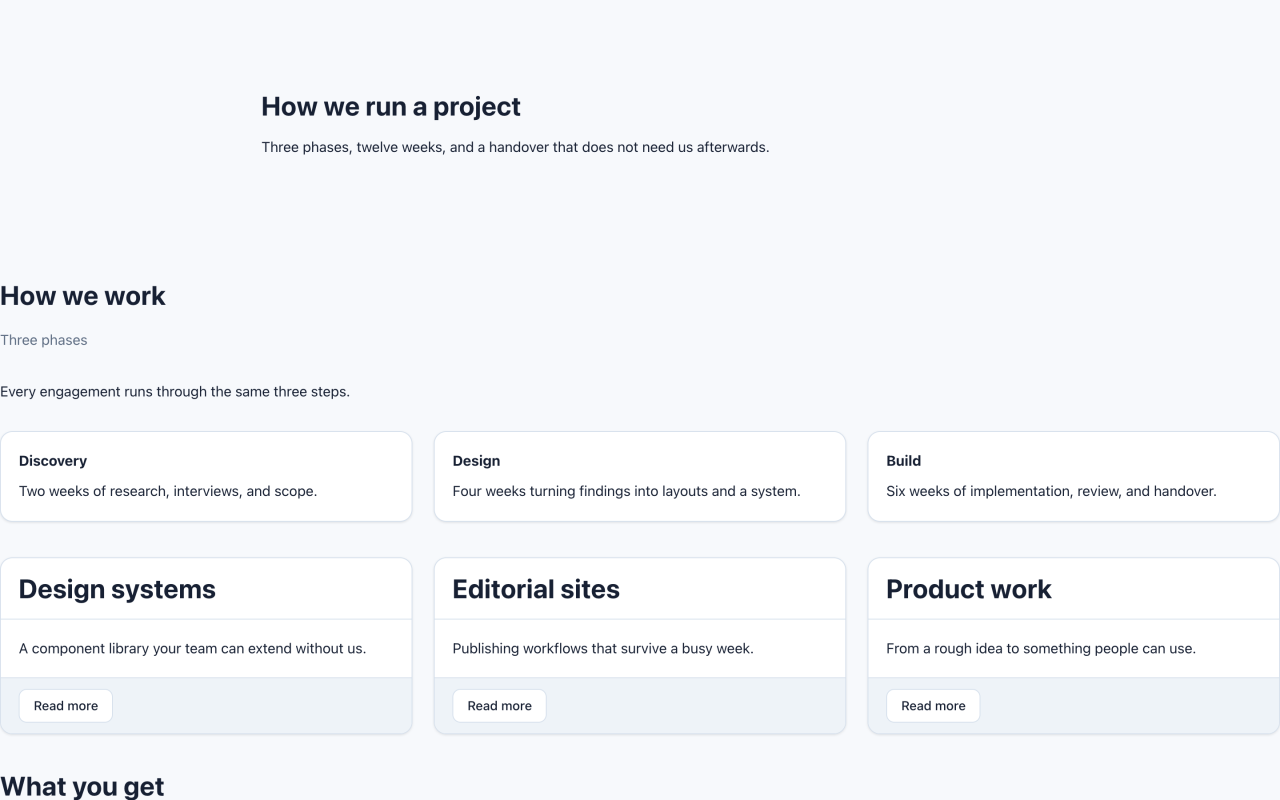
Put things side by side — with copy of its own, or as a bare arrangement.
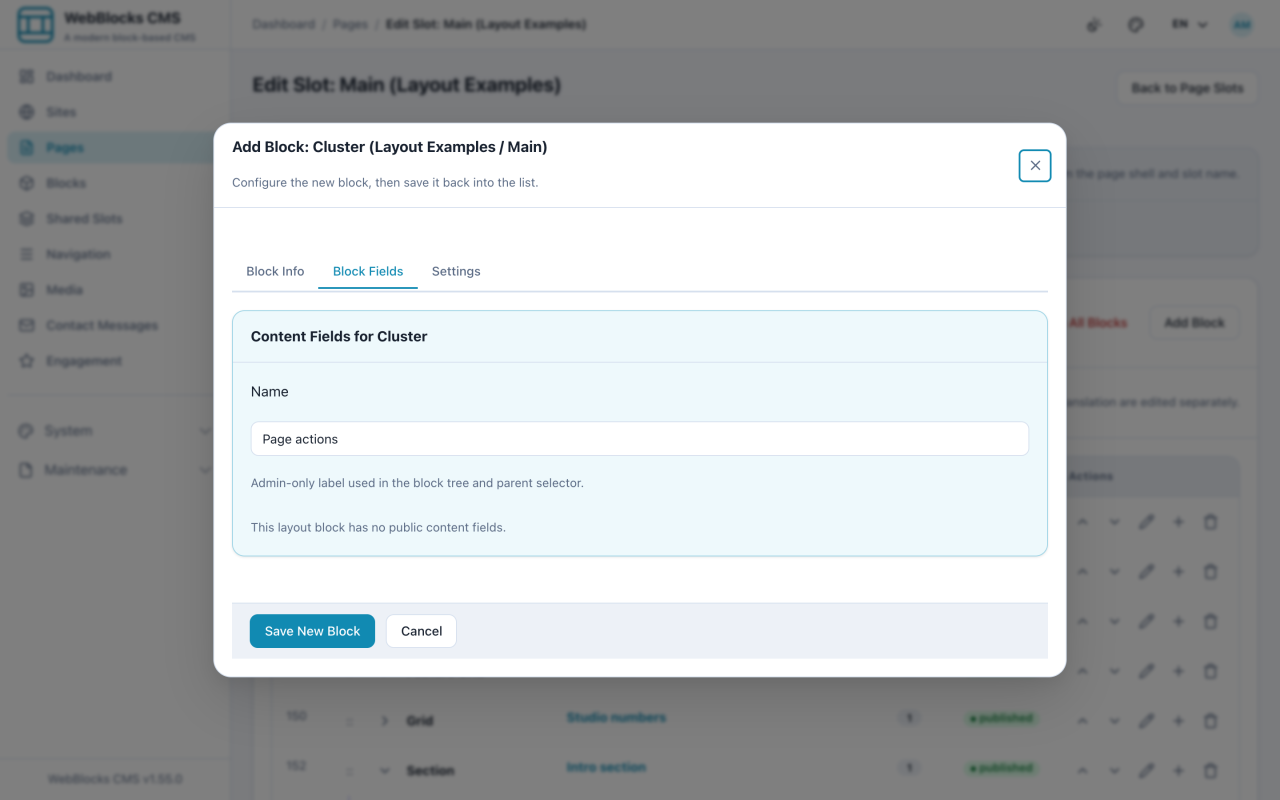
Line a few things up in a row, and control the air between everything else.
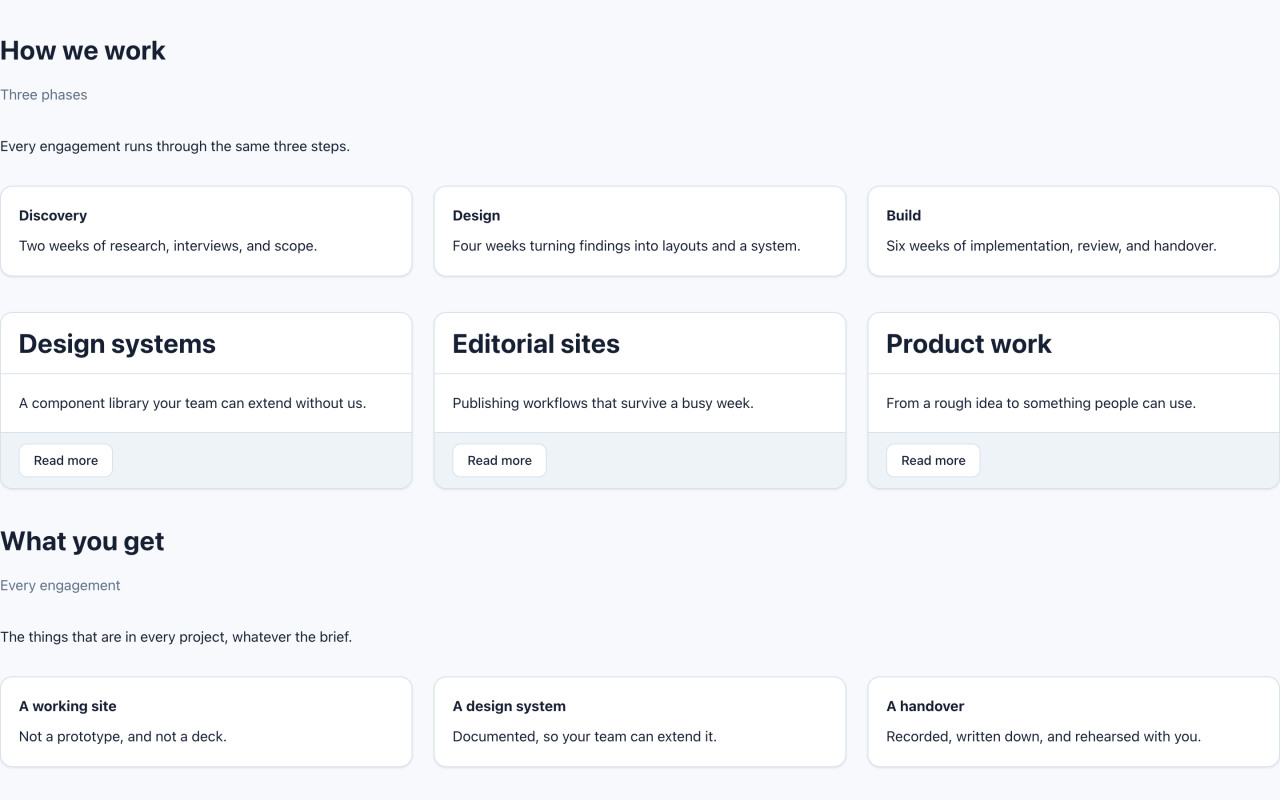
Three ways to package a small unit of content — and when each one fits.
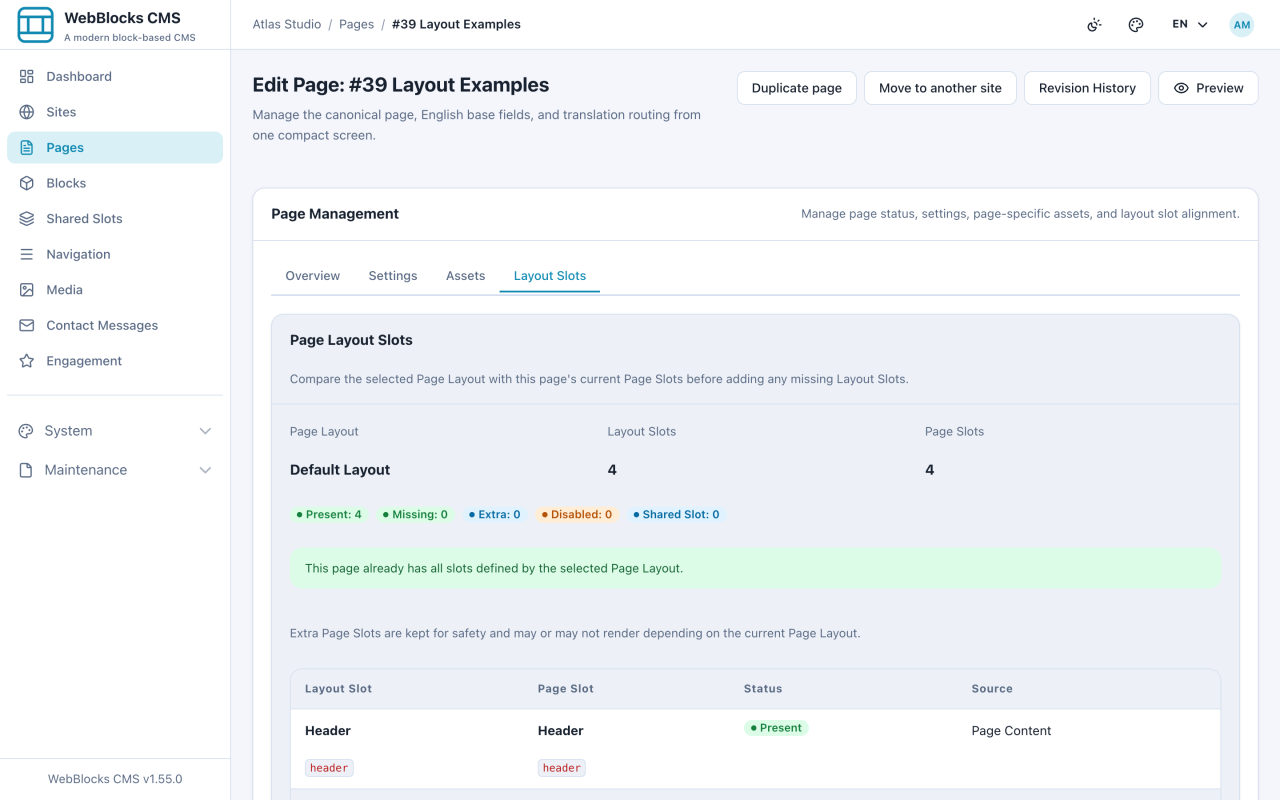
Pick the frame a page renders in, and change it later without losing content.
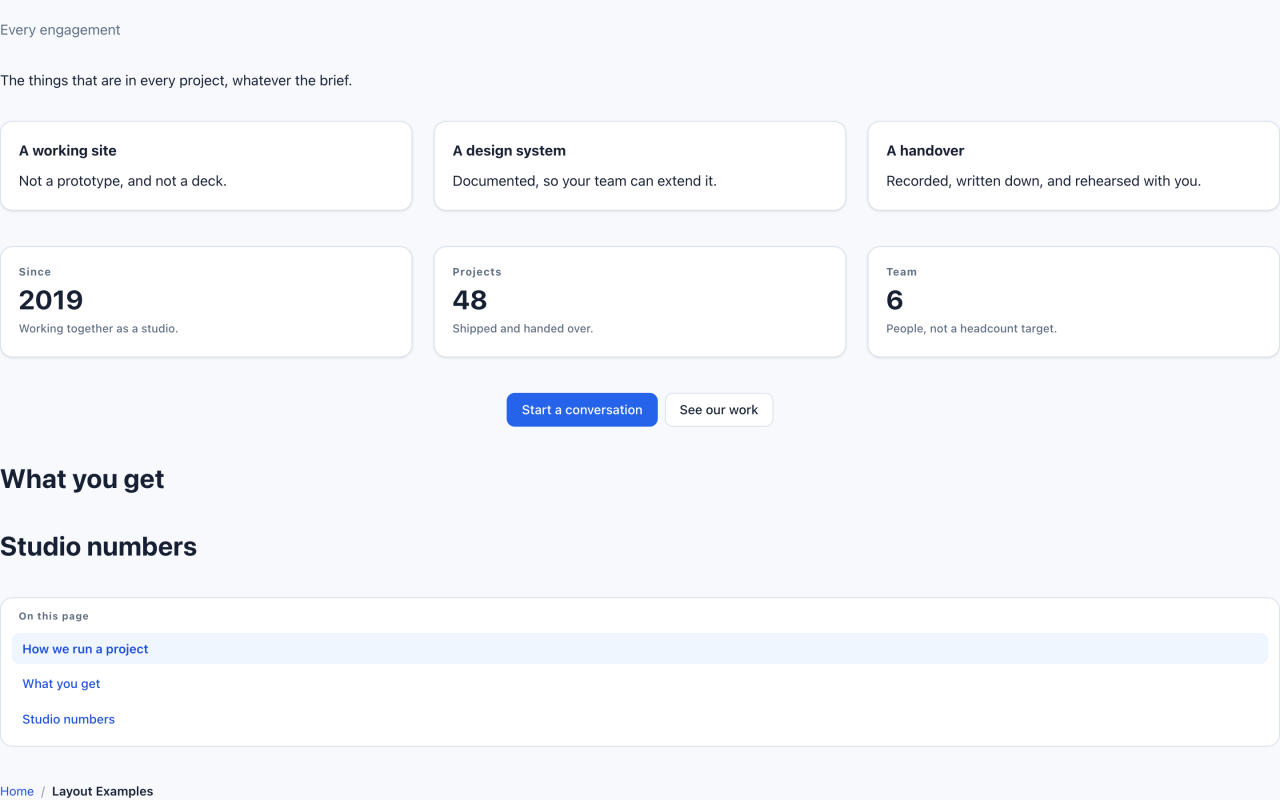
Two small blocks that help readers find their place in a long page.
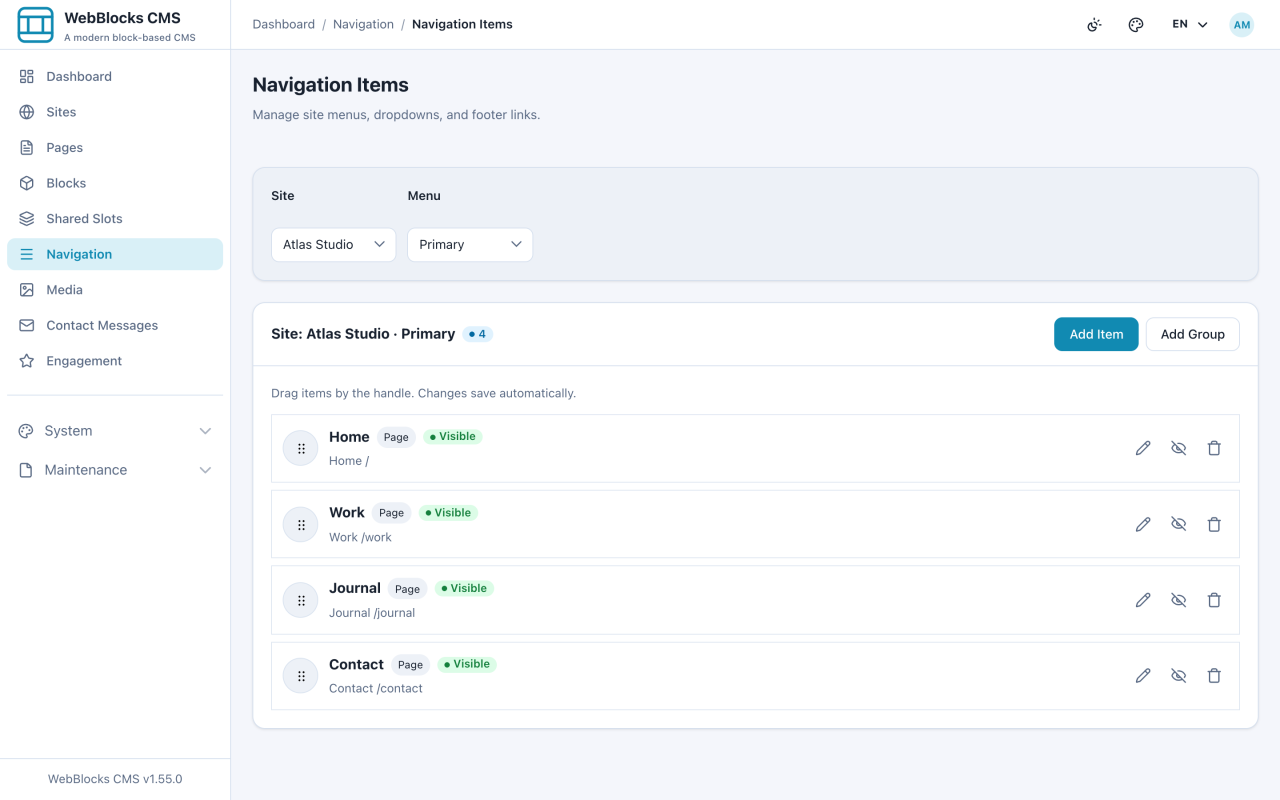
Add, group, and reorder the links visitors click.
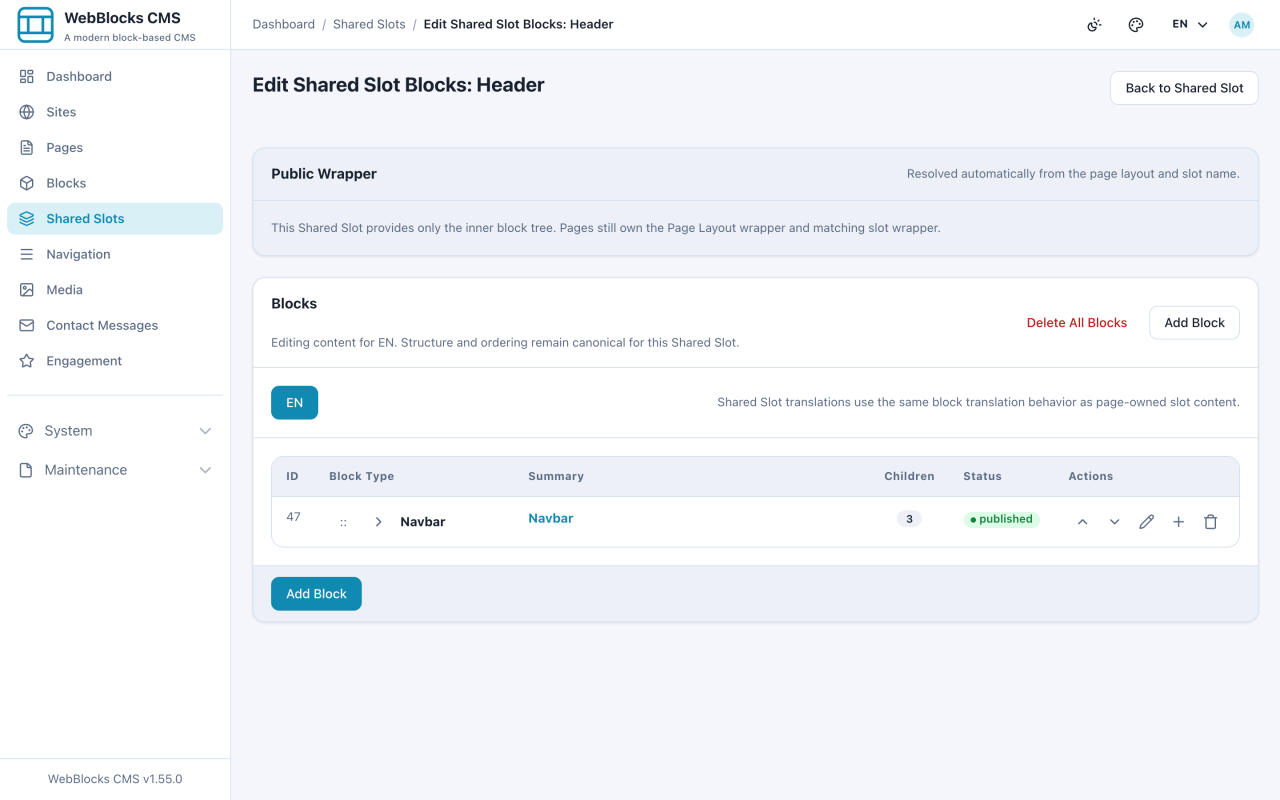
Build the header once, then point every page at it.
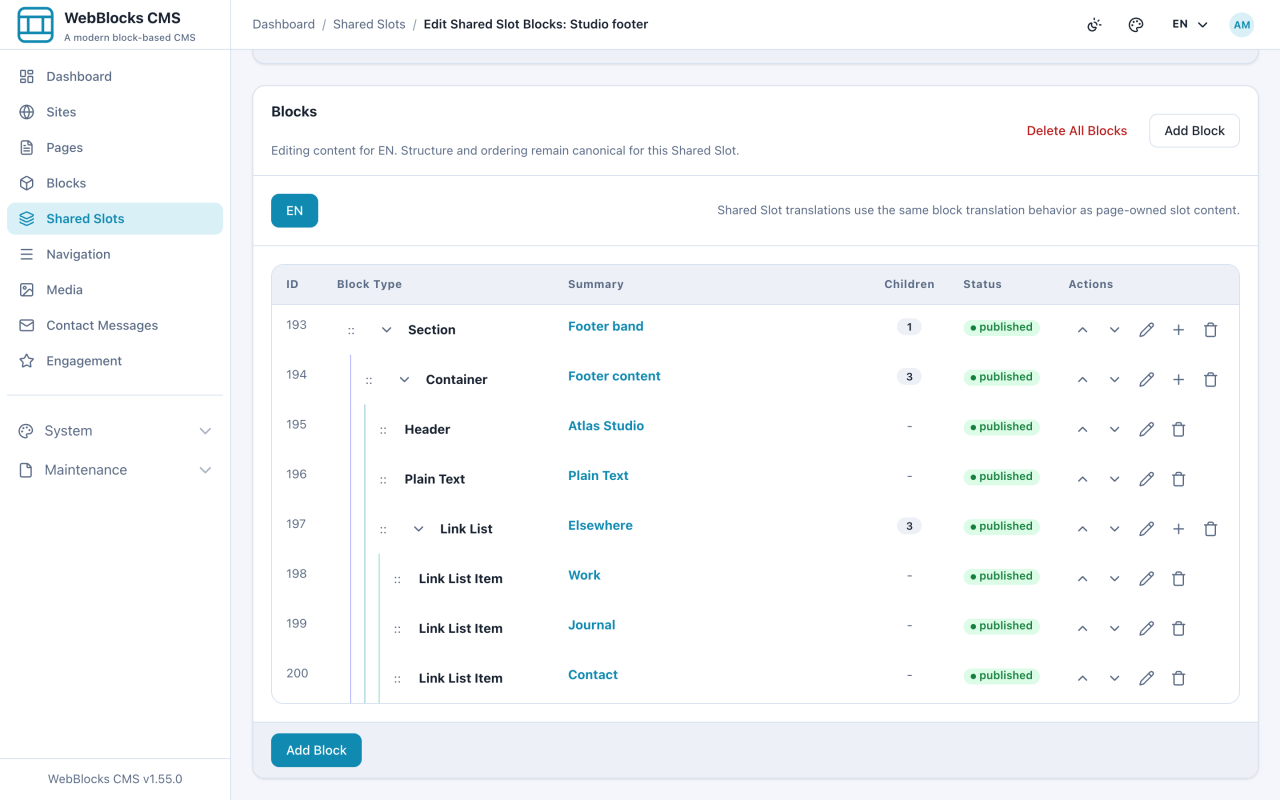
Create a reusable area from scratch and fill it with real blocks.
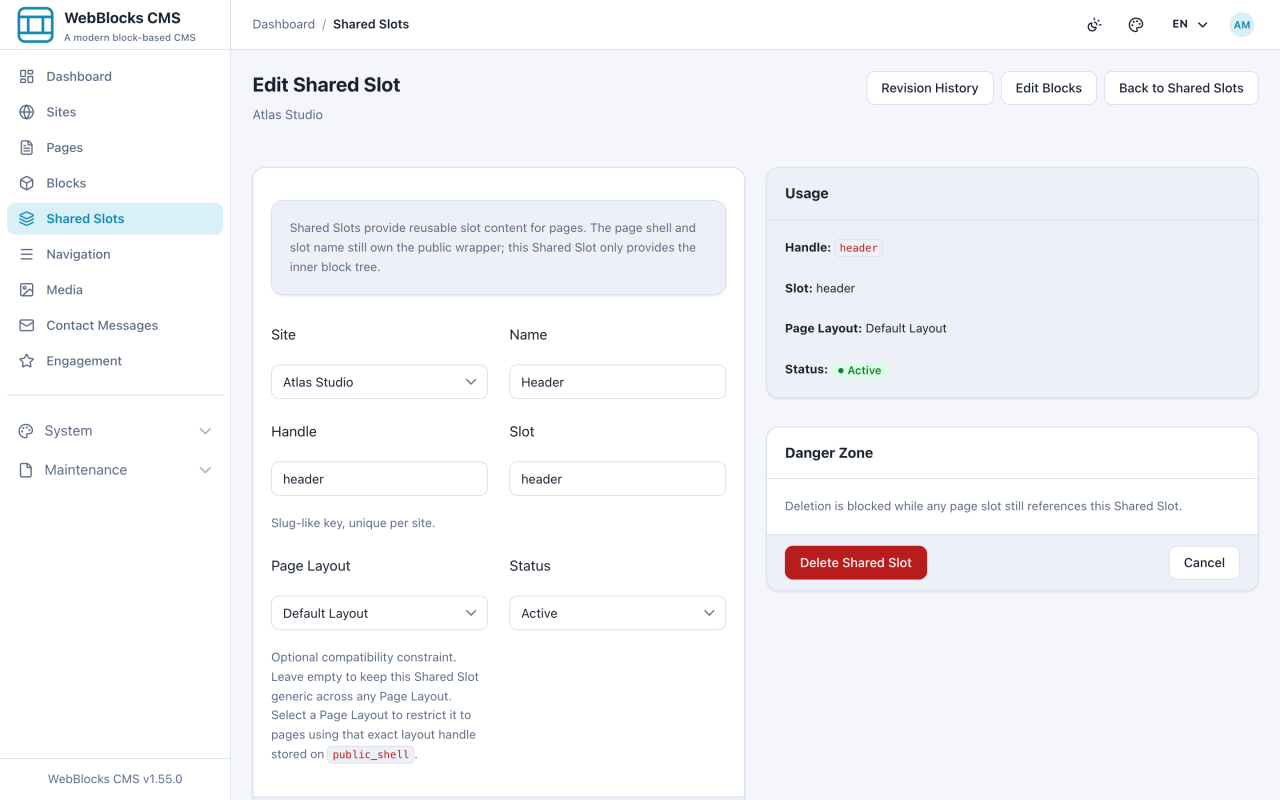
Editing a shared area changes every page at once. Here is how to do it without breaking things.
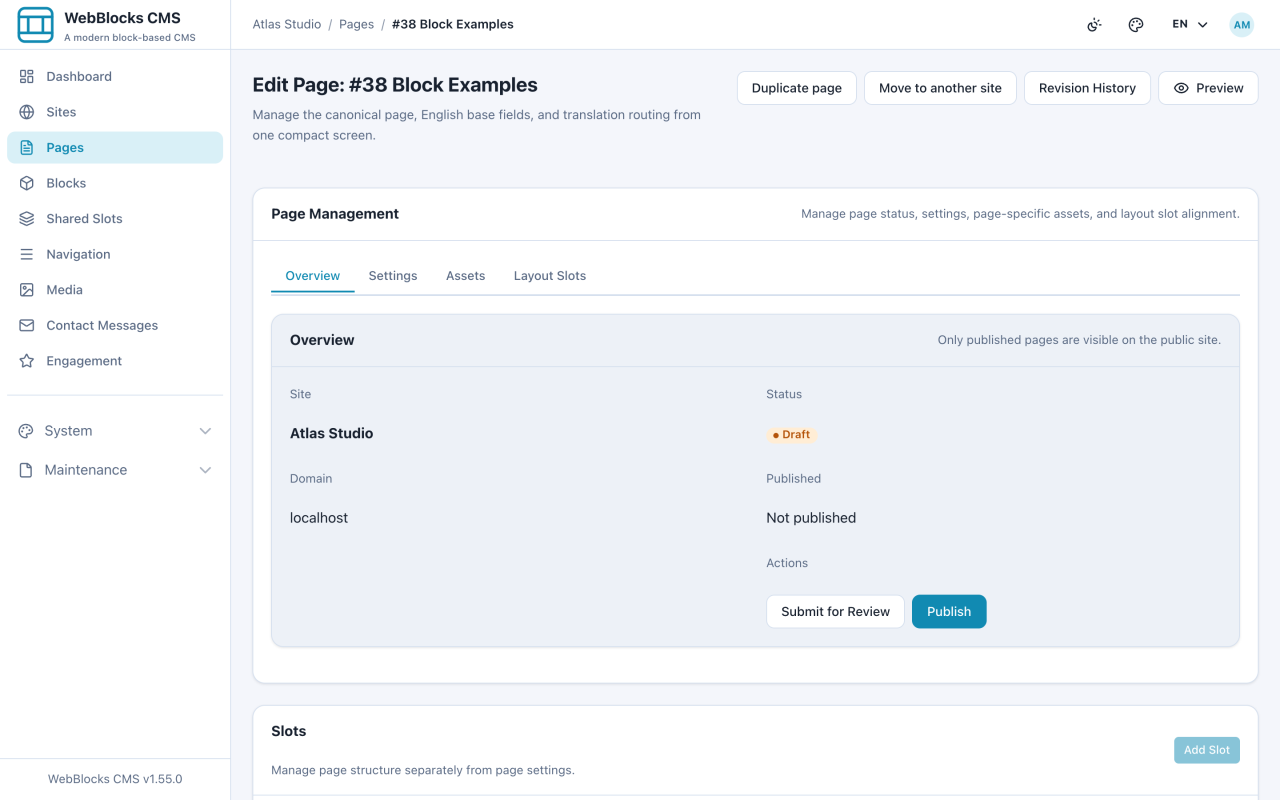
The four states a page moves through, and who moves it.
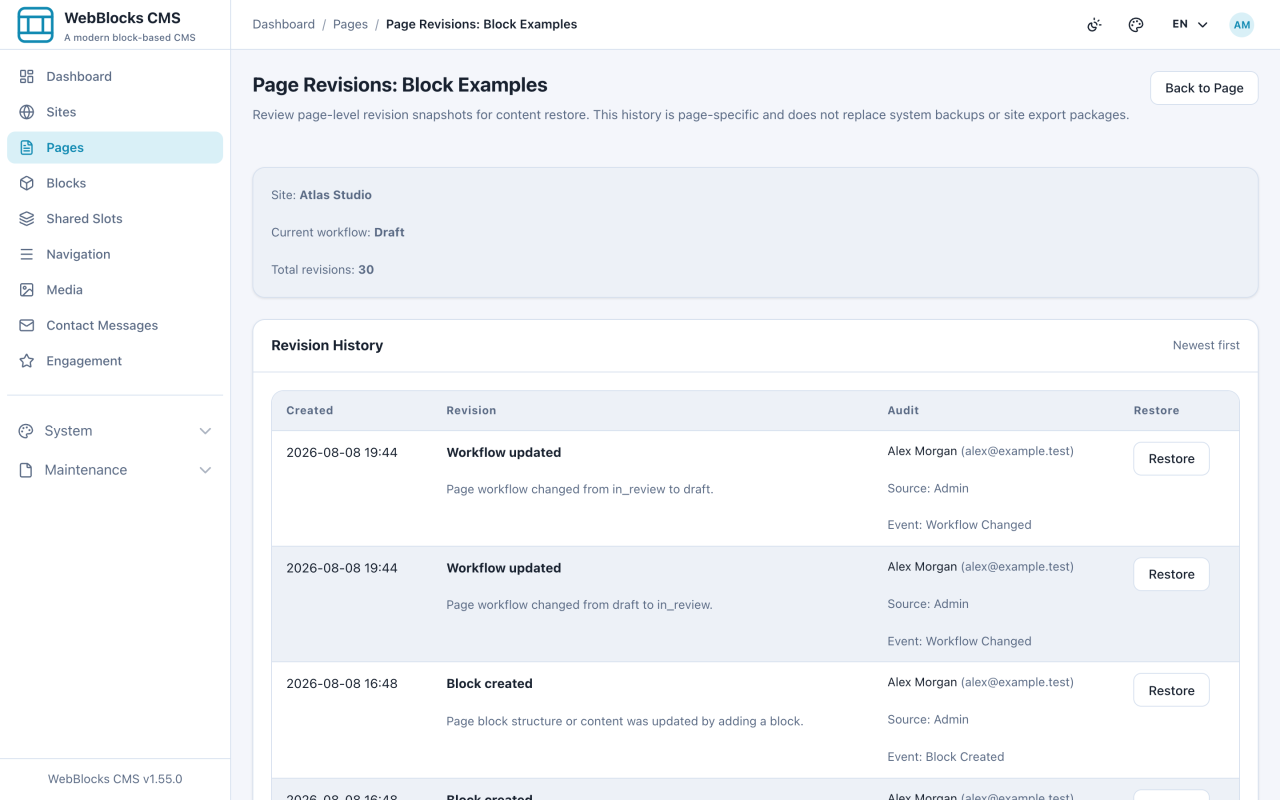
Find out what changed, who changed it, and put it back.
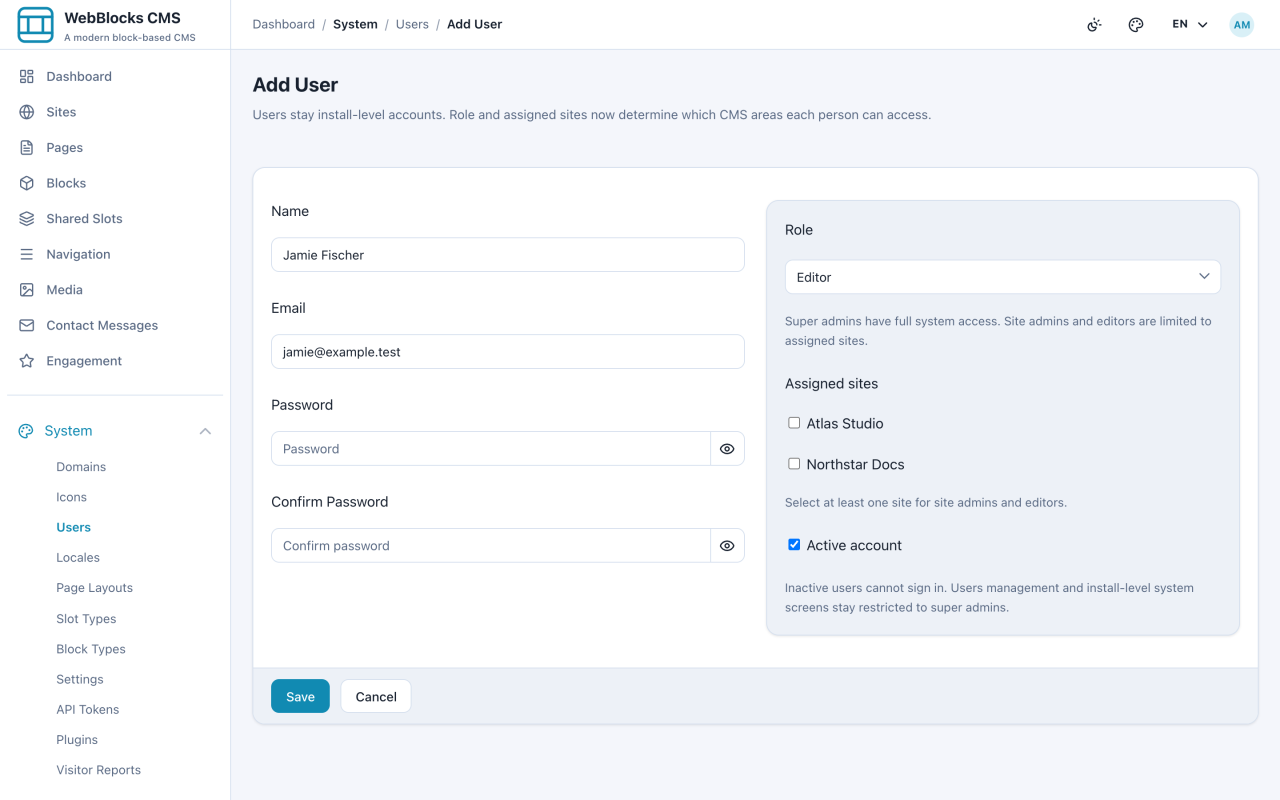
Built-in and custom roles, site assignments, and adding a colleague.
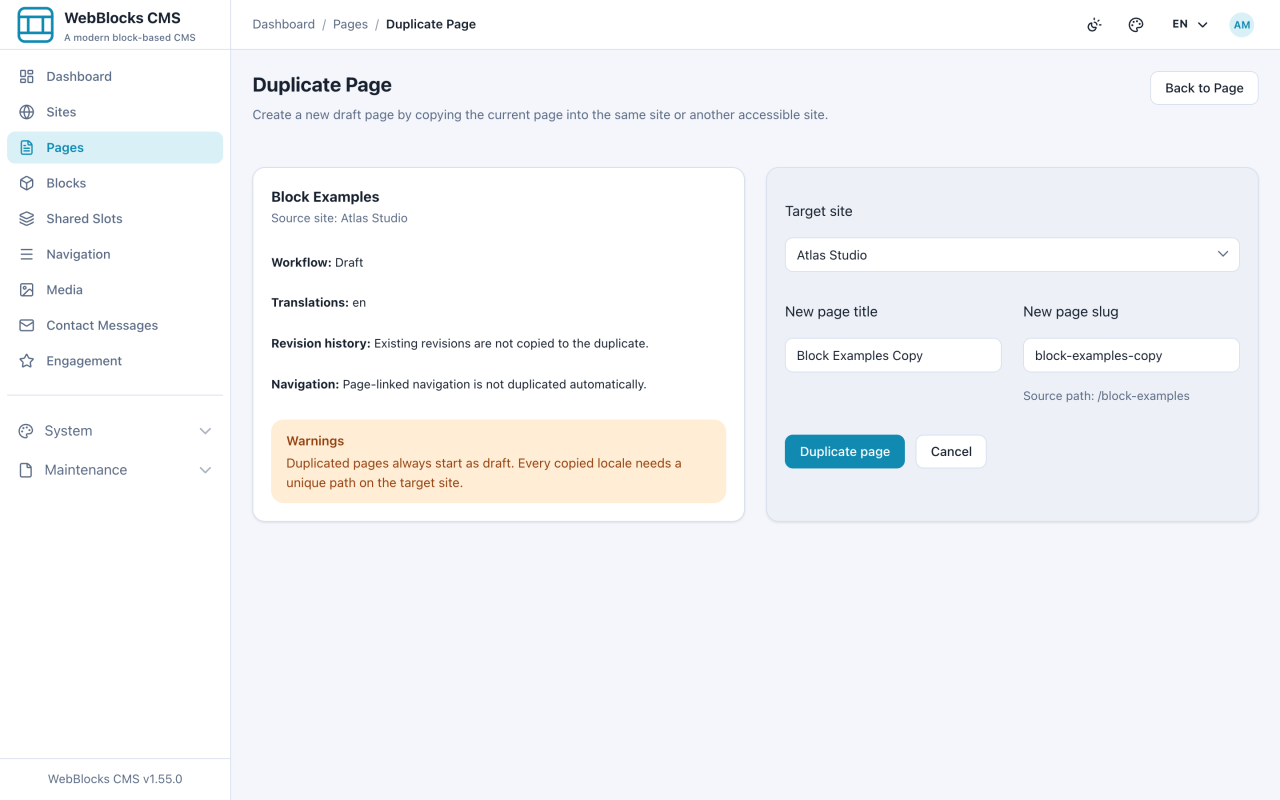
Copy a page as a starting point, move it between sites, or take it down without deleting it.
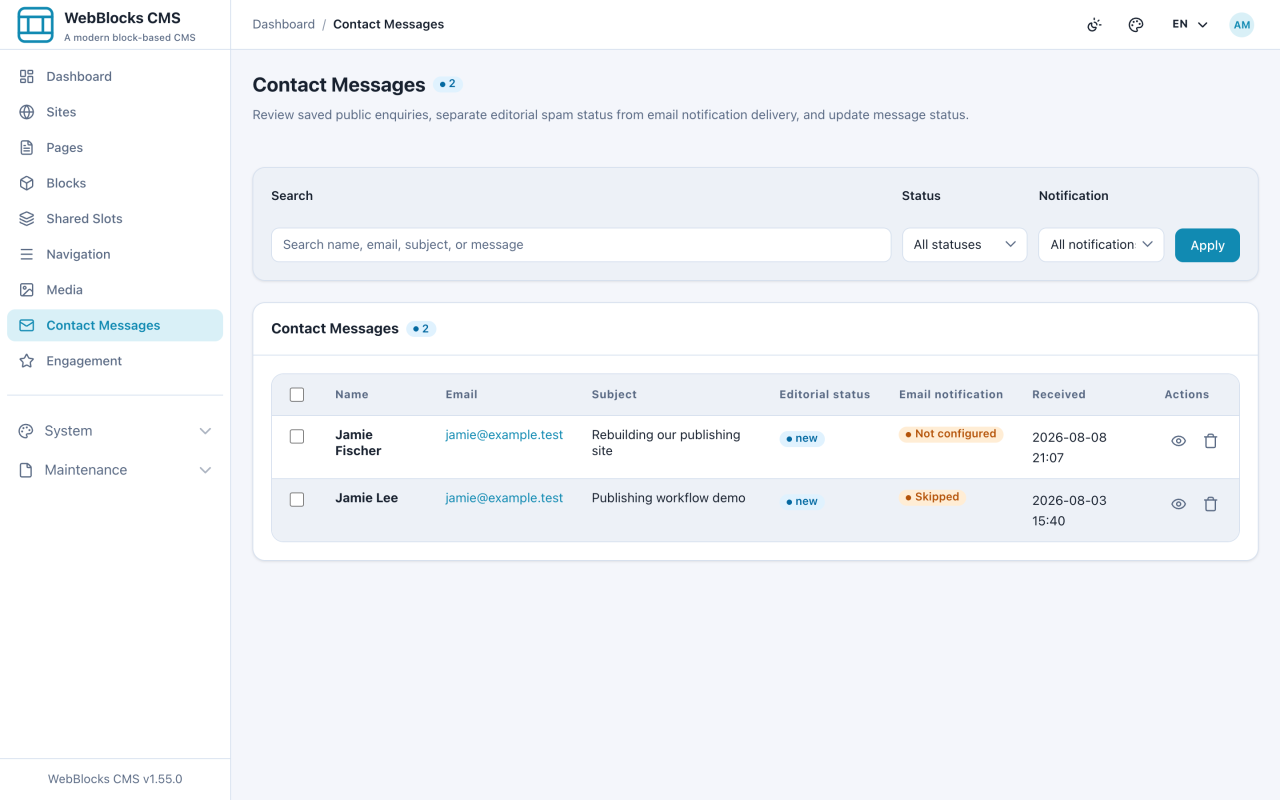
Put a form on a page, then find what visitors sent.
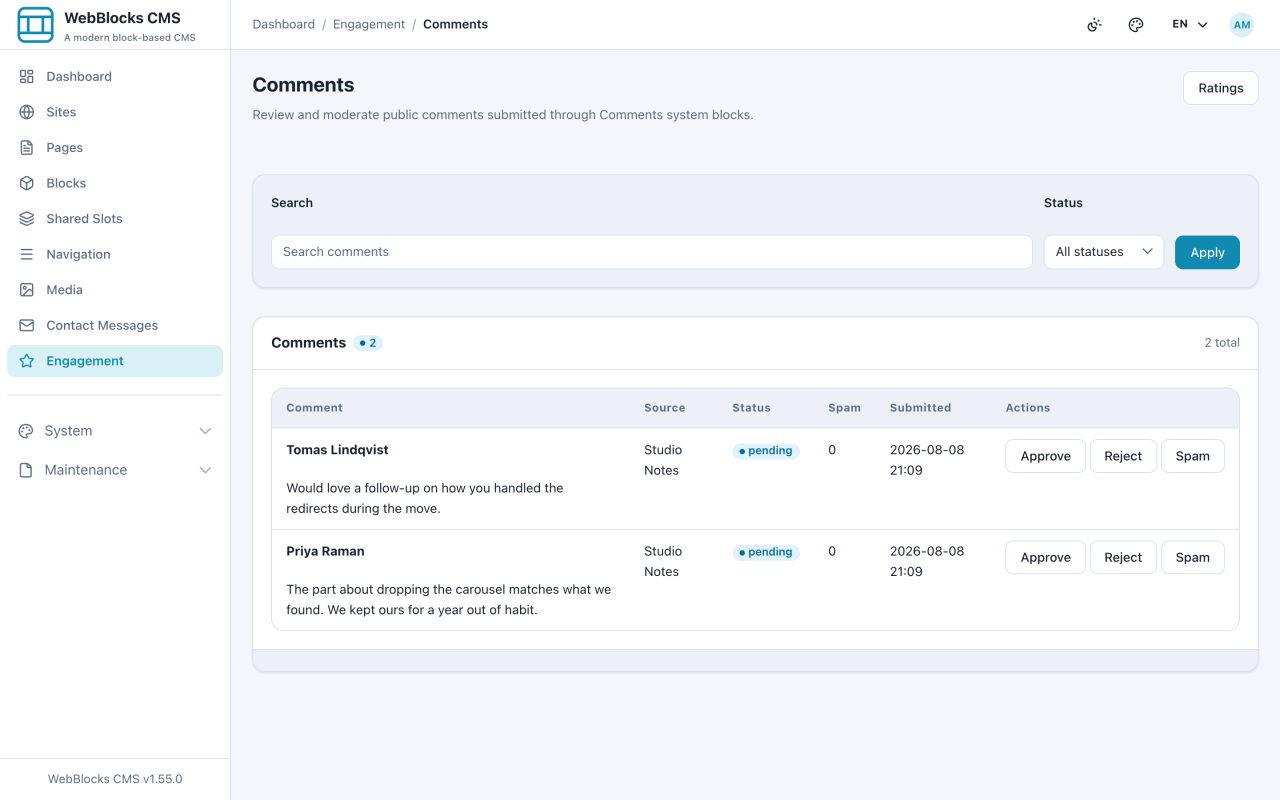
Let readers respond, and review what they say before it appears.
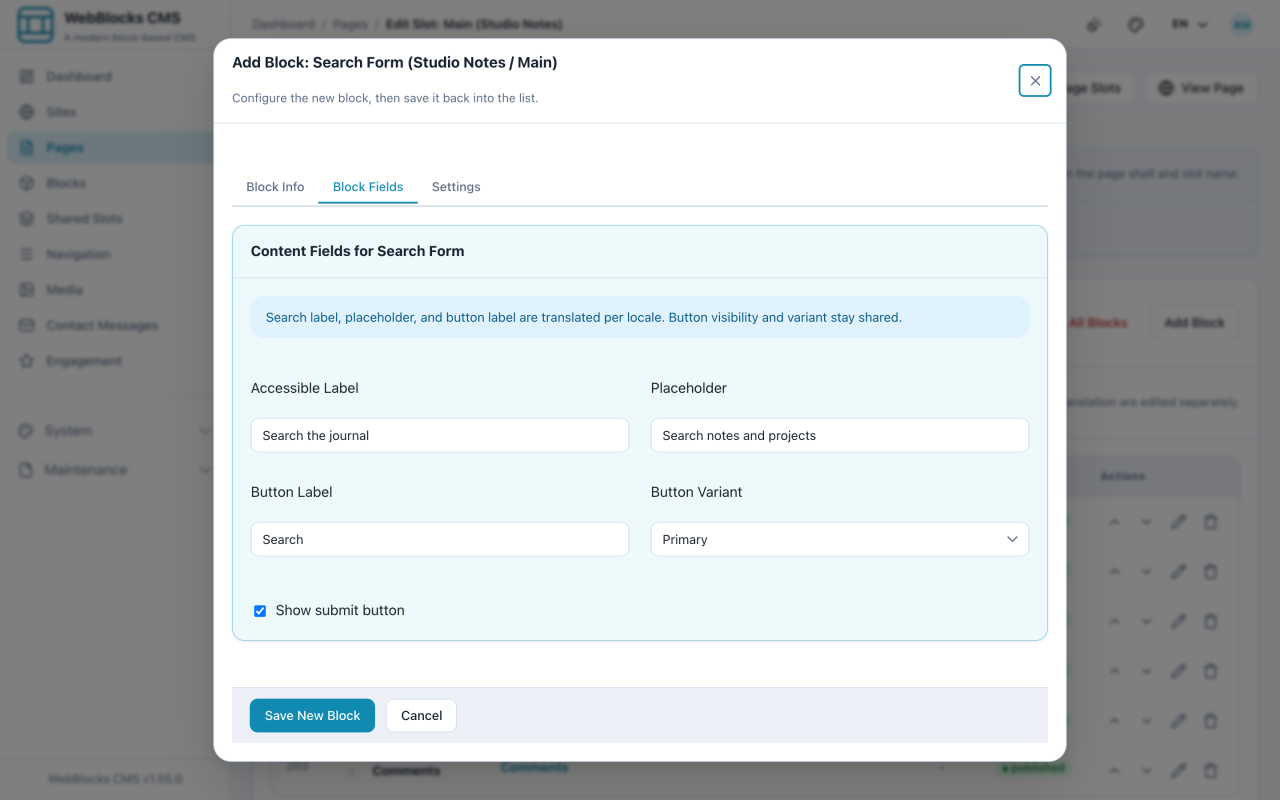
Put a search box on the site and keep the index honest.
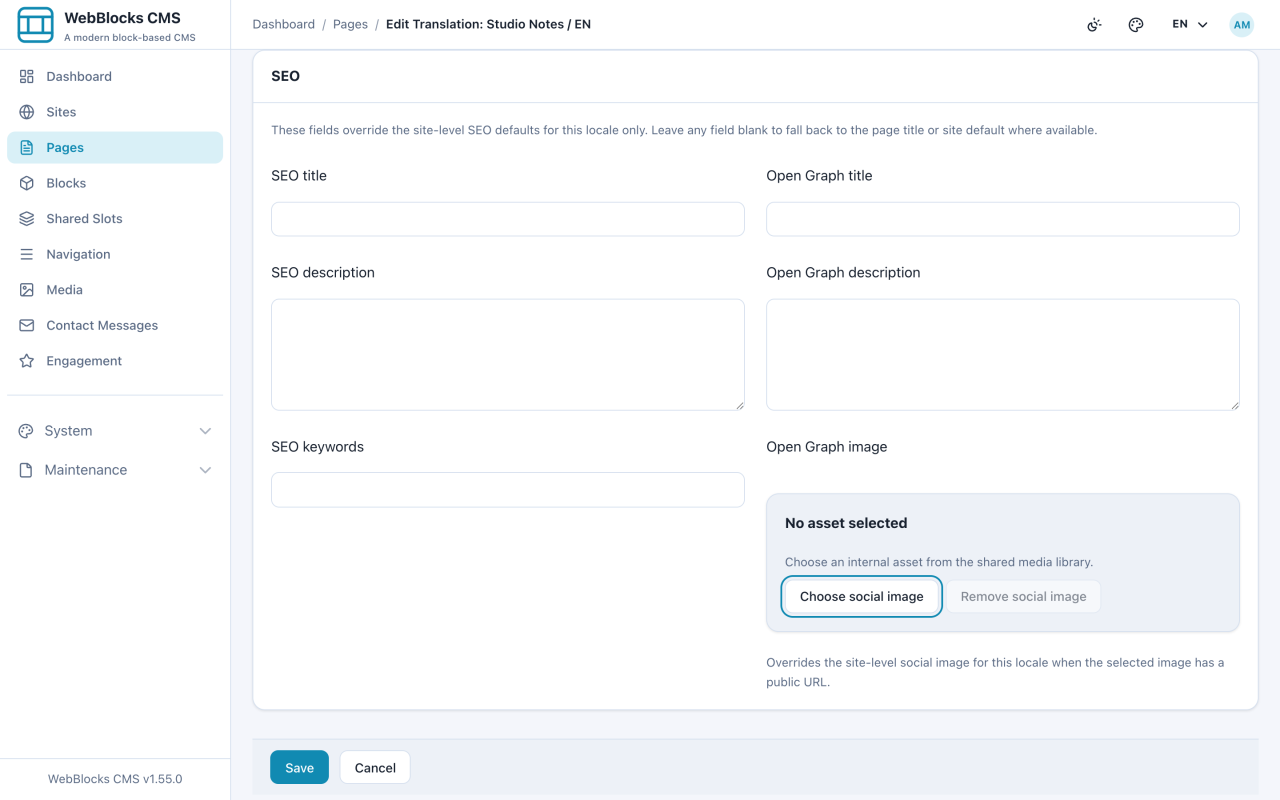
What search results and shared links show, and where to set it.
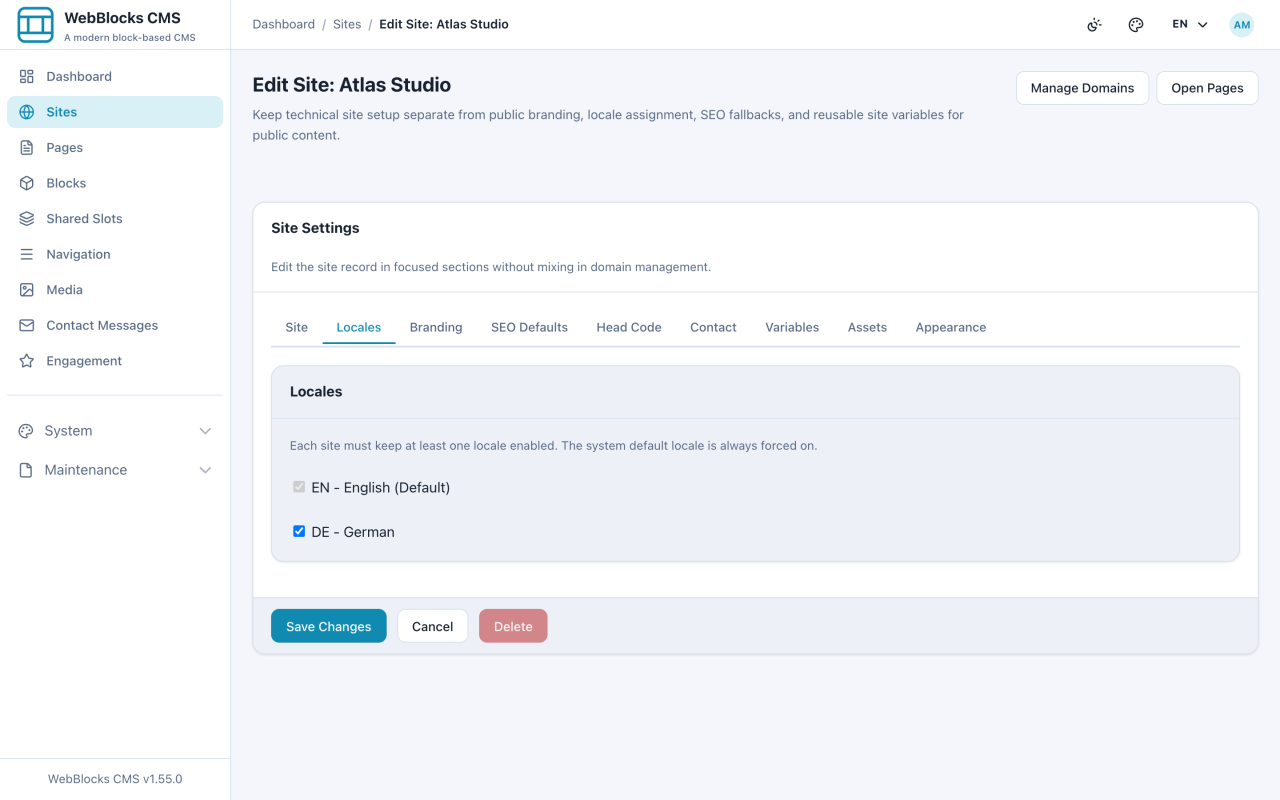
Two steps — register the locale, then enable it on the site that needs it.
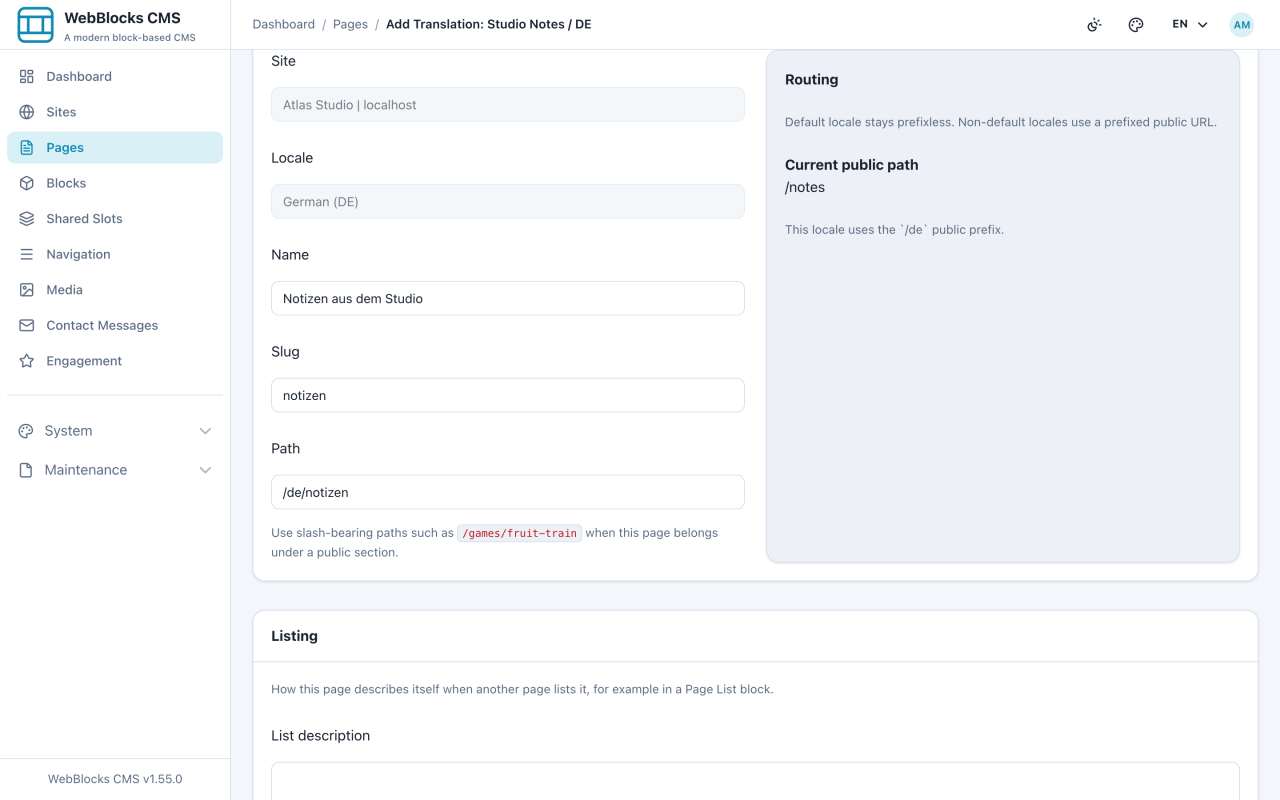
Give a page a second language, with its own address and its own SEO.
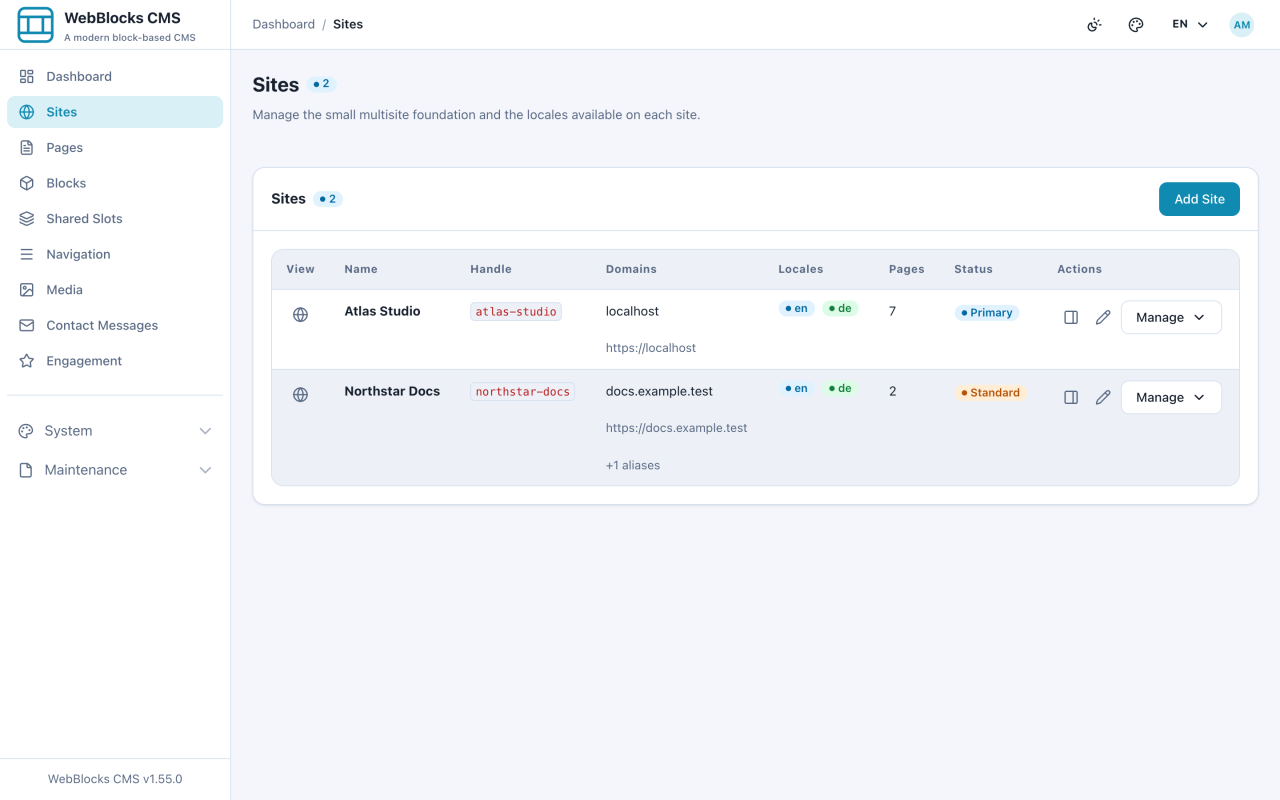
One installation, several sites — what is shared and what is not.
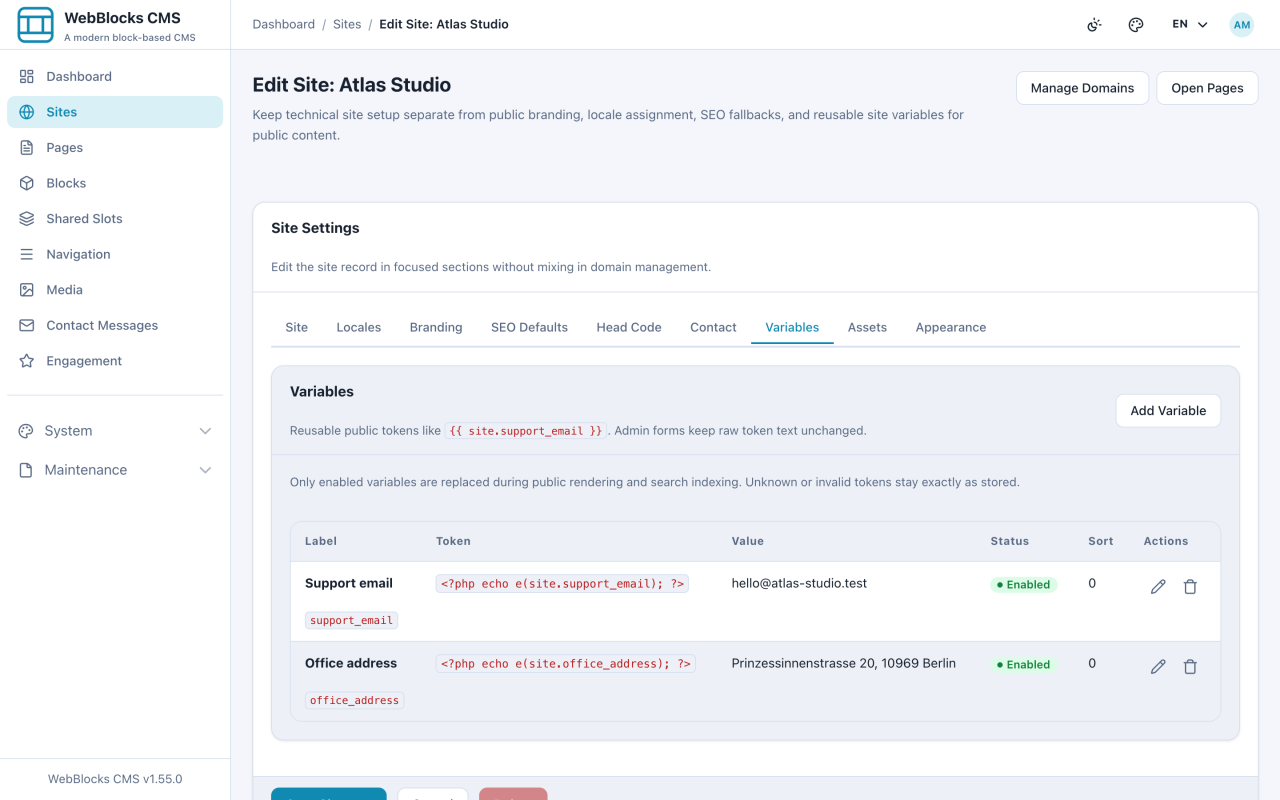
Write a value once, use it across the site, change it in one place.
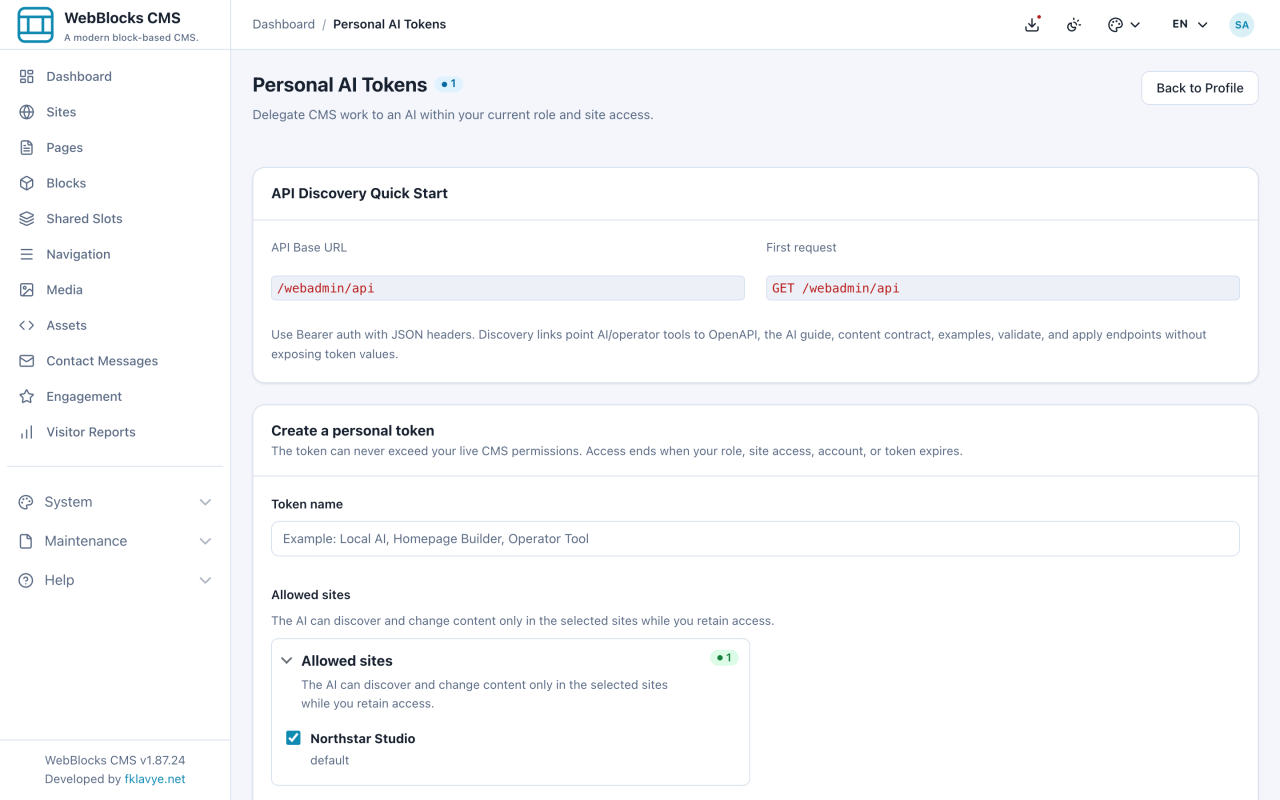
Create a personal token so an AI can work within your role and selected sites.
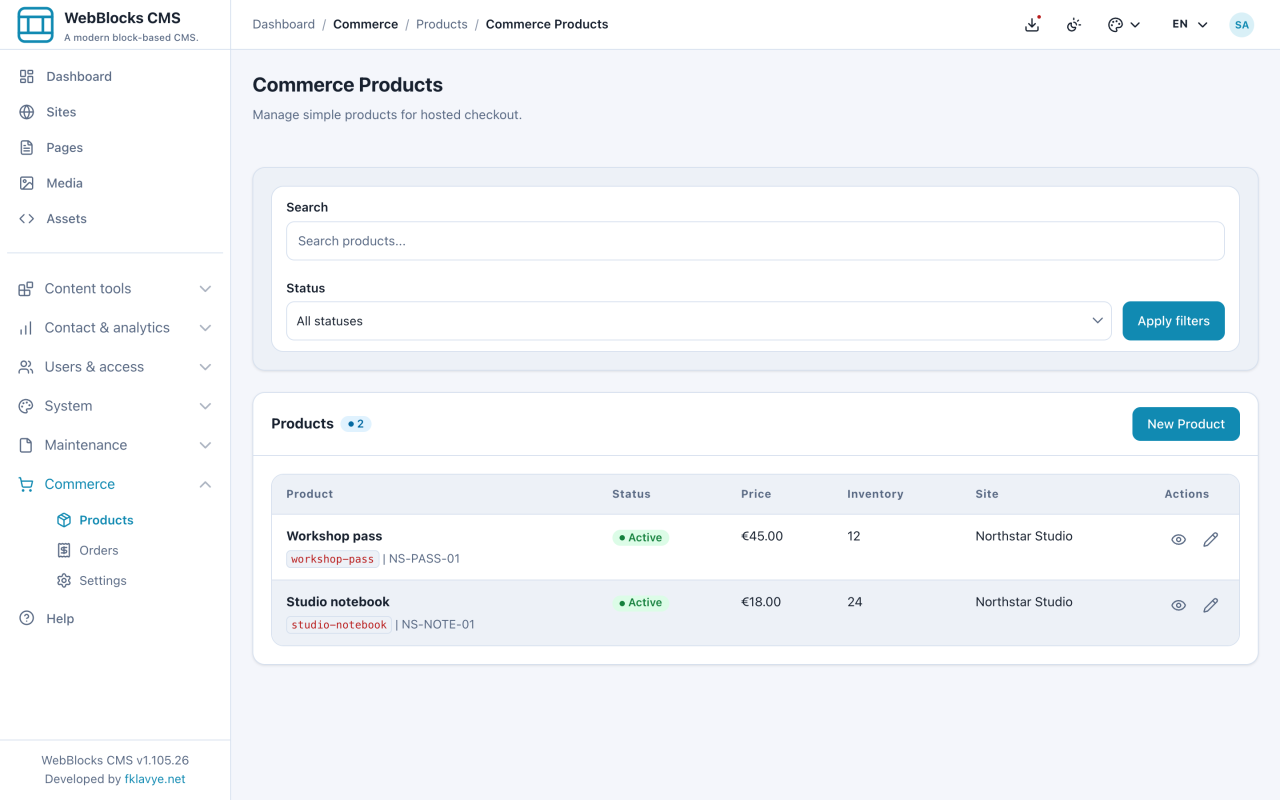
Install Commerce, add your first product, build an Add to Cart button, test an order, and connect hosted payments.
Read the guide
Install Memberships, set up visitor accounts and free packages, grant access, protect a page, and prepare recurring paid plans.
Read the guide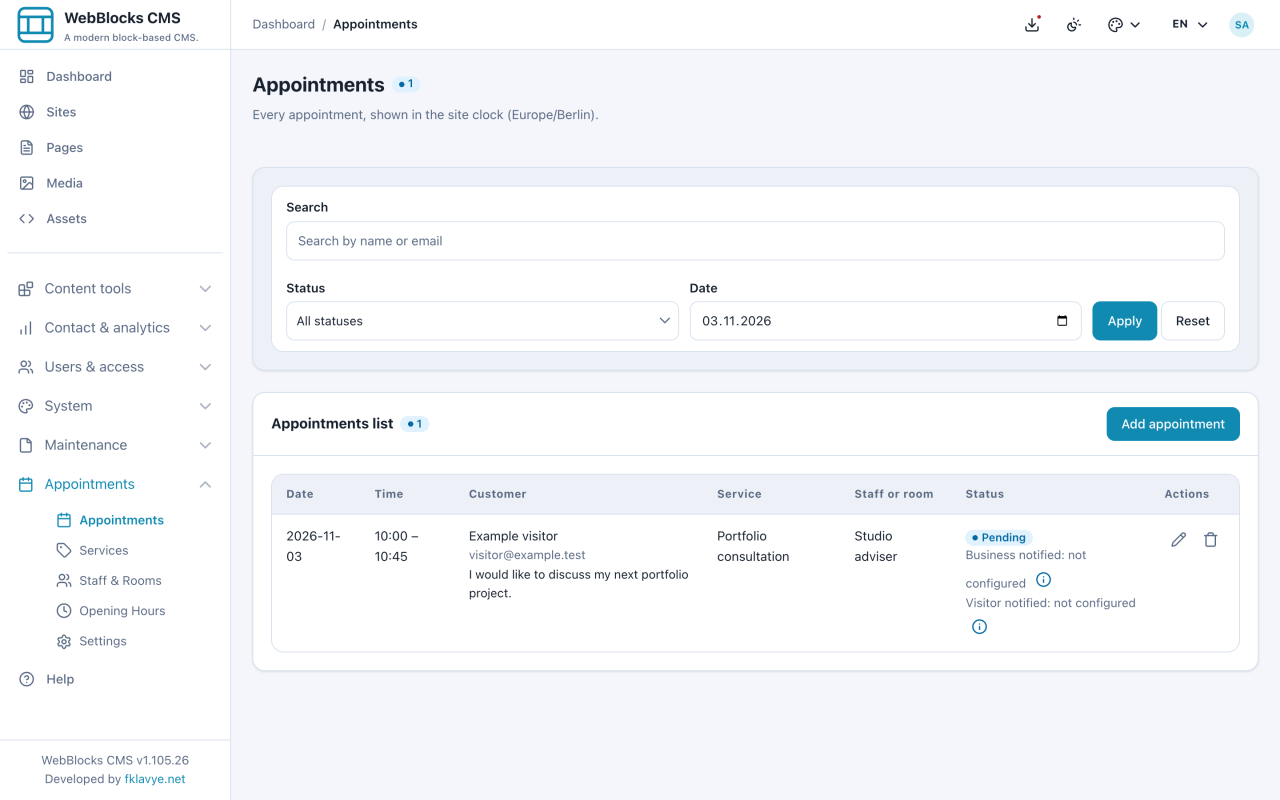
Install Appointments, set up services and opening hours, add a booking form, handle requests, and test reminders and visitor cancellation.
Read the guide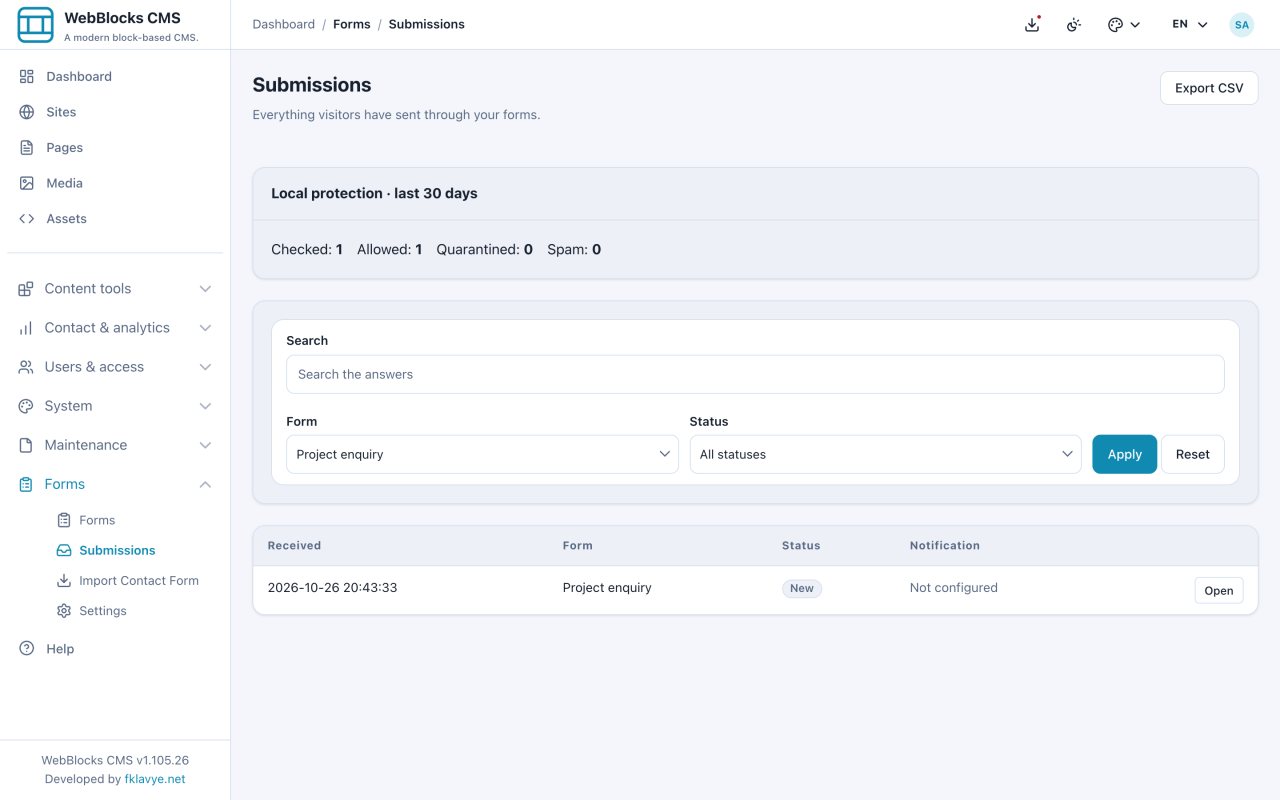
Install Forms, build a two-step enquiry with conditional fields and private attachments, place it on a page, and manage submissions, delivery and CSV exports.
Read the guide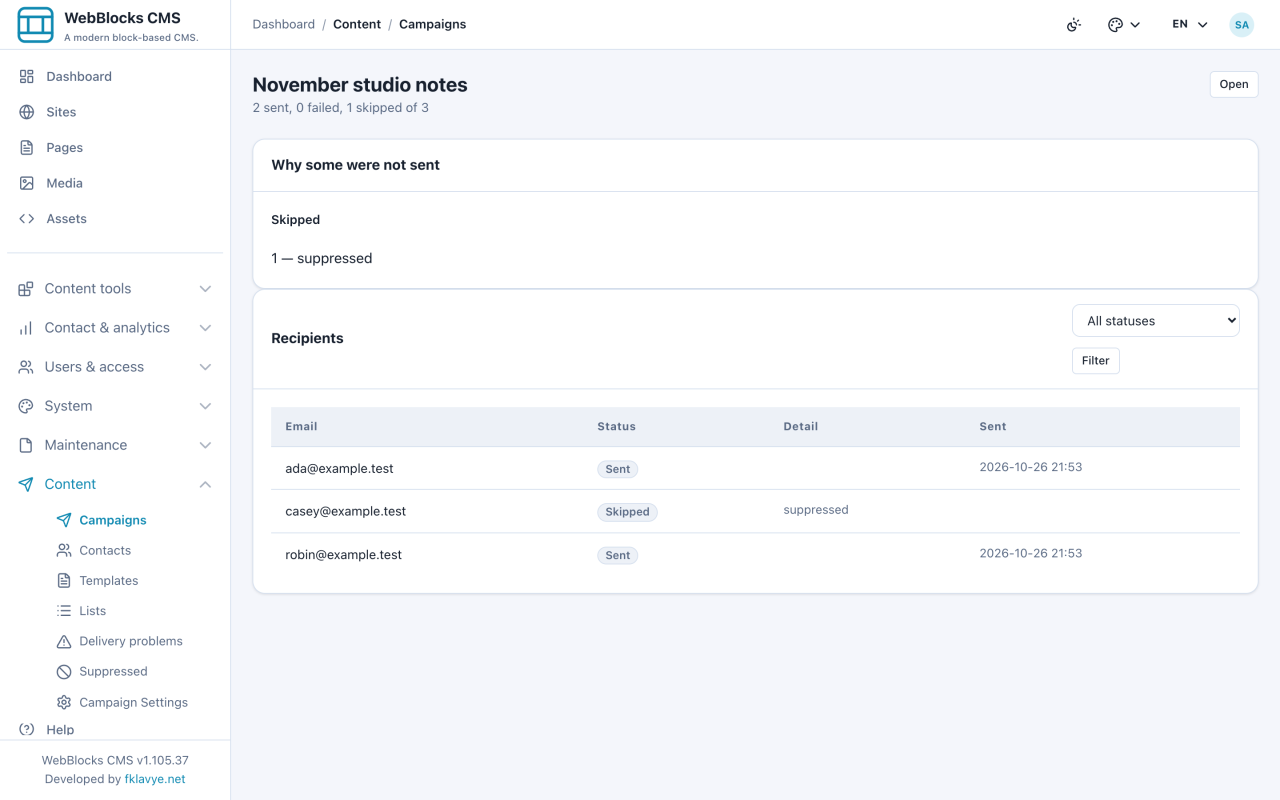
Install Campaigns, import contacts, collect confirmed subscriptions, prepare personalized messages, and manage sending, unsubscribe requests and retries.
Read the guide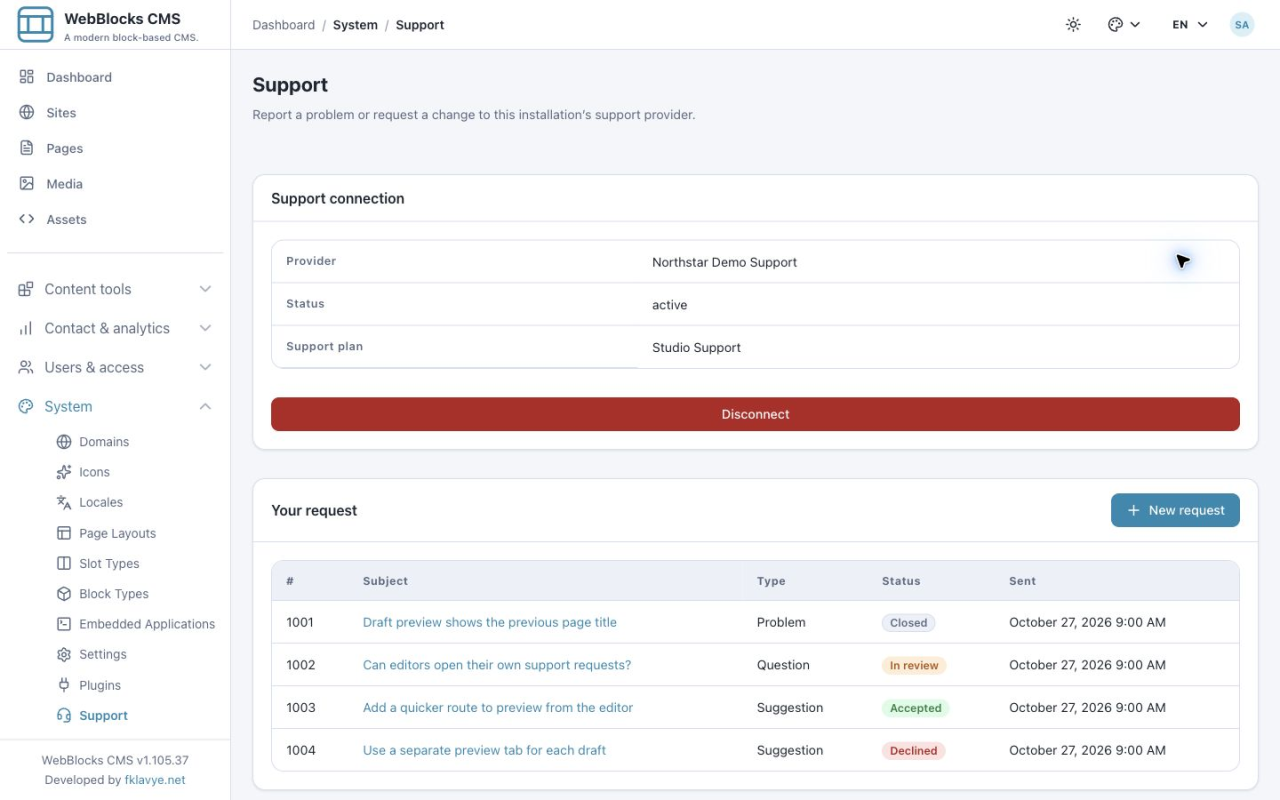
Install Support, activate a provider connection, open clear requests, follow replies, and approve or decline limited diagnostic sharing.
Read the guide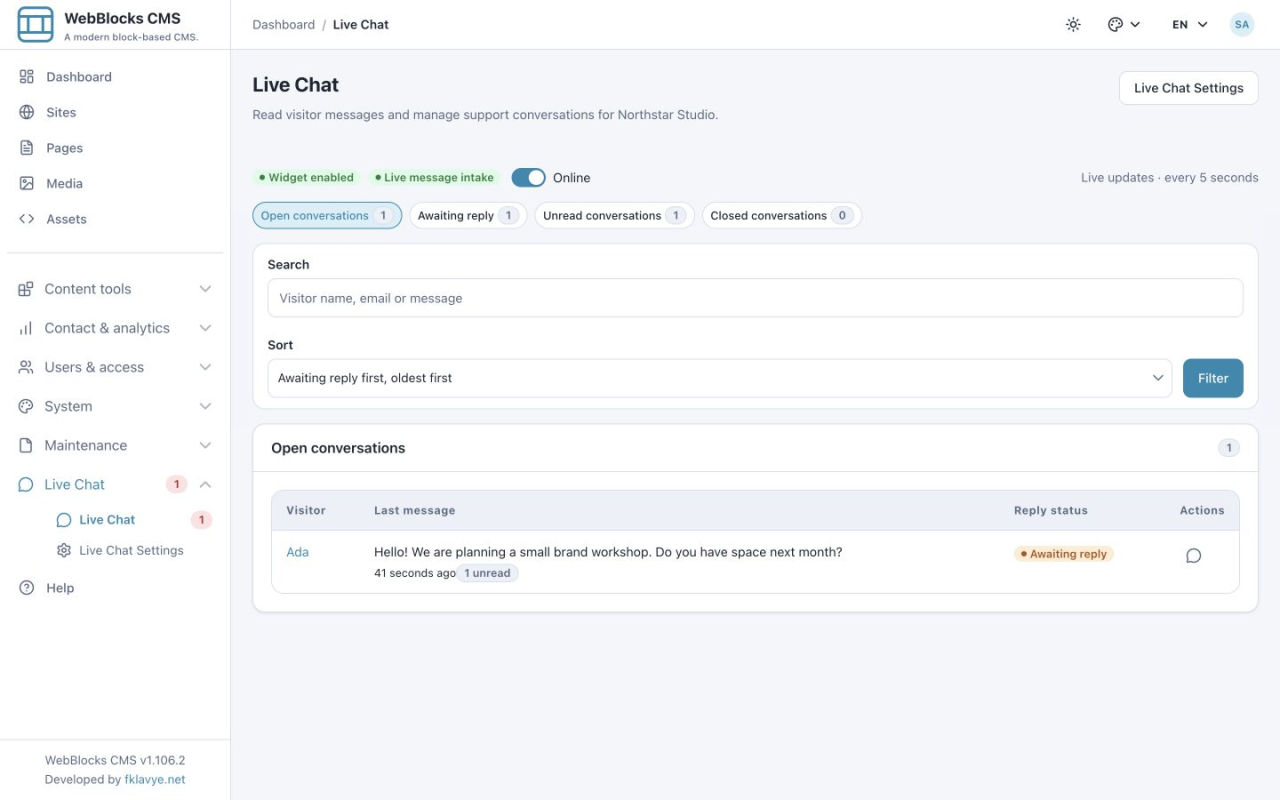
Install Live Chat, configure a localized visitor widget, answer conversations, manage unread work, and test offline intake and operator notifications.
Read the guide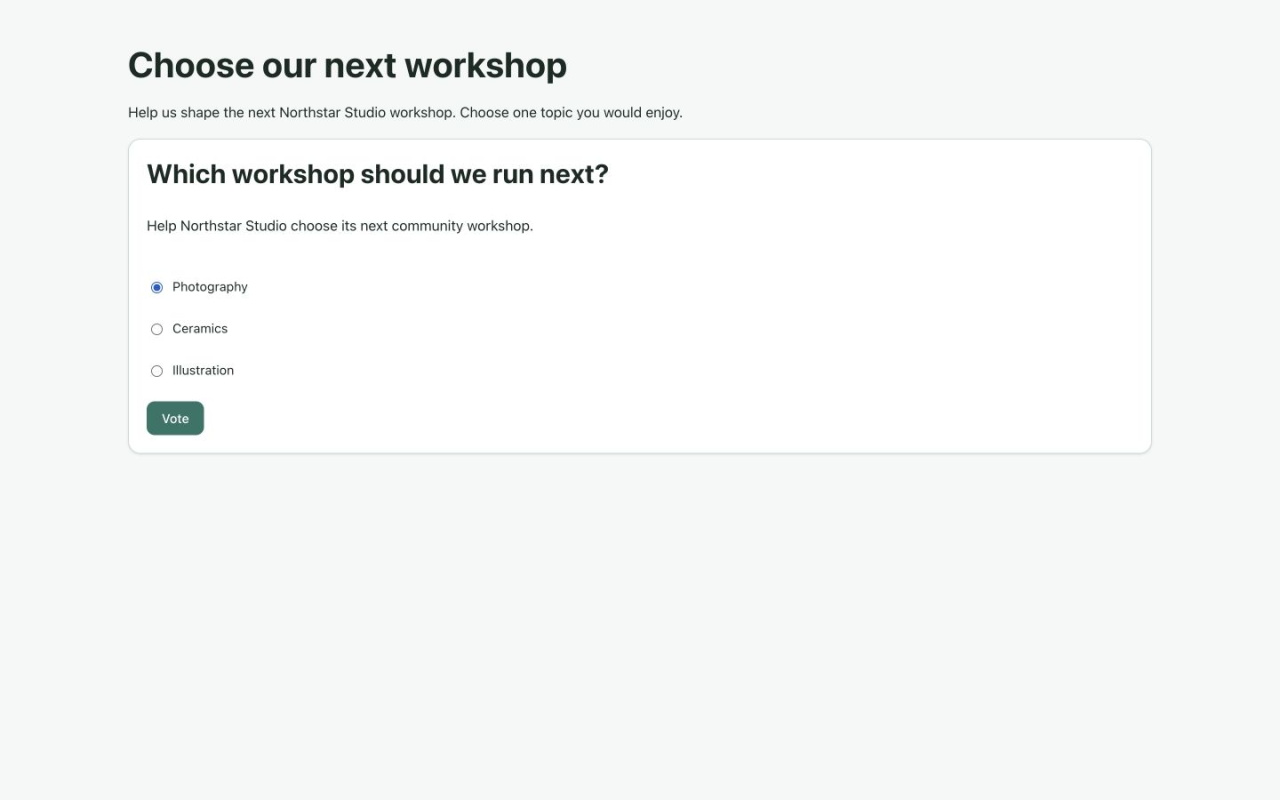
Install Polls, create questions and choices, place a poll on a page, collect votes, export results, and understand visibility and scheduling.
Read the guide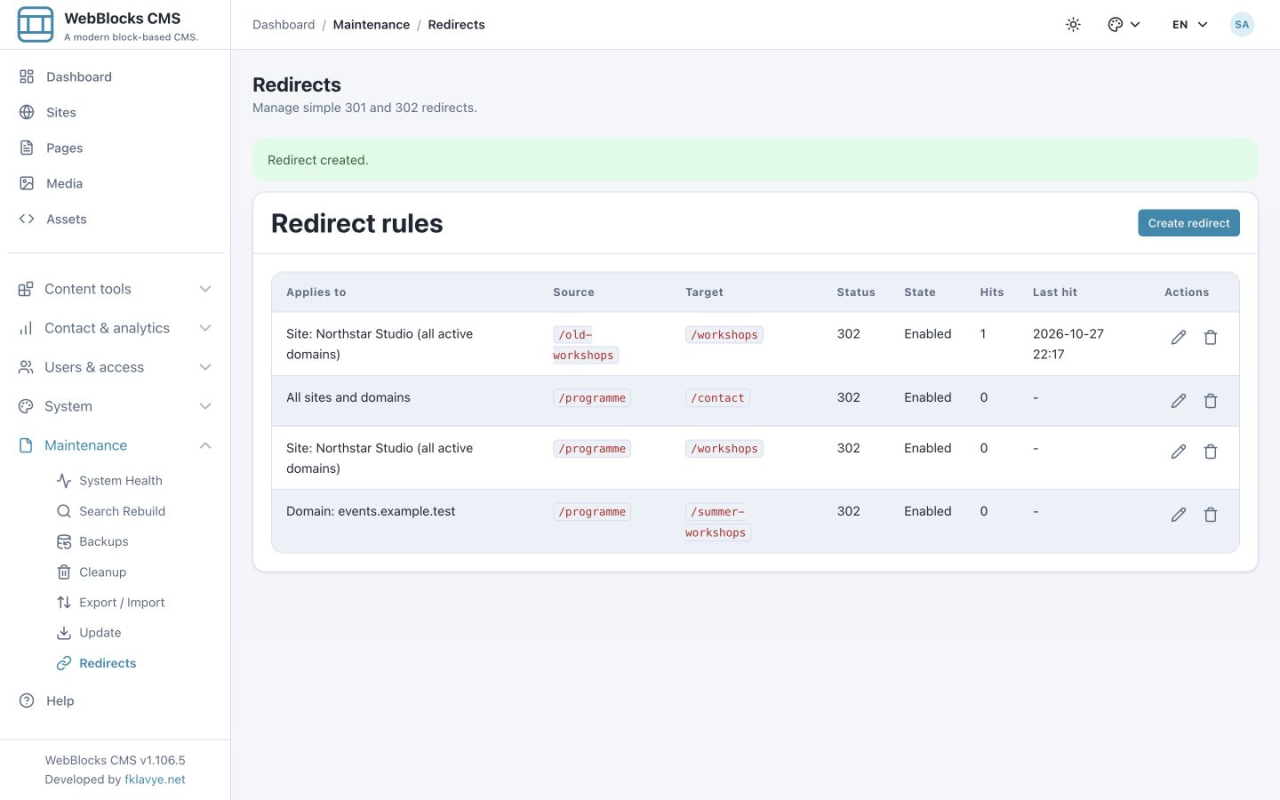
Install Redirect Manager, move old URLs with 301 or 302 rules, choose site and domain scopes, test redirects, and monitor hits.
Read the guide