Manage URL Redirects With WebBlocks Redirect Manager
Keep old links useful when your website changes. WebBlocks Redirect Manager sends visitors from an old address to a new destination with a 301 permanent or 302 temporary HTTP redirect. You can apply a rule to every site, one site's active domains, or one exact domain, then inspect its hit count in the CMS panel.
In this walkthrough, Northstar Studio moves its workshop listing from /old-workshops to /workshops. You will install the plugin, create a temporary redirect, visit the old address, check the recorded hit, compare scope rules, change a tested rule to permanent, and disable it without losing its history.
The illustrations show the published Redirect Manager 0.1.28 package on WebBlocks CMS 1.106.5, with WebBlocks UI 2.32.0, an English interface, light theme and fictional studio content. The domains studio.example.test and events.example.test are demonstration names; use your own registered site domains when following the steps.
For general installation help, see Plugin System. The Redirect Manager reference covers its integration, while this guide walks through the current panel and the site/domain scopes available in 0.1.28.
Before you start
Use a test site and a Super admin account for installation. The official catalogue declares CMS ^1.100.0, PHP ^8.3 and Laravel ^13.0 compatibility for Redirect Manager 0.1.28. Your CMS release may impose further requirements; this walkthrough runs on PHP 8.4. Check the compatibility result for your host in the official Redirect Manager catalogue.
Prepare and publish the destination page first. In our example, /workshops already opens successfully. The plugin sends a redirect response; it does not create the destination, publish a draft, update existing links, or verify that a remote website is available.
Write down three decisions before saving: the old path, the intended destination, and the site or domain that owns the old link. Use a site scope for an ordinary change to one website. A global rule affects matching requests across the installation, so choose it only when that broad behavior is intended.
1. Install and enable Redirect Manager
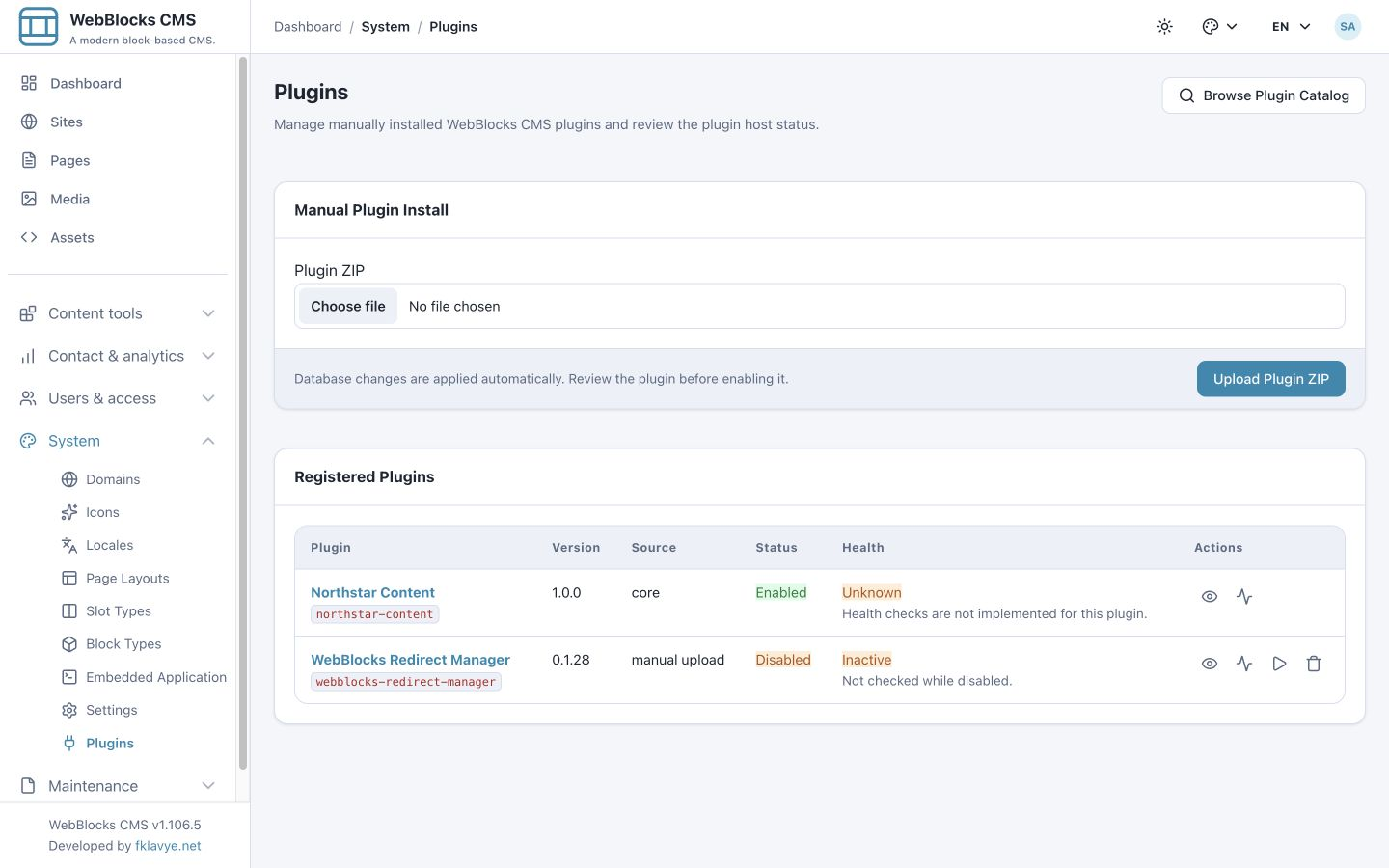
- Open System → Plugins as Super admin.
- Choose Browse Plugin Catalog and find WebBlocks Redirect Manager.
- Review its version, release notes and compatibility, then choose Install from Catalog.
- If your administrator supplies the official published archive instead, select it under Plugin ZIP and choose Upload Plugin ZIP.
- Review the installed package before enabling it.
Our example uses the official published ZIP. A newly installed plugin starts Disabled. The current CMS applies its database changes through the normal installation and activation lifecycle.
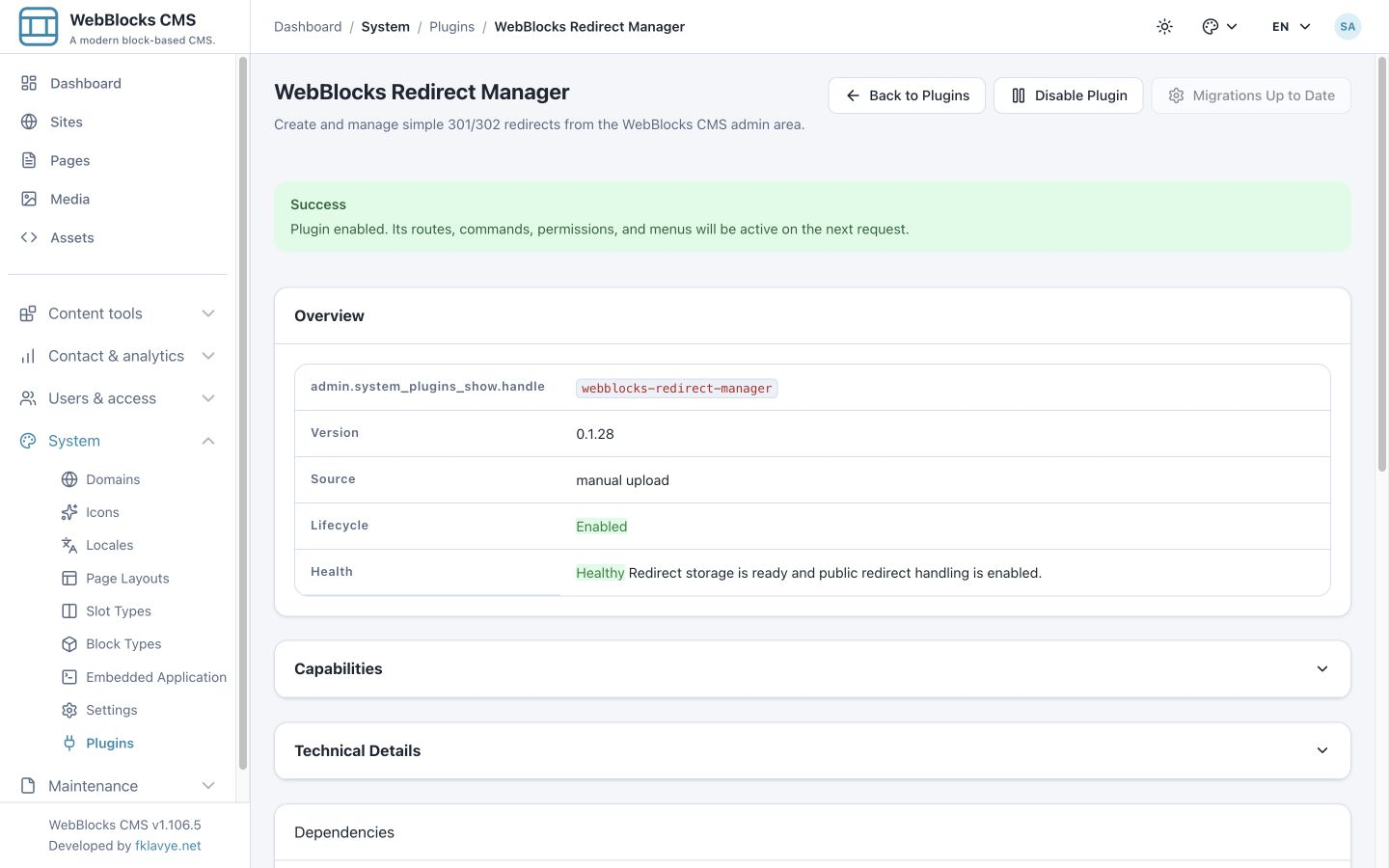
Open WebBlocks Redirect Manager, then choose Enable Plugin. Confirm Enabled, Healthy storage and Migrations Up to Date. A healthy installation reports that redirect storage is ready and public redirect handling is enabled.
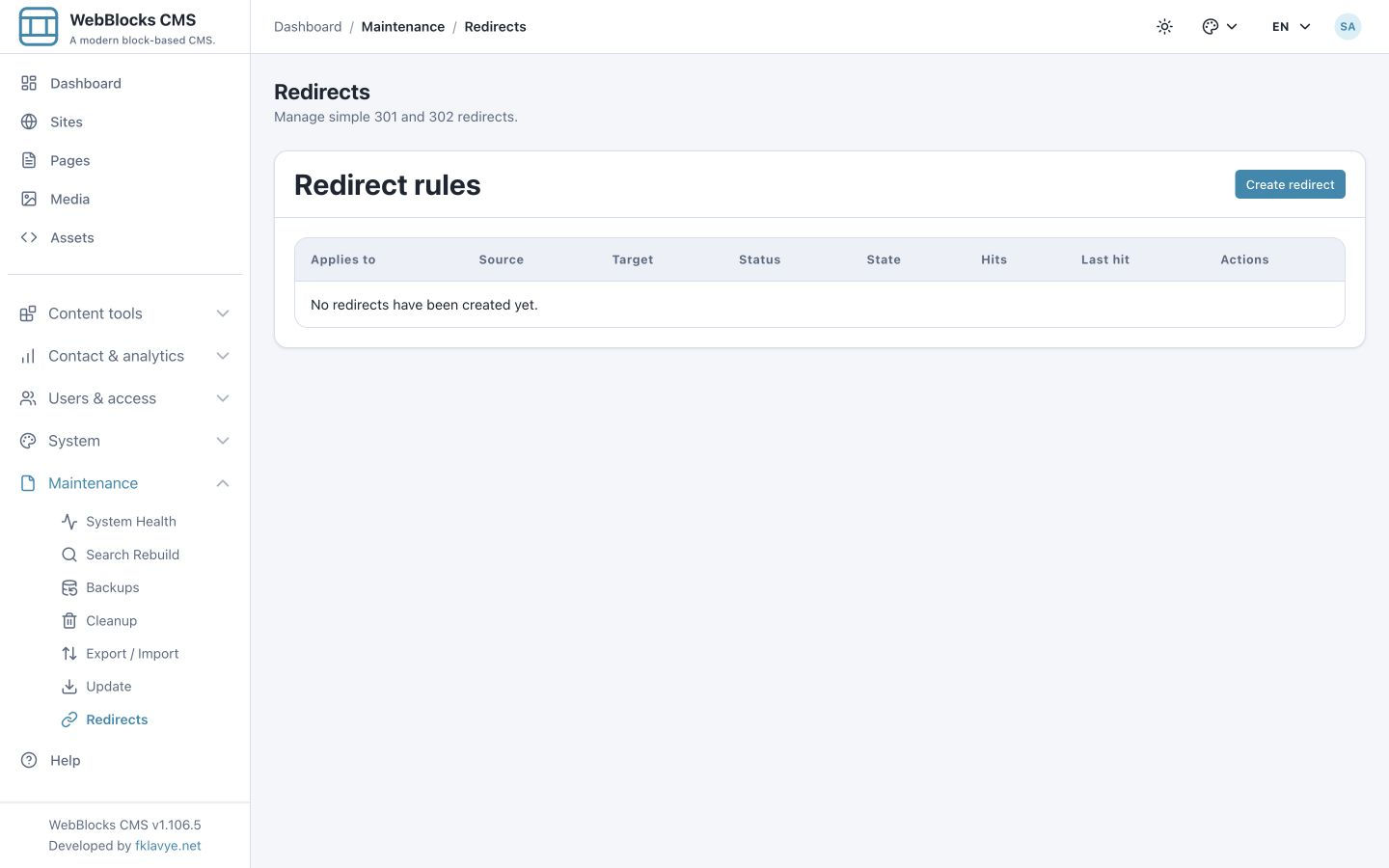
Open Maintenance → Redirects. On a fresh installation, the list says No redirects have been created yet. The Create redirect action opens the rule form.
If the menu has not appeared immediately after enabling, reload the panel. If storage is not ready, resolve the plugin's database update or compatibility warning before creating rules.
2. Give operators the right permissions
Redirect Manager separates reading the list from changing rules:
| Permission | What it allows |
|---|---|
| webblocks-redirect-manager.view | Open the Redirects list and inspect rules and hit totals. |
| webblocks-redirect-manager.manage | Create, edit and delete redirect rules. |
An operator who manages rules normally needs both permissions. Installation and plugin lifecycle actions remain administrative operations. Use Roles and Permissions to assign access appropriate to your team.
The panel list contains rules from across the installation. Applies to controls which public requests match a rule; it is not a restriction on which rules a panel operator can see or manage. Treat rule-management permission as access to installation-wide routing changes. Internal API site restrictions are a separate integration control.
3. Create your first temporary redirect
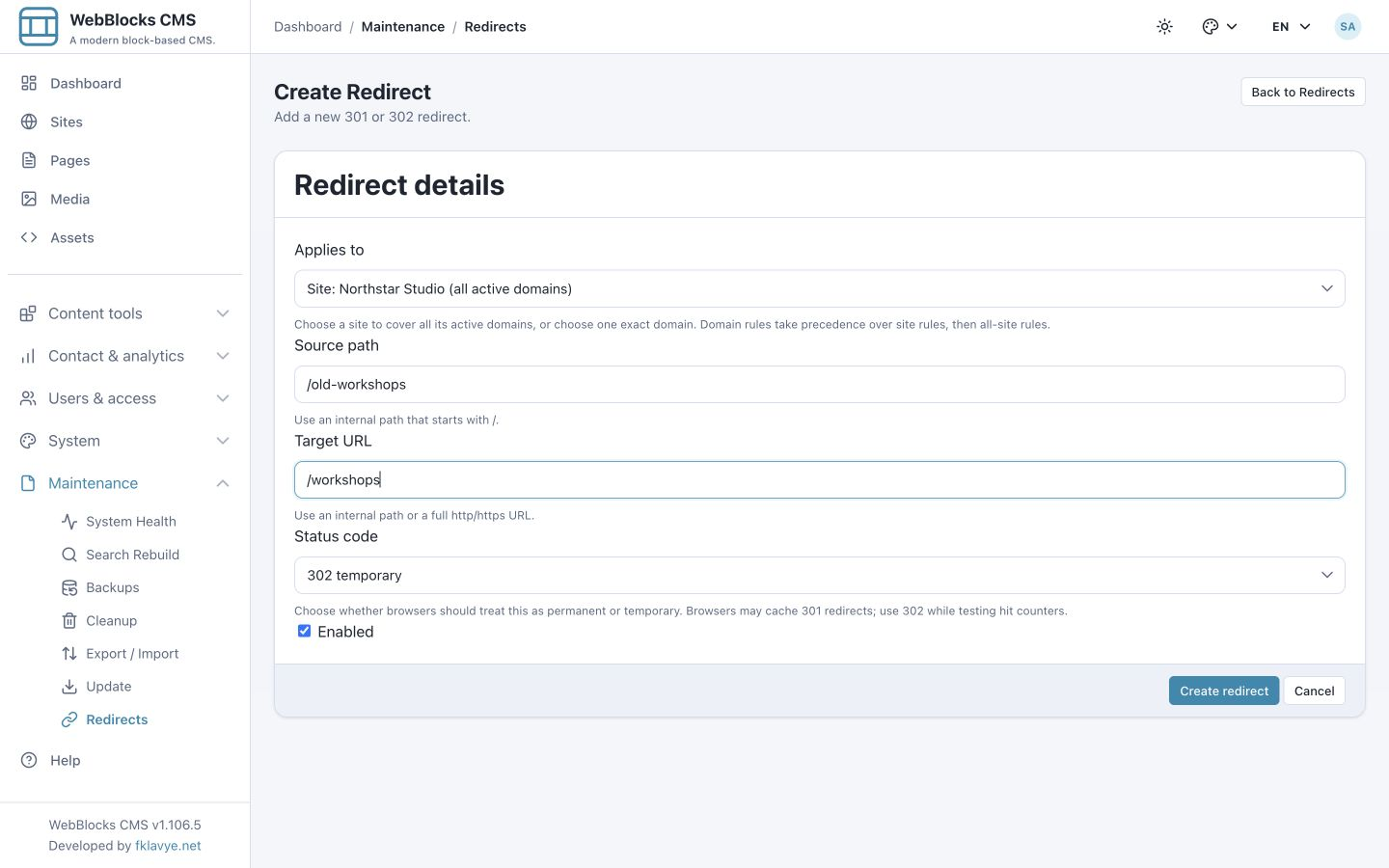
Choose Create redirect and enter the following:
| Field | Our example | Why it matters |
|---|---|---|
| Applies to | Site: Northstar Studio (all active domains) | Limits the redirect to the intended site's registered active domains. |
| Source path | /old-workshops | The address visitors are still opening. |
| Target URL | /workshops | The published replacement page. |
| Status code | 302 temporary | Makes testing easier before committing to a permanent move. |
| Enabled | Checked | Makes the saved rule active immediately. |
The form initially selects All sites and domains, 301 permanent and Enabled. Change those defaults deliberately for this example. There is no separate publish action for a redirect rule: saving an enabled rule changes public routing as soon as the request reaches the active plugin.
Choose Create redirect. The success message confirms the save, and the new row shows its scope, source, target, status, enabled state, Hits and Last hit. A new rule begins with zero hits and a dash for the last-hit time.
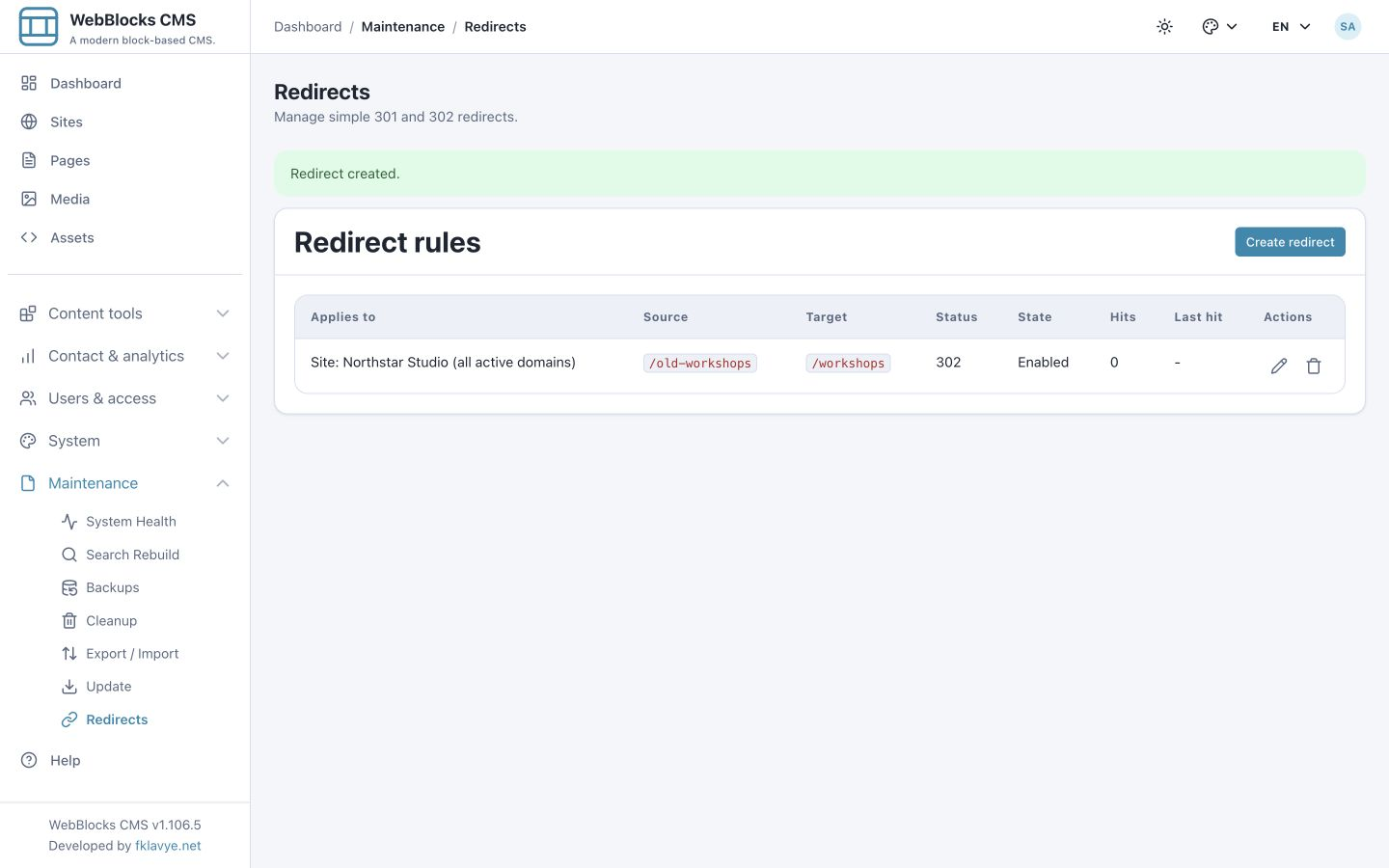
For a rule you want to prepare without activating, clear Enabled before saving. You can enable it later after reviewing the source, scope and destination.
4. Visit the old address and check the result
Open the old public URL on the site's actual domain. For our example, visiting /old-workshops leads to /workshops, where the replacement page opens normally. Check the browser address as well as the page content; the visible destination alone does not tell you whether the response was 301 or 302.

Return to Maintenance → Redirects and reload the list. The example now has 1 hit and a populated Last hit value. This is a real request through the redirect, rather than a manually entered counter.
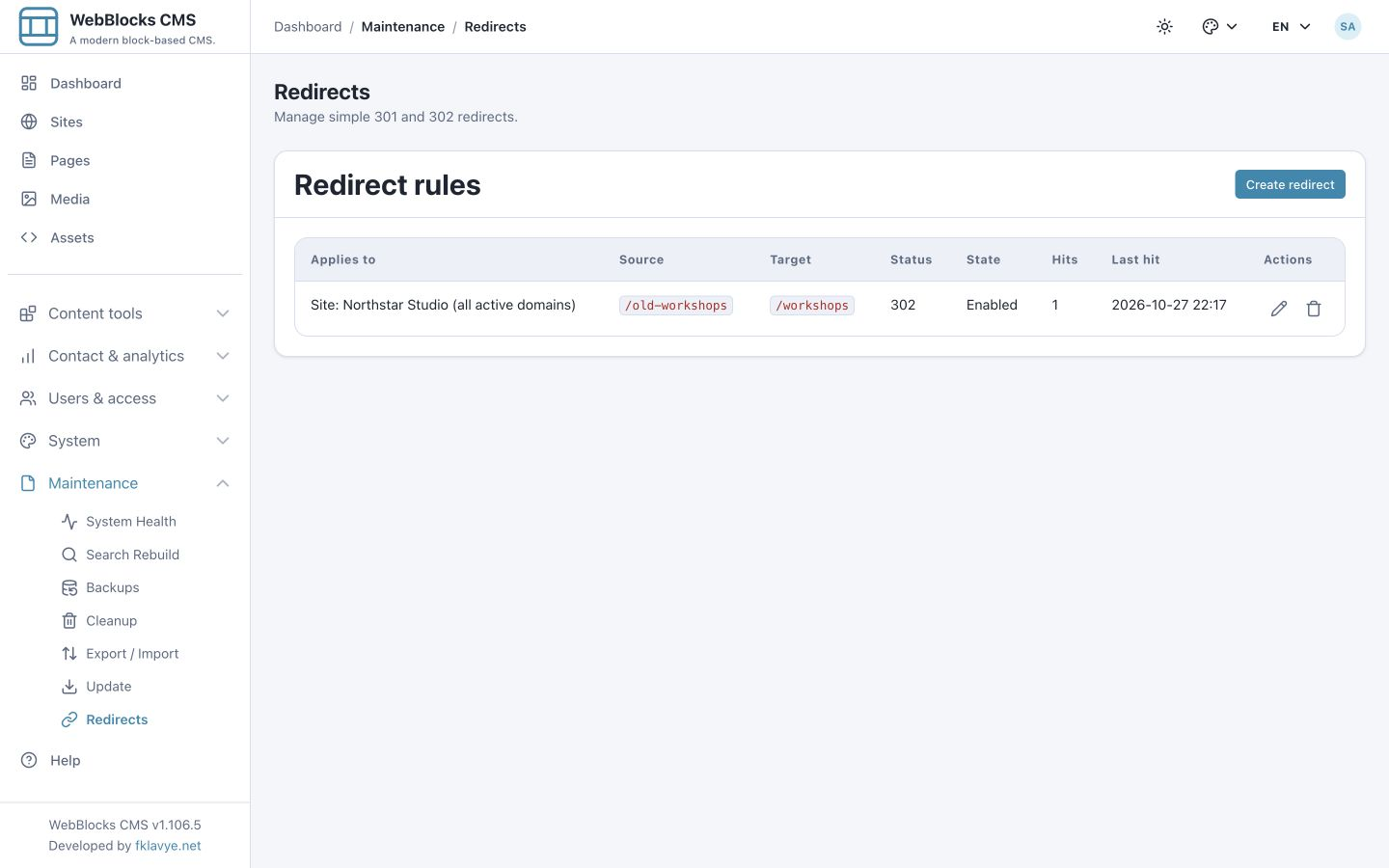
For a precise response check, use your browser's Network panel or an HTTP client against your own site. A HEAD request checks the response headers without downloading the destination page:
curl -I 'https://your-site.example/old-workshops'Replace the example host with your own. Expect 302 and a Location header pointing to /workshops for the rule above. This command does not follow the redirect. Check the destination separately and confirm it returns the page you intended.
GET and HEAD both count as hits. Monitoring tools, crawlers and repeated tests can increase the total. Hits are redirect matches reaching the application, not a count of unique people, successful destination visits or completed conversions.
5. Choose the right site or domain scope
The Applies to selector offers three kinds of scope. Site and domain choices come from the CMS site/domain records. If the domain you need is missing, configure the intended site's active domains first; the redirect form is not where you register a new hostname. See Multiple Sites.
All sites and domains
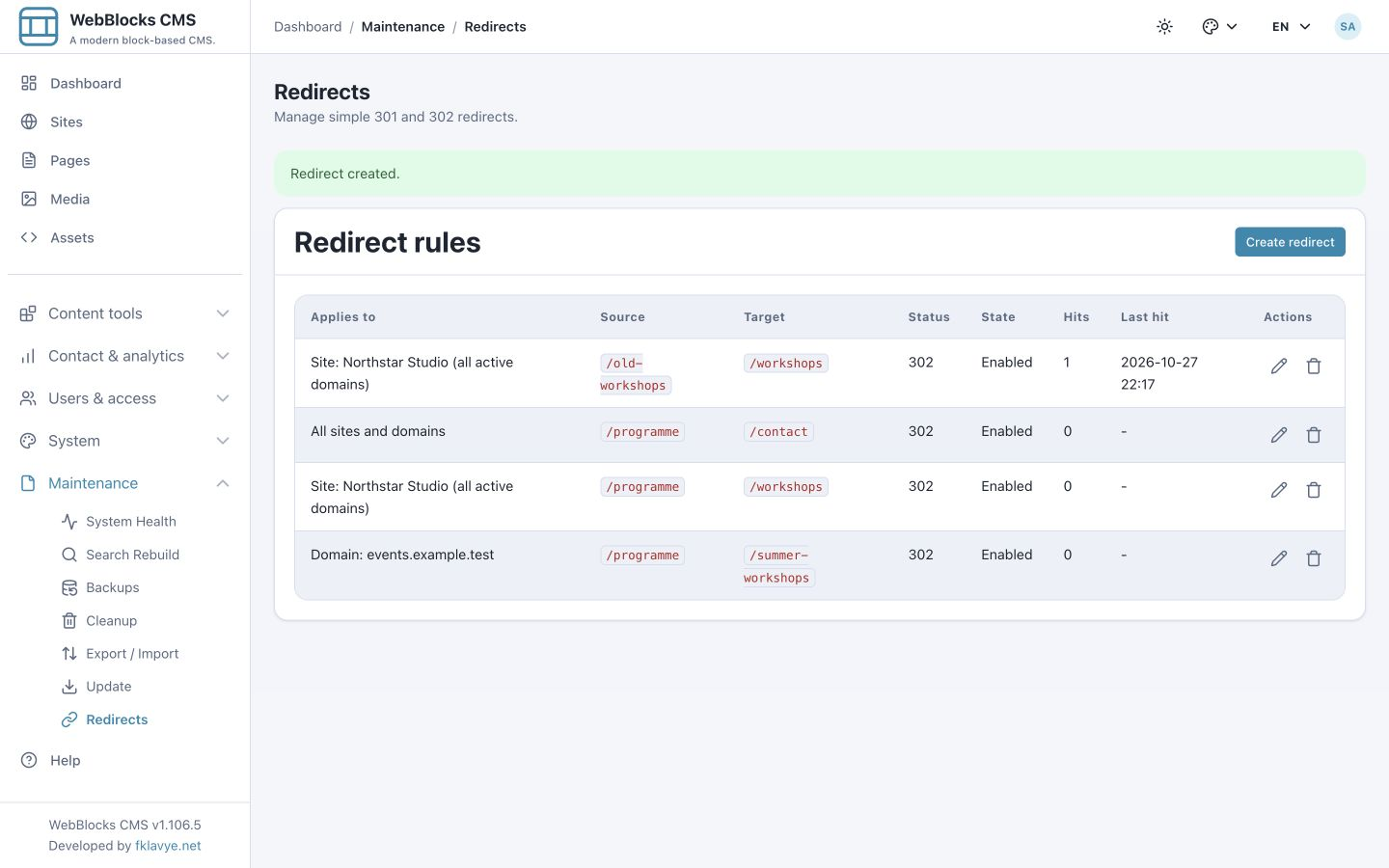
A global rule is a general fallback for a matching path across the installation. Here, /programme points to /contact wherever a more specific enabled rule does not win.
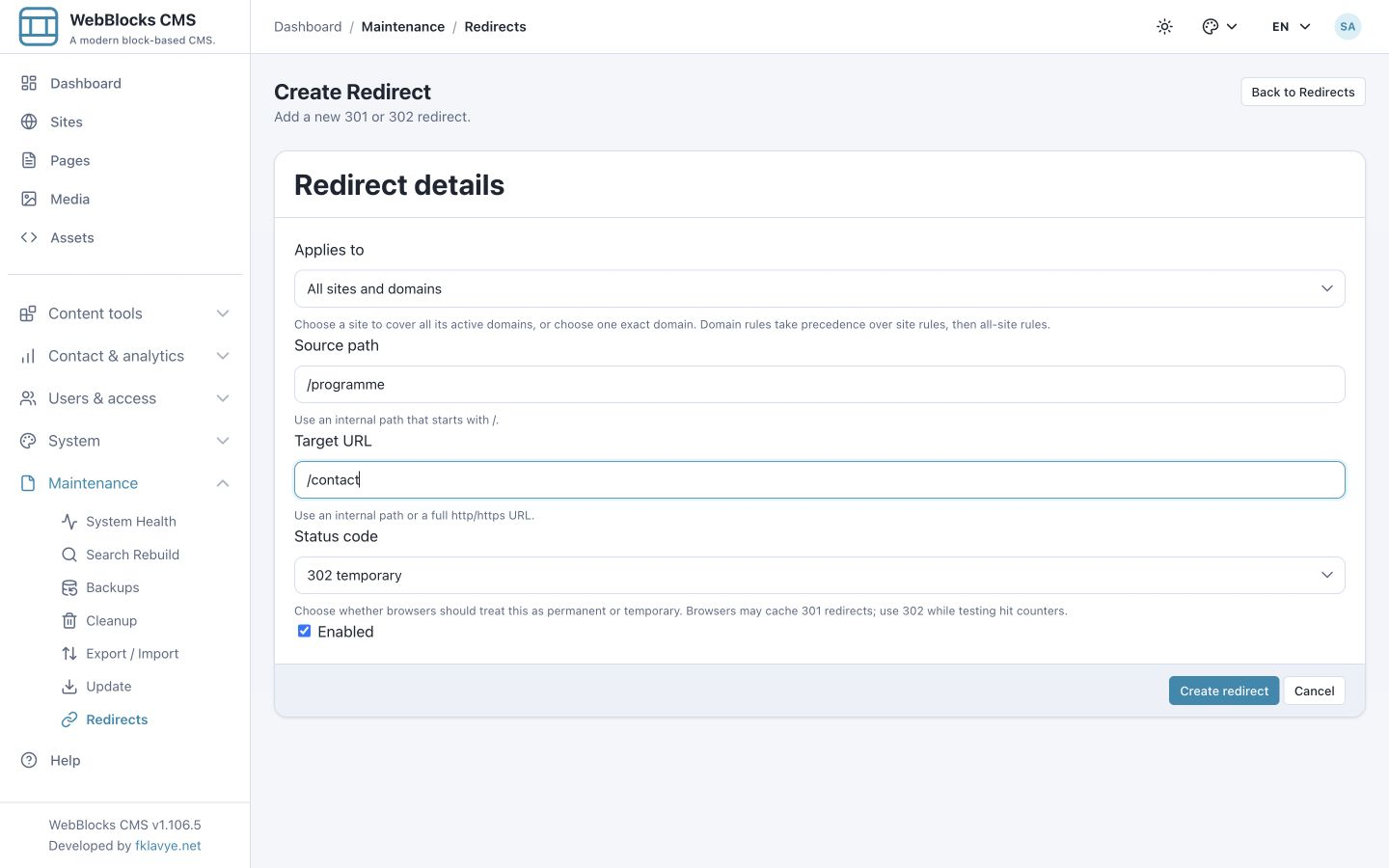
One site and all its active domains
A site rule matches the site's active registered domains. Our site-level /programme rule points to /workshops and takes precedence over the global rule on Northstar Studio's domains.
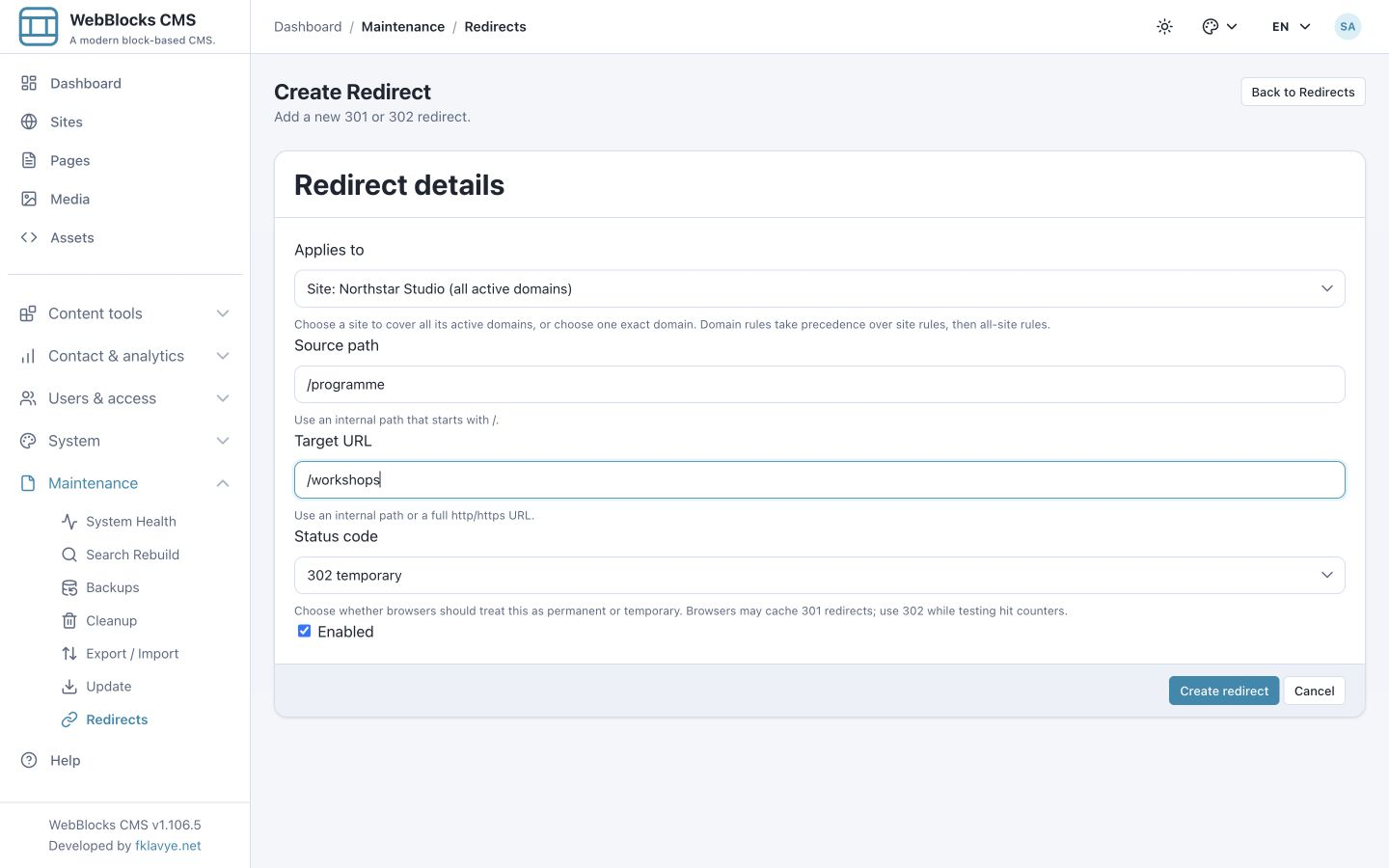
This scope follows the site's active domain records. Review routing when domains are added, removed or deactivated. An unknown hostname does not inherit the primary site's scoped rules simply because that site is the installation's default.
One exact domain
A domain rule matches only its selected hostname. Our events.example.test exception points /programme to /summer-workshops. It does not automatically cover studio.example.test, a www variant, or other subdomains.
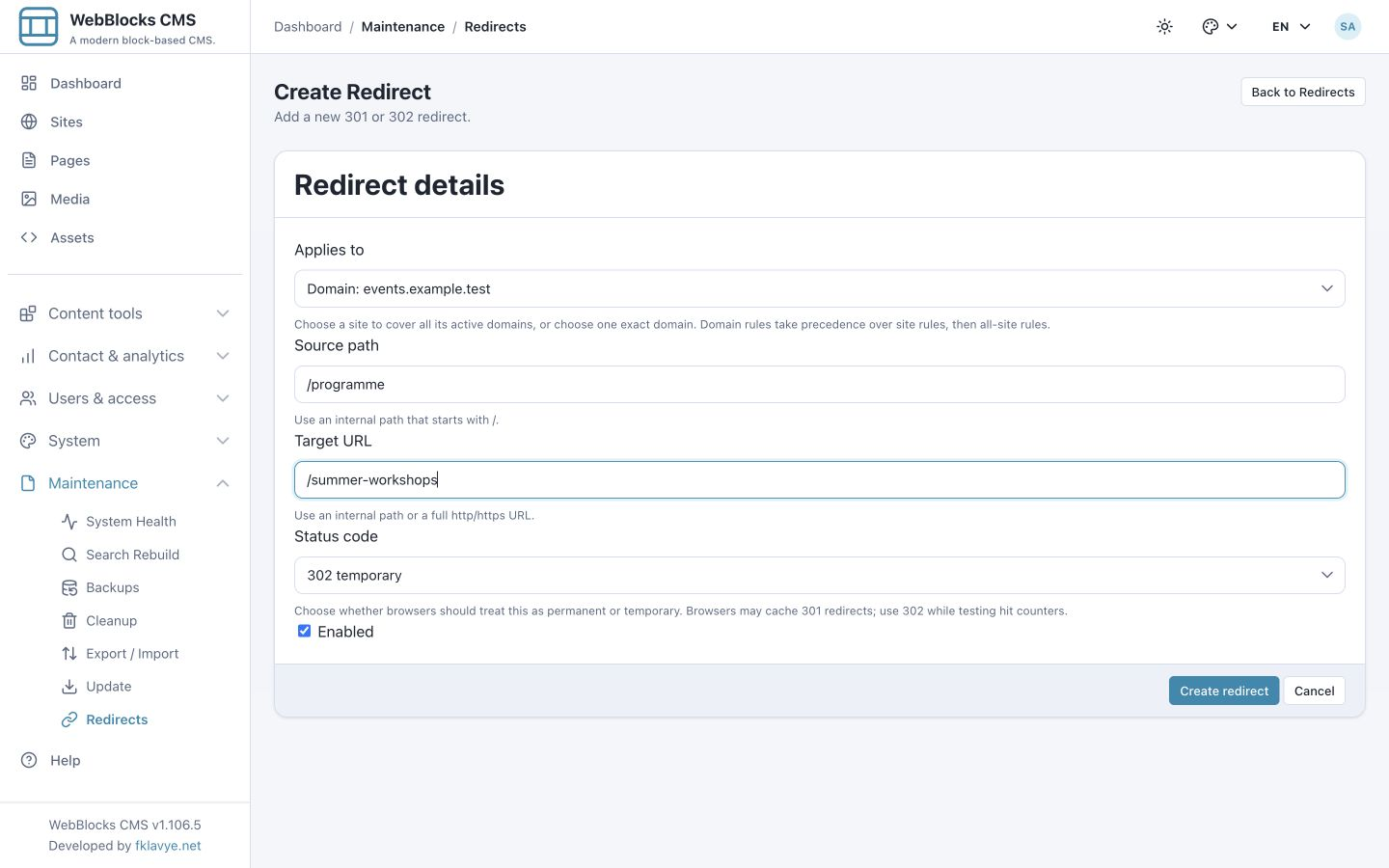
These three rules can coexist because a source path must be unique within its scope, rather than across every scope in the installation.
6. Understand which matching rule wins
For the same source path, enabled matching rules are considered in this order:
- Exact domain.
- Site associated with the incoming hostname.
- All sites and domains.
With the three /programme examples, the result is:
| Incoming hostname | Winning scope | Destination |
|---|---|---|
| events.example.test | Domain: events.example.test | /summer-workshops |
| studio.example.test | Site: Northstar Studio | /workshops |
| Another active Northstar Studio domain | Site: Northstar Studio | /workshops |
| A hostname that reaches this installation without matching that site | All sites and domains | /contact |
The final row explains plugin matching after a request reaches the CMS; it does not configure DNS or make an unregistered hostname serve your site. Your hosting, domain and canonical-domain settings still apply.
After testing the relevant hosts, the list's individual counters show which rules handled requests. Disabling a more specific rule can expose a broader enabled rule underneath it. Check for site and global fallbacks when disabling a domain exception.
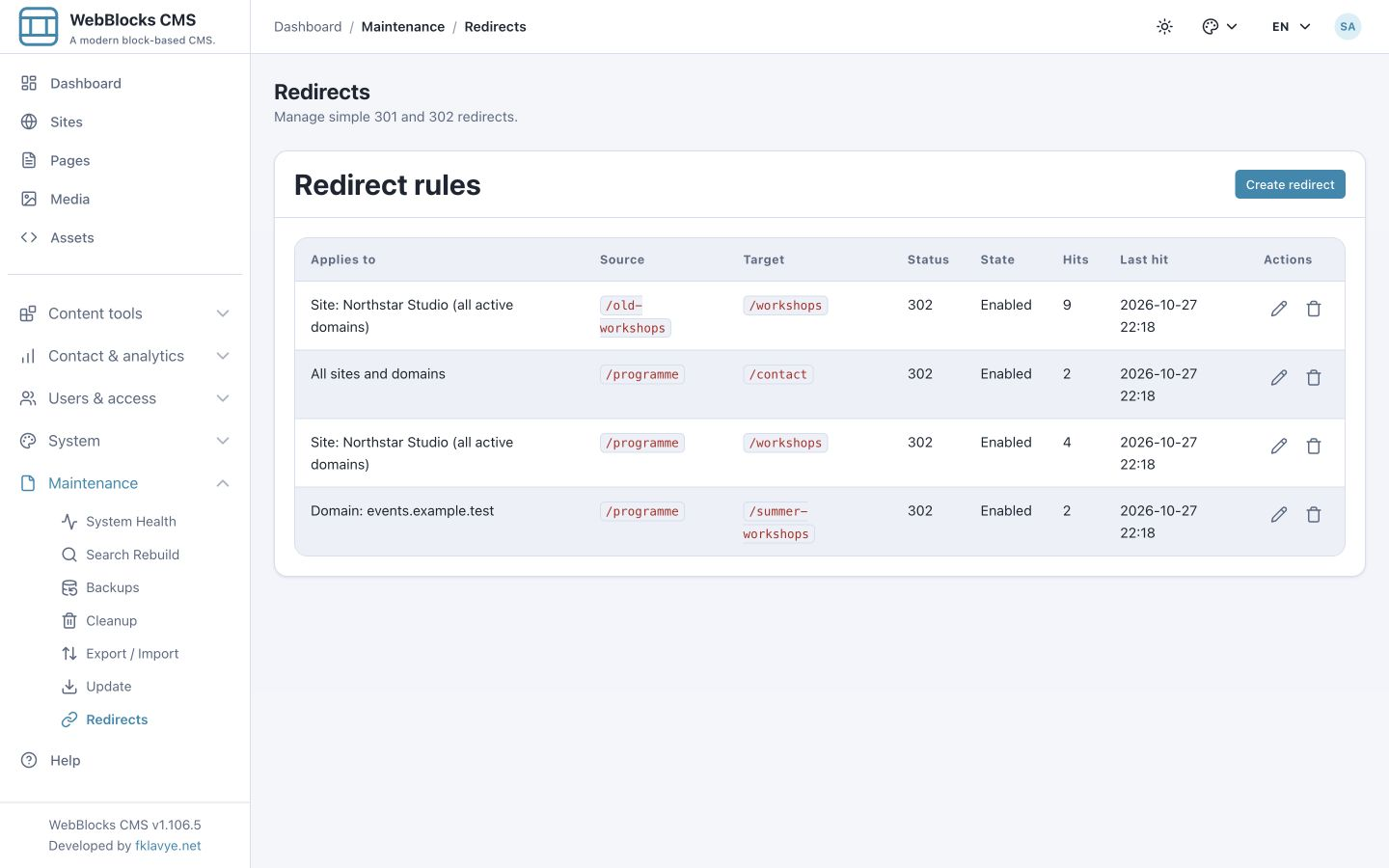
Test the exact public hostname, including any alias or canonical-domain behavior in your deployment. A web server, CDN or domain-level redirect can respond before a request reaches Redirect Manager.
7. Enter source paths and destinations correctly
Source path is an internal path, not a complete URL. Enter /old-workshops, rather than https://your-site.example/old-workshops. The plugin normalizes a missing leading slash and trailing slashes, so old-workshops, /old-workshops and /old-workshops/ identify the same source.
Matching is exact after normalization. A rule for /old-workshops does not match /old-workshops/photography. There is no wildcard, regular-expression, prefix replacement or automatic path-suffix forwarding in this form. Treat letter case consistently; our tested host did not match /OLD-WORKSHOPS to the lowercase example.
Incoming query parameters are ignored when matching the source. Both /old-workshops and /old-workshops?utm_source=newsletter match the same rule. The incoming query string is not automatically copied to the target. If the target requires a fixed query, put it directly in the Target URL, such as /workshops?from=legacy.
The target can be a root-relative path such as /workshops, or a full http/https URL such as https://destination.example/workshops. A root-relative target keeps the incoming host; use a complete URL if the move must send visitors to another domain. Scheme-relative targets such as //destination.example/workshops are rejected. URL fragments are browser-side and cannot distinguish incoming source rules.
Do not use this plugin to reroute form submissions or API writes. It inspects public GET and HEAD requests; other methods continue to the host application. It also skips the reserved /admin, /api, /webadmin, /cms, /storage, /assets, /static, /build, /vendor and /webblocks-ui namespaces, including their descendants. Files served directly by the web server may never enter CMS routing.
An enabled rule can override an existing public page at the same path. Confirm that taking the old page out of normal navigation is intentional before saving it. Redirect Manager does not need the source page to return 404 first.
8. Resolve validation errors and avoid loops
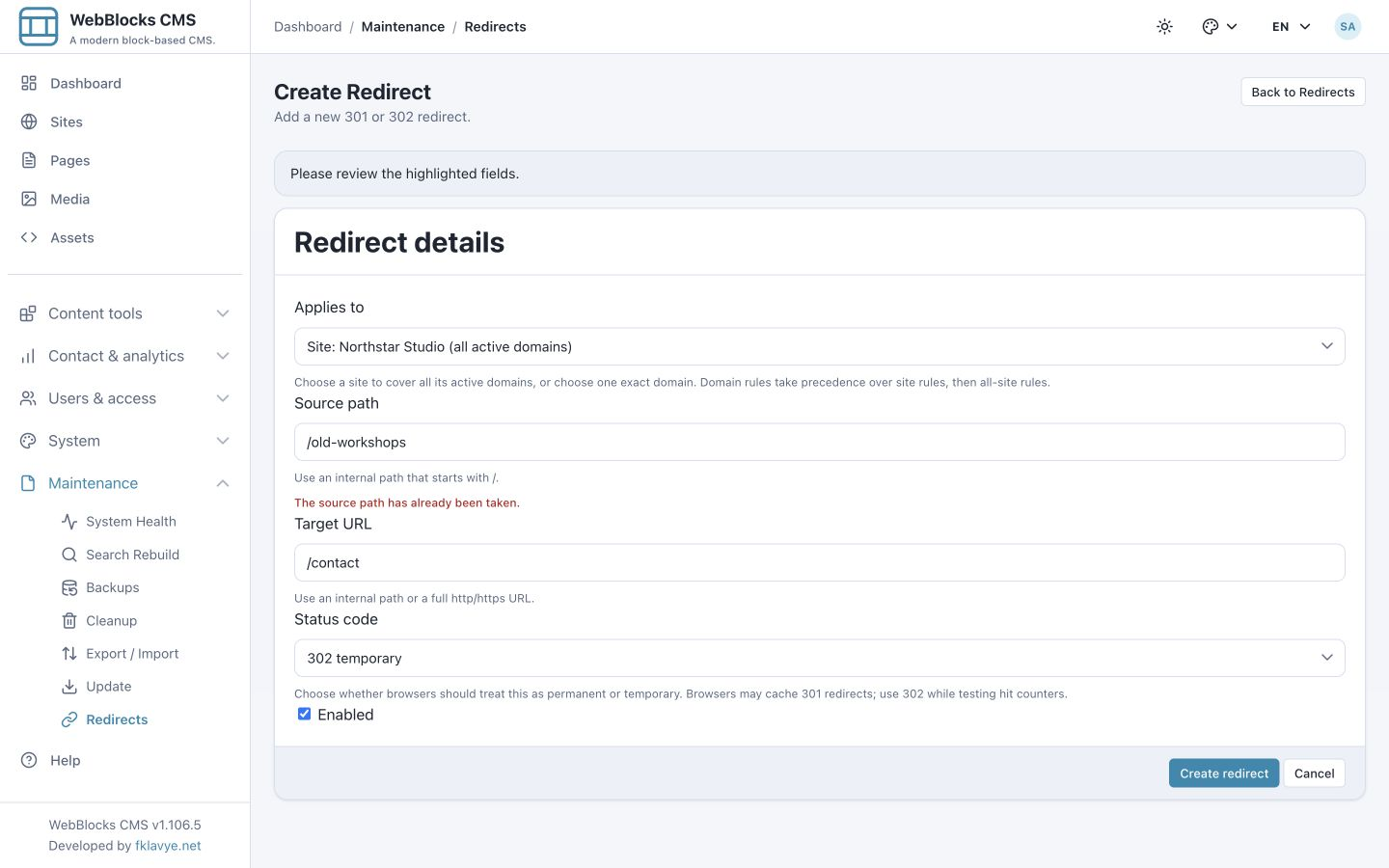
If you create the same normalized source twice in the same scope, the form reports The source path has already been taken. Edit the existing rule instead. A disabled rule still occupies its source within that scope.
The plugin rejects a direct internal self-redirect. /loop-check cannot point to /loop-check?from=legacy, because adding a query string does not change the underlying path. The error says The target must not redirect this path back to itself.
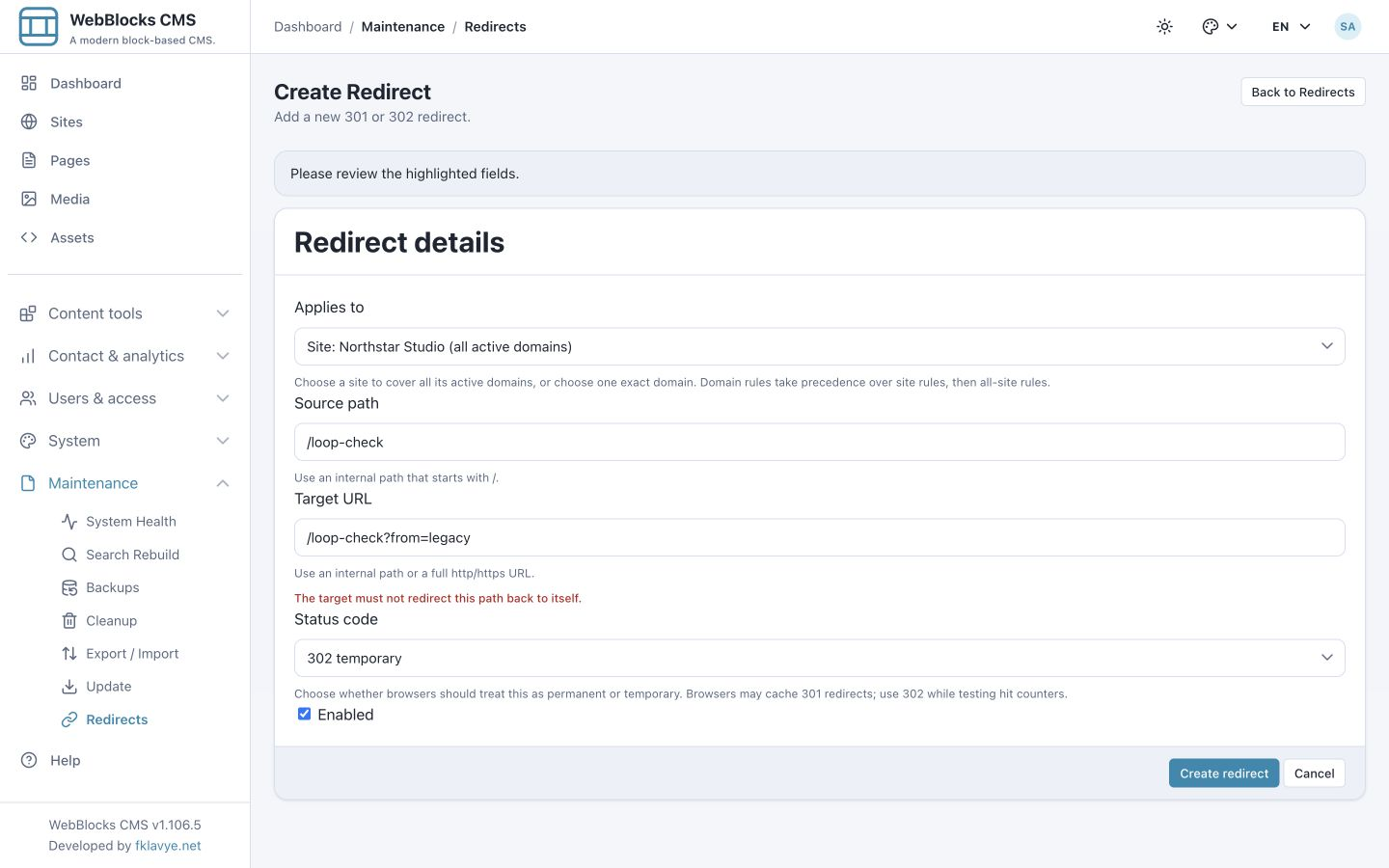
Direct self-loop protection does not replace reviewing the whole route chain. Avoid /a → /b combined with /b → /a, or a cross-domain redirect that another system sends back. Point old addresses directly to their final destination and test the complete chain.
For a homepage move, enter / as the source and choose a site or domain scope. An enabled global homepage rule is rejected with Choose a site or domain for a homepage redirect. This prevents an all-site root rule from taking over every homepage.
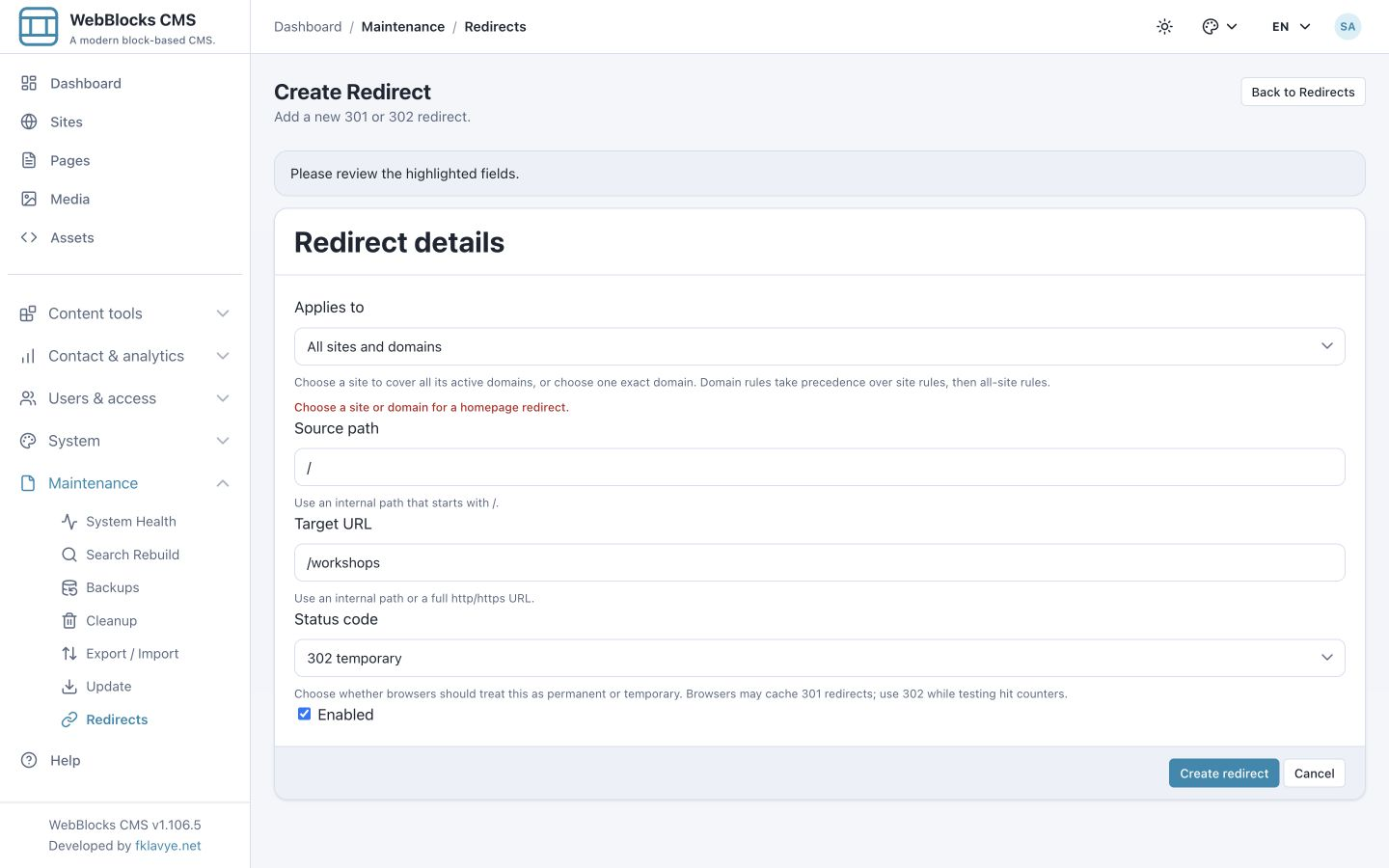
Review homepage destinations with particular care: a relative target remains on the current domain. Prefer a narrowly scoped rule and verify that the destination itself has no rule sending visitors back to /.
9. Change a tested move to 301 permanent
Keep 302 temporary while checking the source, hostname, destination and hit counter. When the move is intended to be permanent and the tests pass:
- Find the rule in Maintenance → Redirects.
- Choose its pencil action, Edit redirect.
- Confirm Applies to, Source path and Target URL.
- Change Status code to 301 permanent.
- Leave Enabled checked and choose Save changes.
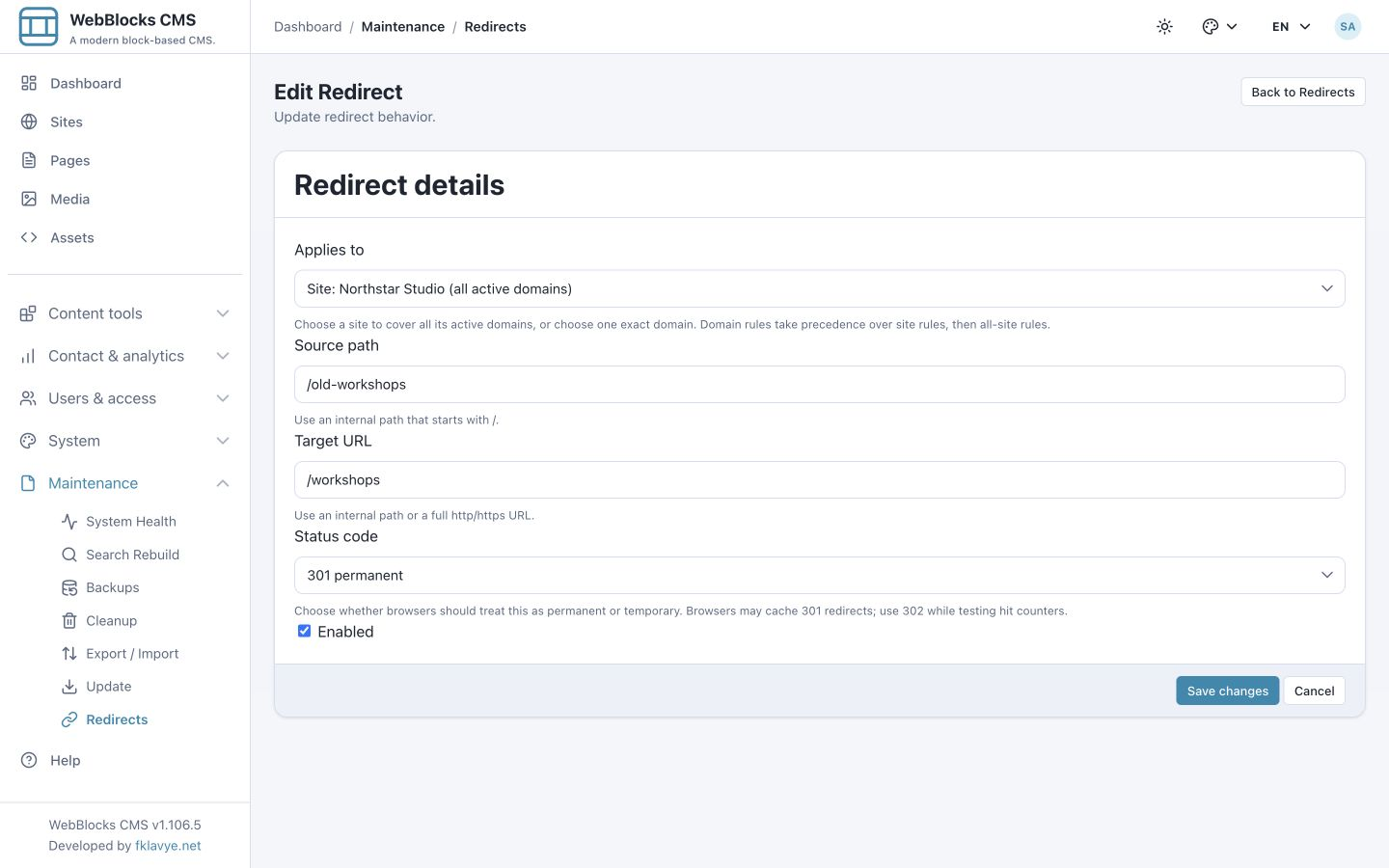
The list now shows 301 and the browser-cache reminder. Editing a rule preserves its existing hit count and last-hit history.
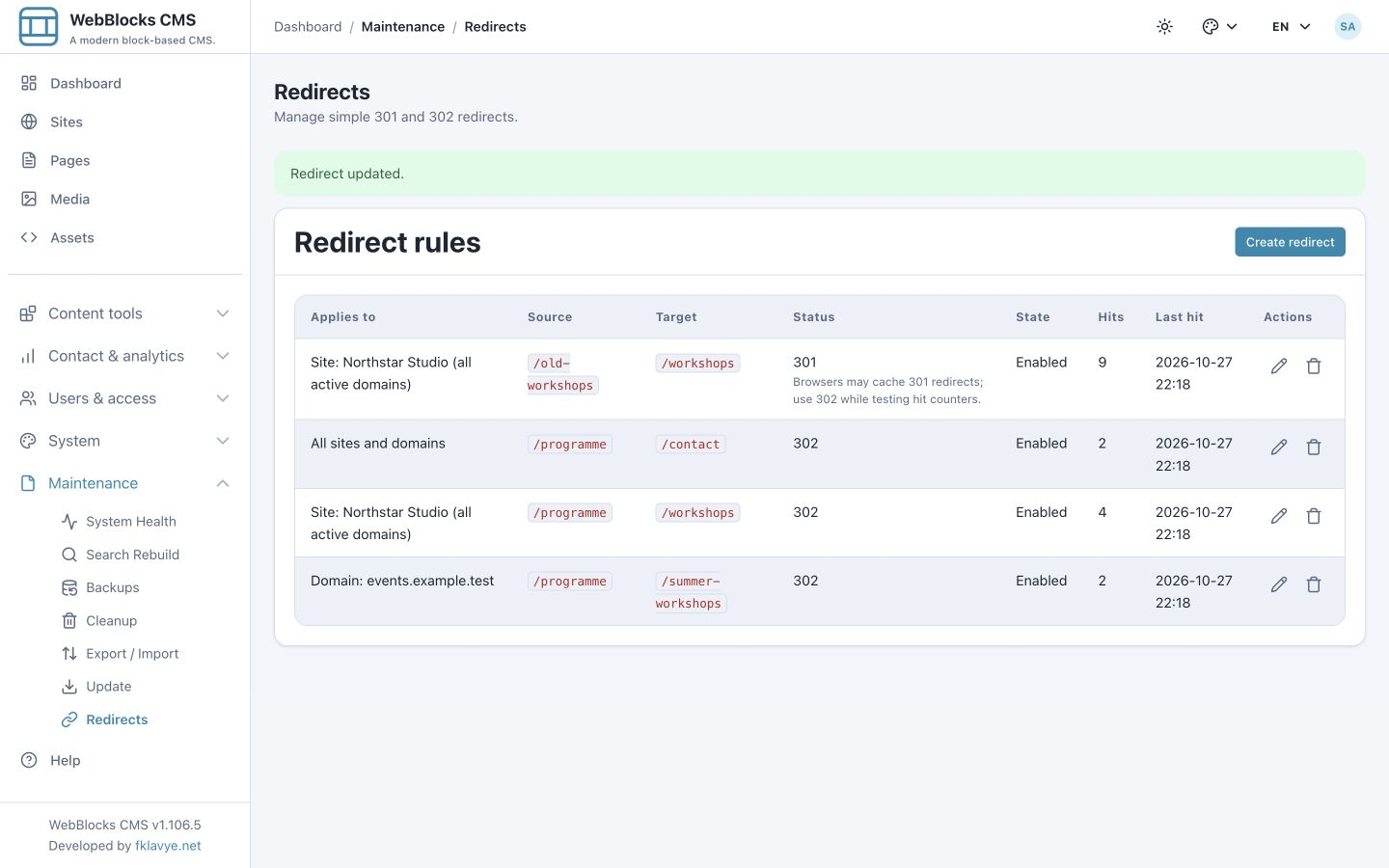
Browsers may cache 301 redirects and reuse them without contacting the CMS. A cached redirect can make a changed destination appear unchanged and can prevent a new server-side hit from being recorded. Check with an HTTP client that makes a fresh request, or use the browser's network tools with cache disabled. Turning a rule off cannot recall responses already cached by clients or upstream infrastructure.
10. Disable, re-enable or remove a rule
To stop a redirect while keeping its configuration and history, edit it, clear Enabled, and choose Save changes.
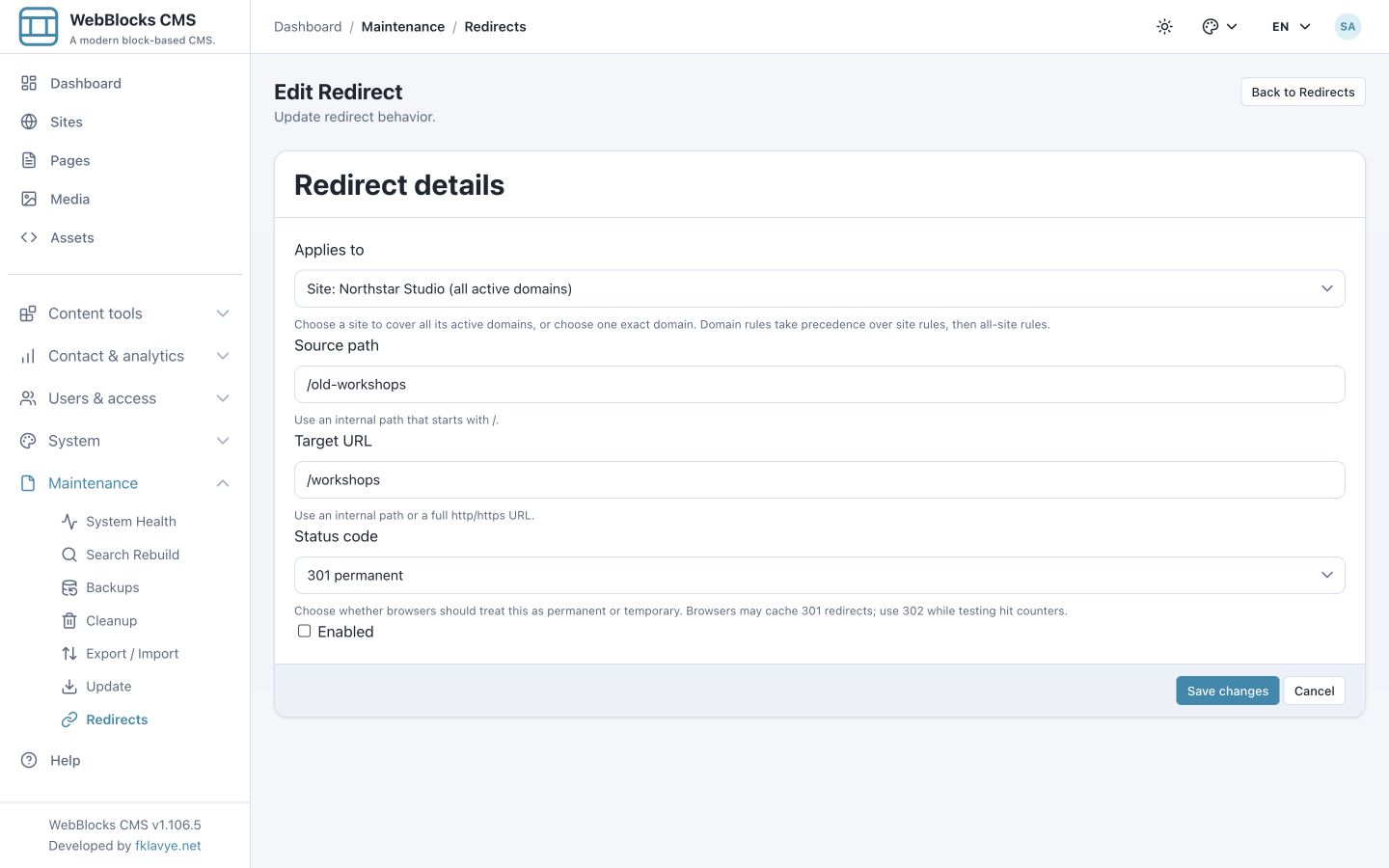
The row remains in the list as Disabled. Fresh requests no longer use that rule and its counter stops increasing. The host serves its ordinary page or 404 response unless another enabled scope rule or another redirect layer applies. In our workshop example, the unused old address returns 404 after disabling.
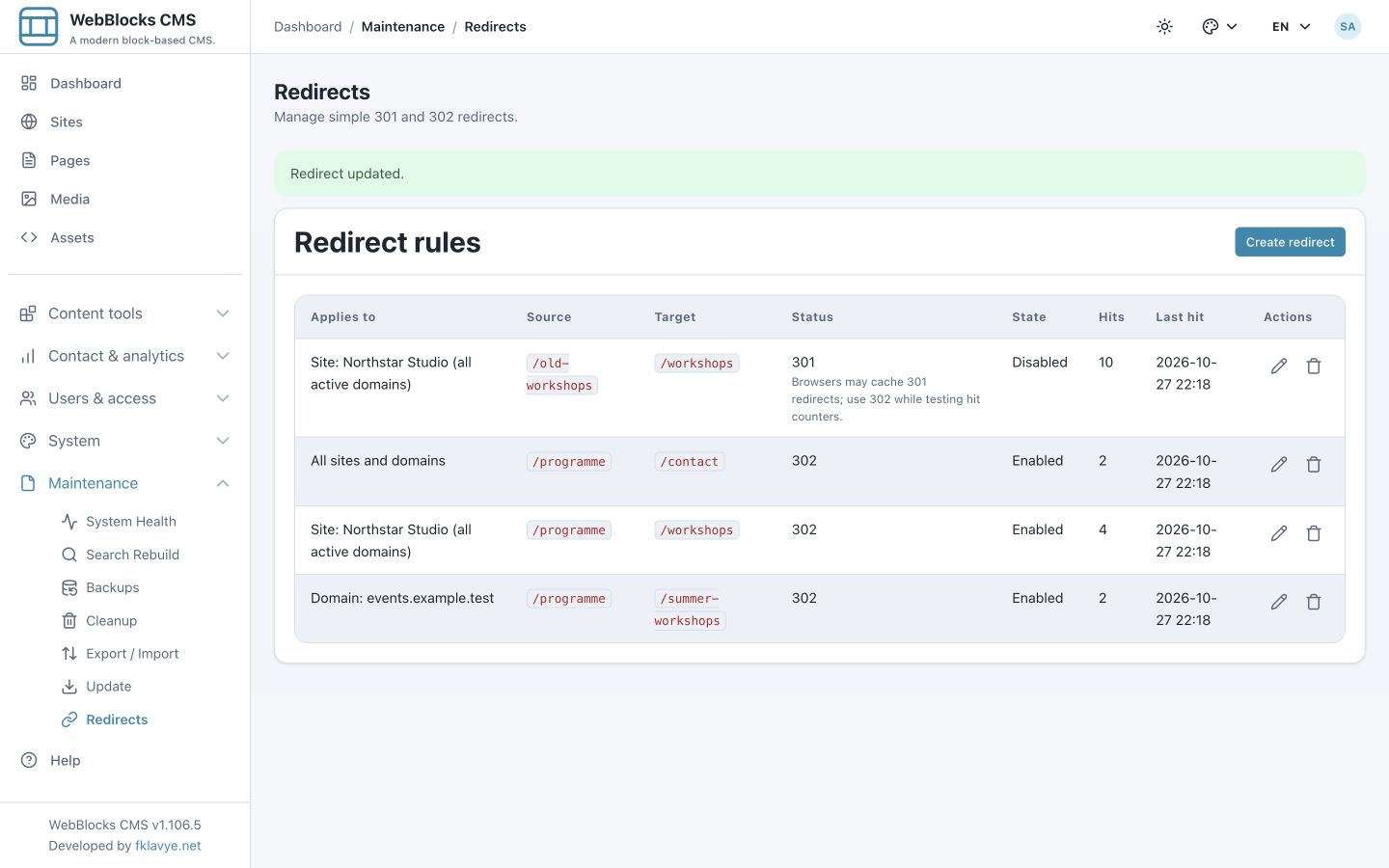
To restore the redirect, edit the same row, check Enabled, confirm the destination, and save. This avoids creating a duplicate source and keeps the rule's existing history.
The trash action, Delete redirect, removes the rule and its hit history. In 0.1.28, this action submits directly; there is no plugin trash or restore screen. Record anything you need before deleting, and use Disabled for a reversible pause.
Disabling the whole plugin in System → Plugins stops its redirect handling and hides its contributions. Plugin-owned tables are preserved by the current lifecycle. This is broader than disabling one rule and does not clear browser or CDN caches.
11. Understand the boundaries
Redirect Manager 0.1.28 provides individual rules, two status codes, scope selection and aggregate hit history. It does not add a page-builder block: once enabled, the plugin handles matching public requests directly.
There is no panel workflow for scheduled rules, bulk CSV import/export, wildcard mapping, per-visitor analytics or automatic broken-link discovery. Plan those needs separately instead of entering unsupported pattern syntax in Source path. There is also no panel counter-reset action in this version.
If you change a page address in the CMS, review the old URL yourself. This plugin's list does not automatically gain a redirect merely because you renamed a page. Update navigation and internal links to the final address, and keep deliberate old-address redirects for external bookmarks and links you cannot update. See Change a Page Address.
For automated integrations, the plugin exposes its rule collection through the Internal Content API at /webadmin/api/redirect-manager/redirects. Read access uses plugins.read; writes use plugins.manage as well as the applicable site restrictions. Use the CMS API discovery to inspect the installed plugin’s endpoints and request contract. Panel users do not need an API token to follow this guide.
12. Troubleshoot a redirect that does not behave as expected
| Symptom | What to check |
|---|---|
| Redirects is missing from the sidebar | Confirm the plugin is Enabled, reload the panel, and check the operator's view permission. |
| The form cannot save because setup is required | Review plugin health and database updates; ask the administrator to resolve missing or outdated redirect storage. |
| A rule saves but never redirects | Confirm Enabled, the exact source path, selected scope and incoming hostname. Check whether the request reaches this CMS at all. |
| The wrong destination wins | Look for an enabled exact-domain rule, then a site rule, then a global fallback. Check web-server, canonical-domain and CDN redirects too. |
| The target opens as 404 | Open Target URL directly, confirm the destination is published on that host, and correct the saved address. |
| The source path is already taken | Edit the existing row in the same scope; normalized trailing-slash variants and disabled rules still count as duplicates. |
| A changed or disabled 301 still seems active | Make a fresh HTTP request and inspect upstream and browser caches. Cached redirects do not need to contact the application. |
| Hits do not increase on every browser visit | Test with 302 or a fresh HTTP client; a cached 301 can bypass the CMS. Reload the admin list to see current totals. |
| Hits seem higher than visitor numbers | GET, HEAD, crawlers, health checks and repeated tests can all count. The total is not a unique-visitor metric. |
| Query parameters disappear | Incoming queries are not forwarded automatically. Add an intended fixed query to the target, or use another solution if dynamic forwarding is required. |
| A subpage is not redirected | Matching is exact; add a separate rule for each intended source. Prefix and wildcard rules are not supported. |
| A homepage rule is rejected | Use a site or domain scope for an enabled / source. |
| Visitors see too many redirects | Review the complete chain across all rules, domains, canonical redirects and server configuration; remove cycles and unnecessary hops. |
13. Use a small launch checklist
Before activating a real move, confirm that the replacement page is published and returns the intended content on the actual destination host. Start with 302, test the old address without following redirects to inspect its status and Location header, then follow it to check the final page.
Check every relevant site domain, any more specific scope rules, trailing-slash behavior and query-string expectations. Confirm that the destination does not redirect back and that GET/HEAD tests produce the expected counter changes. Change to 301 only when the permanent move is settled.
After launch, update the links you control, keep a record of the rule's scope and purpose, and review hit totals periodically. Use disable before delete when a move needs to be paused. You now have a repeatable workflow for keeping old URLs useful while controlling exactly where each redirect applies.