Build Custom Forms With WebBlocks Forms
Build a form around the questions your visitors actually need to answer. WebBlocks Forms lets you choose fields, validation, steps and conditional questions, then collect the results in your own CMS. A native Form block places that form on a page; the plugin's inbox holds the submissions.
Our example is Northstar Studio and its Project enquiry form. The first step asks who is writing and what kind of project they have in mind. Choosing Website project reveals a required website question. The second step collects a brief, an optional budget and attachment, and an acknowledgement. You will send it as a visitor, read the saved answers, download the private file, mark the enquiry replied and export a CSV.
This walkthrough was checked with the published Forms 0.10.5 archive and WebBlocks CMS 1.105.26, using English, light theme and fictional Northstar Studio data. It includes an explicit host service-provider integration required by the tested ZIP installation. Local notification and visitor-copy results deliberately show Not configured: real mailbox delivery, an external webhook and a Campaigns subscription were not tested. The visitor flow, conditional filtering, two steps, private download, statuses, CSV and Contact Form import were exercised locally.
Choose Forms or the built-in Contact Form
| Choose | When it fits | Where the results appear |
|---|---|---|
| Native Contact Form | You need the standard name, email, subject and message fields. | Contact Messages. |
| WebBlocks Forms | You need your own fields, choices, steps, conditions or attachments. | Forms → Submissions. |
Forms does not replace the native Contact Form. You can use both, but they have separate inboxes. Importing a Contact Form creates a new plugin form; it does not move old messages or change the existing block for you.
A form belongs to a site. Its fields, handling settings and delivery actions belong to the form, while the page block stores its handle. Placing the same form on several pages reuses that definition. Editing a field changes every placement; it does not create a separate form for each page.
For package details and developer contracts, see the Forms reference. For the simpler native alternative, see Add A Contact Form And Read Messages.
Before you start
Prepare a test site, a draft page and a Super admin account for installation. Forms 0.10.5 declares CMS ^1.92.1 and PHP >=8.3; the catalogue lists PHP ^8.3 and Laravel ^13.0 compatibility. Check the compatibility result against your actual host and the CMS's own requirements. The package needs the JSON and ZIP PHP extensions.
The plugin separates five permissions: viewing forms, managing forms, managing submissions, exporting submissions and changing Form Settings. Building a form does not automatically grant access to its inbox or exports. Give each operator the permissions and site access their work needs; use Roles And Permissions to review the role.
Have a hosting administrator available for the service-provider step, private upload storage, mail transport and retention scheduling. You can learn the editor with local mail, but test actual delivery before promising a reply by email. Use controlled mailboxes for that later test, not the fictional example addresses below.
The plugin is free in the WebBlocks plugin catalogue. Commerce, Appointments, Memberships and Campaigns are not required for this enquiry form. Forms does not turn a budget answer into a payment or an appointment.
1. Install Forms and complete the host integration
- Sign in as Super admin and open System → Plugins.
- Select Browse Plugin Catalog, then open WebBlocks Forms.
- Review the offered version, compatibility result and release notes.
- Choose Install from Catalog for the compatible release, then Enable Plugin in its details.
- If your administrator provides the trusted release ZIP instead, use Plugin ZIP → Upload Plugin ZIP, review it and enable it.
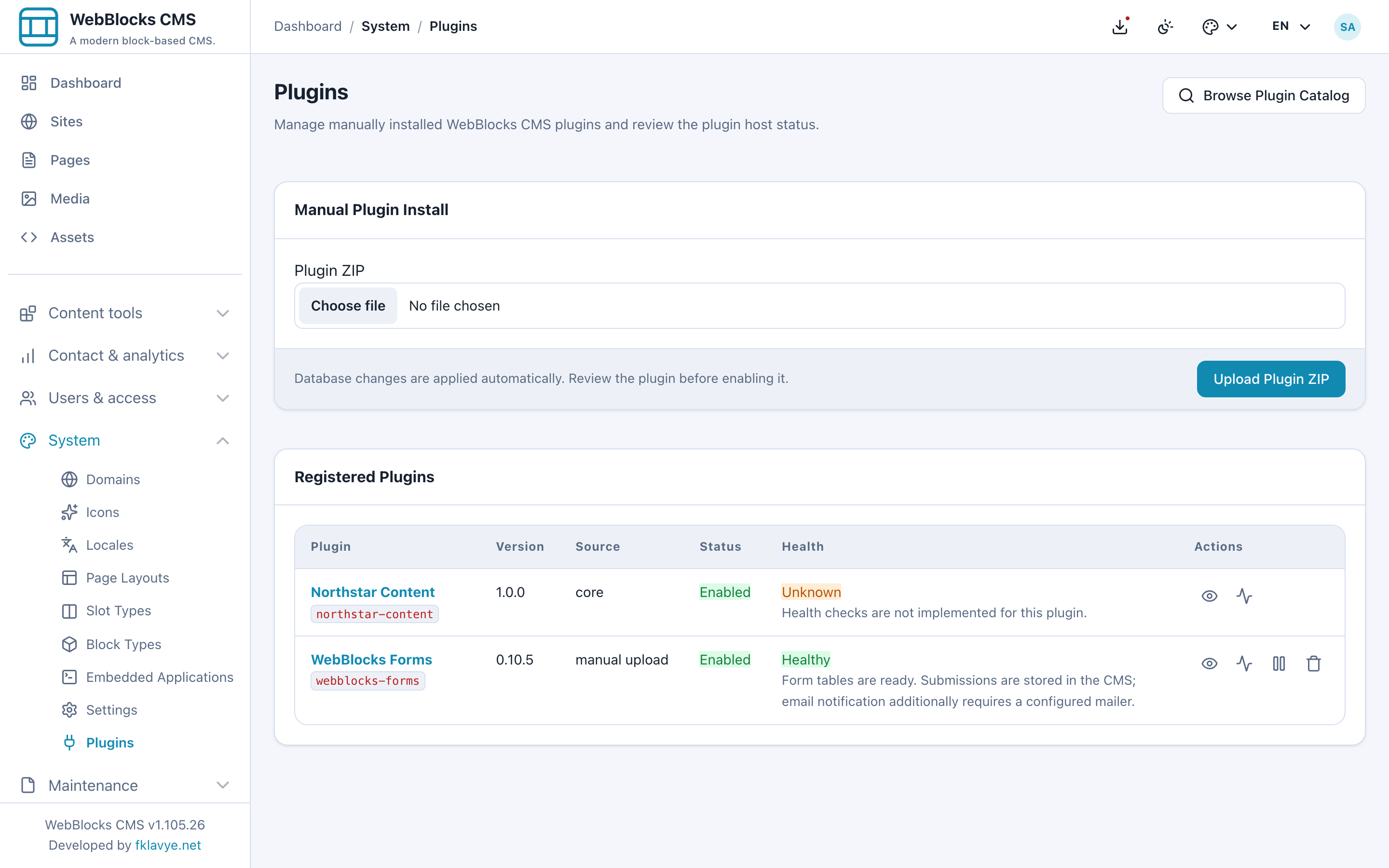
New packages start disabled. Current CMS installation and activation prepare the plugin's database changes. If the plugin reports Plugin migrations pending, open its details, resolve setup and verify its tables before continuing. You do not need to compile source code for the catalogue or ZIP panel route.
The sidebar gains Forms, Submissions, Import Contact Form and Settings under Forms. Select Northstar Studio, or your intended site, wherever a site selector is shown. A healthy tables check does not demonstrate that visitor submission, outbound mail or a background retention task works.
Hosting step for the tested ZIP setup
In the tested Forms 0.10.5 / CMS 1.105.26 ZIP installation, the editor and block were available but the plugin service provider was not booted automatically. A public submission failed because its named rate limiter was not registered. The guide's working capture host explicitly registers the enabled plugin's provider; this is part of the setup, not a screenshot-only change.
Ask the hosting administrator to add the following inside the existing boot() method of the host application's App\Providers\AppServiceProvider. Keep any existing boot logic. The registry guard means the provider is registered only when Forms is active:
$this->app->booted(function (): void {
    $registry = $this->app->make(
        \WebBlocks\Cms\Support\Plugins\PluginRegistry::class
    );

    if ($registry->isActive('webblocks-forms')) {
        $provider = $registry->get('webblocks-forms')?->providerClass();

        if ($provider !== null && class_exists($provider)) {
            $this->app->register($provider);
        }
    }
});
The administrator should clear stale host configuration with php artisan optimize:clear and restart long-running application workers as appropriate. Then test a real visitor submission. This also loads Forms configuration, including upload policy and submission timing. On a newer host that already boots the provider correctly, verify its behavior before adding an unnecessary second integration. Do not remove the rate limiter to make a failing form appear to work.
2. Review the site's Form Settings
Open Forms → Settings for the intended site. For this example:
| Setting | Example | Meaning |
|---|---|---|
| Default notification recipient | hello@example.test | Fictional studio inbox used when a form has no explicit recipient. |
| Store submissions in the CMS | On | Review this setting, then explicitly enable storage on the form too. |
| Delete submissions after (days) | Empty | No site-level retention window in this example. |
| Maximum upload size (KB) | 2048 | Site upload limit, additionally capped by the installation. |
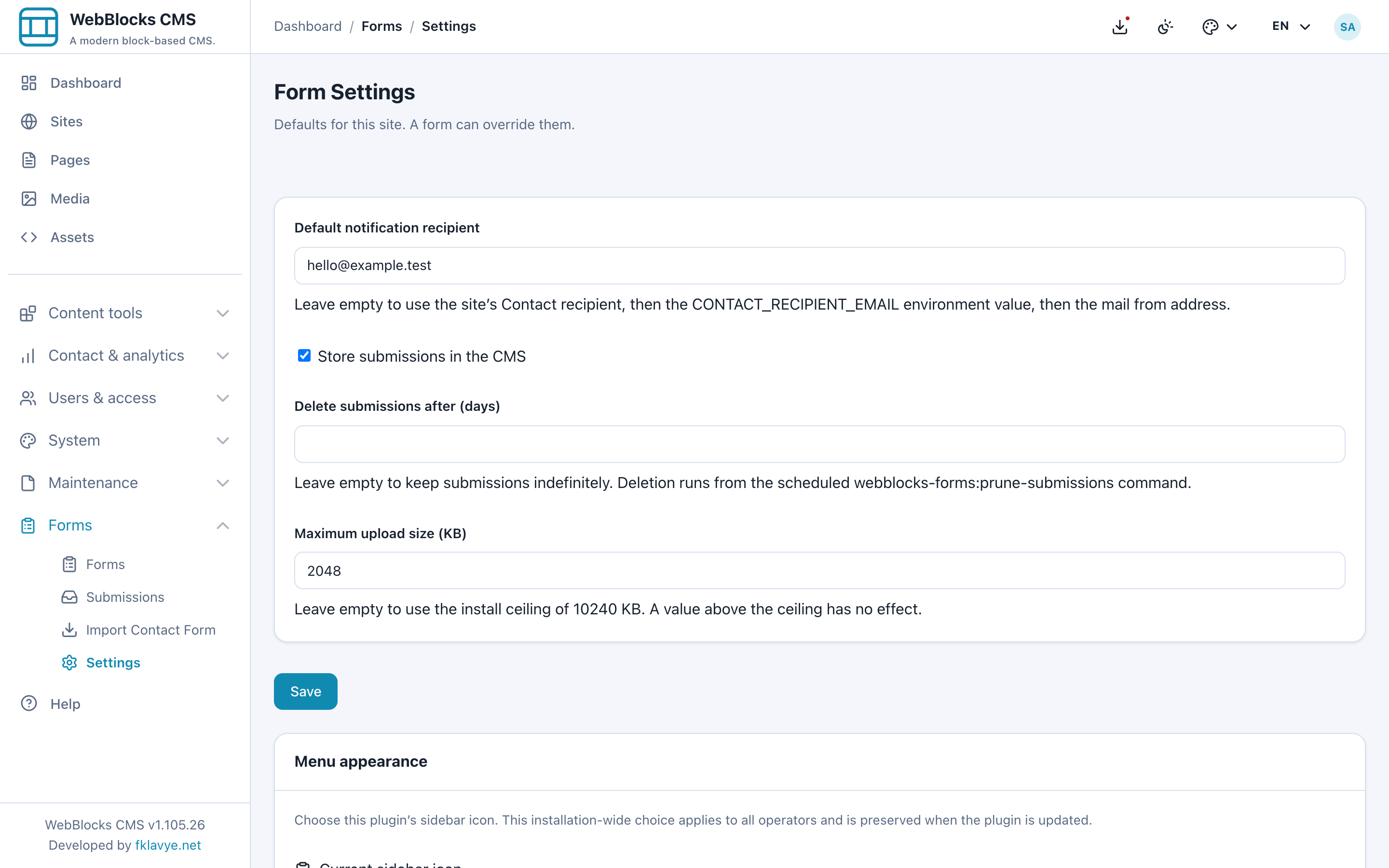
Select Save. An empty notification recipient is valid: routing falls back from the form's Send notifications to, to this default, to the site's Contact recipient, to CONTACT_RECIPIENT_EMAIL, and finally the configured mail-from address. Set your real business destination deliberately rather than relying on an unintended last fallback.
The tested version reads storage and retention decisions from each form. Do not assume changing the similarly named site defaults updates an existing form or establishes its deletion policy. Set and verify those values in the form's own Handling section. Recipient fallback and the site upload limit do apply to the example.
3. Create the form and choose its handling
Open Forms → Forms → Add form. Enter Project enquiry as Name and northstar-project-enquiry as Handle. Keep Accepting submissions selected.
The handle uses lower-case words separated by single hyphens. It is what page blocks store, so choose it before placing the form. Changing the name is different from changing the handle: a new handle disconnects existing placements until you update them. On a multisite installation, use distinct handles across the installation and test each site's submission destination; this version's public submission lookup resolves by handle.
Under Handling, keep Store submissions in the CMS on, leave Store the submitter's IP address off and leave Delete submissions after (days) empty for the exercise. Set Submits per minute, per visitor to 5. Leave Redirect after submit empty so you can see the success result on the page.
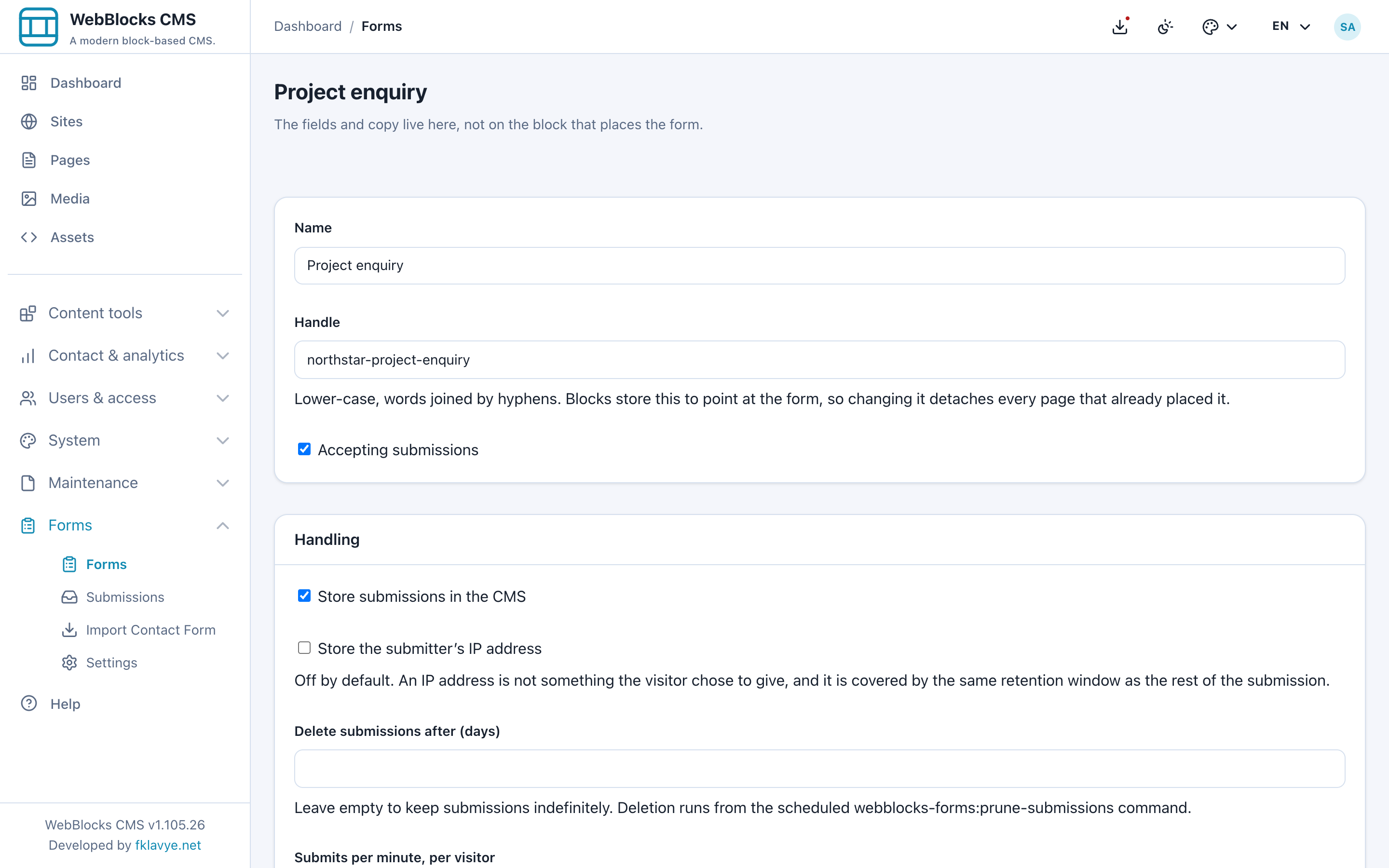
Select Save. Storage is essential to this workflow: in this version, turning it off means no inbox record and no post-submit actions. It is not a supported way to make an email-only form. IP collection is separate from the temporary local protection signals used to assess a request.
A lower submission limit narrows the installation ceiling; a higher one cannot raise it. It is counted per visitor and form. A success redirect must be a same-site path beginning with a single slash, such as /thank-you; prepare and test that destination before using it. Leave it blank while verifying this guide.
4. Set notification and visitor-copy actions
In the form editor, find Notification. Keep Email me when a submission arrives selected and leave Send notifications to empty to use the site's configured fallback. Enter an explicit recipient only when this form belongs to a different inbox.
Under Reply to sender, select Send the visitor a copy of what they submitted for this example. Set Visitors reply to to your real monitored studio address; the screenshot uses studio@example.test. Leaving it empty means no reply-to header. Select Save.
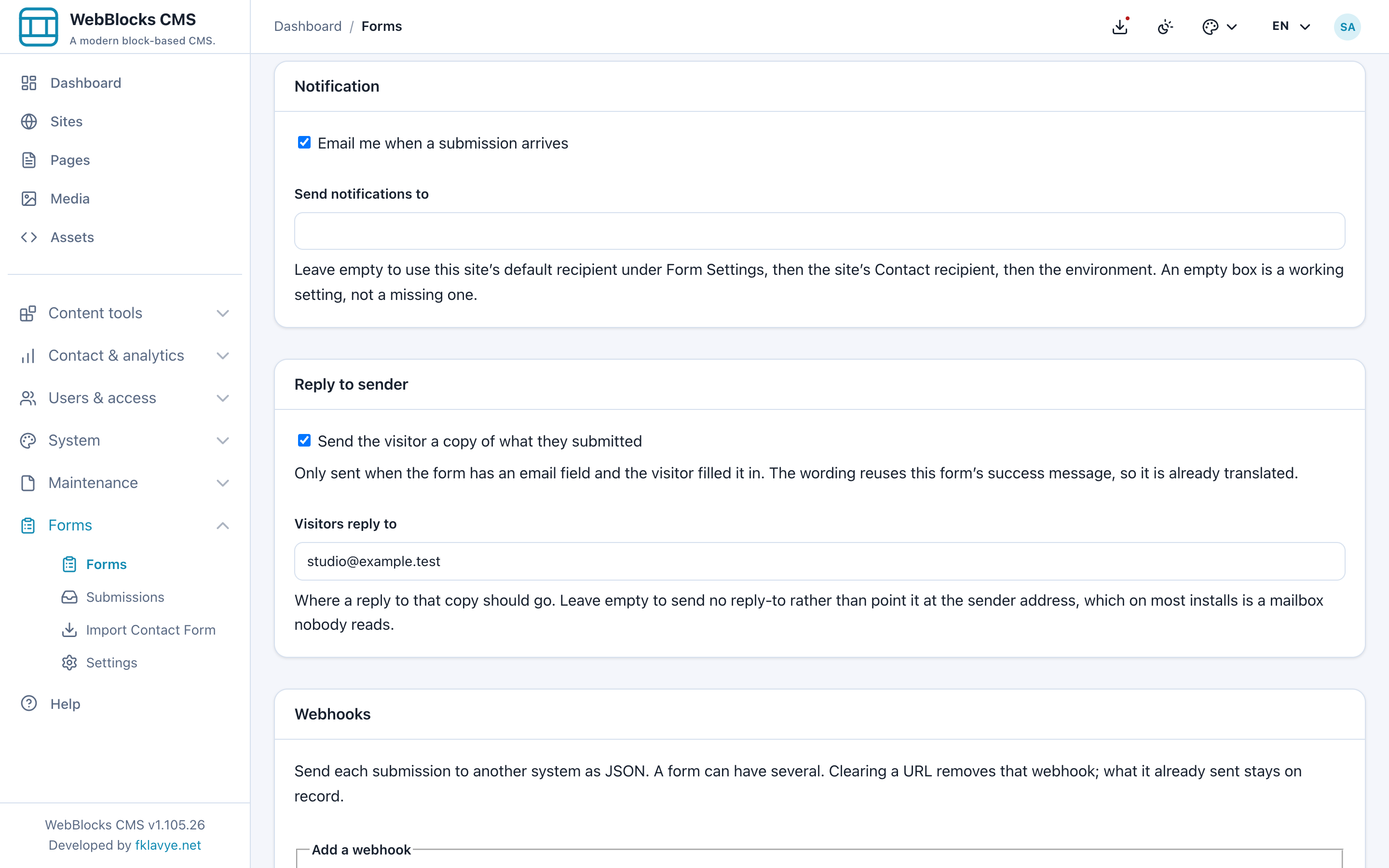
The visitor copy needs an Email address field containing a valid submitted address. A text field merely labelled “Email” is not equivalent. Keep a single clear email field in this enquiry form. Notification and visitor-copy outcomes are tracked independently; neither is proof of successful inbox delivery until you test it.
Leave Webhooks and Mailing list off while learning the ordinary flow. They are optional actions, not prerequisites for collecting a submission. We return to them after the inbox test.
5. Add the eight example fields
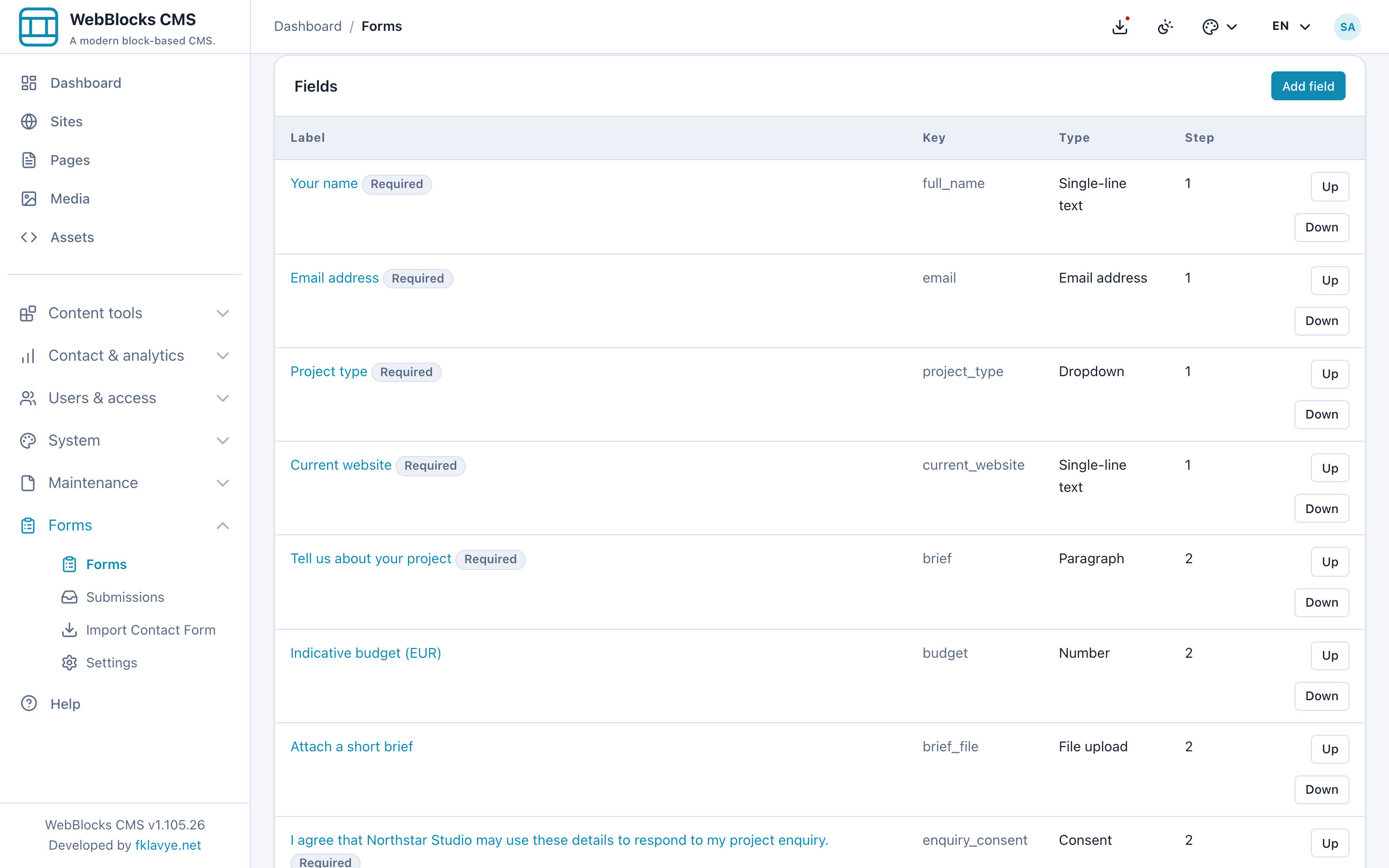
After saving the form, its Fields section offers Add field. Add the following records. Fields with the same Step number appear together; use Up and Down to change their order within that step.
| Label | Type | Key | Step | Required |
|---|---|---|---|---|
| Your name | Single-line text | full_name | 1 | Yes |
| Email address | Email address | 1 | Yes | |
| Project type | Dropdown | project_type | 1 | Yes |
| Current website | Single-line text | current_website | 1 | Yes, only when its condition matches |
| Tell us about your project | Paragraph | brief | 2 | Yes |
| Indicative budget (EUR) | Number | budget | 2 | No |
| Attach a short brief | File upload | brief_file | 2 | No |
| I agree that Northstar Studio may use these details to respond to my project enquiry. | Consent | enquiry_consent | 2 | Yes |
For Your name, choose Single-line text, enter full_name in Key, select Required and set Step to 1. In Validation use Minimum 2 and Maximum 100. Under Copy → EN English, enter Your name as Label and How should we address you? as Help text. Save the field.
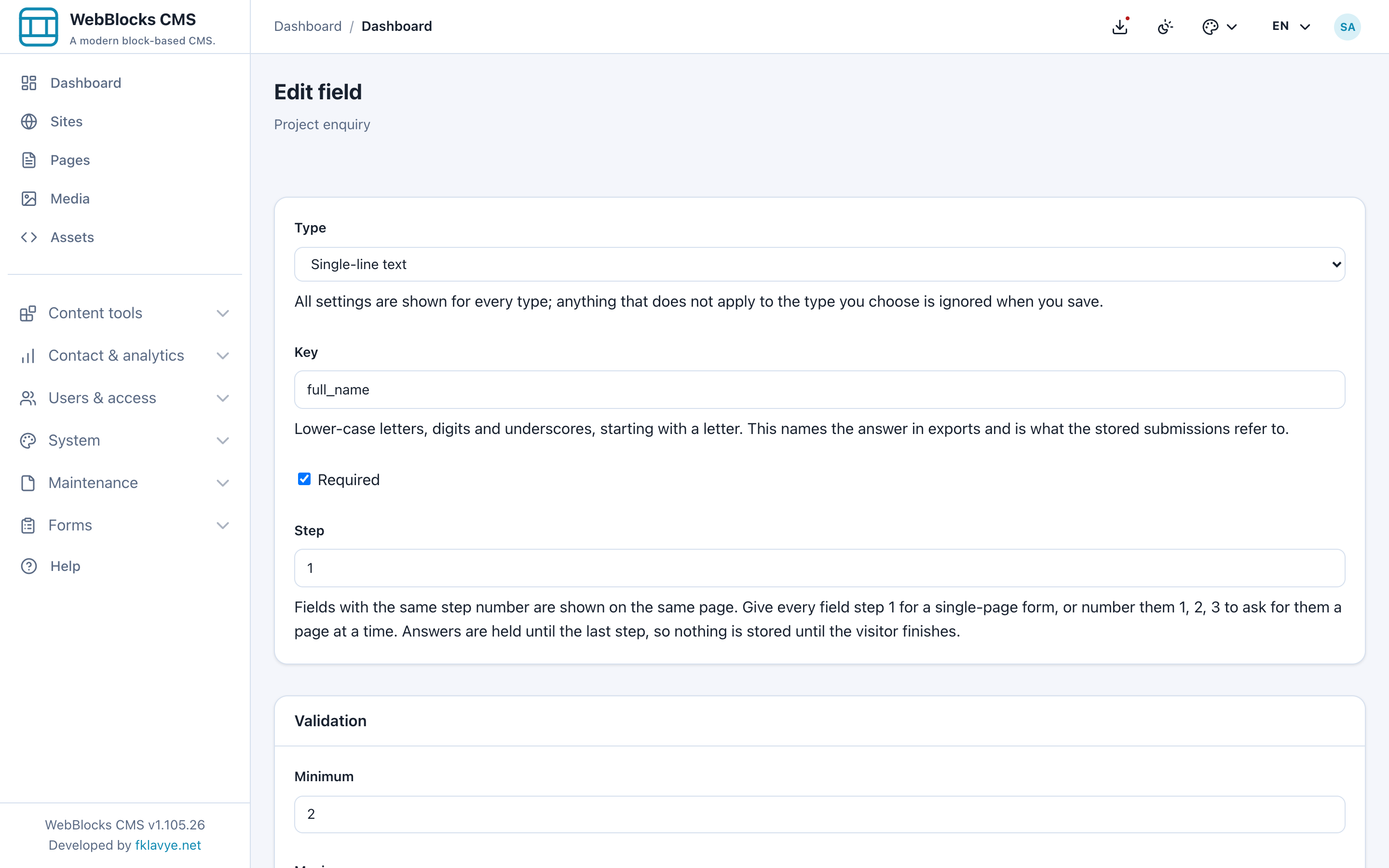
Keys use lower-case letters, digits and underscores, starting with a letter. Labels are visitor-facing wording; keys identify answers in storage, conditions and integrations. Once the form has submissions, existing field keys are locked. Choose stable keys now rather than treating them as labels you will rename later.
The field editor shows settings for multiple types together. Only applicable validation has an effect. Minimum/Maximum mean character length for text and Paragraph, numeric magnitude for Number, and a file Maximum is a size in KB. For the brief use 20–2000 characters; for the optional budget use 500–50000. A budget is an enquiry answer, not a price or charge.
Other available types include Phone number, Radio buttons, Checkboxes, Date and Hidden value. Radio chooses one option; Checkboxes can hold several. Hidden fields are not a trustworthy place for permissions, payment state or other decisions a visitor must not control.
6. Separate option values from visible labels
For Project type, choose Dropdown, key project_type, required, Step 1. In Options, put one stable value per line:
branding
website
other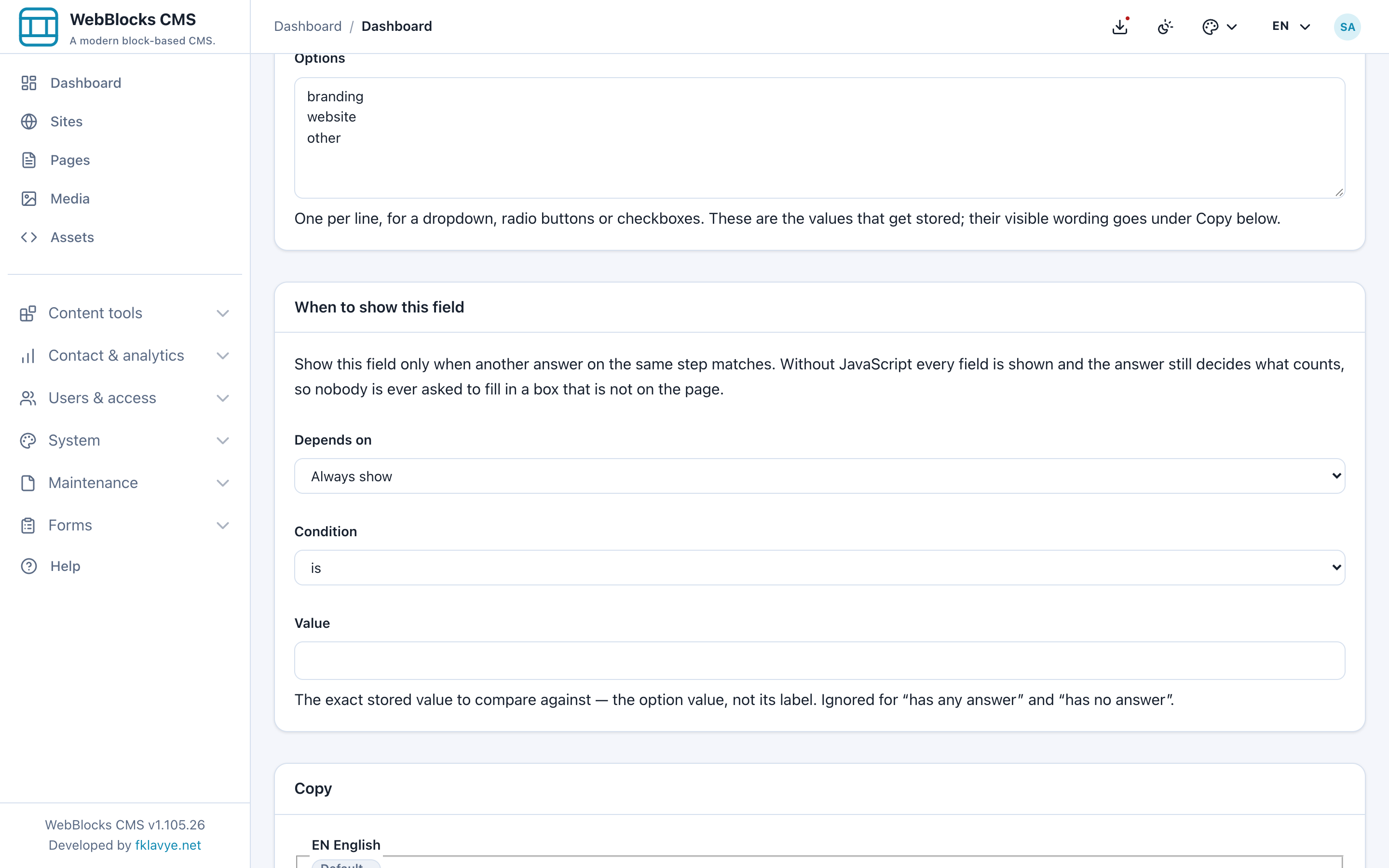
Under Copy → EN English, set Label to Project type, Help text to Choose the closest match., and Option labels to these lines in the same order:
Brand identity
Website project
Something else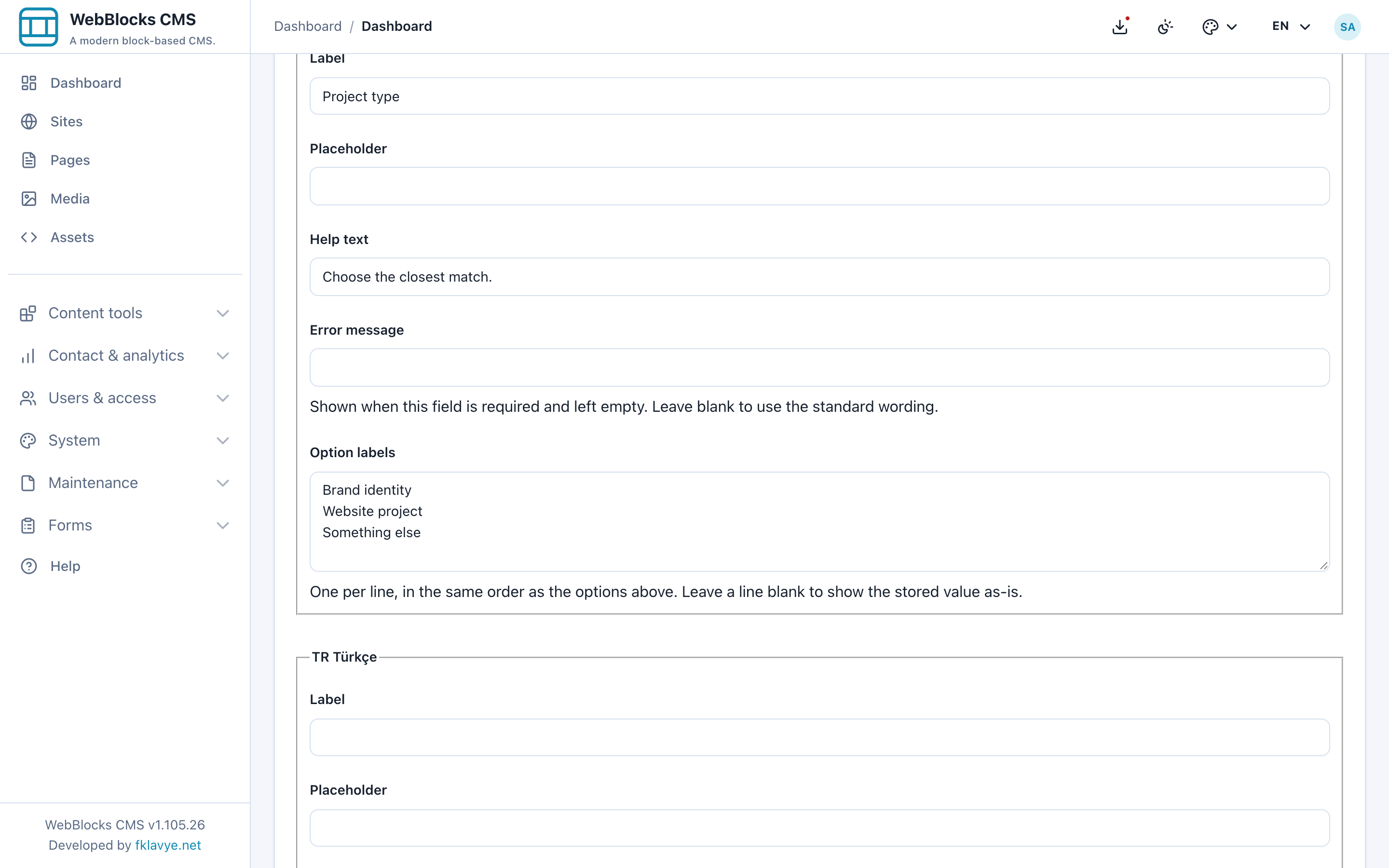
Save. The visitor sees Website project, while the submitted value is website. Conditions compare that stored value, not the translated label. Do not reorder one textarea without checking the other; labels are paired by position when saved. Blank label lines fall back to the stored value.
Each enabled language has field Label, Placeholder, Help text, Error message and Option labels. Fill the default-language label and review the other languages you actually offer. Translating the CMS page alone does not translate the plugin's field records. The Error message can override several validation failures for that field, so write wording that still helps for an invalid value as well as an empty required answer.
7. Make Current website conditional
Create Current website as required Single-line text with key current_website, Step 1 and Maximum 255. Save it, reopen it if needed, and find When to show this field:
- Choose project_type in Depends on.
- Choose is in Condition.
- Enter website in Value.
- In English Help text write Your existing address, or write Not launched yet.
- Select Save.
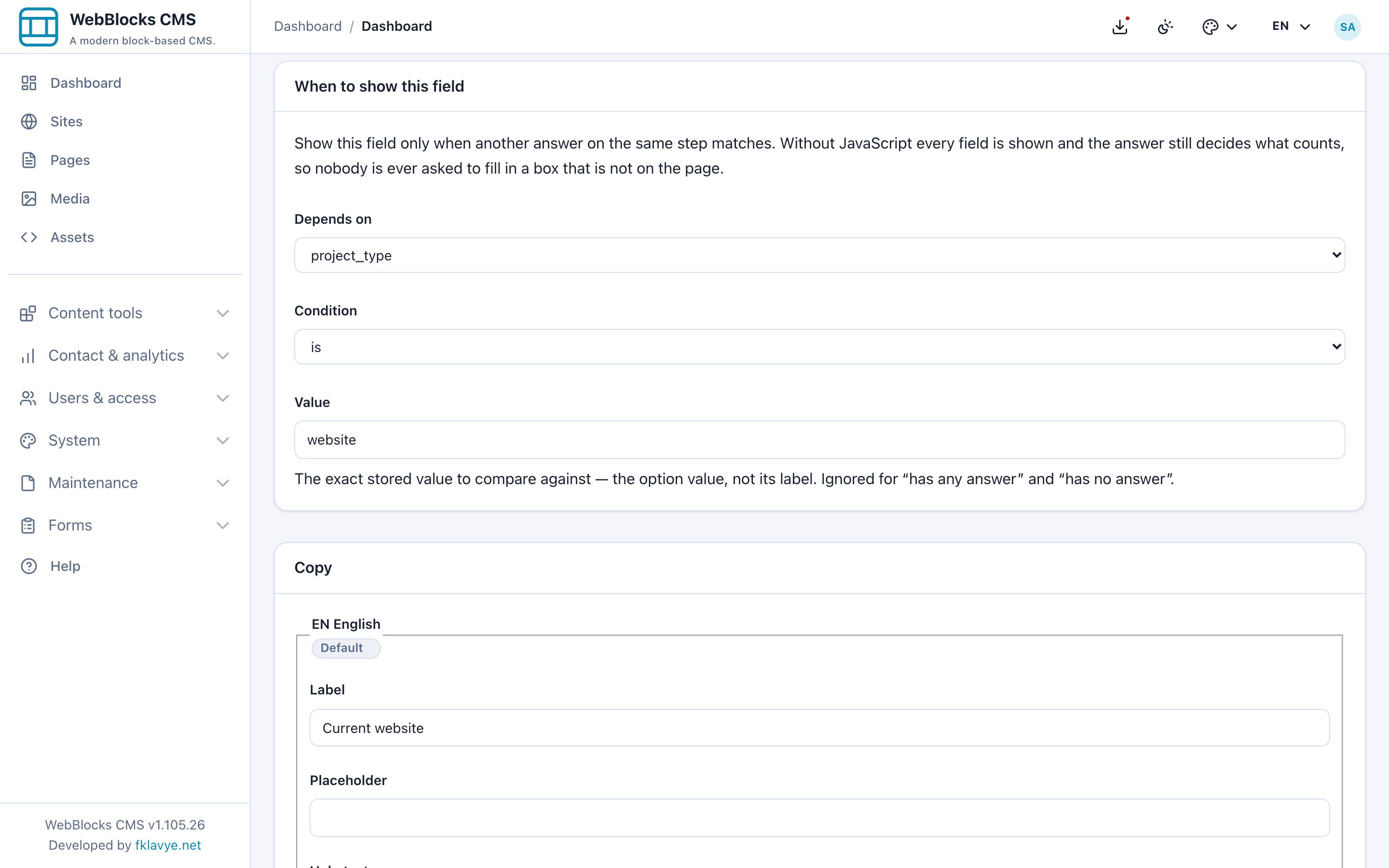
The controller must be on the same step. Create the controlling field first and ensure the dependent field is on that step before selecting it. Available comparisons also include is not, has any answer and has no answer. The last two do not use Value. Avoid circular dependencies; test every branch after changing steps or choices.
With JavaScript, choosing Website project reveals the question and restores its required state. Other choices hide it. The server checks the condition again: an unasked field is not validated or stored, even if an extra value was posted. Without JavaScript all questions are visible, and a required conditional control can still require an answer in the browser even when its server condition is false. Provide a usable fallback such as “Not applicable” and test it; the server still discards that unasked answer. This fallback was tested with an anonymous visitor as well as the normal enhanced form.
This is a Single-line text field, not an automatic website lookup. Its Maximum limits length; it does not verify that a website exists. The example deliberately allows Not launched yet.
8. Add a private attachment and consent question
Create Attach a short brief using File upload, key brief_file, Step 2, not required. Set Maximum to 2048 and leave Minimum empty. Explain the accepted documents and size in the English Help text, then save.
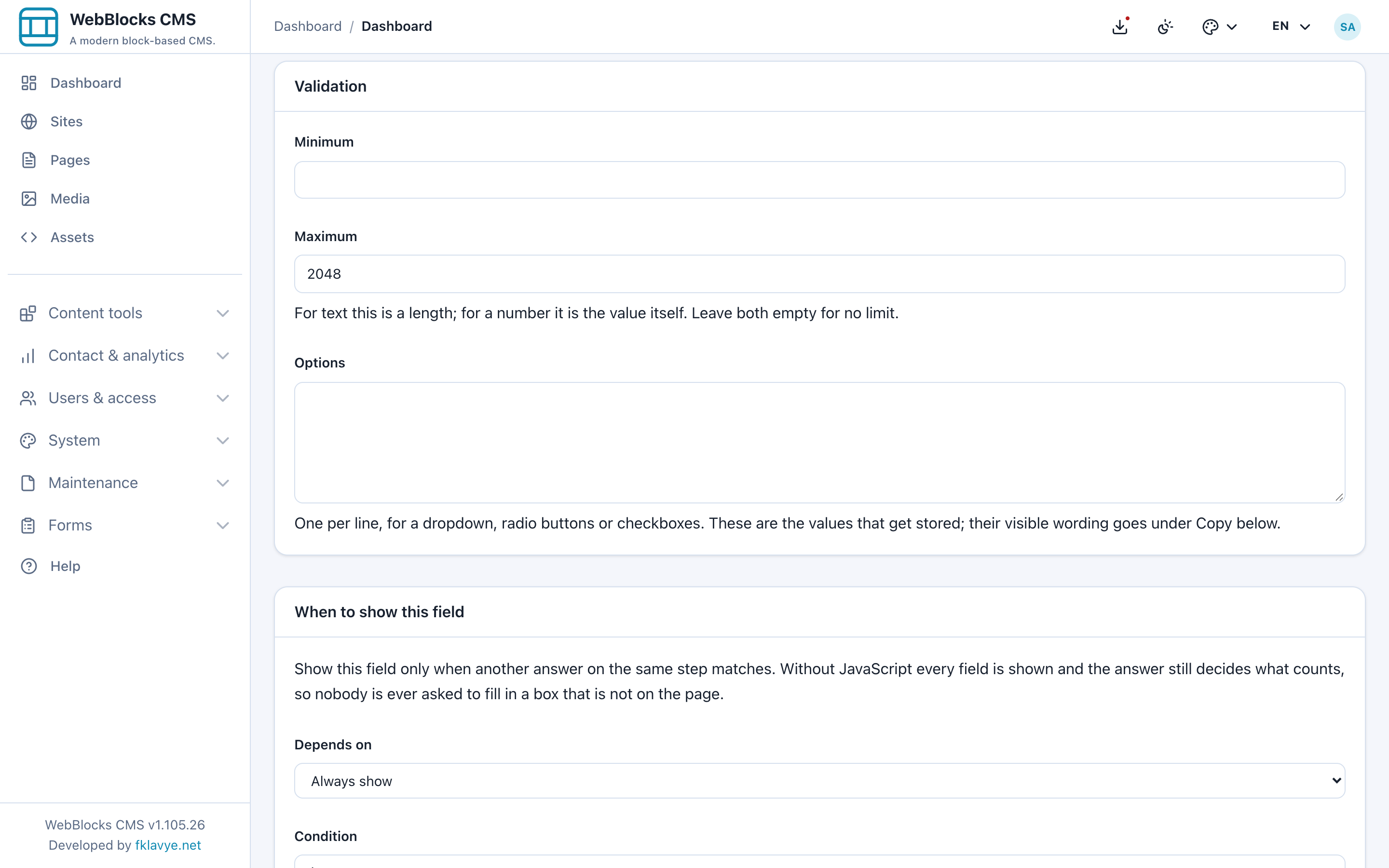
The effective maximum is the smallest positive limit among the installation, Form Settings for the site and this field. The tested installation ceiling is 10240 KB; the site and field narrow it to 2048 KB. PHP and the web server can impose smaller request/upload limits too. If large files fail before the form returns a useful error, ask the host administrator to check those limits.
Allowed extensions come from the installation's Forms configuration; the panel's Options box does not define a file allowlist. The default policy supports common documents, images and ZIP files, and the server checks the uploaded content type. Our small northstar-brief.txt contains fictional text only. Attachments use private plugin storage, not the public Media Library, and are downloaded through authorized, short-lived links.
Add the final Consent field with key enquiry_consent, Step 2, Required on, and the example acknowledgement from the field table as its Label. A Consent field records the accepted wording in the submission snapshot; a generic Checkboxes field is not the same record. Use wording appropriate to what your form actually does, and make any related information available on the page before sending. This enquiry acknowledgement is not a newsletter subscription.
9. Place the native Form block on a draft page
Create a draft page on the same site, for example Start a studio project. Add a heading and a short explanation using ordinary page blocks. Our introduction says: Tell us what you have in mind. We review enquiries before arranging any work.
In the Main slot, select Add Block → Form. Open Block Fields, choose Project enquiry in Form, then select Save Block. Use the saved page Preview.
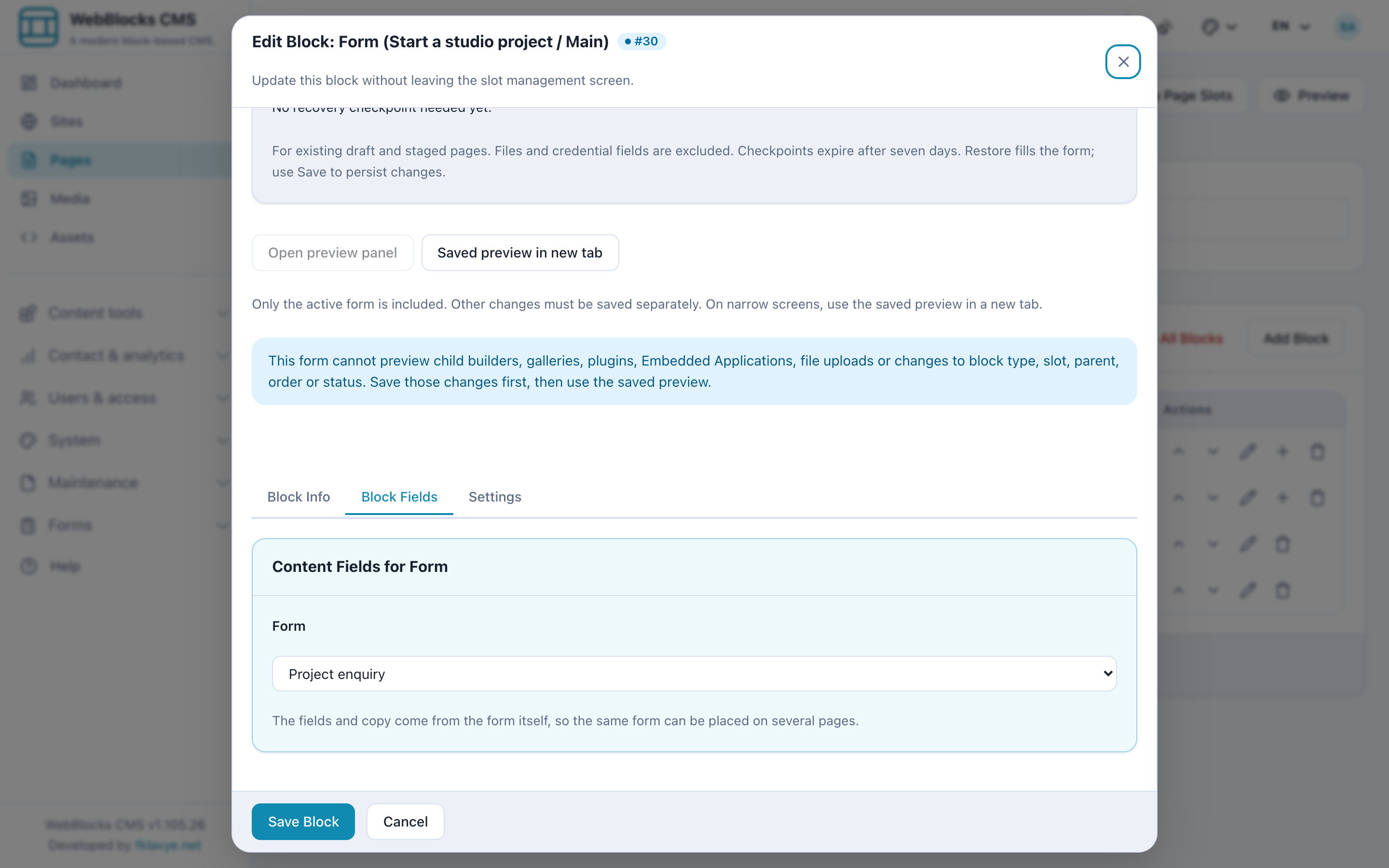
The block chooses the active form by handle. A missing, inactive or unselected form, or one with no fields, renders no form. If the picker is empty, check the page's site and whether the form is accepting submissions.
In this version the form editor does not expose a general title/intro/button/success copy panel for a newly created form. The example therefore uses page blocks for its heading and introduction, and the plugin defaults Send and Thank you. Your message has been received. Do not look for Contact Form copy fields inside this plugin block. Imported Contact Form copy is retained separately by the importer.
The instant block preview does not support plugin forms; save and use the saved page preview. Sending from a saved page preview still creates a real submission. Work on a test site with fictional information. Avoid placing the same form twice on one page: its field identifiers and multi-step session progress are tied to the form, not independently to each placement.
10. Complete both steps as a visitor
Open the saved preview or reviewed local enquiry page. The first screen says Step 1 of 2 and asks for Your name, Email address and Project type. Current website starts hidden.
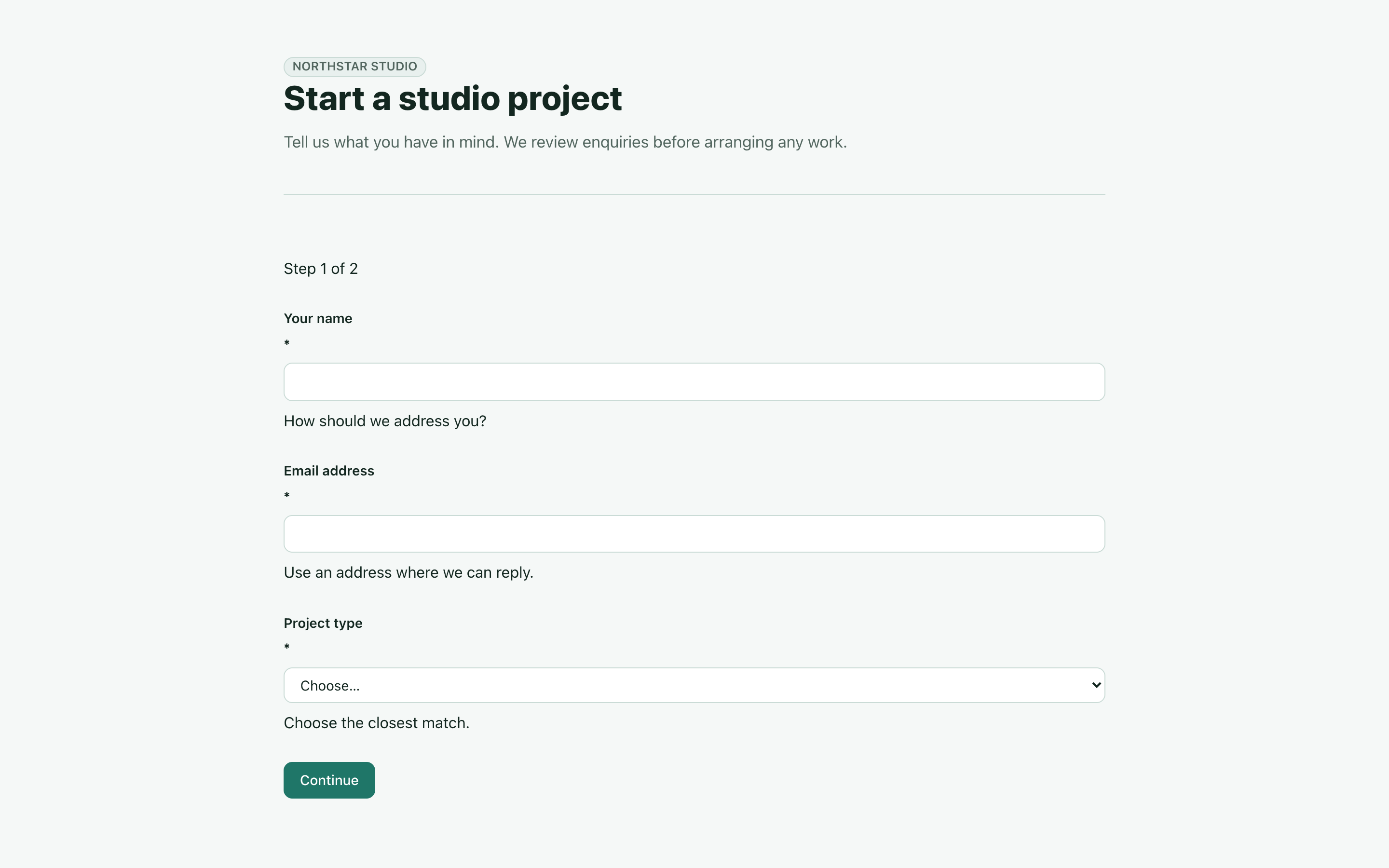
Enter Example visitor, visitor@example.test, and choose Website project. The Current website question appears. Enter Not launched yet, or a fictional address appropriate to your test.
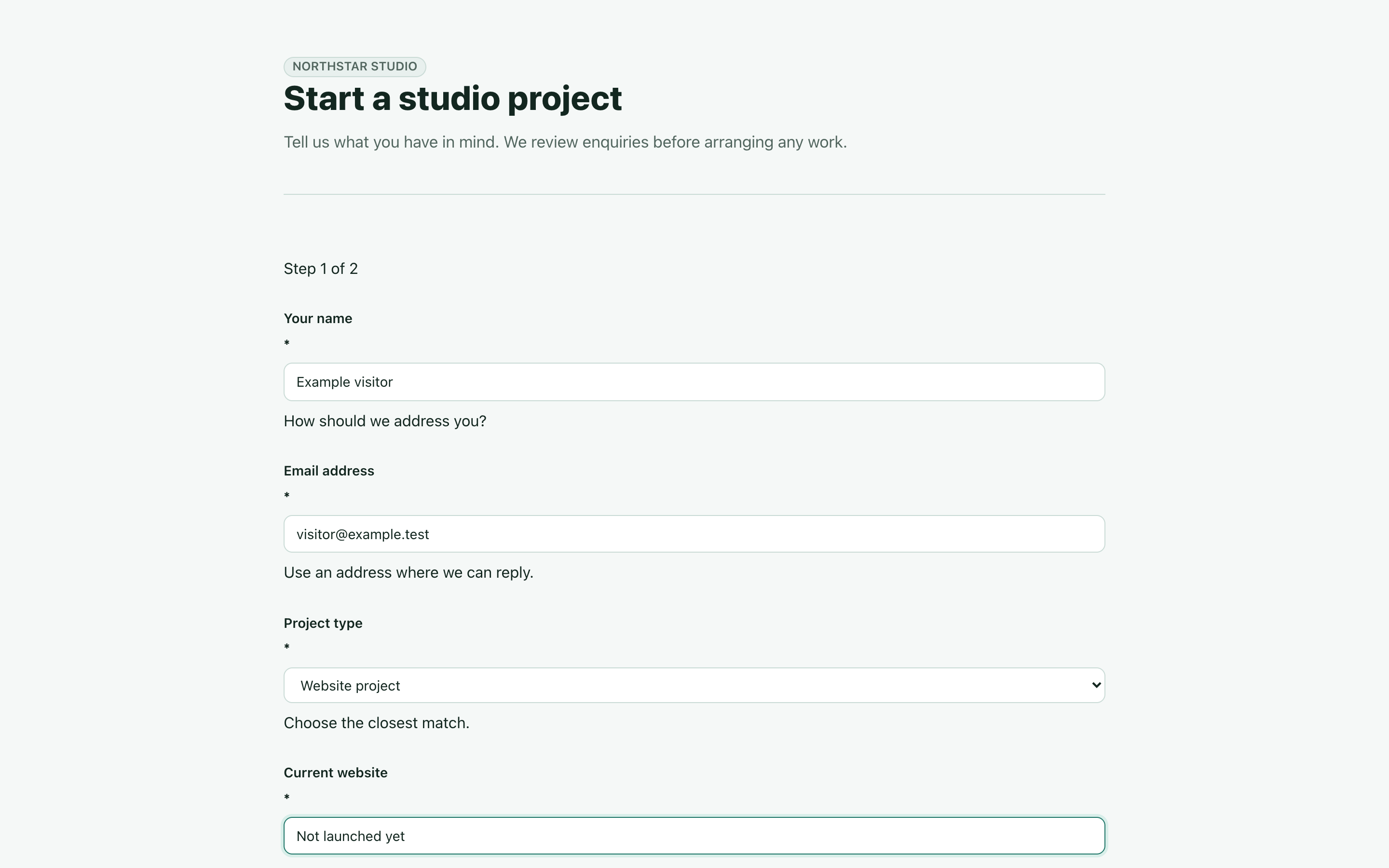
Select Continue. The second screen says Step 2 of 2. No submission has been stored yet: the plugin holds the earlier answers in the visitor's session until the last step. Abandoning the form is not a completed enquiry. Cookies/session continuity must work for the steps to progress.
Enter a brief of at least 20 characters, such as We are planning a small website for a neighbourhood craft workshop and would like to discuss the structure. Use 2500 for the optional budget, choose the small fictional brief file, and select the acknowledgement. Back returns to the earlier step; review the answers again after changing a branch.
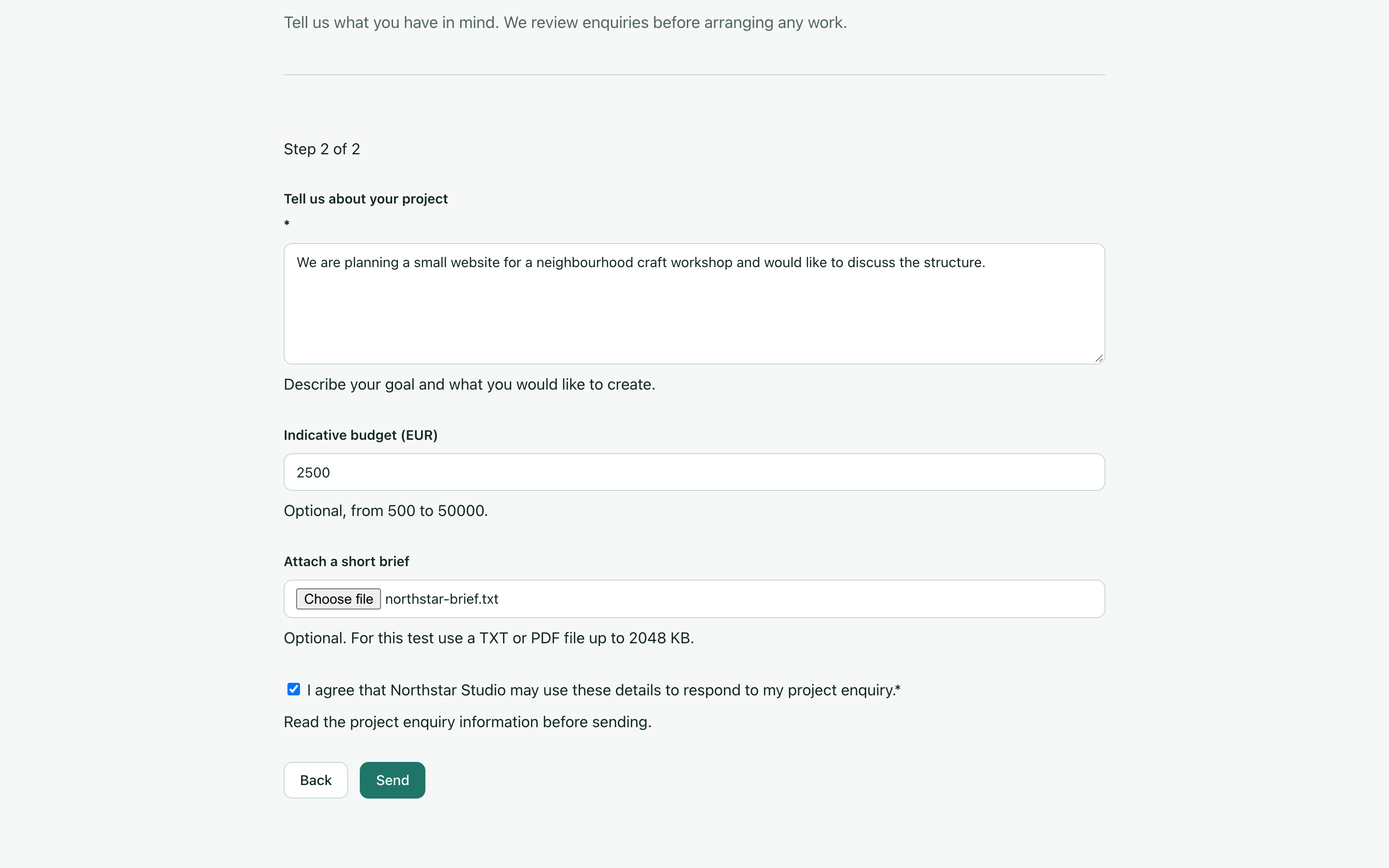
Select Send once. The normal success result replaces the form:
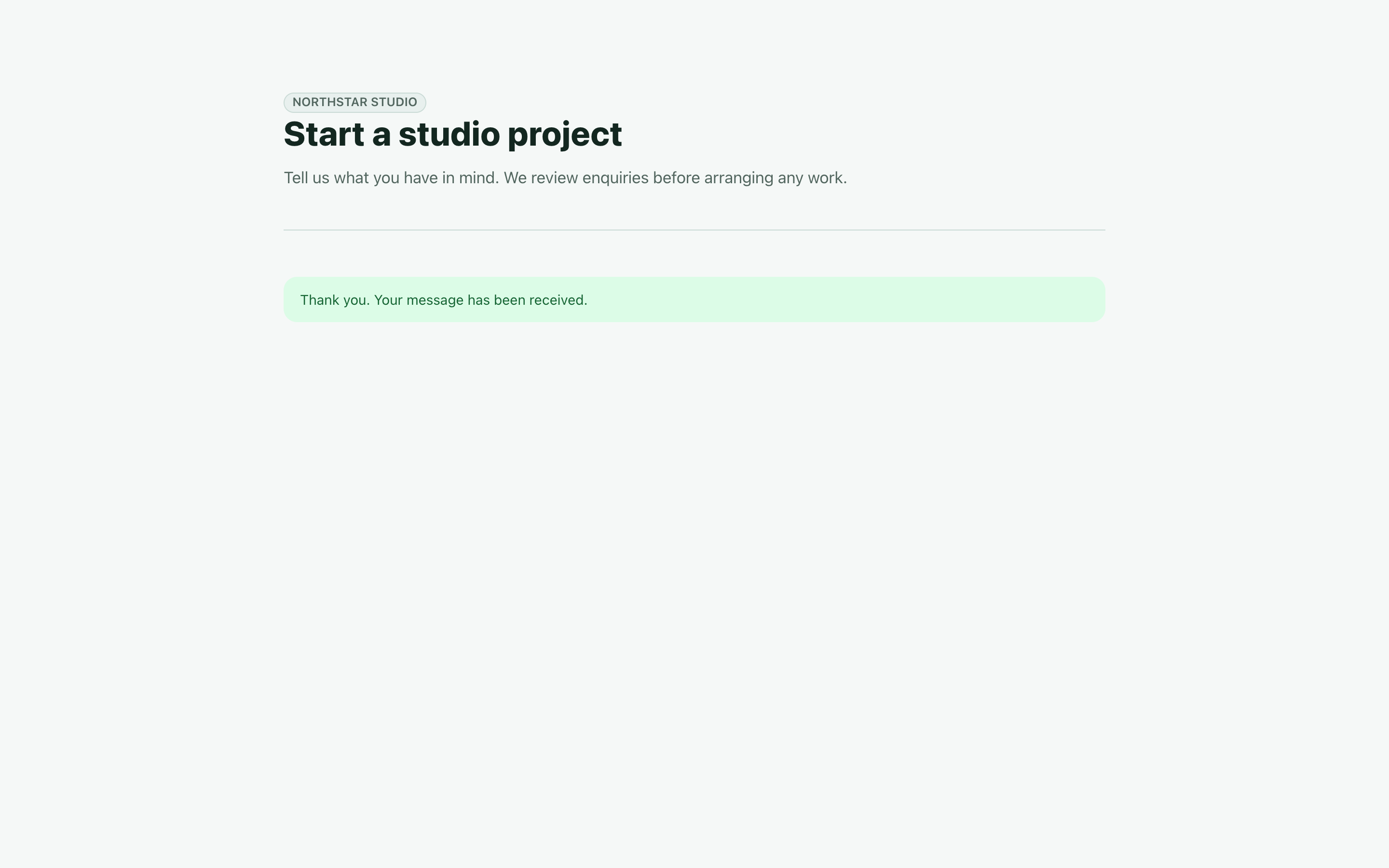
Test at a normal human pace. Each step carries a fresh timing check, and an implausibly fast automated post can take the same success path without creating a record. A success message is therefore not your verification of storage or email delivery. Continue to the inbox and find the exact enquiry.
Also test the non-website branch, an omitted required answer, a budget outside its range and an unsupported or oversized file before opening the page to visitors. With no JavaScript, complete the same server-driven steps and confirm that an answer from a false conditional branch is not stored.
11. Read the submission and manage its status
Open Forms → Submissions for the intended site. Choose Project enquiry in Form, then Apply. Use Search to find answer text and Status to narrow the list. Reset removes the filters. The list shows received time, form, status and notification result.
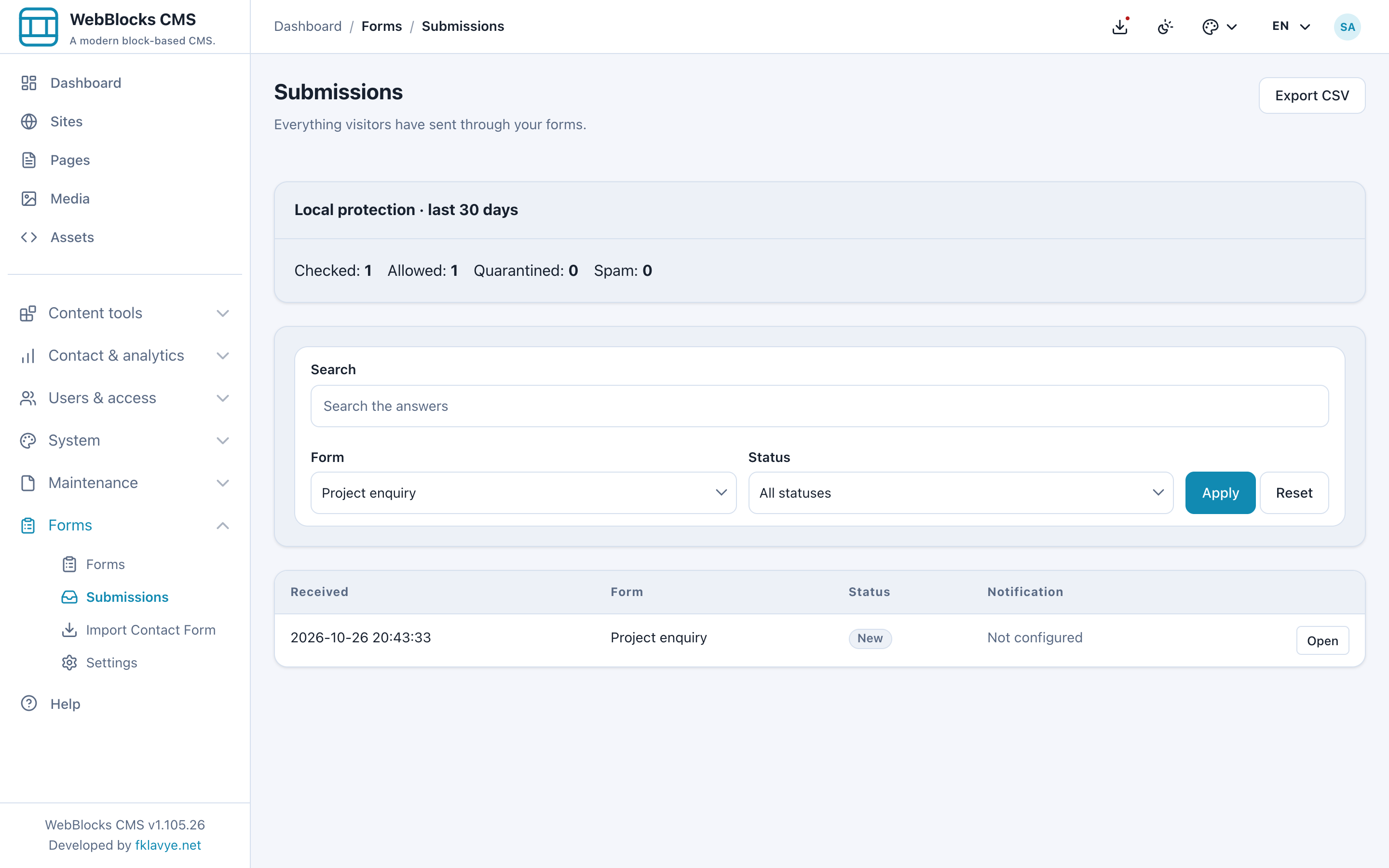
Select Open. A New record becomes Read when opened. The detail shows the answers under the labels captured when the visitor submitted them, plus any Attachments. Option answers can appear as stored values such as website rather than the dropdown's visible label. Consent appears as the recorded acceptance with its wording.
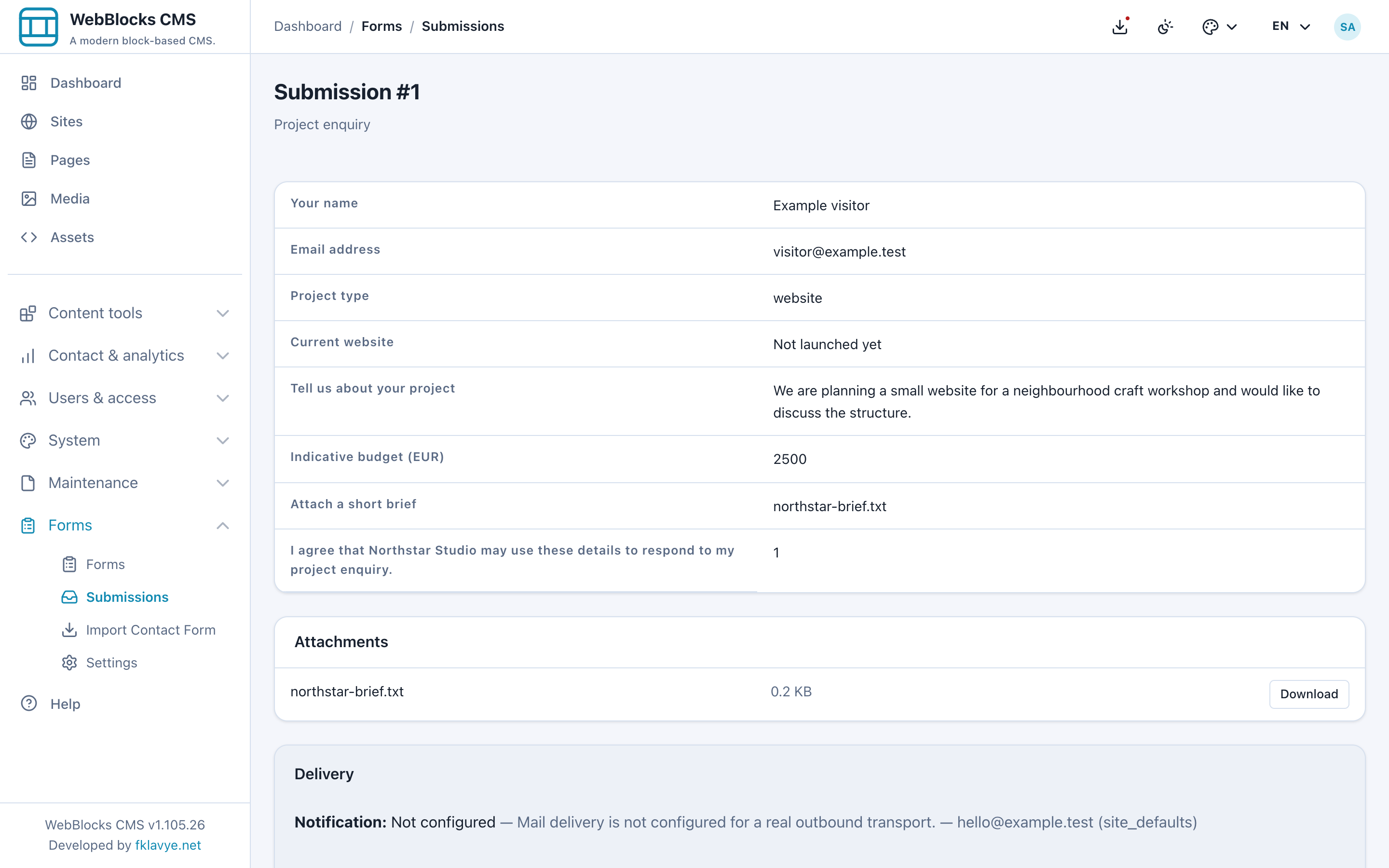
Select Download to retrieve the attachment. The link requires the operator's authenticated access and submissions permission as well as its short-lived signature. If it expires, reopen the detail to obtain a new link. Do not paste a private download link into a public page or share a screenshot of its full URL.
| Status | How to use it |
|---|---|
| New | Unopened incoming work. |
| Read | Opened, but not necessarily answered. |
| Replied | Mark after you have actually responded through your usual channel. |
| Archived | Filed away; does not teach the spam filter. |
| Quarantined | Retained for operator review; actions were suppressed. |
| Spam | Abuse retained as spam; actions were suppressed. |
After answering the fictional enquiry, choose Replied and Save. This changes the status; it is not a reply composer and does not send the customer a message. Deleting a submission is permanent. Download needed material and follow your retention process before deliberately deleting records.
12. Verify each delivery outcome
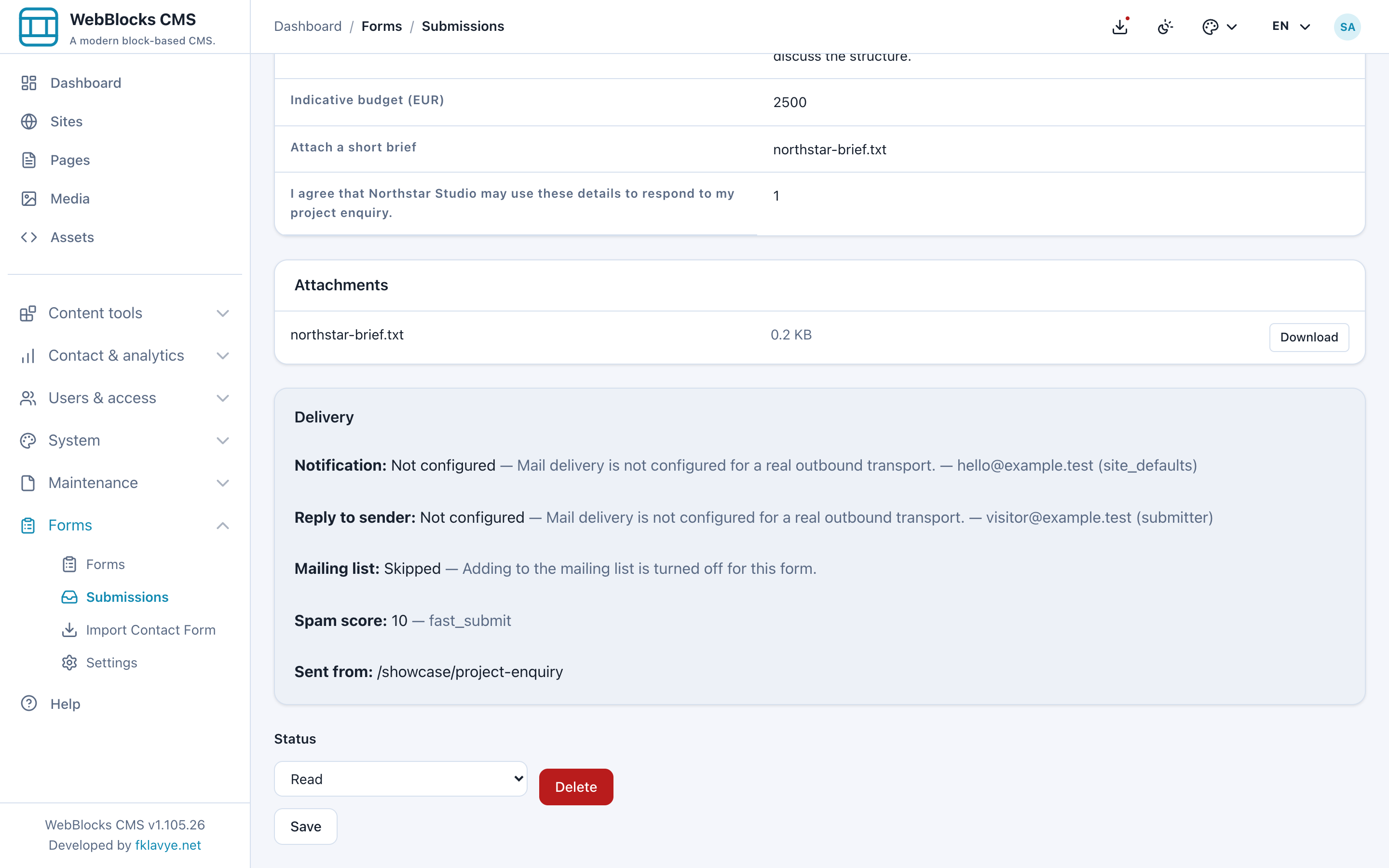
Find Delivery in the detail. Our example has separate Notification and Reply to sender results. Mailing list: Skipped reflects the disabled optional action. The source page is shown separately from the answers.
| Result | What it tells you |
|---|---|
| Sent | The mail transport accepted the message; not proof it reached an inbox or was read. |
| Failed | An attempt failed; examine the detail and correct the destination or transport. |
| Skipped | The action was intentionally not performed, for example because it was disabled. |
| Not configured | A required setup or input was unavailable; local log mail is not real delivery. |
| No attempt listed | Nothing was attempted for this record; check storage, protection decision and actions. |
Storage is committed before the actions run. A bad recipient or mail failure does not retract the saved enquiry. Notification and visitor copy can have different outcomes. Before launch, configure real CMS outbound mail and its sender, use controlled inboxes, and test both messages. Changing a status or correcting settings does not automatically replay the original delivery; this version's detail screen has no resend control.
The inbox's Local protection · last 30 days totals summarize checked, allowed, quarantined and spam decisions for the selected site. Suspicious submissions can be retained while email, visitor copies, webhooks and Campaigns actions are suppressed. Mark actual abuse Spam; restoring a false positive to New, Read or Replied records corrective feedback. Do not assume that restoring its status re-runs the suppressed actions.
13. Export the selected form as CSV
Return to Submissions, select Project enquiry, set any Status or Search filter and choose Apply. Then select Export CSV. Export is a separate role permission and requires a selected form; All forms does not define one shared set of columns.
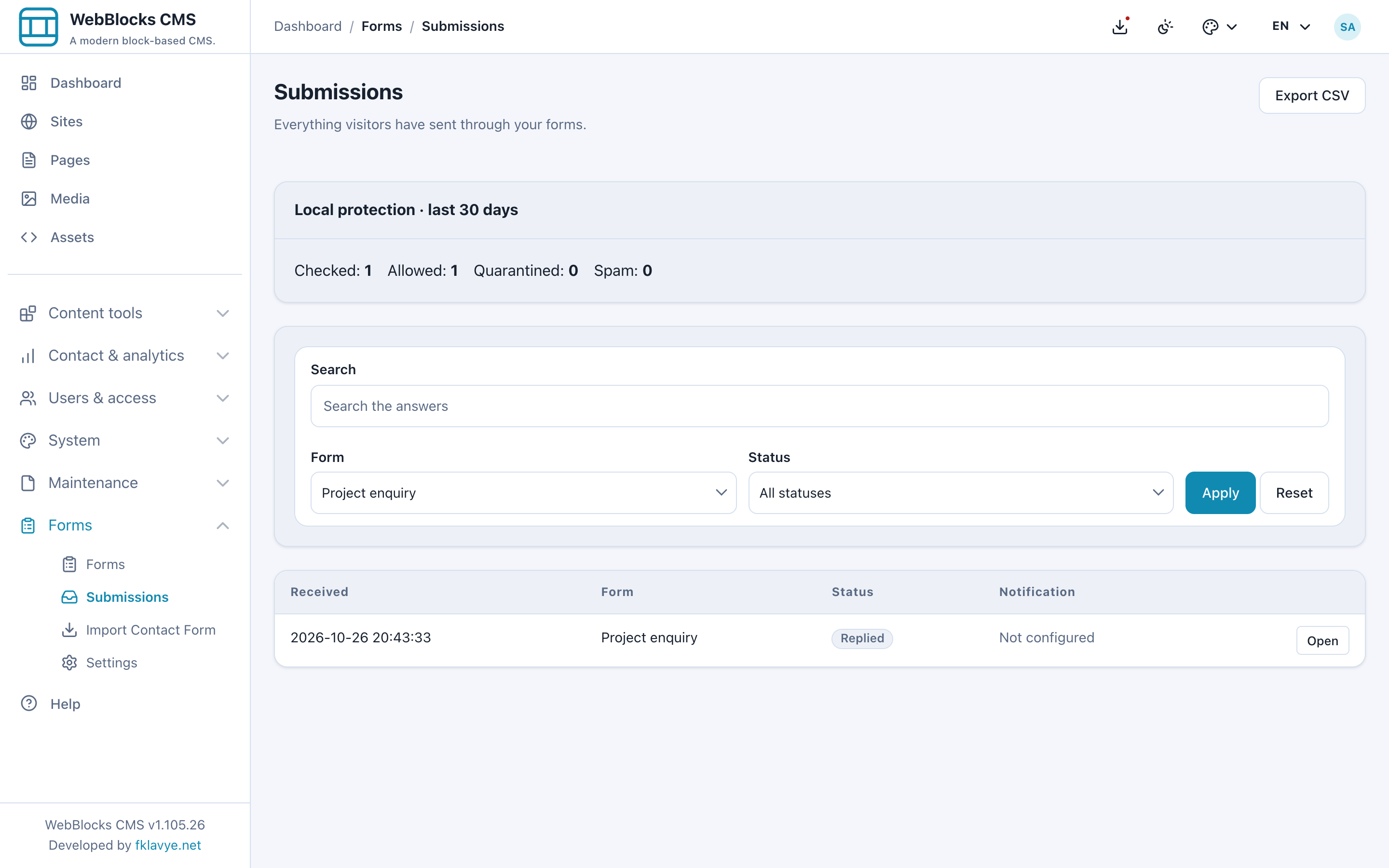
The export contains the current filter's submissions, their ID, received timestamp, status and answers. Attachment columns contain filenames, not bundled file bytes or permanent public download links. Download files from the authorized detail screen when needed.
Headers come from the first exported submission's snapshot and later rows align by stable field key. If the form's field set changed substantially over time, check the exported columns carefully: a newer field absent from the first snapshot is not automatically added to that export's header. The file uses UTF-8 with a BOM for spreadsheet compatibility.
Treat the downloaded CSV as a copy that has left CMS access control. Open it with the spreadsheet application's safe import workflow, especially when handling untrusted answer text. Check the row count, a known answer and the attachment filename against the inbox before relying on the export.
14. Import an existing native Contact Form
If you already have a native Contact Form, open Forms → Import Contact Form on that site. Locate the intended page and select Import once. Draft-page blocks are included; a draft example is shown here.
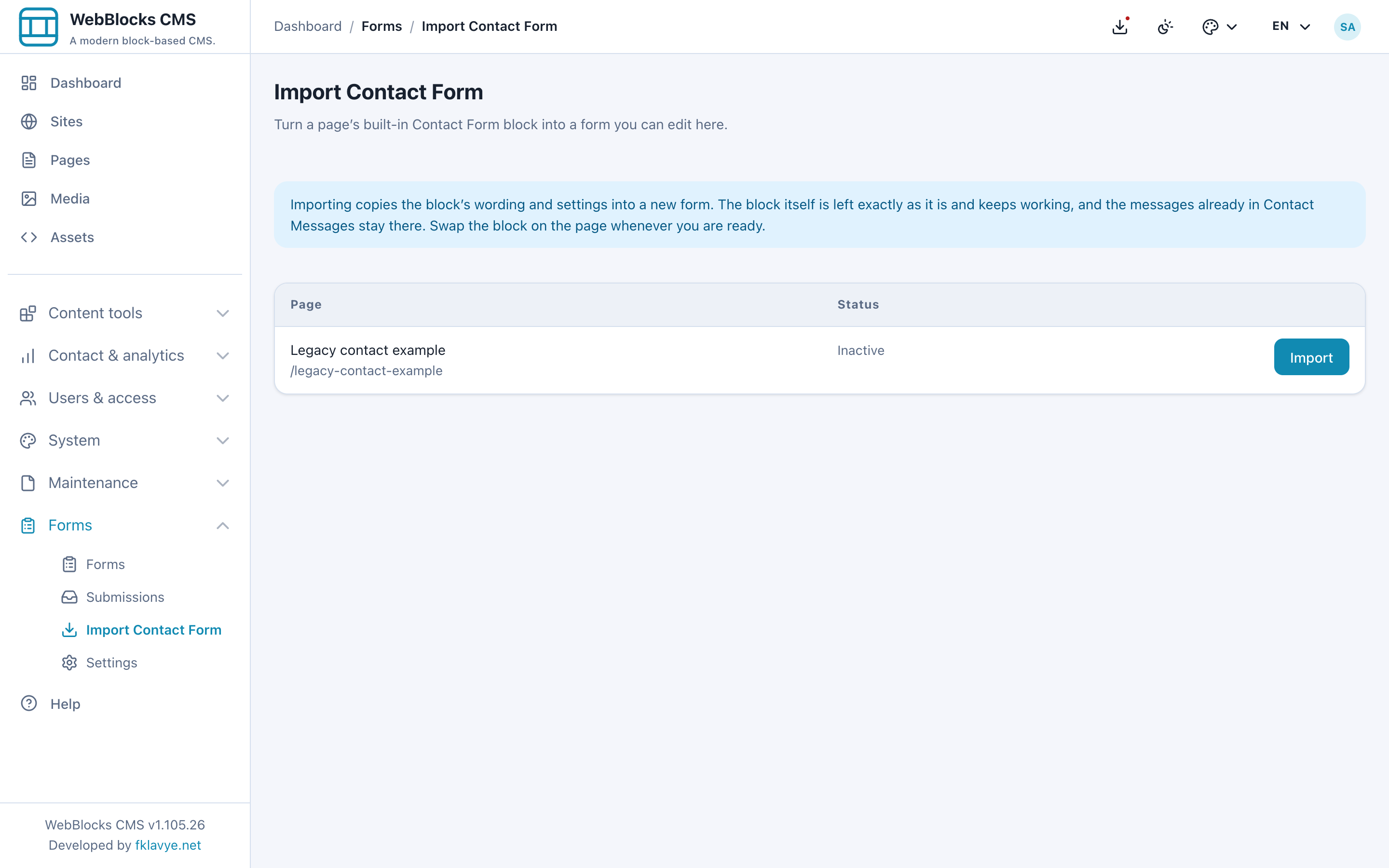
The importer creates a plugin form with the four original questions, available language wording, heading/intro/button/success copy, consent wording and notification configuration. Read any import notes. An inherited recipient stays inherited; a disabled notification stays disabled. Missing consent wording may be filled from the default language and needs review. The importer stores submissions even if the old block carried a disabled storage setting.
The original block is unchanged and continues to work. Existing Contact Messages stay in their own inbox. Review the imported form's fields, copy, consent and delivery, then replace the page's block in a draft or staged update when ready. Importing alone does not switch the live page. Repeating an import creates another form rather than updating your first copy.
15. Add optional integrations deliberately
For an external system, open the form's Webhooks section, add its Endpoint URL, configure a private Signing secret, enable it and save. The receiver must understand the plugin's signed JSON contract. Use a public HTTPS endpoint you control; private-network and insecure HTTP targets are blocked by default. Keep secrets out of page copy, screenshots and shared notes.
A form can have several webhook actions. Clearing an existing URL removes that action while preserving past delivery records. A blank signing-secret field on an existing action means keep its stored secret. Review the individual delivery outcome and the receiving system's result; saving a URL is not a successful integration test. The guide does not send to an external endpoint.
For newsletter opt-in, install and enable compatible WebBlocks Campaigns, prepare its mail and list, and use Mailing list → Offer a newsletter subscription. The action needs a usable email answer and accepted Consent wording. Review exactly which consent it will use; the enquiry acknowledgement in this example does not ask for marketing mail. Use a dedicated form with explicit newsletter wording instead of enabling the action on this example unchanged.
Enter List id only when using a particular Campaigns list, or leave it empty for that site's default. Optional name mappings use the form's field keys. Campaigns sends a confirmation email and requires the visitor to confirm; this action does not bypass double opt-in. If Campaigns is absent or disabled, the enquiry form can still work while that action reports Not configured. Do not claim a subscription until the actual confirmation flow has been tested.
16. Maintain the form and its retention policy
Clear Accepting submissions to pause a form. Its page placements then render no form, so provide a useful alternative on the page before a planned pause. Deleting a form that already has submissions deactivates it instead, preserving history; a form without submissions can be deleted.
Field labels, types and order can change for future visitors, while old submissions retain their schema snapshots. Deleting a field stops asking it without erasing older answers. Existing field keys are fixed after the form has submissions. Re-test conditions, exported columns and all page languages after a structural change.
Set Delete submissions after (days) on the form only when you have decided its actual retention period. The default is no window. An administrator should preview deletion with:
php artisan webblocks-forms:prune-submissions --dry-runAfter reviewing the result, schedule the real command through the host's scheduler or cron:
php artisan webblocks-forms:prune-submissionsA running Laravel scheduler does not by itself schedule this plugin command; add its task explicitly. It handles eligible records across forms, so review all configured windows before a live run. The command removes retained attachments with expired submissions and also cleans abandoned temporary uploads. An unfinished multi-step form can have temporary file bytes even though no completed inbox record exists yet.
Troubleshooting
| Symptom | Check first |
|---|---|
| Forms menu is absent | Enabled compatible plugin, completed database setup, role permissions and site access. |
| Continue or Send fails after ZIP installation | The host service-provider integration, loaded Forms configuration and named submit rate limiter. |
| Form picker is empty | Correct page site, an active form and the operator's site context. |
| The page has no form | Selected stable handle, Accepting submissions, fields present, saved page and active plugin. |
| Current website does not appear | Same-step controller, exact stored value website, saved condition and plugin JavaScript asset. |
| A hidden required field blocks sending | Correct condition, loaded enhancement script and a saved-page test; the server must also resolve the branch. |
| Continue returns to the same step | Validation errors, session/cookies, timing and current server step. |
| A success result has no inbox record | Correct site/form filters, storage enabled, completed final step and protection/timing handling. |
| Mail is Not configured | Real outbound transport, recipient fallback and a submitted Email address field for the visitor copy. |
| Changing site retention does not affect the form | Set and verify the form's own Handling retention window. |
| An attachment is rejected | Content/extension policy, field/site/install maximum and PHP/web-server request limits. |
| A private download no longer opens | Signed-link expiry, authenticated permission, correct site and underlying private file. |
| CSV omits expected columns | Selected form/filter and the first exported submission's historical schema. |
| A newsletter action does nothing | Enabled Campaigns, correct site/list, email answer and explicit accepted newsletter consent. |
| Old records show old labels | Expected: submission snapshots preserve what the visitor was asked. |
Final check before launch
Verify installation, the host provider and roles. Review the stable handle, form storage, both delivery destinations, field types, required values, option labels, same-step conditions, upload limits and acknowledgement. Complete both branches at a normal pace, find the saved records, test a private file download and compare an export with the inbox.
Test a real anonymous visitor, a phone and the no-JavaScript fallback. Confirm real mail separately. Review any optional integrations and the administrator's retention dry run. Publish the enquiry page only after those checks, then repeat a direct visitor test on the public HTTPS site and in each offered language.
Continue with the Forms reference, Contact Form guide, Publish A Page, Navigation Menus or Roles And Permissions.