Take Bookings With WebBlocks Appointments
Let visitors book time on your own website. Define what they can book, who or what delivers it, and when it is available; then place a native booking form on a CMS page and manage the resulting appointments in the panel.
Our example is Northstar Studio. Visitors can request a 45-minute Portfolio consultation with the Studio adviser. The adviser works Monday to Friday, 09:00–17:00, in Europe/Berlin, with 15 minutes after each consultation for preparation and notes. You will submit a visitor request, confirm it as an operator, add a telephone booking, and follow a visitor cancellation back to the list.
This walkthrough was checked with Appointments 0.16.1 and WebBlocks CMS 1.105.26. The optional member-access example also uses Memberships 0.2.0. All names, bookings and addresses in the screenshots are fictional. Booking, status changes, dated closure, cancellation and member-service visibility were exercised locally. Real email delivery and a production reminder schedule were not tested; the local mail warnings are deliberately visible.
Understand the four parts first
| Part | What it controls | Northstar Studio example |
|---|---|---|
| Staff or room | A resource that handles one appointment at a time. | Studio adviser or Workshop room. |
| Service | What a visitor books, its duration, buffers and assigned resources. | Portfolio consultation, 45 minutes, 15-minute buffer after. |
| Opening hours and exceptions | Recurring resource availability and dated changes. | Weekdays 09:00–17:00; closed on 4 November. |
| Appointment Form block | The visitor entry point and its heading, introduction and button text. | Book your consultation, with Request appointment as the button. |
Services, resources, opening hours and booking rules belong to the site, not to an individual form block. Two booking pages on the same site use those same operational records. Changing the form's heading does not change service duration or open another calendar.
Appointments is a scheduling plugin. This version does not take a booking payment, create a meeting link, or synchronize an operator's Google or Outlook calendar. Confirmation mail can include an .ics calendar attachment for the visitor to import; that is different from continuously synchronizing an external calendar.
Memberships is optional. Ordinary guest bookings do not require an account. A restricted service can require a verified member or a particular active membership package, as described later. A paid Memberships entitlement can qualify someone for that package, but the appointment form itself does not collect a separate booking charge.
For developer routes and the detailed plugin contract, see the Appointments reference. This guide follows the current panel and visitor workflow.
Before you start
Use a test site while learning, and prepare:
- A working WebBlocks CMS installation and a Super admin account for plugin installation and settings.
- A compatible release. Appointments 0.16.1 declares CMS ^1.99.0 and PHP >=8.3; its catalogue lists Laravel 13 compatibility. Use the compatibility result for your actual installation, including the CMS's own requirements.
- Permission to manage appointments, services and opening hours for the intended site. Viewing appointments, managing them and changing plugin settings are separate permissions. Site Admin has the plugin's view/manage roles by default; do not assume that includes its settings permission.
- The correct site timezone, canonical domain and a real CMS outbound mail configuration before opening bookings to visitors.
- A hosting administrator who can schedule the reminder command if you want reminders.
Check the site's Timezone in Sites before creating appointments. This walkthrough uses Europe/Berlin. Public form times and operator-entered times use that site's clock; they are not automatically converted to the visitor's browser timezone. Tell visitors which timezone applies, especially for remote consultations.
The plugin is listed as free in the WebBlocks plugin catalogue. You do not need Commerce or Memberships for the guest-booking part of this guide.
1. Install and enable Appointments
- Open System → Plugins as Super admin.
- Select Browse Plugin Catalog and open WebBlocks Appointments.
- Review the selected release, compatibility result and release notes.
- Choose Install from Catalog when the compatible release is offered.
- Open the installed plugin's details and choose Enable Plugin. Newly installed packages start disabled for review.
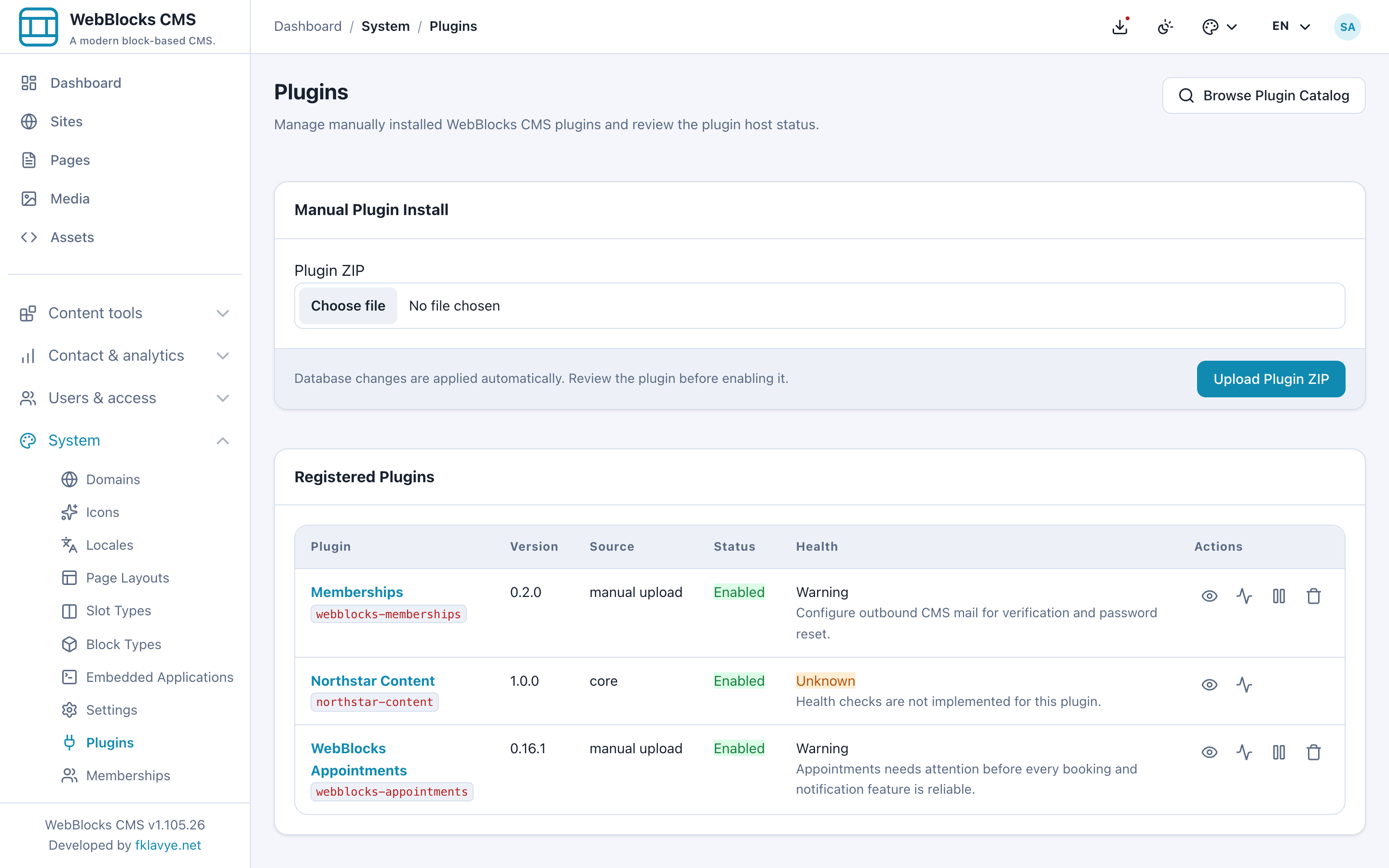
If your administrator supplies a trusted release ZIP, use Plugin ZIP → Upload Plugin ZIP, review it and enable it. You do not need to build source code for the panel installation route. Current CMS releases prepare plugin database changes during installation, updates and activation; resolve any database setup error before proceeding.
The sidebar gains an Appointments group with Appointments, Services, Staff & Rooms, Opening Hours and Settings. On a multisite installation, use the available site controls and check the selected site's context before editing. The public form reads the site of the page where you place it.
Plugin Health checks tables, active services and resources, assignments, opening hours, a notification recipient, outbound mail and reminder scheduling. A warning is useful information, not permission to ignore setup. Our screenshots use a non-delivering local mail transport, so the plugin correctly needs attention even though the booking workflow works.
2. Add the staff member or room
Open Appointments → Staff & Rooms → Add staff or room.
- Enter Studio adviser in Name.
- Select Use as the default for new bookings for this example.
- Keep Active selected.
- Select Save.
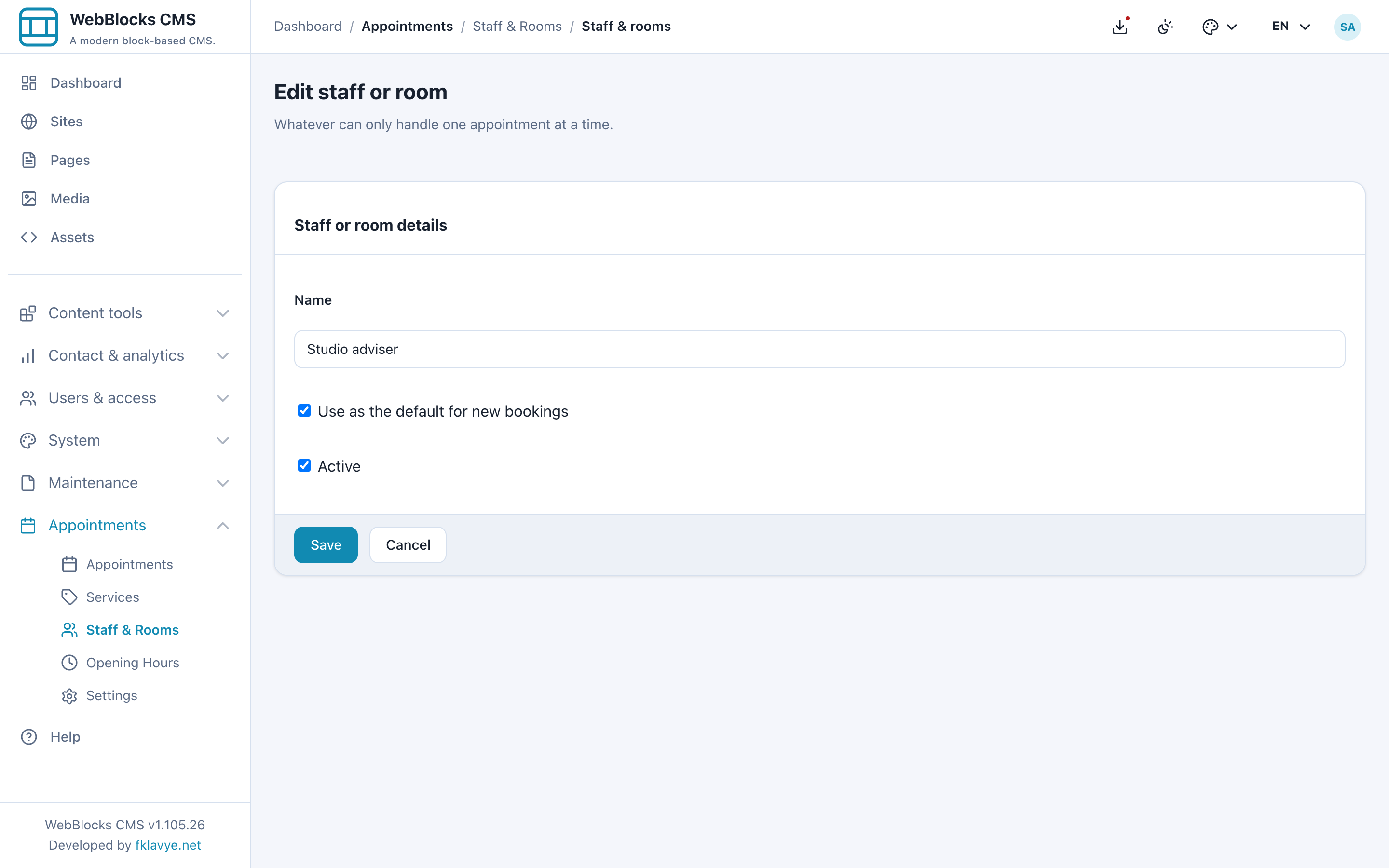
A resource represents something with capacity for one appointment at a time: a person, a consultation desk or a room. Create a separate resource for each independently bookable calendar. A name such as “Team of six” does not create six simultaneous places.
Our second example resource is Workshop room, used by a separate Studio room session service. It is not automatically reserved when someone books the adviser. One appointment has one resource; assigning several resources to a service does not mean the plugin reserves a staff member and a room together.
For the simplest setup, assign the consultation only to Studio adviser. In this release the public form uses the first active assigned resource, preferring the default and then its sort order. There is no visitor staff chooser or pooled “try the next free resource” flow. If the chosen resource is busy, do not assume another assigned resource is automatically substituted.
3. Create the service and assign its resource
Open Appointments → Services → Add service and enter:
| Field | Example | What it means |
|---|---|---|
| Name | Portfolio consultation | The name visitors choose. |
| Slug | portfolio-consultation | Leave blank to generate it from the name, or use your own stable identifier. |
| Duration | 45 | Minutes spent with the visitor. |
| Buffer before (min) | 0 | No preparation time before this example. |
| Buffer after (min) | 15 | Time held after the consultation. |
| Delivered by | Studio adviser | The resource that delivers this service. |
| Verified members only | Off | Guests can book the basic example. |
| Required membership package | No package requirement | No membership package needed yet. |
| Active | On | The service is available for new bookings. |
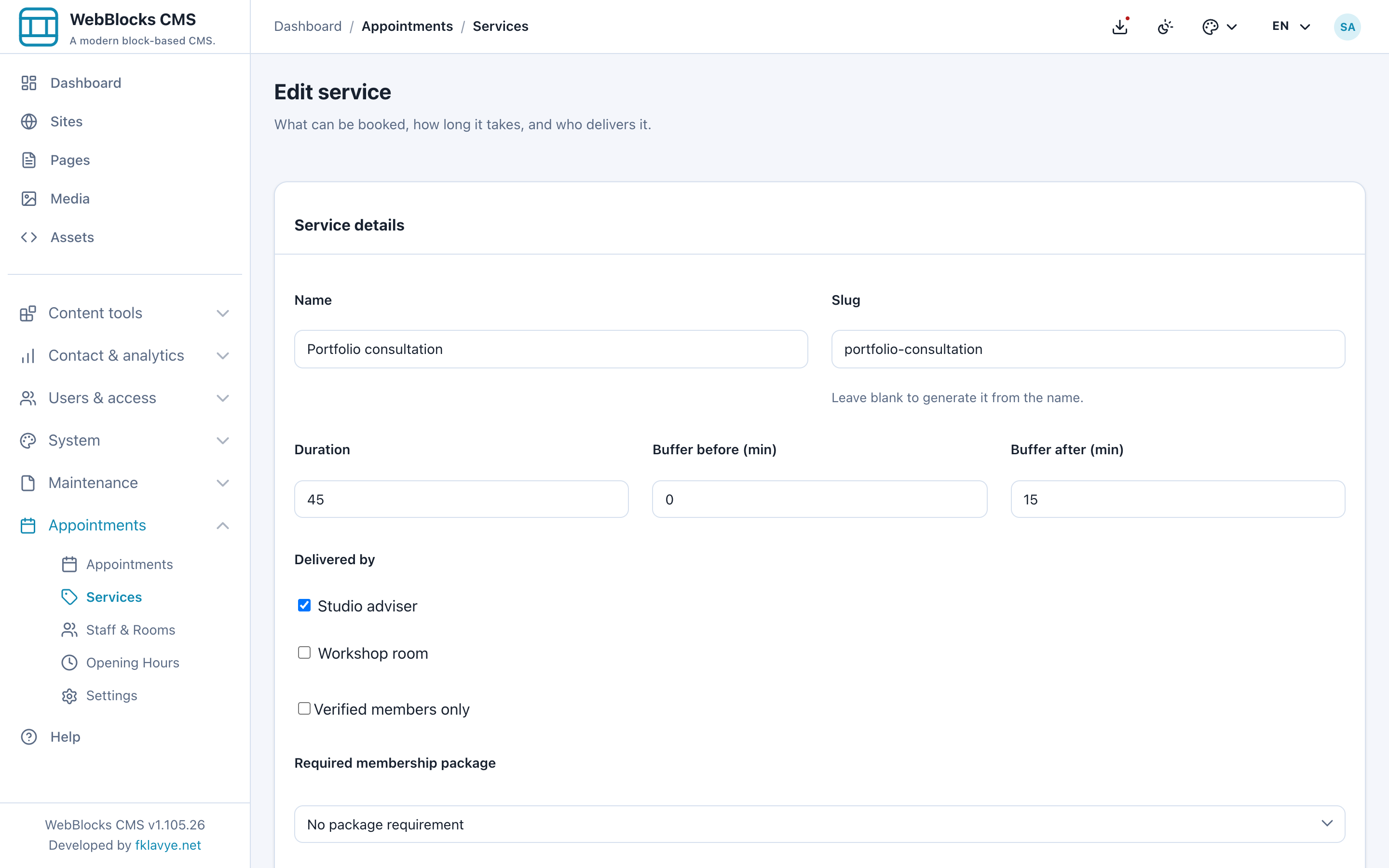
Select Save. Check the service catalogue for its name, duration, buffers, assigned resource and Active state. A service needs an active assigned resource with suitable opening hours before the public form can offer times.
Duration and slot interval are different. A 45-minute service does not have to start only every 45 minutes. You will choose a 15-minute interval in Settings so it can start at 09:00, 09:15, 09:30 and so on when the full appointment and conflict checks permit it.
A consultation at 10:00–10:45 with a 15-minute buffer after occupies the adviser until 11:00. The next consultation cannot start at 10:45. Earlier candidate starts can disappear too if their own appointment and cleanup would overlap the reserved period.
The visitor appointment must finish inside an opening window. A buffer can extend beyond that window: for example, a consultation ending at 17:00 can still have cleanup after closing. If staff must finish all work by a hard deadline, allow for that when setting the last bookable window.
4. Set weekly opening hours
Open Appointments → Opening Hours. Select Studio adviser in Staff or room, then select Apply.
Under Add hours, choose a day and enter its Opens and Closes times. For this example, add 09:00–17:00 for each of Monday through Friday. Save each rule with Add hours.
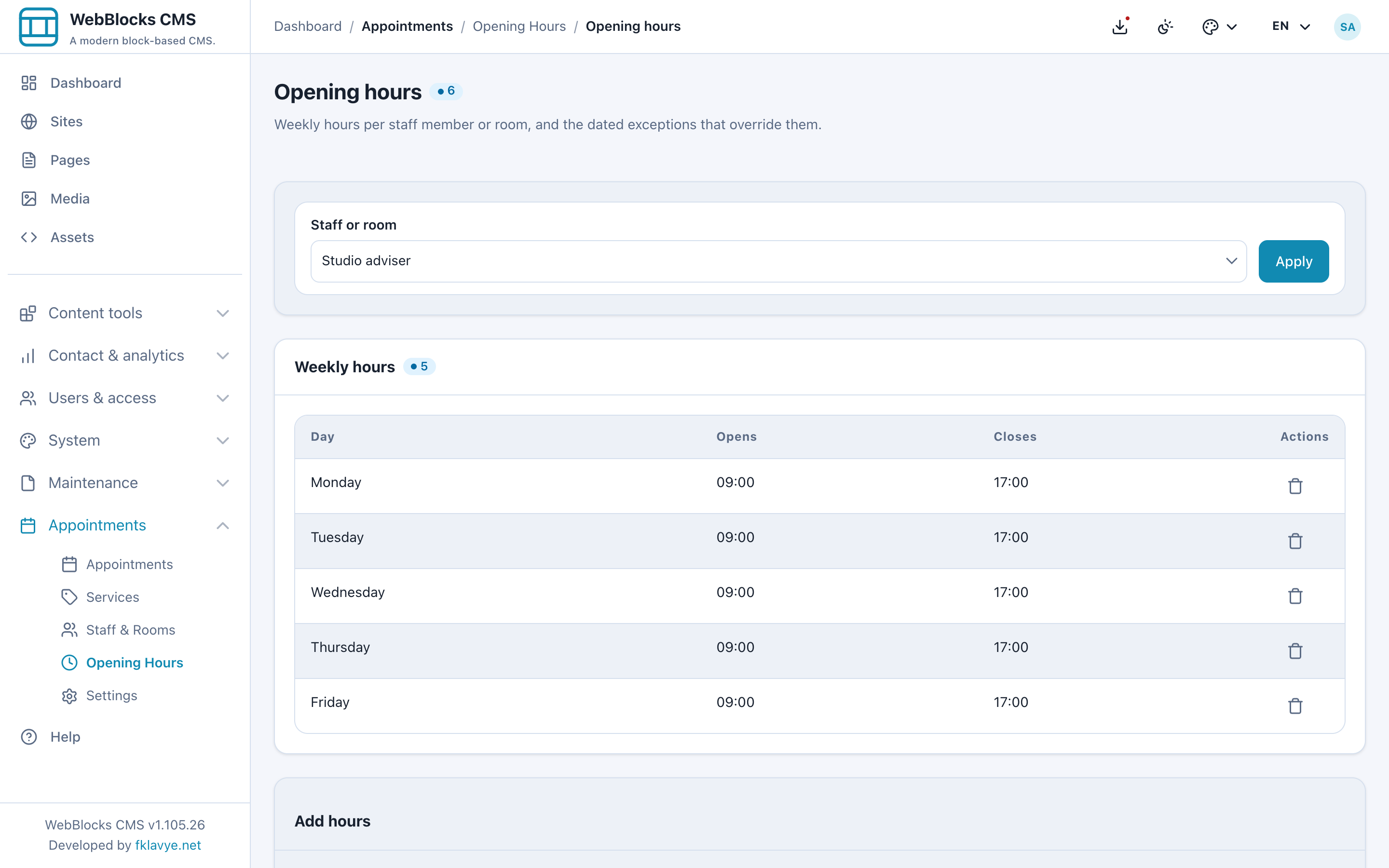
These are local wall-clock times in the site's timezone. Add rules for each resource separately; creating hours for the adviser does not create hours for Workshop room.
To close for lunch, use two windows on the same day, such as 09:00–12:00 and 13:00–17:00, rather than one continuous window. A service must fit fully within one window; it does not bridge a lunch break. Avoid overlapping duplicate rules that make the schedule harder to understand.
Days without a rule have no regular opening hours. Adding an active service alone does not make evenings or weekends bookable.
5. Add holidays and dated exceptions
Still in Opening Hours, use Add exception for a one-off closure or different hours. Our example closes the studio on 4 November 2026:
- Set Date to that day.
- Choose Whole site in Staff or room for this single-site example.
- Keep Closed selected.
- Enter Studio planning day in Reason.
- Select Add exception.
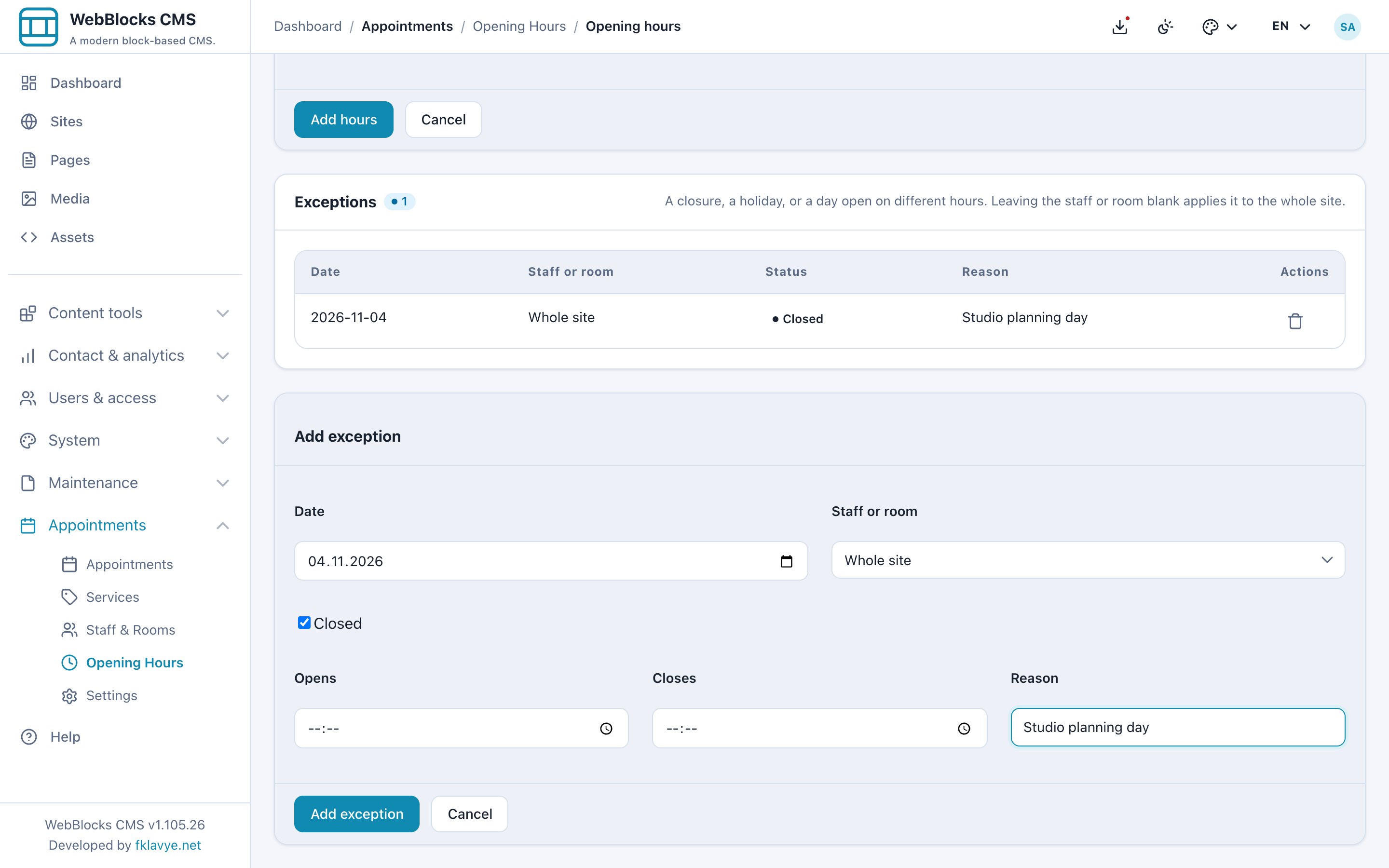
For one person or room, choose that resource instead of Whole site. To open on different hours, clear Closed and enter the replacement Opens and Closes times. An open exception replaces that day's regular hours; it is not an extra shift added to them. A matching closure takes priority over open windows.
On a multisite installation, prefer resource-specific exceptions and test all affected sites before relying on Whole site in 0.16.1. Its slot lookup can apply a whole-site dated closure outside the intended site. Resource-specific exceptions keep the example scoped to the selected resource.
After saving an exception, open the visitor form on that date. The closed day should offer no times. Also inspect existing bookings: changing opening hours or adding a closure does not automatically cancel appointments already stored for that day. Contact affected customers and manage those bookings separately.
6. Set the booking rules
Open Appointments → Settings. For this walkthrough use:
| Setting | Value | Result |
|---|---|---|
| Slot interval (min) | 15 | Offered start times are spaced 15 minutes apart. |
| Minimum notice (min) | 120 | Public visitors must book at least two hours ahead. |
| Booking horizon (days) | 60 | The public calendar is open up to 60 days ahead. |
| Confirm bookings automatically | Off | New requests start Pending for operator review. |
| Notification email | bookings@example.test | Fictional business recipient; use your own real recipient outside this test. |
| Reminder (hours before) | 24 | Reminder becomes due within the 24 hours before the appointment. |
| Let visitors cancel from their confirmation email | On | Visitors can confirm cancellation through their private email link. |
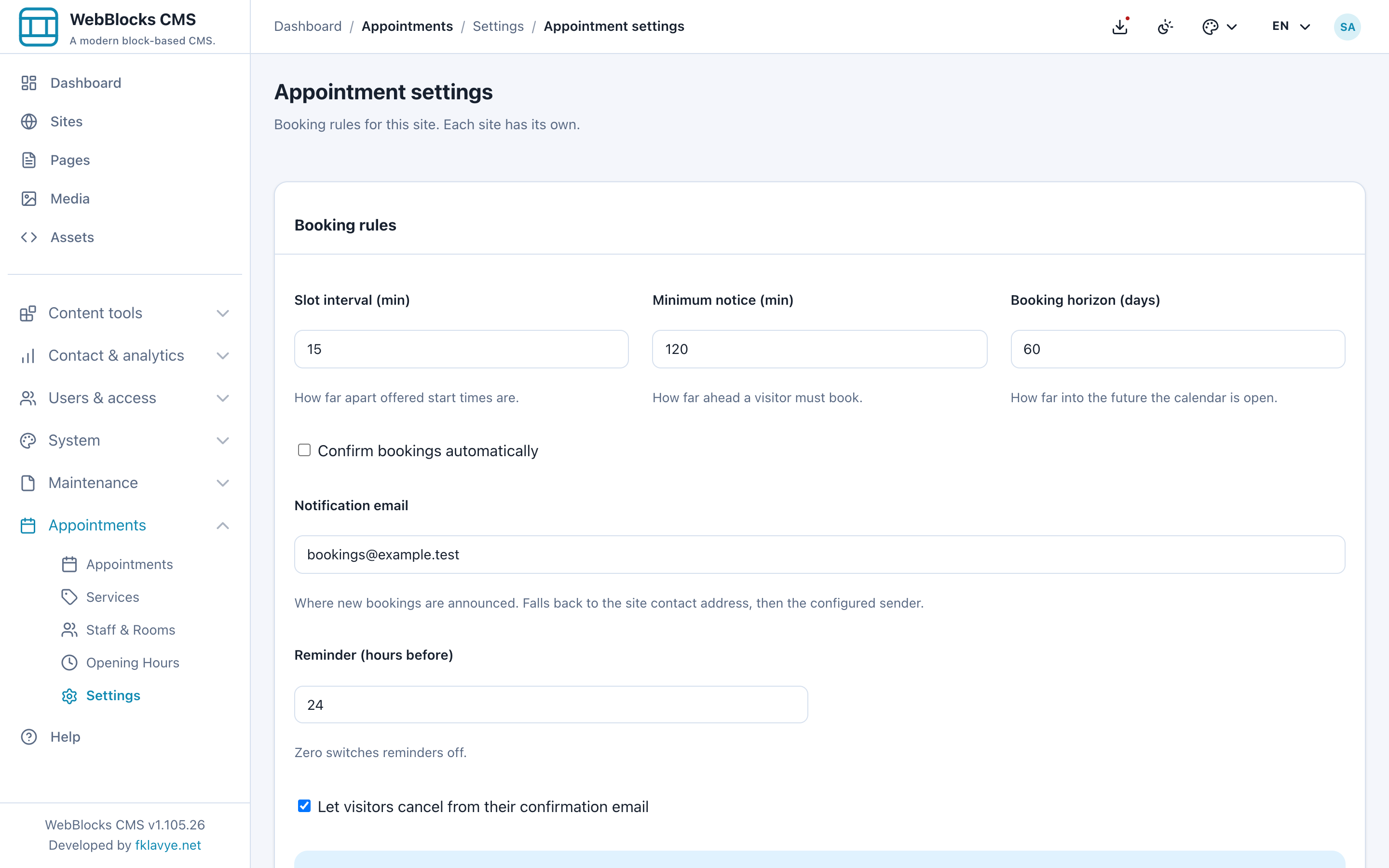
Select Save. These rules are per site. Changing them affects subsequent public availability and booking requests; it does not move existing appointments or rewrite their original customer details.
Pending is not an empty slot. A pending appointment already holds its resource and time, just as a confirmed booking does. Choose manual confirmation only if an operator will review requests promptly. Turning automatic confirmation on changes the starting status of new bookings; it does not retroactively confirm the pending list.
Notification email falls back to the site's contact address and then the configured sender if no plugin recipient is set. A recipient address alone does not configure delivery: the CMS still needs a real mail transport. Set Reminder to 0 if you intentionally do not send reminders.
7. Add the native Appointment Form to a page
Create a draft page such as Book a studio visit on the same site, or prepare a staged update to an existing booking page. Add a short description of the service, its timezone and what happens after a request.
In the Main slot:
- Select Add Block and choose Appointment Form.
- Open Block Fields.
- Set Heading to Book your consultation.
- Set Intro text to Choose a service and a date. Times are shown in the studio clock (Europe/Berlin).
- Set Submit button label to Request appointment for the manual-confirmation example.
- Select Save Block, then open the saved page Preview.
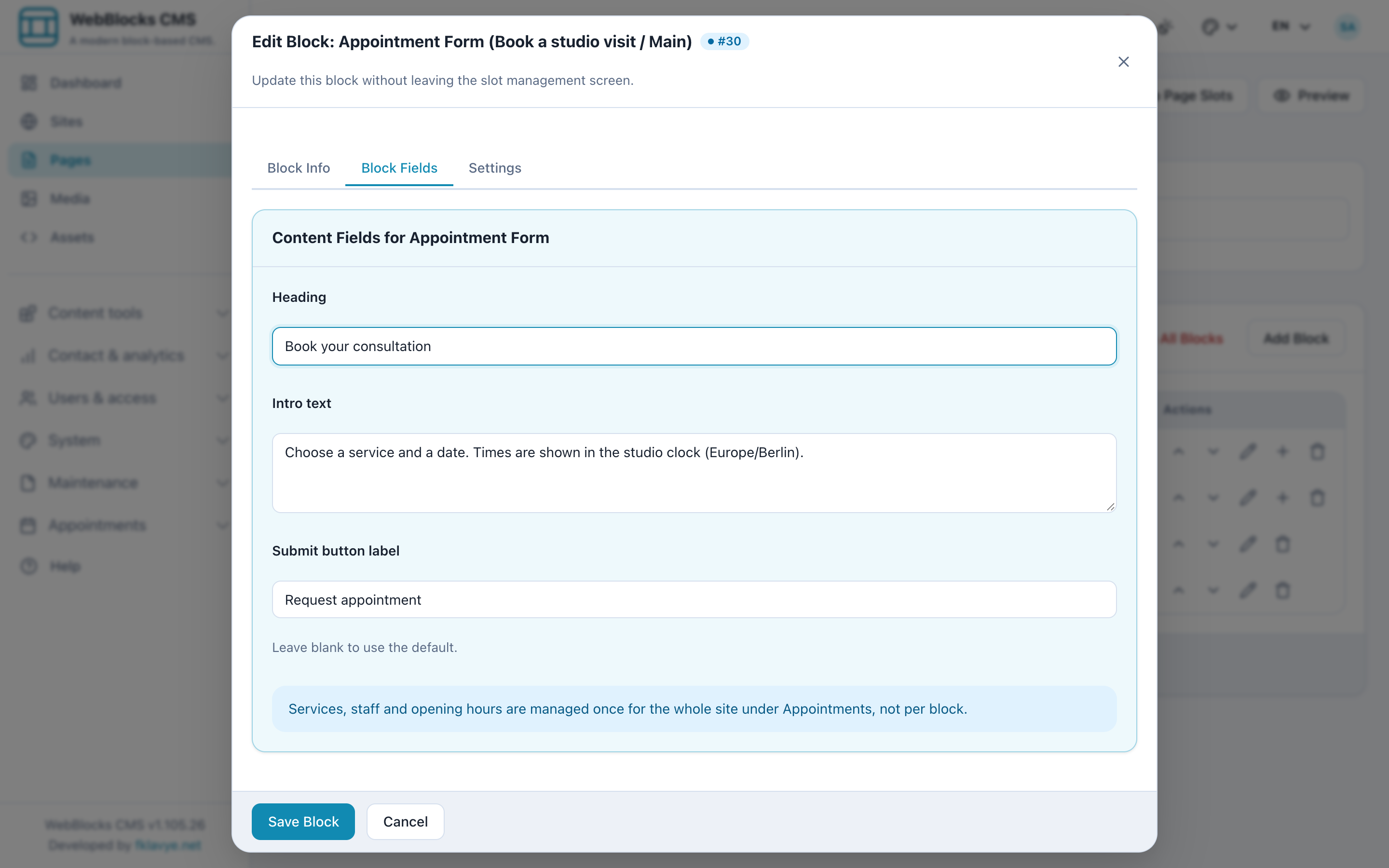
These fields control this form placement's copy. They do not contain the service catalogue, resource assignments or opening hours. You do not need a Trusted HTML block, a pasted external booking widget or a separate provider account.
You can edit the form's copy for other enabled page languages in the block editor. The service form has a single Name field in this version, so review what visitors actually see rather than assuming translating the CMS page also translates service records.
The block editor's instant preview does not support plugin forms. Save and use the saved page preview. Submitting a booking from a page preview still creates a real appointment in that installation. Learn on a test site with fictional visitor information, then publish the booking page only after its workflow and mail are ready.
8. Submit a visitor request
For the screenshots, a local visitor page uses the saved form. On your test site, open your page preview or reviewed booking page and choose:
- Service: Portfolio consultation.
- Date: a future open day within the booking horizon; 3 November 2026 in the example.
- Time: 10:00, in the studio's Europe/Berlin clock.
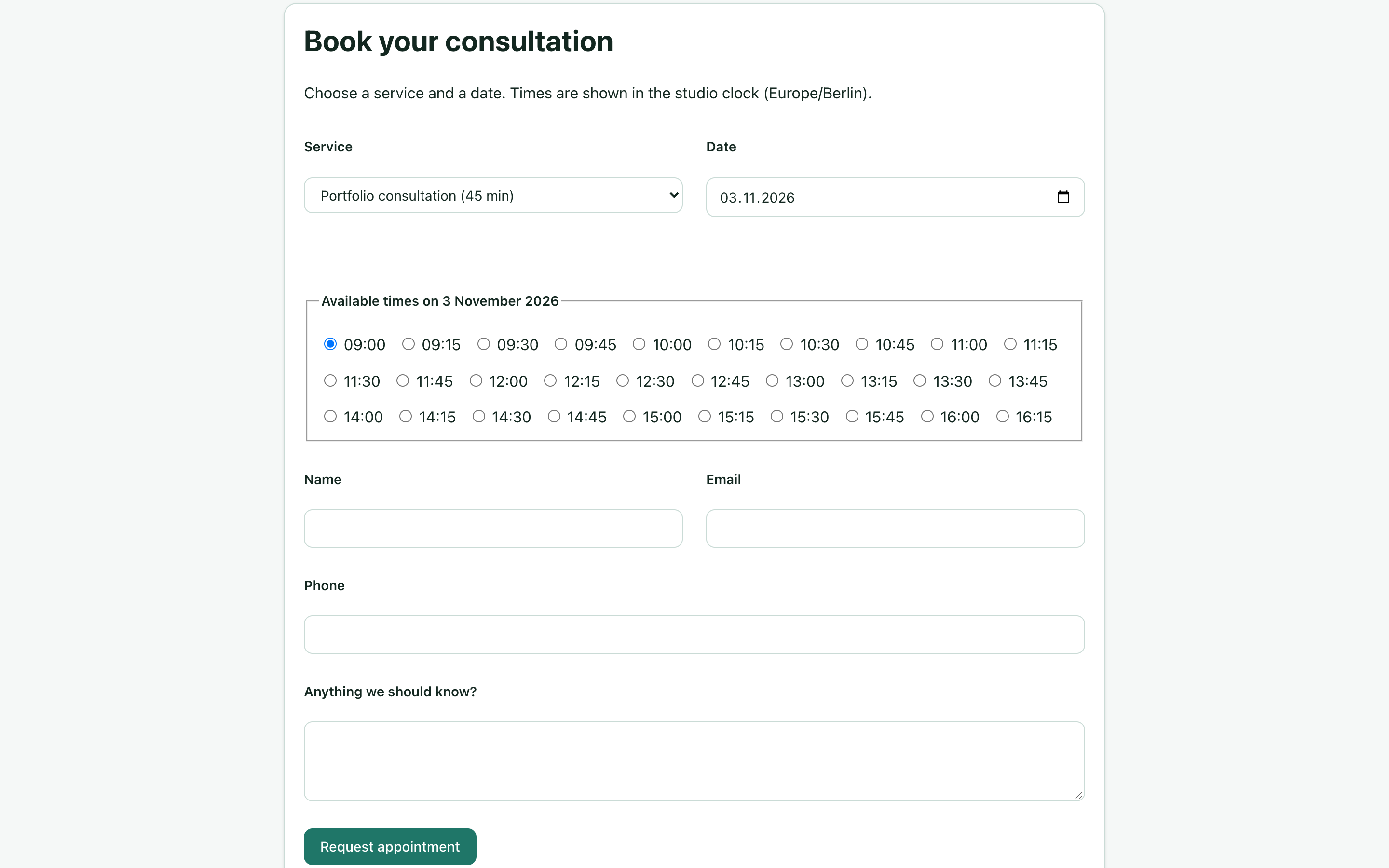
With JavaScript enabled, changing service or date refreshes the offered times. The server-rendered Show available times button is the fallback when JavaScript is unavailable. The server checks availability again when the request is submitted, so a displayed time is not held while someone is filling in the form.
Enter a name and email address, for example Example visitor and visitor@example.test. Phone and Anything we should know? are optional. In this exercise, leave Phone blank and add a brief fictional note. Use an address you control when testing real delivery.
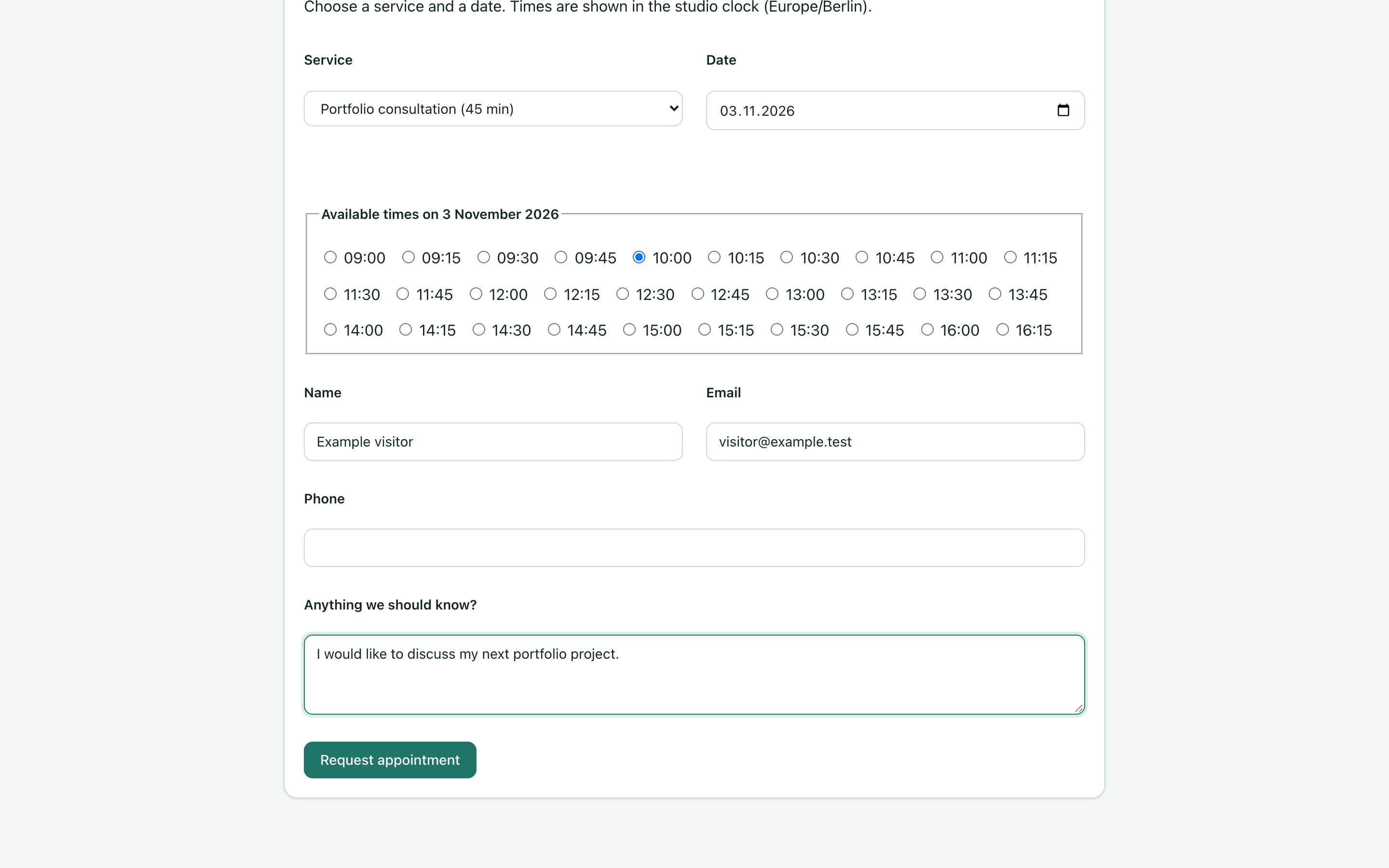
Select Request appointment once. If another booking takes that time first, choose a newly offered time and try again. A normal human test should allow time to complete the form; do not use repeated instant automated submissions as a delivery check.
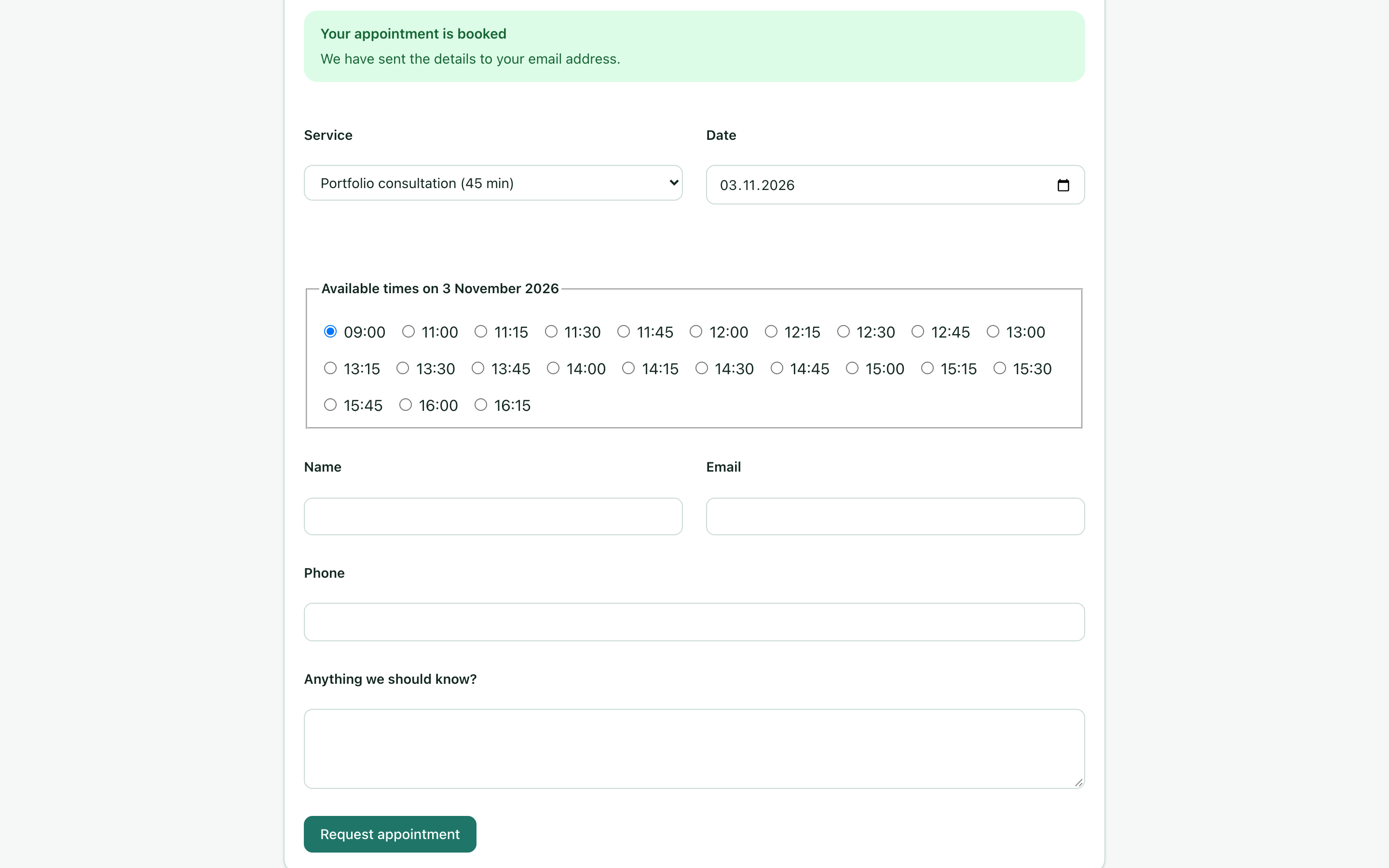
The result says Your appointment is booked. In this manual-confirmation exercise, the stored status is still Pending. The banner also uses generic wording about sending details; it is not proof that the mail reached the visitor. Our local transport does not deliver messages. Check the stored appointment and its separate notification results next.
Open the same service and date again. The pending 10:00 booking and its buffer should remove conflicting starts. A closed date should have no offered times. Use a future date appropriate to your own test day rather than reusing the screenshot dates indefinitely.
9. Find the request and confirm it
Open Appointments → Appointments. This version lists bookings across dates by default, with later appointments first. It is not limited to today. Use Date, Status or Search to narrow the list, then select Apply; Reset clears the filters.
Find Example visitor on 3 November 2026, 10:00–10:45, assigned to Studio adviser. The list shows the site's timezone near its heading, along with the service, customer details, status and separate notification outcomes.
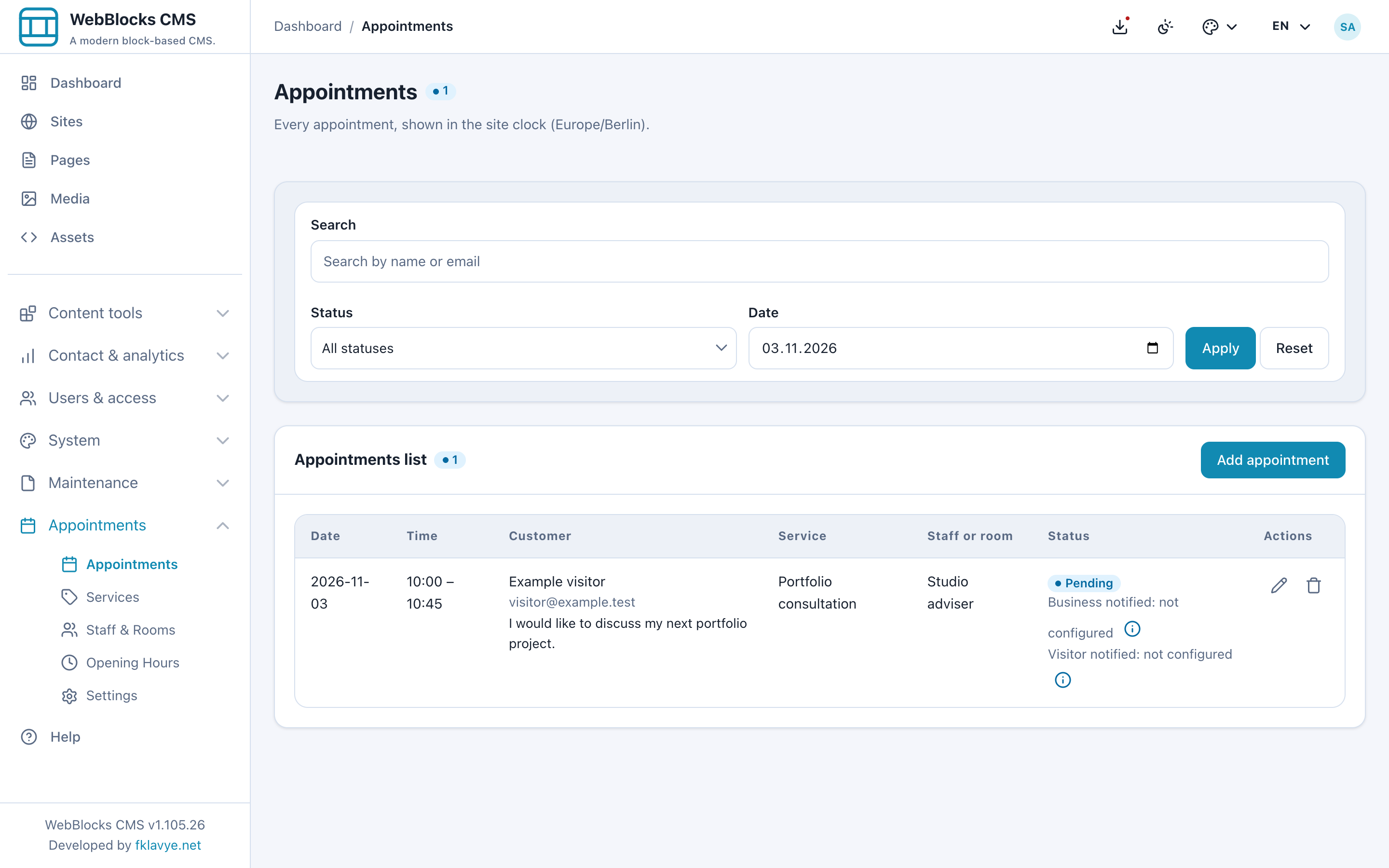
In Actions, choose the pencil button Edit status. Select Confirmed in the dialog, then select Save status.
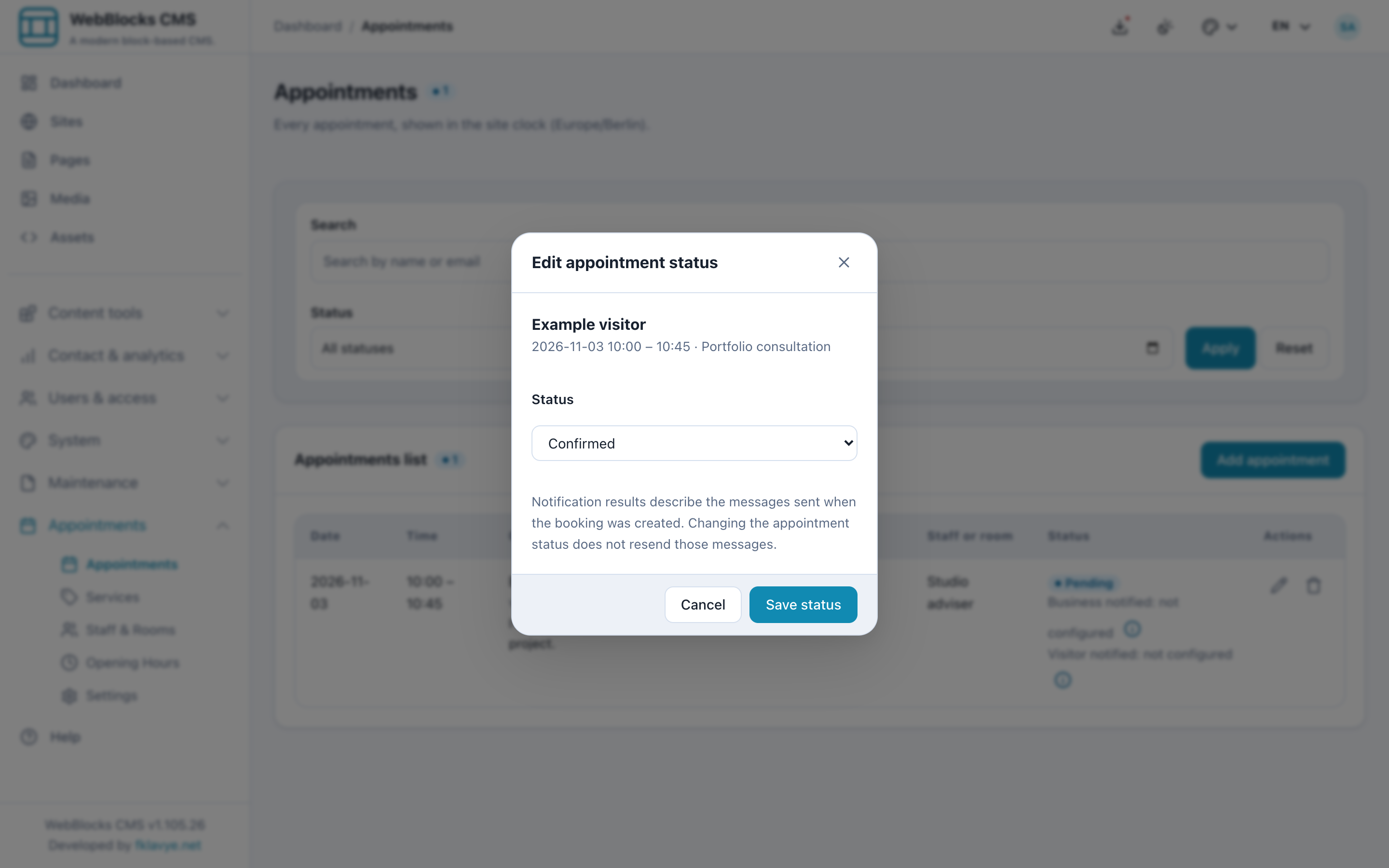
The main statuses are:
| Status | Operational meaning |
|---|---|
| Pending | Request awaiting review; the slot is already held. |
| Confirmed | Accepted appointment; the slot remains held. |
| Completed | Appointment recorded as completed; its historical slot remains occupied. |
| No show | Record that the visitor did not attend; it is not a way to move a future booking. |
| Cancelled | Appointment is cancelled and no longer holds the slot. |
Changing status does not resend the original booking messages. If your process requires a personal acceptance or change notice, contact the customer through your usual channel and verify the result. Do not assume selecting Confirmed automatically sends a new confirmation email.
The list provides status editing, not a full date/time rescheduling form. To arrange a different time, agree it with the customer, cancel the original deliberately and create a new booking. Review notifications separately. Do not delete the original merely to make the list look tidy: deletion is permanent and sends no cancellation notification.
10. Enter a booking taken by telephone
Open Appointments → Appointments → Add appointment. Choose:
- Service: Portfolio consultation.
- Staff or room: Studio adviser.
- Date: the same future test day.
- Time: 15:00, in the site's timezone.
- Customer: Example phone booking.
- Email:
phone@example.test. - An optional note explaining the telephone enquiry.
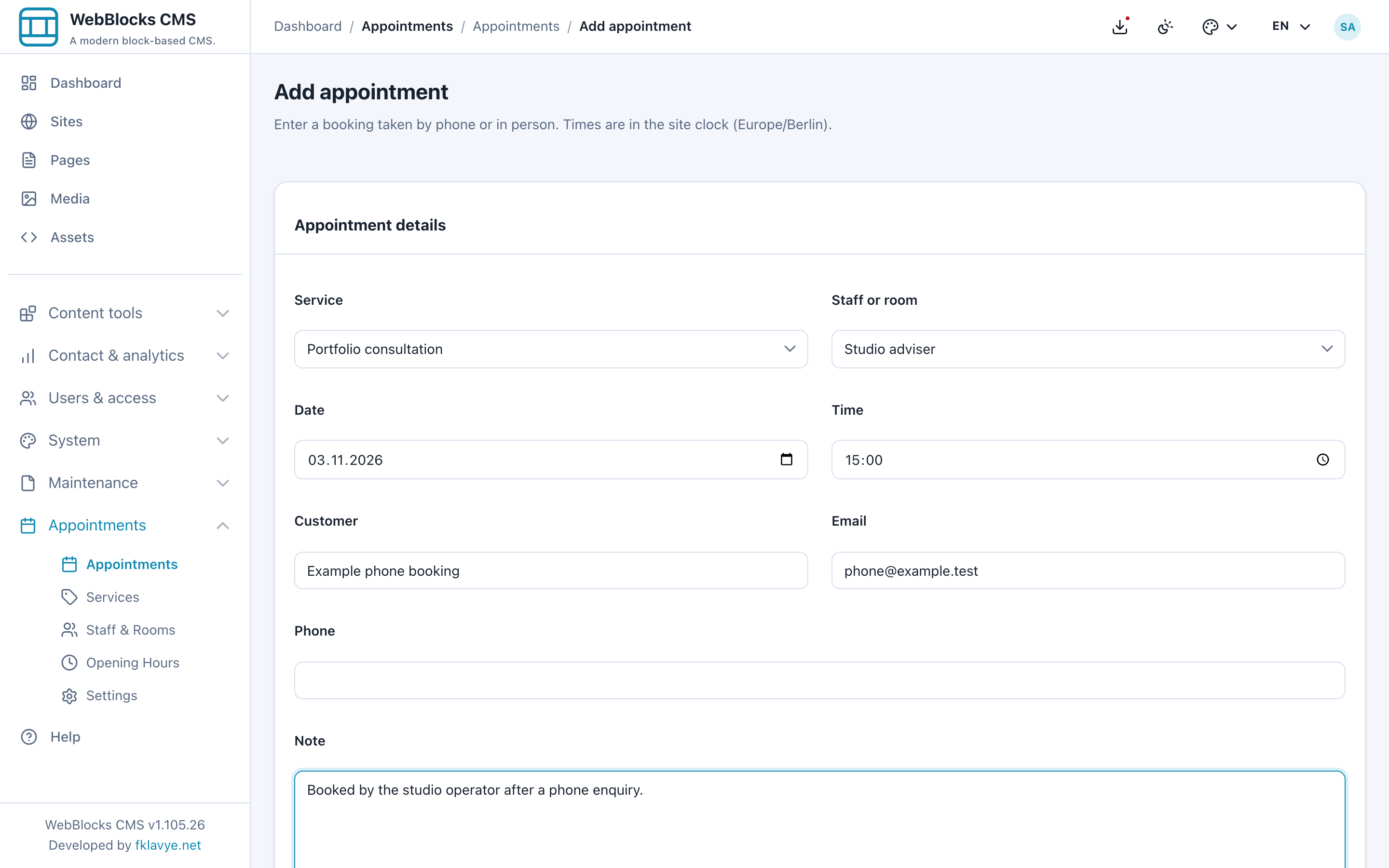
Select Save. The booking appears with entered manually. With automatic confirmation off, it also starts Pending; confirm it through Edit status when appropriate.
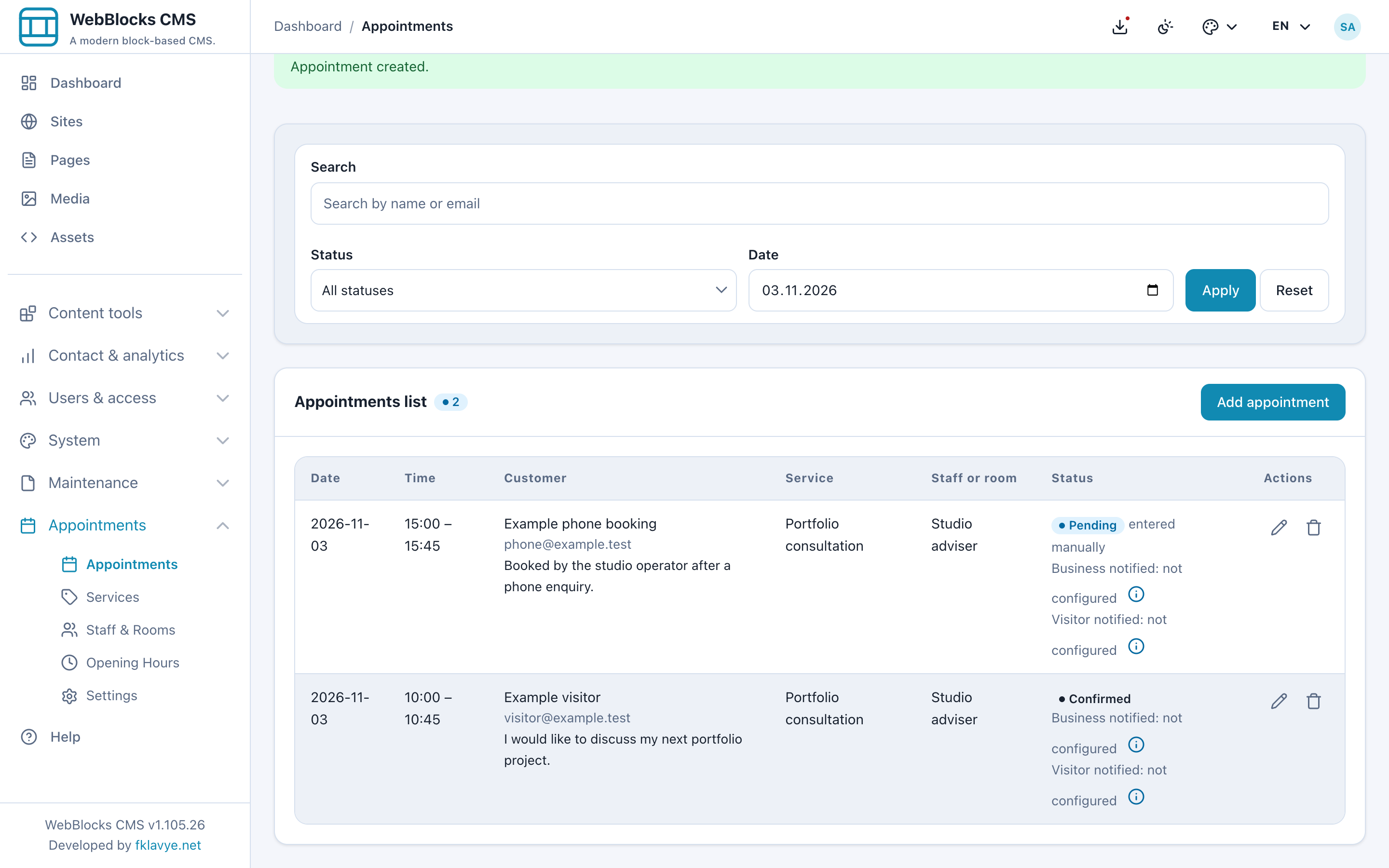
Manual entry still checks for overlapping bookings and buffers. It deliberately skips the public opening-hours, minimum-notice and booking-horizon availability check, allowing an operator to make an exception. Review those constraints yourself, choose the intended resource, and do not use manual entry as proof that a time would be offered publicly.
11. Check email and schedule reminders
After a booking is stored, Appointments attempts two independent messages: a business notice and a visitor confirmation. The confirmation can carry an .ics attachment containing the appointment. Visitors can import it into their calendar without connecting an external calendar account to the CMS.
Check Business notified and Visitor notified on the appointment row. One failure does not necessarily mean the other message failed. The states include sent, failed, skipped and not configured. Sent means the mail transport accepted the message, not that the recipient read it or even that it reached the inbox.
The example shows not configured because the capture installation uses local log mail. The appointment remains saved when mail fails. Before inviting real visitors, have the administrator configure CMS outbound mail and its sender, verify the canonical domain, then test both recipients and the calendar attachment with mailboxes you control.
For reminders, ask the hosting administrator to schedule:
php artisan webblocks-appointments:dispatch-remindersRun it every few minutes, for example through the host application's Laravel scheduler running every minute, or an equivalent hosting cron task. The host scheduler running does not by itself schedule this plugin command. Add the reminder task explicitly. The plugin's health screen cannot verify the host's reminder cron execution, so check it at the hosting/scheduler level too.
An administrator can inspect the due set without sending:
php artisan webblocks-appointments:dispatch-reminders --site=1 --dry-runReplace 1 with the intended site's actual ID. With a 24-hour reminder setting, a booking more than 24 hours away is not yet due; an empty dry run can be correct. The dry-run output may list visitor email addresses, so keep it in the appropriate private operator context.
Each eligible future appointment is considered once. The outcome is recorded even when delivery fails or mail is not configured, so repeated cron runs are not an automatic retry service. Cancelled appointments are excluded; Pending appointments can be eligible because they still hold their slot. Decide how that fits your manual-approval process and test reminders before using them operationally.
12. Test visitor cancellation
Keep Let visitors cancel from their confirmation email enabled. On a real mail test, the visitor follows the private cancellation link in the confirmation or reminder email. The screenshots use the local booking's own link without sending an email.
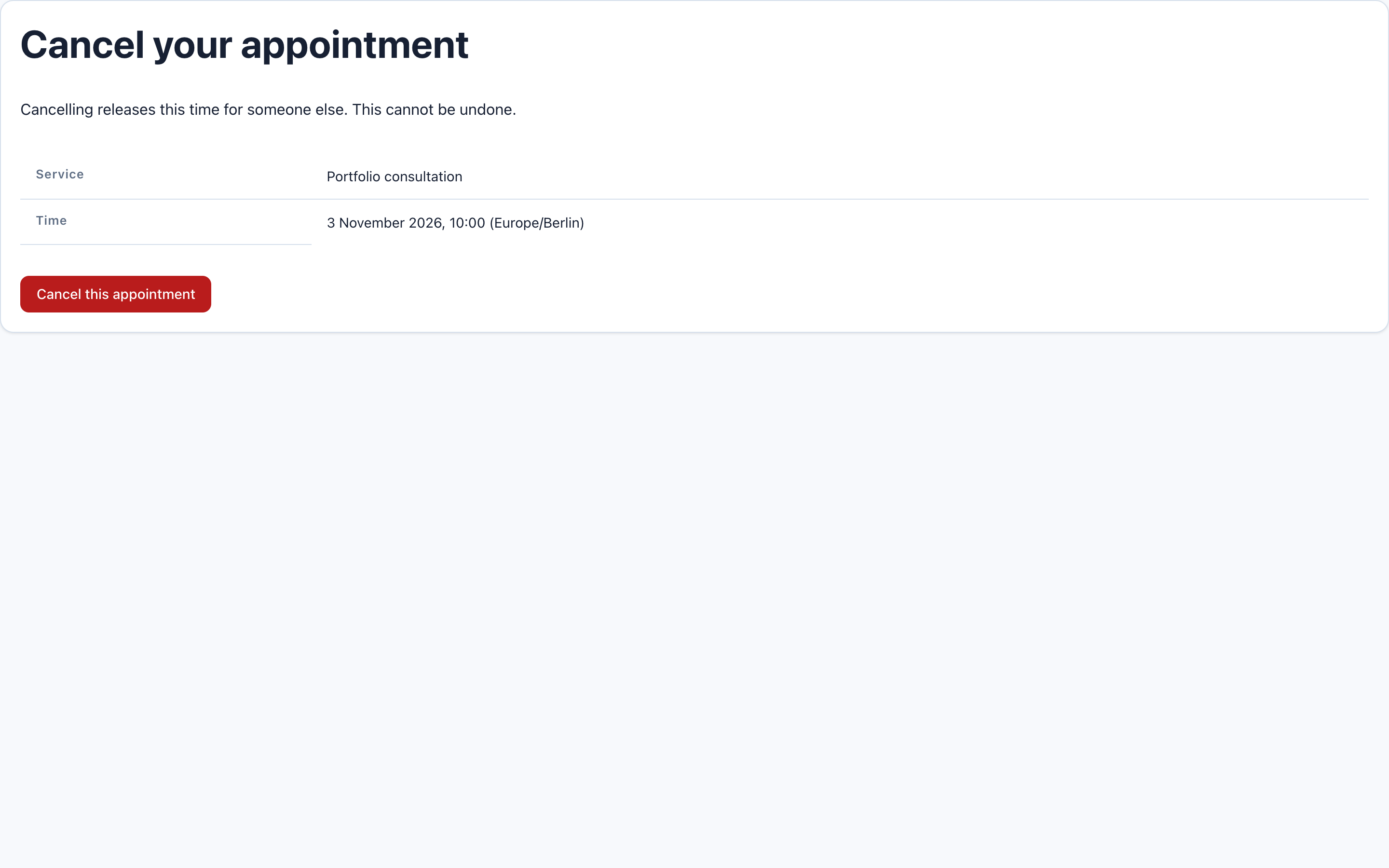
Opening the link only shows a confirmation page. The appointment is cancelled when the visitor selects Cancel this appointment. This avoids accidental cancellation when an email scanner merely visits a link.
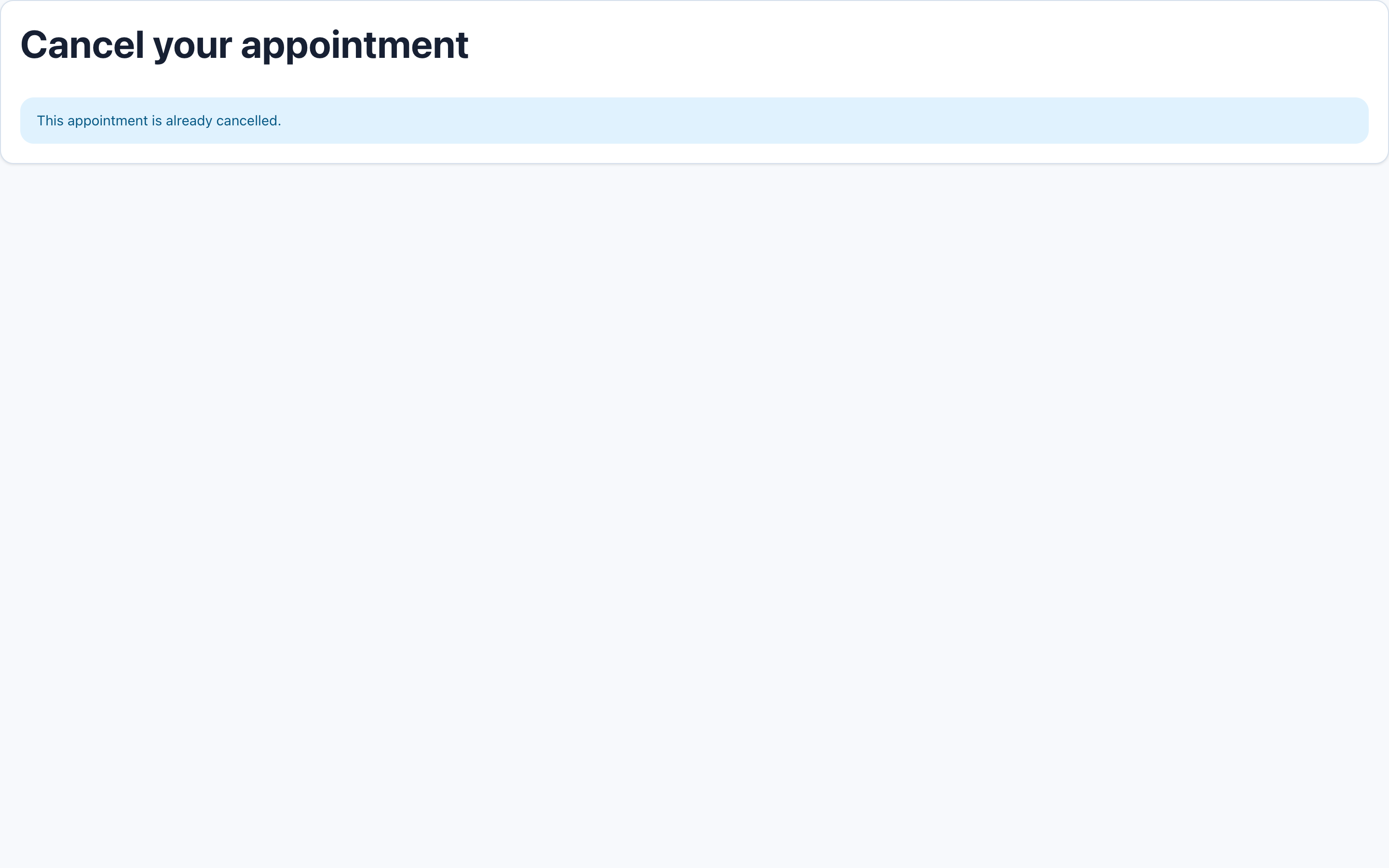
Return to the operator list. The record should show Cancelled. The former 10:00 time should be available again if the service, schedule, notice and horizon still permit it. Our separate 15:00 telephone booking remains unchanged.
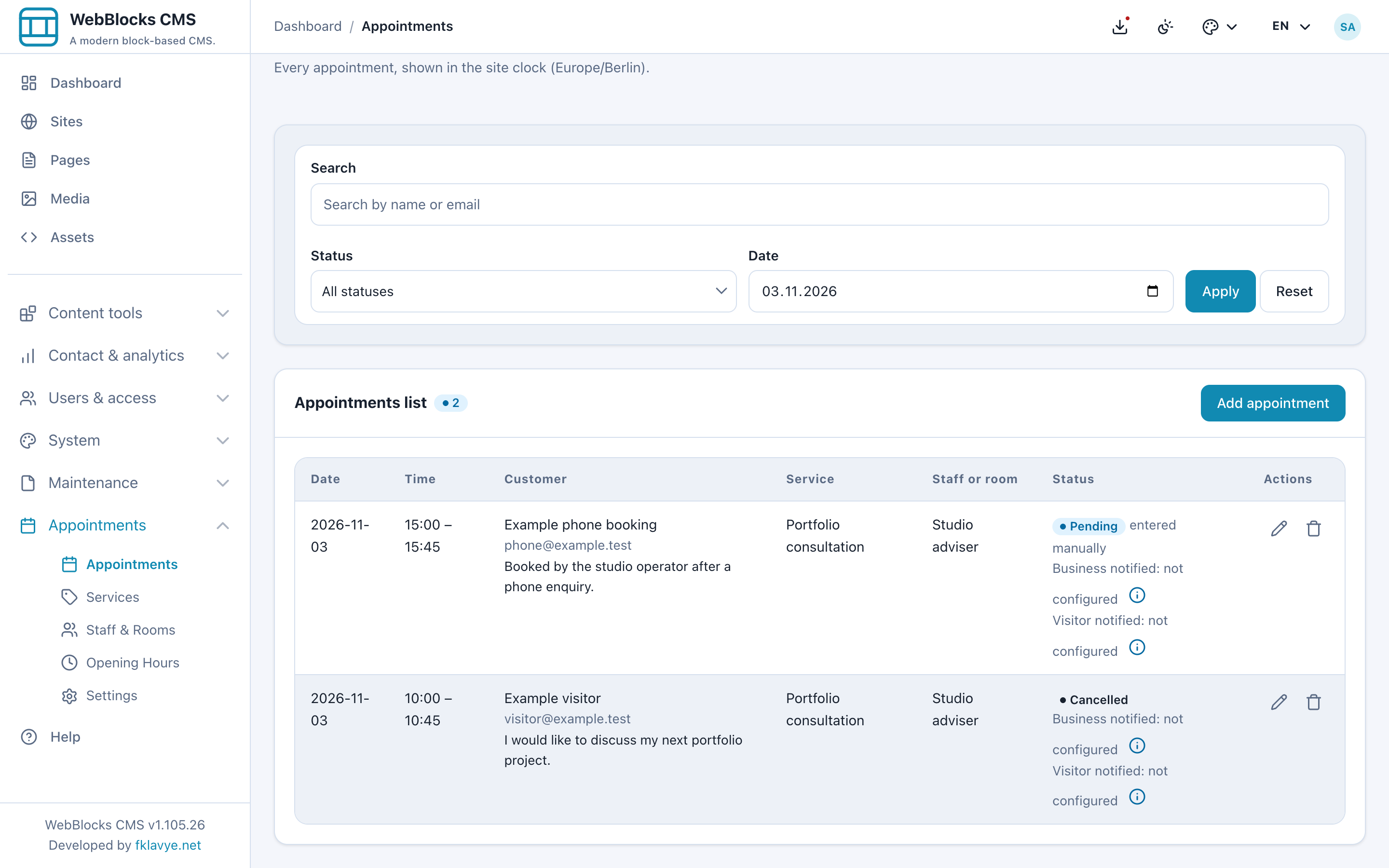
The cancellation link is private access to that booking. Do not put it in a public page, analytics note or shared screenshot. Cancellation cannot be undone through this visitor page; booking again is a separate action. A booking that has already started cannot be cancelled here. If online cancellation is disabled, the visitor must contact the business.
Visitor cancellation attempts a business notification after the cancellation is saved. A notification failure does not restore the booking. Operator status changes are a different workflow and do not send that visitor-cancellation notice automatically.
13. Optionally restrict a service with Memberships
Complete the guest-booking flow first. If you want member-only services, install and enable a compatible Memberships release on the same installation. Appointments 0.16.1 accepts Memberships ^0.1 or ^0.2. Follow the Memberships walkthrough to prepare verified accounts, an active package and a current grant or paid entitlement.
In the service editor:
- Create or open a service such as Member portfolio review.
- Assign the active resource and duration as usual.
- Select Verified members only to require a verified account.
- Choose Workshop circle in Required membership package if that package is required.
- Keep the service active and select Save.
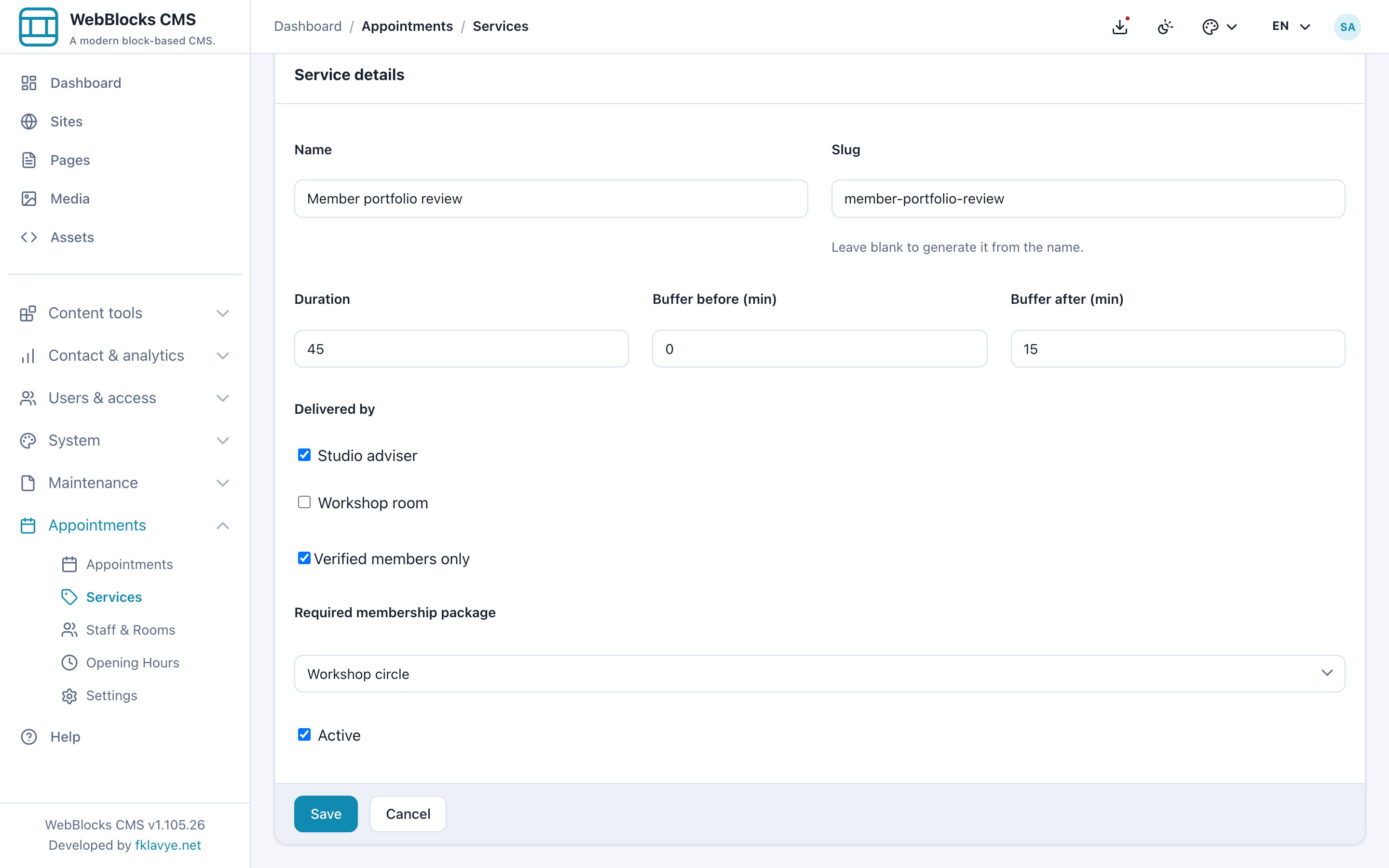
A package requirement also requires a verified member; selecting a package does not permit anonymous access. Public slot discovery and booking submission both check eligibility for the service's site. Eligible signed-in members can have their name and email prefilled, and the booking retains the member association alongside its customer snapshot.
Test while signed out, with a verified account without the package, and with a current package holder. Restricted services are filtered from the visitor's available choices; when no eligible service remains, the form reports that active membership is required. In our example, guests still see the ordinary consultation and room services, while the verified Workshop circle member can discover Member portfolio review.
If Memberships is disabled or unavailable, ordinary guest services can remain available, but restricted services stay closed. Changing a member's grant later does not rewrite past customer snapshots. Operator manual entry remains available and should be reviewed as an operator decision rather than a visitor eligibility test.
14. Maintain services and resources without losing history
For a temporary pause, edit the service or resource and clear Active. Do not assume this cancels its existing appointments; inspect and manage them separately.
Deleting a service or resource with appointment history deactivates it instead of removing it. This preserves the relationship on past bookings. A record without history can be deleted, so check carefully before confirming. Deleting an appointment itself is permanent, removes its stored booking details and sends no cancellation notice.
Changing a service's duration does not reschedule an existing booking's saved start and end. Buffer checks use the service's current buffer settings, so changing buffers can alter what adjacent times are offered around existing bookings. Review the calendar after such a change.
Keep the site's timezone stable after opening bookings. Appointment instants are stored in UTC, while opening hours are local wall-clock rules. A timezone change can alter displayed times and the interpretation of future availability. At daylight-saving transitions, nonexistent local times are not offered and a repeated local time uses its earlier occurrence. Test transition dates if your business operates during those hours.
Troubleshooting
| Symptom | Check first |
|---|---|
| Appointments is missing | Enabled plugin, database setup, role permissions and authorized site. |
| The form says online booking is unavailable | Active services, assigned active resource, correct page site and completed plugin setup. |
| There are no times for an otherwise active service | Selected resource, weekday rules, exceptions, duration fitting a window, existing bookings and buffers, notice and horizon. |
| A resource appears free but no times are offered | The public form may be using a different default assigned resource; it does not pool staff calendars. |
| A midday gap cannot be booked | The service must fit within one opening window and cannot span a lunch break. |
| Times look shifted | Site timezone, daylight-saving date and the difference between site time and the visitor's local clock. |
| A closure affects another site | In 0.16.1 use resource-specific exceptions and review Whole site closures across the installation. |
| A successful banner appears but no booking is found | Correct site and filters, then form-validation/anti-spam handling. Confirm a stored record rather than relying on the banner alone. |
| A request is Pending | Automatic confirmation is off; review and explicitly confirm it. |
| Confirmation status changed but no new email arrived | Status changes do not resend booking messages. |
| A booking exists but email did not arrive | Separate business/visitor notification outcomes, CMS mail transport, recipient, canonical domain and spam folder. |
| Reminders do not send | Positive reminder lead, future due window, explicit cron task, mail delivery and whether that appointment already has a reminder outcome. |
| A visitor cannot cancel | Correct private link, cancellation enabled, booking not already closed and start time still in the future. |
| A member service is missing | Active verified account, correct site, compatible enabled Memberships and a current required package entitlement. |
| A deleted service still appears in history | Expected when it has appointments; it is deactivated to preserve past records. |
Final check before opening bookings
Verify the site timezone, service assignments, resource capacity, weekly hours and exceptions. Submit a normal visitor request, find its stored record, review its status and check that occupied time is no longer offered. Test manual entry and visitor cancellation, including the released slot.
Then test real business/visitor email delivery, the calendar attachment and the reminder task with controlled accounts. Check restricted services with the relevant member states if you use Memberships. Review the booking page on a phone, publish only when its workflow is ready, and repeat the direct visitor checks on the public HTTPS site.
Continue with the Appointments reference, Memberships walkthrough, Publish A Page, Navigation Menus or Roles And Permissions.