The Admin Panel In Two Minutes
Goal: Know which screen to open for which job.
Time: 2 minutes
You need: Access to the admin panel
Steps
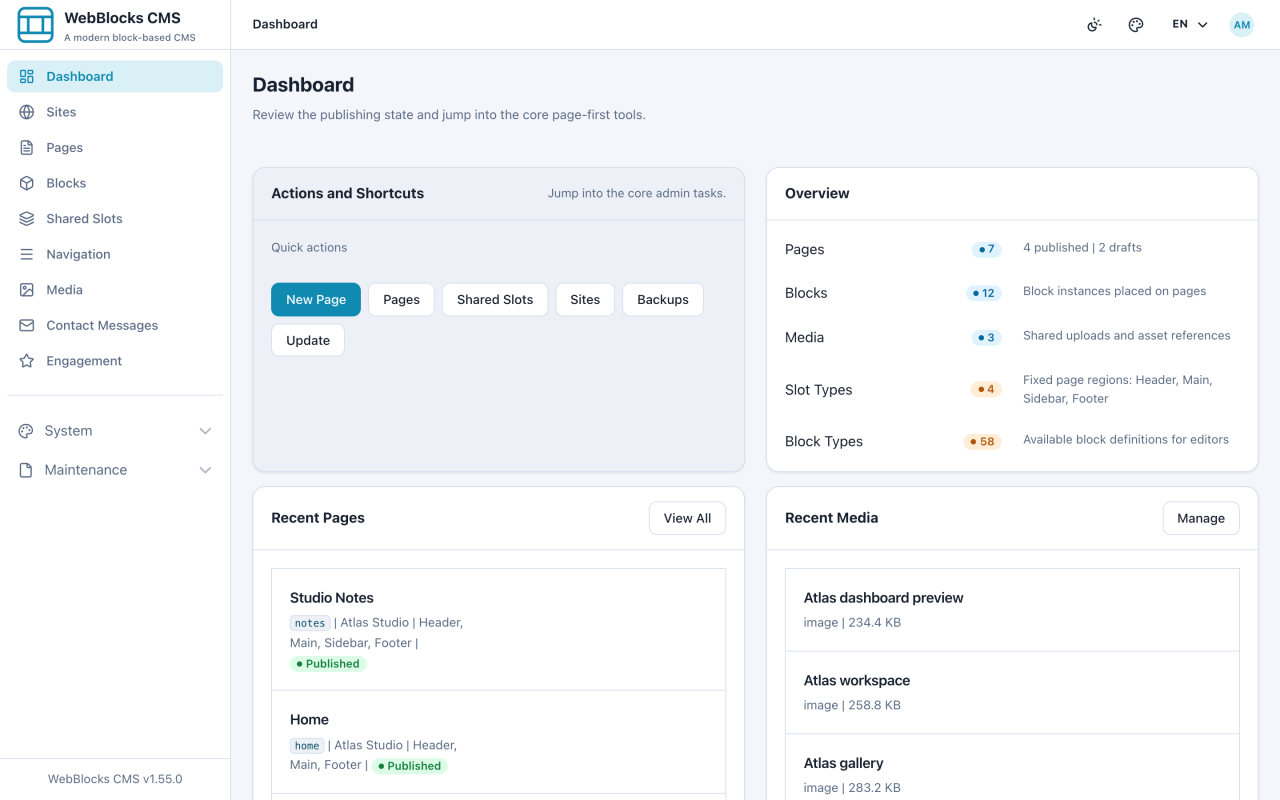
- Open the Dashboard. The Overview panel counts your pages, blocks, and media, and Quick actions links straight to the jobs you do most.
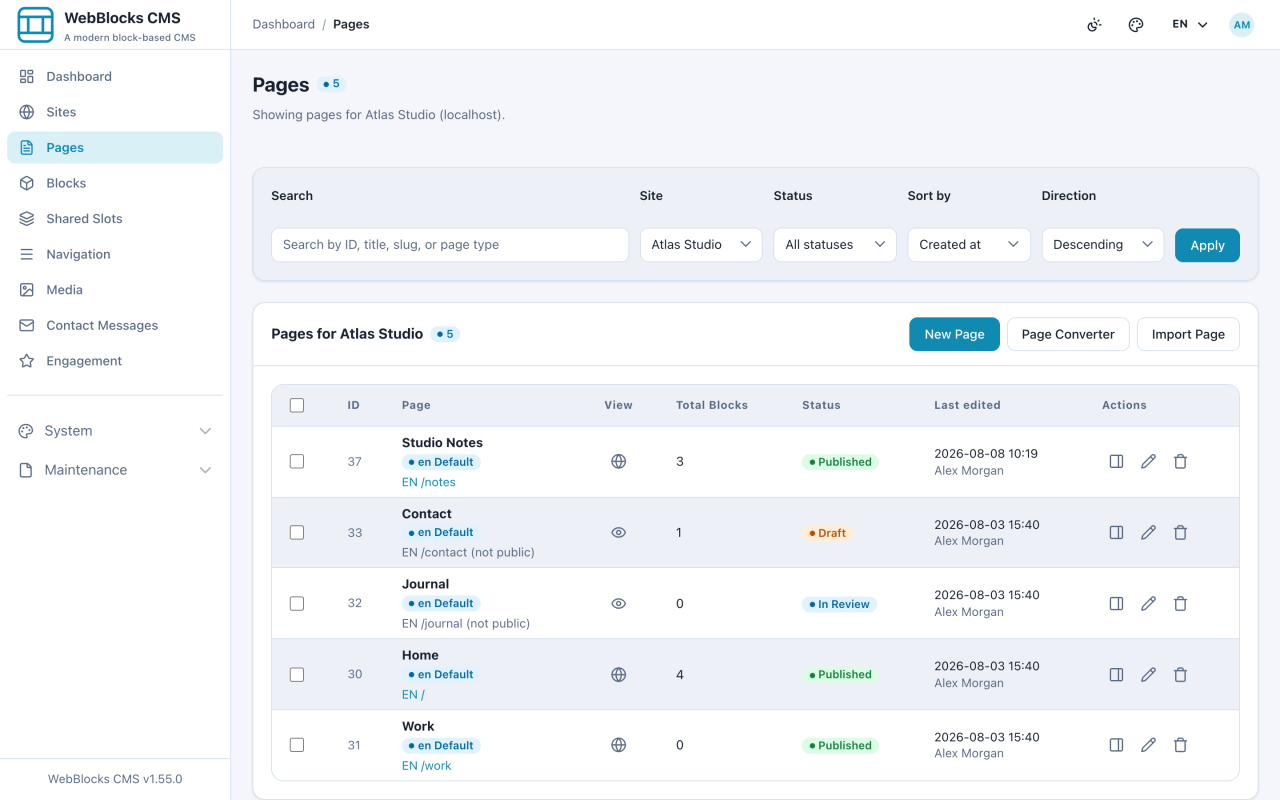
- Open Pages. This is where you spend most of your time: every page on the site, its status, and the New Page button.
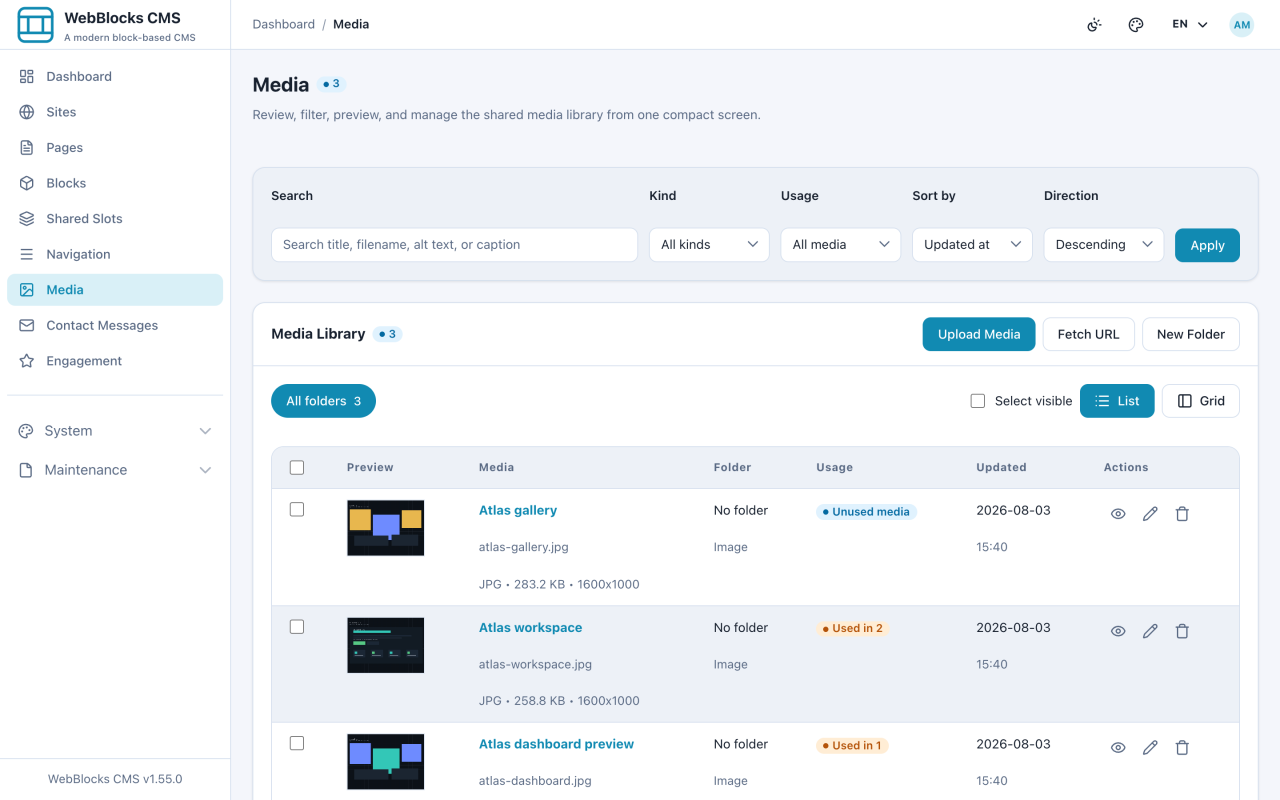
- Open Media. Every image, video, and document you upload lives here once and can be reused on any page.
- Glance at the rest of the sidebar. You do not need it today, but knowing it exists saves you hunting later.
What Each Section Is For
- Dashboard — see what changed and jump to a common task
- Pages — create, edit, preview, and publish pages
- Blocks — find a block across the site without opening its page
- Shared Slots — edit an area that repeats on many pages, such as the header
- Navigation — change the menus visitors click
- Media — upload and organise images, video, and documents
- Contact Messages — read what visitors sent through a contact form
- Engagement — moderate comments and ratings
- System and Maintenance — site setup, users, backups, updates; operator territory
Personal Views
On Pages or Media, apply the filters and sorting you use repeatedly. Open Manage views and columns, enter a View name, and choose Save as new view. Use Personal views to apply it later; results start on the first page and always use your current access.
Views are private to your account. Optional table columns can be selected and ordered; Media also remembers list/grid mode. Apply pending changes before saving or updating a view. If a site, folder or saved option is unavailable, correct it explicitly or choose Standard view. View management changes no page or media content.
Notes
- Your role decides what you see. Fewer sidebar items is not a fault; it means those areas are not yours to change.
- On an installation with several sites, most screens work on one selected site at a time. Check the site before you create anything.