Create And Run Polls With WebBlocks Polls
Ask your visitors a focused question and collect the answers on your own website. WebBlocks Polls adds an operator screen for managing polls and a native Poll block for displaying them on CMS pages. You can offer one choice or several, decide when aggregate results appear, and export option totals as CSV. No external survey account or embed code is needed.
Our example is Northstar Studio. First, visitors choose the studio's next workshop: Photography, Ceramics or Illustration. Then a separate multiple-choice poll asks which topics interest them. You will create a draft, save translated copy, publish the poll, place it on a page, submit real test ballots, inspect results, close the poll and check a future voting window.
The illustrations use the published Polls 0.1.5 package on WebBlocks CMS 1.106.2, with an English interface, light theme and fictional studio content. The example has one genuine single-choice ballot and one genuine multiple-choice ballot; the counts are demonstrations, not research findings.
Polls 0.1.5 uses the CMS page’s requested language for poll copy, voting controls and feedback. Its After closing policy shows results after an explicit closure or after a Published poll reaches its end time. The walkthrough checks the translated visitor view and a future voting window as well as the ordinary English flow.
For package requirements and integration details, see the Polls reference. For general installation help, begin with Plugin System.
Before you start
Prepare a test site and a Super admin account for installation. The published Polls package declares PHP ^8.3, CMS ^1.92.1 and Laravel ^13.0 compatibility. Your CMS version may require a newer PHP version; this walkthrough runs on PHP 8.4. Review the compatibility result for your actual host in the official Polls catalogue.
You also need a page you can edit and publish, and permission to manage polls. Our primary showcase site is Northstar Studio. The sample pages are Choose our next workshop, at /workshop-vote, and What would you like to learn?, at /workshop-options.
Polls belong to sites. In 0.1.5, the ordinary Polls list and form do not display a site selector; the default is the primary accessible site unless an explicit Polls site context is supplied. Changing the Pages screen's site selection is not a substitute for confirming Polls ownership. For a multi-site integration, use the explicit site context in the Polls API reference. A page's Poll block only lists polls owned by that page's site.
Decide what the answers will be used for, who will read the totals, and when voting should stop. Keep the question short, make the choices distinct, and avoid collecting information that does not belong in a public poll. Polls are useful for lightweight feedback; the visitor fingerprint is not proof of one verified person per vote.
1. Install and enable Polls
- Open System → Plugins as Super admin.
- Choose Browse Plugin Catalog and find WebBlocks Polls.
- Review the version, compatibility and release notes before using Install from Catalog.
- If your administrator instead supplies the trusted published archive, select it under Plugin ZIP and choose Upload Plugin ZIP.
- Review the installed package, then enable it.
Our example installs the official published ZIP. A newly installed plugin is disabled until you enable it.
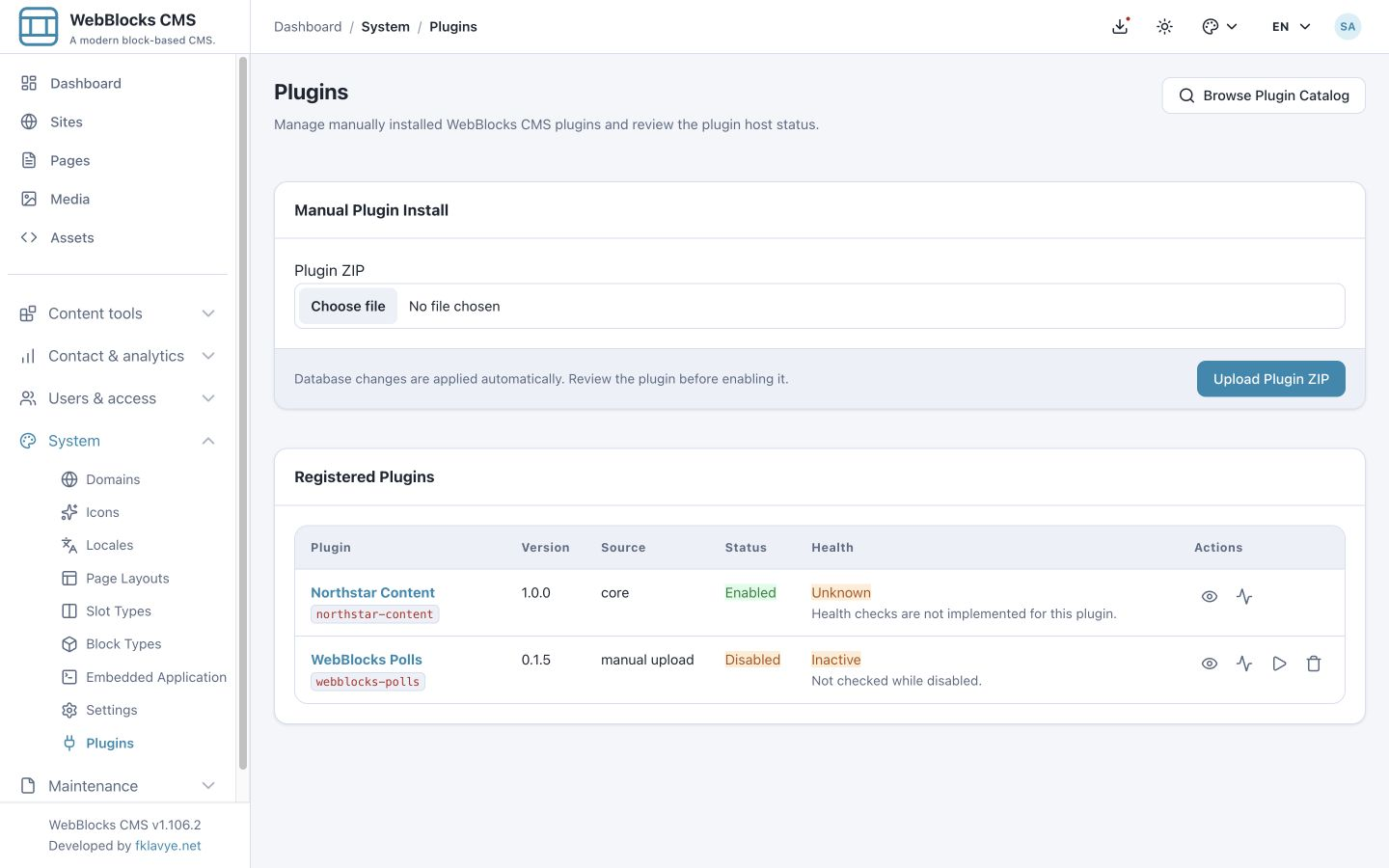
Open its details and choose Enable Plugin. Current CMS installation and activation apply plugin database changes. Confirm Enabled, a healthy result and ready poll tables before collecting votes. Resolve compatibility or migration warnings first.
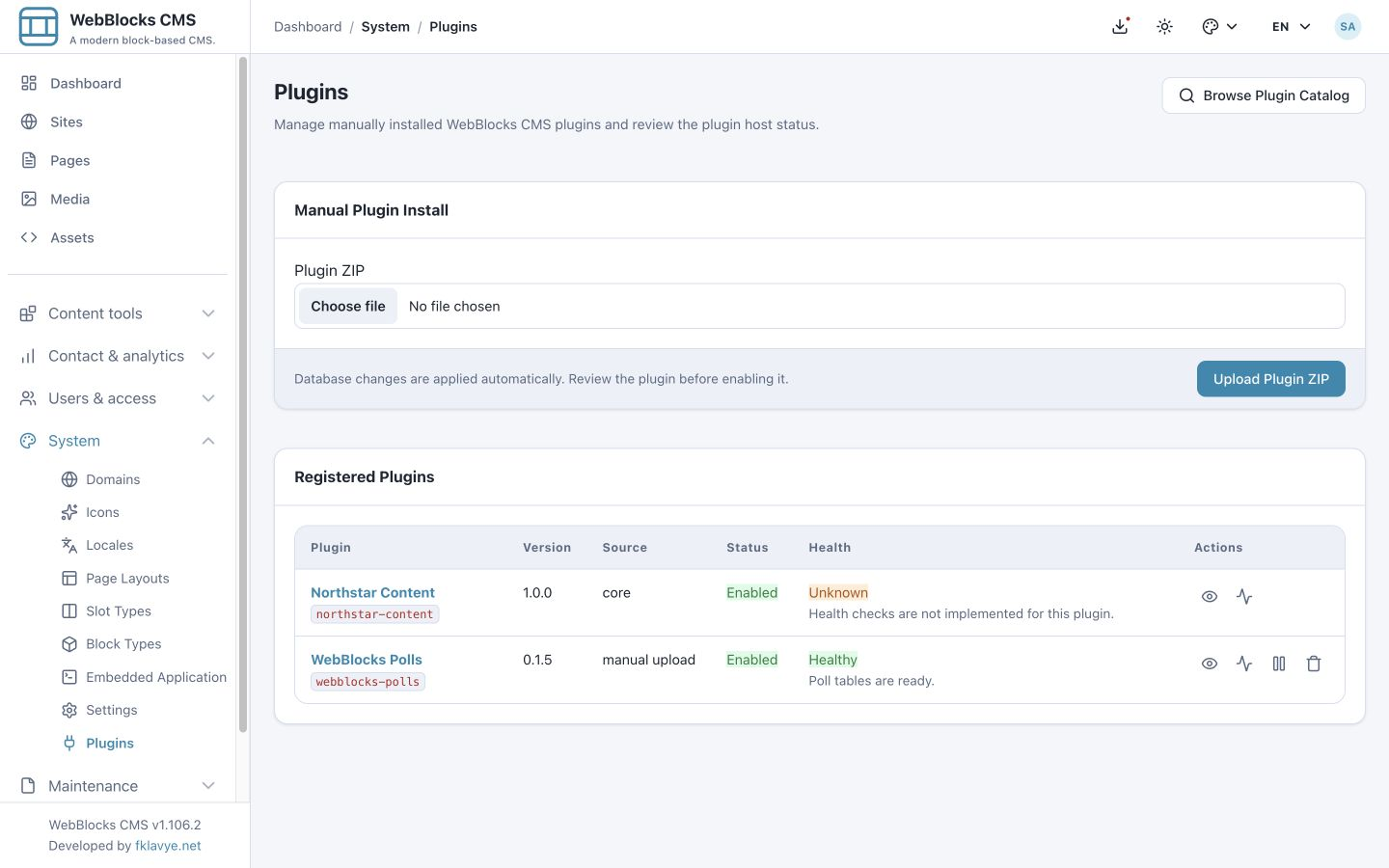
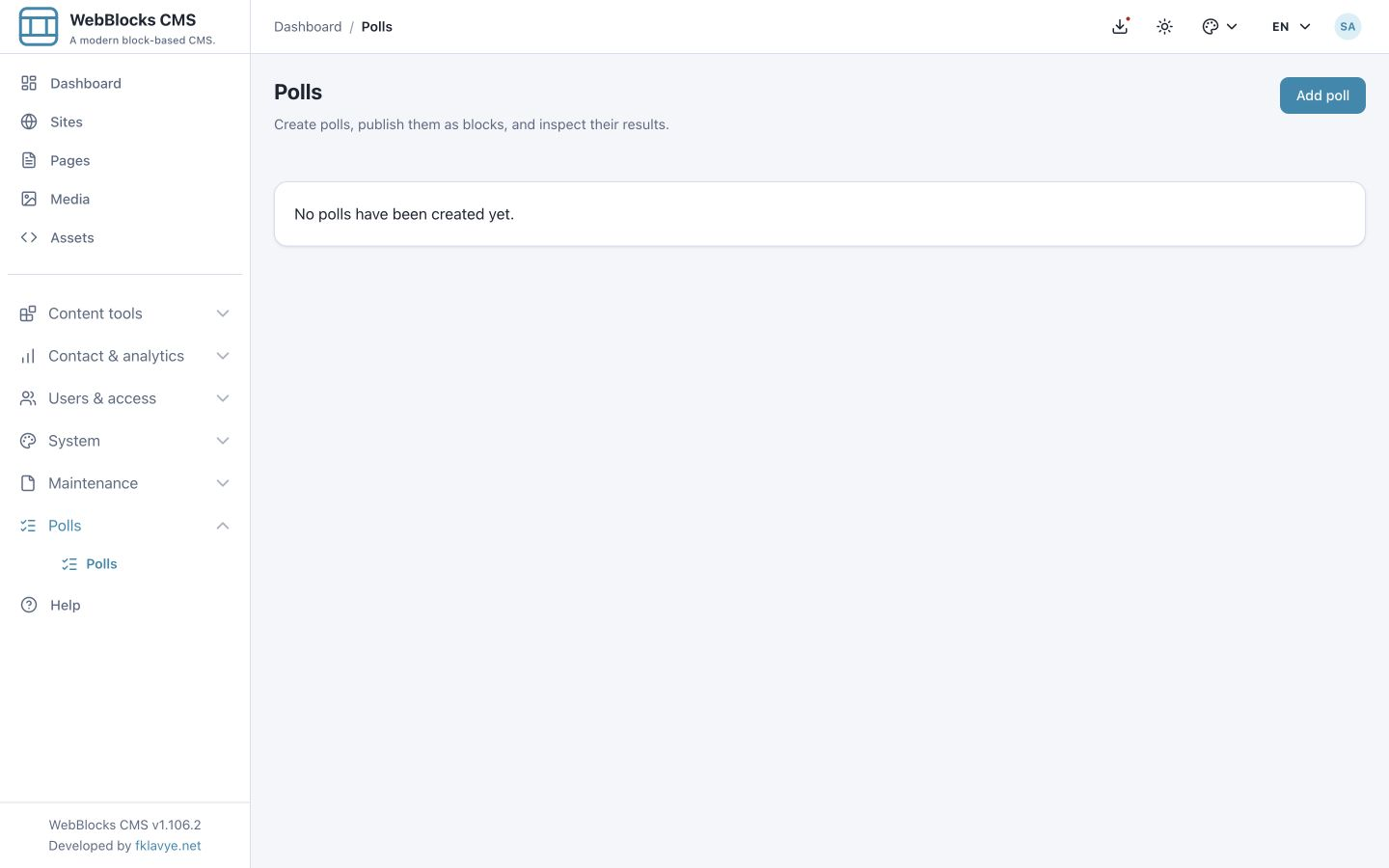
The sidebar now contains a Polls group with a Polls entry. Open it. A fresh installation shows No polls have been created yet. and Add poll.
2. Give operators the right permissions
Polls separates viewing, managing and exporting:
| Permission | What it permits | Typical operator |
|---|---|---|
| View polls (webblocks-polls.view) | Open the site's poll list. | Someone who monitors poll availability and ballot totals. |
| Manage polls (webblocks-polls.manage) | Create and edit questions, choices, status and scheduling. | The editor responsible for running the poll. |
| Export poll results (webblocks-polls.export) | Download aggregate option totals as CSV. | Someone who needs the results outside the CMS. |
Give an editor the view and manage permissions they need. Add export permission deliberately. Site access is a separate boundary: plugin permissions do not grant access to every site's polls. Review Roles And Permissions before changing a shared role.
A page editor also needs the normal page and block permissions to place the Poll block. Creating a poll and editing the page that contains it are separate tasks.
3. Create the first poll as a draft
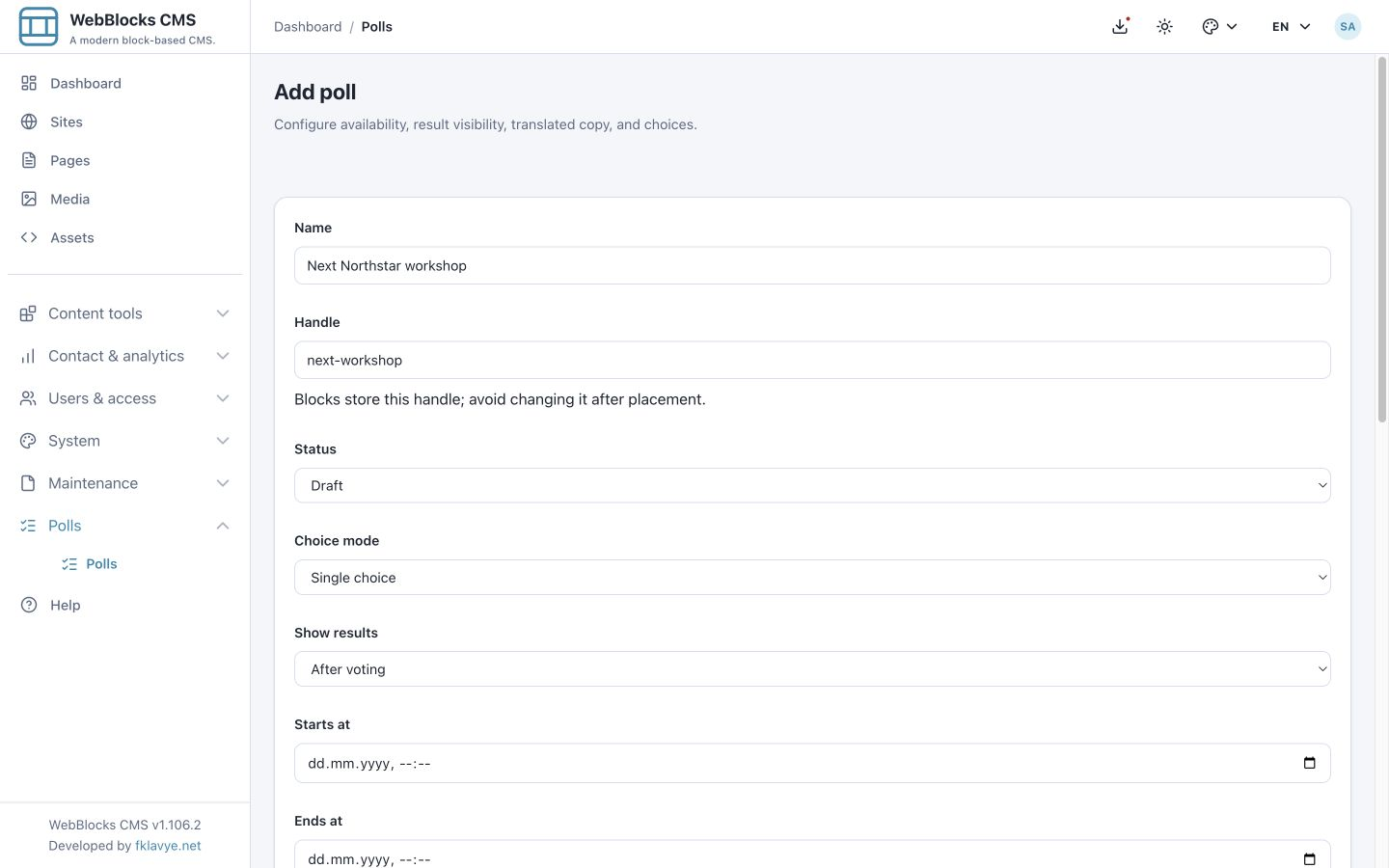
Choose Add poll. The first card controls the poll's identity and availability:
| Field | Northstar example | How to use it |
|---|---|---|
| Name | Next Northstar workshop | An internal operator label. It is shared across language copies. |
| Handle | next-workshop | A stable lowercase identifier. Use letters, numbers and single hyphens between words. |
| Status | Draft | Keep voting unavailable while reviewing the question. |
| Choice mode | Single choice | Each ballot contains exactly one option. |
| Show results | After voting | The visitor sees totals after a successful vote in the current session. |
| Starts at / Ends at | Empty for this first example | No additional date restriction once the poll is Published. |
The handle is not the page address. A block stores this handle to find its poll, so avoid changing it after placement. Keep the name readable for colleagues and the handle stable.
Scroll to Poll copy and enter:
| Field | Example |
|---|---|
| Locale | en |
| Question | Which workshop should we run next? |
| Description | Choose the topic you would most like to explore with Northstar Studio. |
| Choice 1 | Photography |
| Choice 2 | Ceramics |
| Choice 3 | Illustration |
| Choice 4 | Leave empty. |
The question, optional description and choice labels are the visitor-facing copy. In 0.1.5, the normal form provides four choice rows; there is no Add choice control in this editor. At least two labels must be filled. The integration contract can accept up to twenty option rows, but that does not make twenty rows available in this form.
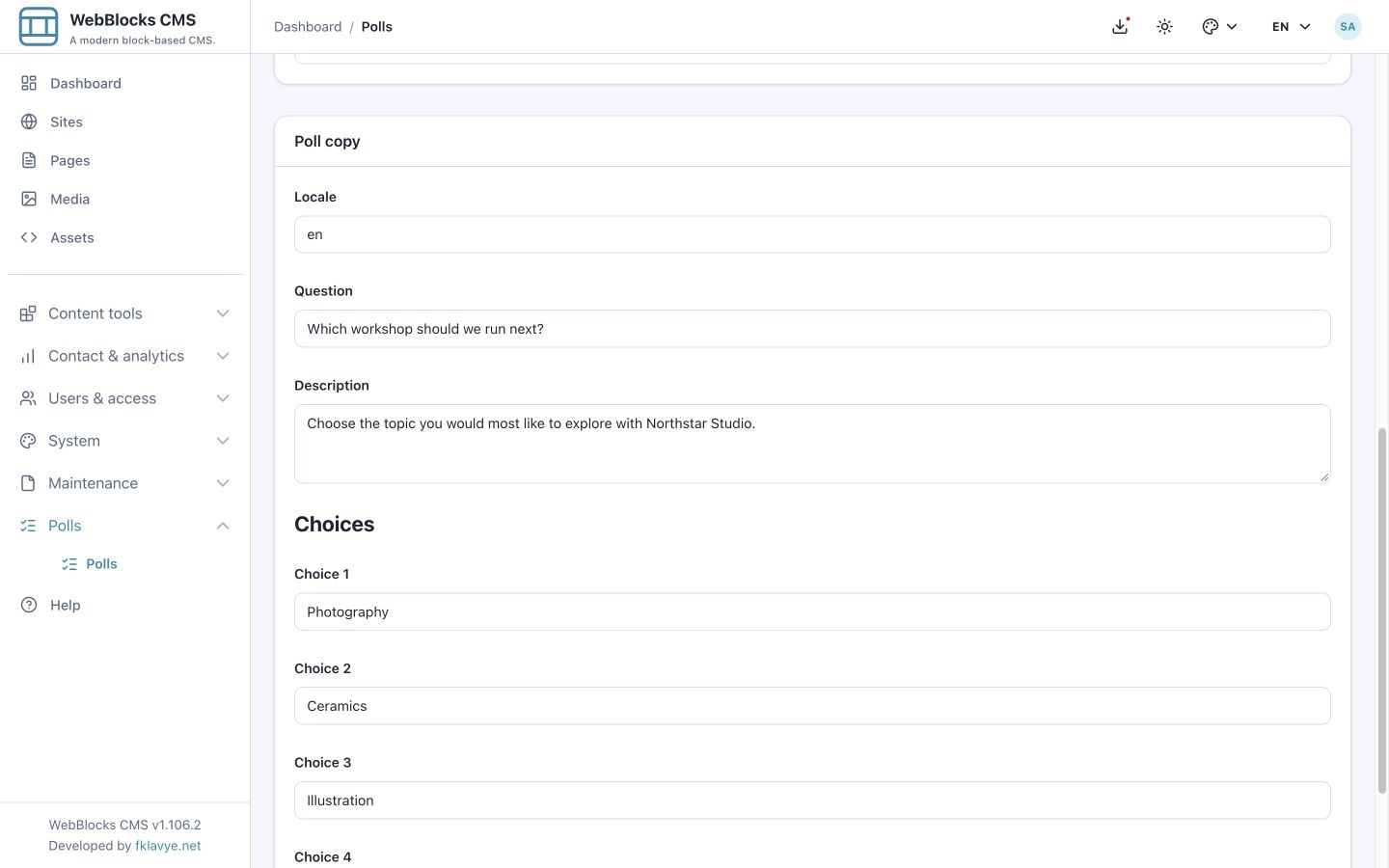
Choose Save poll. Confirm Poll saved.. Return to the list and check the handle, Draft status and zero votes.
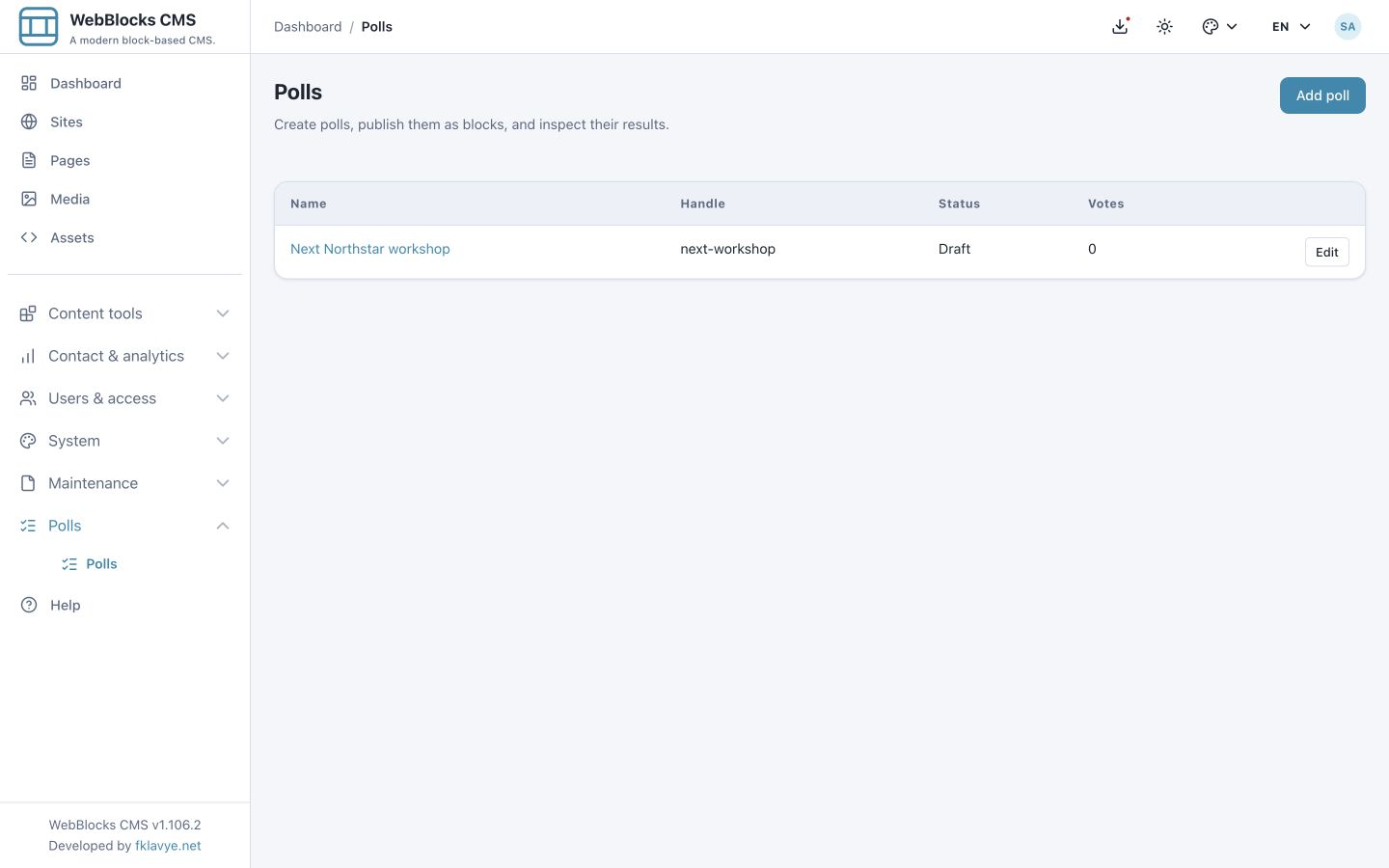
The name and question allow up to 255 characters, the handle up to 100, the optional description up to 2,000 and each choice label up to 255. A shorter question and concise labels are easier to read on mobile.
4. Save another language without replacing the original
Reopen Next Northstar workshop. Locale identifies the copy that the next save will write; it is not the admin interface language selector, and simply typing another code does not load that language's existing text.
To add the Turkish example:
- Change Locale from
entotr. - Replace the question with Bir sonraki atölyemiz hangisi olsun?.
- Translate the description and the corresponding choice rows: Fotoğrafçılık, Seramik, İllüstrasyon.
- Keep each choice in its matching row and leave the optional fourth row empty.
- Keep the shared name, handle, mode and availability settings as intended, then choose Save poll.
Saving a translation also submits the shared operational fields in the form. Check those fields before saving; do not accidentally publish or reschedule the poll while adding copy. The saved edit address retains ?locale=tr. Revisit that saved locale view when editing Turkish; opening the ordinary list link returns to the panel's default language view.
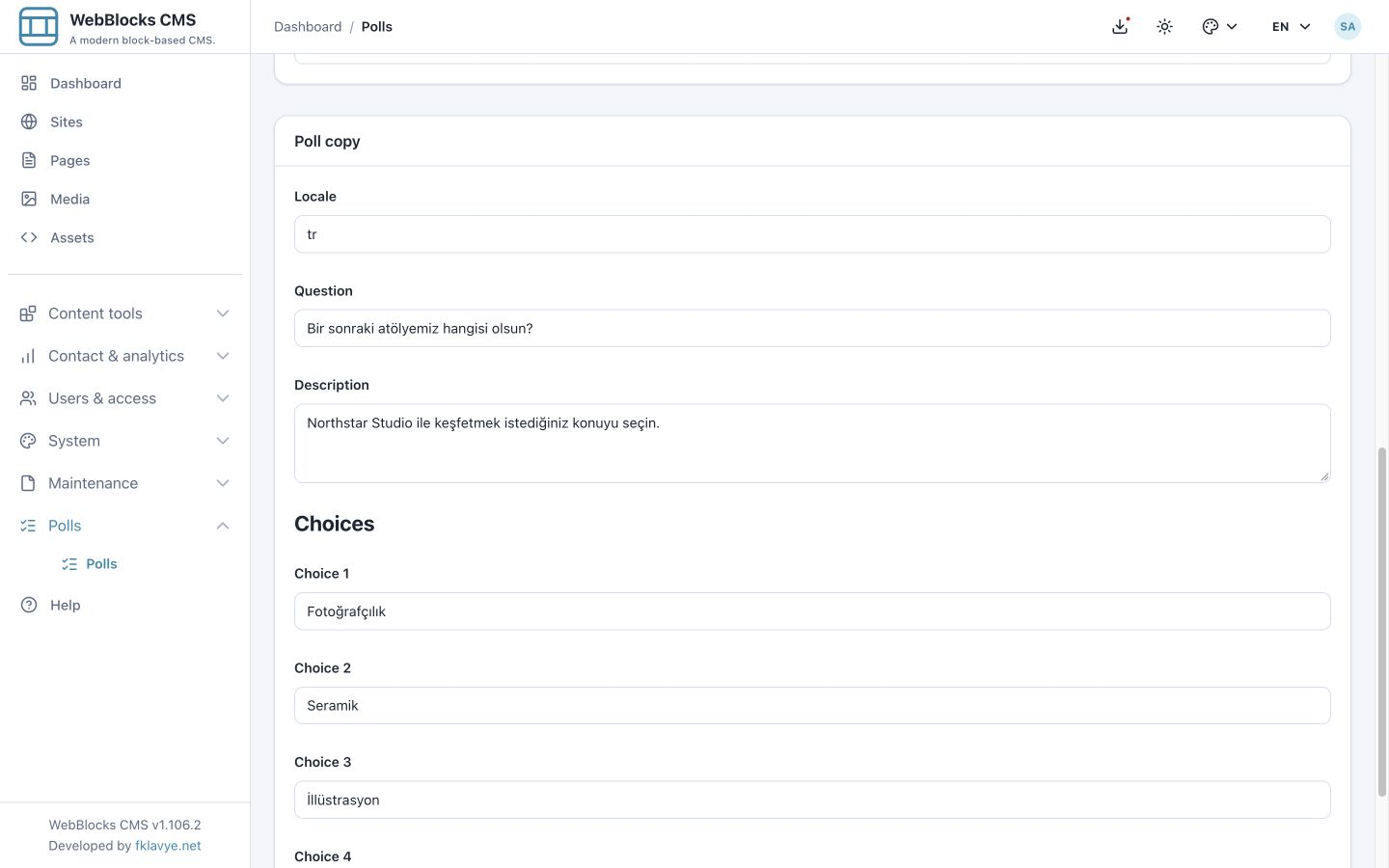
The English question and option labels remain stored. The public Poll block uses the page’s requested locale for the question, description, choices, voting controls and feedback. Missing poll copy retains the configured fallback and then the first available copy; translate the question and every corresponding option for each language you intend to publish.
When the poll and page are published in the steps below, check the translated visitor route as well as the English one. Changing the public poll language leaves the operator’s admin language independent. See Add A Language To A Site for enabling site languages and translating the surrounding page.
5. Choose the public results policy
Show results changes what the Poll block displays. It does not remove the stored totals or replace operator permissions.
| Setting | Actual behavior in 0.1.5 | Practical use |
|---|---|---|
| Always | Displays totals in place of the voting form, even while the poll is open. | A results display. Do not use it when that block must offer a voting form. |
| After voting | Displays totals when the current session has voted; otherwise offers the form only while voting is open. | The tested default for an ordinary public poll. |
| After closing | Displays totals for an explicitly Closed poll or a Published poll whose end time has arrived. A Draft or future-opening poll does not qualify. | Keep results hidden during voting and show them after completion. |
| Never | Does not display public aggregate results. Once the session has voted, the form is not offered again. | Collect answers without publishing totals. |
An informational This poll is closed. notice can also appear when a visitor already voted and the selected policy does not show results, or when the start time has not arrived. That generic notice alone does not prove that the operator set Status → Closed. Inspect status, dates and results policy together.
For the first exercise, keep After voting. It provides a voting form before the first submission and a visible result afterwards.
6. Publish the poll
Open the saved English poll, change Status to Published, and choose Save poll. Leave both date fields empty for this first test. Return to the list and confirm Published beside next-workshop.
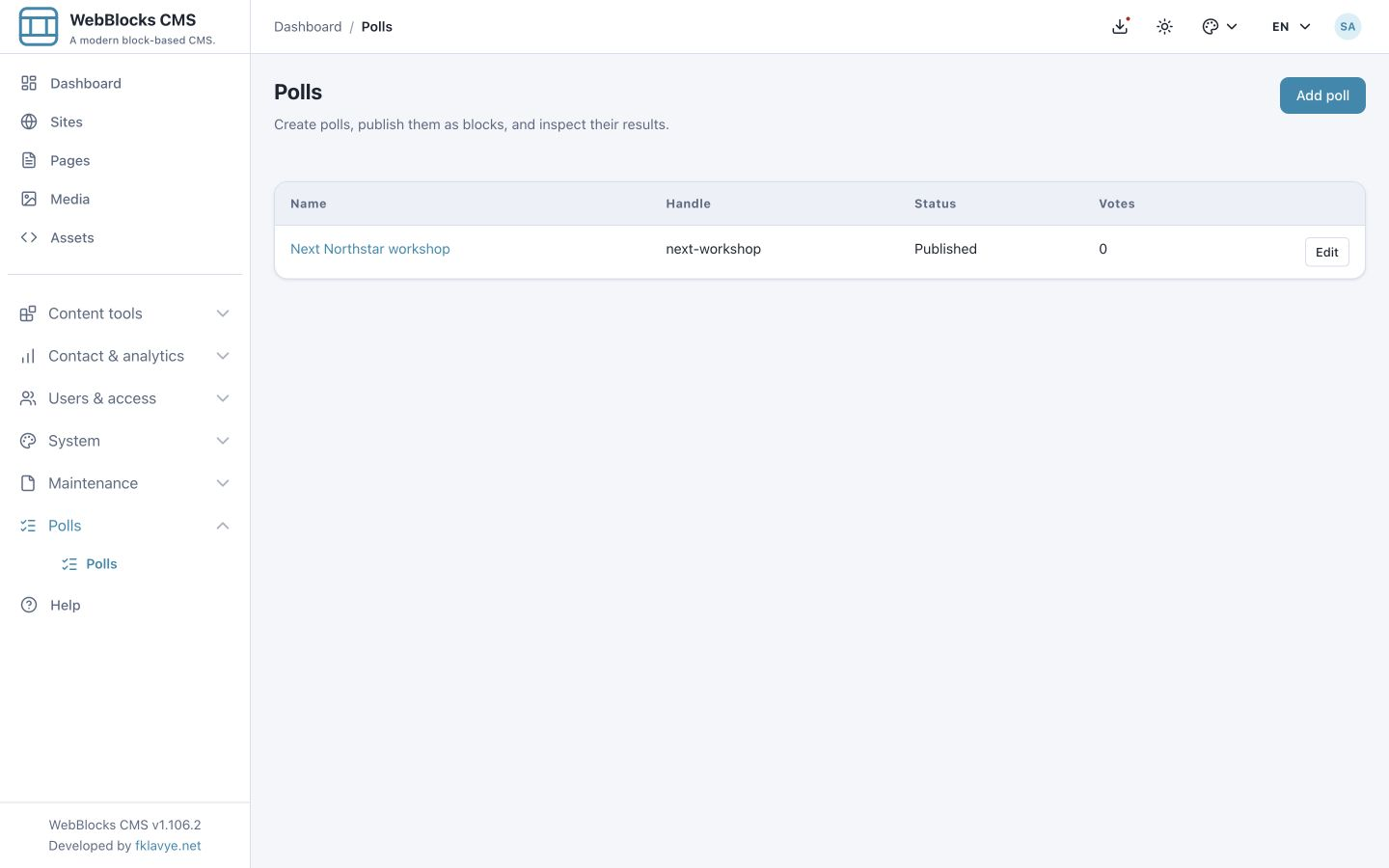
Publishing the poll makes it eligible for the page's block selector. It does not create a page, add the block or publish the page. A poll is open for voting only when it is Published and any configured start/end conditions permit it.
7. Add the native Poll block to a page
Open the intended page in Pages, choose Edit Blocks for its Main slot, and find the container where the poll should appear. Our page already has a heading and a short introduction. If you are starting from scratch, use Page, Layout, Slot, Block and Create A Page.
- Use Add child block on the container, or Add Block at an eligible position.
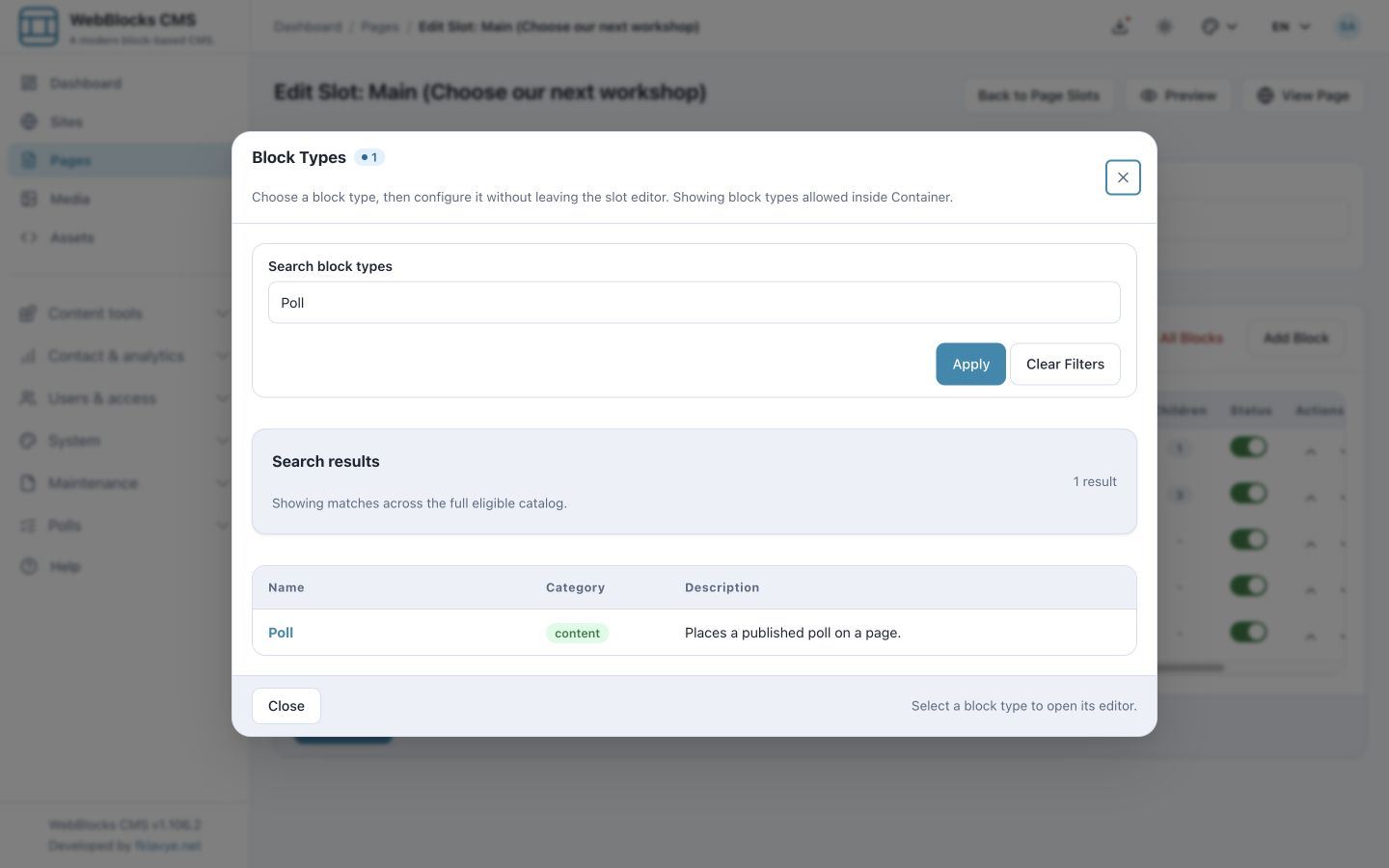
- Search the block catalogue for Poll.
- Choose Poll, described as Places a published poll on a page..
In Block Fields, choose Next Northstar workshop from the Poll selector. Select Save New Block.
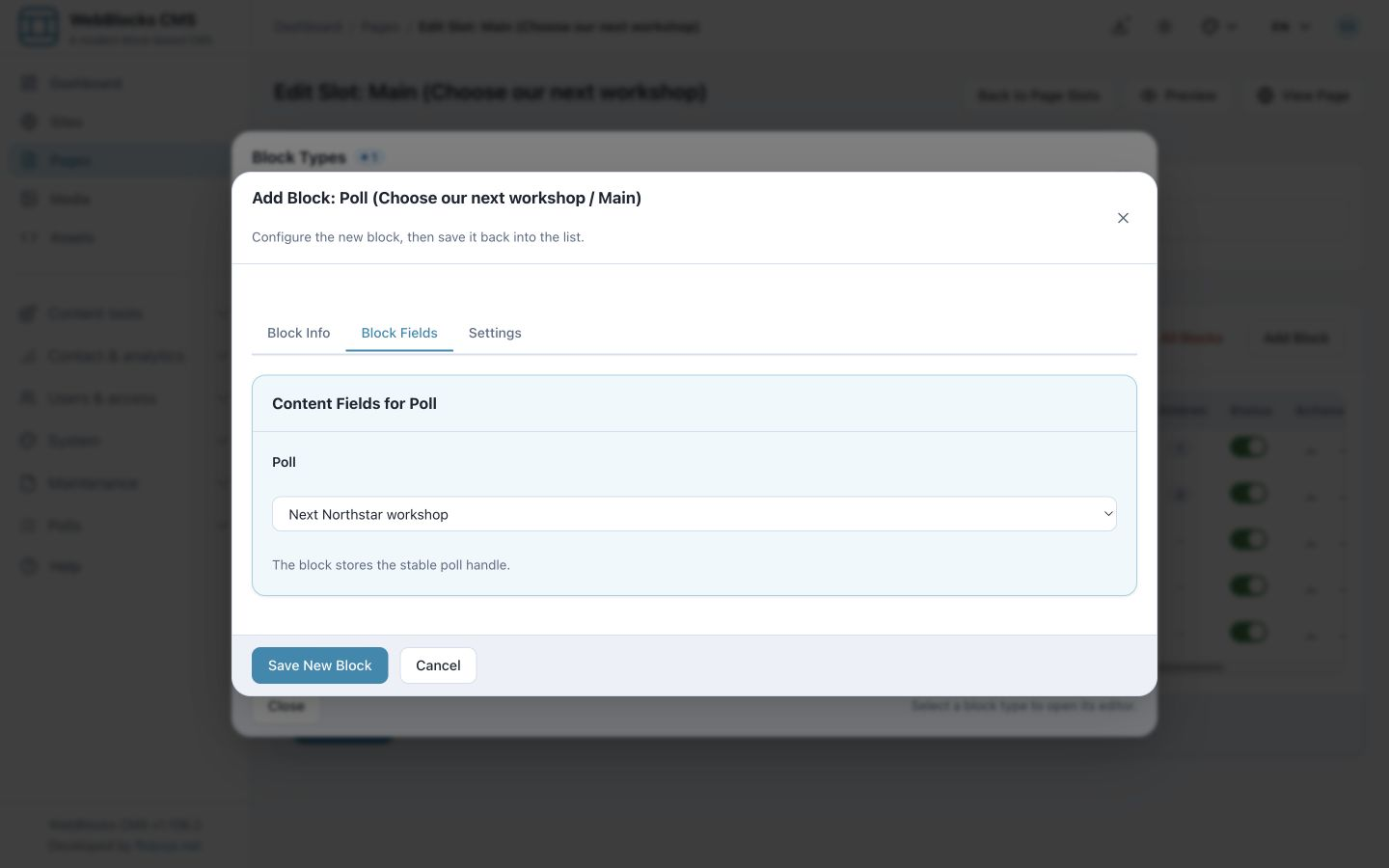
The selector lists Published polls for the page's site. If the expected poll is absent, check its status and owning site first. A future start time does not remove a Published poll from this selector; it still controls when the public form accepts votes.
The block references the original poll, rather than copying its question and options into the page. Later poll edits can therefore affect every page that references the same handle. Use a new poll for a genuinely new campaign instead of repurposing an old poll with existing ballots.
8. Preview, then publish the page
Open the page's saved Preview. Confirm the question, description, correct radio buttons and intended results policy. Check that the Poll block and its parent blocks are enabled for publication.
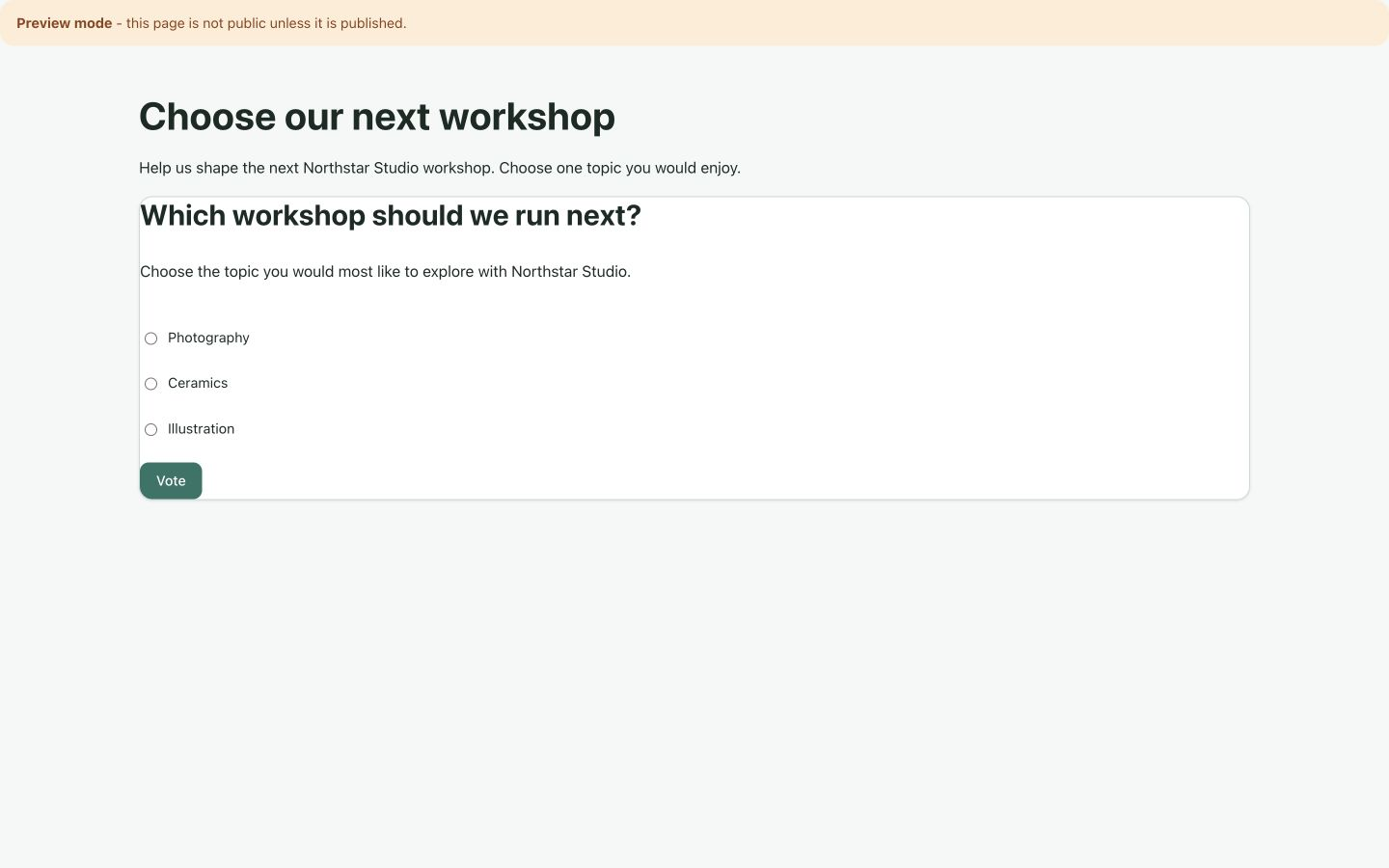
Treat a preview containing a live Published poll as an interactive poll. Do not assume a test submission there is a simulation; it can contribute a real ballot. For this walkthrough, we inspect the preview and submit only from the local published page.
When the page is ready, follow Publish A Page. In the page's Overview, use Publish if your role allows it, or follow your team's review workflow. Then open View Page and test the actual public route.
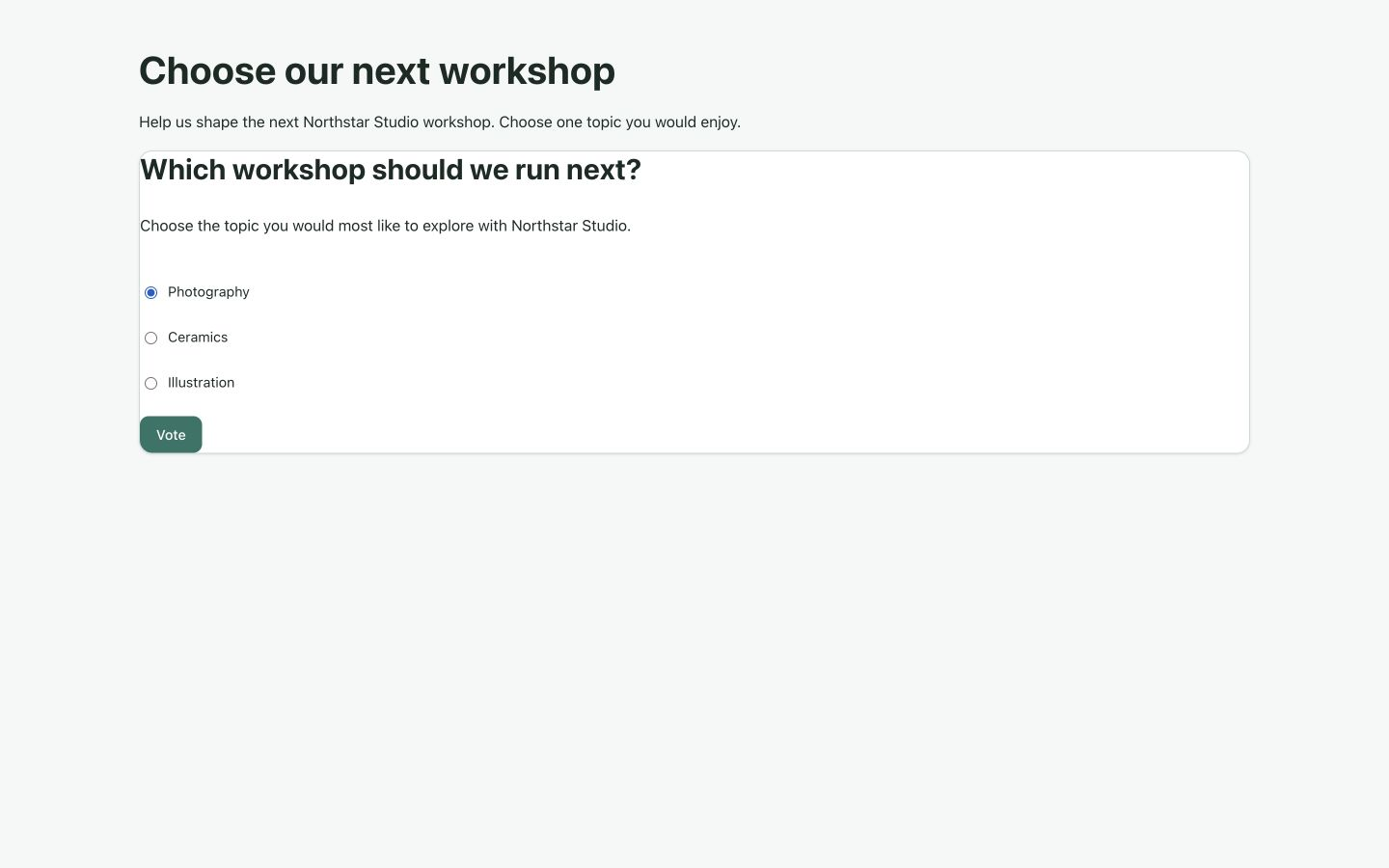
On our published page, choose Photography. Only one radio button can be selected at a time.
9. Submit a vote and read the result
Choose Vote once. Confirm Thank you. Your vote was recorded.. With After voting, the form is replaced by aggregate results in the current session.
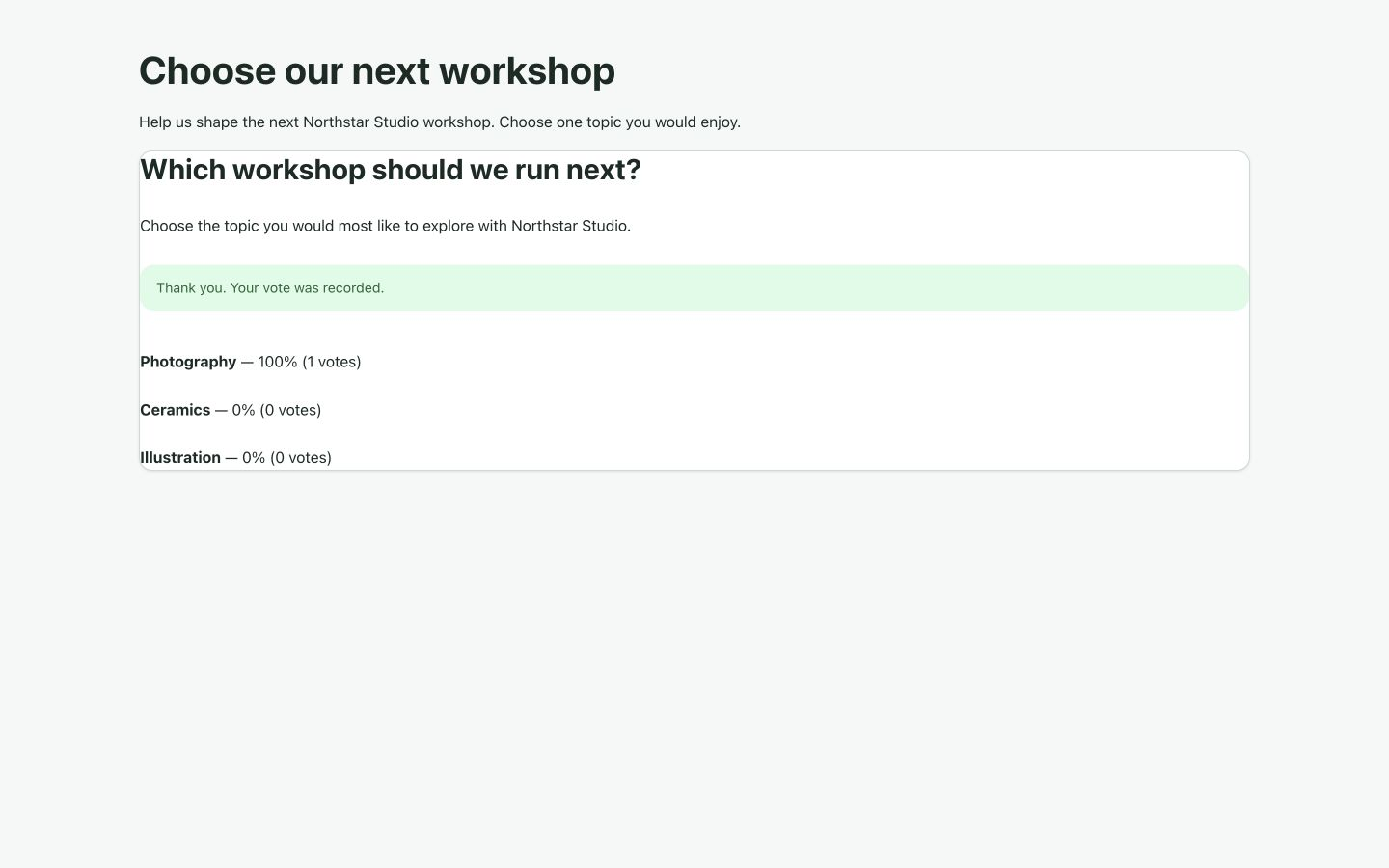
Our one test ballot gives Photography 100% (1 votes) and the other options zero. The example demonstrates the workflow; it is not enough data to draw a real conclusion about visitor preferences.
Reload the page. The result remains available in the same session, and the voting form is not offered again. Result visibility after voting depends on session state; a returning browser after session changes may not see the same view. Do not promise permanent personal access to results.
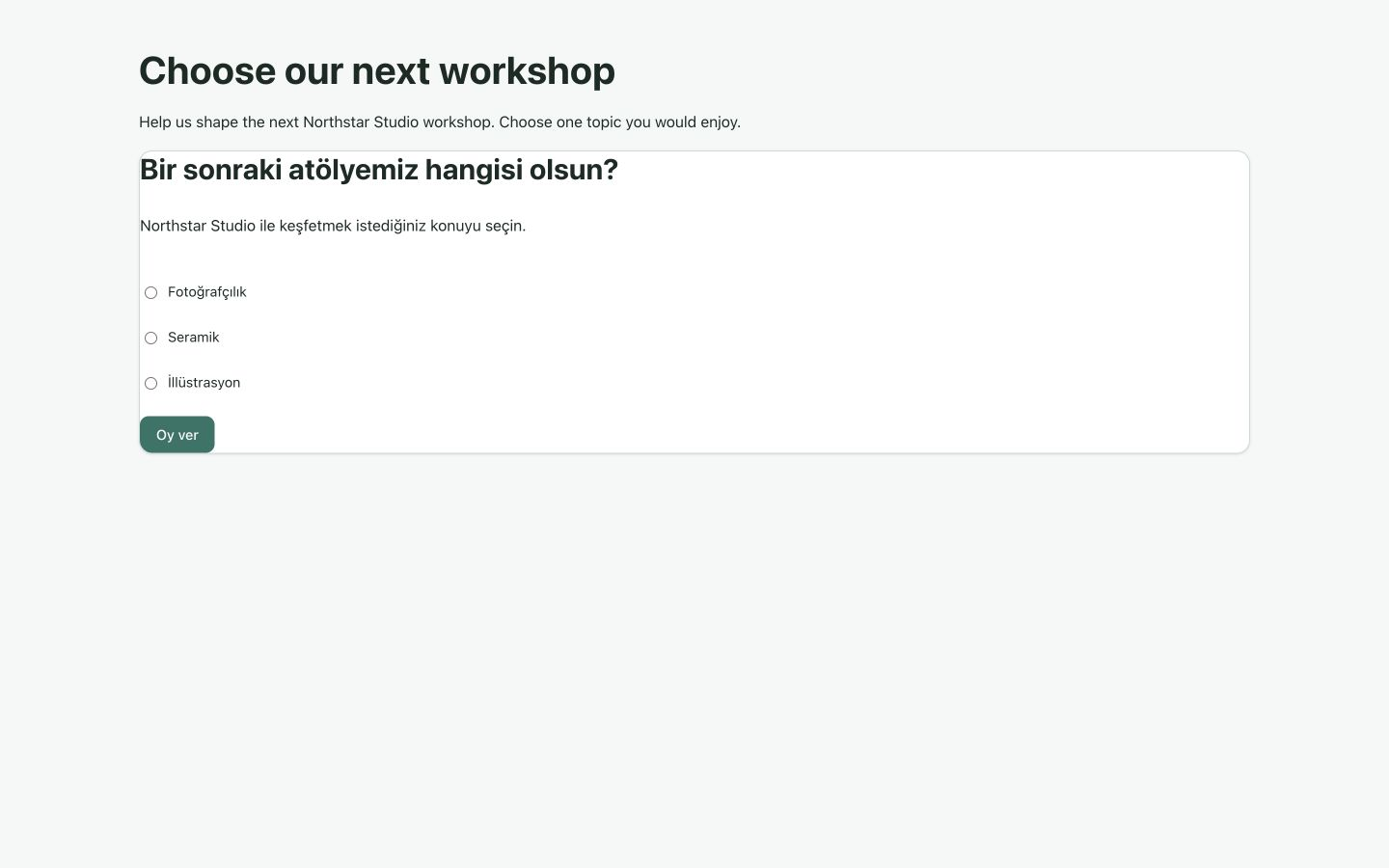
Open the page’s Turkish translation to check the copy saved earlier. A visitor who has not voted sees Bir sonraki atölyemiz hangisi olsun?, the translated option labels and the Oy ver button, as shown below. A session that has already voted sees Turkish result text under After voting. Both routes refer to the same poll; changing the page language does not create another ballot.
10. Inspect the ballot count and export CSV
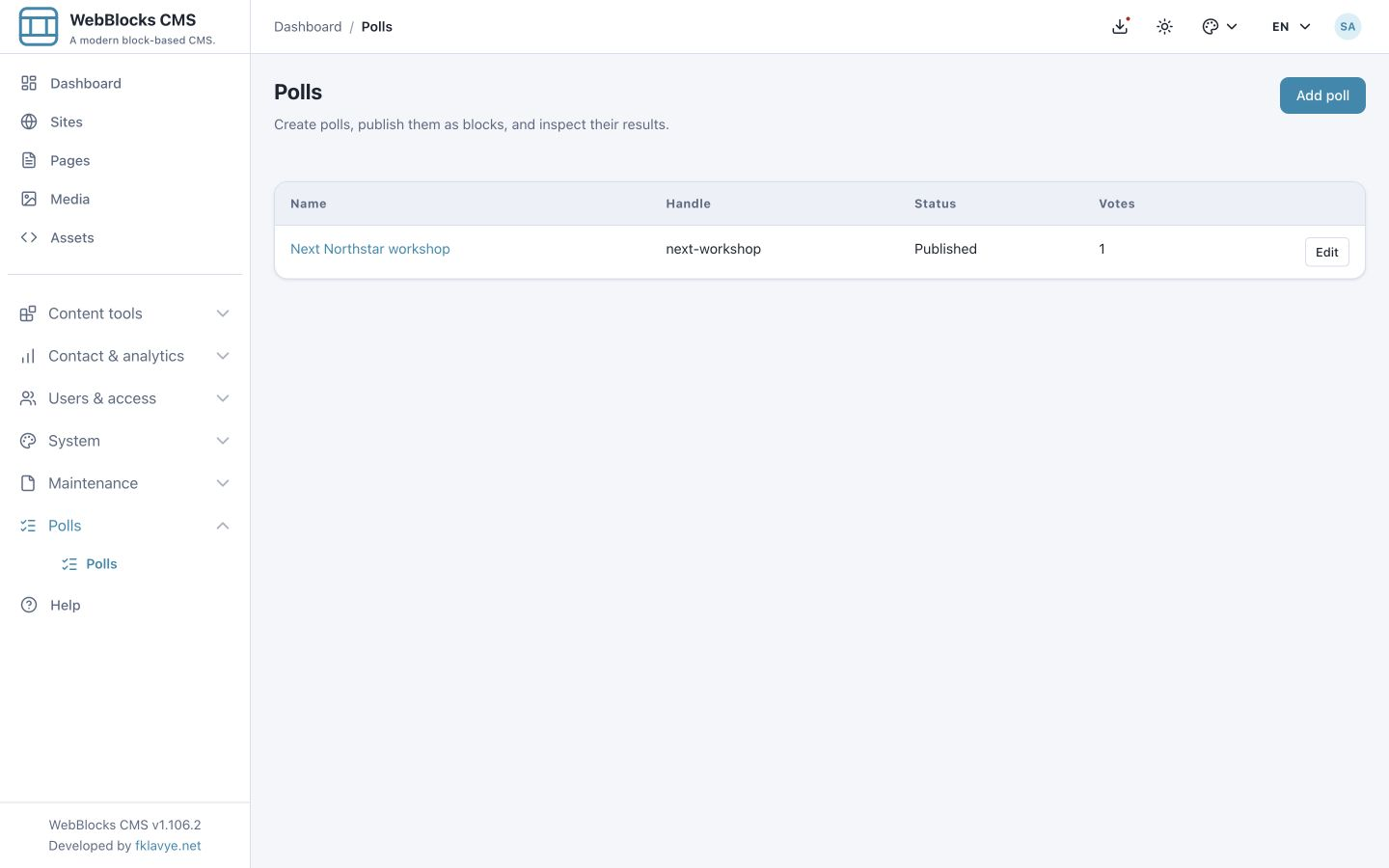
Return to Polls in the admin panel. The Votes column counts recorded ballots. Our single-choice poll now shows one.
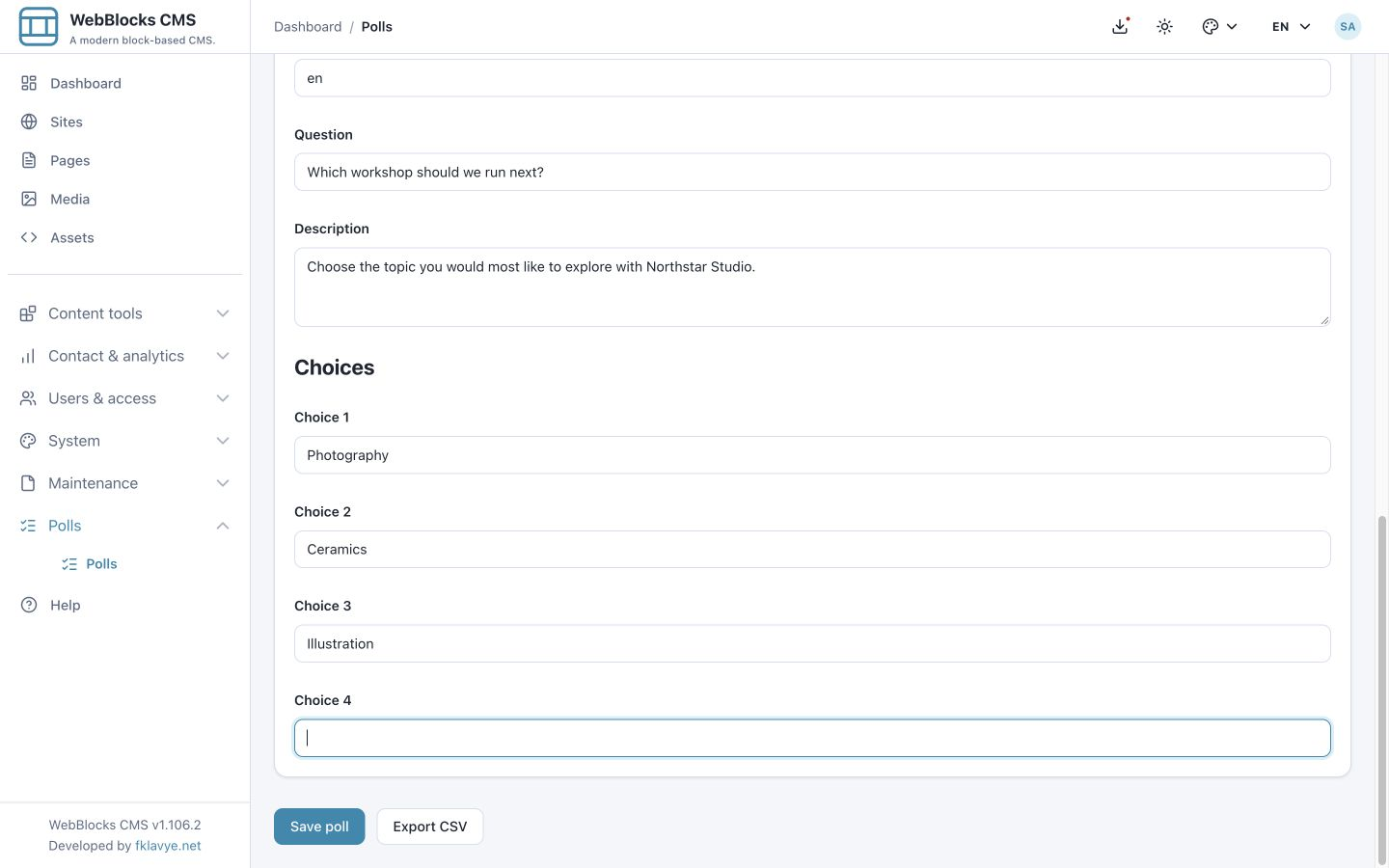
For option totals, open the saved poll and scroll below its choices. Choose Export CSV, beside Save poll. The export requires Export poll results permission and access to the poll's site.
The export is aggregate data: a choice label and its selection count. It is not a list of individual voters or an export of their IP addresses. The English single-choice example produces:
Choice,Votes
Photography,1
Ceramics,0
Illustration,0
The ordinary 0.1.5 editor does not provide a separate per-option results dashboard. Use the list's ballot count, the CSV for option totals, or the authorized aggregate endpoint in the Polls API reference. The public Show results setting does not remove the authorized export.
11. Run a separate multiple-choice poll
Create another poll so the first poll's meaning and ballots stay intact. Our second example uses:
| Field | Value |
|---|---|
| Name | Northstar learning interests |
| Handle | learning-interests |
| Status | Published |
| Choice mode | Multiple choice |
| Show results | After voting |
| Question | Which topics would you like to explore? |
| Description | Choose every topic that interests you. |
| Choices | Photography; Ceramics; Illustration |
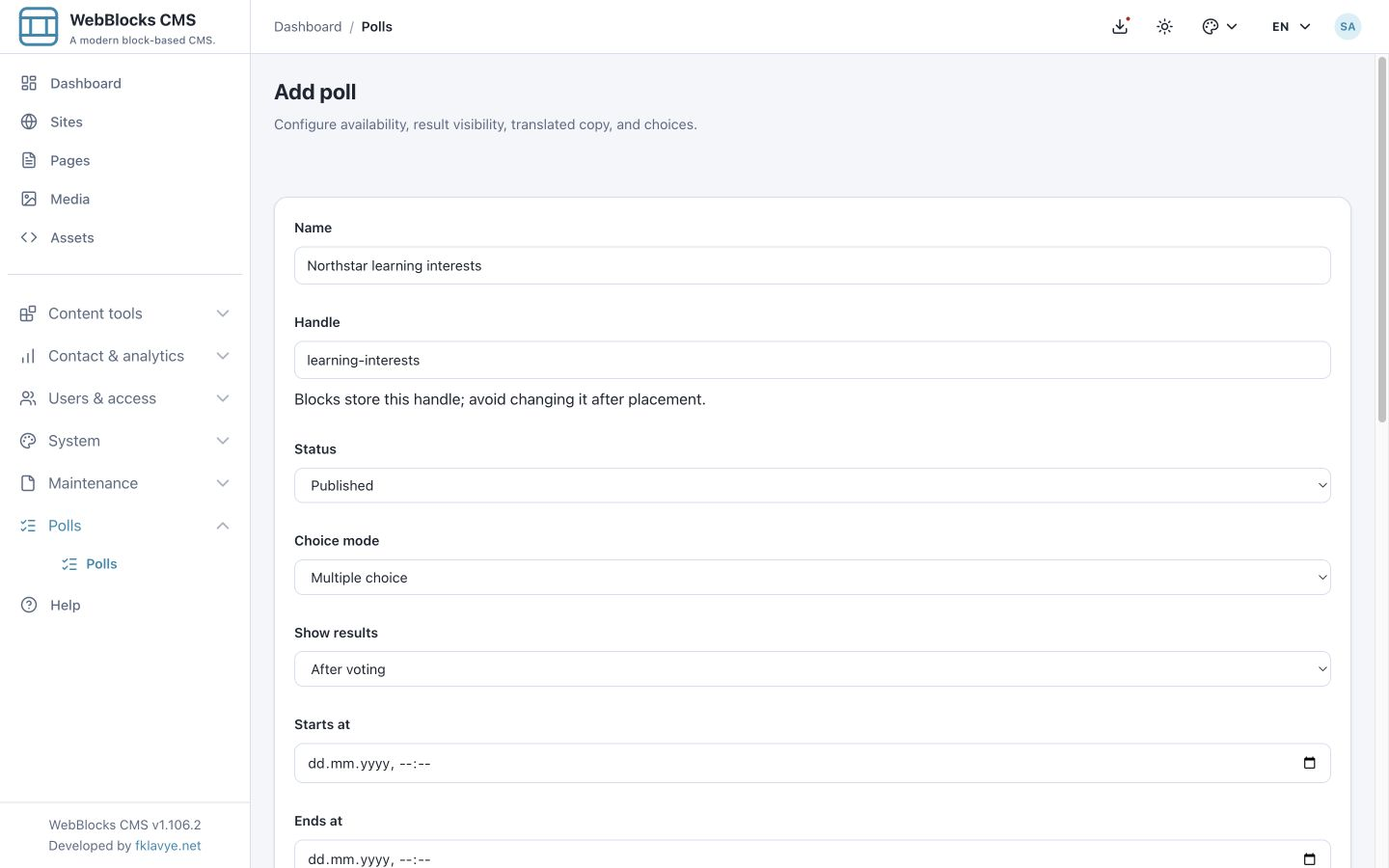
Place a Poll block on What would you like to learn?, select this second poll, preview it and publish the page. The public form now uses checkboxes. Select Photography and Illustration.
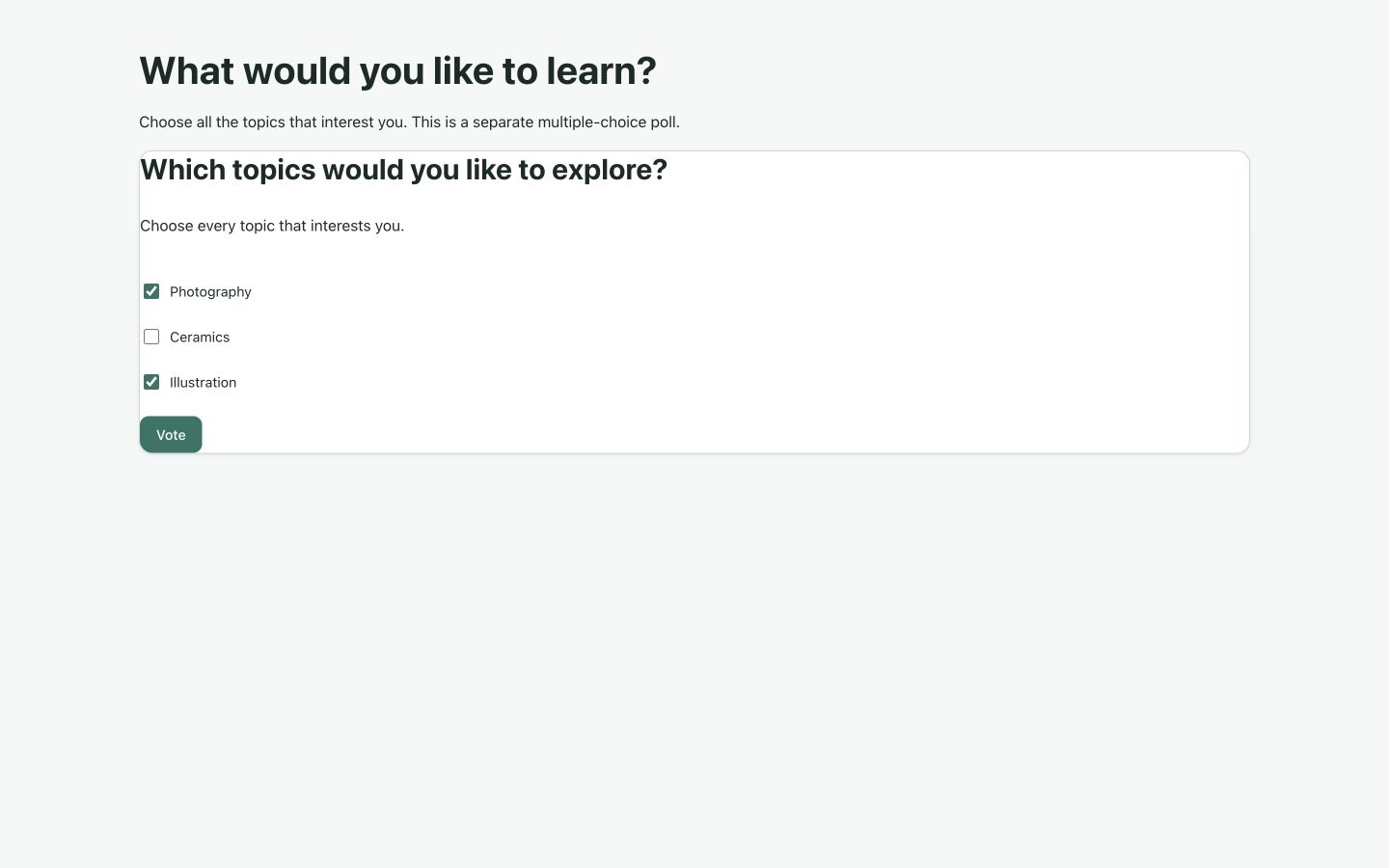
Choose Vote. One ballot records both selections.
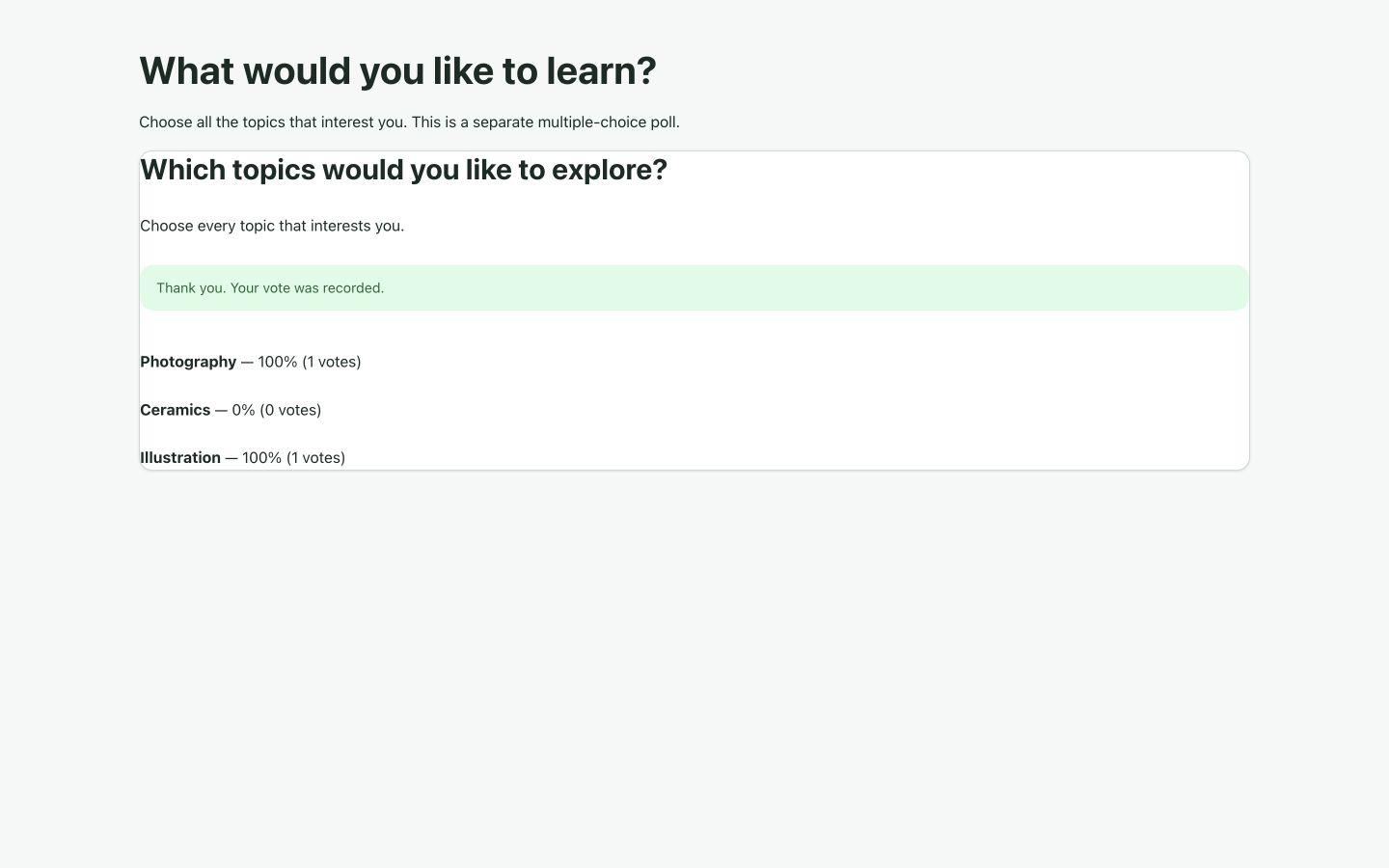
Each option's percentage uses the number of ballots as its denominator. Here, one of one ballots selected Photography and one of one selected Illustration, so both show 100%. Multiple-choice percentages do not have to sum to 100%. The list still counts one ballot, while the CSV contains two selected-option votes.
12. Understand repeat-vote protection
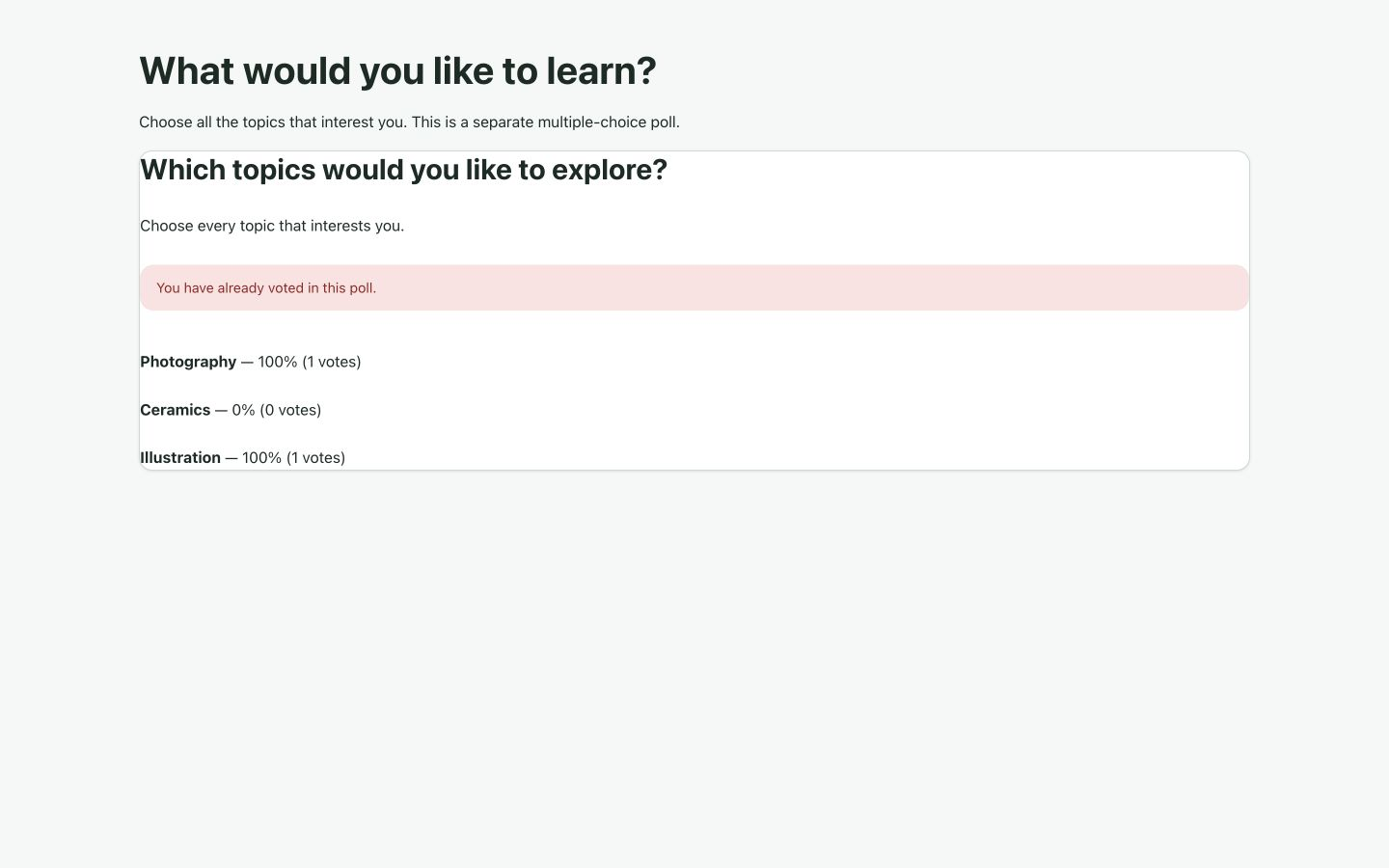
After a successful vote, the current session no longer receives the normal form. If the browser's Back action restores its earlier form and the visitor submits it again, the server checks the fingerprint too. Our repeated submission returns You have already voted in this poll. and the ballot total remains one.
The plugin uses CSRF protection, route rate limits and a pseudonymous HMAC fingerprint based on the poll, session, request IP and user agent. It does not store the raw IP address as a ballot field. This is a practical deterrent, not verified identity: changing the session or other fingerprint inputs can allow another ballot. Use an appropriate identity-based process when one verified vote per person is essential.
If a visitor sees a request-limit response, stop repeated submissions and wait for the normal window. Do not disable throttling to bypass the message. Use a disposable test poll when exercising voting and repeats; do not add practice ballots to a poll whose totals you intend to use.
13. Close a poll and decide what remains visible
When voting is finished, reopen the poll, set Status → Closed and choose Save poll. Closing retains the stored ballots and translations.
For the first example, we also set Show results → Never to demonstrate a closed poll without public totals.
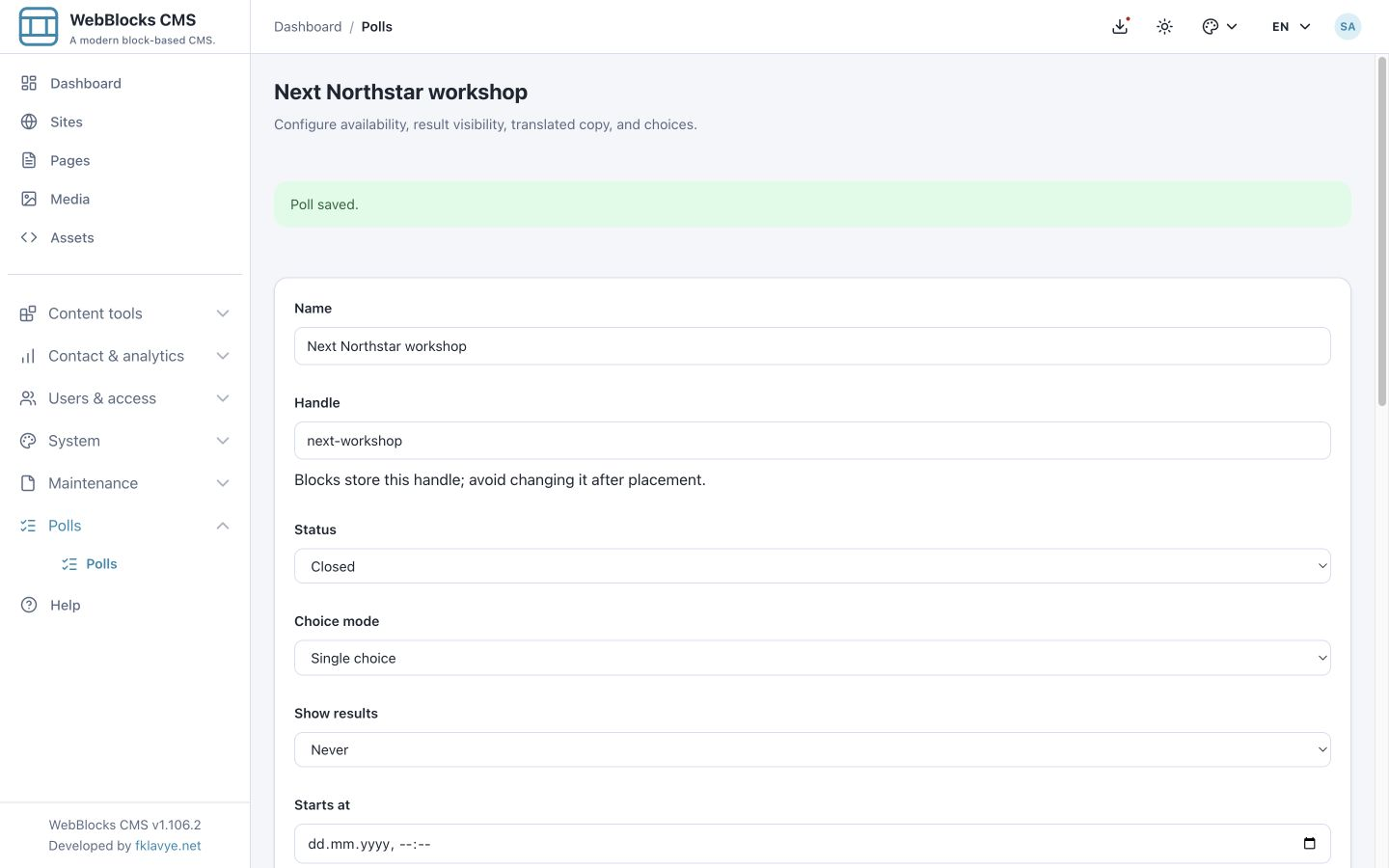
Reload its public page. The question remains, but the form is unavailable and the block shows This poll is closed..
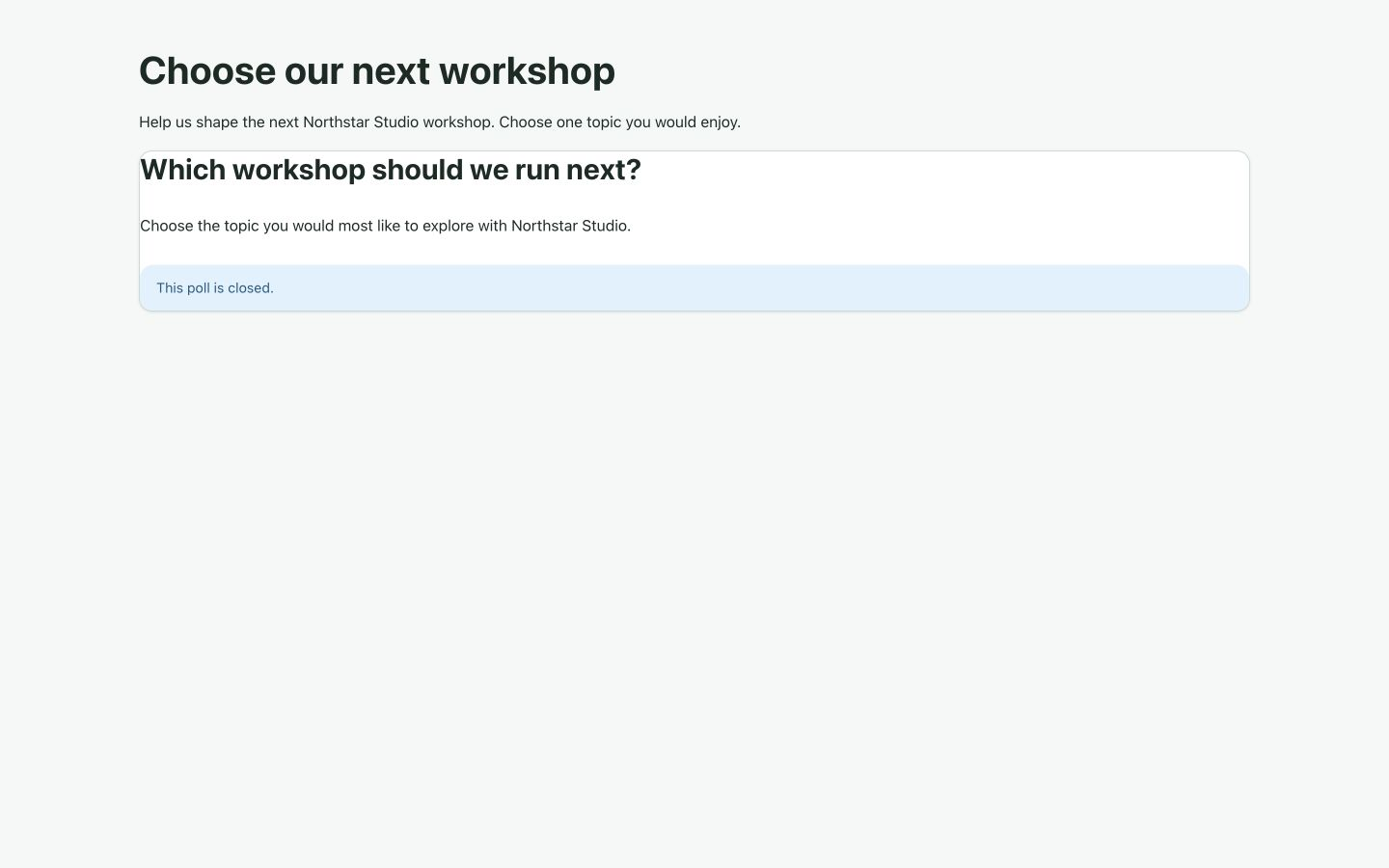
If you want the retained totals to be public after finishing, choose a suitable results policy. With After closing on this actually Closed poll, the block displays the saved aggregate counts and no voting form.
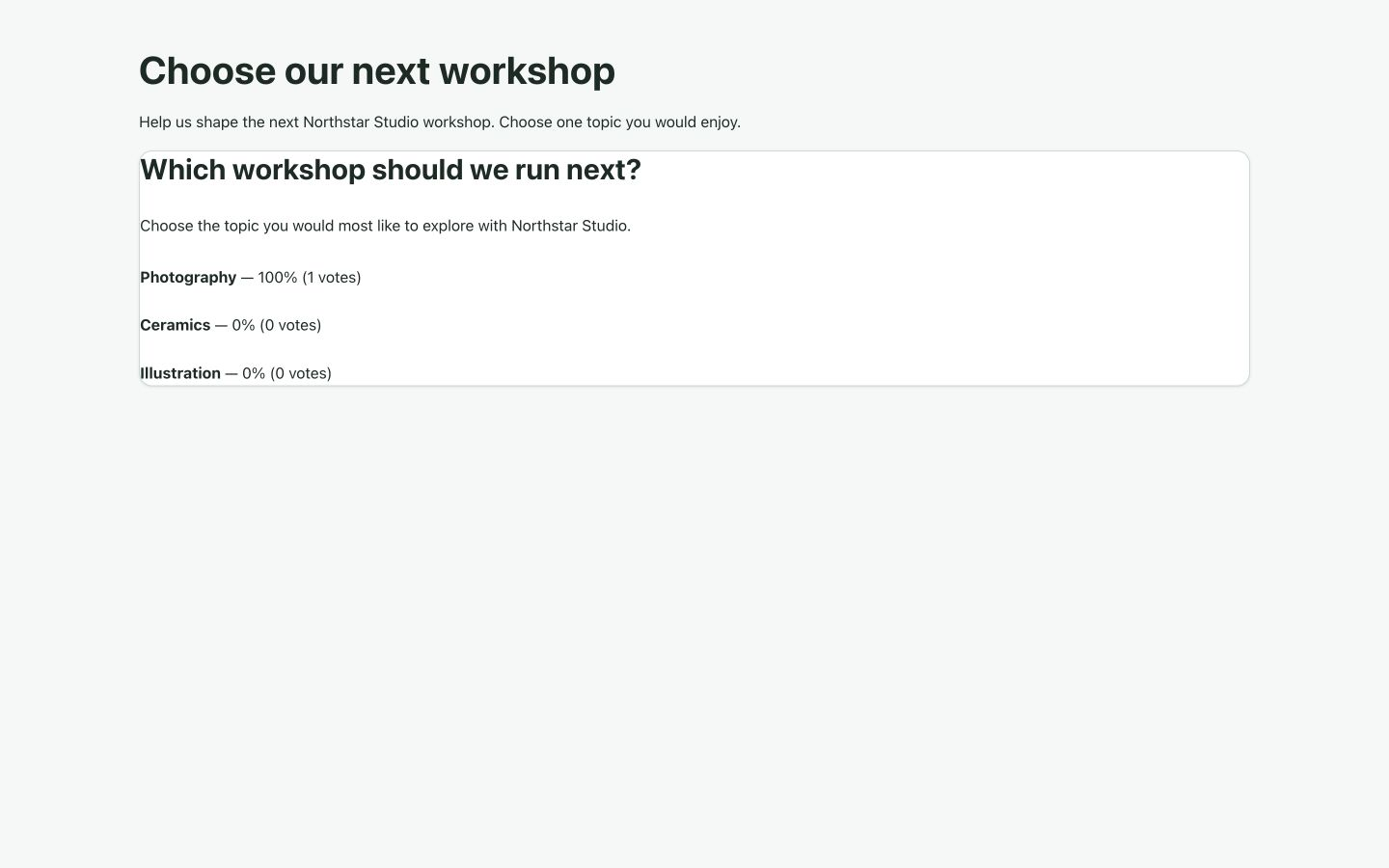
To reopen the same poll, set Status → Published, check its dates and results policy, and save. Existing ballots remain; reopening does not reset the earlier voters or turn the poll into a new campaign. We verified reopening with the original ballot retained. Create a new poll and handle when the next question needs independent totals.
14. Schedule a voting window carefully
A poll accepts votes only when its status is Published, its start time is absent or has arrived, and its end time is absent or still in the future. The end must follow the start. Closing the poll manually stops voting regardless of those dates.
Use future dates appropriate to your real event. Our separate Scheduled Northstar workshop example uses a November 2030 window simply to keep it clearly in the future during the demonstration. The form does not identify a timezone beside the date controls; confirm the application timezone with your administrator rather than assuming the site's display timezone converts these entries automatically.
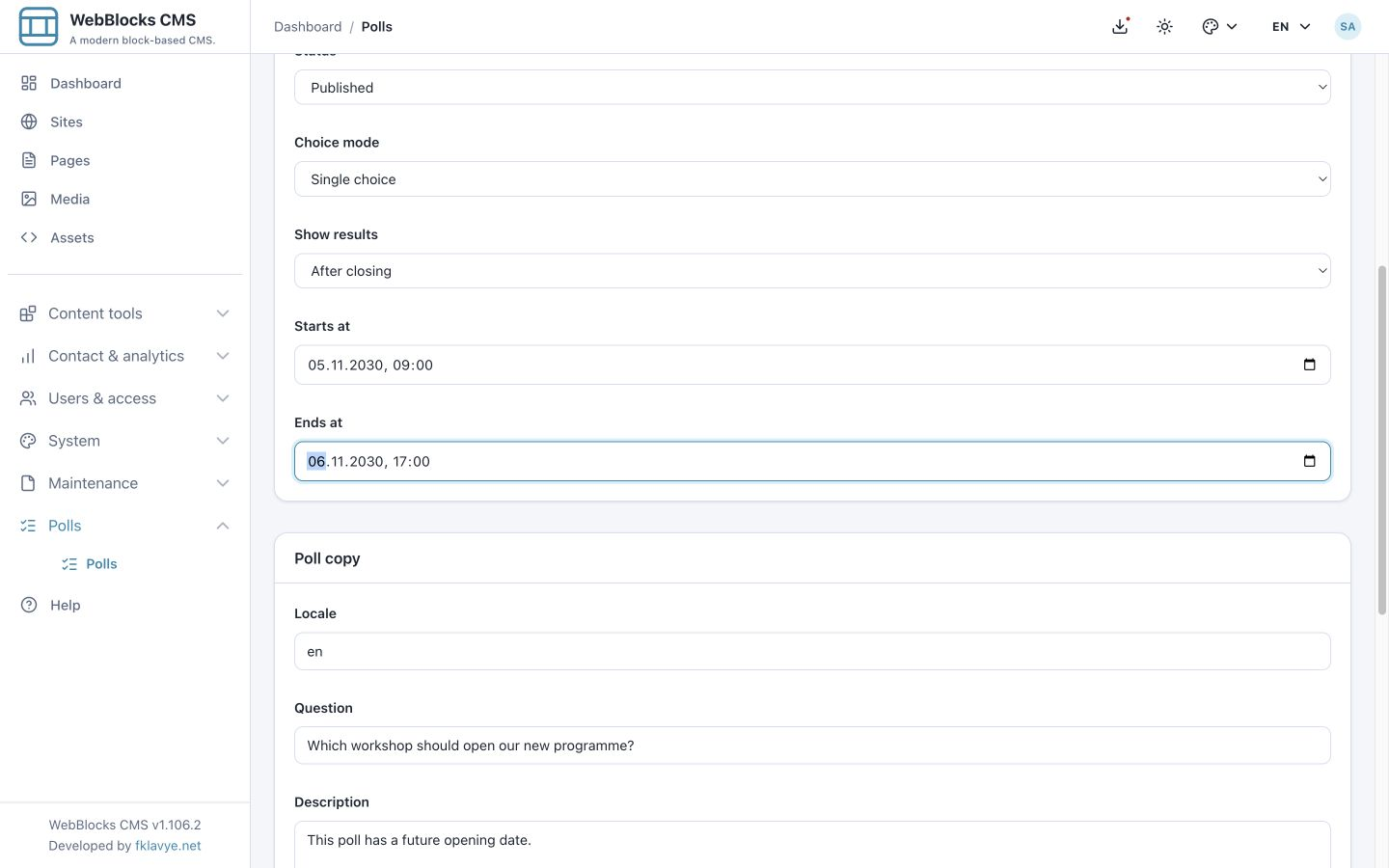
With After closing, this future poll shows a closed notice without totals or a voting form before its opening time. Once its Published voting window opens, visitors can vote while results remain hidden. When the end time arrives, its retained aggregate results become visible. An explicit Closed status also permits those results; a Draft poll does not, even if it has old dates.
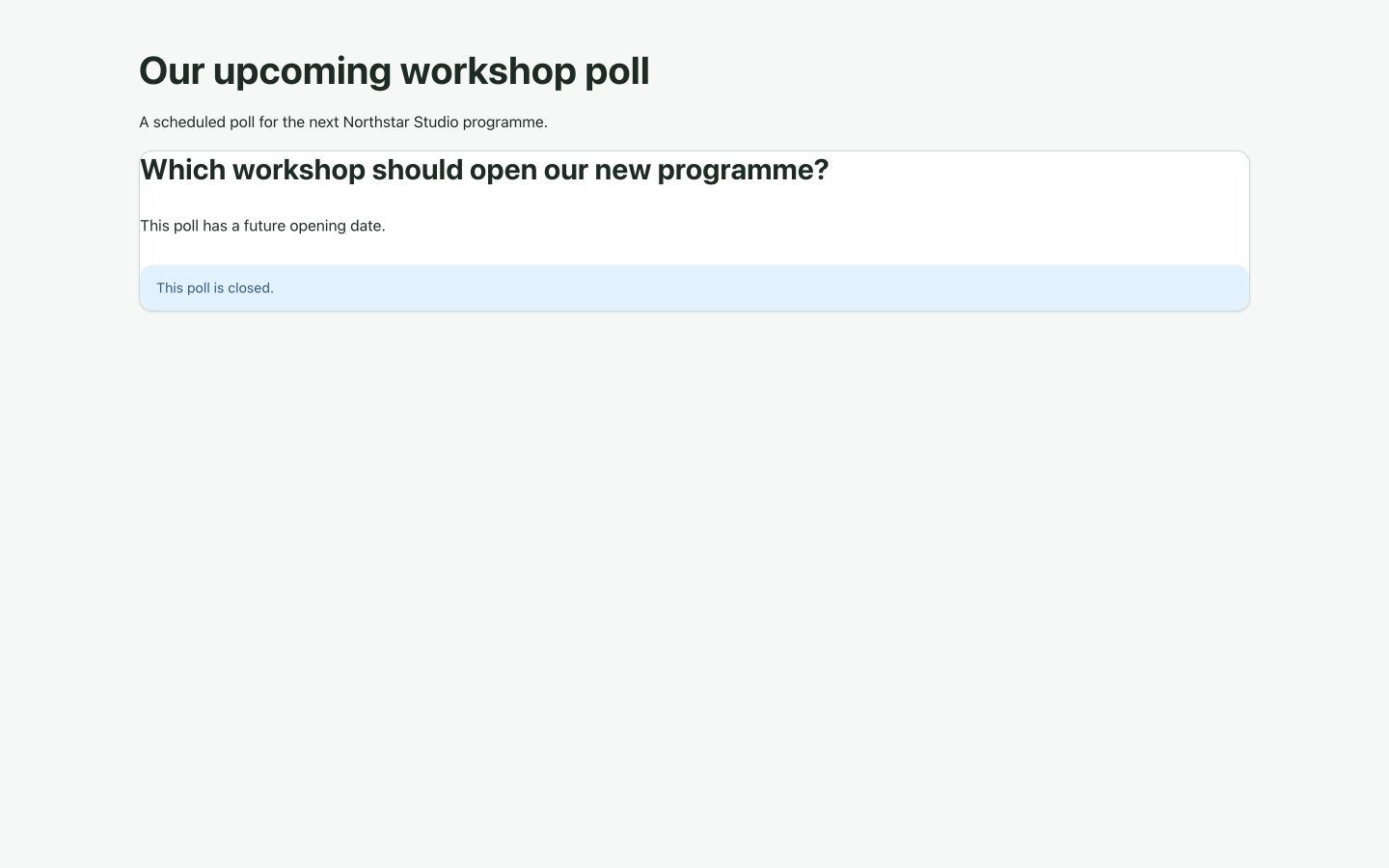
Choose After closing to defer results until completion, After voting to show them to the current session after submission, or Never to keep public totals hidden. Review the actual visitor page at each boundary. Always is a results display and replaces the form, so it is not a workaround for collecting votes.
The open/closed calculation is evaluated during requests; this feature does not need you to run a separate task to flip the status at each boundary. Test the real start/end behavior on your own host before relying on the schedule. Also check caches between the visitor and the application so an old page does not misrepresent the current state.
Troubleshooting
| Symptom | What to check |
|---|---|
| Polls is missing from the sidebar | Installation, activation, compatibility, View polls permission and site access. |
| Plugin migrations are pending | Use a compatible current host and resolve the recorded database setup result before collecting votes. |
| Saving the poll fails | Required name, valid stable handle, locale, question, at least two labels and an end time after the start. |
| The poll is missing from the block selector | Published status and ownership by the page's site. Draft and Closed polls are not offered by the normal selector. |
| The page has no poll | The saved block selection, stable handle, correct site, enabled parent blocks and plugin activation. |
| The poll is Published but its page is unavailable | Page publication is independent from poll publication. Open the real page route after publishing it. |
| Results appear instead of a form | Show results → Always, After closing on an explicitly Closed poll or after a Published poll’s end time, or an existing voted session with After voting. |
| Results appear before the expected finish | Check Always, an already-voted session with After voting, an explicit Closed status, and the saved end time. After closing waits for actual closure or the end of a Published poll. |
| The block says closed but the status is Published | Check future/past dates, the current session's voted state and the results policy. The notice is generic. |
| A translated page shows fallback poll copy | Check the requested page language, the saved poll locale and corresponding choice labels, and that Polls 0.1.5 or later is installed. Translate the surrounding page separately. |
| Percentages exceed 100% when added together | Multiple-choice percentages are calculated per ballot for each option. One ballot can select several options. |
| Export CSV is unavailable or forbidden | Save the poll, check export permission and site access. The file contains option totals, not a voter directory. |
Finish with a controlled launch
Before inviting real visitors, review the owning site, stable handle, wording, mode, permissions, dates and results policy. Check the surrounding page and its published route independently. Exercise one test ballot and verify the count and CSV on a disposable poll, then create a fresh poll for the totals you intend to use.
For a multilingual or scheduled launch, verify the visitor view in every intended locale and at the relevant date boundaries. Check the real visitor view and recorded ballot counts as well as the saved form. Give an operator responsibility for closing the poll, exporting the totals and keeping the published result appropriate for its audience.
Continue with the Polls reference for the integration contract, Roles And Permissions for operator access, or Publish A Page for the page workflow.