Add A Video Or Audio Block
Goal: Put a video or an audio clip on a page.
Time: 3 minutes
You need: A page, and either an uploaded file or an address to play from
Steps
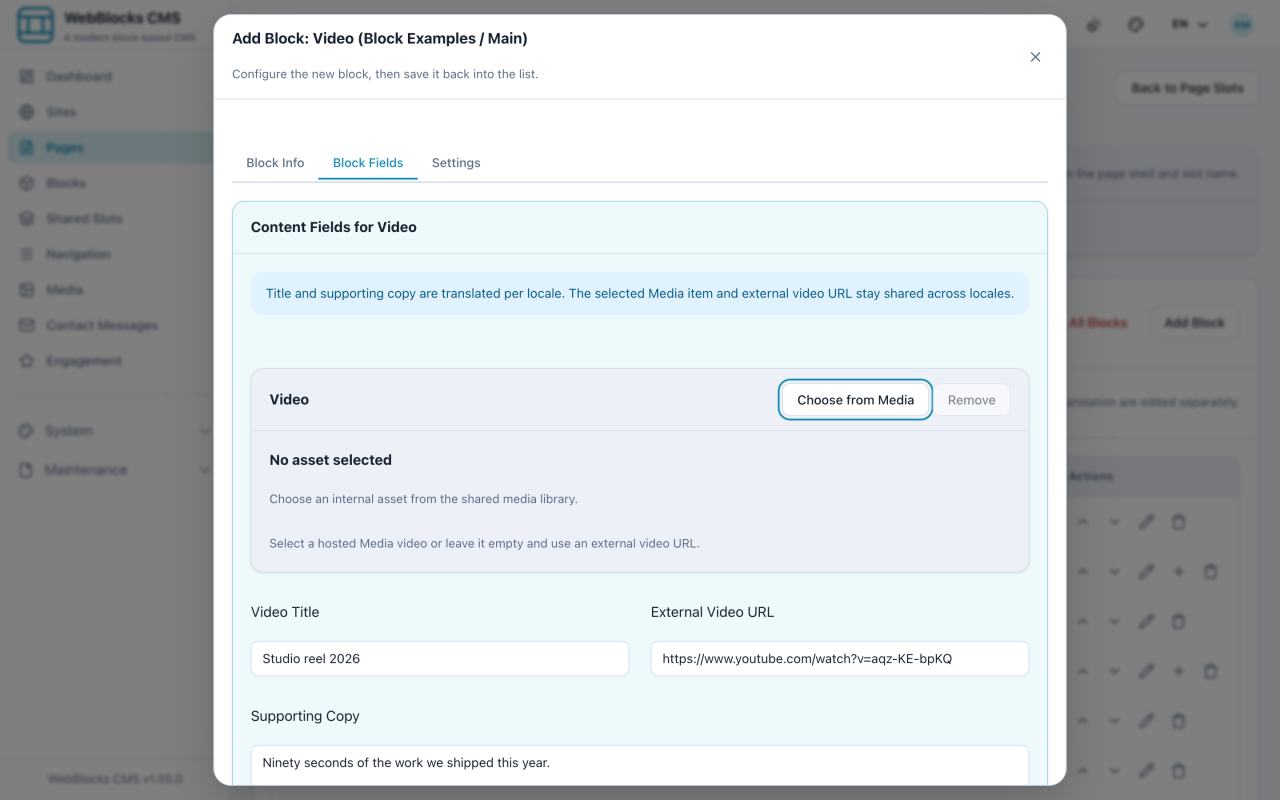
- In the Main slot, select Add Block, then choose Video.
- Fill in Video Title and Supporting Copy.
- Pick one source: either Choose from Media for a file you uploaded, or paste an address into External Video URL.
- Select Save New Block.
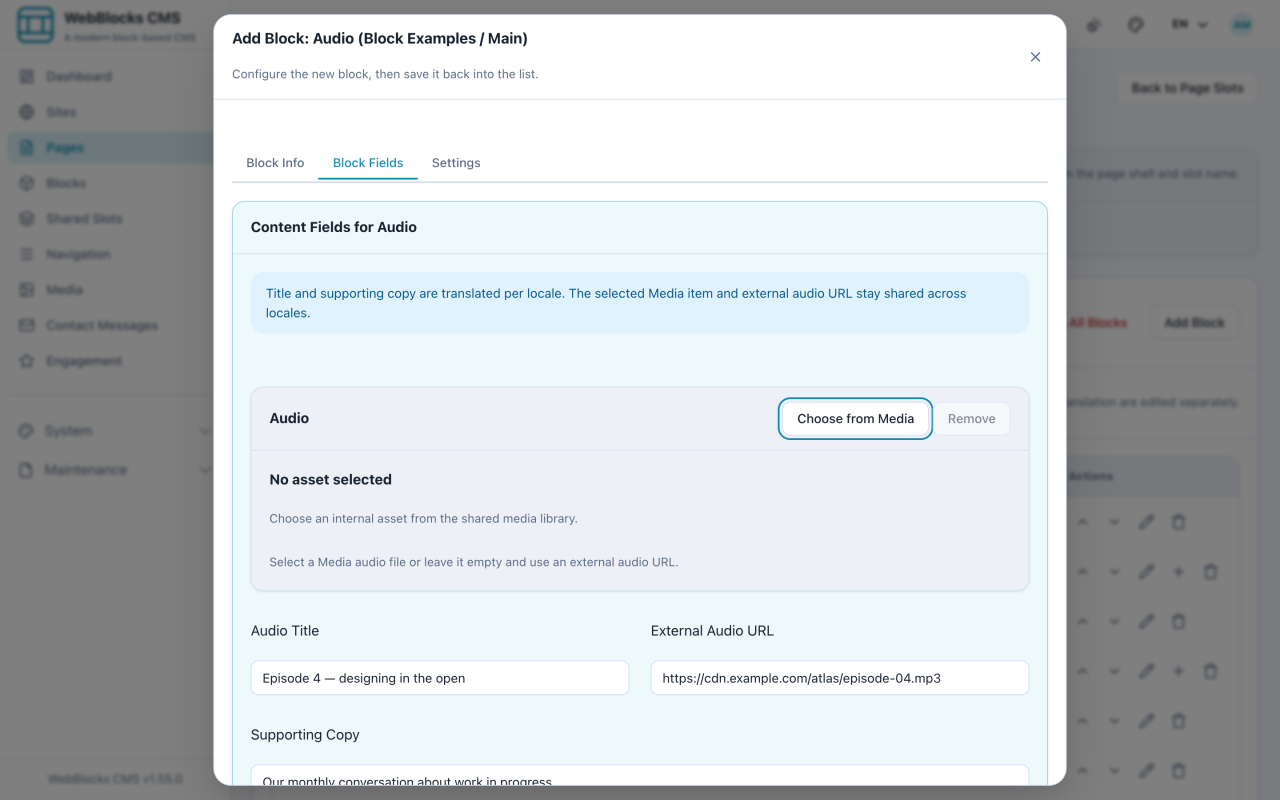
- For audio, repeat with the Audio block: Audio Title, Supporting Copy, and either a hosted file or External Audio URL.
Hosted Or External?
Hosted means the file lives in your Media Library. You control it, it will not disappear, and nothing third-party runs on your page. It also means you pay for the bandwidth, and large video files are large.
External means a provider serves it. Cheaper and better at streaming, but the provider decides what else loads with it, and the clip can be taken down without telling you.
For a short clip you own, host it. For a long video with an audience, a provider usually wins.
Notes
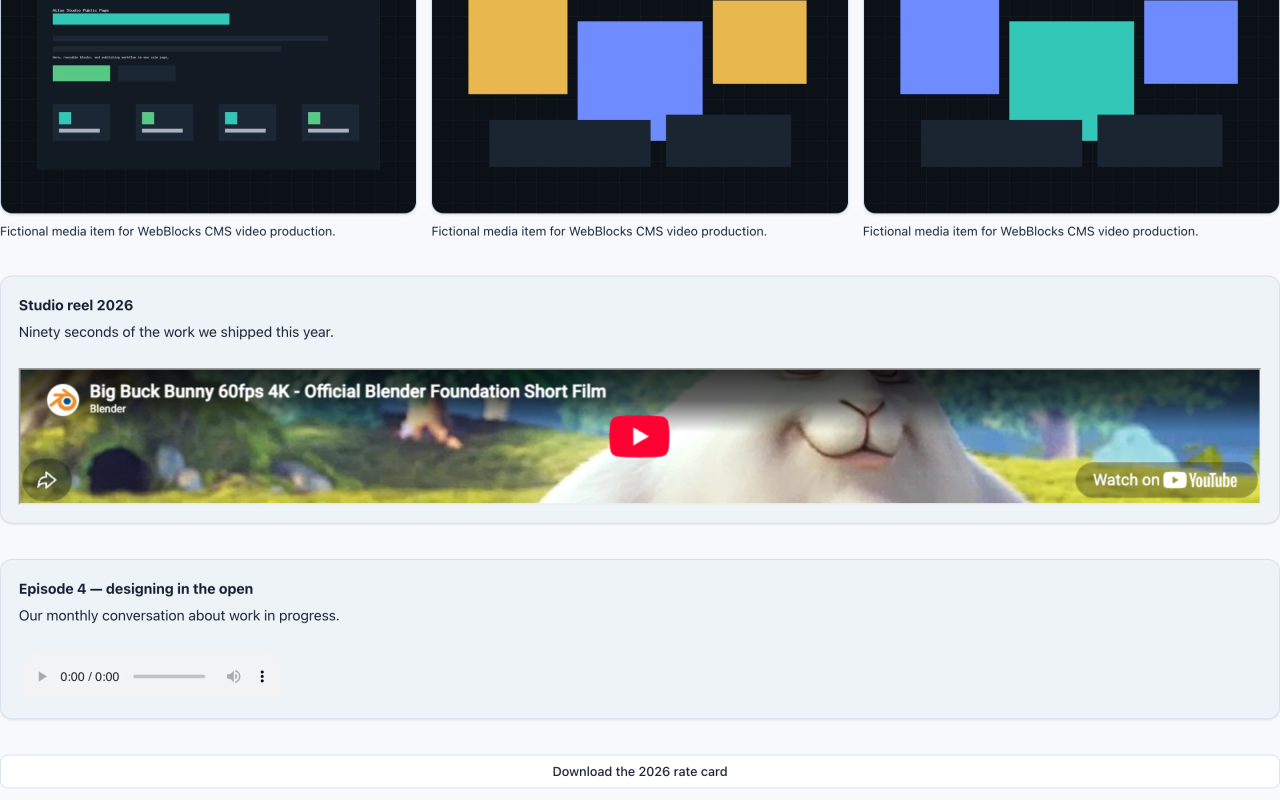
- Supporting copy is not optional in practice. Some visitors cannot play your clip — no sound, poor connection, no autoplay. A sentence of context is the difference between a dead rectangle and usable content.
- If a video carries information that exists nowhere else on the page, it needs captions or a transcript. A block cannot fix that for you.
- Fill in one source, not both. A hosted file and an external URL on the same block is ambiguous.
- Audio files are stored as ordinary media, so the same library, folders, and reuse rules apply.