Cluster And Spacing
Goal: Put two buttons side by side without a grid, and understand where spacing comes from.
Time: 3 minutes
You need: A page and a couple of small blocks
Steps
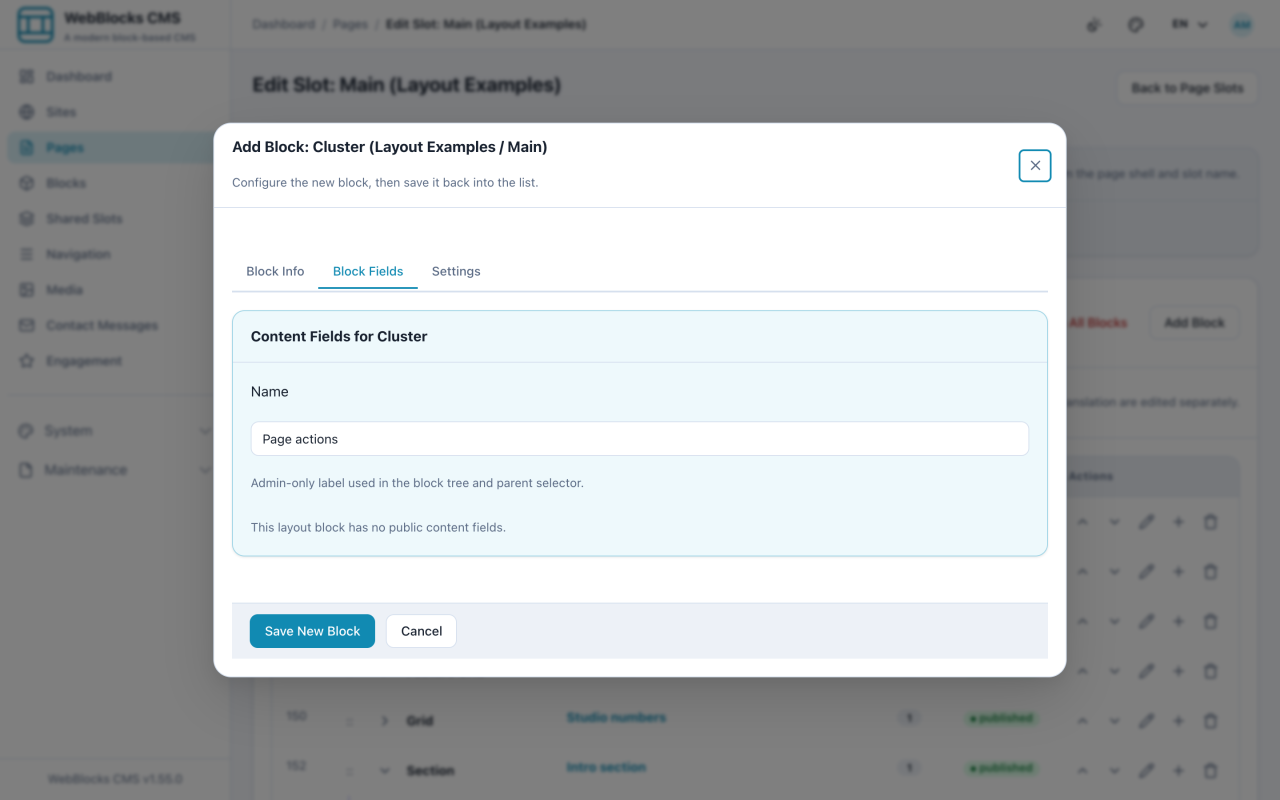
- Select Add Block, then choose Cluster.
- Give it a Name, then set the arrangement: Justify, Align, Gap, Wrap, and Width.
- On the Cluster's row, select Add child block and add the items — two Button Links, for example.
- Save, and check the result at a narrow window as well as a wide one.
Where Spacing Actually Comes From
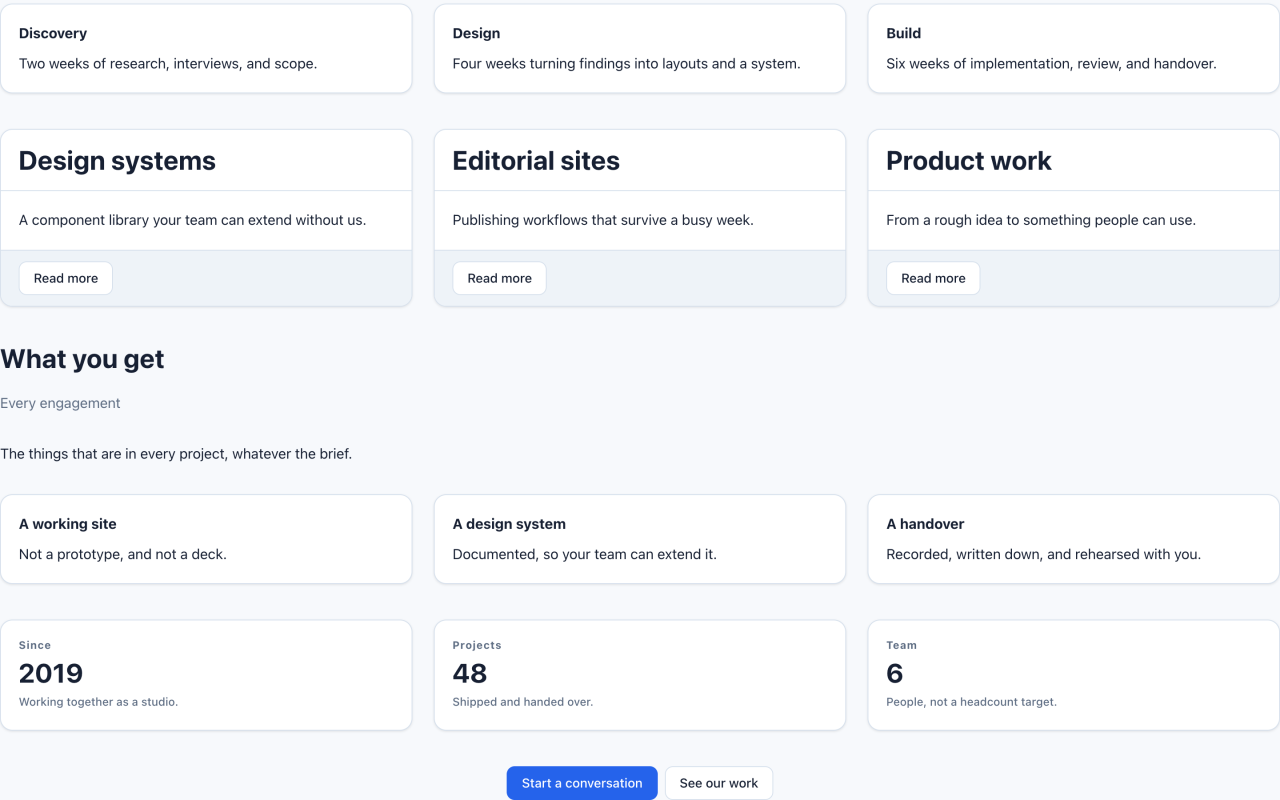
Four blocks control the air on a page, and reaching for the wrong one is the usual cause of a layout that will not behave:
- Section — Spacing. The vertical space above and below a band of content. This is the big one.
- Container — Flow.
stackspaces the container's children evenly;noneleaves them as they are. - Grid — Gap. The space between grid cells.
- Cluster — Gap. The space between items in a row.
If two paragraphs sit too close together, the answer is the Container's flow, not an empty Plain Text block.
Notes
- Never add an empty block for spacing. It survives until someone edits the page on a phone, and it reads as an empty paragraph to a screen reader.
- Wrap: nowrap keeps a row on one line at every width, which is right for two buttons and wrong for six chips. When in doubt, let it wrap.
- Cluster is for a handful of small items in a row. For content of substance side by side, use Columns or Grid.
- Cluster is also what sits inside navigation bars and card footers, which is why it shows up in Shared Slots.