Add A Heading And A Paragraph
Goal: Put a visible heading and a paragraph of text on a page.
Time: 3 minutes
You need: A draft page — see Create A Page
Steps
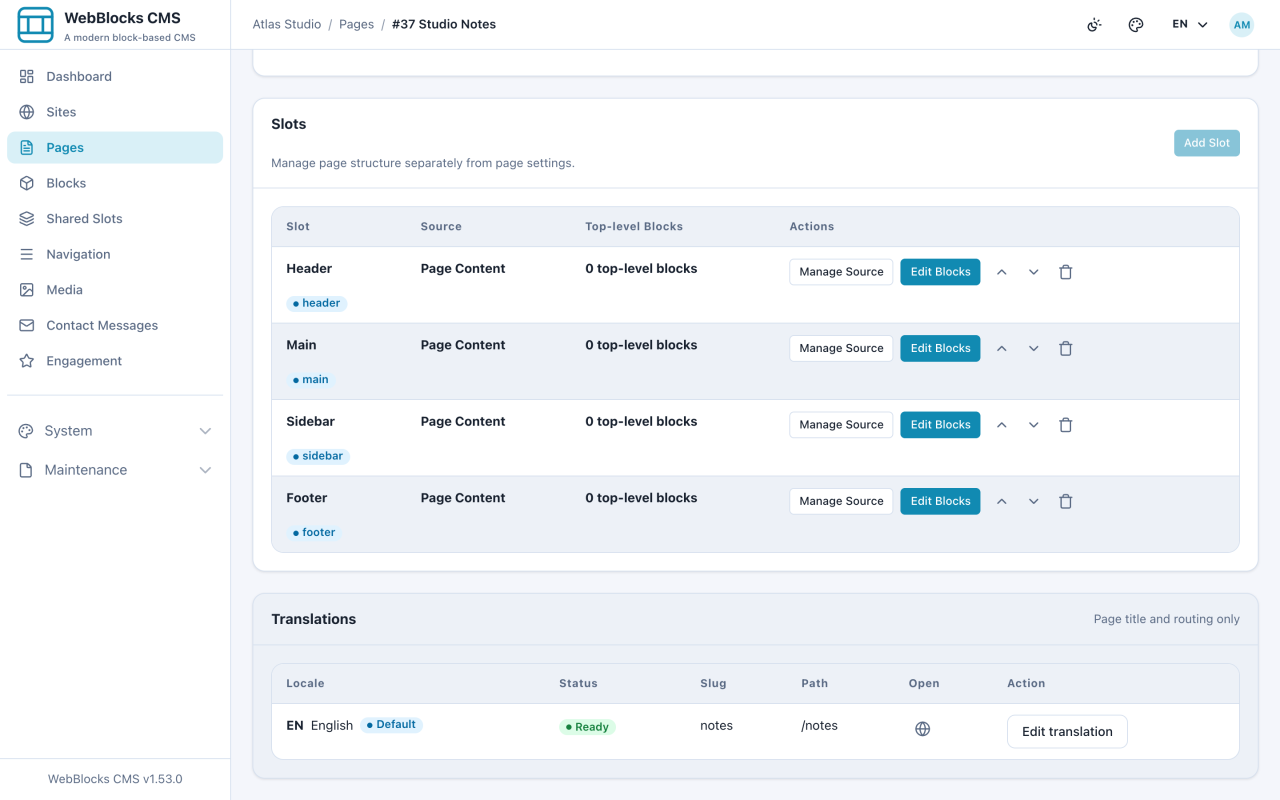
- Open the page from Pages and select Edit page.
- Scroll down to the Slots card and select Edit Blocks on the Main slot.
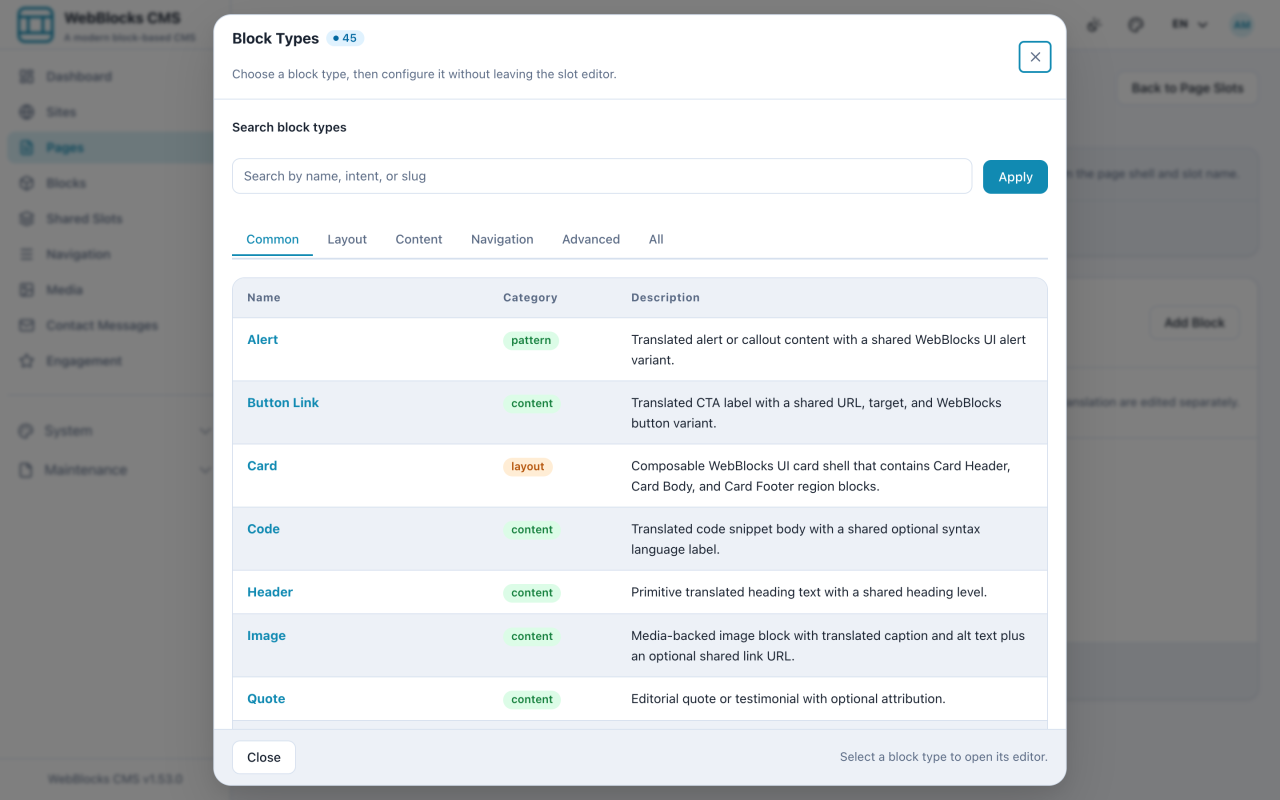
- Select Add Block. The block picker opens, grouped into Common, Layout, Content, Navigation, Advanced, and All. Choose Header.
- Fill in the Header block — Text:
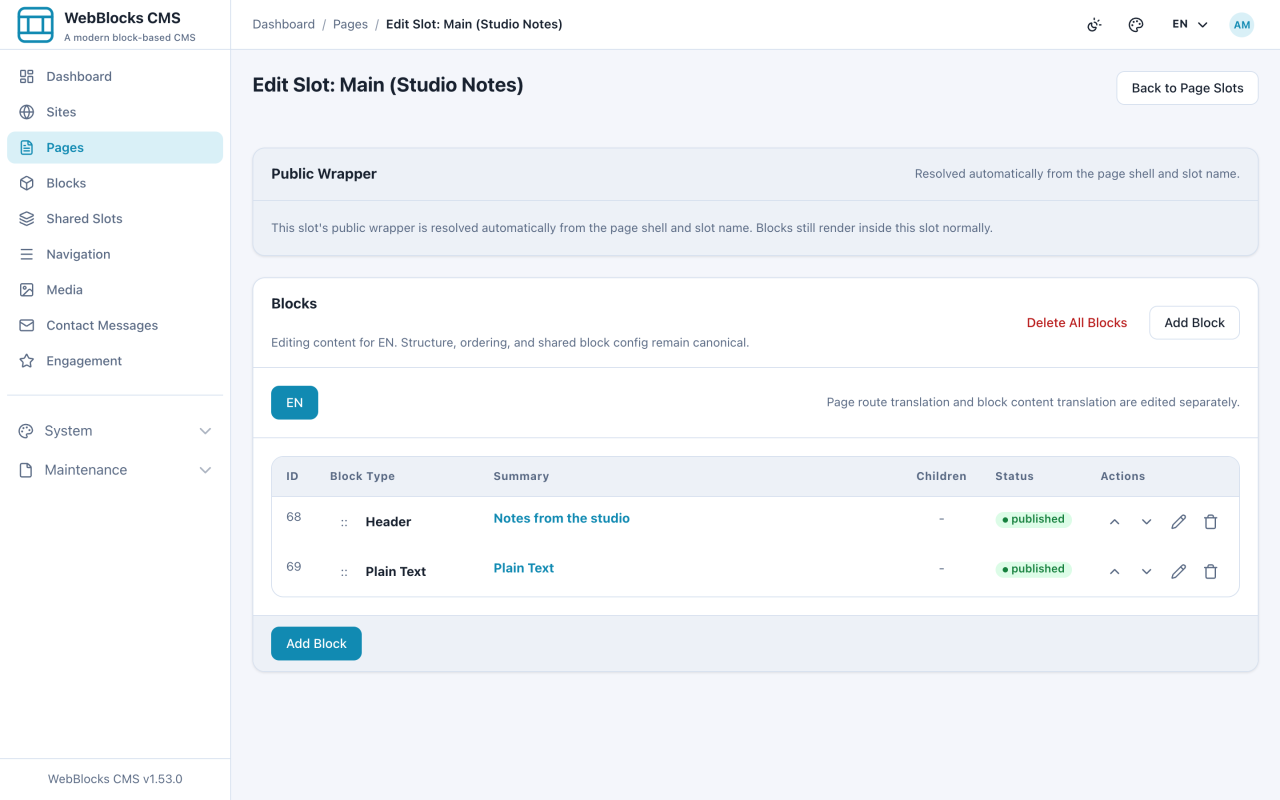
Notes from the studio, Level:2— then select Save New Block. - Select Add Block again and choose Plain Text.
- Write your paragraph in the Text field, then select Save New Block.
Example
Header
  Text:  Notes from the studio
  Level: 2

Plain Text
  Text:  We publish short pieces about the work behind our projects — the
         drafts, the dead ends, and the decisions that made the final
         version. New notes appear here every few weeks.
Notes
- Level is the heading's rank, not its size. A page should have one level 1 heading and use level 2 for the sections under it. Getting this right is what makes a page readable to screen readers and search engines.
- Plain Text is for plain paragraphs. If you need bold, links, or lists, use Rich Text instead.
- New blocks are saved as published by default. They still only reach visitors once the page itself is published.
- Blocks render in the order they are listed. Use the arrows in the block list to reorder them rather than deleting and recreating.