Revisions: See History And Restore
Goal: Compare a saved page version, preview it safely, and restore it only after approval.
Time: 4 minutes
You need: A page that has been edited at least once
Steps
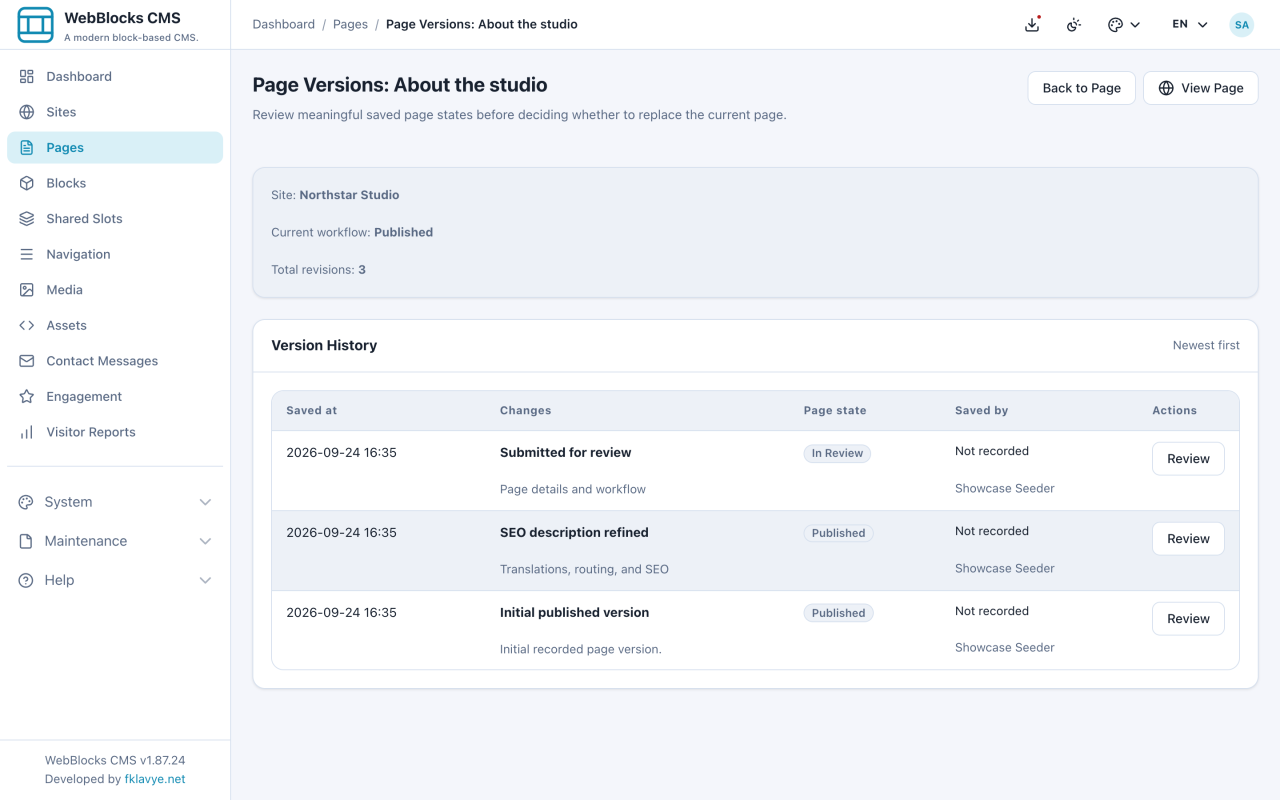
- Open the page and select Version History.
- Work down the list, newest first. Each row tells you when, what changed, and who did it — with the source (Admin or API) and event type.
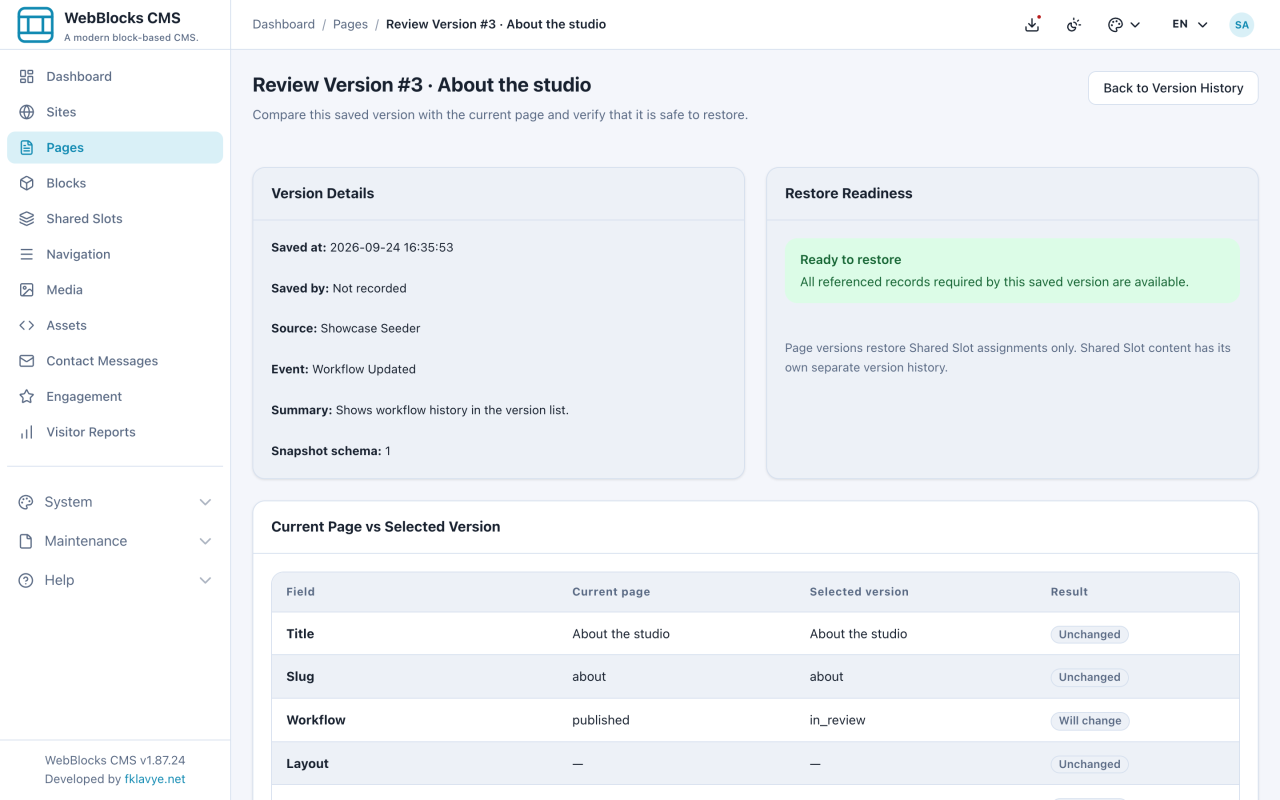
- Open the saved version you want to inspect. Compare its page fields, translations, slots, and blocks with the current page.
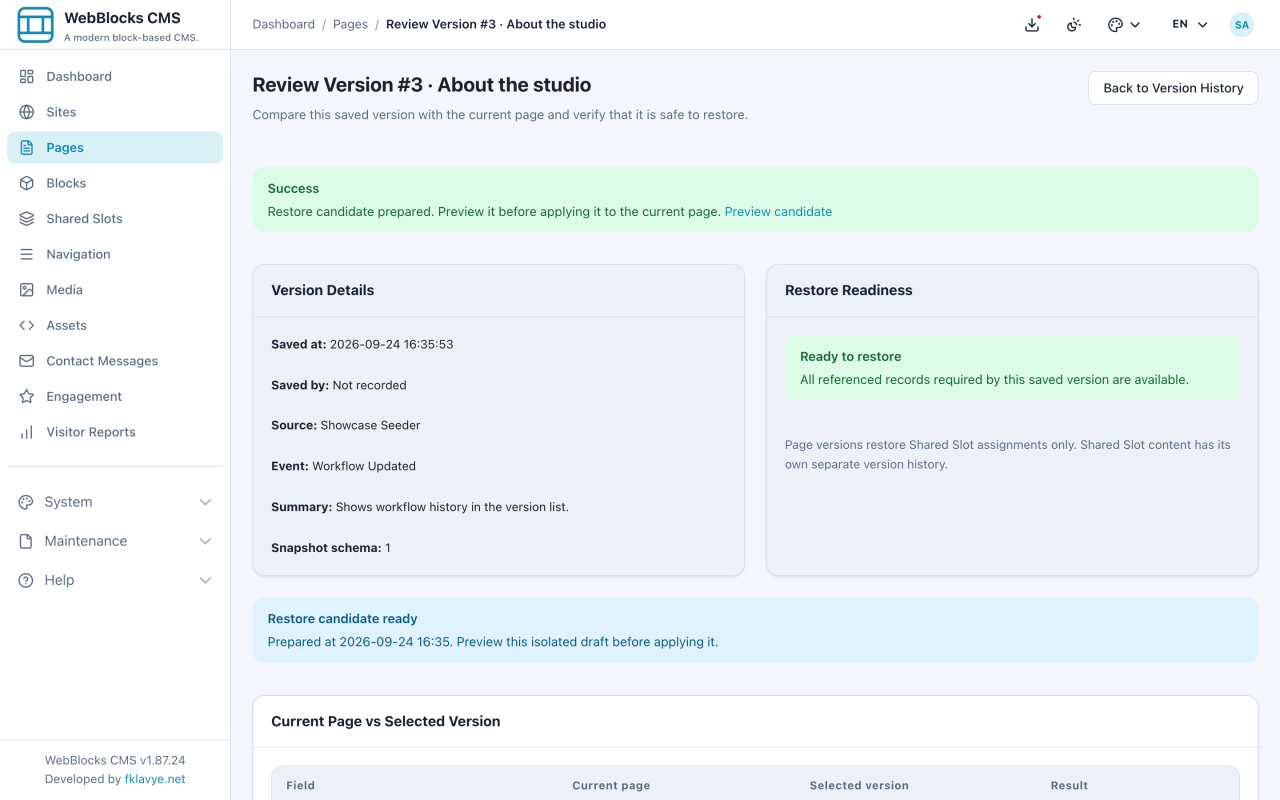
- Select Prepare Restore Preview. The CMS creates a private restore candidate; the current page is still unchanged.
- Open the candidate preview and check the rendered page at both wide and narrow widths.
- Return to the candidate and select Apply Restore. If the preview is wrong, select Discard Candidate instead.
- Re-open Version History and confirm the pre-restore and post-restore safety versions.
How Version History And Restore Safety Work
Preparing a candidate is deliberately separate from applying it. It gives you a rendered preview without changing the current page, and the CMS rejects the candidate if the page changes after it was prepared. Prepare a fresh candidate from the version you intend to restore when that happens.
Versions are captured automatically for page creation, content and block changes, translation and slot edits, and workflow moves. The audit details name the person and source, so an Admin edit stays distinguishable from an Internal Content API change.
Notes
- This is page-level history, not a backup. It restores content on one page. It does not replace system backups or site export packages.
- Shared Slots have their own separate history. Restoring a page does not touch the header it renders.
- Preparing a restore candidate does not publish or change the page. Applying it keeps the page's current workflow state.
- Only one active restore candidate is kept for a page. Discard an unwanted candidate before preparing another.
- The history grows with every edit, so scan the change summary rather than timestamps alone.