Show Artwork at Relative Scale
Goal: Keep artworks in proportion to one another as a Gallery resizes.
Time: About 3 minutes.
You need: An editable page, artwork images in the Media Library and the width and height of each work.
Enter two sets of dimensions and see how the gallery fits desktop and phone screens. The narration is in English. Turn on captions in the player.
Set the artwork dimensions
- Add a Gallery block to your page and select the artwork images. Save the new block.
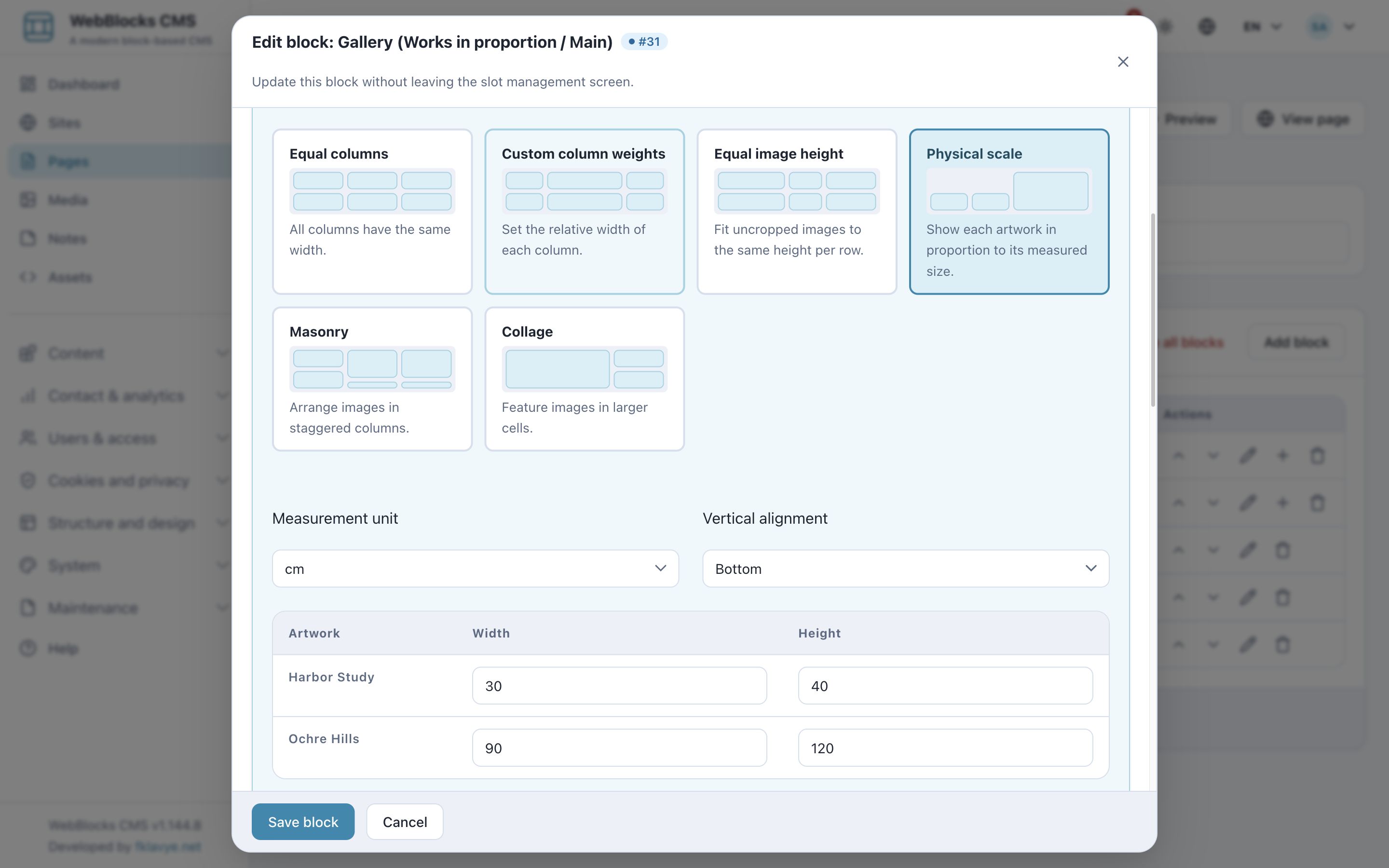
- Reopen the Gallery and select Settings. Under Gallery layout, choose Physical scale.
- Set Measurement unit to centimeters. Enter each work’s width and height. In the example, Harbor Study is 30 × 40 cm and Ochre Hills is 90 × 120 cm.
- Set Vertical alignment to Bottom to line up the lower edges on wide screens. Add the exact dimensions to each item’s caption. Set Captions to Below, then select Save block.
Check the gallery at two widths
Open Preview. On a wide screen, the works sit side by side and the painting is three times as wide and three times as tall as the print. On a narrow screen, the works stack and keep the same proportions. Check that both captions are readable.
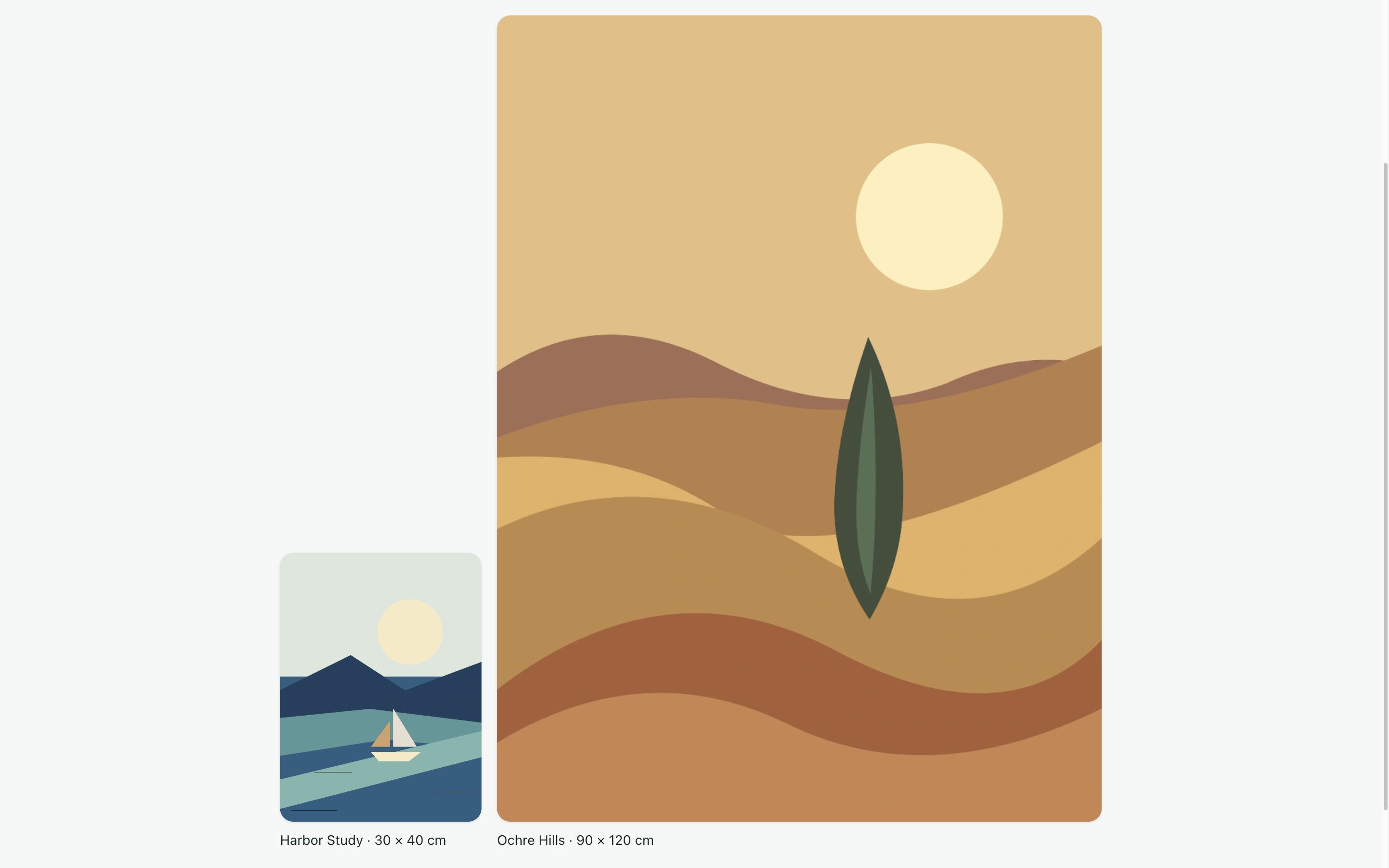
The gallery scales to the space available. Use the captions to give visitors the exact measurements. If an image has extra background outside the measured artwork, crop to the edges of the work before adding it to the gallery.
Related: Build A Gallery · Images & media
Was this guide helpful?
Rate how clearly it showed you how to set up a Physical scale gallery.
Questions and comments
Where did you get stuck? Share your question or a tip that could help another editor.
Comments
0No approved comments yet.
Leave a comment