Connect a Herne hosting catalog
Use Herne Hosting Catalog to show current hosting plans, prices, limits, and purchase links on a WebBlocks CMS page. Herne verifies the offer and price again before opening its hosted checkout.
Follow the actual Herne and WebBlocks CMS screens with English narration. English captions are available in the player.
Before you start
This guide uses Herne Hosting Catalog 1.0.2, which requires WebBlocks CMS 1.143.3 or a compatible newer 1.x release. You need Super admin access to both panels, a CMS site to connect, and a publicly reachable Herne panel over HTTPS. Configure SumUp in Herne when you are ready to take payments. The CMS connection uses the public catalog and needs no API token or payment credentials.
1. List paid offers in Herne
- In Herne, open Admin → Plugins. Install and enable Hosting Storefront.
- Open Admin → Plans and enable the public catalog.
- Edit each active paid plan you want to sell and enable its public catalog listing. Set the prices for the billing periods you intend to offer. The catalog follows the order set in Herne.
2. Install the CMS plugin and connect your site
- In WebBlocks CMS, open System → Plugins. Use Browse Plugin Catalog to check for a compatible release of Herne Hosting Catalog. When it is offered, select Install from Catalog. If you have a trusted release ZIP, use Plugin ZIP → Upload Plugin ZIP.
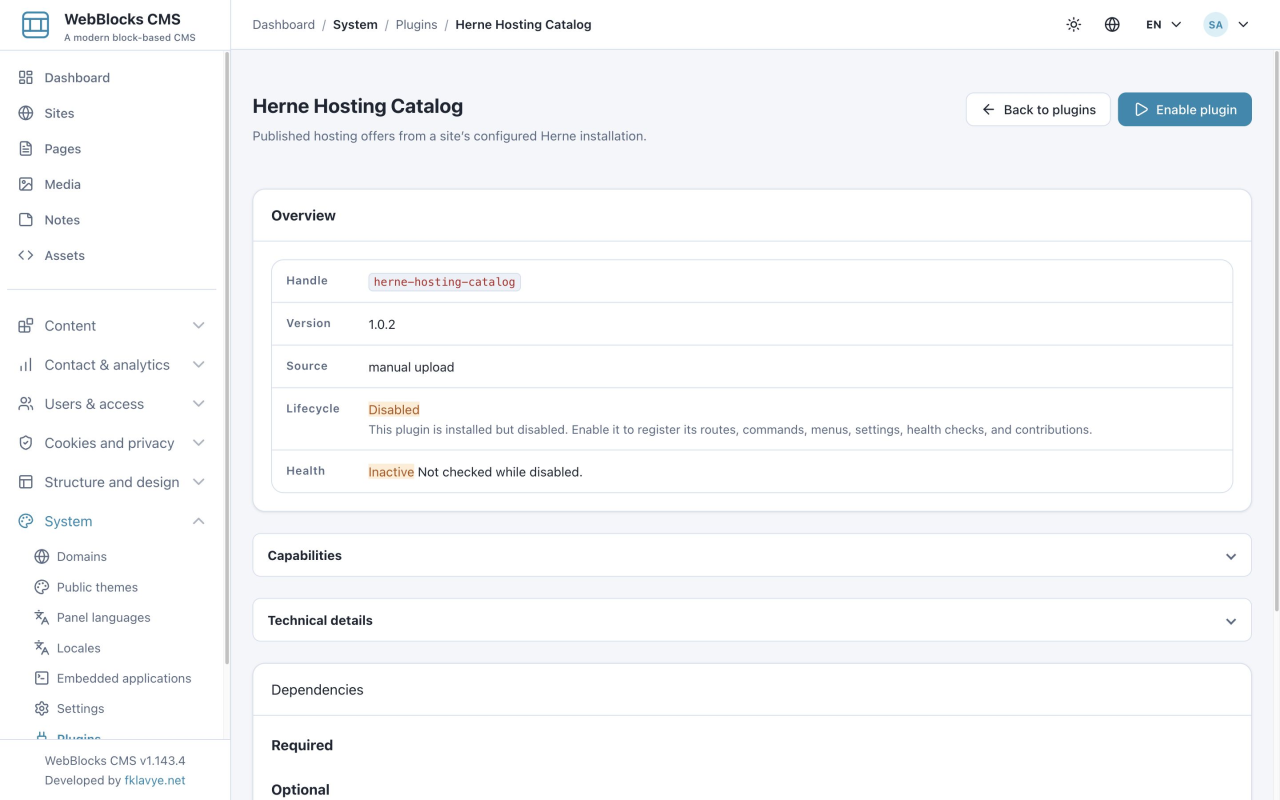
- Open the installed plugin and select Enable Plugin. Review the health result, then open its Herne hosting catalog settings.
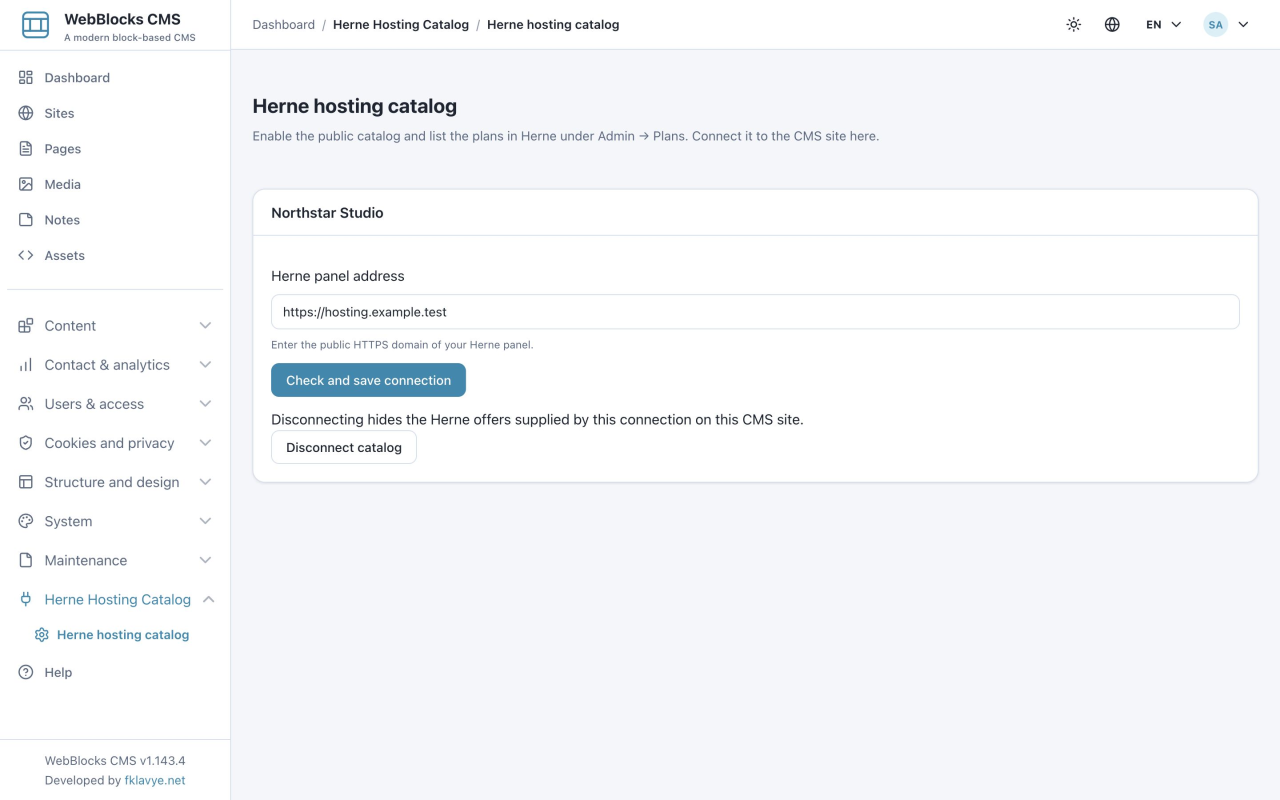
- Find your CMS site on the settings screen, enter the public hostname of the Herne panel, then choose Check and save connection. Confirm that the connection shows the expected number of listed plans.
Configure each CMS site separately. The Herne panel and CMS can run in separate applications or in the same application. If the connection shows zero plans, return to Herne and check that at least one active paid offer is listed. If a different Herne installation replaces the old one at the same hostname, disconnect the old catalog before saving the address again.
3. Bind the offer cards to Dynamic Content
- Open a draft sales page and add a native Grid with a Card child as the template.
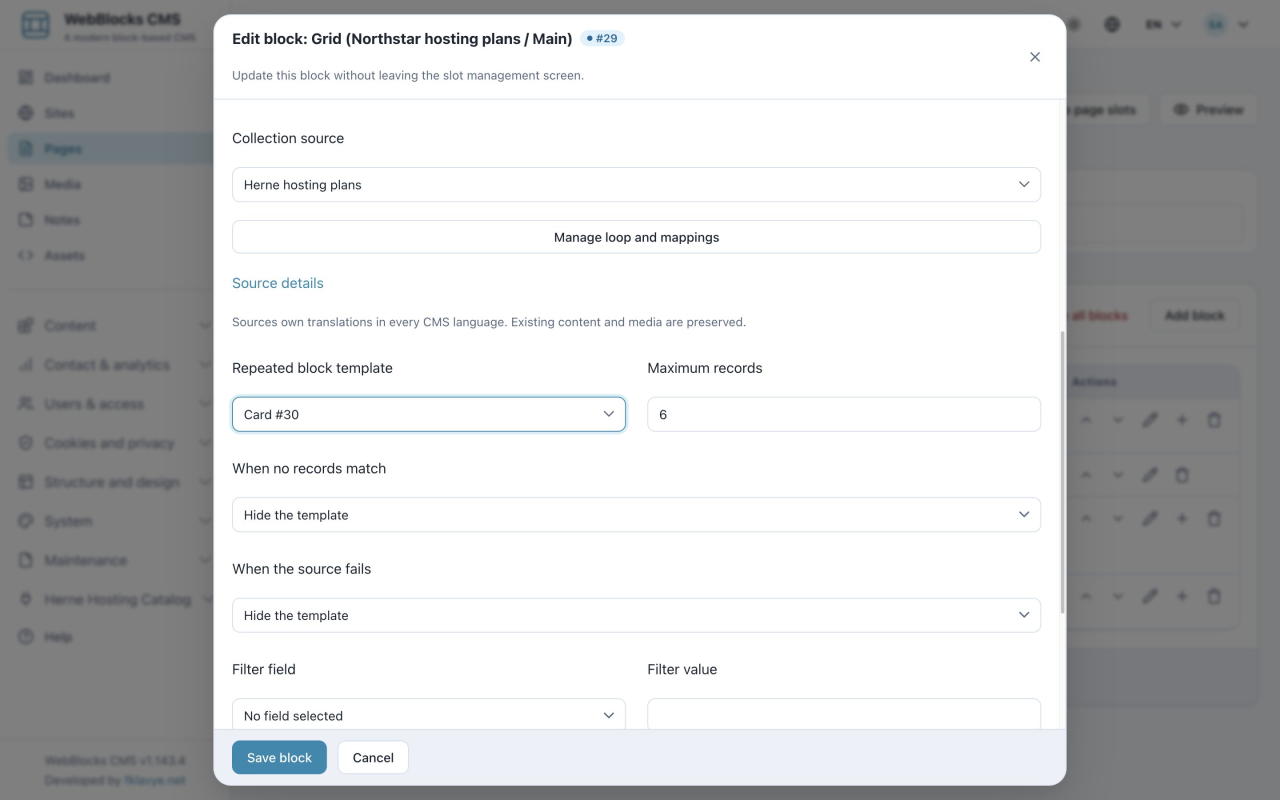
- In the Grid, open Dynamic content. In Collection source, select Herne hosting plans. Choose your Card under Repeated block template. Set When no records match and When the source fails to hide the template.
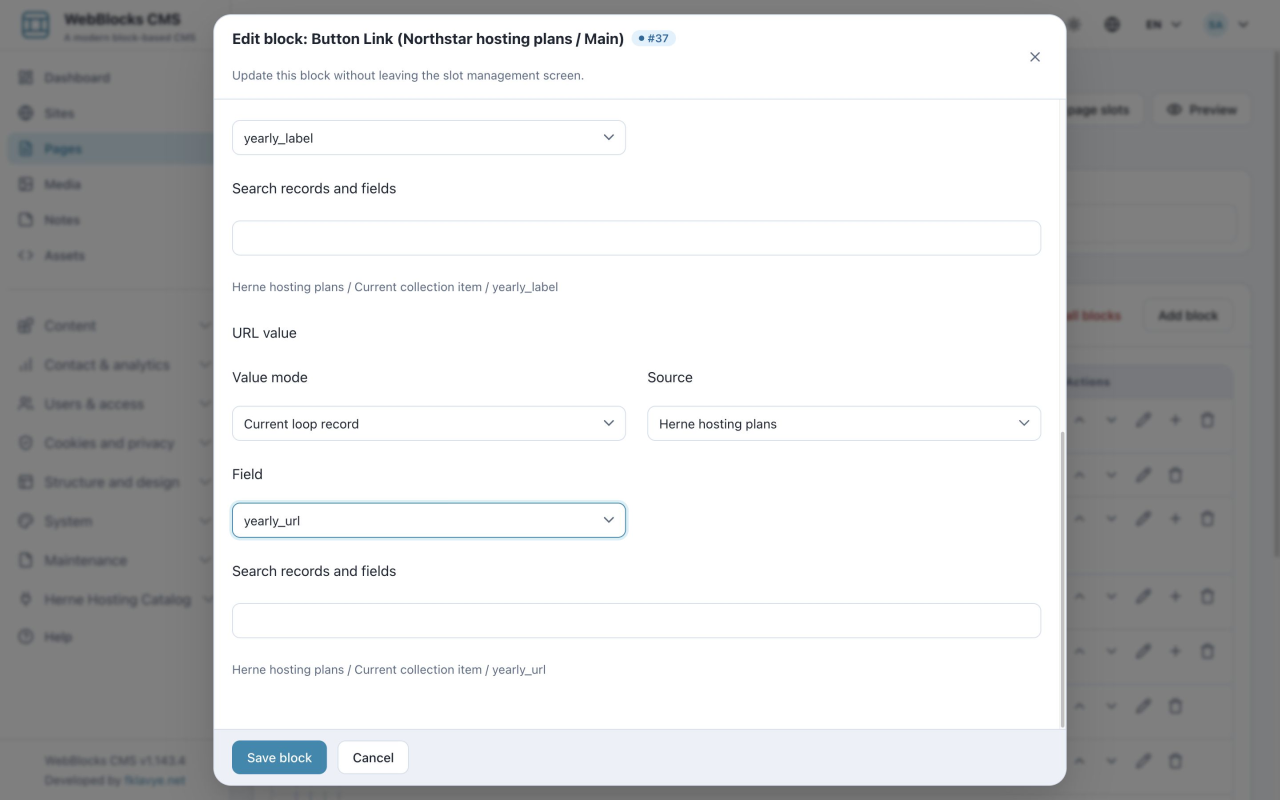
- Inside the Card, bind the heading to
title, the Rich Text blocks tomonthly,yearly, andlimits, and the two Button Link blocks to their period-specific pairs. Usemonthly_labelwithmonthly_urlandyearly_labelwithyearly_url. - Clear any authored price, limit, and purchase URL fallbacks. A billing period without a positive price, or an unavailable SumUp checkout, returns an empty purchase link and button label.
For a card designed for one specific offer, bind its fields to the Herne hosting plan entity source and select that plan. The collection is useful when every listed offer should follow the same card layout.
4. Preview before publishing
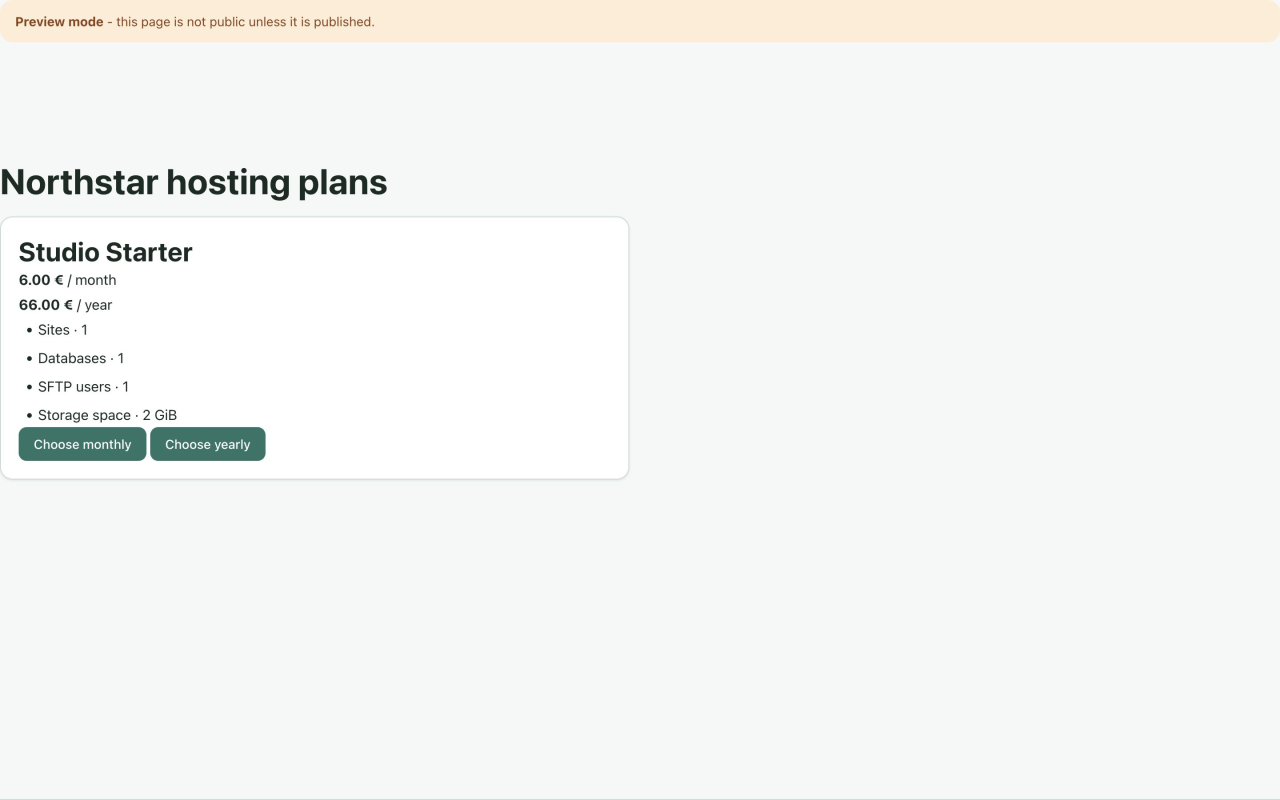
- Preview the draft in each language you use. Compare prices and limits with Herne, and check that each purchase button leads to the right plan, billing period, and language.
- Unlist a test offer in Herne and refresh the CMS preview. Confirm that the collection’s card disappears or that the entity-bound fields clear. Restore the test listing if you intend to sell it.
- Publish when these checks pass. The public catalog data is cached for 30 seconds. Keep the sales page out of a full-page cache that would serve offers for longer.
Read Dynamic Content for more about collection templates and entity bindings.