Managing two sites with different editorial teams
The Studio team is preparing a workshop invitation. The Journal team is writing a report about the same event. Both websites run in one WebBlocks CMS installation, but their editors have different drafts to work on and a shared brand image to use.
That is the Northstar example here: two sites, two Editors and a Publishing manager. The useful starting point is to decide what each person should be able to do and which sites they should work on.
Give each site its own editorial context
Northstar Studio holds the workshop invitation. Northstar Journal holds the editorial brief for the report. Each site has its own pages, navigation, enabled languages, domains and public identity settings. Content belongs to its site even when the same installation serves both websites.
Keep those contexts clear when adding a page. A title such as “Open studio workshop” belongs on the Studio site; “Journal workshop brief” belongs on the Journal site. In the example, both have an English path of /workshops within their own sites. The host identifies which site's route a visitor is requesting.
Assign the role and the sites separately
Open System → Users as a Super admin. Accounts belong to the installation. Each account has a CMS role and, for Editor or Site admin, assigned sites. The role applies across that account's assigned sites.
The Studio editor is an Editor assigned to Northstar Studio. The Journal editor has the same role, assigned to Northstar Journal. The Publishing manager is a Site admin assigned to both. The Super admin can manage the installation and all sites.
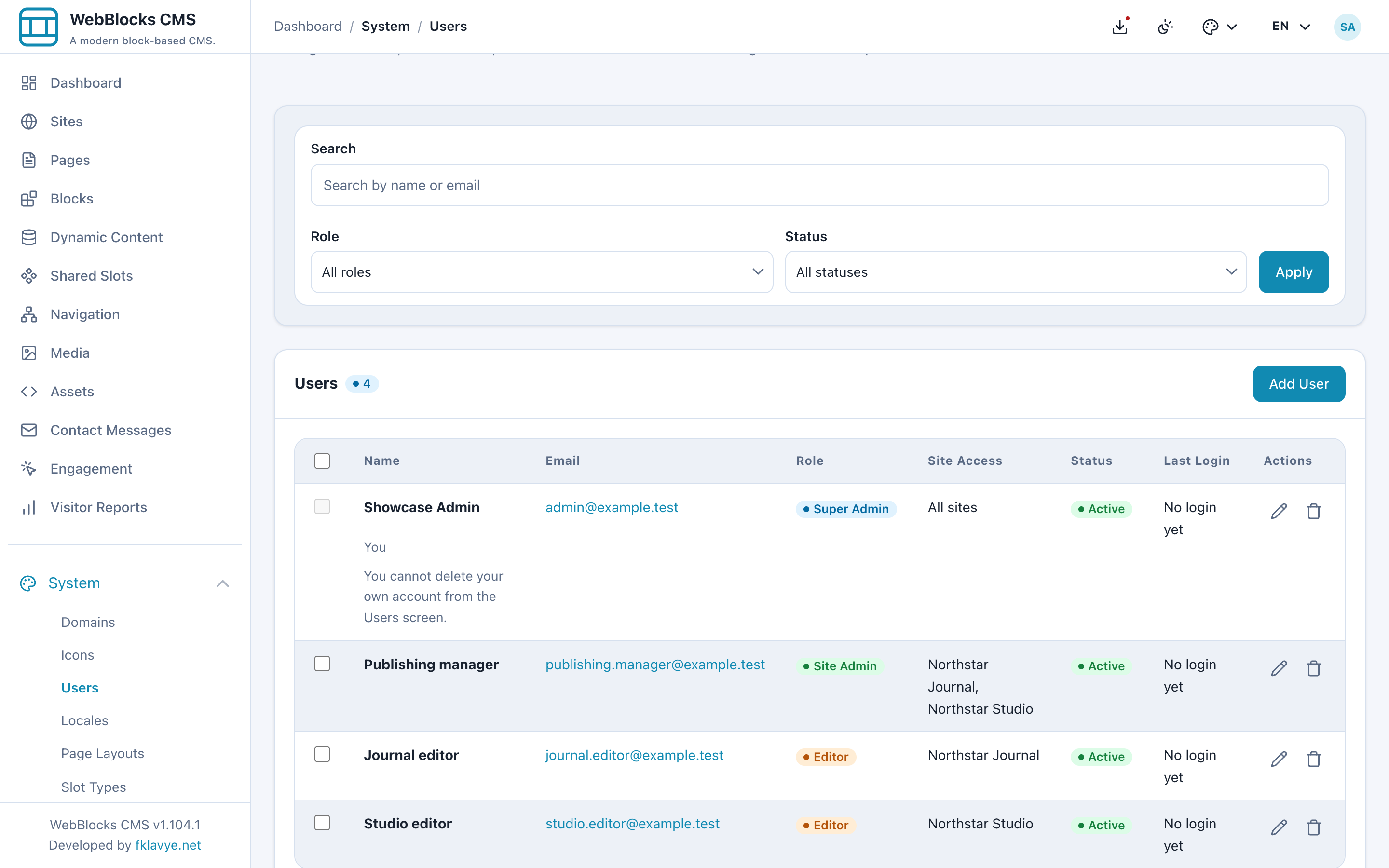
This gives the teams a clear division of work. Both Editors prepare draft content and submit it for review. The Publishing manager can review and publish on either assigned site. Creating or changing CMS accounts remains a Super admin responsibility; assigning both sites to a Site admin does not grant the Users screen.
Open the page list as each editor
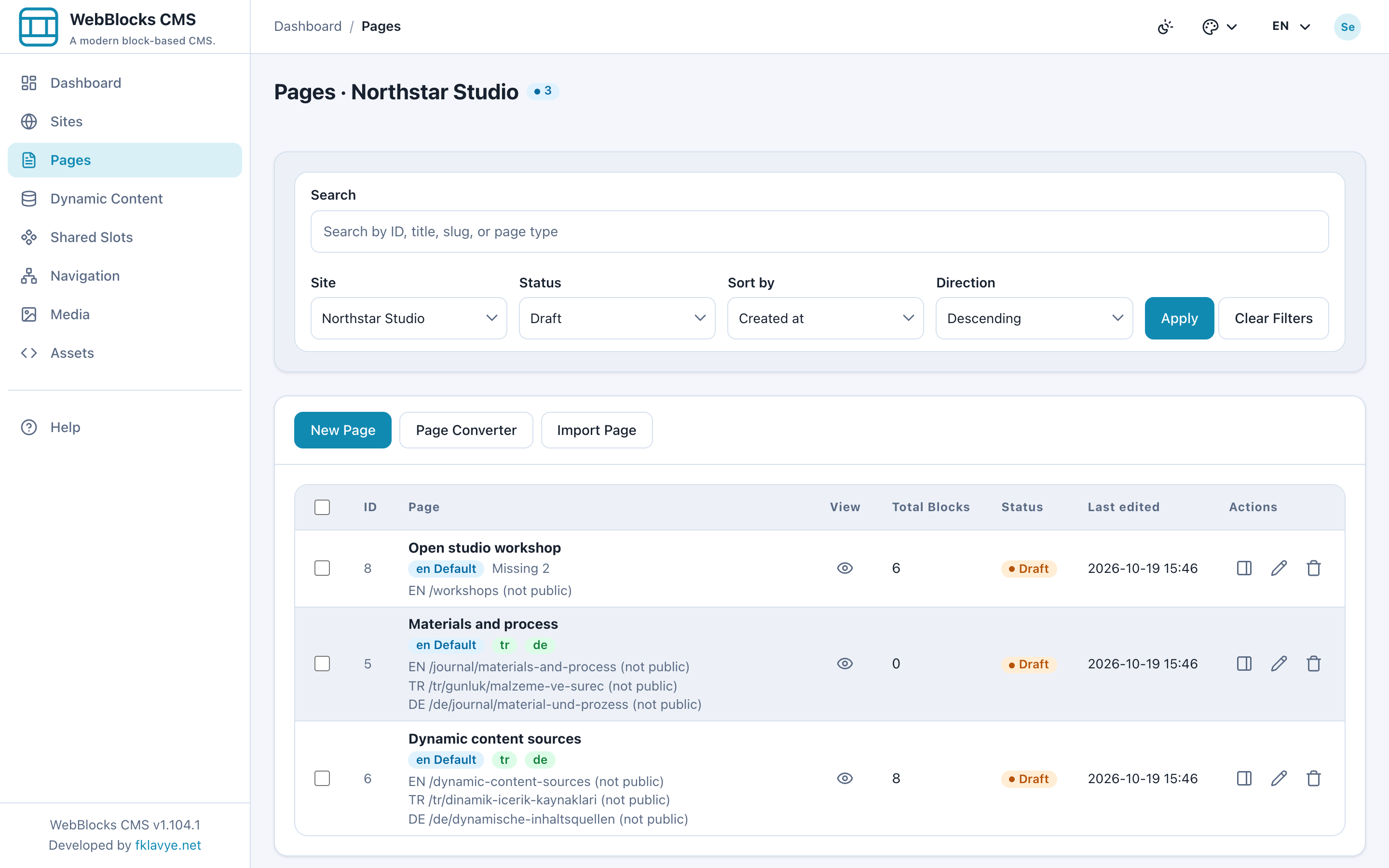
Sign in as the Studio editor and open Pages. The draft list includes Open studio workshop alongside the Studio's other drafts. The Journal's workshop brief is outside this account's assigned site.
Now open the same screen as the Journal editor. The list contains Journal workshop brief. Its site context is Northstar Journal, and the Studio drafts are absent.
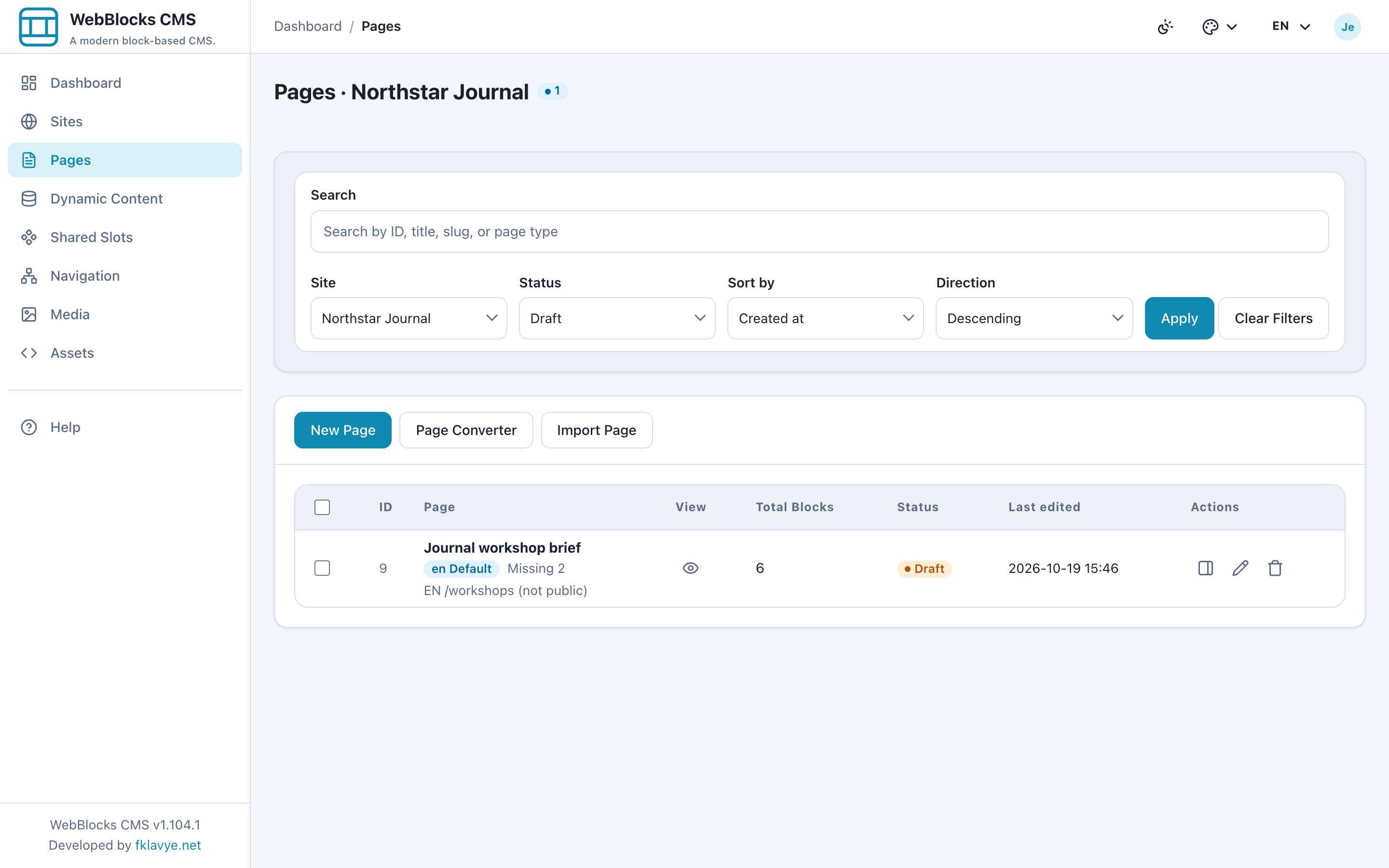
Check this with the intended accounts before handing over the workspace. The site selector and page list should match their assignments. Opening an unassigned site's page directly is also denied; hiding a row is only the visible part of the access rule.
Review media through its uploads and usage
The two Editors do not necessarily have completely different libraries. Site-scoped media access includes files a person uploaded and files used by their accessible sites, including page and site image references.
The Studio editor can see the workshop materials image used on the Studio page and a working sketch that account uploaded. The shared Northstar brand image is also visible because the Studio page uses it.
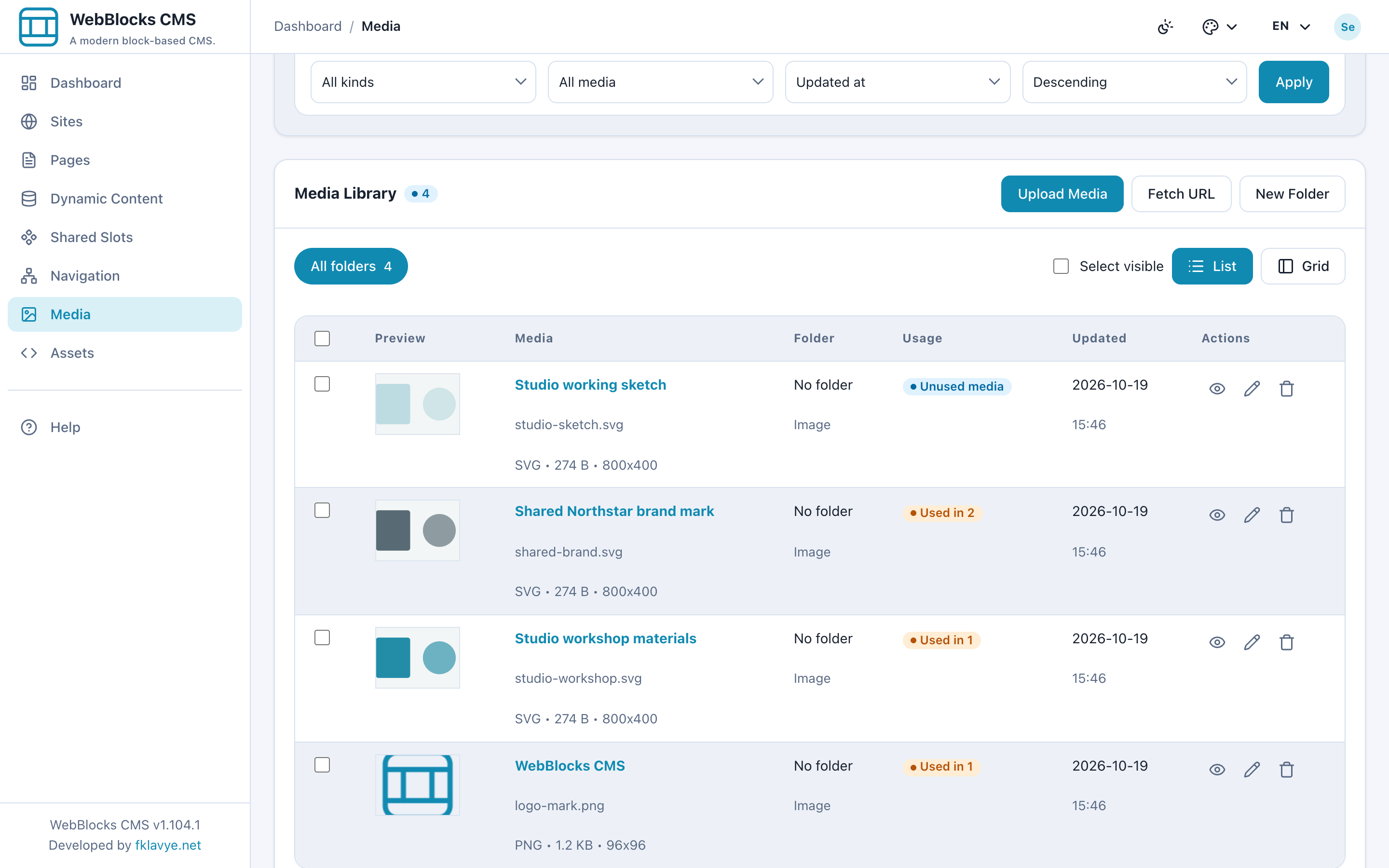
The Journal editor sees the Journal notebook, that account's working illustration and the same shared brand image. The Journal page also references that brand image. These views reflect uploads and usage, so they should be reviewed with the actual account and content relationships in mind.
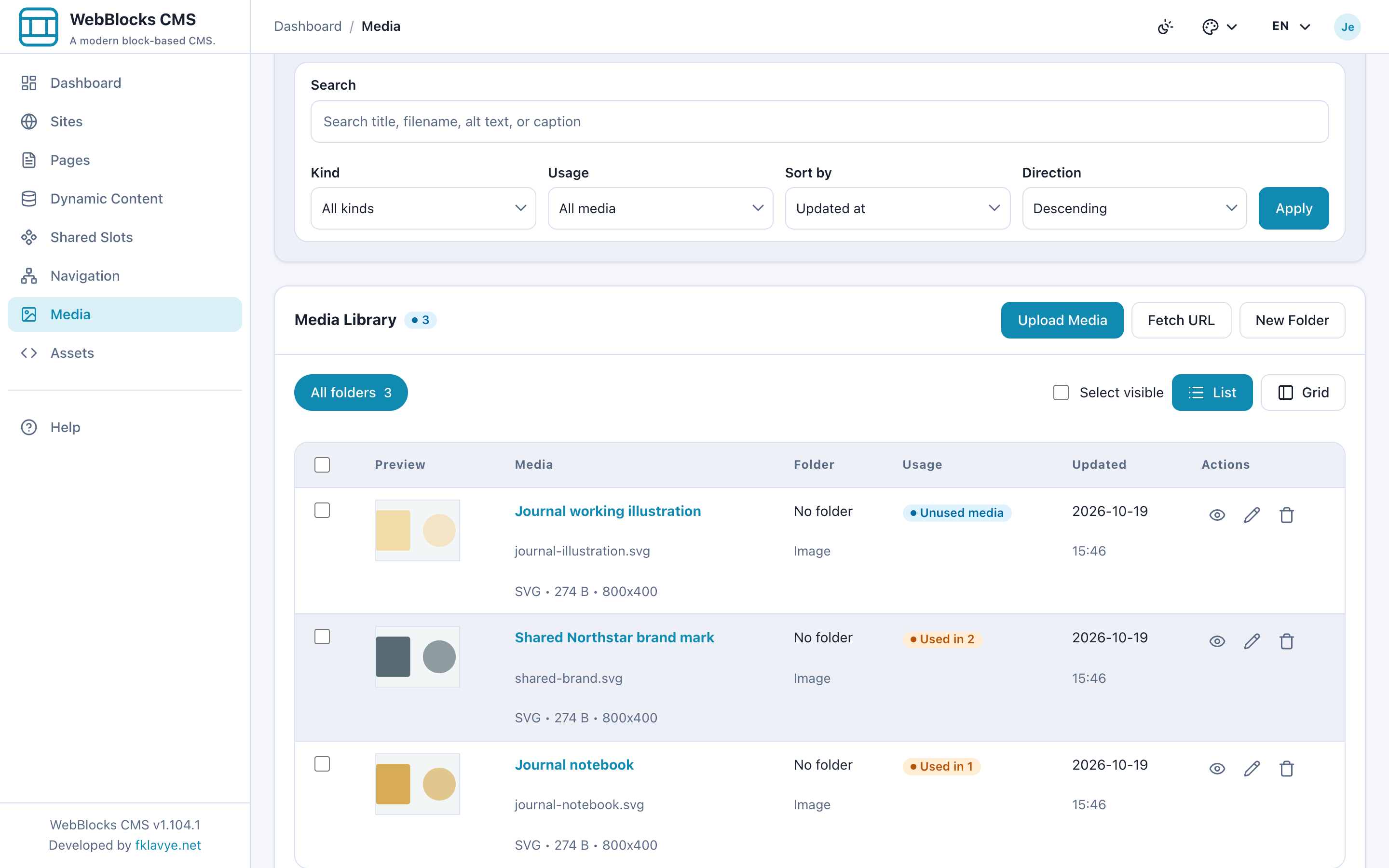
Folders help people find files; moving an image into a “Studio” folder does not create a permission boundary. Check its usage before changing a file reused by both teams. These are admin workspace rules, and a file's public visibility is a separate concern.
Hand the draft to its publisher
The Studio editor finishes the invitation and selects Submit for Review from the page's Overview. The page becomes In Review. Content editing is then locked for the Editor until it returns to Draft. The Editor can move it back to Draft for further work, but cannot publish or archive it.
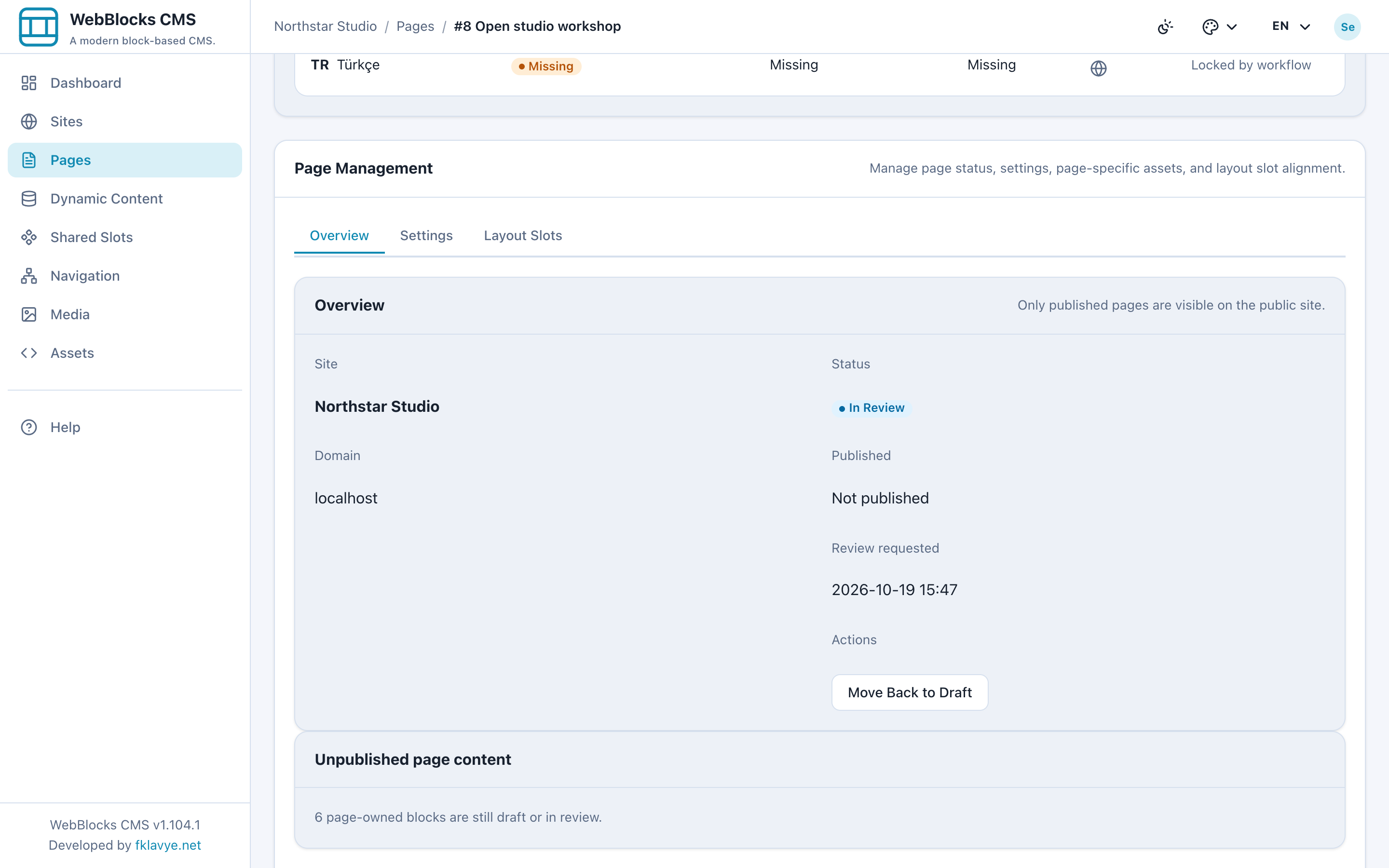
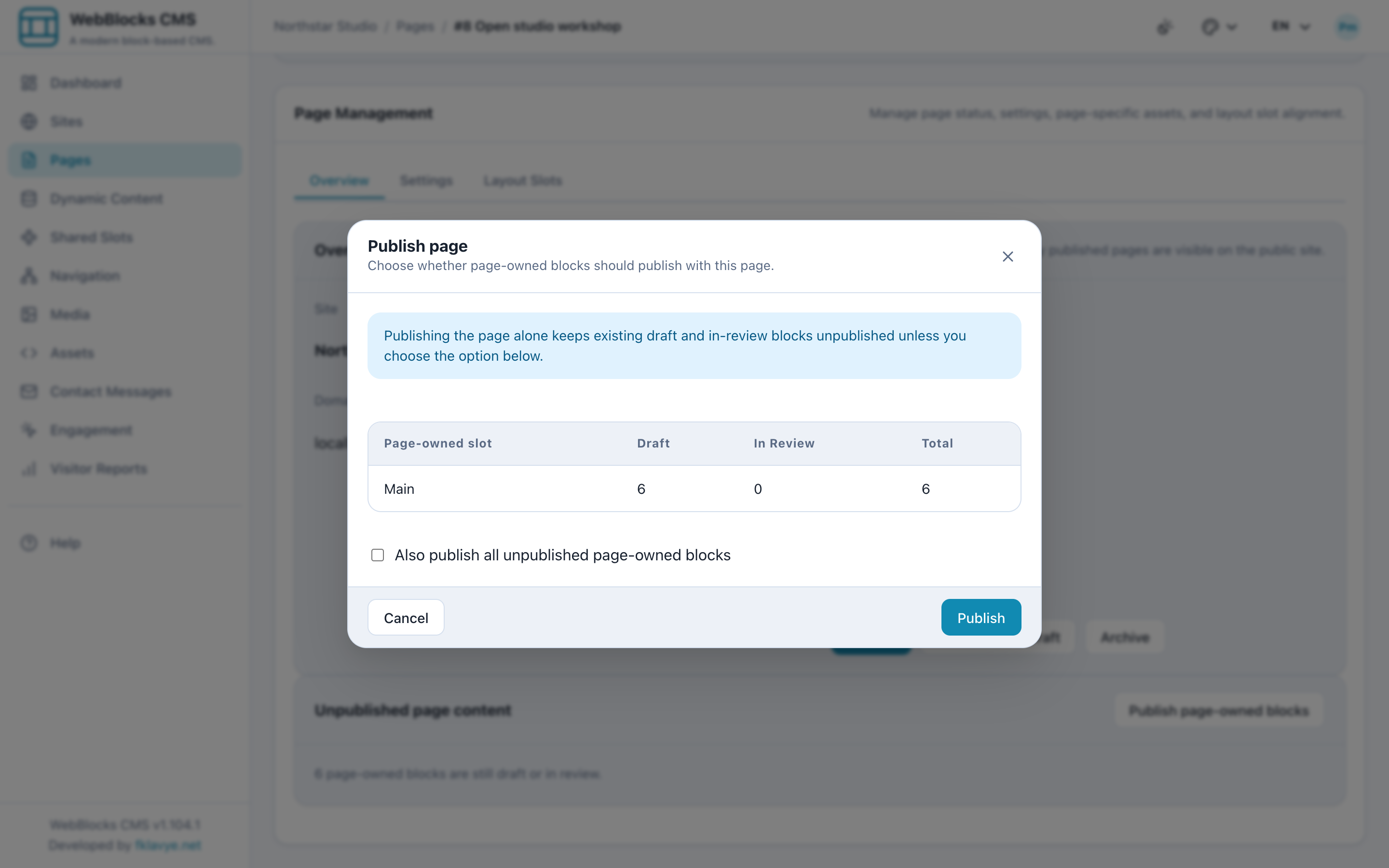
The Publishing manager opens that same Studio page under their Site admin account. Before publishing, they review the invitation, its images and its page-owned blocks. The publication dialog distinguishes the page record from its unpublished blocks; the inclusion checkbox starts unchecked. In this example, the manager includes the six reviewed page-owned blocks.
The manager has publication authority on both assigned sites, while each Editor still works within their own assignment. For a later change to an already published page, use the published-page review workflow.
Check the other site after publication
After the Studio invitation is published, open its public address on the Studio host. Then check the Journal site separately. In this example, the Studio workshop route is public while the Journal brief remains a draft. Publishing one page does not publish another site's page with the same path.
If a team later takes on another site, update its members' individual site assignments and recheck their page and media views. Keep the role, the assigned sites and the person approving publication explicit as the work changes.
For setup details, see Users and permissions, Multisite and Roles and permissions. Organise media in folders explains the library's organizational controls.
Was this article useful?
Rate it or share a suggestion below.
Comments and suggestions
Comments are reviewed before they appear.
Comments
0No approved comments yet.
Leave a comment