Updating a published page through review
A service page promises a 60-minute consultation. The studio now offers 45 minutes followed by a written summary. Changing the number is easy; the editorial job is to make sure visitors receive the right promise, the old page stays available during review and the approved copy reaches the same address.
Here is that small update in WebBlocks CMS, using a fictional Northstar Studio page. The example separates the published page, a prepared update and the saved versions used to inspect what changed.
Start with the page visitors can read
Open the public address before editing. In this example, the consultation page says “60-minute conversation” and asks visitors to bring one page they would like to improve. Record what should change: the duration becomes 45 minutes, and the second paragraph promises a written summary. The page title and address stay the same.
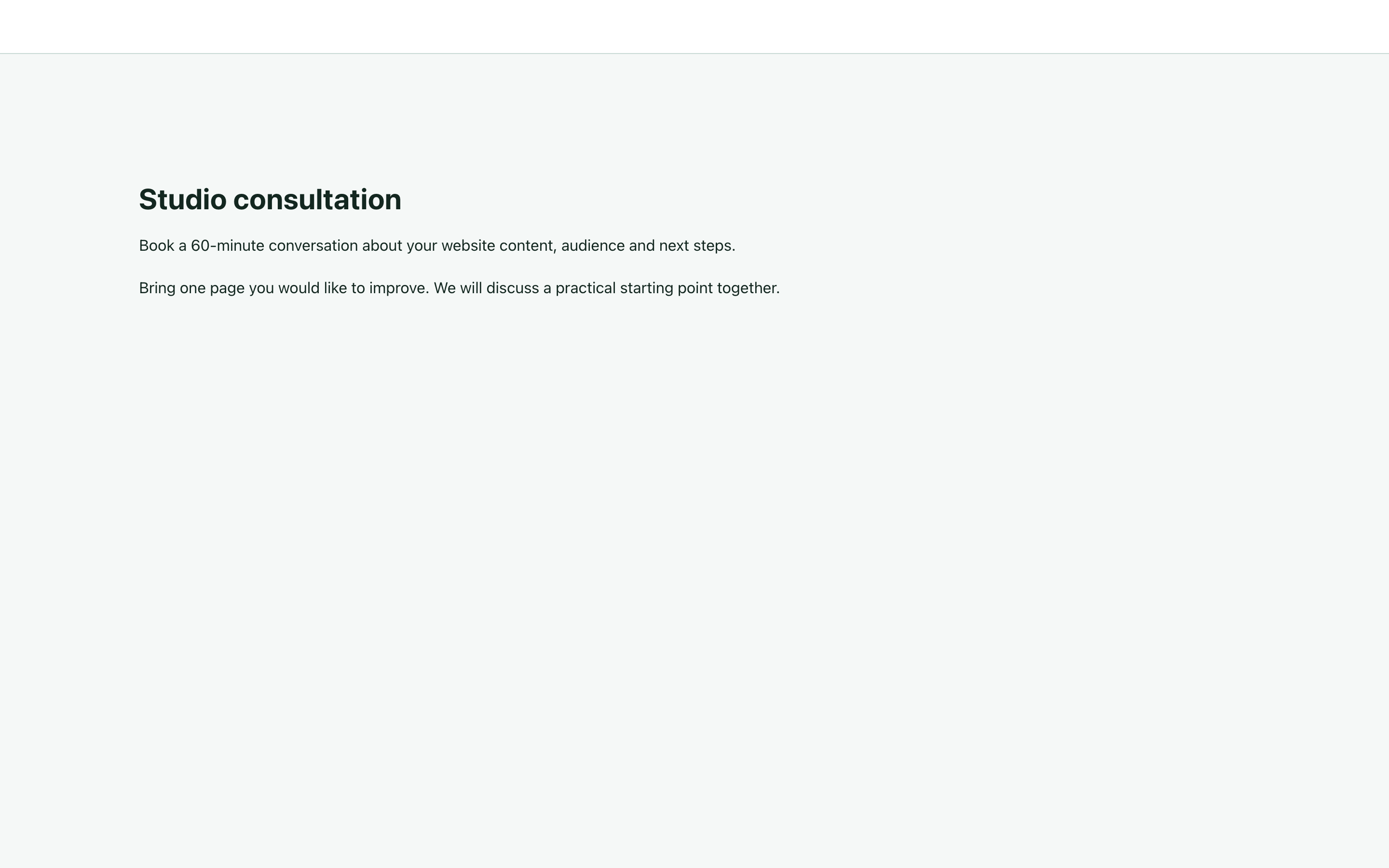
That short brief gives the reviewer a useful comparison. A change to the duration should not accidentally remove the preparation advice or introduce a different service promise elsewhere on the page.
Decide how the existing page will stay available
Moving a published page back to Draft removes it from public routes. In Review is also private. That can suit a page being withdrawn while it is rewritten, but it does not keep the existing service description online.
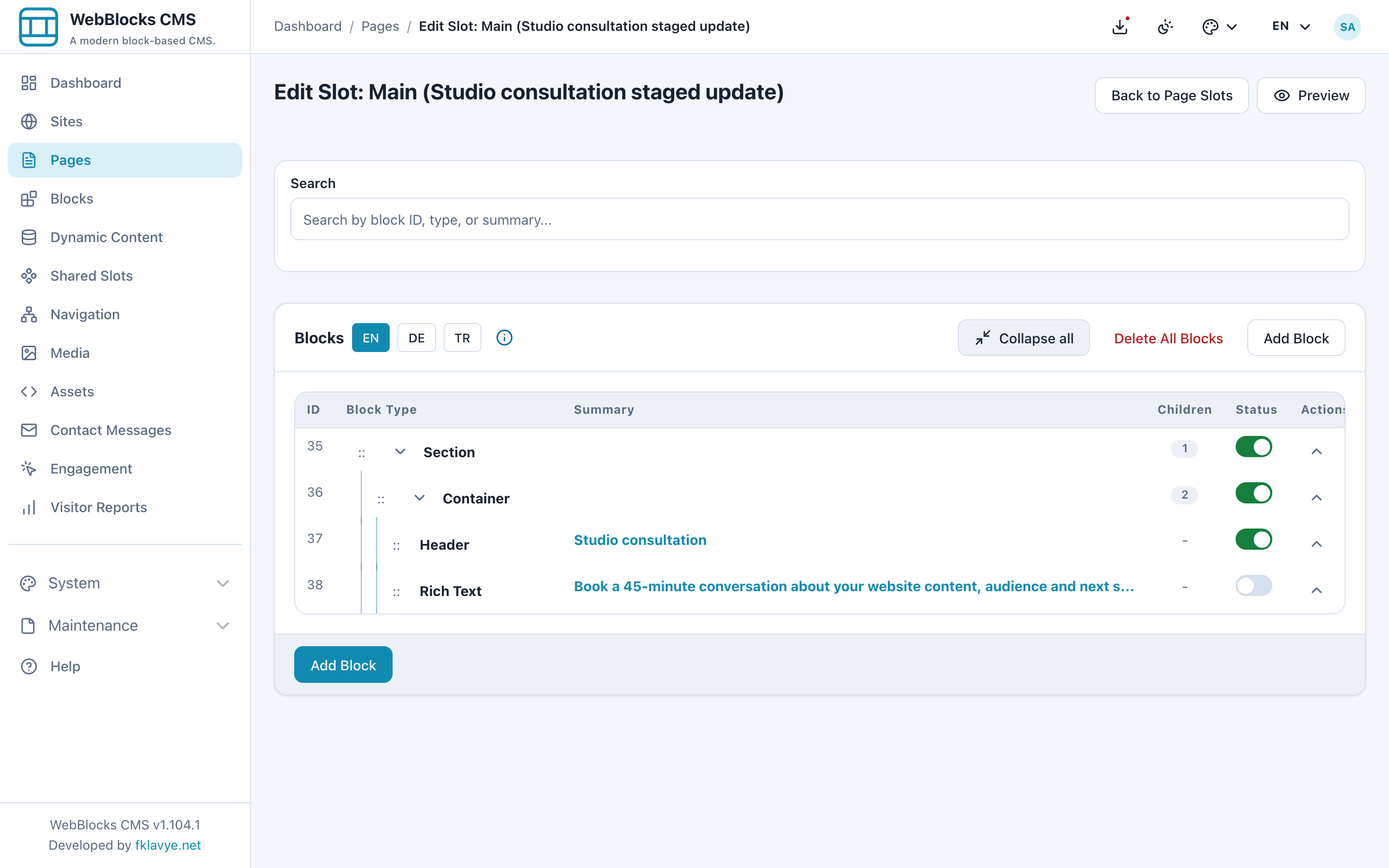
For this example, an operator uses the Internal Content API staged-update workflow to prepare a separate draft linked to the published page. The original address continues to show the 60-minute description. The proposed copy can be opened through the draft's normal CMS preview.
The ordinary role workflow still matters. An Editor can work on Draft pages and submit them for review; content editing stops when the page leaves Draft. Site admins for their assigned sites and Super admins handle publication. Agree who will prepare, review and publish this particular update.
Review the complete proposed page
The edited Rich Text block contains both paragraphs. In the prepared update, the first says 45 minutes and the second explains the written summary. Open Preview and read them together, as a visitor would.
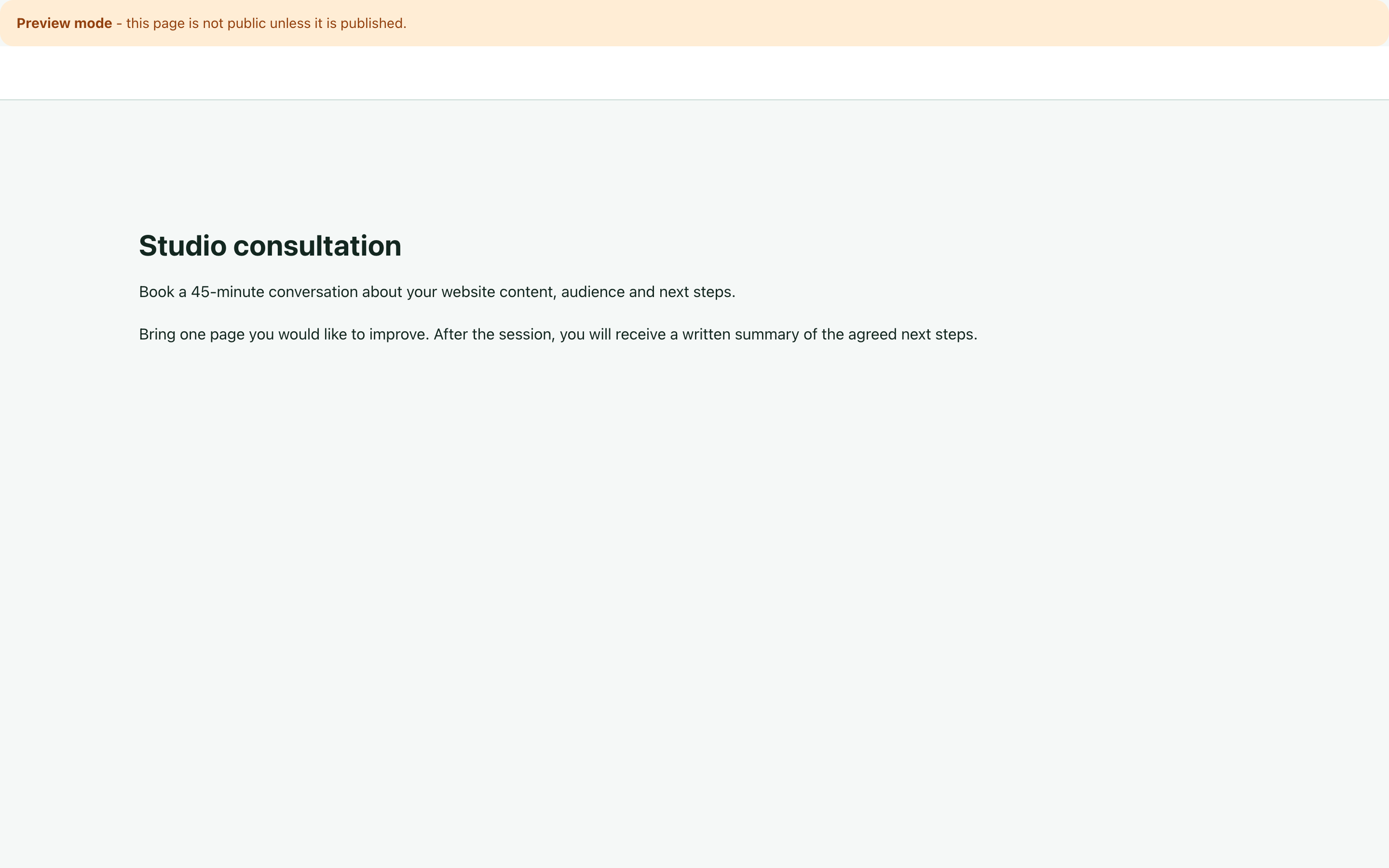
Check that the shorter session and the promised follow-up are intentional. Keep the instruction to bring a page. At a narrow width, check wrapping and reading order. If the page contains a booking button, follow its destination and compare the duration there too; a correct paragraph beside an outdated booking flow still gives the visitor conflicting information.
Check any affected image descriptions, search and sharing text, and other languages before approval. The public page and private preview answer different questions: the former confirms what visitors receive now; the latter shows the proposed result.
Check which content the publication action includes
A page's Published status does not mean every block inside it is published. In the ordinary Edit Page overview, Publish changes the page record. When unpublished page-owned blocks exist, the optional “Also publish all unpublished page-owned blocks” choice controls whether those blocks are included. There is also a separate “Publish page-owned blocks” helper.
The staged promotion used in this example is a different operation. It copies the approved page-owned content for the selected slots back to the source and writes those blocks as published. Before approving it, confirm both the source page and the content regions being replaced.
A Shared Slot header or footer has its own content owner and review scope. Page promotion does not publish its block tree. If this service update also requires a shared notice, review that change separately using the Shared Slots workflow.
Reopen the original address after the approved change
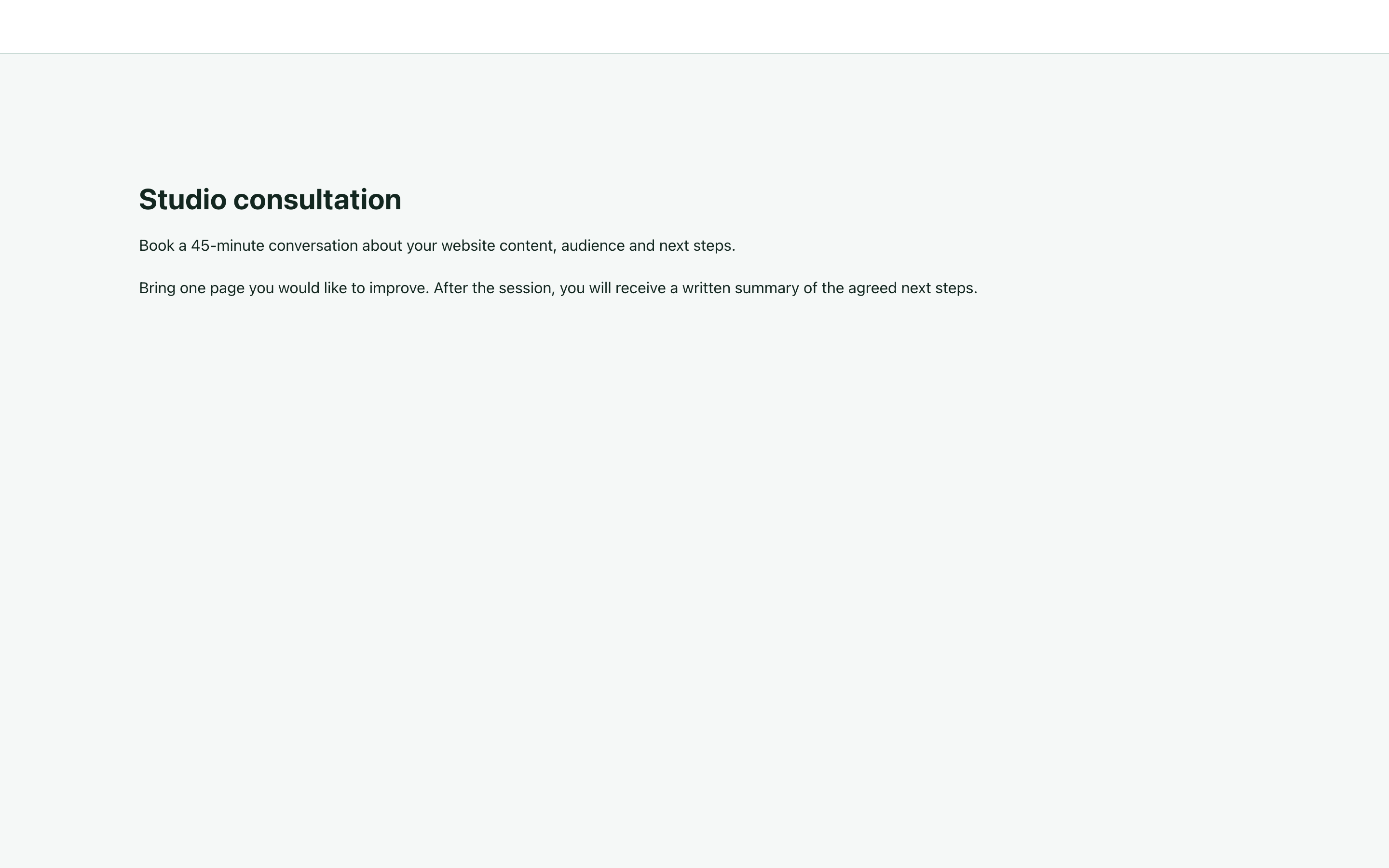
Once the reviewer approves the prepared update, the authorized operator promotes it. In the example, the same consultation address now shows 45 minutes and the written summary. Check that public address again, including at a narrow width, rather than relying on the preview tab left open before publication.
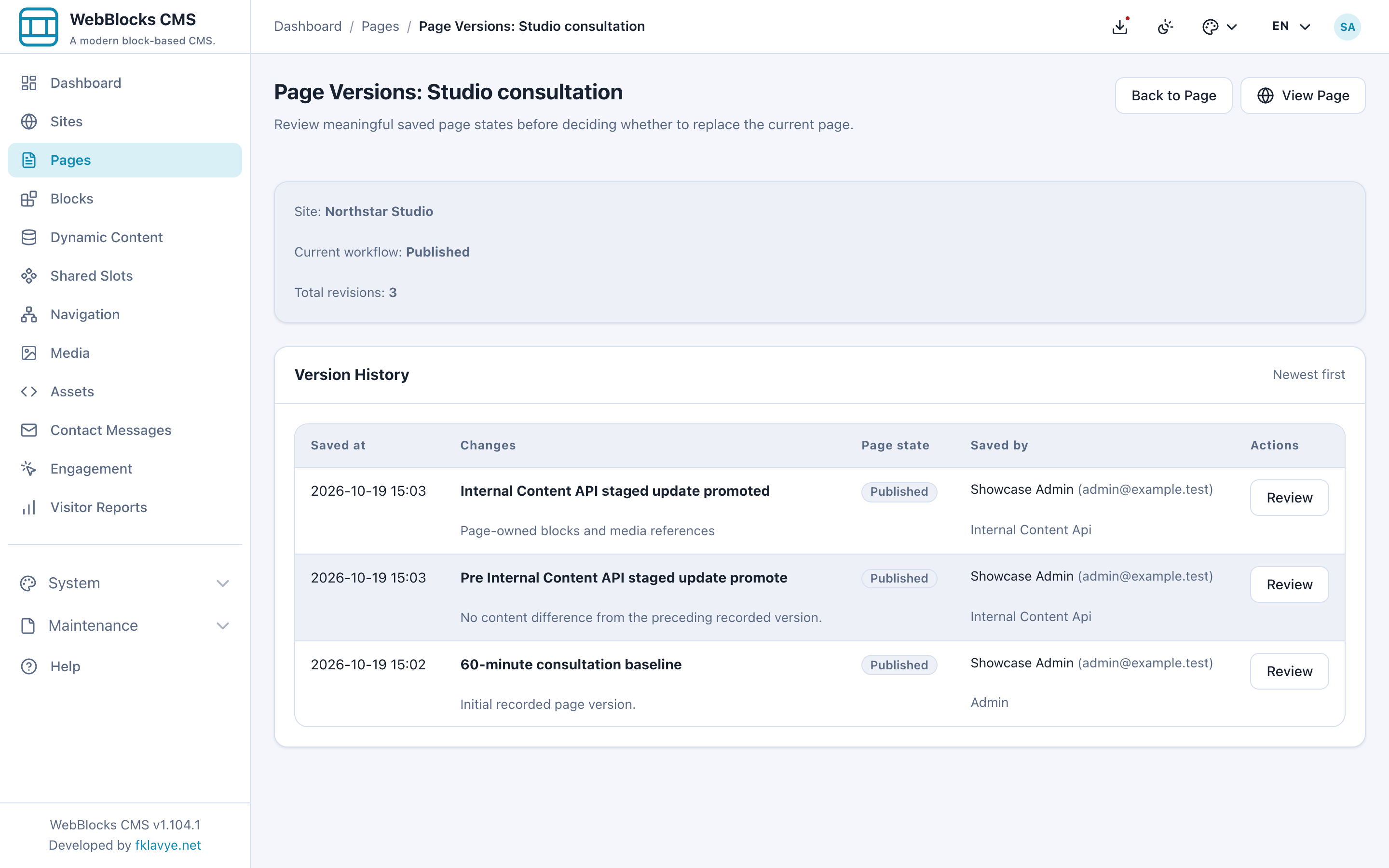
The page's Version History records the states around the promotion. In this example, it shows the original 60-minute baseline, a safety version before promotion and the updated state after promotion. The source identifies the API operation, so the reviewer can distinguish it from an admin edit.
Inspect the scope before correcting an earlier change
If the new service description needs another correction, first open Review for the relevant saved version. The comparison covers page details and workflow, translations and routing, slots, page-owned blocks, media references and page assets. A whole page version can encompass much more than the paragraph you are thinking about.
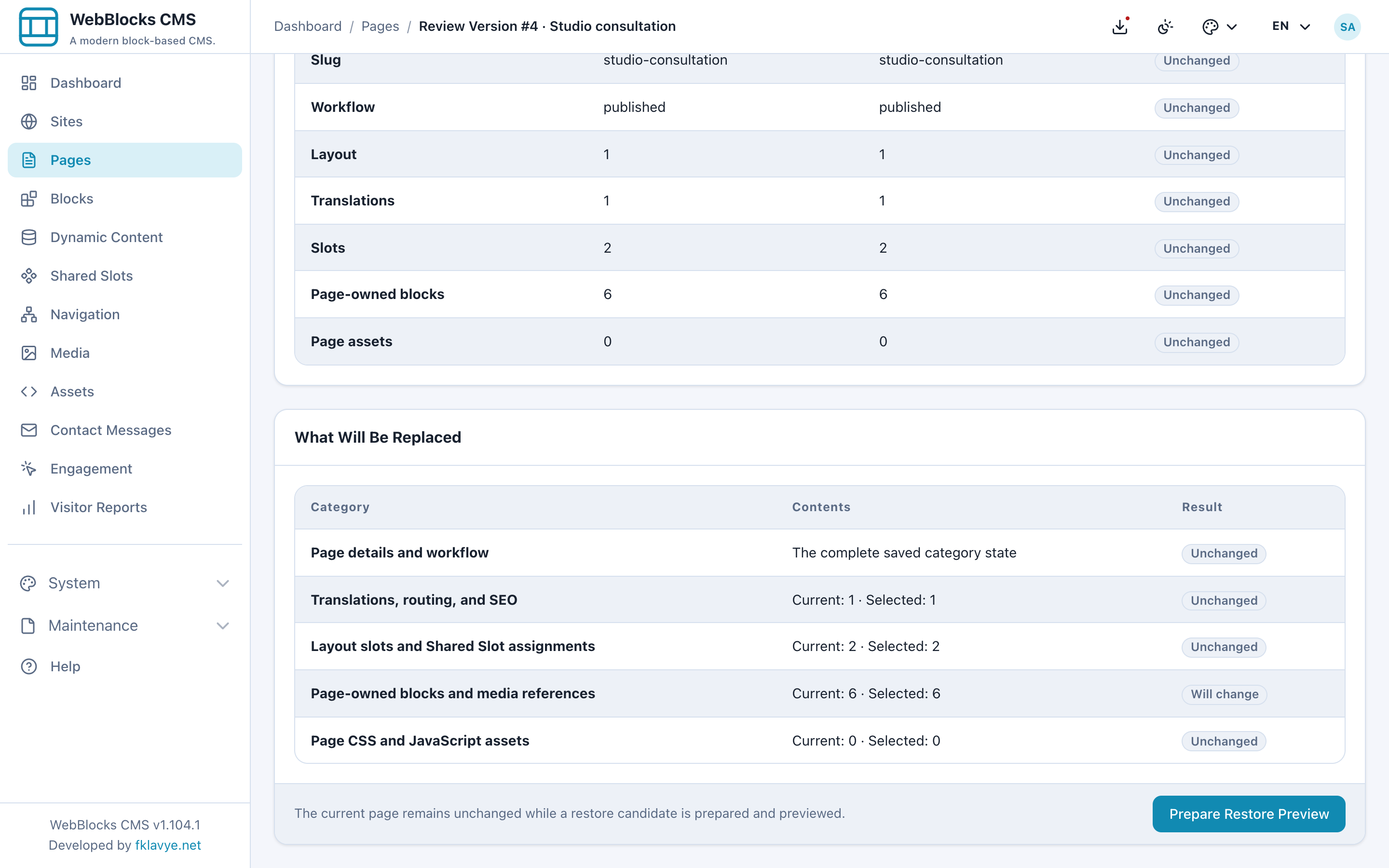
The example contains six blocks in both versions, yet the block content differs. Matching counts do not establish that the copy is identical. Read the affected content and check whether later changes elsewhere on the page should be retained. For a one-sentence correction, those findings can guide a fresh prepared update instead of replacing the whole page with an older state.
Page history is scoped to the page. It does not rewind the contents of a shared footer, and it does not replace database and upload backups. Keep the recovery decision as specific as the original editing brief.
For the status rules and saved-version scope, see Editorial workflow and Revisions. For an update affecting several languages, use the multilingual publishing review alongside the page review.
Was this article useful?
Rate it or share a suggestion below.
Comments and suggestions
Comments are reviewed before they appear.
Comments
0No approved comments yet.
Leave a comment