Shared headers and footers in WebBlocks CMS
A studio website has an About page, a Work page and a home page. Each uses the same footer, including information about studio visits. When that information changes, an editor should have one place to update it and a clear view of the pages that depend on it.
In WebBlocks CMS, a Shared Slot provides that common content. Pages reference its blocks instead of keeping separate copies. Here is how that works in a small Northstar Studio example, and what to check before changing an area that several pages share.
Give the footer one owner
In the example, all three pages reference a Shared Slot named Studio footer. The footer contains a heading and a short note about arranging a visit. Each page keeps its own main content.
The same arrangement works for a common header. Navigation and branding can live in Studio header while the About page and Work page keep different introductions and layouts within their own content regions.
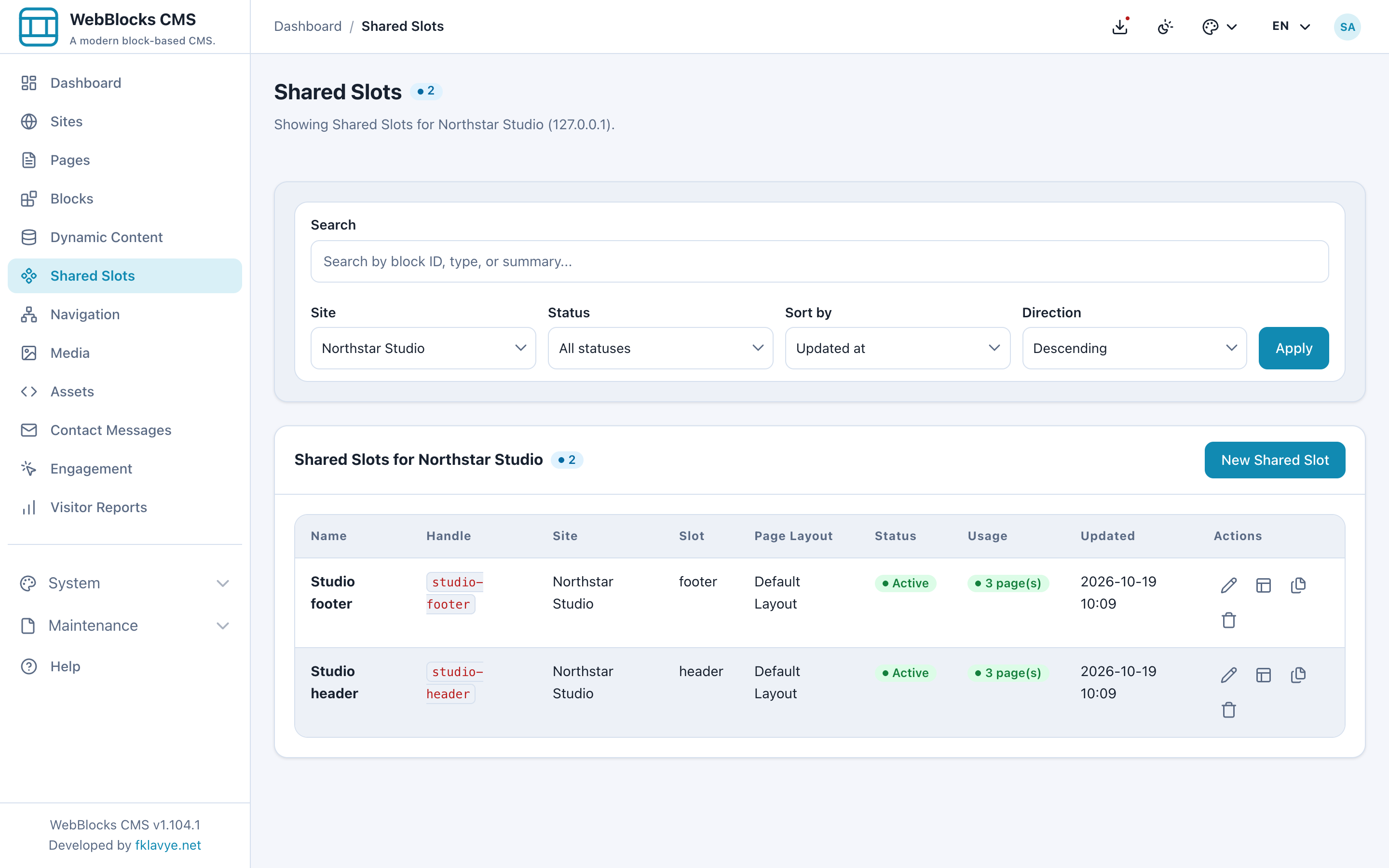
The choice to share content should follow how it changes. If the visit note should be identical across these pages, it belongs in one shared footer. A sentence describing a particular project belongs on that project's page, even if its formatting looks similar elsewhere.
Choose the source for each page slot
Open a page and use Manage Source for its Footer slot. There are three choices: Page Content, Shared Slot and Disabled.
Page Content uses that page's own blocks. Shared Slot uses the selected reusable block tree. Disabled turns off the slot for that page. Switching the source preserves the page-owned blocks, so returning to Page Content brings back those blocks; it does not copy the shared footer into the page.
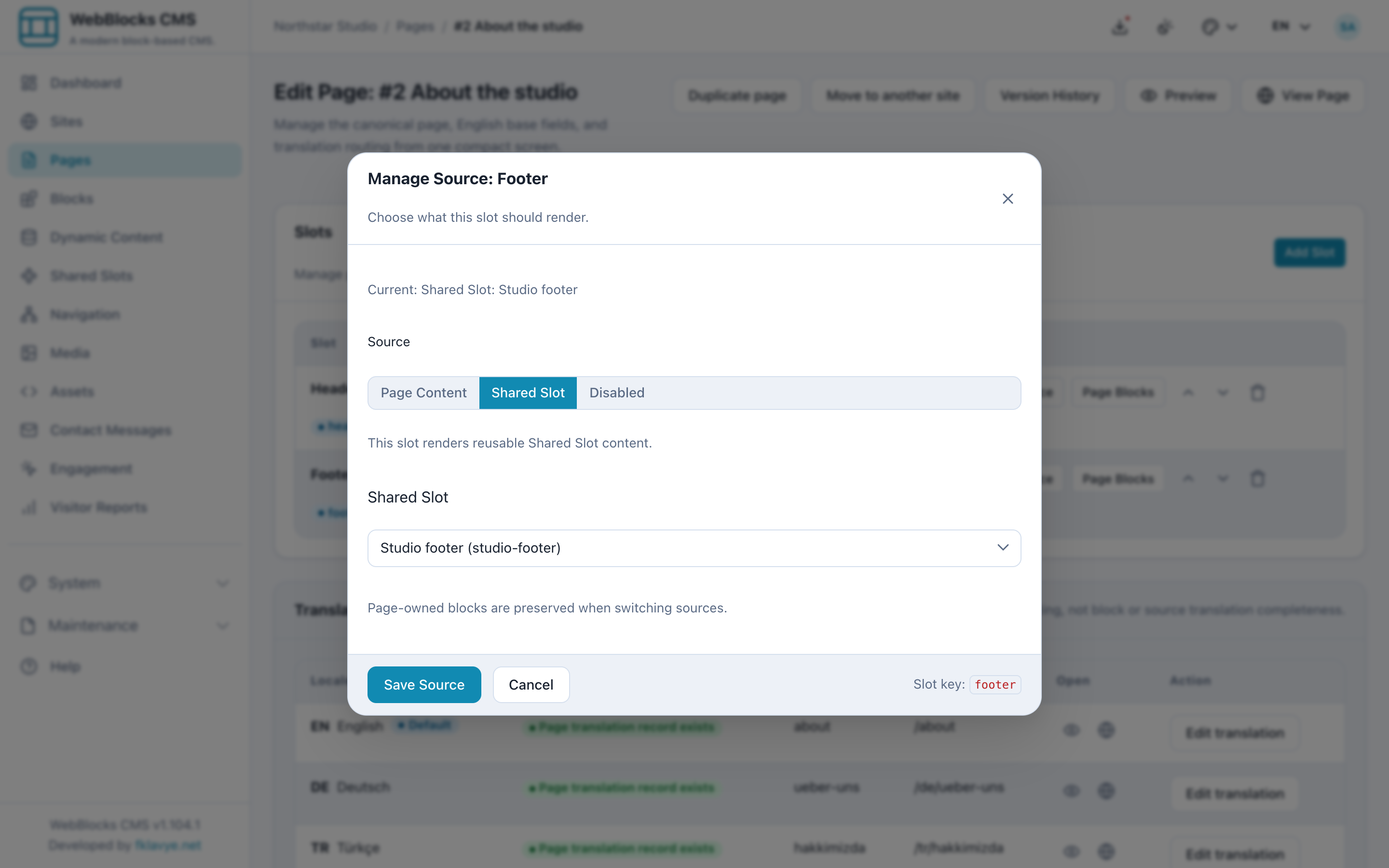
Choose a compatible Shared Slot from the same site. Its slot name must match, it must be active, and any Page Layout restriction must fit the page. A shared header is not interchangeable with a footer. The selected layout also needs to render the region where you want the content to appear.
Check the pages before editing
Now imagine the studio changes its visit information. Before editing Studio footer, open its usage list in Shared Slots. In this example, the list names the home page, About the studio and Selected work, with their paths and publication states.
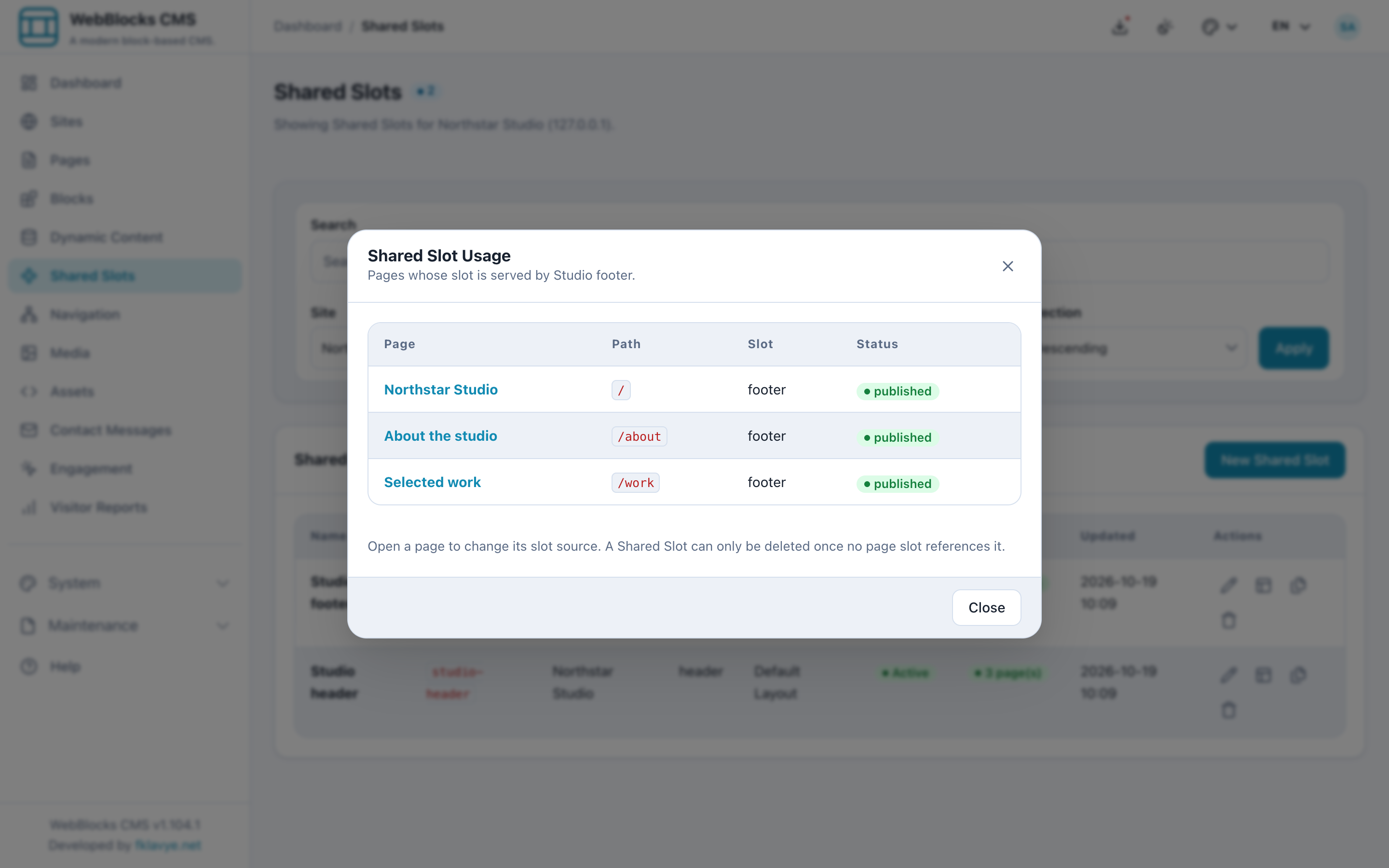
That list defines the review scope. Check that the new wording is appropriate for each page before making the change. Afterward, open those pages at desktop and narrow widths. A longer sentence can wrap well in one context and make another footer awkward.
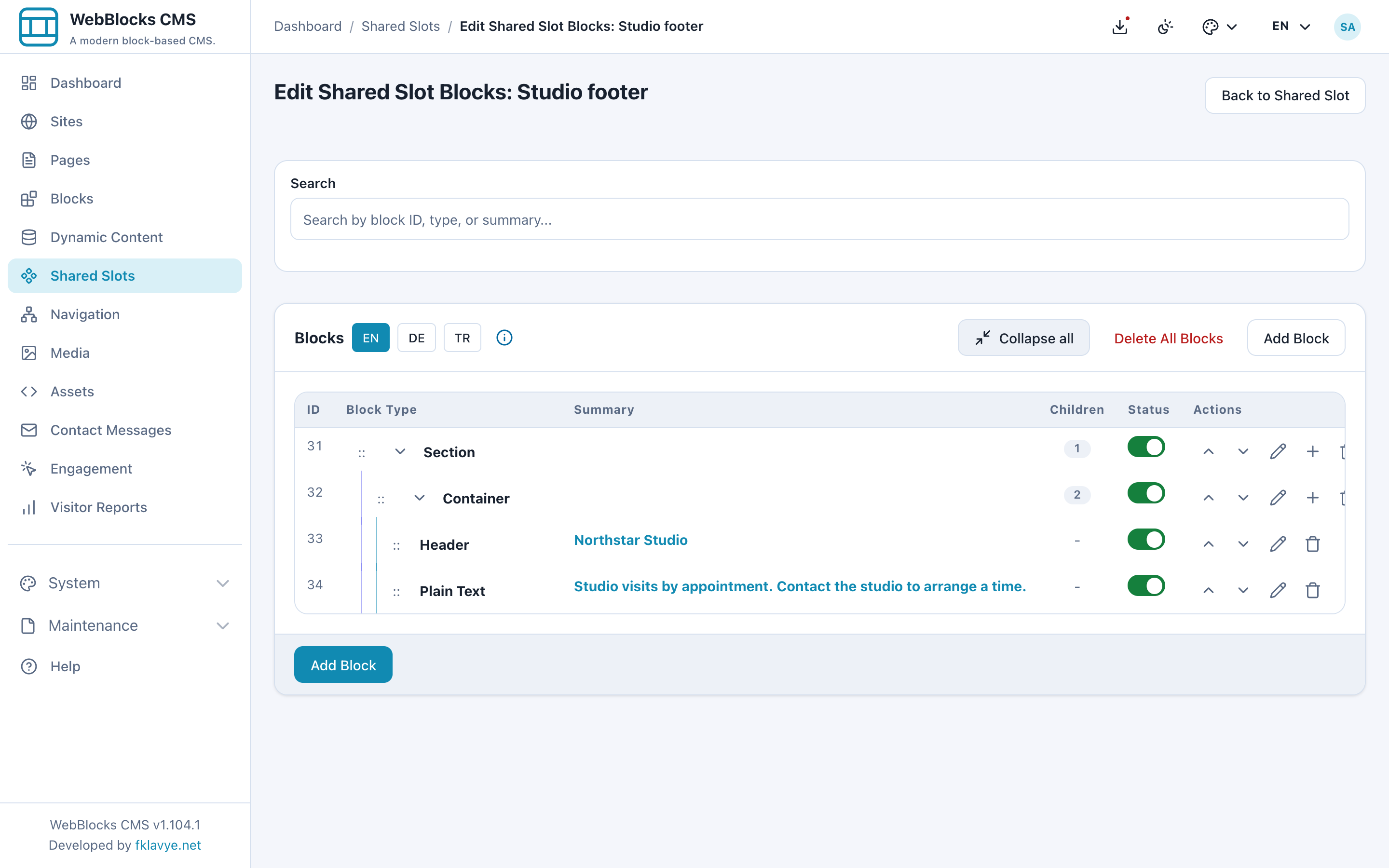
The shared content is still built from ordinary blocks. Studio footer uses a Section and Container around a heading and visit note, so the editor changes the relevant text within that tree.
Review shared changes separately from page drafts
A page's staged update covers its page-owned content. It does not create an isolated copy of the shared header or footer for approval alongside that page.
The public renderer uses the Shared Slot's published blocks. Changing an already published shared block can therefore affect every page that references it, without publishing each consuming page again. Plan a shared-area edit as its own operation, with its own review of the consuming pages.
Shared Slots also have their own revision history. If the footer change needs to be reversed, review the Shared Slot's history. Restoring an older page revision does not rewind the shared footer's content.
Keep page exceptions explicit
Suppose a campaign page needs a different footer. If its wording will change independently, give that page its own content or assign a separate, compatible Shared Slot. Keep the common studio footer for the pages that genuinely share it.
A separate reusable variant makes sense when several pages need the same alternative. For one exceptional page, page-owned content may be easier to maintain. The question is whether those areas should keep changing together, rather than whether they happen to look alike today.
For the setup steps, read Build a header as a Shared Slot and Build a footer as a Shared Slot. The shared-area update guide covers editing and recovery. The broader Page, Layout, Slot and Block article explains where each layer fits.
Was this article useful?
Rate it or share a suggestion below.
Comments and suggestions
Comments are reviewed before they appear.
Comments
0No approved comments yet.
Leave a comment