Course detail pages without a separate CMS page for every course
A studio offers Photography, Ceramics and Woodworking courses. Its website lists each course with a short description. A visitor chooses Photography and wants to see its programme, duration and image at a dedicated address. Do you have to create and maintain a separate CMS page for every course?
With Automatic Pages in WebBlocks CMS, a compatible course source can supply those details to one shared design. Photography opens with photography information; Ceramics opens with ceramics information. Editors maintain the design once, while the course application maintains the records. Here is the complete connection using fictional Northstar Studio courses.
Start with the list and the detail addresses
The course list lives at /courses. Its three cards link to /courses/photography, /courses/ceramics and /courses/woodworking. The list and the course detail are different views: a card helps visitors choose; the detail address shows the chosen course.
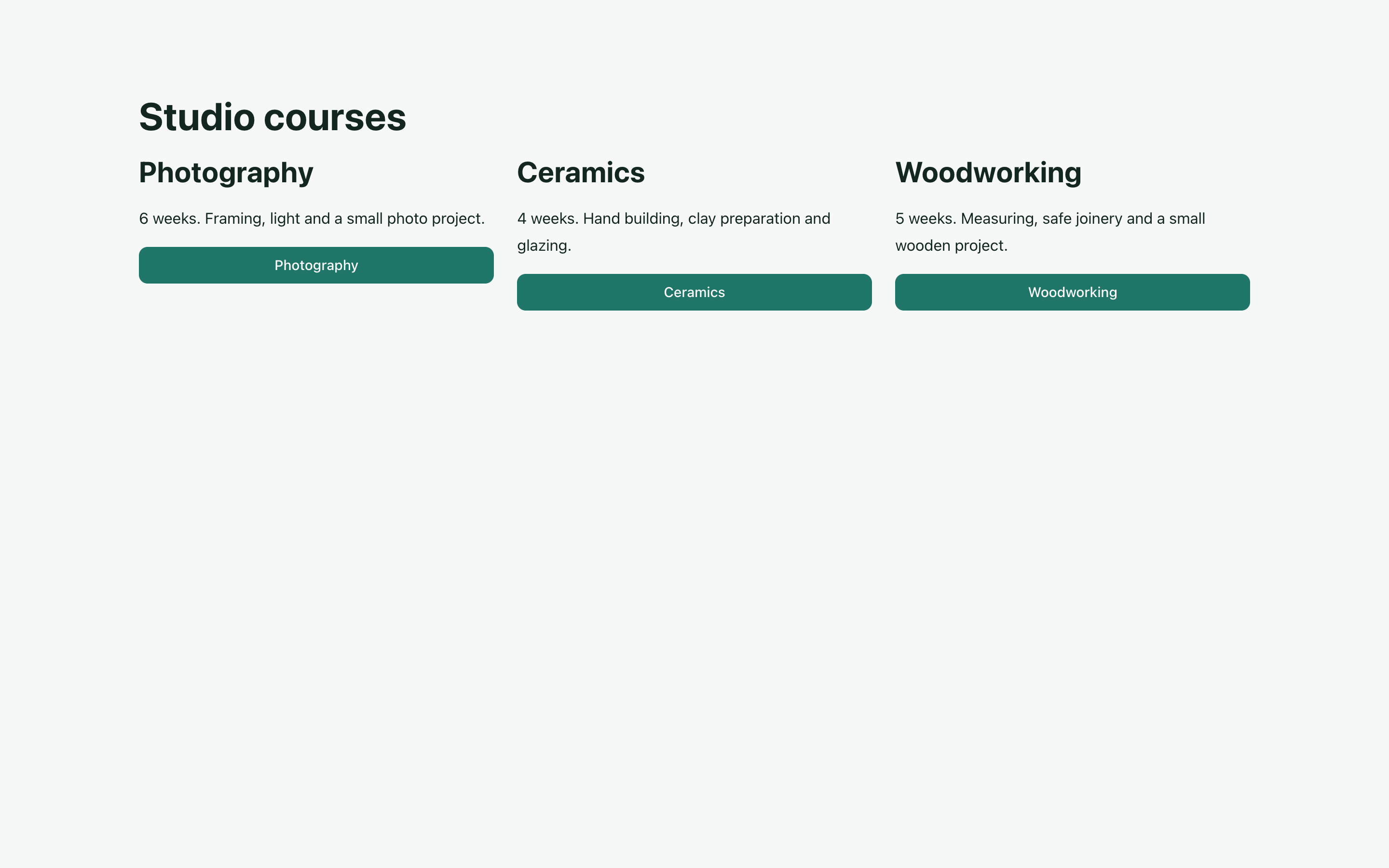
The list uses its own collection configuration. Adding a link to a card does not create its destination. The earlier list and application data example explains repeated cards; the following steps connect the detail design.
Prepare one course detail design
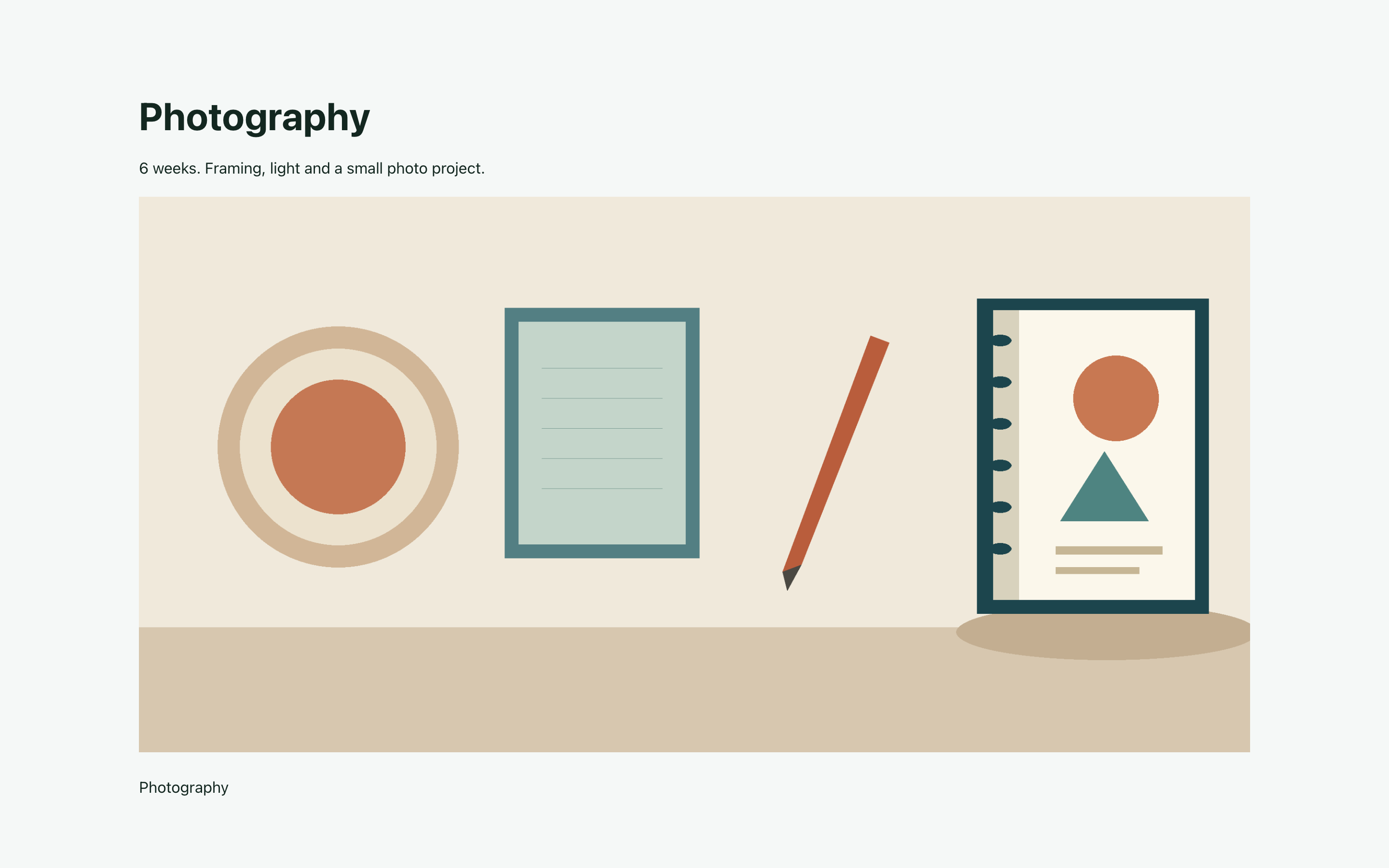
Create a page called Course detail design. Place a Header, a Rich Text block and an Image in it. Their layout is shared, but their values will come from the course being viewed. In this example, summary contains both the course duration and a short programme.
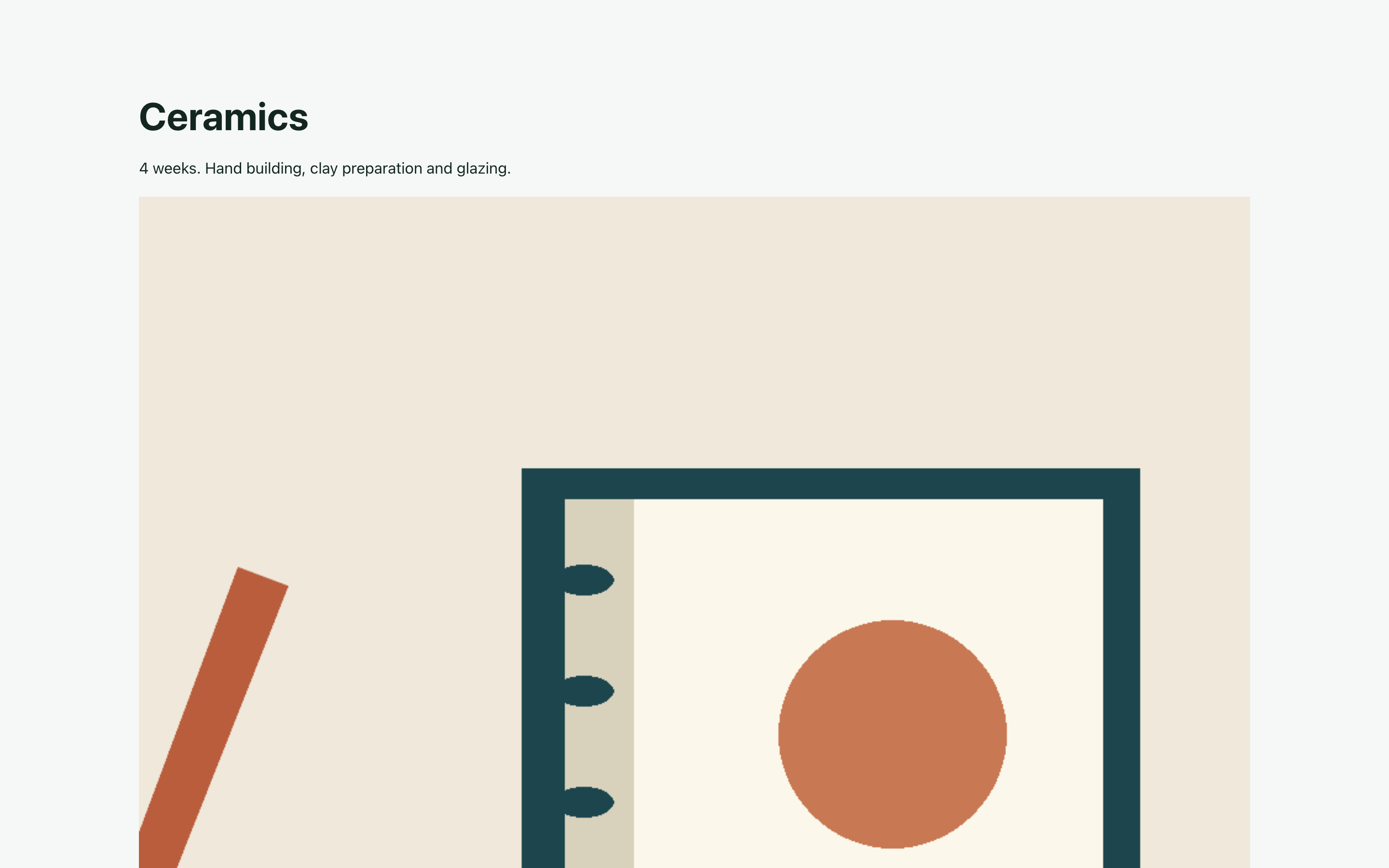
Photography shows six weeks of framing, light and a small photo project. Ceramics shows four weeks of hand building, clay preparation and glazing. The two addresses use the same arrangement with different text and images.
Connect the heading to the course name
A developer or plugin must first expose a compatible publication source for courses and a single course source. In this fixture they are labelled Published courses and Published course. A normal collection that only supplies cards is insufficient for Automatic Pages.
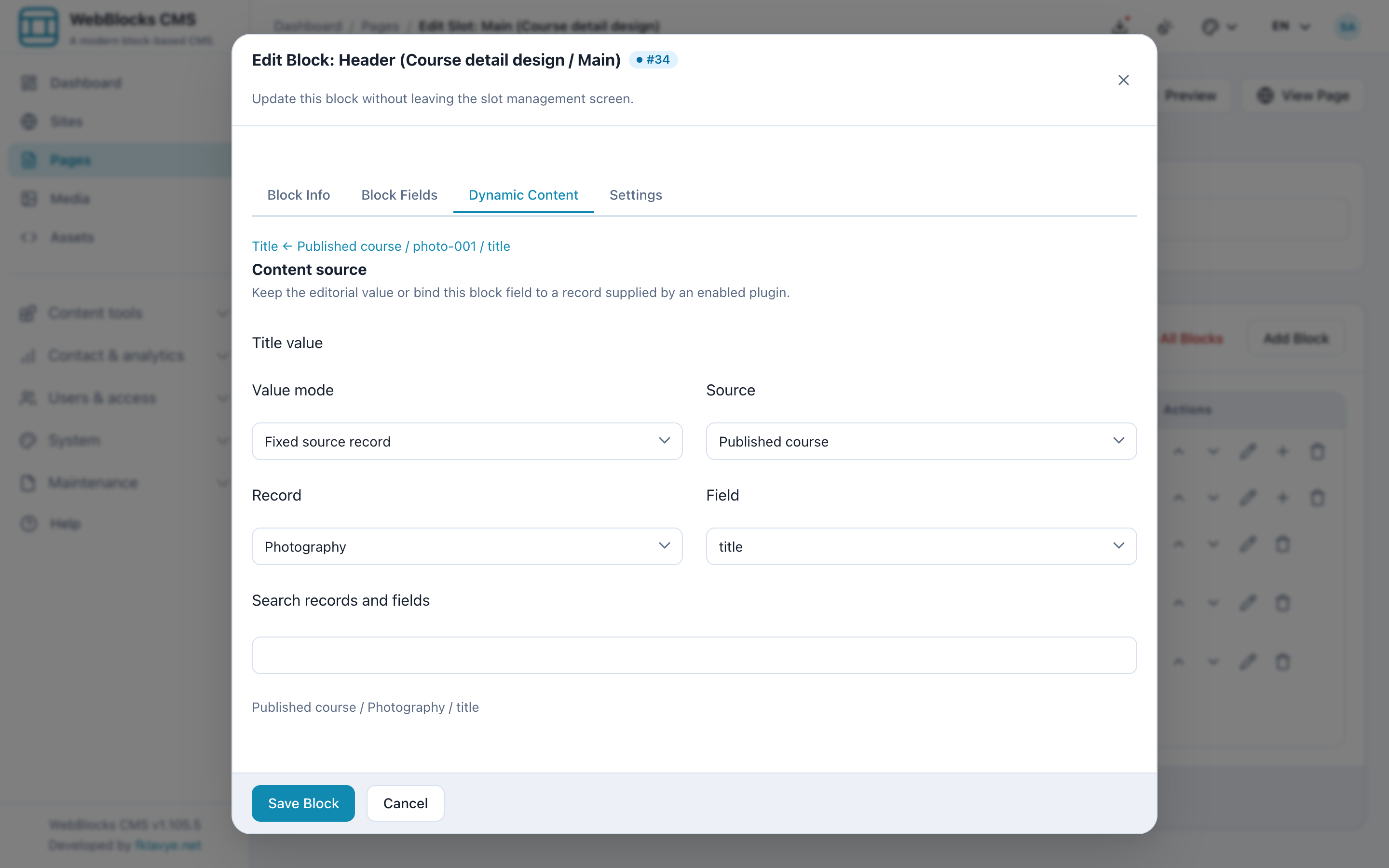
Open the Header block in Course detail design and choose Dynamic Content. In the title binding, select Published course, Photography as the example record, and title as the source field. The screenshot shows the actual source, record and field selectors. Photography supplies a useful editing example; an automatic detail request supplies the course selected by its URL without rewriting that saved example.
Connect the programme and duration
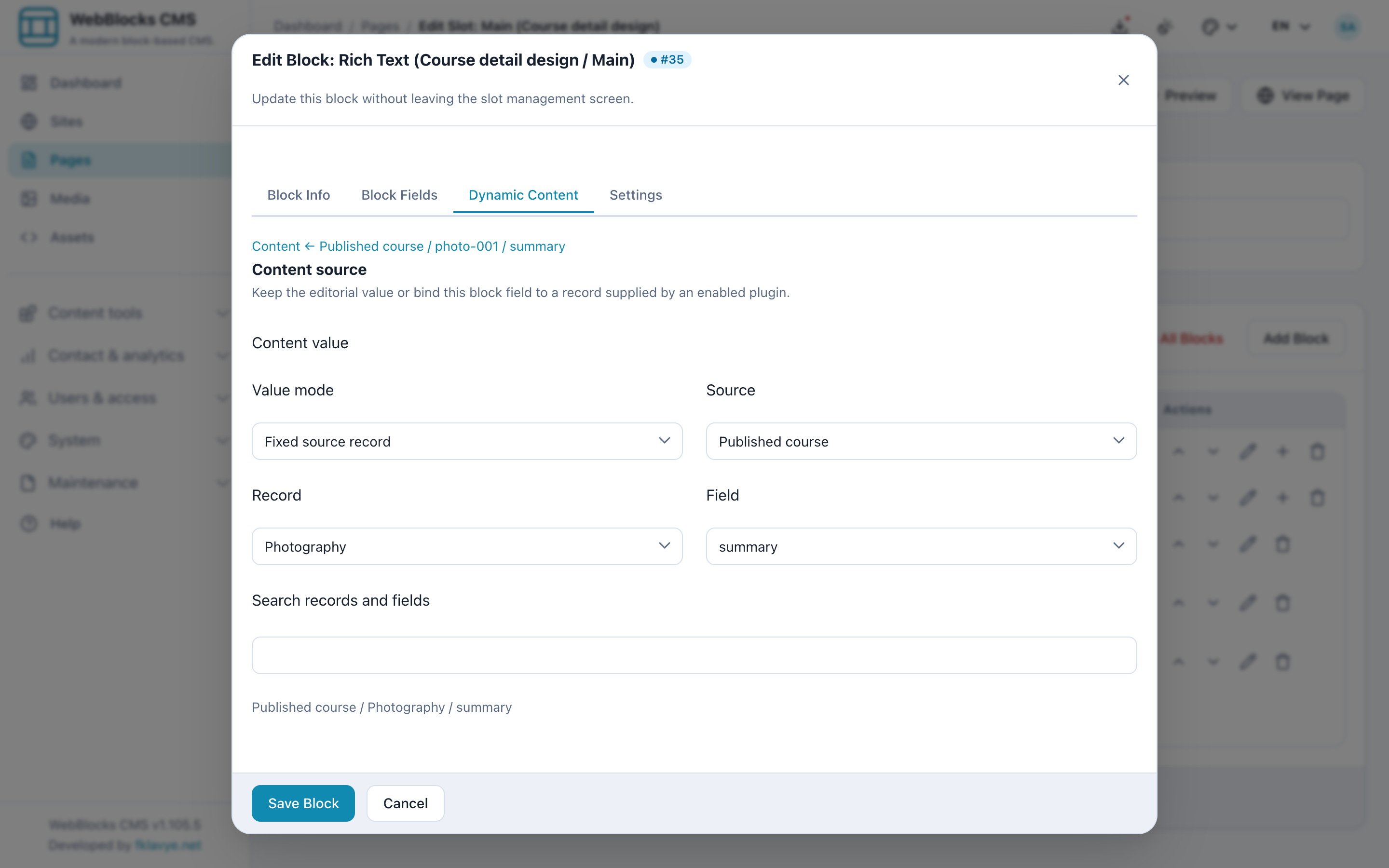
Open the Rich Text block and its Dynamic Content tab. Connect its content to the same Published course source and the summary field. That is where the fictional course application supplies programme and duration. You are choosing which source value fills this block; you are not copying the programme into a separate CMS page for each course.
Connect the image and its descriptions
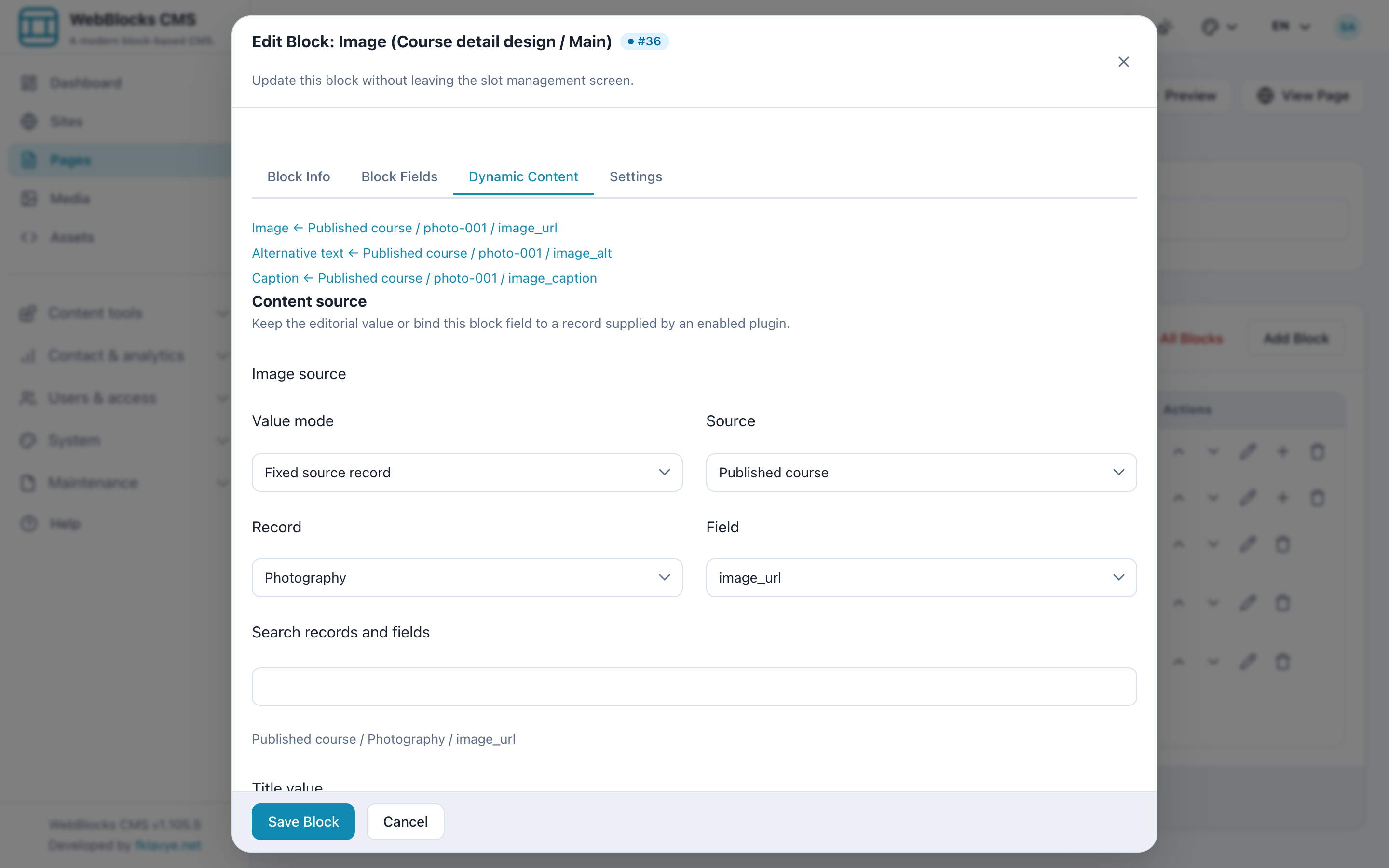
In the Image block’s Dynamic Content tab, connect the image source to image_url, the alt text to image_alt and the caption to image_caption. These are separate connections. The image and its words need to describe the course that is open, including in each supported language.
Connect the source to the design and address range
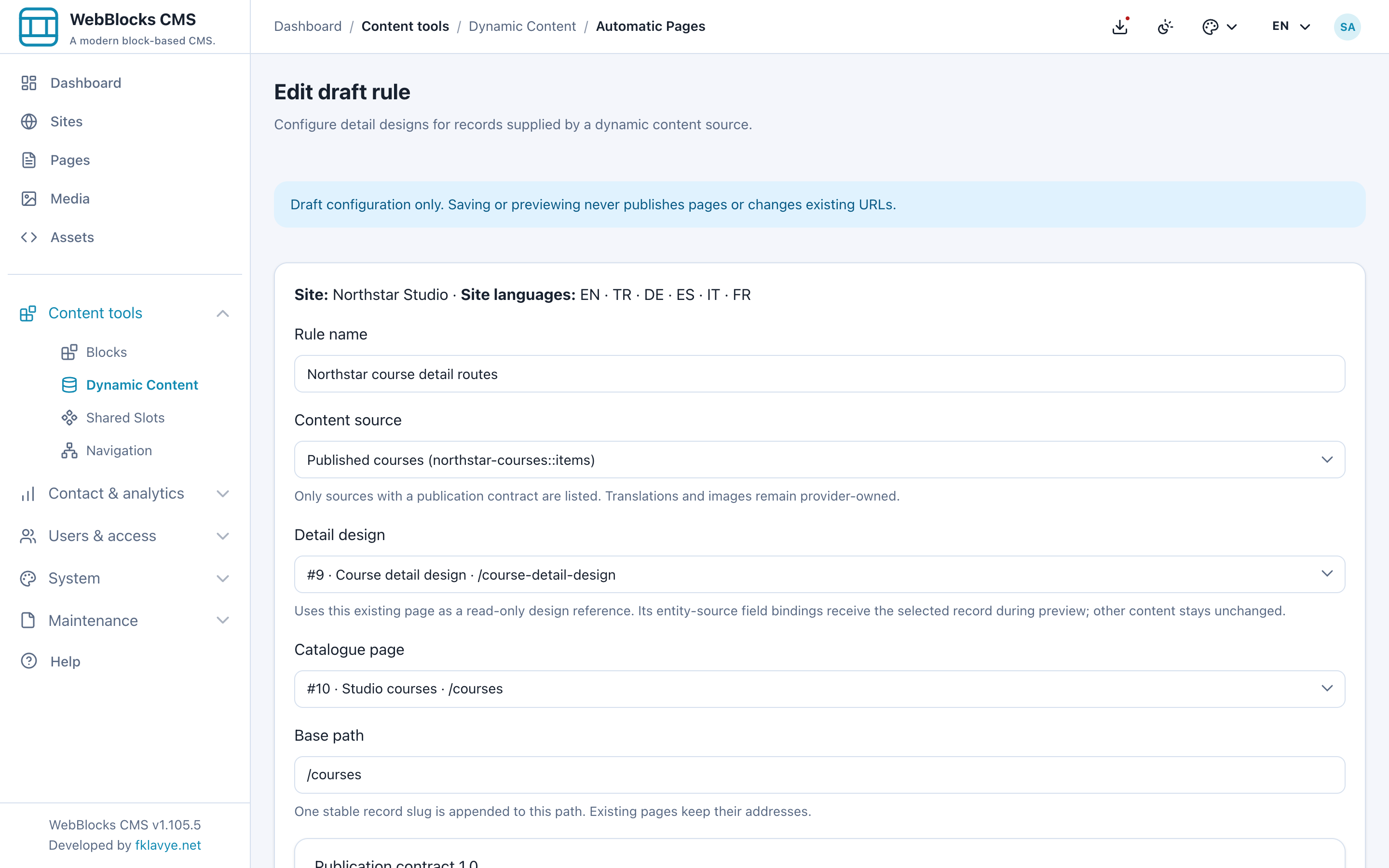
Open Dynamic Content → Automatic Pages and create a draft rule for the site. Select Published courses as Content source and Course detail design as Detail design. Enter /courses as Base path. The optional Catalogue page field points to Studio courses; choosing it does not configure or change the list of cards.
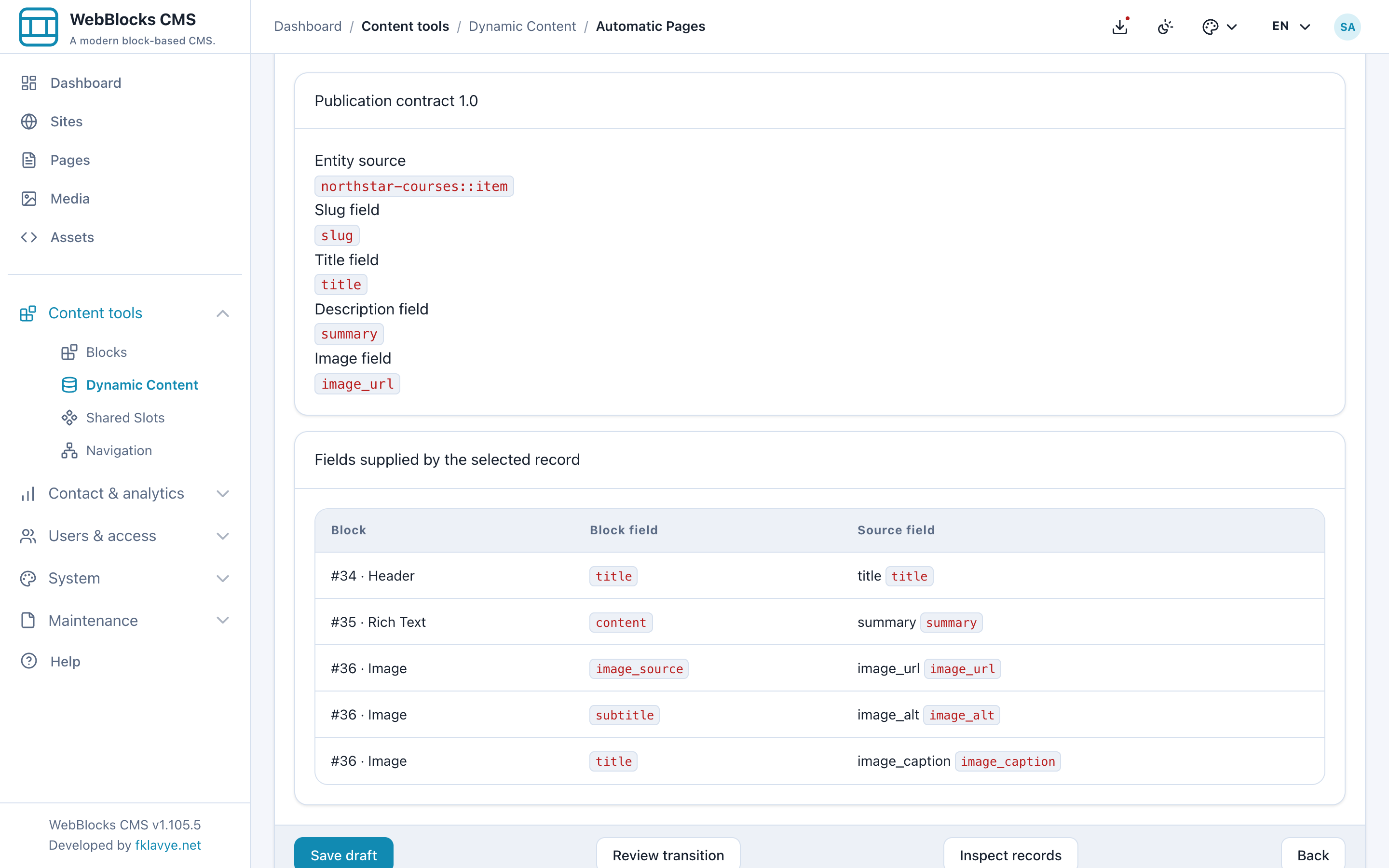
The rule's Fields supplied by the selected record section brings the block connections together. Check that the heading receives title, the text receives summary, and the Image receives its image and description fields. This is the bridge between the data and the page design.
Review real records before activation
Save the draft, choose Inspect records and select Photography. Review its proposed addresses and actual content in each enabled language. Expand Inspect source fields to check the values behind the heading, programme and image, then open Render preview. For example, Turkish Photography opens at /tr/courses/photography with Turkish course text; the slug stays the same.
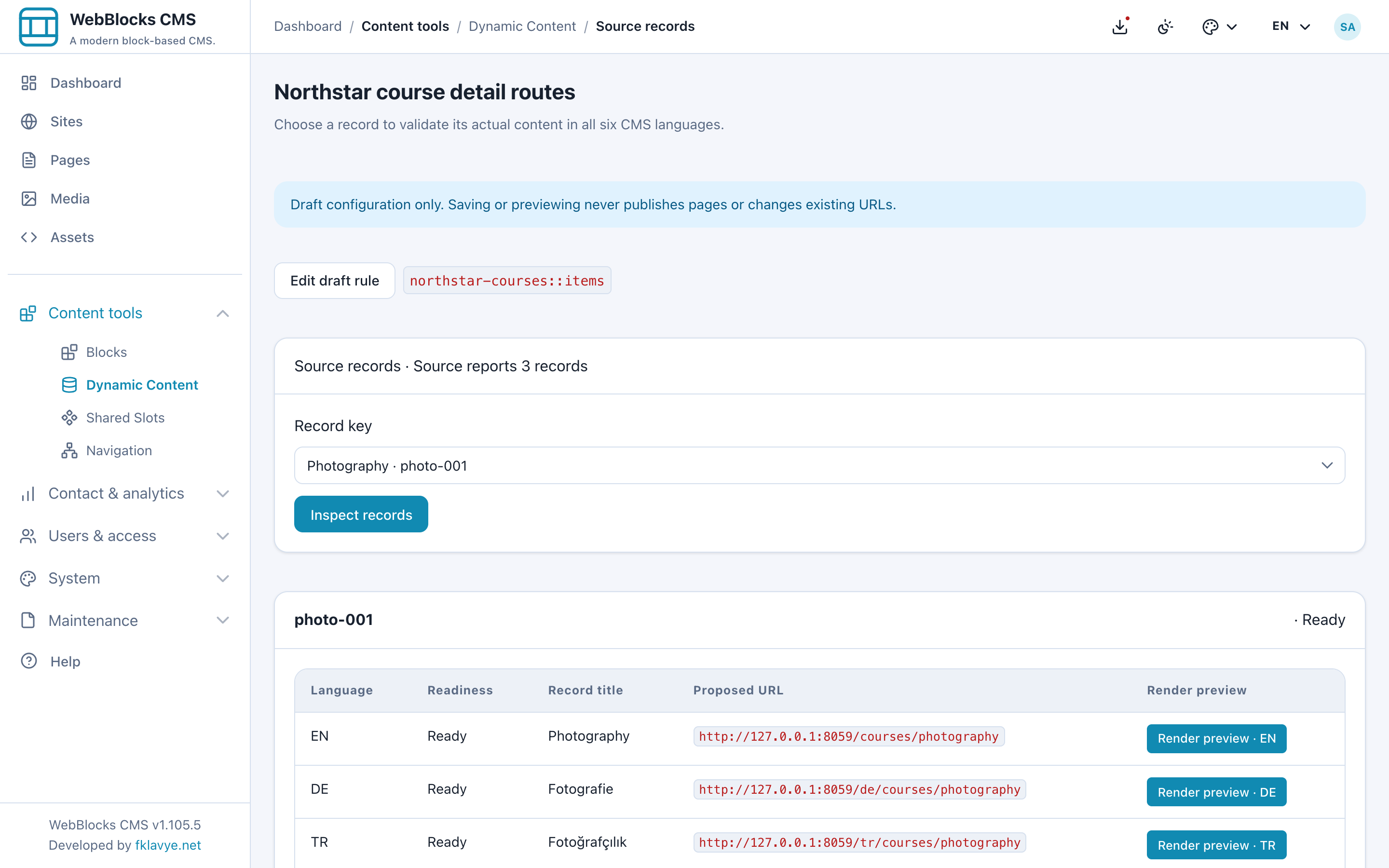
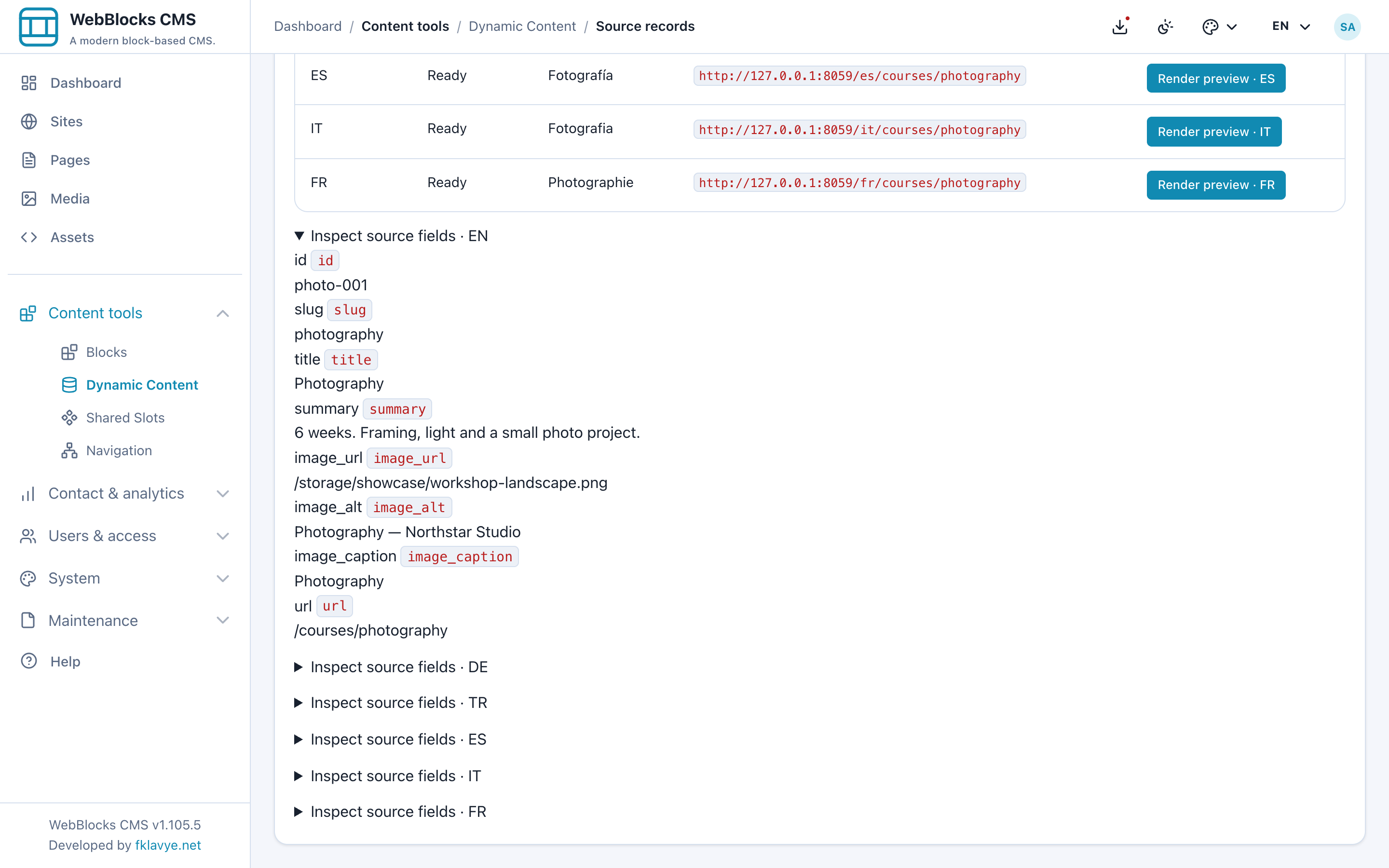
Use Review transition to check address conflicts, translations and any existing detail pages. Saving or previewing a draft does not publish its routes. Activate automatic routes is a separate action for an authorized operator after that review. The images here demonstrate the flow only in a disposable showcase.
Add another course without another CMS page copy
Once the rule is active, a new valid Watercolour record made public by the course source can open at /courses/watercolour through the same design. No new CMS detail-page copy or separate rule activation is needed for that record. Check the list as well, because its collection configuration remains separate.
A course requiring a substantially different editorial layout may deserve its own page. Existing matching native pages can retain their individual designs. Withdrawing a course makes its automatic detail address return 404; an unavailable source or invalid publication content can return 503. Keep record keys and slugs stable, because a changed slug does not automatically redirect the old address.
See Automatic Pages for the full setup and review process, and Dynamic Content for field bindings. This article is by the developer of WebBlocks CMS. Screenshots use fictional Northstar Studio content in the published CMS 1.105.5 showcase.
Was this article useful?
Rate it or share a suggestion below.
Comments and suggestions
Comments are reviewed before they appear.
Comments
0No approved comments yet.
Leave a comment