Preparing a diagnostic report after a failed CMS update
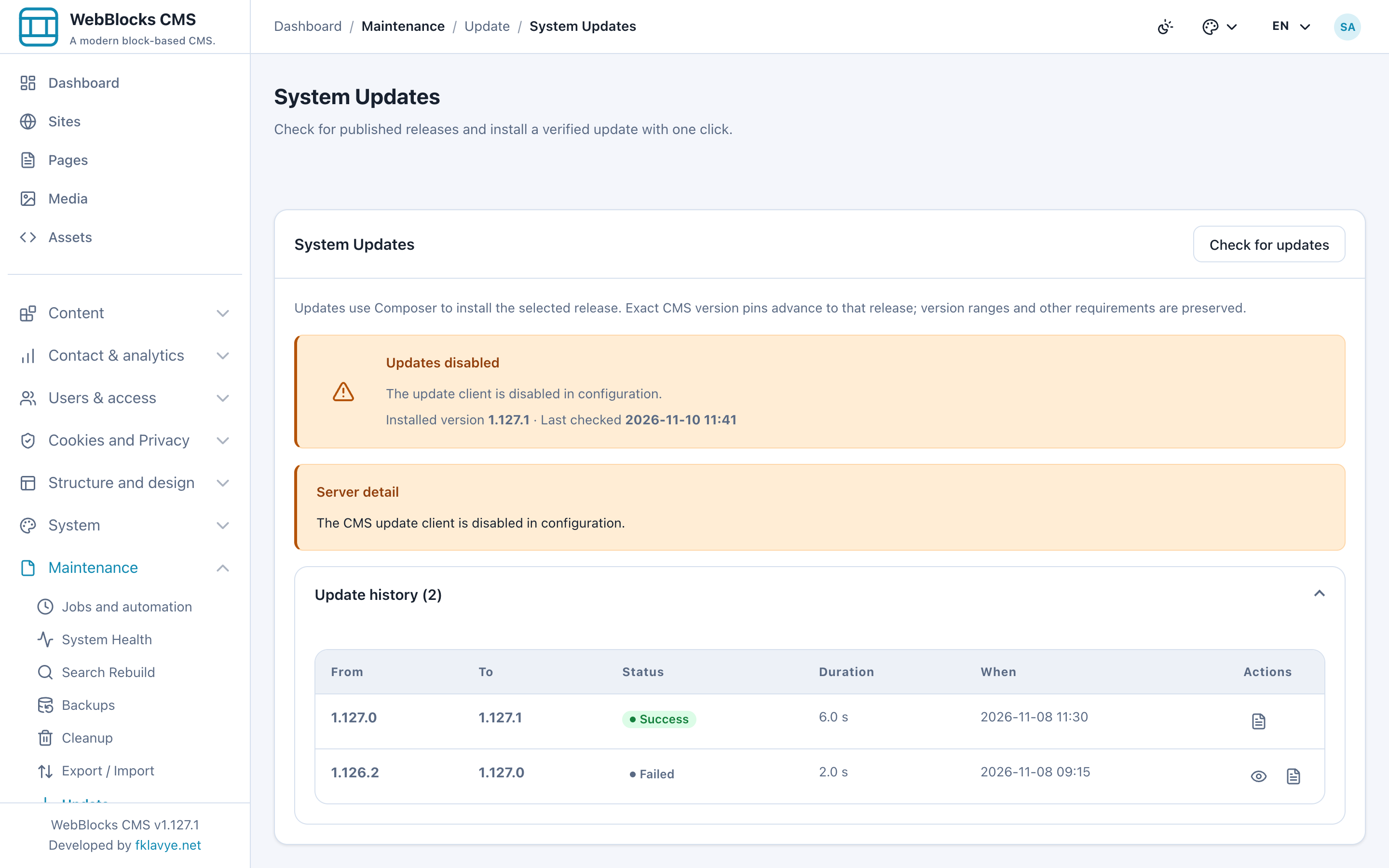
Support asks which update failed, but the latest entry in the history says Success. In the fictional Northstar Studio showcase, the failed attempt is one row lower. It went from 1.126.2 to 1.127.0. The later successful entry went from 1.127.0 to 1.127.1. A diagnostic report from the failed row gives support the details of the attempt you want to discuss.
Open the failed run from Update history
In WebBlocks CMS 1.126.1 or later, go to Maintenance → Update and expand Update history on the System Updates screen. Match the source version, target version and time to the incident. On the failed row, choose the document icon labelled Diagnostic report. A system operator with system access can prepare and download the report directly from the CMS.
Choose what the report should contain
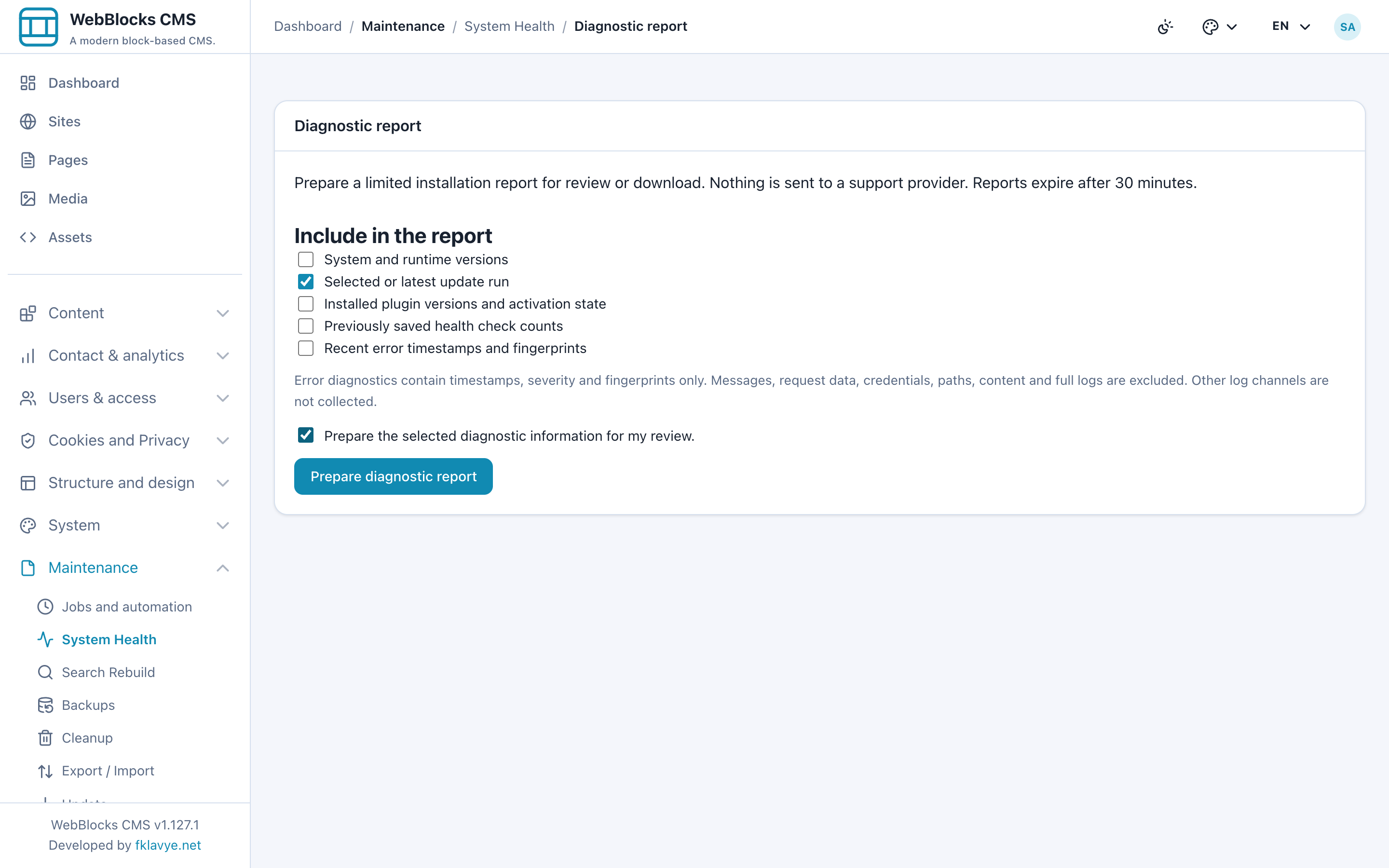
For this example, leave only Selected or latest update run checked. Opening the form from the failed row tells the CMS which run to use. System and runtime versions, plugin versions and activation state, saved health counts, and recent error metadata are separate choices. Select them when they help answer the support question.
Check Prepare the selected diagnostic information for my review to enable Prepare diagnostic report, then select it. This collects the chosen categories for local review. You decide separately whether to share the file after downloading it.
Review the JSON before downloading it
Check the versions and status in the preview. The Northstar report shows the 1.126.2 → 1.127.0 attempt with failed, its start and finish times, a two-second duration and one warning. That is enough to identify the run. The free-form updater output stays in the CMS history. If you select the recent errors category, the report includes timestamps, severity and fingerprints for the eligible log entries.
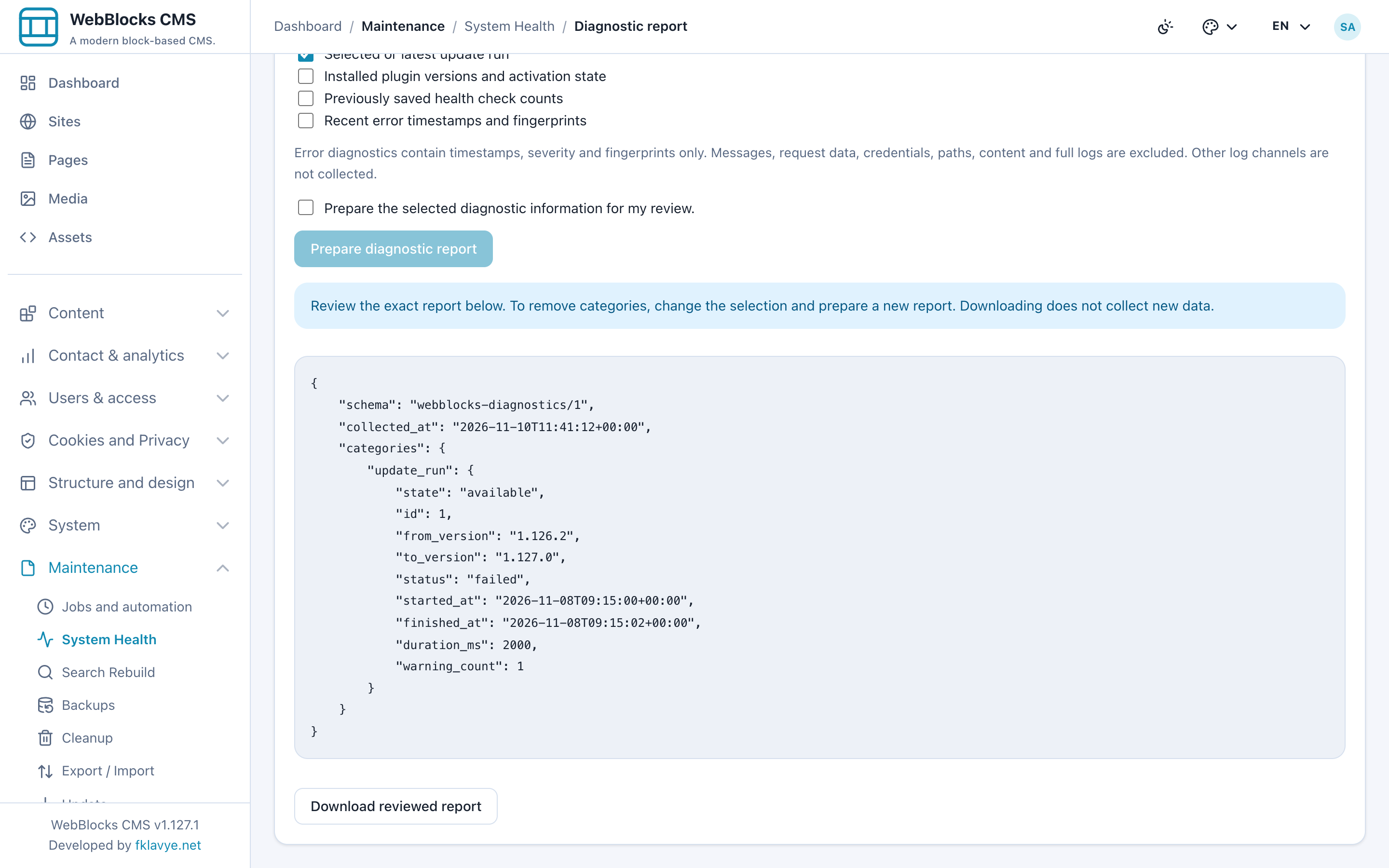
If a category is unnecessary, clear it and prepare a new report. When the preview contains what you want to share, choose Download reviewed report. In the showcase, the downloaded webblocks-diagnostics.json matched the preview byte for byte. The prepared report can be downloaded from the same user account and installation for 30 minutes.
For the available categories and report scope, see Preparing diagnostic reports.
Was this article useful?
Rate it or share a suggestion below.
Comments and suggestions
Comments are reviewed before they appear.
Comments
0No approved comments yet.
Leave a comment