Leaving an editorial handoff with Webadmin Notes

The bookbinding workshop draft at Northstar Studio is ready for a second look. The next editor needs to check two things before review: the materials list and the directions to the studio. The team can leave those details in Notes, where editors can read them when they open Webadmin.
Webadmin Notes arrived in WebBlocks CMS 1.129.0. The screenshots show the workflow in 1.132.0 using a fictional workshop.
Choose who should see the note
In the Webadmin sidebar, open Notes and click Add Note. Enter a title and plain-text note, then choose a Recipient. Everyone with panel access shares the note across the CMS installation. Choose one panel user for a private handoff or Author only for a reminder to yourself. Click Save to add the note.
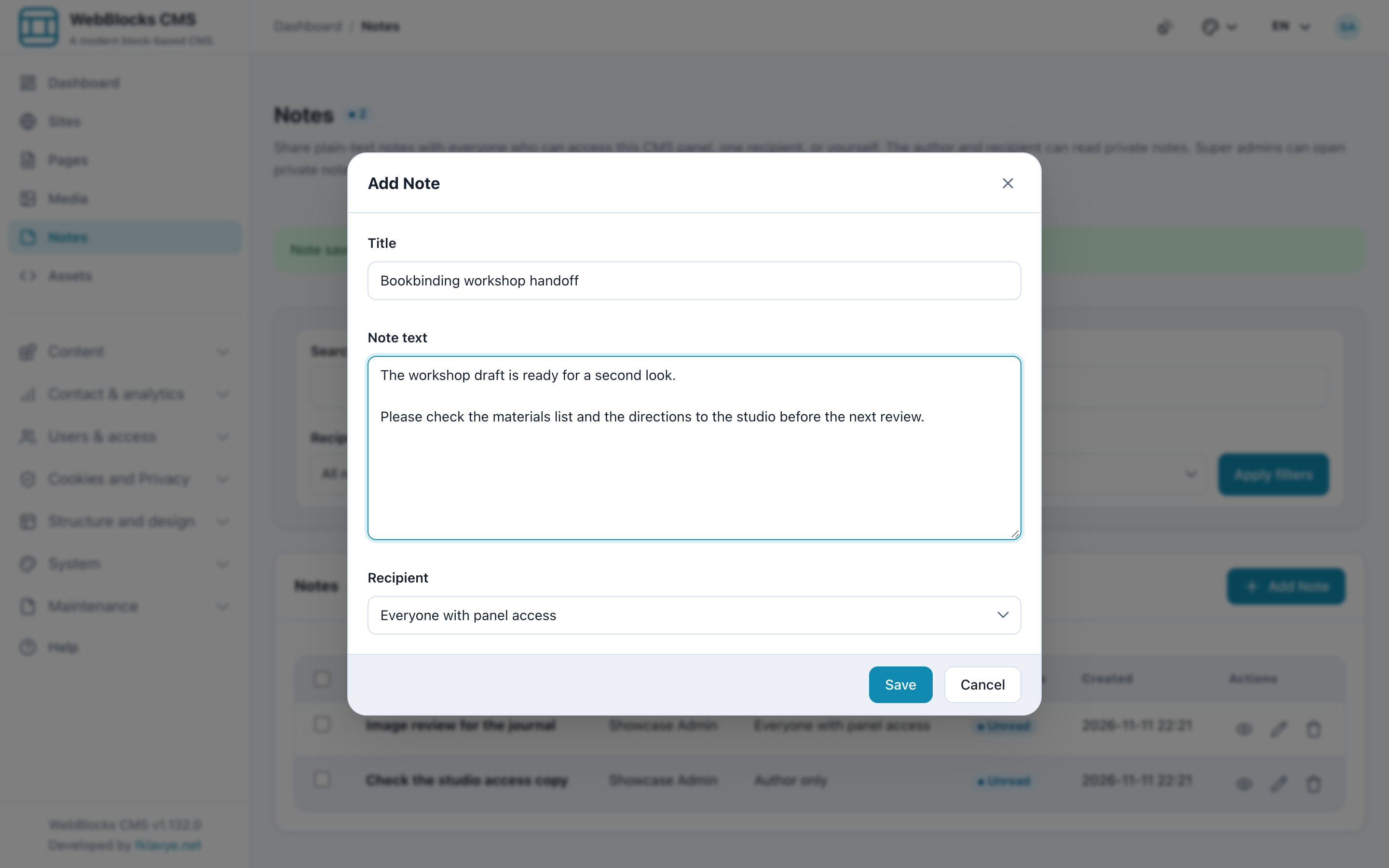
The author and the selected recipient can read a private note. Super admins can open private notes for editing through the administration view. The author can edit or delete their own notes.
Read the handoff from the list
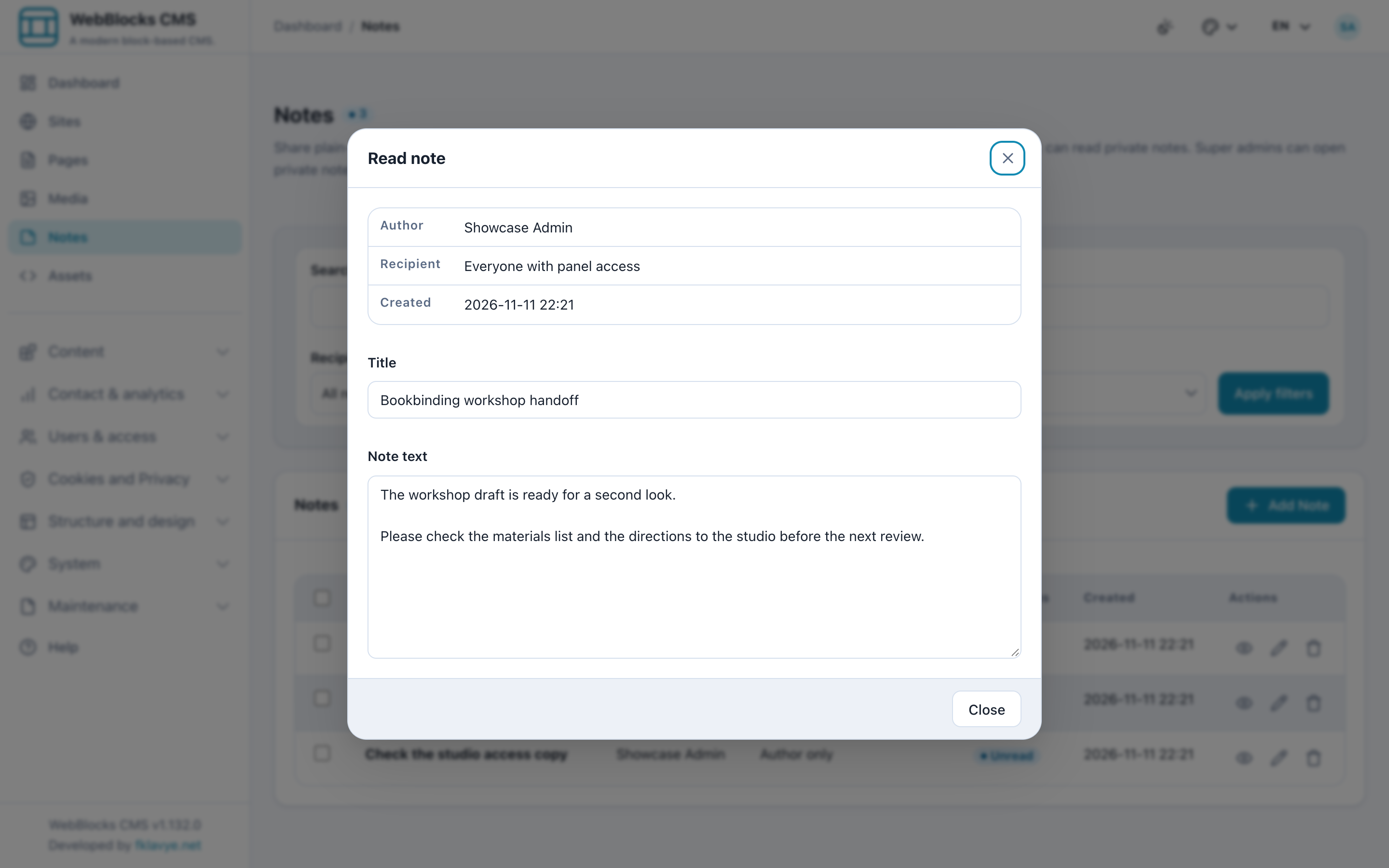
Use the eye icon next to Bookbinding workshop handoff to open Read note. The dialog shows the author, recipient, creation time, and note text. Opening the note marks it as read for your account. Other editors keep their own read status.
Clear the notes you’ve caught up on
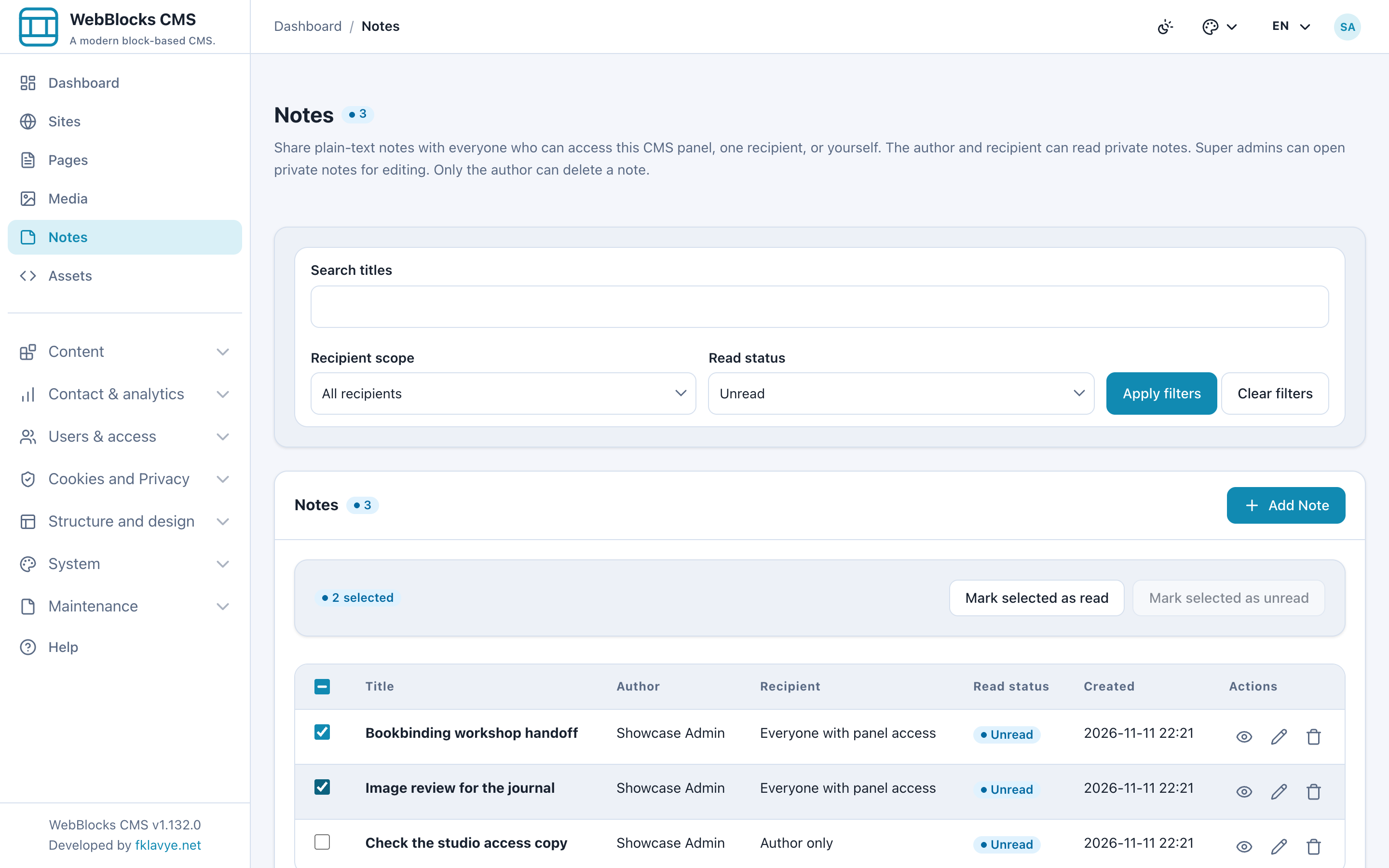
Use Read status → Unread and Apply filters to see the notes you still want to read. Select the notes you’ve caught up on and click Mark selected as read. They leave your unread list. Use Mark selected as unread to bring a note back into that list for another look.
A note can tell the next editor what to check. To submit the page itself for review and preview the proposed changes, use the page’s editorial workflow. Updating a published page through review