Preparing page drafts with MCP in WebBlocks CMS
Northstar Studio has a workshop page in English and Turkish. The date has changed, so the team needs to update the heading, booking button and search description. The published page still needs to work while someone checks both languages. With remote MCP in WebBlocks CMS, an AI client can prepare those changes in a draft and return a private preview for the editor to review.
Model Context Protocol (MCP) gives a compatible AI client a set of tools it can call in your CMS. WebBlocks CMS 1.123.0 expanded those tools to cover page search, new drafts, supported block edits, and localized page details such as SEO and social sharing fields.
Connect the client to one site
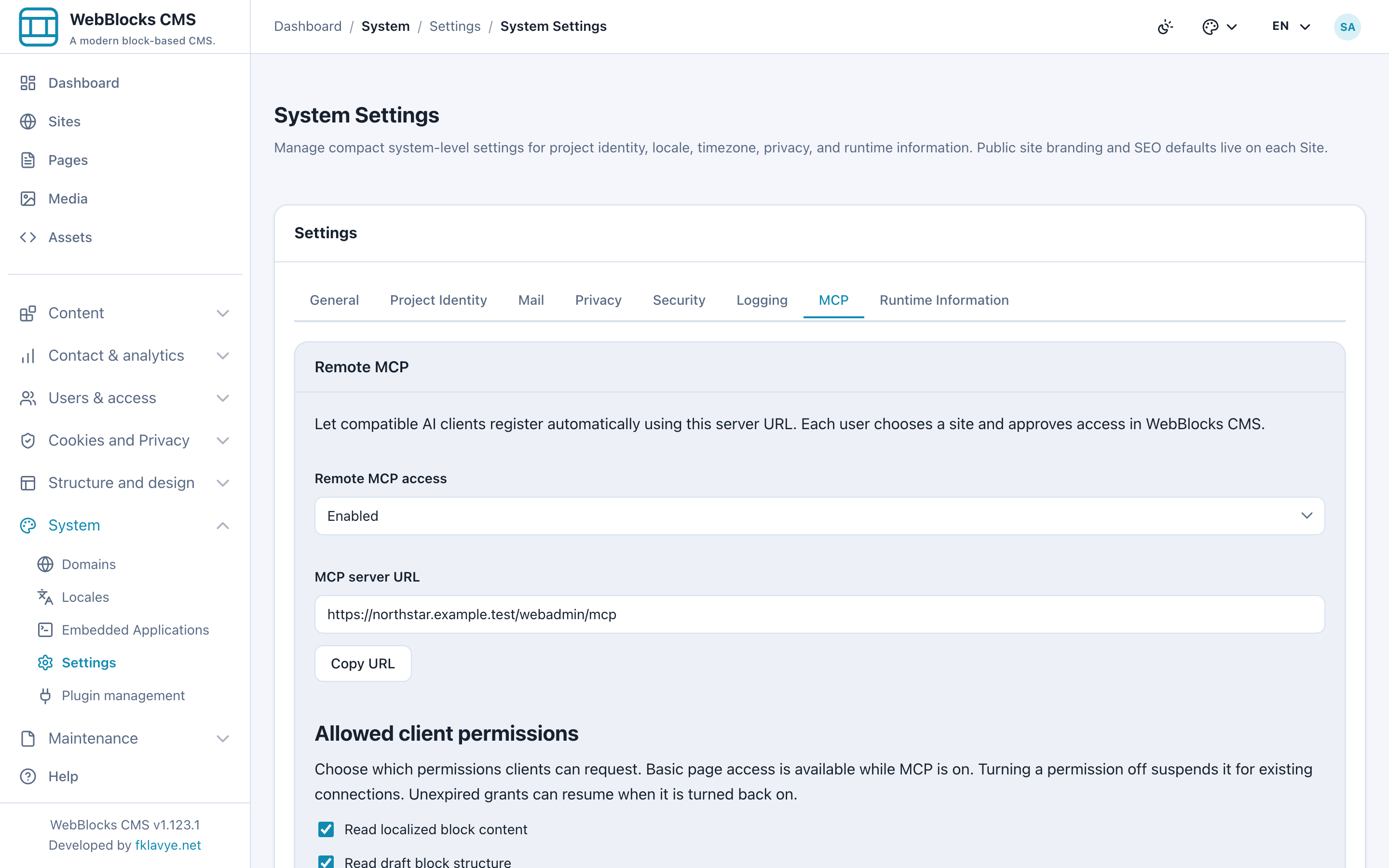
Remote MCP is off by default. A Super admin enables Remote MCP access under System Settings → MCP and copies the server URL. Add that address to a client that supports Streamable HTTP, OAuth Dynamic Client Registration and PKCE S256. The CMS installation needs a canonical HTTPS address and current CMS migrations.
The client sends you to WebBlocks CMS to sign in and review its request. On the consent screen, choose the site and check the requested permissions. WebBlocks applies those permissions together with your current CMS role and site access. The connection expires after one hour.
At Northstar, a connection for finding pages needs fewer permissions than one that edits page copy or reads SEO fields. Super admins control which optional permissions clients can request. Users can see each client's site, permissions and expiry in Profile → MCP connections, and revoke the client's access when the job is done.
Prepare the workshop update
Start by asking the client to find the published workshop page by title or path in the appropriate language. For an existing page, changes go into a staged update. The client can read the supported draft fields and use the current version when it writes. If someone edits the draft in the meantime and that version becomes stale, the client has to read the new state before retrying.
For the workshop, give the client the confirmed date and booking destination. Ask it to update the supported heading and button label, then prepare the Turkish page details and search description. If the draft needs a new block, the client can add, move or reorder supported blocks in the page-owned slots covered by the update.
For a second workshop with its own address, the client can create an unpublished page draft. Repeating the same creation request for the same site and user returns the existing draft while it is available.
Open the private preview
Open the preview in a browser where you are signed in to the CMS. Check the date and booking link in both languages, read the translated copy in context, and check the proposed page address and SEO fields in the draft. The existing workshop page stays live while you review its update. A user with publishing permission applies the reviewed draft through the CMS workflow. Publication is outside the MCP tool set.
Keep media access separate
Give the client media access if the task requires it. A client can search for eligible existing images with the media read permission. Uploading a new file requires its own MCP grant and the user's CMS upload permission. That tool accepts files up to 512 KiB and creates a public Media Library item. Attaching the uploaded file to the draft is a separate step.
For the setup and tool details, see the Remote MCP guide. The published page review walkthrough covers the editor's side of the handoff.
Was this article useful?
Rate it or share a suggestion below.
Comments and suggestions
Comments are reviewed before they appear.
Comments
0No approved comments yet.
Leave a comment