Following a website enquiry from form to inbox
A visitor asks whether Northstar Studio’s ceramics workshop suits a beginner. The form shows a success message, but the studio has no new email. Where should the owner look, and does the visitor need to submit again?
In WebBlocks CMS, the saved enquiry, its email notification and the eventual reply have separate states. This fictional workshop example follows one message through the native Contact Form and Contact Messages.
Start with a simple workshop question
The native Contact Form asks for name, email, subject and message; subject is optional. Add it to the contact page and write the introduction, submit label, success message and any required consent wording in the page’s languages. Configure the notification recipient for the block or the site.
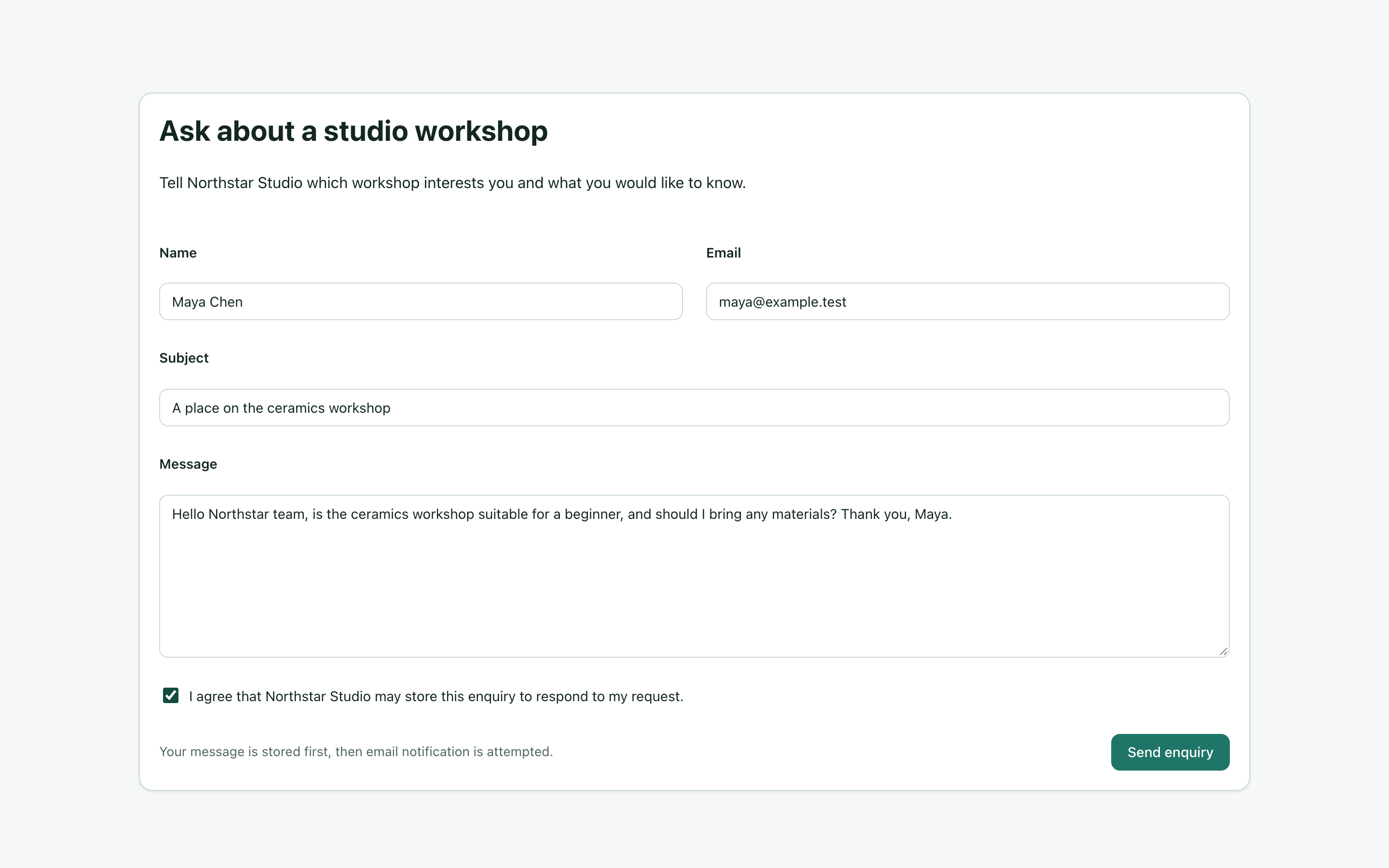
Maya asks whether beginners can join and whether materials are provided. This is an enquiry, so the form does not reserve a workshop place. A useful success message acknowledges receipt without promising a booking or a reply time the studio cannot maintain.
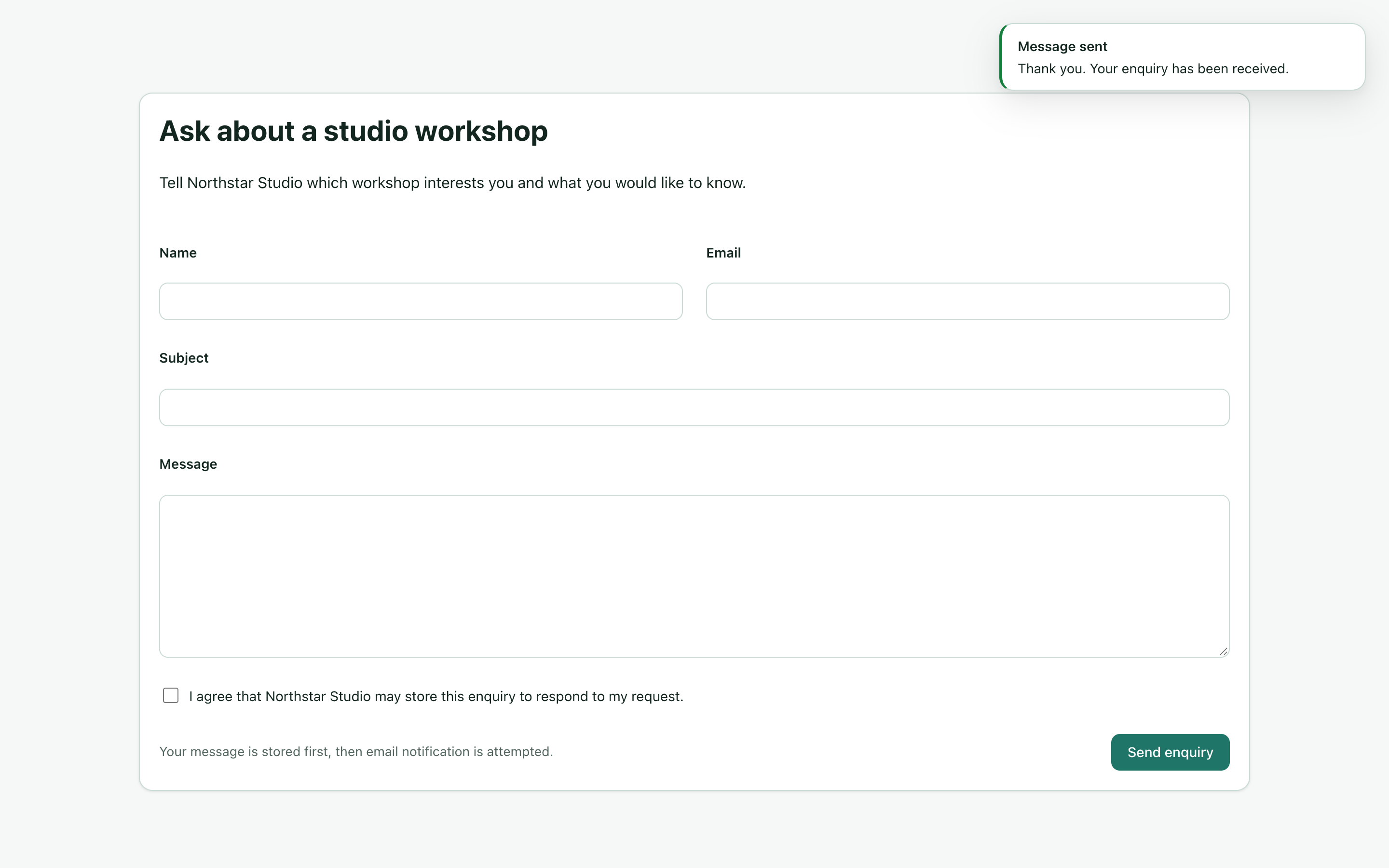
Find the saved message
Open Contact Messages under Contact and analytics. Find the enquiry by its subject or sender, and select the relevant site when the installation serves several sites. The list separates editorial status from email notification status.
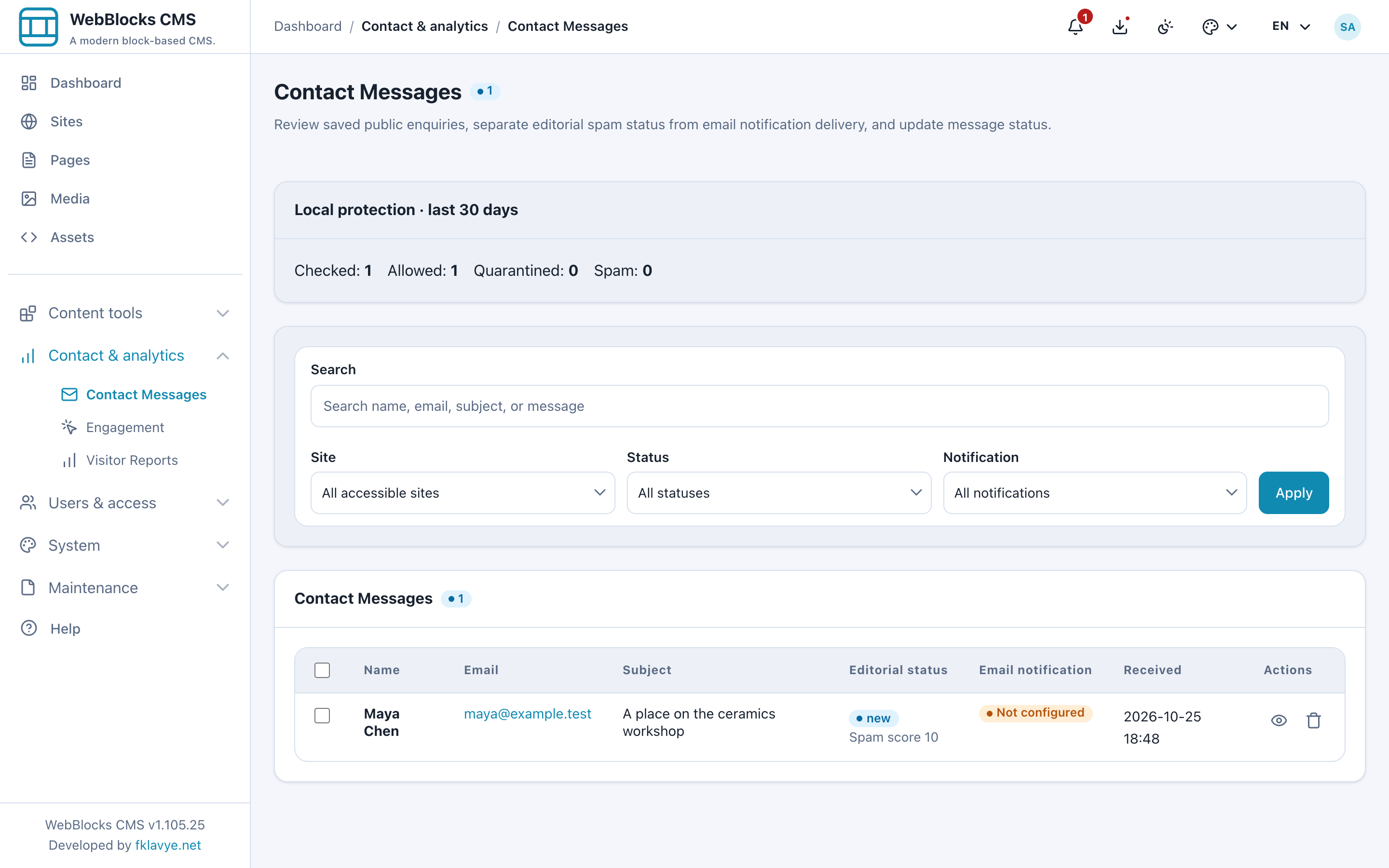
In this example, the message is saved as New while its notification says Not configured. Outgoing mail is deliberately disabled in the local demonstration. The visitor’s confirmation and the missing email can therefore both be expected results.
Check notification separately
Open the message and expand Technical details for the notification recipient, state and available failure or skipped reason. A saved message remains available when notification is disabled or cannot be sent.
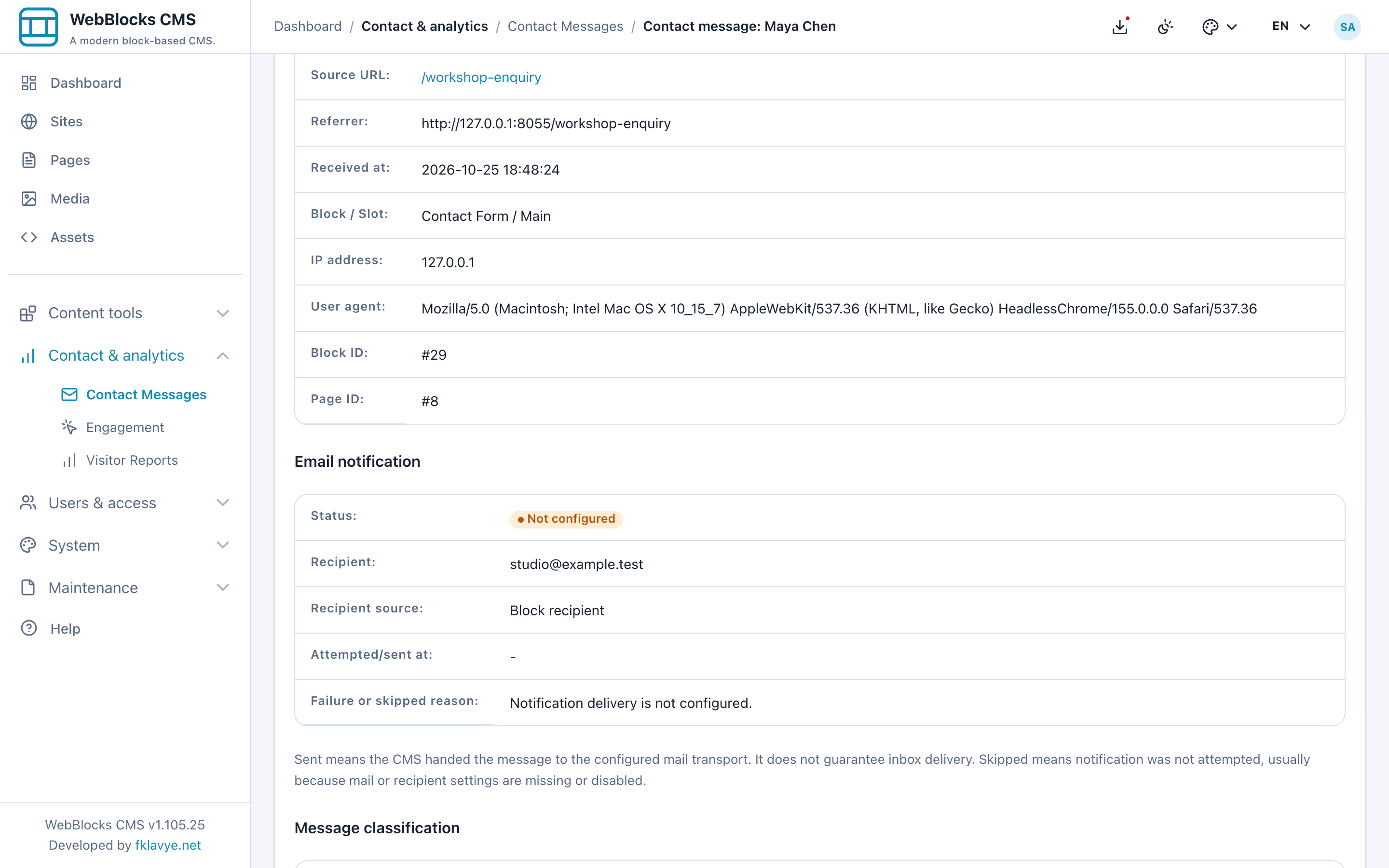
Sent means the CMS handed the notification to the configured mail transport without an exception; it does not prove arrival in the recipient’s inbox. Failed means a send was attempted and reported an error. Not configured means outbound delivery could not be attempted with the available setup. Skipped means notification was not attempted, for example because it was disabled or the submission was held for spam review.
For sites using batched or daily notifications, the host’s scheduler must also run. An immediate notification does not verify that scheduled delivery works. The contact messages documentation covers delivery settings and scheduler health.
Read and reply as separate actions
Opening Maya’s enquiry makes it Read. It still needs an answer. Reply by email opens the owner’s email application with the sender and subject filled in; the button does not send the answer or mark the enquiry Replied.
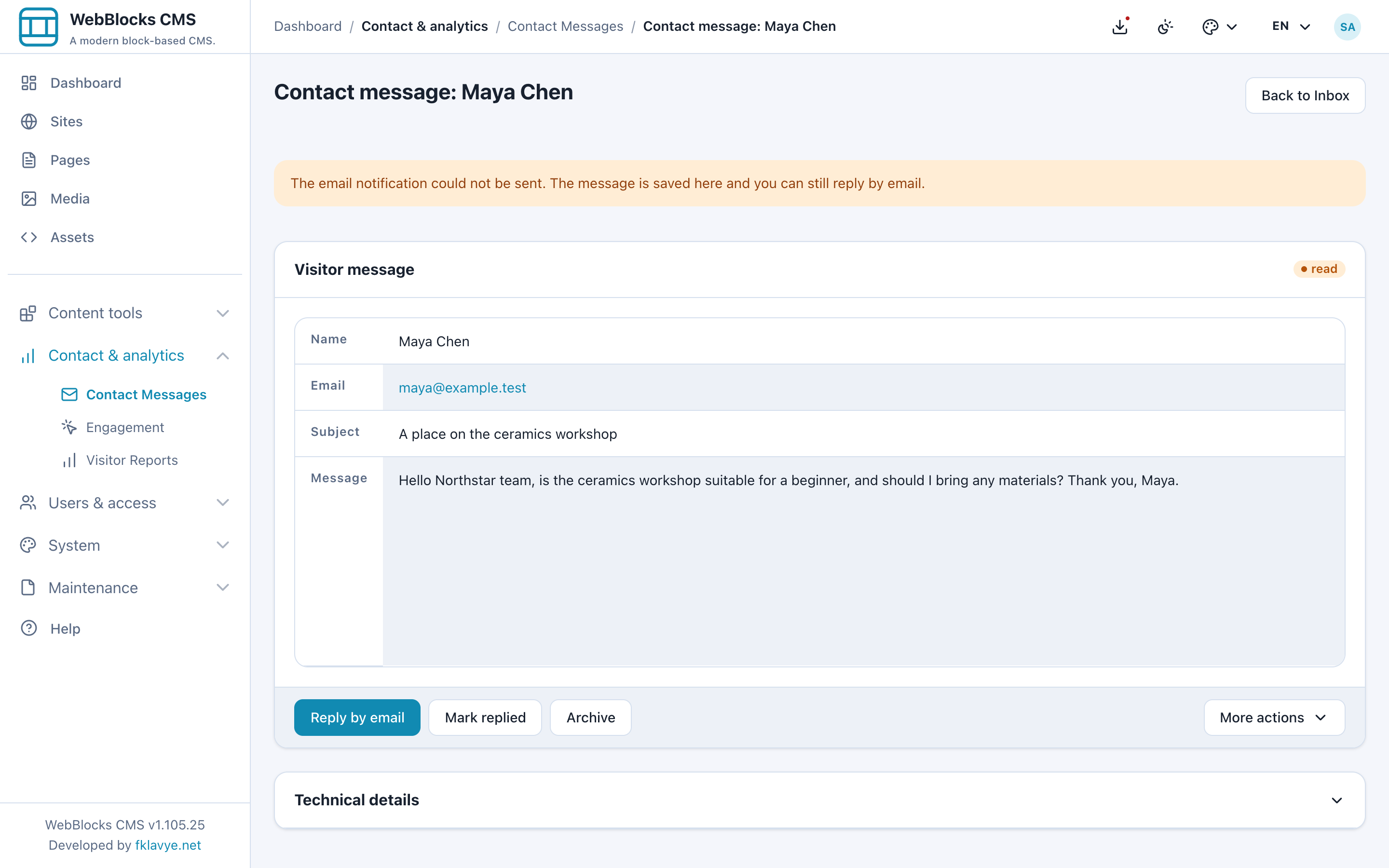
After sending the answer from the email application, choose Mark replied in the CMS. Use Archive when no further work is needed. Agree who checks the inbox: a notification can draw attention to a message, but someone must still answer it.
Choose a custom form when the questions change
The native form suits a general question like Maya’s. If the studio needs a workshop selector, a preferred date or an attachment, consider the separate WebBlocks Forms plugin. Its configurable fields and setup belong to that plugin; installing the CMS alone does not add them.
Keep the destination clear. Native Contact Form messages appear in Contact Messages, while plugin form submissions appear under Forms → Submissions. Importing a native form into the plugin does not move its existing messages or replace the page’s original block. See the Forms documentation before changing the visitor flow.
Check the complete enquiry flow
Before relying on a contact page, submit a controlled test, locate the saved message, inspect its notification state and confirm who will reply. Check actual email arrival separately when testing a configured mail service. Spam protection can also show generic success for discarded submissions, so the confirmation alone is never a storage audit.
For Northstar Studio, the useful outcome is clear: the ceramics question can be found and answered even when email needs attention. Keeping receipt, notification and reply visible as separate steps makes the work easier to follow.
Was this article useful?
Rate it or share a suggestion below.
Comments and suggestions
Comments are reviewed before they appear.
Comments
0No approved comments yet.
Leave a comment