Choosing images for cards mobile screens and social previews
A wide illustration can contain everything you need and still make a poor card image. In this Northstar Studio example, the workshop notebook sits near the right edge of the table. The original has enough detail, but a centred crop cuts through the subject. On a phone, keeping the entire table makes the notebook small.
Those are different editing problems. A smaller file helps delivery. A focal point guides a crop. A separate mobile image lets the editor choose a closer composition for a narrow screen.
Start with the originals
For this example, choose two images from the Media Library: Workshop table landscape and Workshop notebook detail. The landscape is the 2400×1200 original illustration. The portrait detail is a separate 900×1200 image of the same notebook, prepared for the mobile view.
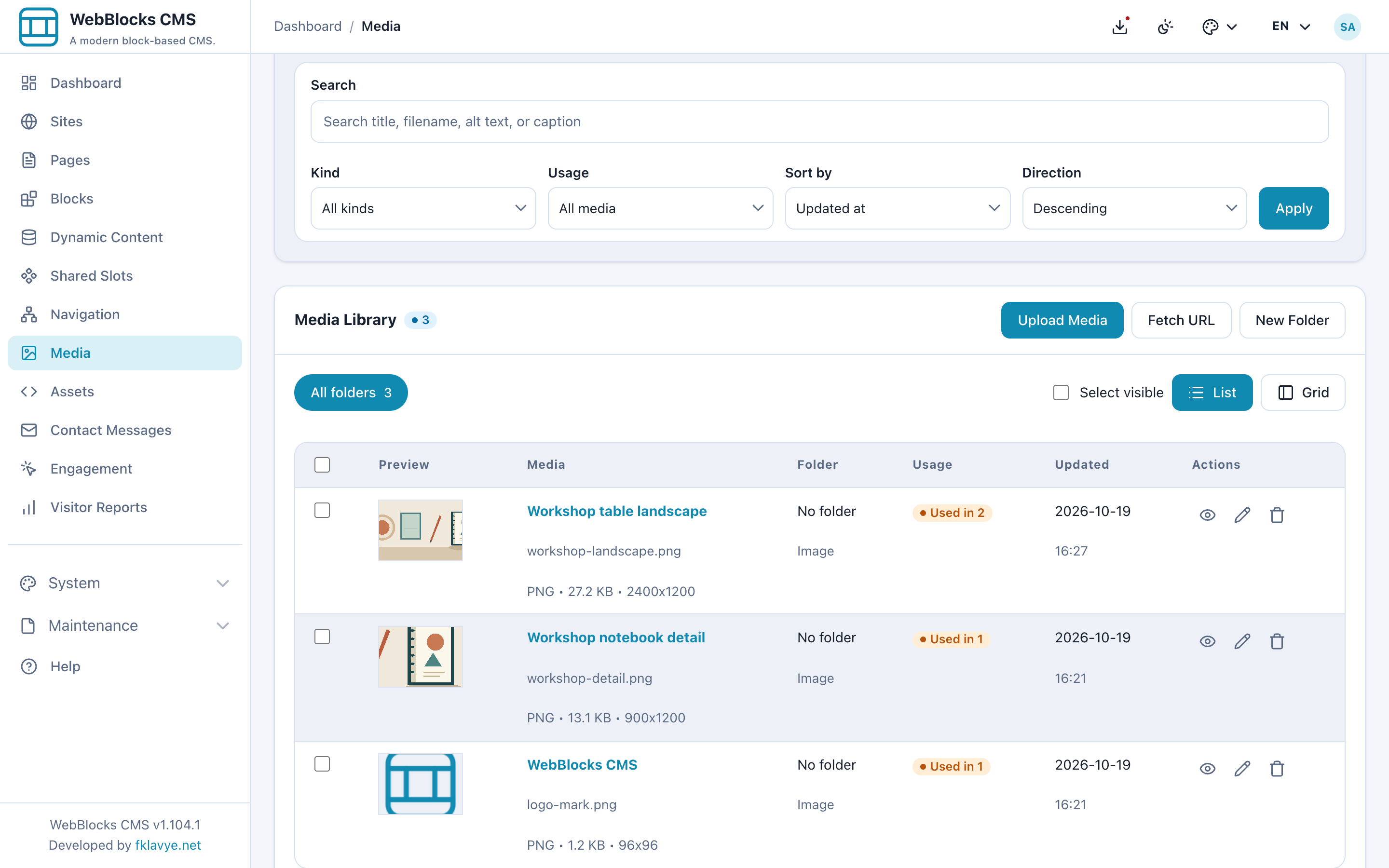
Keep that distinction clear. WebBlocks CMS generates smaller and cropped variants from supported public JPEG, PNG and WebP images. Those generated files do not become extra Media Library entries. The portrait detail appears here because it is a second original chosen by the editor.
Inspect the crop before choosing more pixels
Open the landscape image in Media and look at Image Variants. In this example, the centred Thumbnail and Card crops cut off part of the notebook. The Content previews preserve the wide illustration's proportions; they do not turn it into a closer view of the subject.
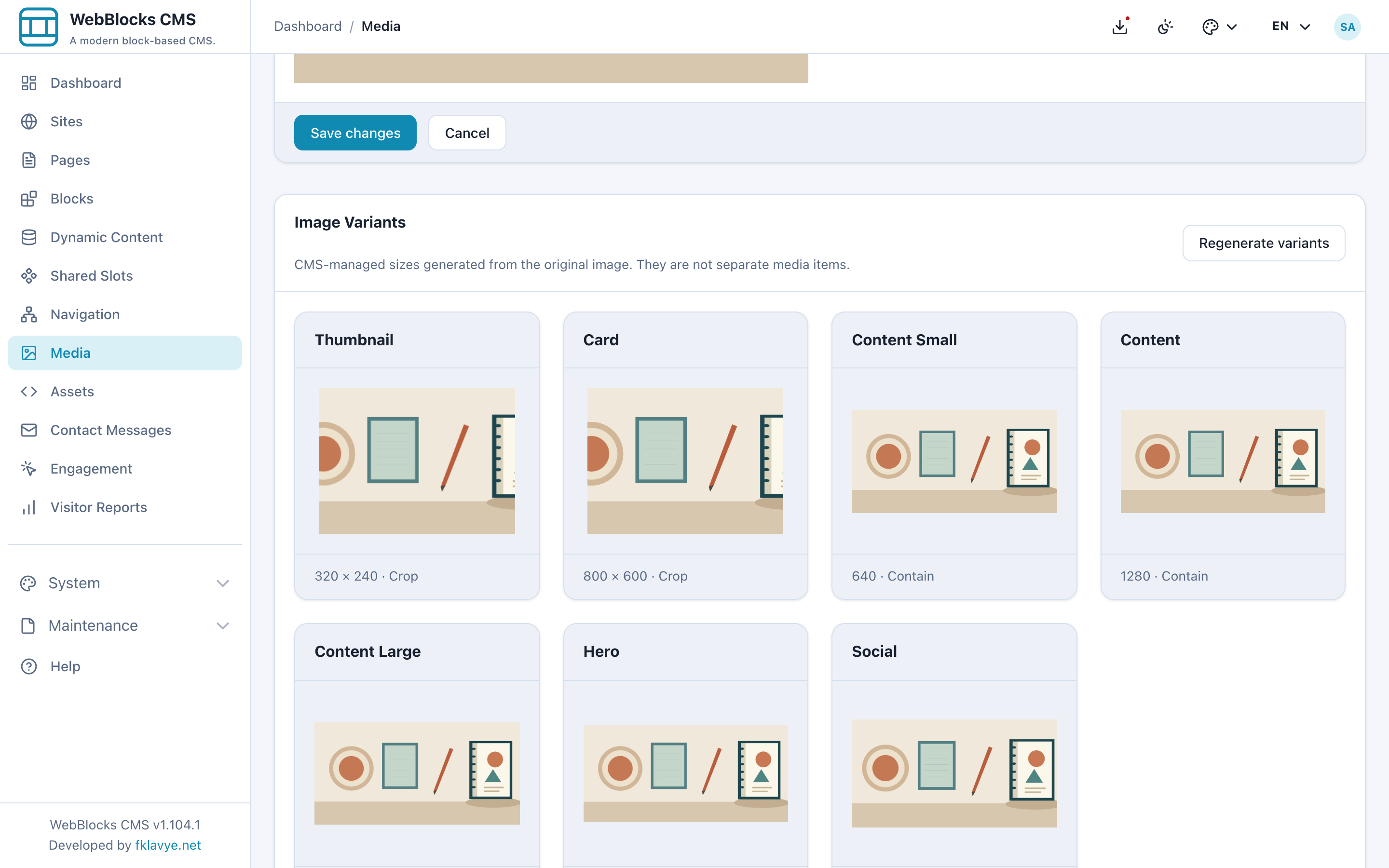
A higher-resolution upload would not solve that framing problem. The subject is in the wrong part of the crop. These are system variant previews: seeing a Card variant here does not mean the Card block automatically selects it. The current release reserves the card and hero variants rather than providing dedicated Media Library fields for those block roles.
Save a focal point on the subject
In the Media edit form, select the notebook in the Focal Point picker and save the change. The point belongs to the media item, so consider its other uses before moving it. It guides generated crop variants wherever that image is used; it is not a separate crop setting for each placement.
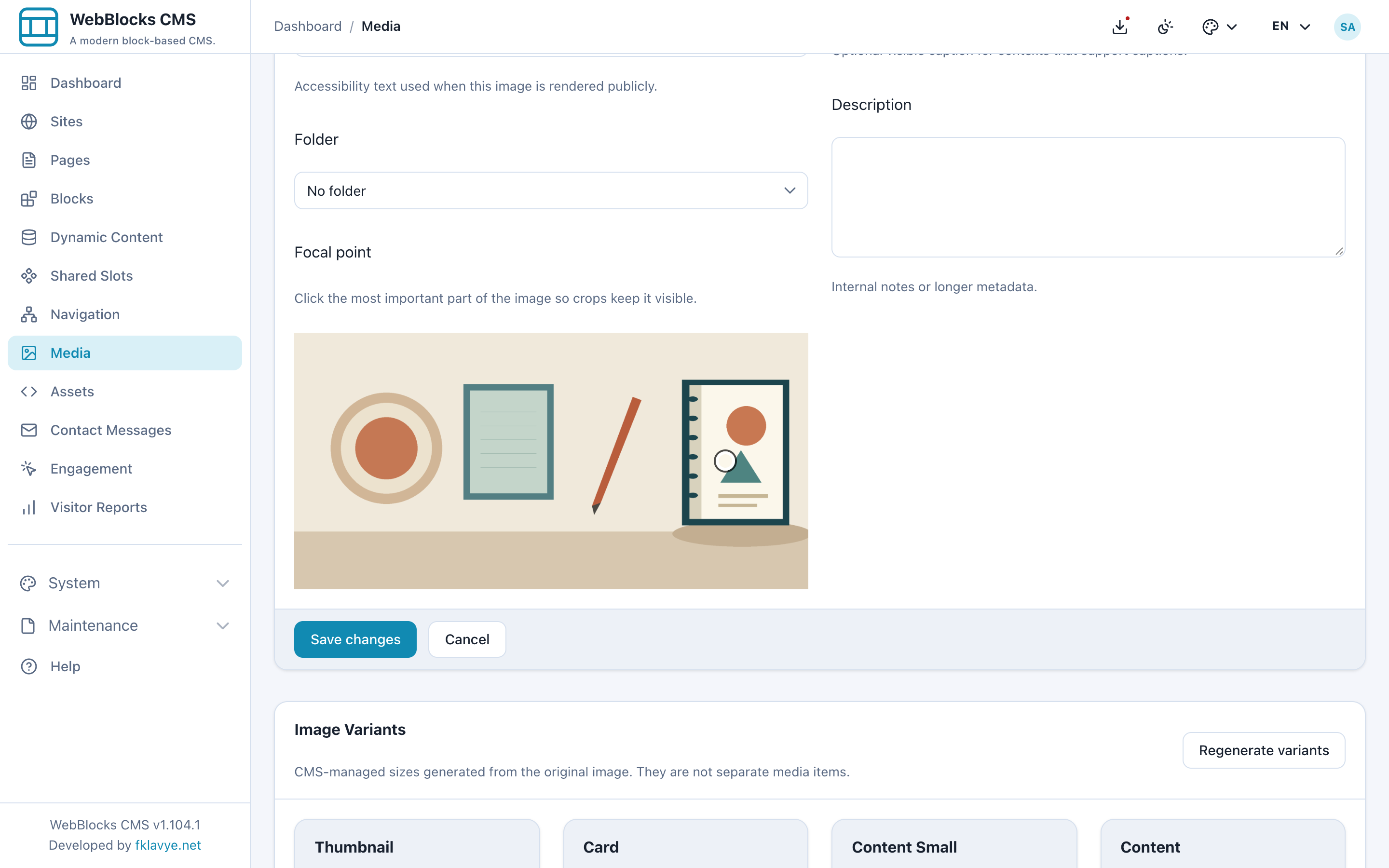
Use Regenerate variants to rebuild and inspect the system previews. Here, the Thumbnail and Card crops now retain the notebook. The original file remains intact. Contain variants keep the original aspect ratio, so moving the point does not zoom the ordinary Image block into the notebook.
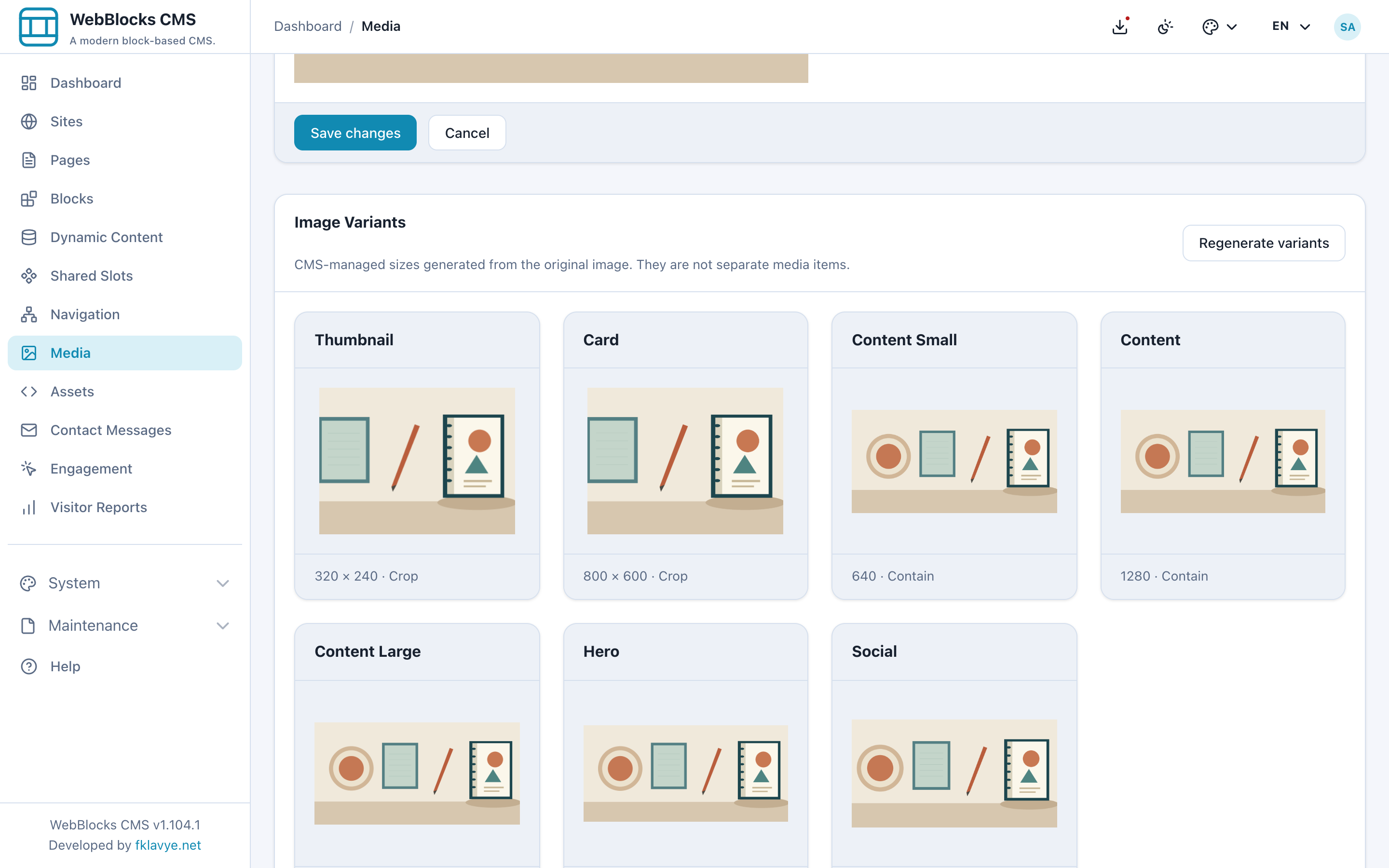
The variant sizes are defined by the CMS. This screen lets an editor inspect and regenerate them; it does not offer custom dimensions for each project. Review the Social preview too: page or site social images use the social crop for Open Graph and Twitter metadata.
Choose a closer mobile composition when needed
The page's Image block uses Workshop table landscape as its default Media Asset and Workshop notebook detail as its Mobile Image. The second selection is an editorial choice, independent of the generated variants.
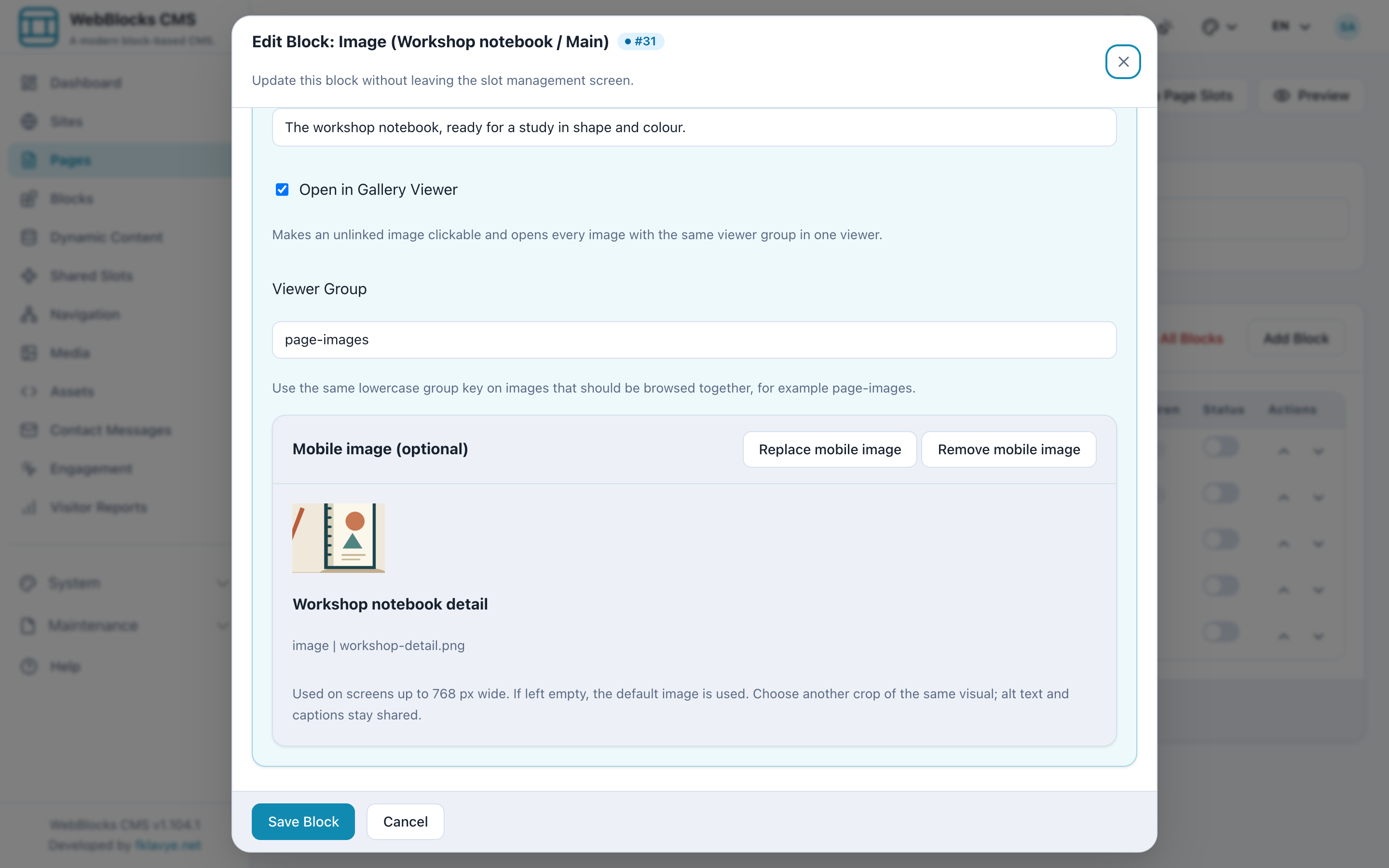
At widths up to 768 pixels, the renderer selects the mobile image. Wider screens keep the default. If the mobile selection is missing, private or deleted, the default image is the fallback. The Image block also supplies responsive image candidates, but choosing a smaller candidate is different from selecting this alternative composition.
Compare what the visitor sees
The desktop preview shows the full table. The mobile preview brings the notebook forward without requiring the visitor to pick it out of a much wider scene.
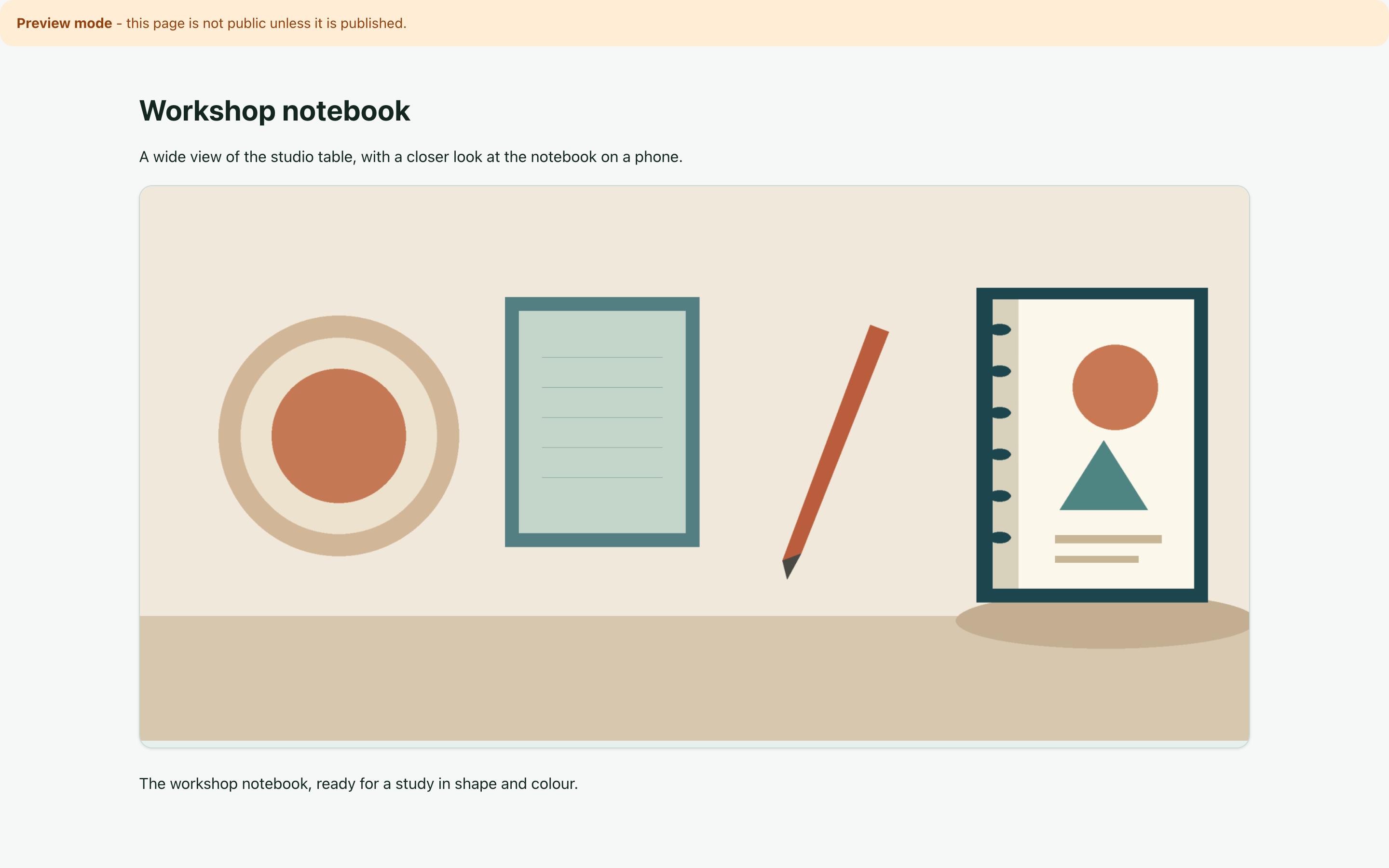
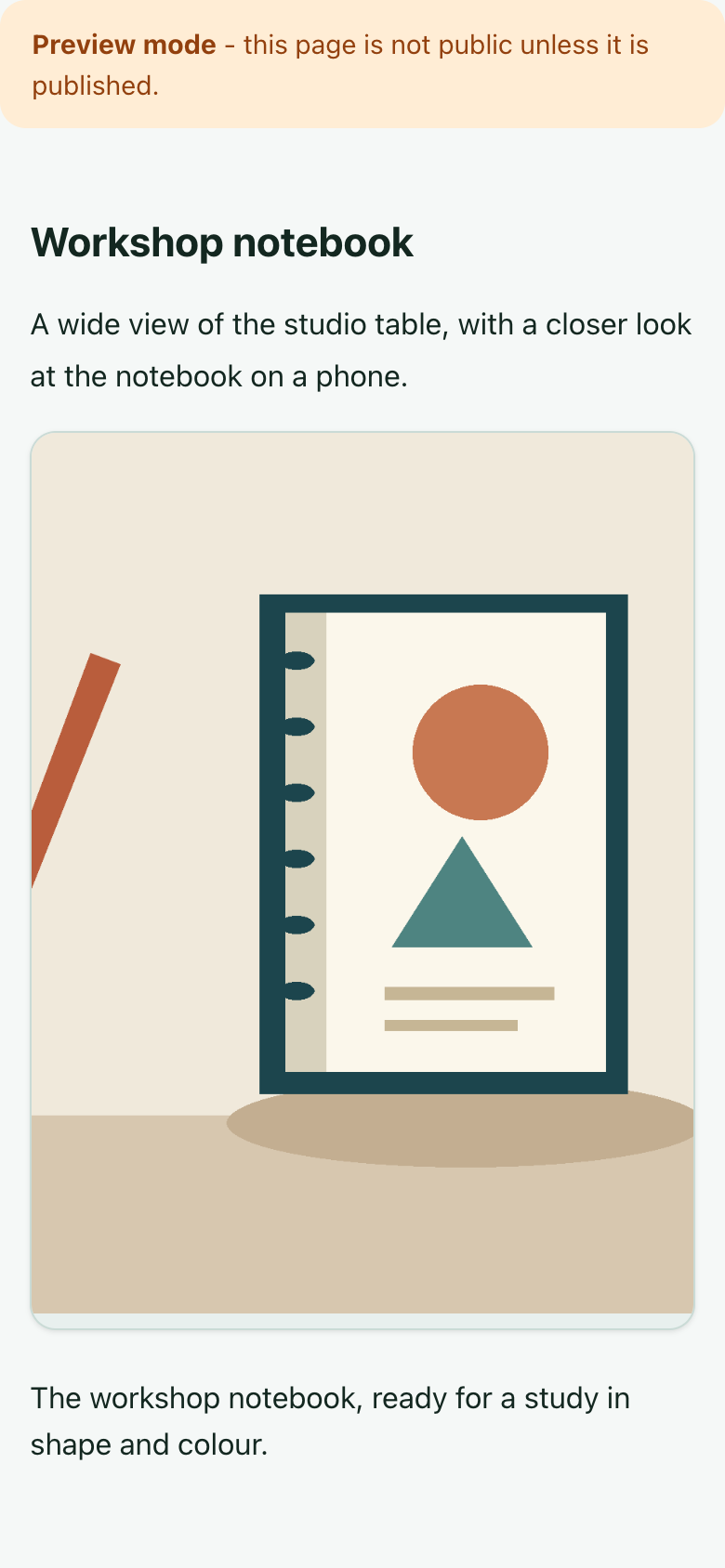
Both images use the same block alt text and caption. In this example, “An illustrated workshop notebook with a terracotta circle and a green triangle” describes the subject in both views. Alt text and captions can be translated per language, but the default and mobile selections stay shared across languages. Choose related compositions that still agree with those descriptions.
There are two final checks outside the narrow-screen image itself. The Image block's Gallery Viewer still opens the default full-resolution image. And a block's Mobile Image does not choose the page's social image: select and review the page or site image used for sharing separately. The CMS's Social variant preview shows its generated crop; an external service's final card is still worth checking when you share the link.
For the underlying behavior, see Media Image Variants. Add An Image walks through the block fields. When the images are part of a live-page update, use the published-page review workflow.
Was this article useful?
Rate it or share a suggestion below.
Comments and suggestions
Comments are reviewed before they appear.
Comments
0No approved comments yet.
Leave a comment