WebBlocks CMSDocsGuidesGuidesExamplesBlogsBrandPlugins
WebBlocks Commerce

Six ways to sell from your website

Add a product to a page, let shoppers build a cart, and see how an order appears in WebBlocks CMS. Try six examples for small shops and independent makers.

These examples use fictional products, prices, and orders. Try them without entering personal information or making a payment.

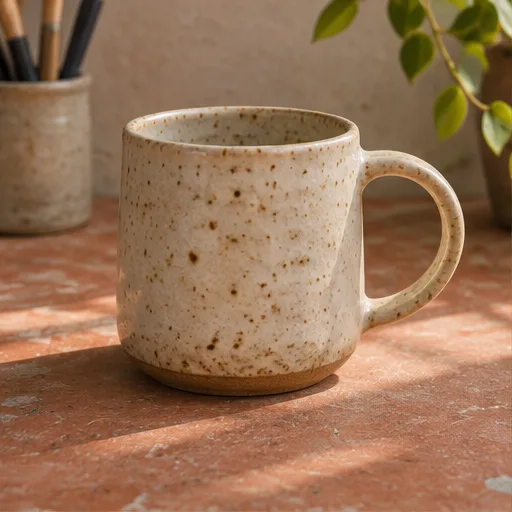
A cream-speckled handmade mug on a terracotta surface.

Ceramics studio

Sell a handmade mug from its own page

Put a buy button under the photos and glaze details on your mug’s product page. Shoppers can add it to their cart while reading about how it was made.

In WebBlocks CMS
Create the mug under Commerce → Products, then place a Commerce Buy Button on the page and select that product. Set the price on the Commerce product record.

A muted blue hardback book and a woven bookmark on oak.

Independent bookshop

Put a book and a bookmark in one cart

Feature a field guide and a matching bookmark on your staff-picks page. Give each item its own Add to cart button so shoppers can choose either or both.

In WebBlocks CMS
Create two products in the same currency and place one Commerce Buy Button per product. The cart shows each product on its own line.

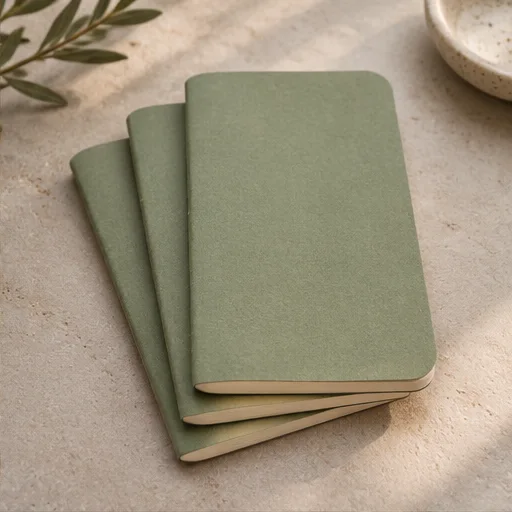
A stack of sage-green pocket notebooks on a pale desk.

Stationery shop

Let shoppers change quantities in the cart

Sell pocket notebooks by the unit. A shopper buying one for each member of a team can adjust the quantity in the cart and check the new total.

In WebBlocks CMS
Use one product record for the notebook. Commerce combines repeated additions of that product into one cart line and recalculates the line total when the quantity changes.

A framed rust-and-navy abstract print propped against a studio wall.

Print studio

Track how many prints are available

Use tracked stock for a small print run. Try changing the cart quantity and then see what happens to available stock when checkout starts.

In WebBlocks CMS
Set the available quantity on the Commerce product. Commerce checks availability and reserves tracked units when checkout starts. A pending order can hold that reservation until it expires.

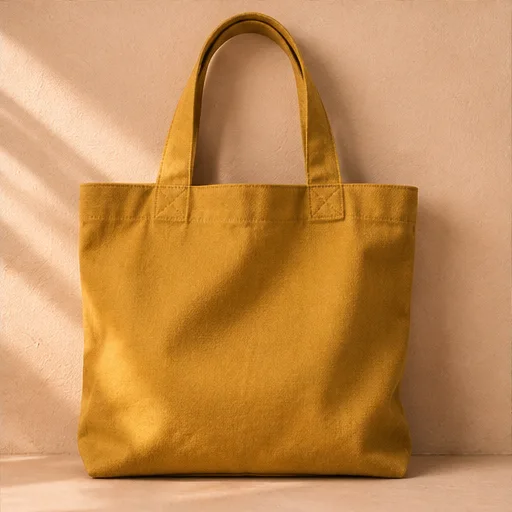
A mustard canvas tote with handles on an apricot backdrop.

Gift shop

Offer a discount on one item in the cart

Share a product-specific code with customers for a canvas tote. Try it on a cart with two totes and see how it changes the total.

In WebBlocks CMS
Create a single-use fixed discount on the tote under Commerce → Products. Invite the shopper to enter the code in the cart. One eligible unit receives the discount.

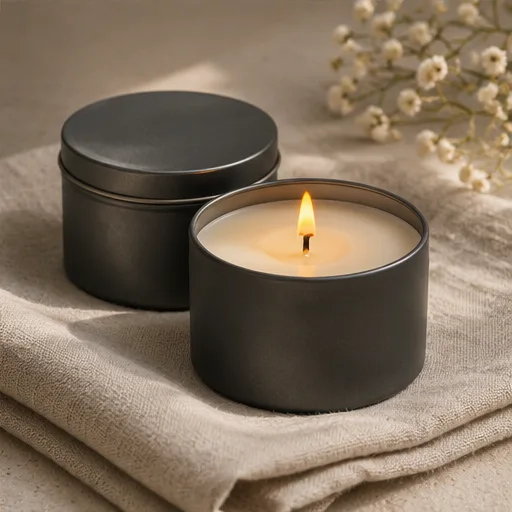
A charcoal candle tin on folded linen.

Independent maker

Follow a test order from checkout to the CMS

Before opening your shop, use a test installation to check what a shopper sees at checkout and what you receive in the order record. This example uses a cart with two candles and a fictional delivery address.

In WebBlocks CMS
Select Test order (no payment) in Commerce Settings on your test installation. After completing checkout, open Commerce → Orders to see the Pending order, its line items, and its contact and delivery details.