WebBlocks CMSFeaturesDocsGuidesGuidesExamplesBlogsBrandPlugins
Campaigns in Action

Six ways to run an email campaign

Collect confirmed newsletter subscriptions, choose who should receive an announcement, and check what happened after sending. These examples show what a visitor sees and what your team can verify in WebBlocks CMS.

The contacts, email previews, and sending results are fictional. The examples run in your browser.

An exhibition leaflet and ticket stubs on a table beside a gallery.

Local museum

Ask readers to confirm their museum newsletter signup

An exhibition page invites visitors to sign up for Gallery notes. The newsletter list gains a subscriber after the visitor confirms through the email they receive.

Confirm a signup

Submit sample signup
Visitor page

Almost done

The visitor is asked to check their email for the confirmation link.

Gallery notes

Signup pending

The address joins the newsletter list after confirmation.

  • Confirmed subscribers added 0
Open confirmation link
Visitor page

Confirm your subscription

The confirmation page asks the reader to choose Yes, confirm my subscription.

Gallery notes

Signup pending

The list is still waiting for the confirmation action.

  • Confirmed subscribers added 0
Confirm subscription
Visitor page

Subscription confirmed

The reader sees a successful confirmation.

Gallery notes

Subscriber added

Campaigns records explicit consent and adds the contact to Gallery notes.

  • Confirmed subscribers added 1

In WebBlocks CMS
Add a Newsletter Sign-up block to the page. Choose Gallery notes as the destination list and write the consent wording visitors will see. Use a controlled mailbox to test signup and confirmation.

Blank cards and a pencil on an allotment workbench beside seedlings.

Community allotment

Check which contacts a CSV adds to a list

A garden group moves an existing, opted-in mailing list into Campaigns. Checking the mapping and import totals helps the organizer catch a duplicate and an invalid address.

Review a CSV import

Review mappings
CSV mapping

Four sample rows

The file includes two valid addresses, one duplicate and one invalid address.

  • email Email address
  • first_name First name
  • plot Custom field
Campaigns contacts

Preview only

Review the mapping and destination list before committing the import.

  • Contacts created 0
View sample import result
CSV mapping

Four rows processed

This sample uses the Allotment updates list and explicitly opted-in contacts.

Campaigns contacts

Import complete

The duplicate and invalid sample rows were skipped.

  • Contacts created 2
  • Rows skipped 2

In WebBlocks CMS
Open Campaigns → Contacts → Import. Select the list and record the consent basis and wording that actually applied. Review the address, name and custom-field mappings before choosing Import.

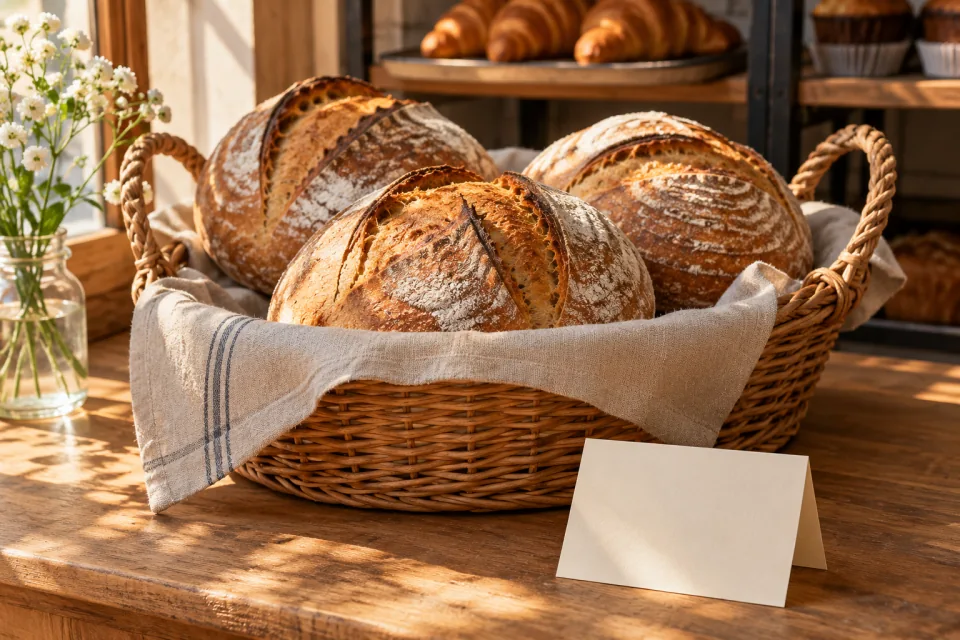
A wicker basket of sourdough loaves and a folded note on a bakery counter.

Neighborhood bakery

Preview a greeting with and without a first name

A bakery uses the same template for its Saturday bread note. A fallback keeps the greeting readable when a subscriber has only shared an email address.

Preview a template

First name is Maya
Template

Saturday bread note

The first-name field is available in the sample contact.

Hello {{ first_name | reader }},

Merged preview

Hello Maya,

Our sesame sourdough will be out of the oven at 9 on Saturday.

First name is blank
Template

Saturday bread note

The same template uses the fallback when the sample contact has no first name.

Hello {{ first_name | reader }},

Merged preview

Hello reader,

Our sesame sourdough will be out of the oven at 9 on Saturday.

In WebBlocks CMS
In Campaigns → Templates, put the fallback in the merge field. Preview the subject, HTML source and separately authored plain-text body. Use Send test with a controlled inbox to review how the template renders in an email client.

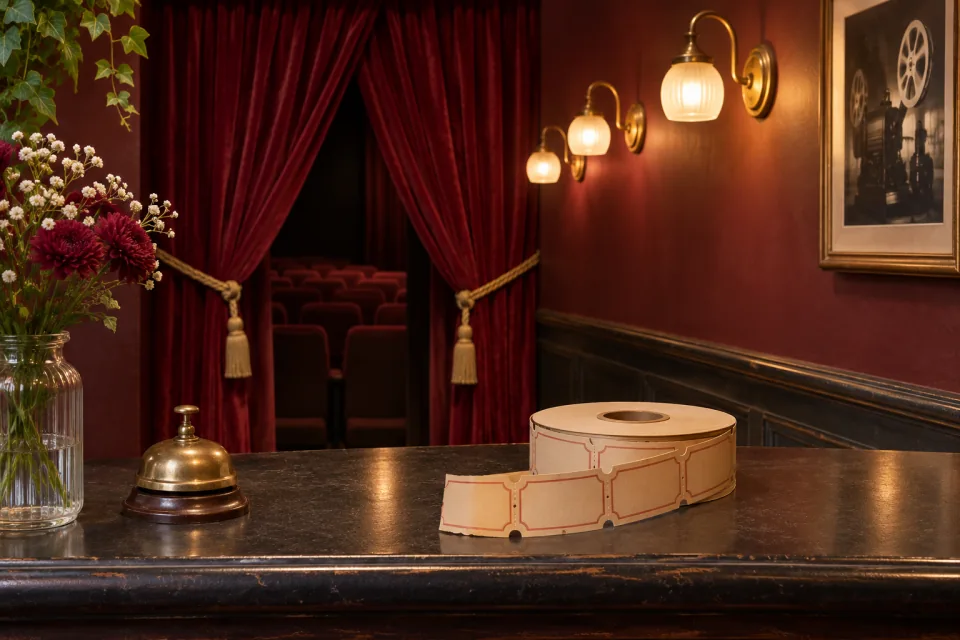
A roll of tickets on a cinema counter beside a red velvet curtain.

Independent cinema

Queue a screening announcement for a specific list

The cinema has a broader contact list, but this announcement is for people who signed up for classic film news. Choosing that list keeps the campaign focused.

Choose an audience

Review the draft
Campaign draft

Sunday classics screening

Review the template, audience and channel before queueing.

  • Audience Classic film news
  • Channel Commercial
Recipient log

Draft

The campaign has no pending recipient rows yet.

  • Pending 0
  • Sent 0
Queue the sample audience
Campaign draft

Audience checked

Two contacts on the selected list have eligible marketing consent and no suppression.

Recipient log

Queued

The selected audience is waiting for a dispatch run.

  • Pending 2
  • Sent 0

In WebBlocks CMS
Open Campaigns → Add campaign, choose the template, select Classic film news, and choose the Commercial channel. Queue for sending creates pending recipient rows for eligible contacts. Dispatch processes them separately.

A canvas tote, a plain envelope and blue yarn on a weaving studio table.

Weaving studio

Honor an unsubscribe after the next campaign is queued

A subscriber uses an unsubscribe link from a previous workshop email while a new campaign is queued. Campaigns checks the address again when it reaches dispatch.

Handle an unsubscribe

Open the old email link
Subscriber page

Confirm unsubscribe

The page asks the reader to choose Unsubscribe me.

New campaign log

Pending

The new workshop email is still in the queue.

Confirm unsubscribe
Subscriber page

Unsubscribed

The reader sees that the unsubscribe was confirmed.

New campaign log

Pending

Campaigns records the marketing consent withdrawal and an address suppression. The queued row will be checked during dispatch.

Run simulated dispatch
Subscriber page

Unsubscribe recorded

The reader remains unsubscribed from the studio’s campaign mail.

New campaign log

Skipped

The dispatch check sees the suppression and leaves this address out of the send.

In WebBlocks CMS
Include the recipient-specific unsubscribe link in your commercial template. Check the Suppressed register and the campaign sending log to verify what happened after a reader confirms an unsubscribe.

Fresh geometric prints, an ink roller and a kraft envelope on a print studio table.

Print studio

Retry a temporary failure after checking the reason

One copy of a new print announcement was accepted by the mail transport. A second address had a temporary failure and a third was skipped because it was suppressed.

Read the sending log

Inspect the first results
Sending log

Three recipients handled

The configured transport accepted one message. One attempt failed and one address was skipped.

  • Sent 1
  • Failed 1
  • Skipped 1
What to check

Temporary mailbox failure

Check the reason before retrying. The suppressed row remains skipped.

Queue the failed row again
Sending log

One retry pending

The original failed row returns to Pending.

  • Sent 1
  • Pending 1
  • Skipped 1
What to check

Ready for another dispatch

This example assumes the temporary cause has been resolved.

View the simulated retry result
Sending log

Two messages accepted by transport

The retry succeeded in this simulation. Inbox receipt is a separate check.

  • Sent 2
  • Failed 0
  • Skipped 1
What to check

Same recipient row

The temporary failure remains part of the delivery history.

In WebBlocks CMS
Open the campaign’s sending log and inspect the failure reason. Resolve the cause before retrying failed recipients. Dispatch rechecks consent and suppression when it processes the returned pending row.