Managing cookie choices and external content in WebBlocks CMS
A visitor opens a Northstar Studio page with an embedded video. Reading the page should not silently mean allowing the video provider to load. The visitor may want to watch one item, allow that service for later visits, or leave optional services off.
WebBlocks CMS 1.107 adds a site-specific Cookies and Privacy workspace. General settings, service definitions and translated visitor text are separate sections. This walkthrough uses the published 1.107.2 interface and fictional showcase content.
Start with the correct site
Open Cookies and Privacy → General Settings and select the site before editing. Northstar Studio's example remembers choices for 180 days and places the notice at the bottom. These are this example's settings; review the values on your own installation.
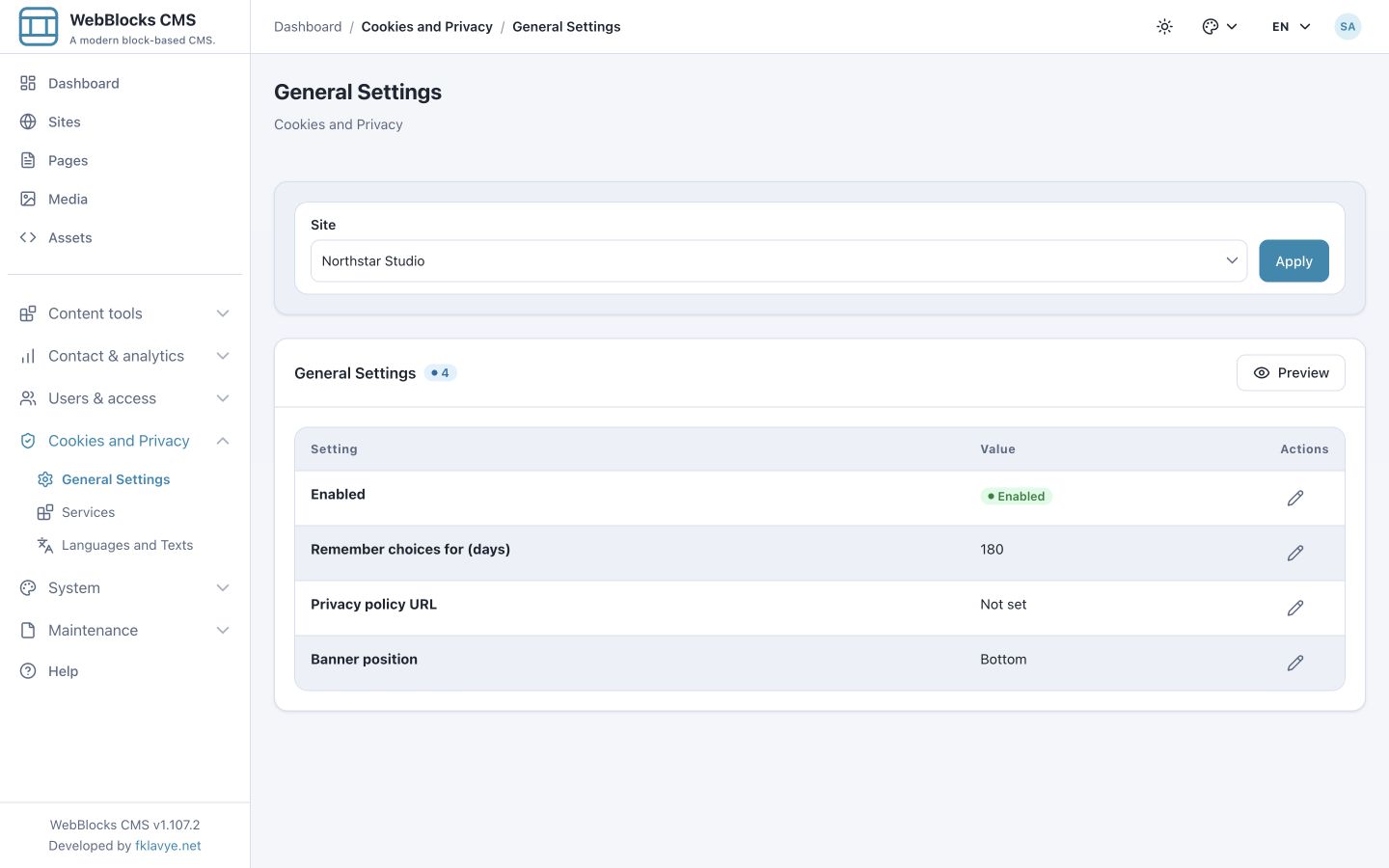
The list separates the enabled state, choice lifetime, privacy-policy URL and banner position. Each row opens its own editor, so changing placement does not require rewriting the rest. Supply an appropriate public privacy-policy address when configuring a real site; the synthetic example deliberately leaves it unset.
Disabling the consent interface does not grant permission to external services. Managed external embeds remain blocked. This matters when troubleshooting a video that no longer loads after a configuration change.
Review services that are actually in use
The Services list includes ready-made CMS visitor measurement, YouTube, Google Maps and Vimeo definitions. Enabled and In use answer different questions: the example uses CMS measurement and YouTube, while Maps and Vimeo are available but absent from its published content.
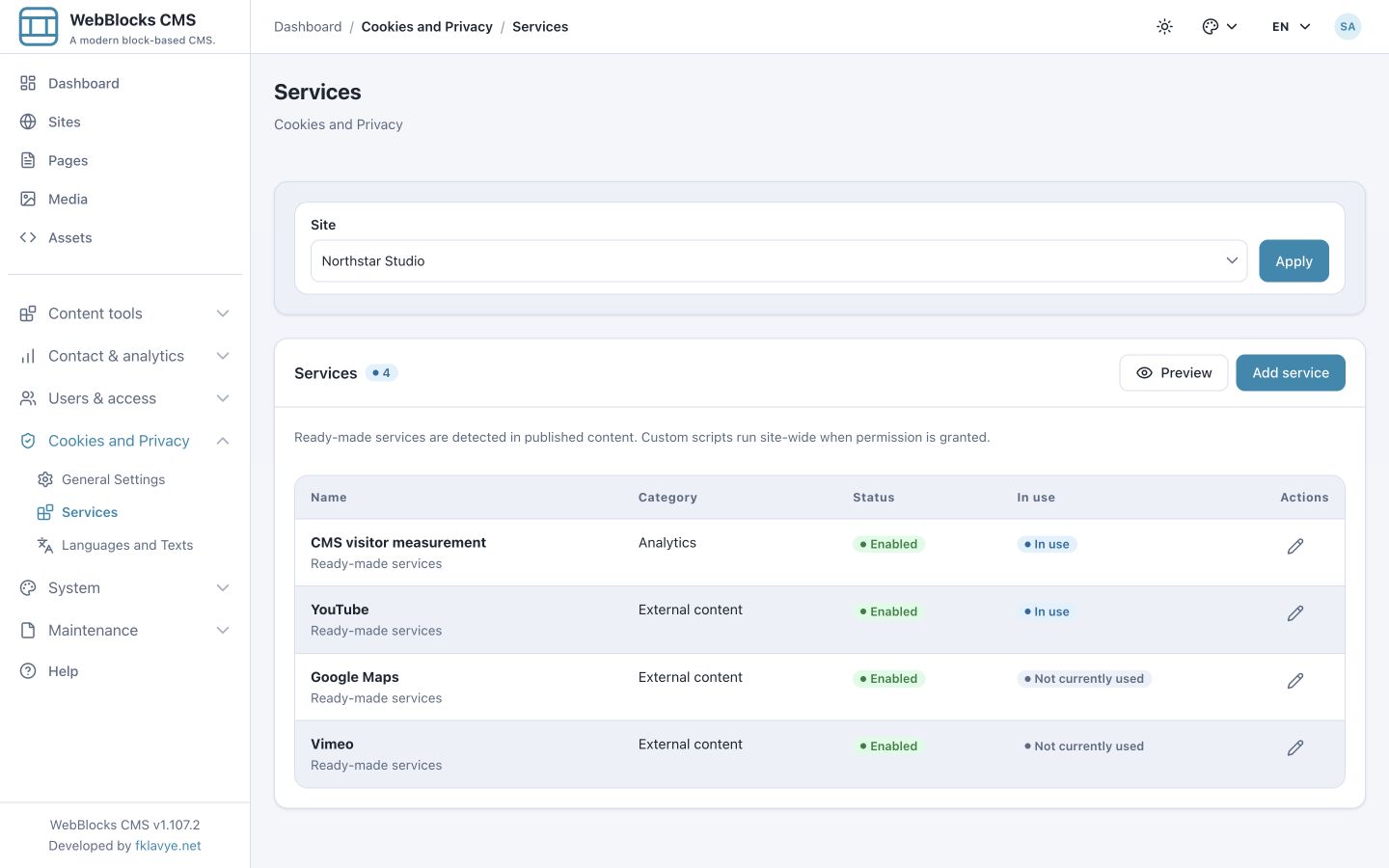
Ready-made external services are detected from compatible published content. A draft alone does not activate a provider on the public site. Review a service's category, name, description and any declared cookies before presenting it to visitors.
Custom services can use an approved external script and run site-wide after permission. That makes their configuration a technical integration decision. The CMS does not automatically discover every third-party script or prevent unrelated host code from loading its own integrations.
Translate the notice as a complete message
Open Languages and Texts, select the site and language, then edit the Notice row. Its title and body appear together in one native modal. The preference-window title and body have their own row; each service also has a name and description pair.
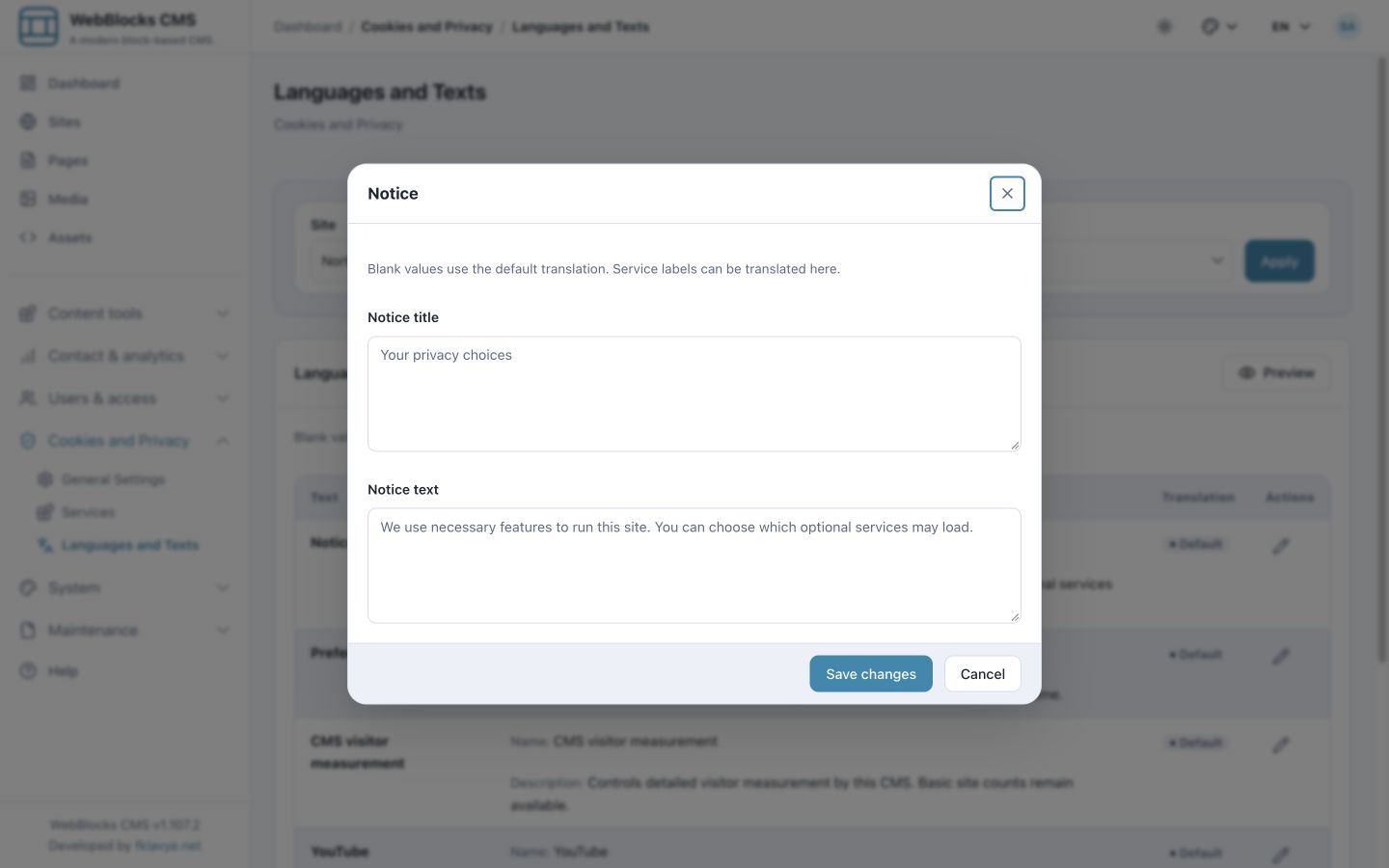
The list distinguishes default, partly customized and customized text. Blank fields use the configured fallback. A page being available in German or Turkish does not prove that its privacy text has been reviewed in that language: inspect the actual notice, service descriptions and policy destination.
Give a visitor a specific choice
Before permission, the showcase video renders a placeholder with Load this content, Always allow YouTube and Cookie settings. Loading one item is different from remembering permission for a service. The preference window separately lists necessary features, CMS measurement and the YouTube service used on this page.
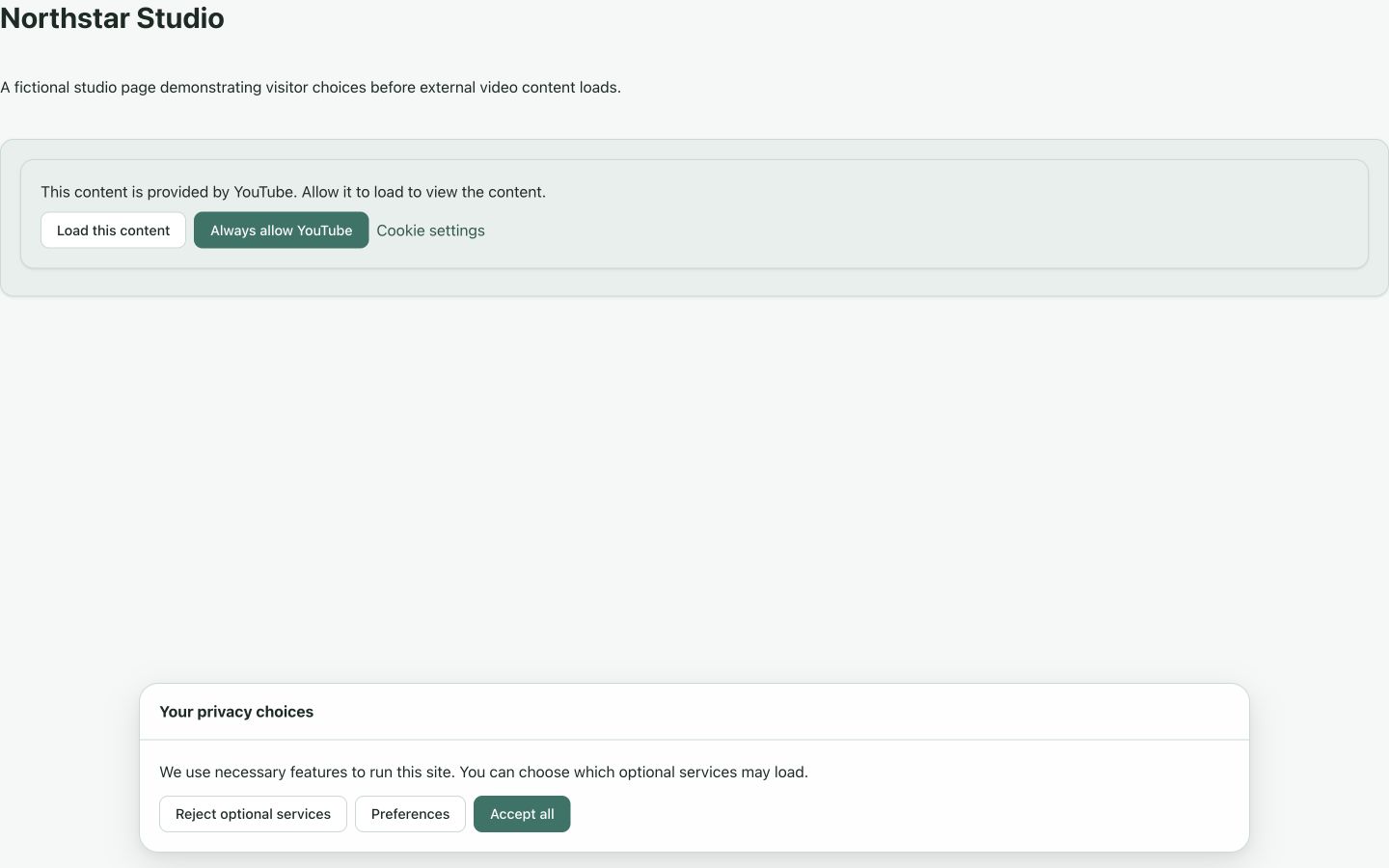
Necessary features remain on. Optional service choices can be reviewed and saved, all optional services rejected, or all available optional services accepted. A remembered decision belongs to the site; changing a service's executable source or permission category invalidates its previous grant rather than silently extending it to the changed service.
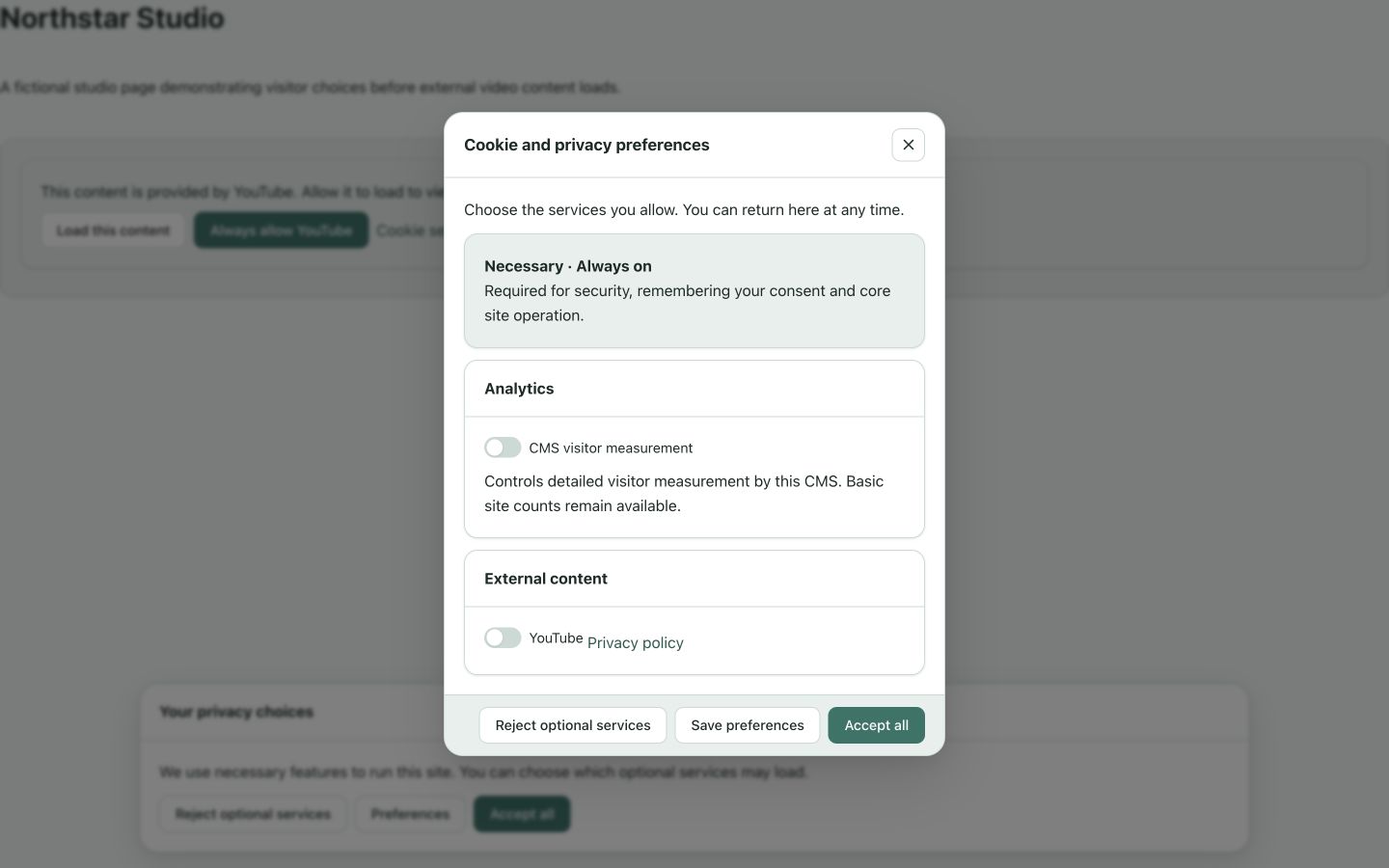
In the disposable example, rejecting optional services leaves the YouTube iframe absent. After refreshing, the placeholder and Cookie settings link remain available. No provider content was loaded for these screenshots. The controls show the two loading choices; this walkthrough does not claim that an external provider delivered a playable video.
Check the complete public journey
Preview the notice, then test a fresh public visit, rejection, an individual preference and reopening settings after refresh. Review each enabled language and the narrower mobile layout. If a provider is still loading before a decision, inspect the host integration as well as the CMS block.
The useful result for Northstar is a clear link between the visitor's choice and the service being requested. The workspace supplies those controls; the site owner still needs accurate descriptions and an inventory of the integrations their website actually uses.
Was this article useful?
Rate it or share a suggestion below.
Comments and suggestions
Comments are reviewed before they appear.
Comments
0No approved comments yet.
Leave a comment